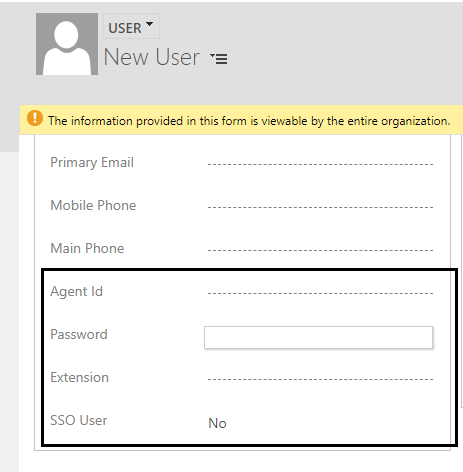
Customize the user entity to configure Single sign-on (SSO) with MS CRM. It allows a configured CRM user to be logged in as a contact center agent upon login to MS CRM.
Follow these steps to customize the user entity.
For MS Online (CIF), first, you need to go to Setting→ Advanced Settings. After that follow the rest of the steps mentioned below. For an On-Premise environment, you can ignore this step.
-
Go to setting→ security→ users
-
Load customize entity page as shown below
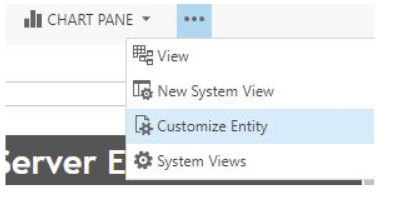
-
Select fields and click on new to create new field
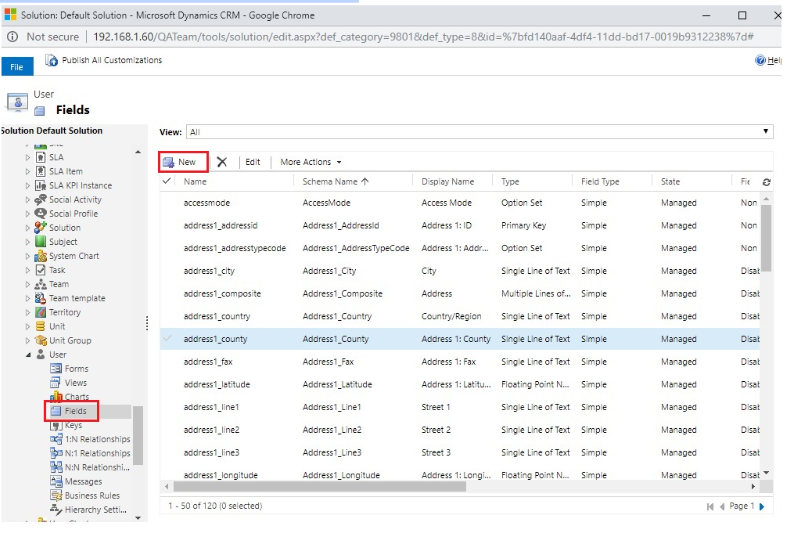
-
In display name enter “Agent Id” and click on save & close
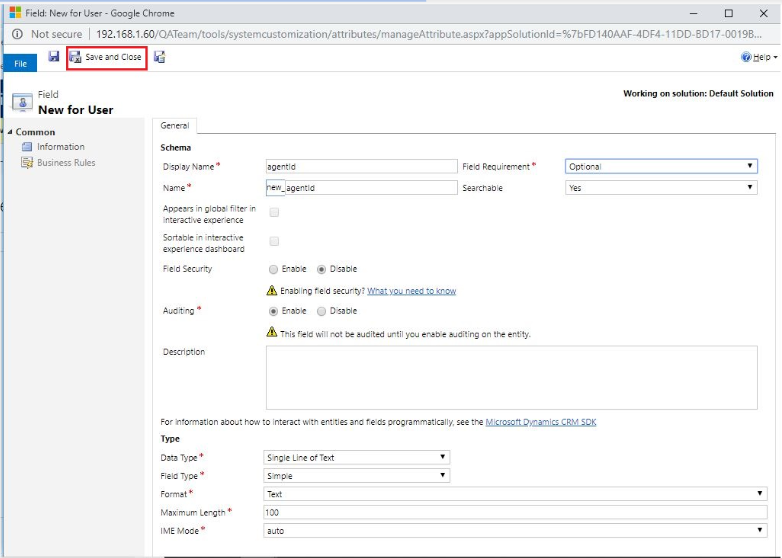
-
Repeat the same process to add “Password,Extension” and “SSO Agent” fields.
-
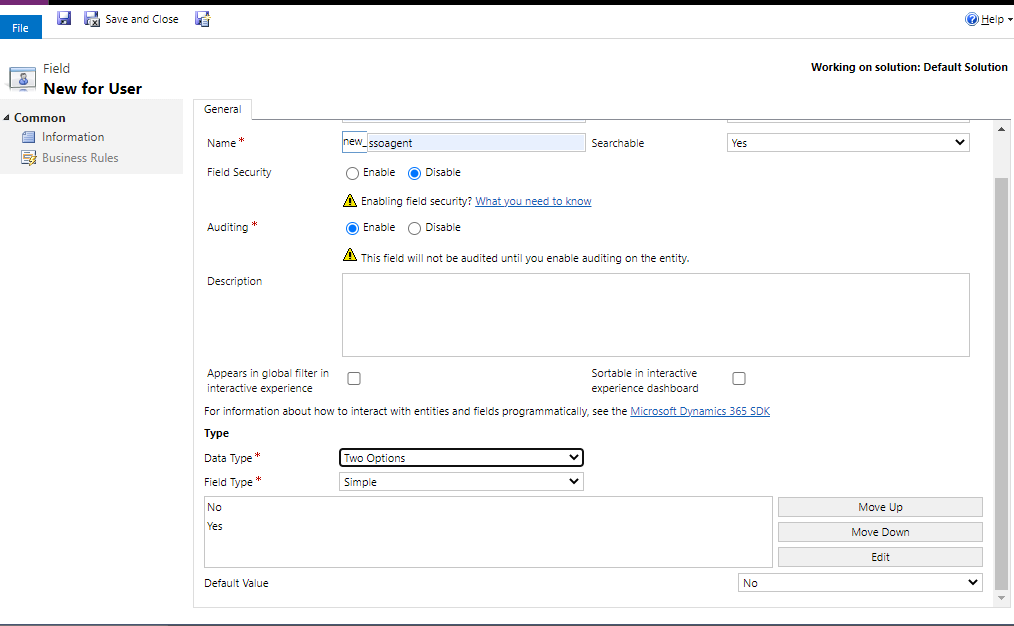
For SSO Agent chose Data Type as "Two Options".
-
-
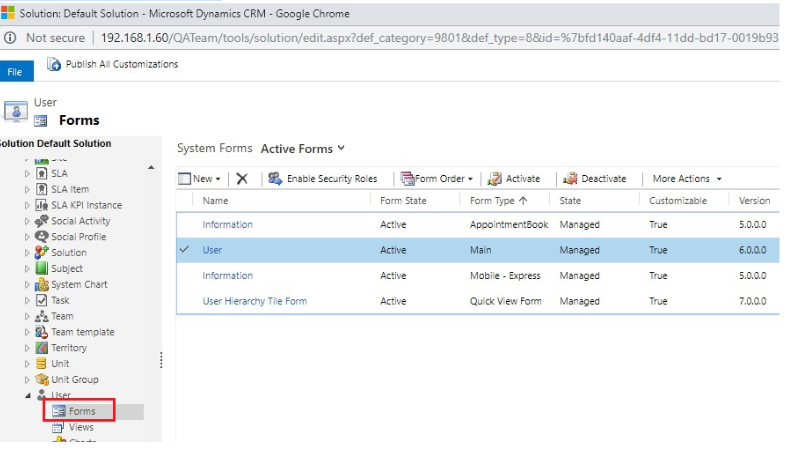
Now open main form window.
-
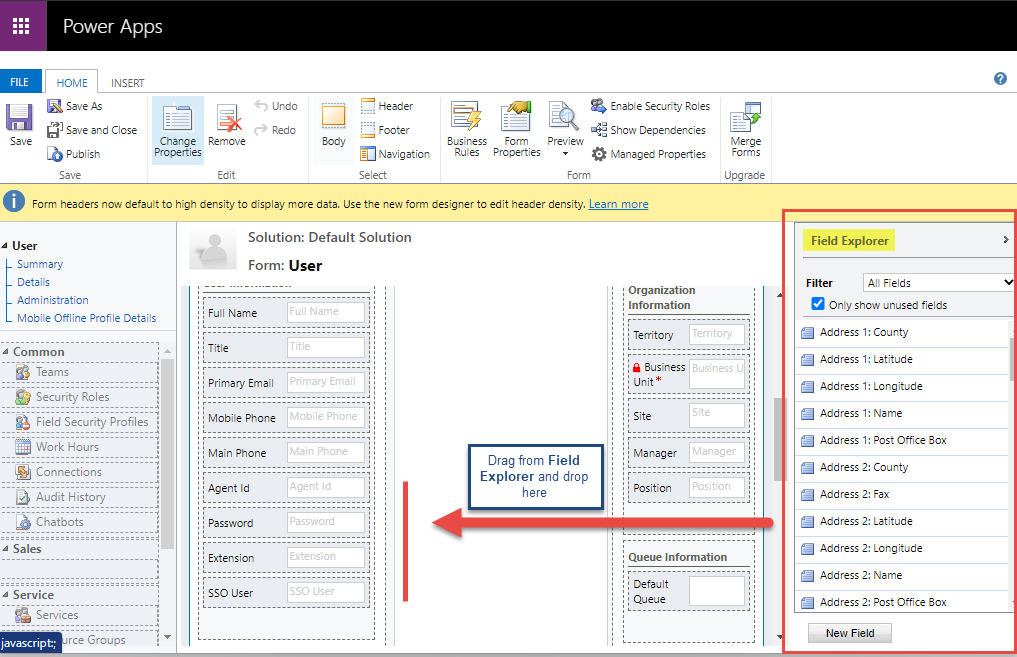
Add the fields in the user information area from the field explorer, click on save to save the form and then publish it.
-
-
Go to settings→ users→ New.
-
The form should contain all the new fields as shown below.