
(3.4.2.02.1) Deployment Guide
Prerequisites
-
Follow this guide to install Generic Connector.
-
The guide mentions in step 1 has a pre requisit of installing java 8. But instead of java 8 install java 11.
Deployment / Upgrade Steps
Step 1 — Download the Generic Connector JAR
Download the Generic Connector JAR: Download generic-connector.jar
Step 2 — Stop the Connector
-
Stop the running Generic Connector service from the EF Service Manager.
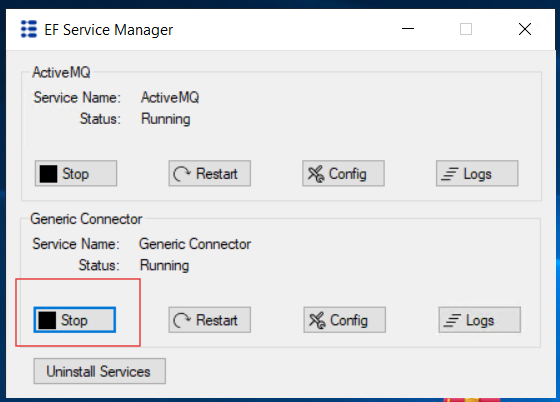
Confirm that the connector service has stopped before continuing.
Step 3 — Replace the JAR File
-
Now go to the gc connector service folder, most of the case following is the path:
C:\Program Files\Generic Connector\connector -
On the path mentioned in step 1m replace the downloaded
generic-connectorjar.
Step 4 — Start the Connector
-
Start the Generic Connector service again from the EF Service Manager.
-
Verify that the connector starts successfully and check the logs for any errors.
Troubleshooting
Connector Fails to Start — Java Path Not Configured
If the connector fails to start, the service may not be pointing to the correct Java 11 installation. Follow these steps:
-
Edit
wrapper.conffile on the following pathC:\Program Files\Generic Connector\connector\wrapper.conf -
Open the configuration file in a text editor eg note pad and set the value of
wrapper.java.commandto the exact java 11 path as follows. -
# Java Application wrapper.java.command=C:\Program Files\Java\jdk-11.0.17\bin\java.exe -
Update the value so it points to the Java 11 installation path.
-
Save the configuration file.
-
Start the Generic Connector service again.
To find the Java installation path, run where java or java -version in Command Prompt.