
Solution Prerequisites
Following are the solution setup prerequisites.
Software requirements
|
|
Minimum requirement |
|---|---|
|
OS |
Red Hat 8,9, Centos 7, 8, Debian 9,10,11 |
|
MSSQLServer |
2016,17 |
|
Docker CE |
20+ |
|
Docker compose |
2.15.1 |
Hardware requirements
|
|
Minimum requirement |
|---|---|
|
CPU |
4 cores |
|
RAM |
4 GB |
|
Disk |
300 GB |
|
NICs |
1 NIC per VM |
On this page
Installation Steps
-
Install Docker and Docker Compose on the host operating system.
-
Download the deployment script deployment.sh and place it in the user home or any desired directory. This script will:
-
delete the pcs-deployment directory if it exists.
-
-
To execute the script, give it the execute permissions and execute it.
Bash$ chmod 755 pcs-deployment.sh $ ./pcs-deployment.sh -
Run this command
$ git checkout 13.3 -
pcs-deployment directory has all the files required deployment
-
Create a database in MSSQL Server for PCS application.
-
Update following environment variables in config.env file inside the pcs-deployment folder.
|
Name |
Description |
|---|---|
|
API_URL |
Backend API URL,
|
|
CISCO_TYPE |
UCCE or UCCX |
|
UCCX_FQDN |
UCCX FQDN, only required for UCCX CCX IP or FQDN |
|
UCCX_USER |
CCX Admin username |
|
UCCX_PASSWORD |
CCX Admin user password |
-
For SQL Server authentication to PCS database, use these variables
|
Name |
Description |
|---|---|
|
PCS_DB_AUTH_TYPE |
SQL |
|
DB_URL |
PCS database URL,
|
|
DB_USER |
PCS database username |
|
DB_PASSWORD |
PCS database password |
|
UCCE_DB_UR |
UCCE database URL, only required for UCCE
|
|
UCCE_DB_USER |
UCCE database user, only required for UCCE |
|
UCCE_DB_PASSWORD |
UCCE database password, only required for UCCE |
-
For Windows authentication to SQL Server,
-
Active Directory Domain: Running Windows Server with Active Directory Domain Services
-
SQL Server: Configured to accept Windows authentication
-
Network Access: Container must reach Domain Controllers on ports:
-
88 (Kerberos)
-
389 (LDAP)
-
464 (Kerberos password change)
-
-
Time Synchronization: Critical! All systems (container, AD, SQL Server) must be synchronized within 5 minutes
-
Once these are available, update following variables
|
PCS database username |
PCS database username |
|---|---|
|
PCS_DB_AUTH_TYPE |
WINDOWS |
|
PCS_DB_SERVER |
SQL Server FQDN
|
|
PCS_DB_PORT |
1433 |
|
PCS_DB_NAME |
PCS database name |
|
KERBEROS_REALM |
Kerberos realm (UCCE.IPCC) |
|
KERBEROS_KDC |
Kerberos KDC (DCUCCE.UCCE.IPCC) |
|
KERBEROS_DOMAIN |
Kerberos domain name (UCCE.IPCC) |
|
PCS_KERBEROS_PRINCIPAL |
The Kerberos principal that has access to PCS database (MSSQLSvc/win19-std.ucce.ipcc:1433@UCCE.IPCC) |
|
PCS_KERBEROS_KEYTAB |
Path to Keytab file, this should be the internal container path. The keytab file should be mounted to container via docker-compose
|
|
KERBEROS_DEBUG |
false, set it to true to enable Kerberos logging |
|
UCCE_DB_AUTH_TYPE |
WINDOWS (Set this to SQL is UCCE is going to be accessed via SQL Authentication
|
|
UCCE_DB_SERVER |
UCCE database FQDN |
|
UCCE_DB_PORT |
UCCE database port |
|
UCCE_DB_NAME |
UCCE awdb name, |
-
Execute following commands to allow specific ports exposed in docker-compose.
$ firewall-cmd --zone=public --permanent --add-port=443/tcp

 $ firewall-cmd --reload
-
Default self signed SSL certificates are provided with build. If it needs to be changed with domain signed certificate then replace server.crt(SSL certificate) and server.key (SSL key) in /root/pcs-deployment/docker/certificates folder.
-
Having environment configurations done, navigate to to the
pcs-deploymentdirectory and execute following commands:Bash$ chmod 755 install.sh $ ./install.sh
-
Update the following variables in pcs-deployment/docker/config.env
|
Name |
Description |
|---|---|
|
KEYCLOAK_REALM_NAME |
Keyclaok realm created in step 10 |
|
KEYCLOAK_CLIENT_ID |
Keyclaok client id created in step 10 |
|
KEYCLOAK_CLIENT_SECRET |
Keyclaok client secret created in step 10 |
|
KEY_CLOAK_ADMIN |
Keycloak admin user’s username |
|
KEY_CLOAK_ADMIN_PASSWORD |
Keycloak admin user’s password |
-
Run ./install.sh again,
-
Run the following command to ensure that all the components are up and running:
docker psHere is the docker pc output

-
If everything goes well, you should be able to access the application on https://FQDN
-
If deployment for UCCX access link https://FQDN/#/configuration-setting and select Cisco Survey Type = UCCX
-
Once the application is up and running, configure the PCS CUIC Reports.
-
For callback surveys, uncomment following block in docker-compose file. Create a database in sql server for this server.
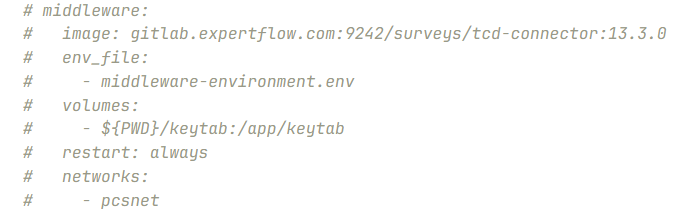
-
Update environment variables in middleware-environment.env file inside pcs-deployment/docker folder.
|
Name |
Description |
|---|---|
|
server.port |
8343, do not change it |
|
http.port |
7272, do not change it |
|
pcs.getActiveSurveys |
/active-surveys, do not change it. |
|
pcs.serverURL |
PCS application URL |
|
PCS_SMS_API_USER |
sms, do not change it. |
|
PCS_SMS_API_KEY |
value of PCS_SMS_API_KEY from PCS config |
|
pcs.survey.type.callback |
2, PCS survey type for callback surveys, do not change it. |
|
pcs.survey.type.standard |
1, PCS survey type for standard surveys, do not change it. |
|
pcs.survey.channel.voice |
0, PCS survey channel for voice, do not change it. |
|
pcs.survey.channel.sms |
1, PCS survey channel for SMS, do not change it. |
|
ecm.serverURL |
ECM URL, |
|
ecm.insertCaller |
/callback/insertCallback, do not change it. |
|
ecm.campaign.callback |
1, ECM campaign Id supposed to be used for callback surveys |
|
ecm.campaign.sms |
2, ECM campaign Id supposed to be used for sms surveys |
|
ecm.callback.prefix.enable |
true or false, if true the ANI is read from the TCD variable set in TCD.PARAM |
|
ecm.retry.max.minutes |
30, number of minutes a callback/SMS keeps being retried (every run, 2 minutes) when ECM is unreachable or busy. After that it is moved to FailedRecord. 0 = no retry, moved to FailedRecord directly. |
|
ecm.retry.http.statuses |
429,502,503,504, ECM HTTP status codes that mean the request was not processed by ECM, so it is safe to send it again. |
|
MY_IP |
local machine IP. In HA, each node must have its own machine IP here (must be different on each node). |
|
IS.HA |
true or false, decides if HA is supported or not for this service. Both nodes must use the same value and the same Proxy database. |
|
ha.lease.ttl.seconds |
240, number of seconds without a leadership renewal before the standby node takes over. Failover time is at most this value + 2 minutes. |
|
TCD.StartFetchingTime |
2019-11-12 10:11:52, initial date time from where to start fetching inbound calls and check for callback surveys. |
|
ecm.campaign.sms.phone.prefixes |
Prefixes of numbers to identify mobile numbes, e.g 77,83,92 |
|
time.zone |
+5, timzone GMT offset |
|
TCD.PARAM |
Variable3, TCD query parameter |
|
pcs.query.limit |
2000, Maximum number of records to fetch per batch |
|
pcs.query.table |
survey_feedback, Table name for survey feedback |
|
pcs.query.columns |
id,agent_name,agent_id,ani,service_dn,service_id,session_id Columns to select from the pcs survey table(comma-separated) |
|
pcs.query.where.condition |
(agent_id='NULL' OR agent_id IS NULL) AND session_id IS NOT NULL , WHERE conditions |
|
pcs.query.order.by |
feedback_time DESC , ORDER BY clause (can be 'feedback_time DESC' for newest first or 'id ASC' for sequential processing) |
|
progressive.processing.enabled |
true or false
|
|
logging.level.root |
Logging level i.e. INFO, DEBUG, WARN etc |
-
For SQL Server authentication or Windows based authenticaion to PCS, Proxy and TCD database used in the callback surveys, use these variables:
|
Name |
Description |
|---|---|
|
PCS_DB_AUTH_TYPE |
SQL or WINDOWS |
|
PCS_DB_SERVER |
PCS SQL Server FQDN
|
|
PCS_DB_PORT=1433 |
PCS Database Port |
|
PCS_DB_NAME |
PCS database name |
|
PCS_DB_USER |
PCS database username (only required for sql server authentication skip if using window based auth) |
|
PCS_DB_PASSWORD |
PCS database password (only required for sql server authentication skip if using window based auth) |
|
PCS_DB_ADDITIONAL_PARAMS |
PCS database connection url additional params, used for both SQL and Windows authentication
For Windows authentication, if the keytab account is not the SQL Server service account, append the SQL Server SPN:
|
|
PCS_KERBEROS_PRINCIPAL |
The Kerberos principal of the account in the keytab file that has access to PCS database (sqlsvc_kerb@UCCE.IPCC). It must match the principal shown by |
|
PCS_KERBEROS_KEYTAB |
Path to Keytab file, this should be the internal container path. The keytab file should be mounted to container via docker-compose
|
|
PROXY_DB_AUTH_TYPE |
SQL or WINDOWS |
|
PROXY_DB_SERVER |
PROXY SQL Server FQDN
|
|
PROXY_DB_PORT=1433 |
PROXY Database Port |
|
PROXY_DB_NAME |
PROXY database name |
|
PROXY_DB_USER |
PROXY database username (only required for sql server authentication skip if using window based auth) |
|
PROXY_DB_PASSWORD |
PROXY database password (only required for sql server authentication skip if using window based auth) |
|
PROXY_DB_ADDITIONAL_PARAMS |
PROXY database connection url additional params, used for both SQL and Windows authentication
For Windows authentication, if the keytab account is not the SQL Server service account, append the SQL Server SPN:
|
|
PROXY_KERBEROS_PRINCIPAL |
The Kerberos principal of the account in the keytab file that has access to PROXY database (sqlsvc_kerb@UCCE.IPCC). It must match the principal shown by |
|
PROXY_KERBEROS_KEYTAB |
Path to Keytab file, this should be the internal container path. The keytab file should be mounted to container via docker-compose
|
|
TCD_DB_AUTH_TYPE |
SQL or WINDOWS |
|
TCD_DB_SERVER |
TCD SQL Server FQDN
|
|
TCD_DB_PORT=1433 |
TCD Database Port |
|
TCD_DB_NAME |
TCD database name |
|
TCD_DB_USER |
TCD database username (only required for sql server authentication skip if using window based auth) |
|
TCD_DB_PASSWORD |
TCD database password (only required for sql server authentication skip if using window based auth) |
|
TCD_DB_ADDITIONAL_PARAMS |
TCD database connection url additional params, used for both SQL and Windows authentication
For Windows authentication, if the keytab account is not the SQL Server service account, append the SQL Server SPN:
|
|
TCD_KERBEROS_PRINCIPAL |
The Kerberos principal of the account in the keytab file that has access to TCD database (sqlsvc_kerb@UCCE.IPCC). It must match the principal shown by |
|
TCD_KERBEROS_KEYTAB |
Path to Keytab file, this should be the internal container path. The keytab file should be mounted to container via docker-compose
|
|
KERBEROS_REALM |
Kerberos realm (UCCE.IPCC) |
|
KERBEROS_KDC |
Kerberos KDC (DCUCCE.UCCE.IPCC) |
|
KERBEROS_DOMAIN |
Kerberos domain name (UCCE.IPCC) |
|
KERBEROS_DEBUG |
false, set it to true to enable Kerberos logging |
-
If upgrading an existing deployment make sure to run the following database scripts to update the Proxy table fields to accomodate new data:
-
For both new and upgraded deployments, run the following new database scripts on the Proxy database before starting the TCD Connector. In HA, both nodes use the same Proxy database, so run them once and upgrade both nodes together.
-
Upgrading from 13.2.1 to 13.3.0 (TCD Connector):
-
Upgrade PCS to 13.3 first. TCD Connector 13.3.0 authenticates to the PCS 13.3 API and does not work with older PCS versions.
-
In middleware-environment.env, remove
pcs.username,pcs.passwordandpcs.getSurveyDetail. -
Add
PCS_SMS_API_USERandPCS_SMS_API_KEY, and updatepcs.serverURLandpcs.getActiveSurveysas described in the table above. -
Make sure the TCD Connector image in docker-compose is
gitlab.expertflow.com:9242/surveys/tcd-connector:13.3.0. -
Recreate the container so the new environment values are loaded (a restart is not enough):
Bashdocker compose up -d --force-recreate
-
-
Verify the TCD Connector logs (
docker logs <container_id>). Every run should showPCS GET .../active-surveys -> 200.-
401 authentication failed: PCS_SMS_API_USER or PCS_SMS_API_KEY is wrong. -
404 wrong API path: check pcs.serverURL and pcs.getActiveSurveys. -
PCS SMS API credentials are not configured: PCS_SMS_API_USER or PCS_SMS_API_KEY is missing.
-
TroubleShooting
Logs for each container are available in files as well as within docker daemon. To see the logs for any container, execute docker ps and get the id of the container. Use that id to see the logs using docker logs <container_id>