
Upgradation of Voice Connector
Voice Connector
-
SSH into the Debian server.
-
Use command:
-
ssh username@server-ip
-
-
Enter the ssh password and press Enter.
-
Use command:
-
su
-
-
Enter the root user's password
-
Container deployment
The voice connector is deployed as a docker image.
-
Navigate to the existing Voice connector directory
-
cd voice-connector -
Stop the previously running container
-
docker compose down -
Open the file docker-compose.yml.
-
vi docker-compose.yml
-
-
Enter editing mode with the 'I' or 'Insert' keys.
-
Replace the previous tag with the current release tag 5.1.0
version: "3.8"
services:
  voice-connector:
    image: gitimages.expertflow.com/freeswitch/ecx_generic_connector:5.1.0
    deploy:

    ...
    ...
-
-
Save the file and exit by :
-
Press the Esc key.
-
Enter the phrase :wq to save and exit.
-
-
Run the command:
-
docker login gitimages.expertflow.com -
Enter your username and password as prompted (make sure that you were granted access to the repository).
-
-
Within the folder run the command:
-
docker compose up -d
-
-
Confirm that the new docker container is running by using the command:
-
docker ps
-

-
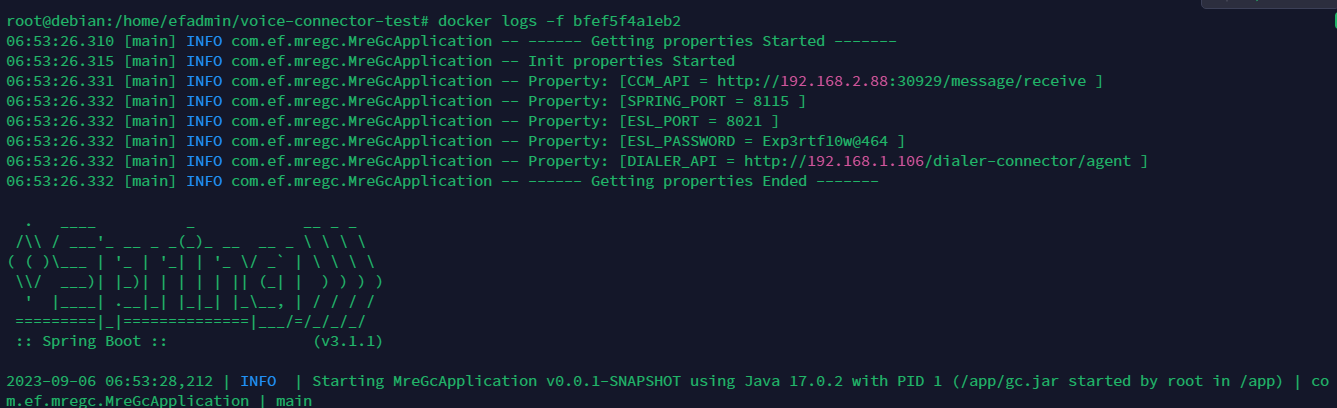
Confirm that the container is running correctly by opening the logs with command:
-
docker logs -f containerID
-
-
If there are multiple Voice Connectors running update all of them if needed.
Upgradation of OB Dialer
OB Dialer
-
SSH into the Debian server.
-
Use the command:
-
ssh username@server-ip
-
-
Enter the SSH password and press Enter.
-
Use the command:
-
su
-
-
Enter the root user's password
-
Container deployment
The OB Dialer is deployed as a Docker image.
-
Before updating the tags, please execute the following commands for the PostgreSQL DB used by OB Dialer on the VM where Dialer is deployed.
# 1- Login to database psql -h 127.0.0.1 -p 5432 -U efswitch -d efcx # 2- Alter the contacts table ALTER TABLE contacts ADD COLUMN scheduling_metadata TEXT; # 3- Update any existing rows UPDATE contacts SET scheduling_metadata = '{}' WHERE scheduling_metadata IS NULL; -
Navigate to the existing outbound dialer directory
-
cd outbound-dialer -
Stop the previously running container
-
docker compose down -
Open the file docker-compose.yml.
-
vi docker-compose.yml
-
-
Enter editing mode with the 'I' or 'Insert' keys.
-
Replace the previous tag with the current release tag 5.1.0
version: "3.8"
services:
  outbound-dialer:
    image: gitimages.expertflow.com/rtc/outbound-dialer:5.1.0
    deploy:

    ...
    ...
-
-
Save the file and exit by :
-
Press the Esc key.
-
Enter the phrase:wq to save and exit.
-
-
Ensure the following env variables exist in the env variable file.
-
ESL_DOMAIN: <tenant-id> -
MAX_CONCURRENT_CALLS: 20 -
CALLS_PER_SECOND: 30 -
MAX_CALL_TIME: 60 -
DIALER_URL_FOR_REQUESTS: http://<Dialer IP>:<Dialer Port> -
SERVICE_IDENTIFIER: 8224
-
-
Run the command:
-
docker login gitimages.expertflow.com -
Enter your username and password as prompted (make sure that you were granted access to the repository).
-
-
Within the folder run the command:
-
docker compose up -d
-
-
Confirm that the new docker container is running by using the command:
-
docker ps
-

VRS Upgrade Guide (14.5 → 14.6)
Here is the upgrade guide link to upgrade the VRS from 14.5 to 14.6