
Follow the steps below for setting up Keycloak for VRS
-
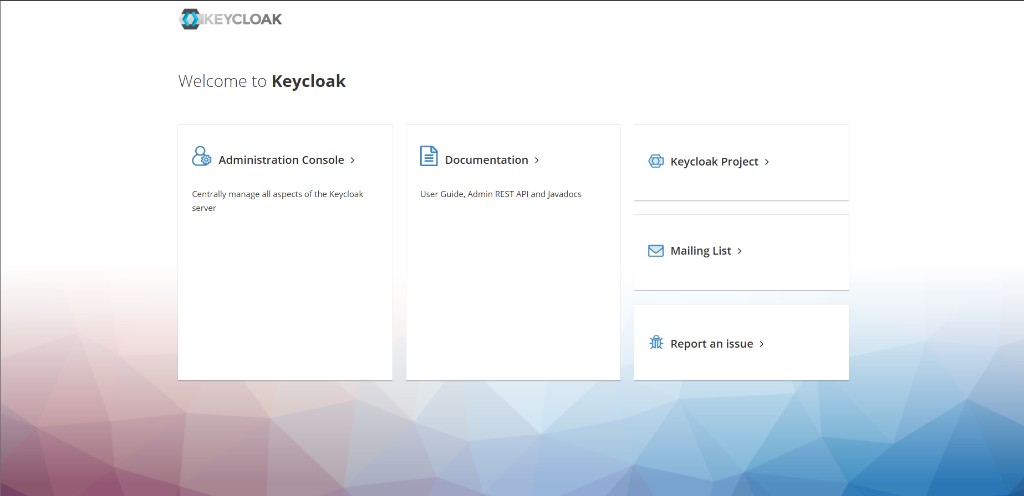
Go to FQDN:8088/auth and click on the Administration console
-
Log in to the administration console using the password set in environment variables (KEYCLOAK_USER and KEYCLOAK_PASSWORD). The default username is admin, and the password is admin
-
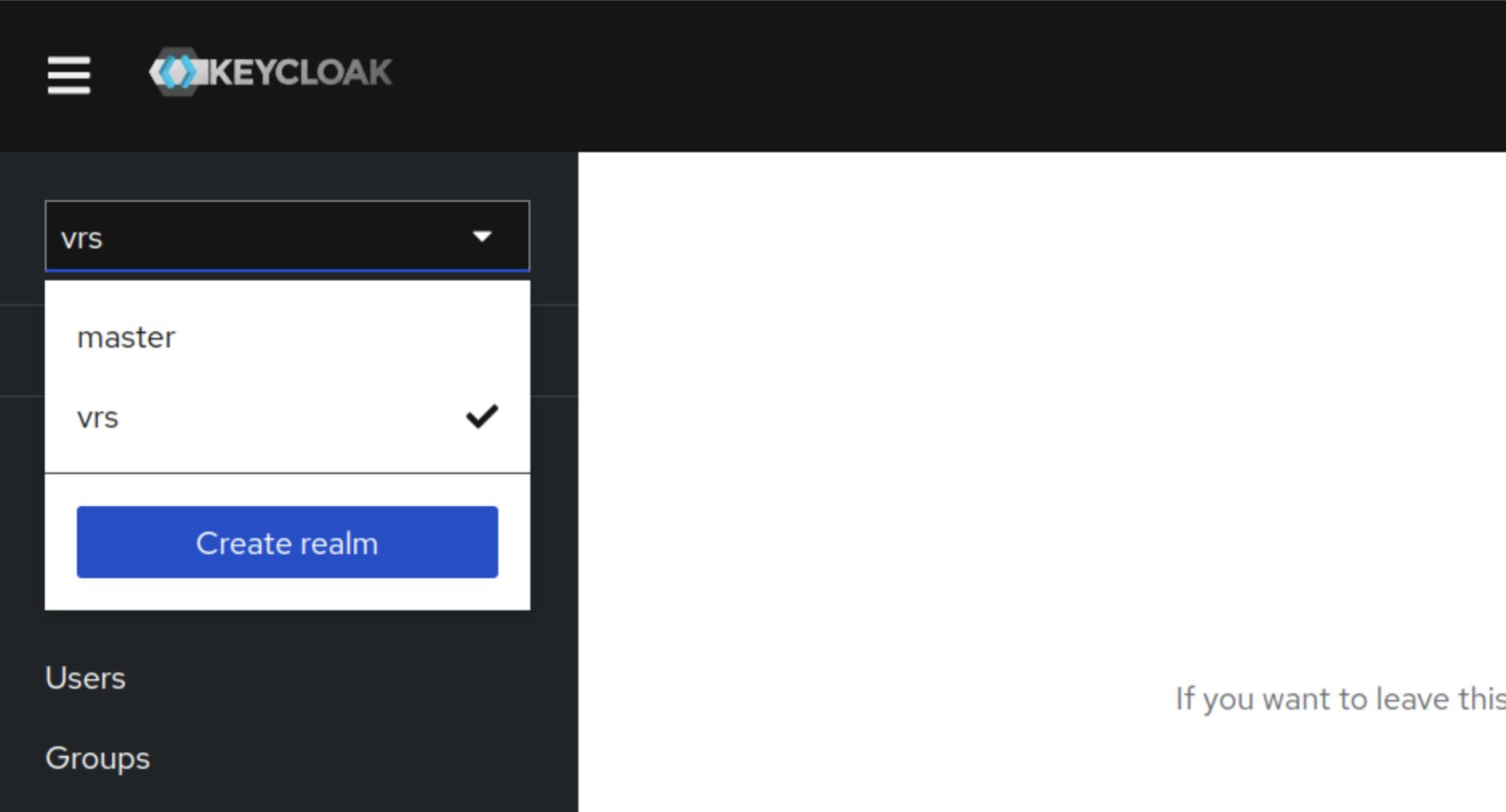
Bring the cursor to the Master (below the Keycloak logo) and click on the Create realm button
-
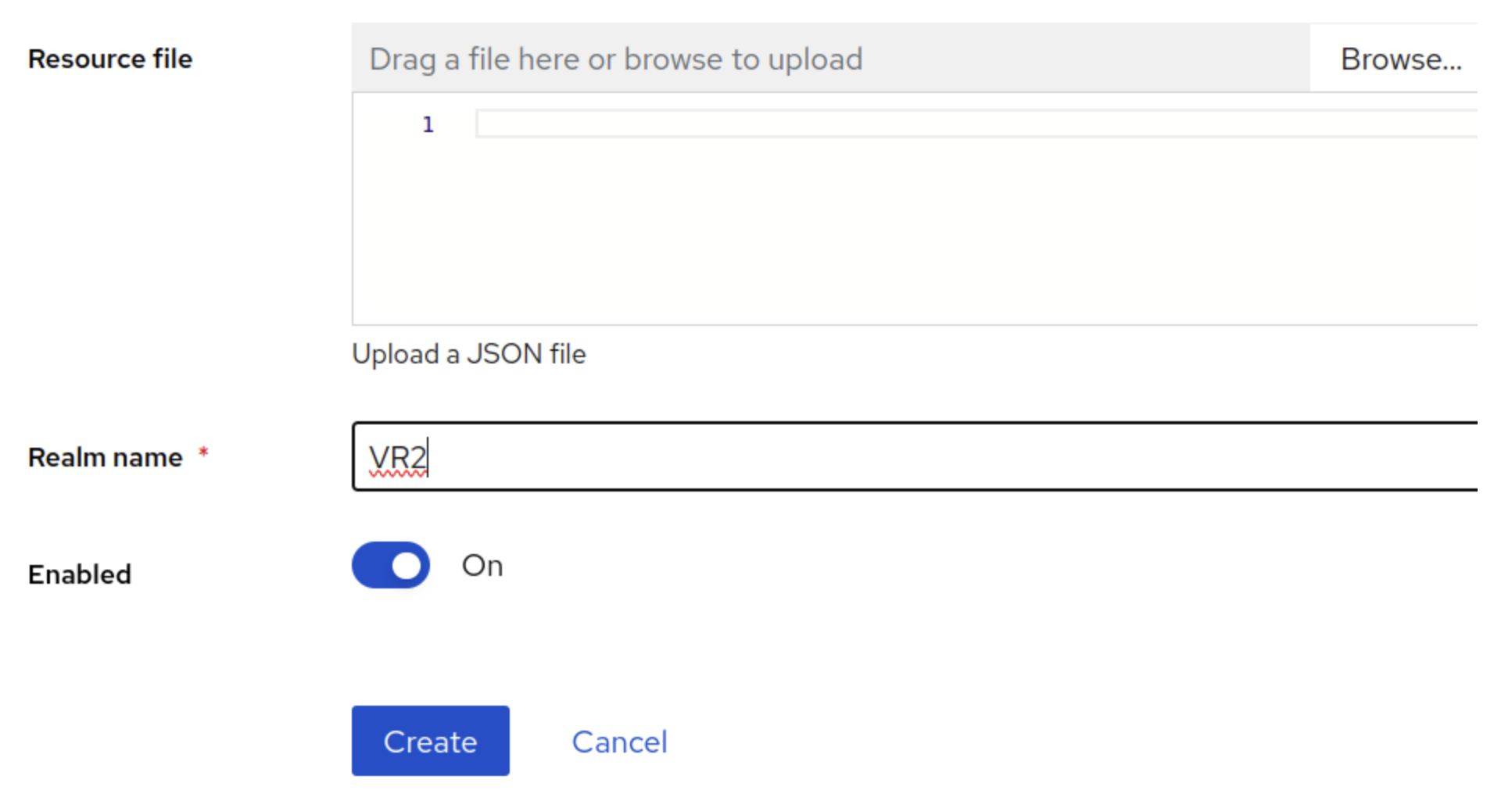
Enter the Realm name and click on the Create button
-
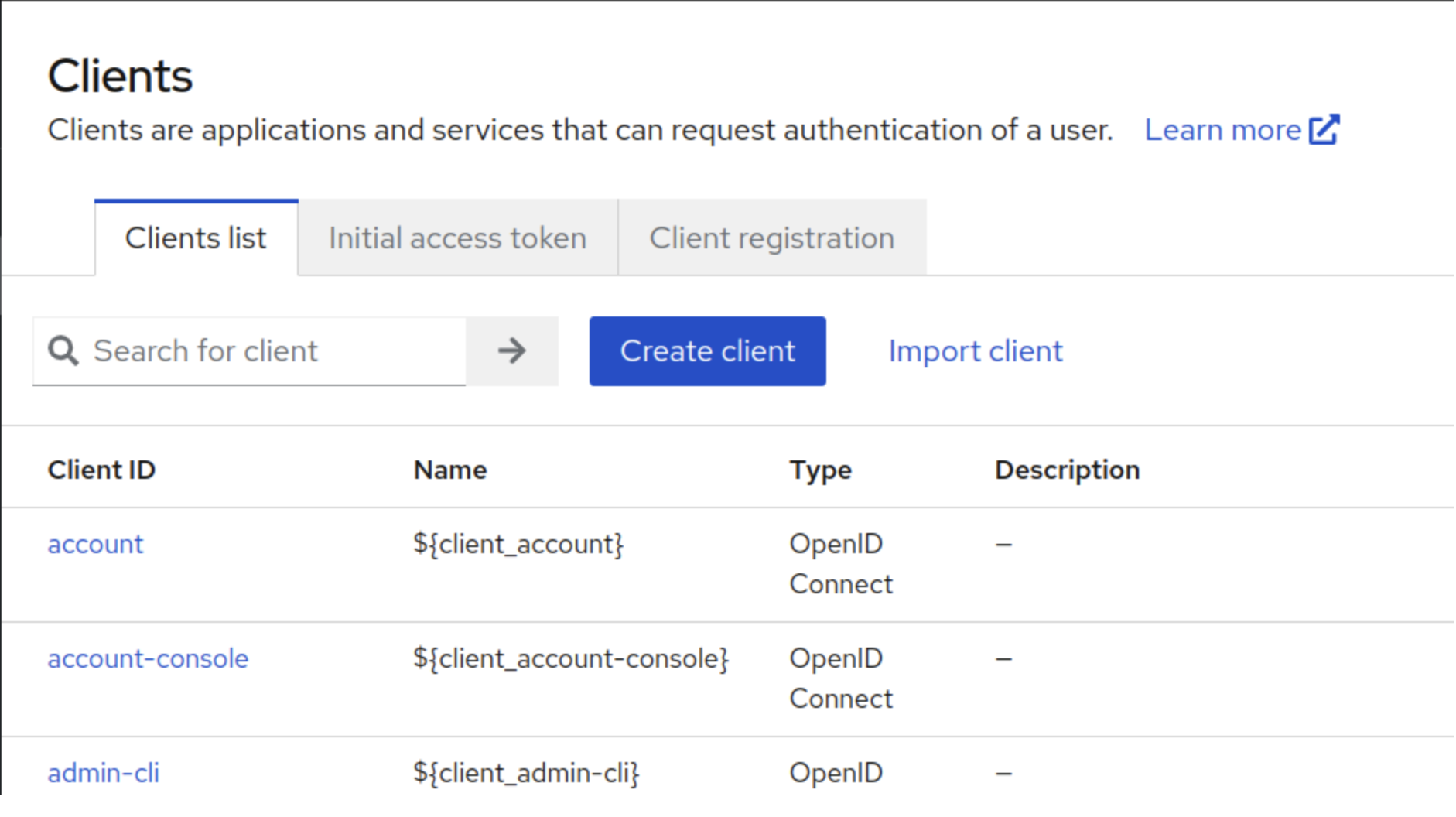
Once the Realm is created, click on clients under the created realm, and then click the create client button
-
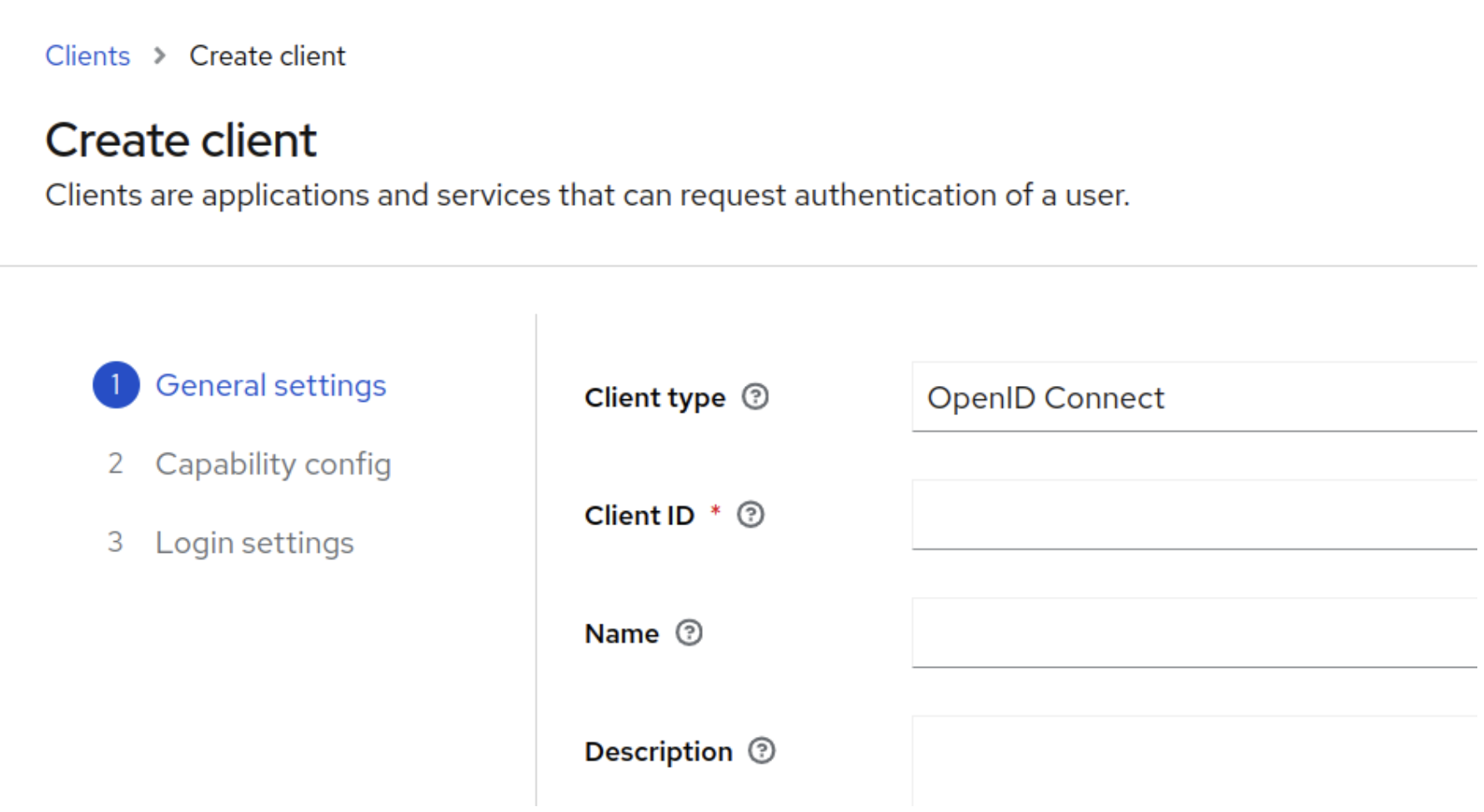
Enter Client ID vrs and click on Next.
-
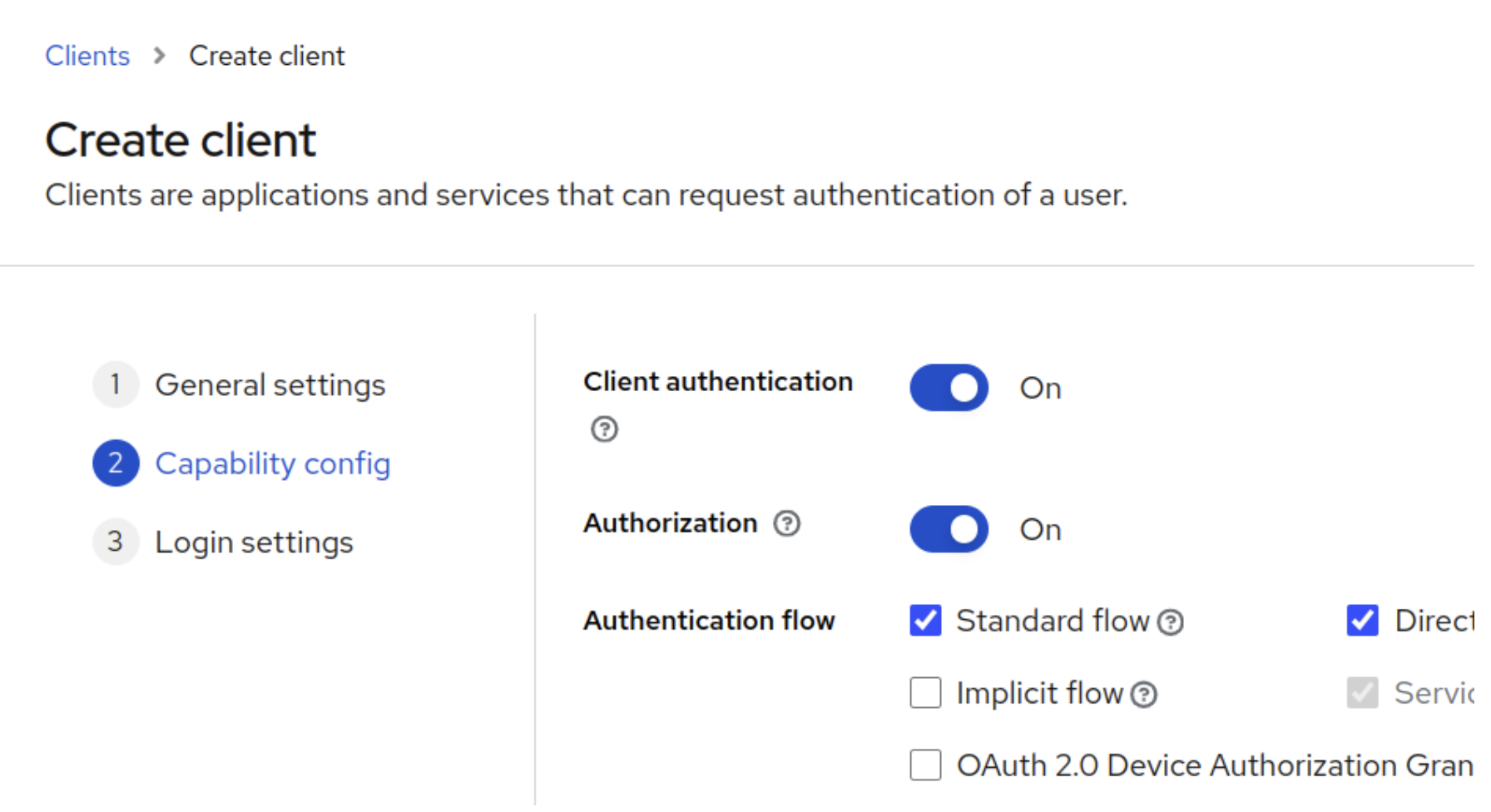
Toggle the Client authentication and Authorization to ON, click Next, and click Save
-
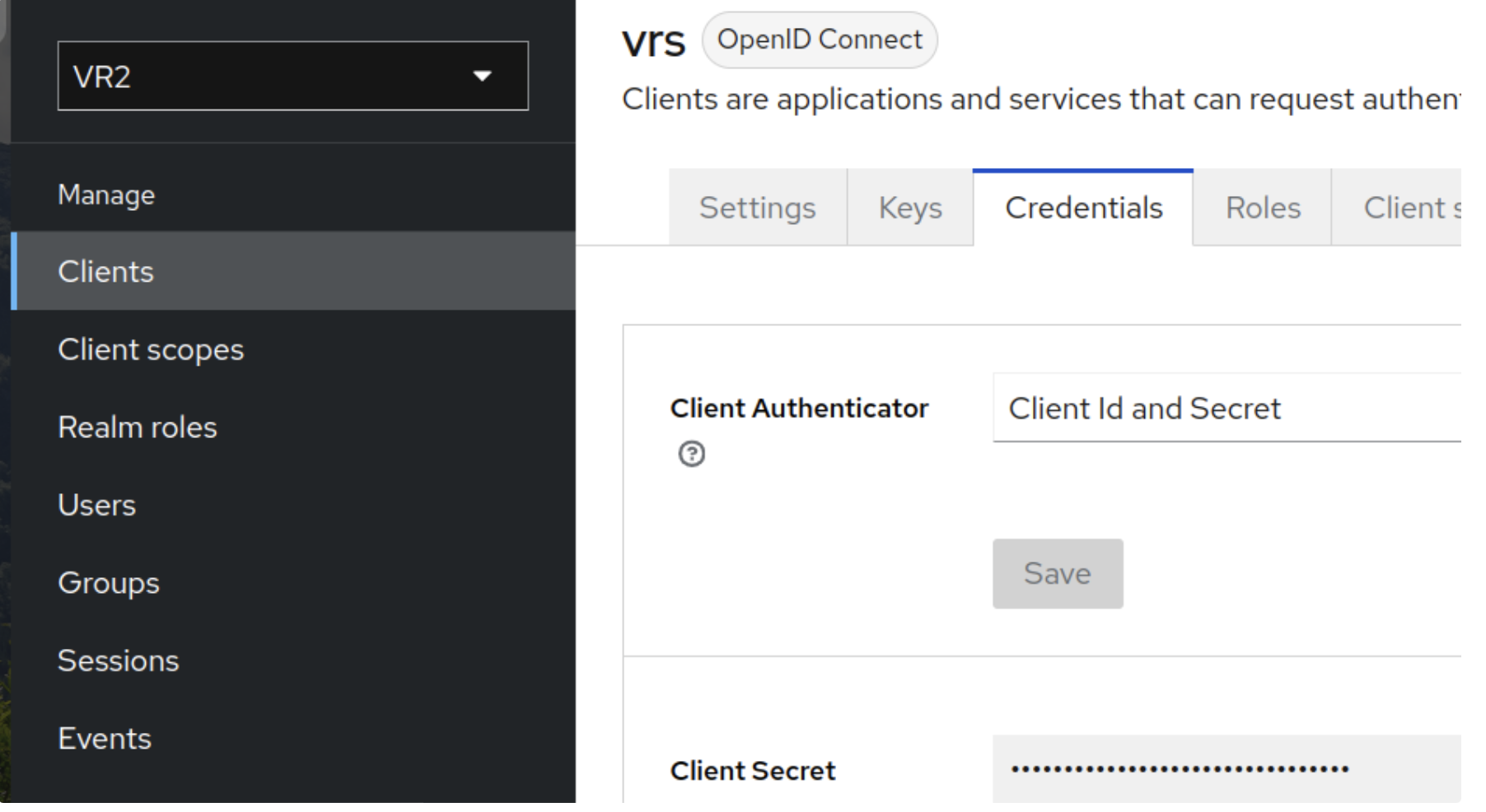
Once the client is saved, go to the Credentials tab and copy the client secret. The Client ID (vrs) and Secret will be used in environment variables (KEYCLOAK_CLIENT_ID and KEYCLOAK_CLIENT_SECRET)
-
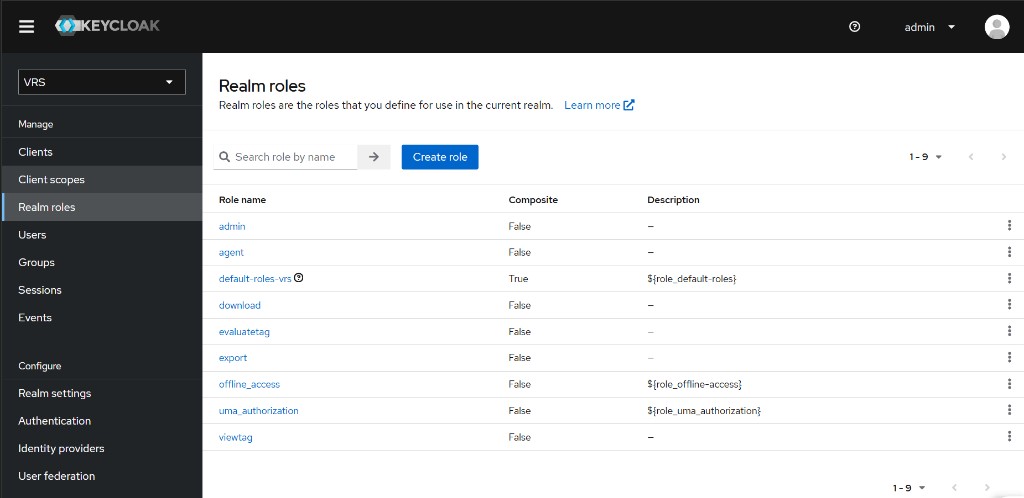
Click on Realm Roles in the left panel and create the desired roles, i.e., admin, agent, download, evaluatetag, export, and viewtag.
-
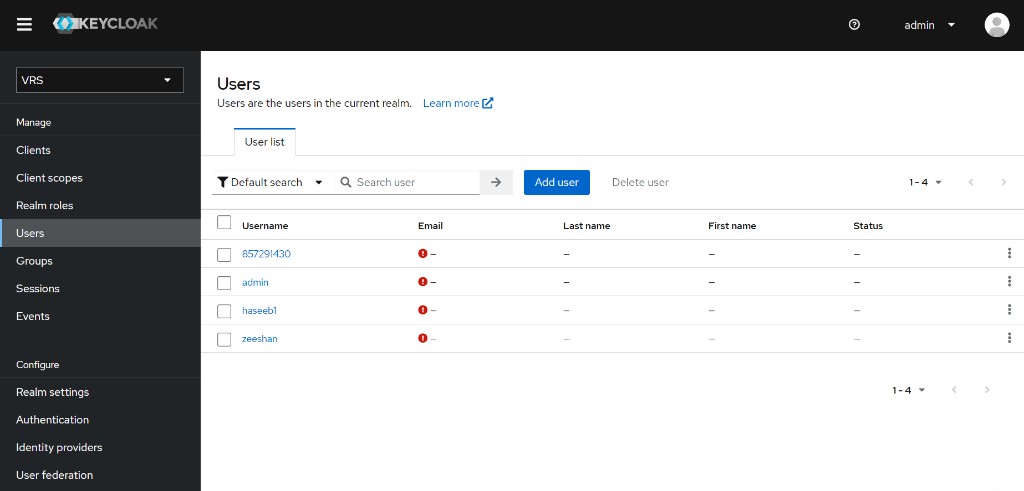
Go to Users and create user by entering Username and click Create.
-
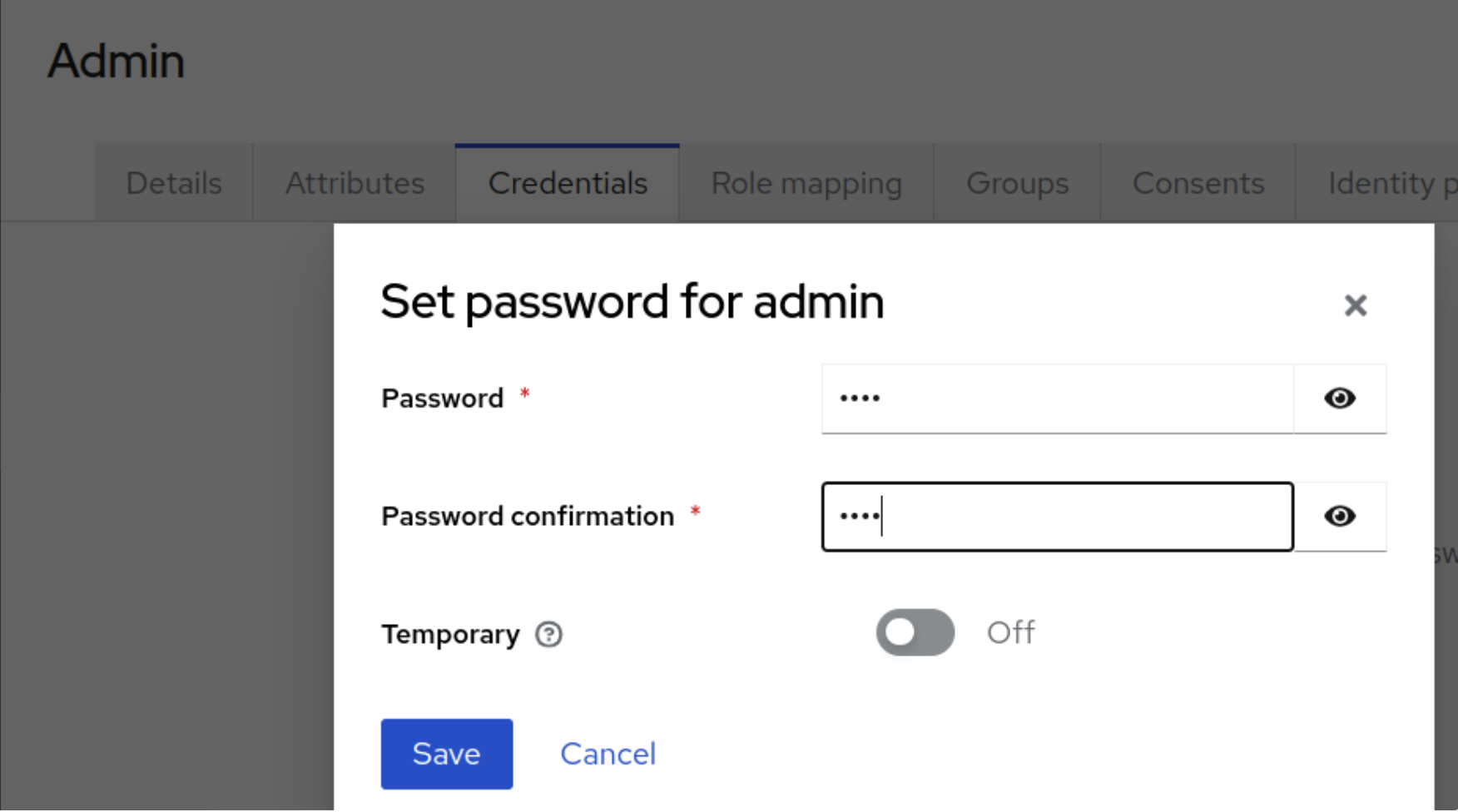
Go to the Credentials tab of the created user and set a password, toggle the Temporary button to OFF, and click Save.
-
Open the created user, go to the Role mapping tab, click on Assign Role, select the desired roles (for example admin, agent, download, evaluatetag, export, and/or viewtag), and click on Assign.
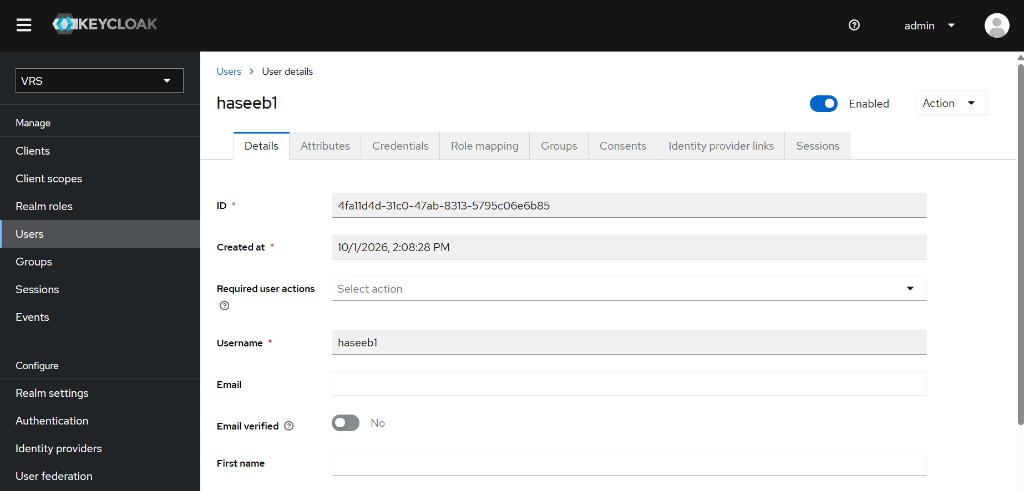
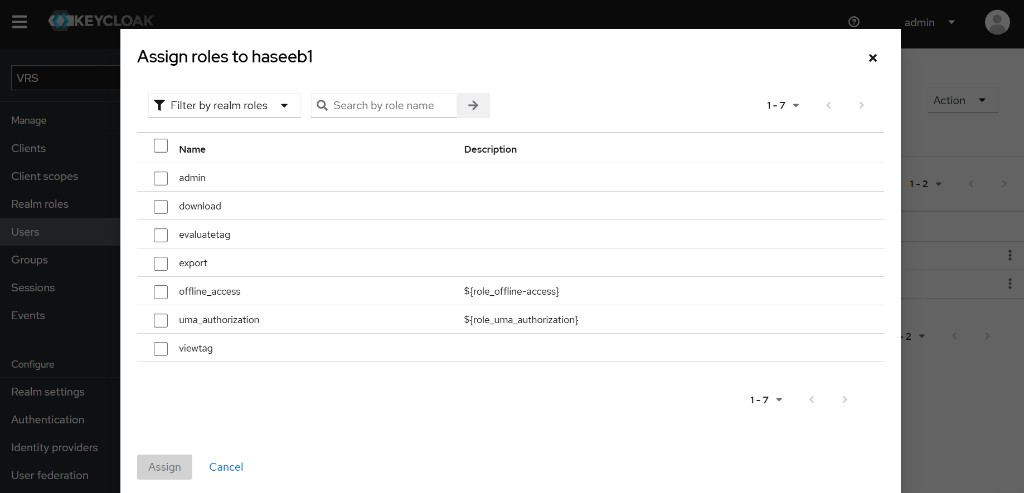
While role mapping, the default roles should be kept assigned to the user for the purpose of authentication and authorization.
-
For Admin user only,
-
Assign the admin role other than the default roles assigned previously.
-
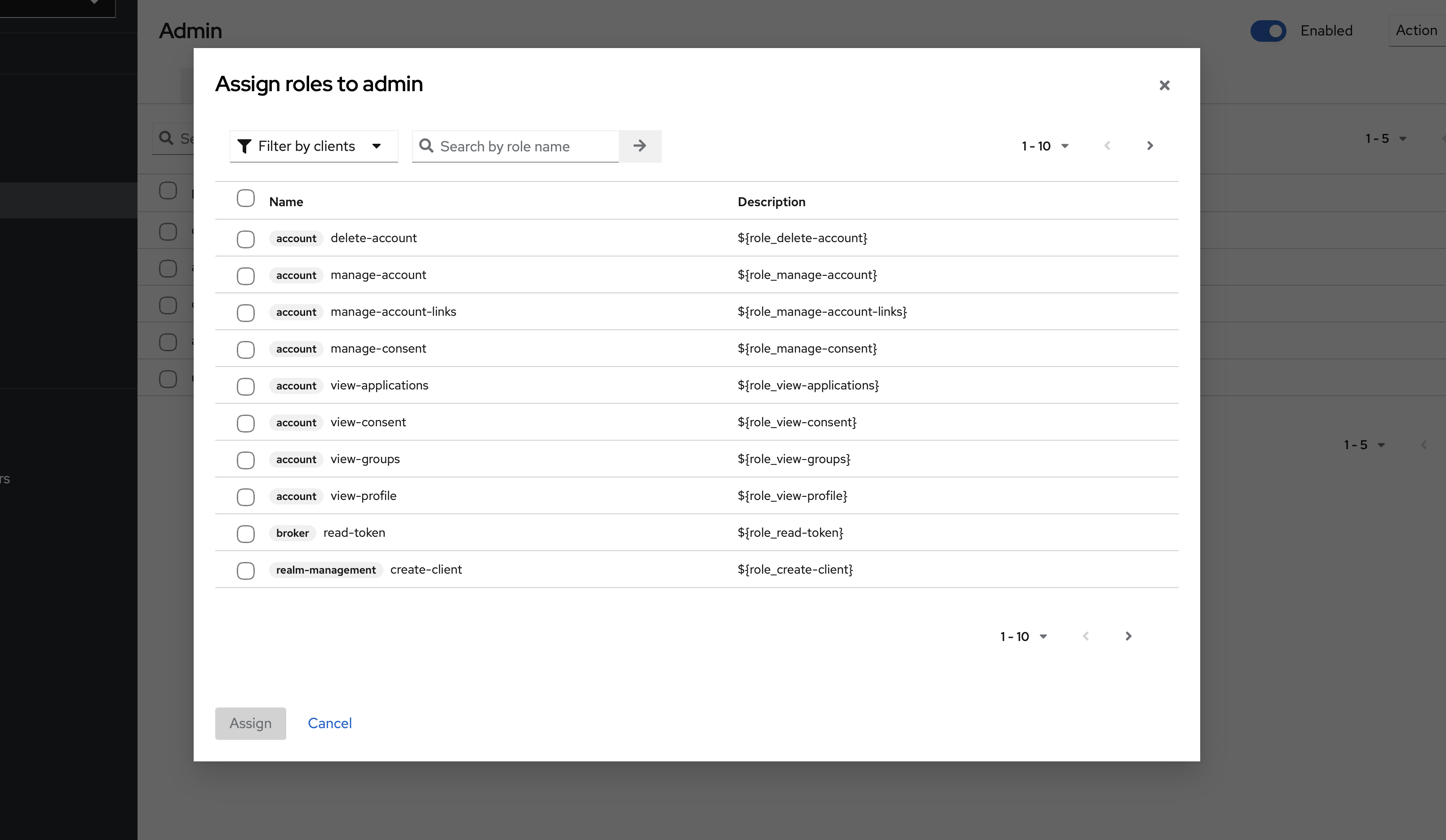
Now, click on the Assign Role button again, and then select the Filter by clients option in the dropdown.
-
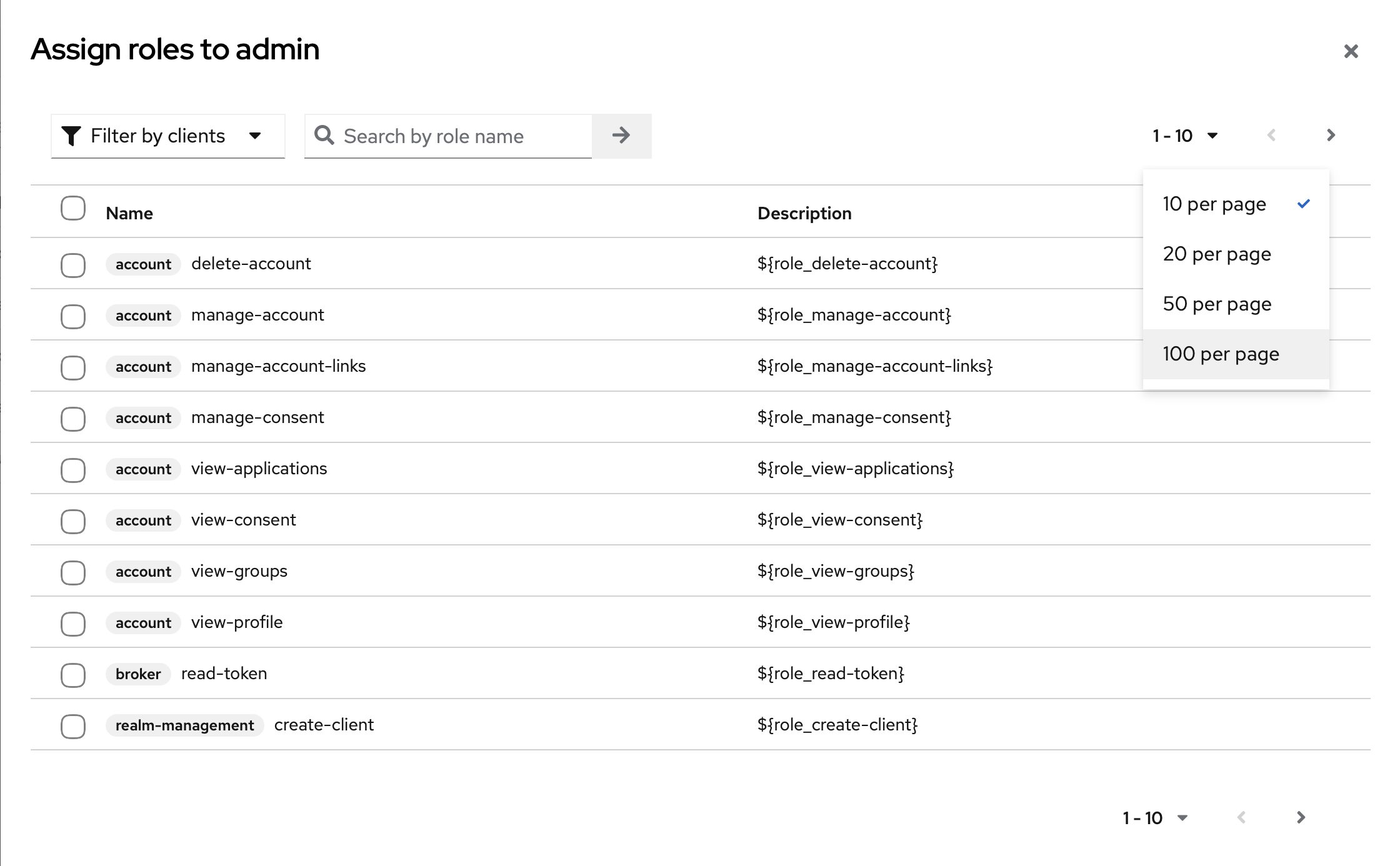
Open the items per page drop-down and select 50 items per page.
-
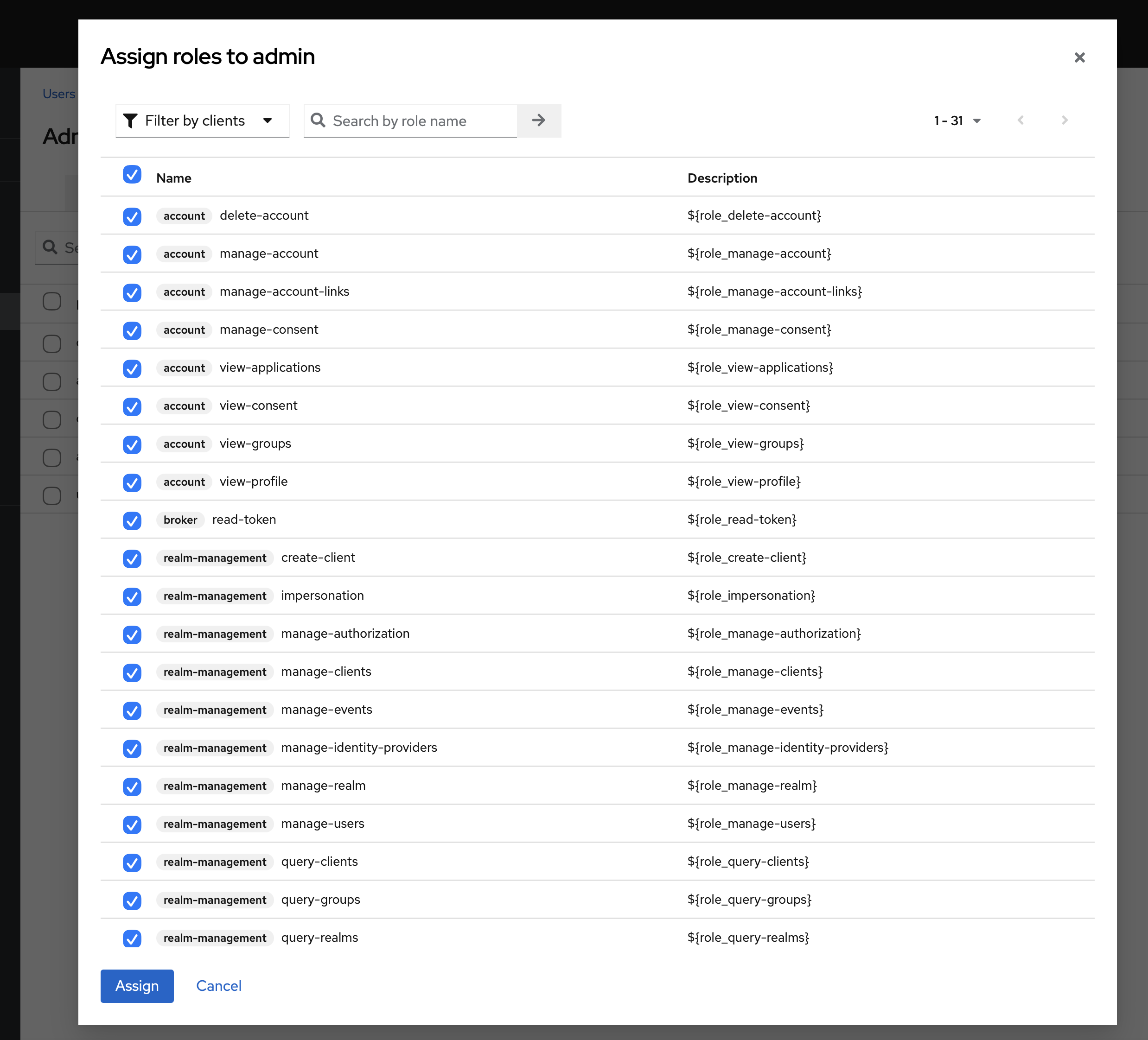
Now type realm in the search box and press Enter or click the Next button.
-
Upon searching, all the realm-management roles will appear; assign all the realm roles to the Admin user.
-
Creation of Keycloak Agent Group for VRS Finesse Gadget
For deployments using the VRS Finesse gadget. The following steps are required as well:
-
Open the target realm, i.e.,
VRS. -
Navigate to the Groups section in Keycloak.
-
Click the
Create groupbutton. -
Create a group named
AGENT_GROUP. -
Open
AGENT_GROUPand navigate to theRole mappingtab. -
Assign the realm role
agentto this group. -
If the
agentrole does not exist, first create it underRealm roles, then return toAGENT_GROUPand assign it.
-
The group name should be exactly
AGENT_GROUP. -
New users added to this group will inherit the
agentrole through Keycloak group-to-role mapping.