
Follow the steps below for setting up Keycloak for VRS
-
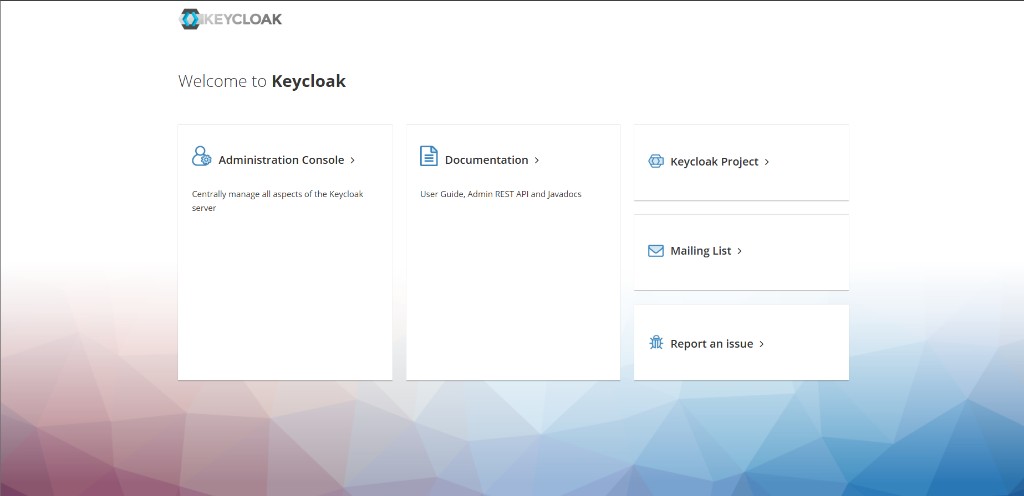
Go to FQDN:8088/auth and click on the Administration console
-
Log in to the administration console using the password set in environment variables (KEYCLOAK_USER and KEYCLOAK_PASSWORD). The default username is admin, and the password is admin
-
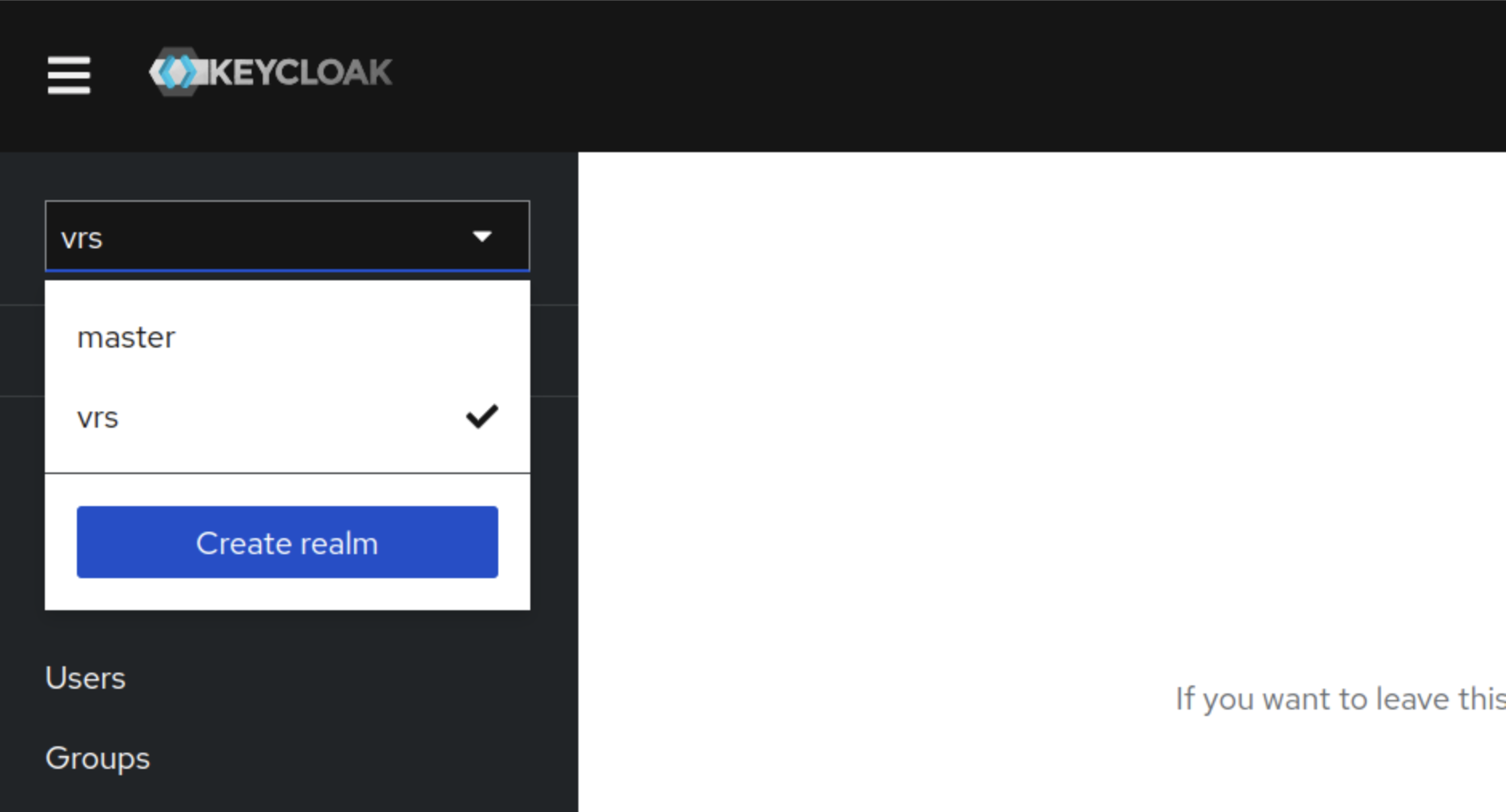
Bring the cursor to the Master (below the Keycloak logo) and click on the Create realm button
-
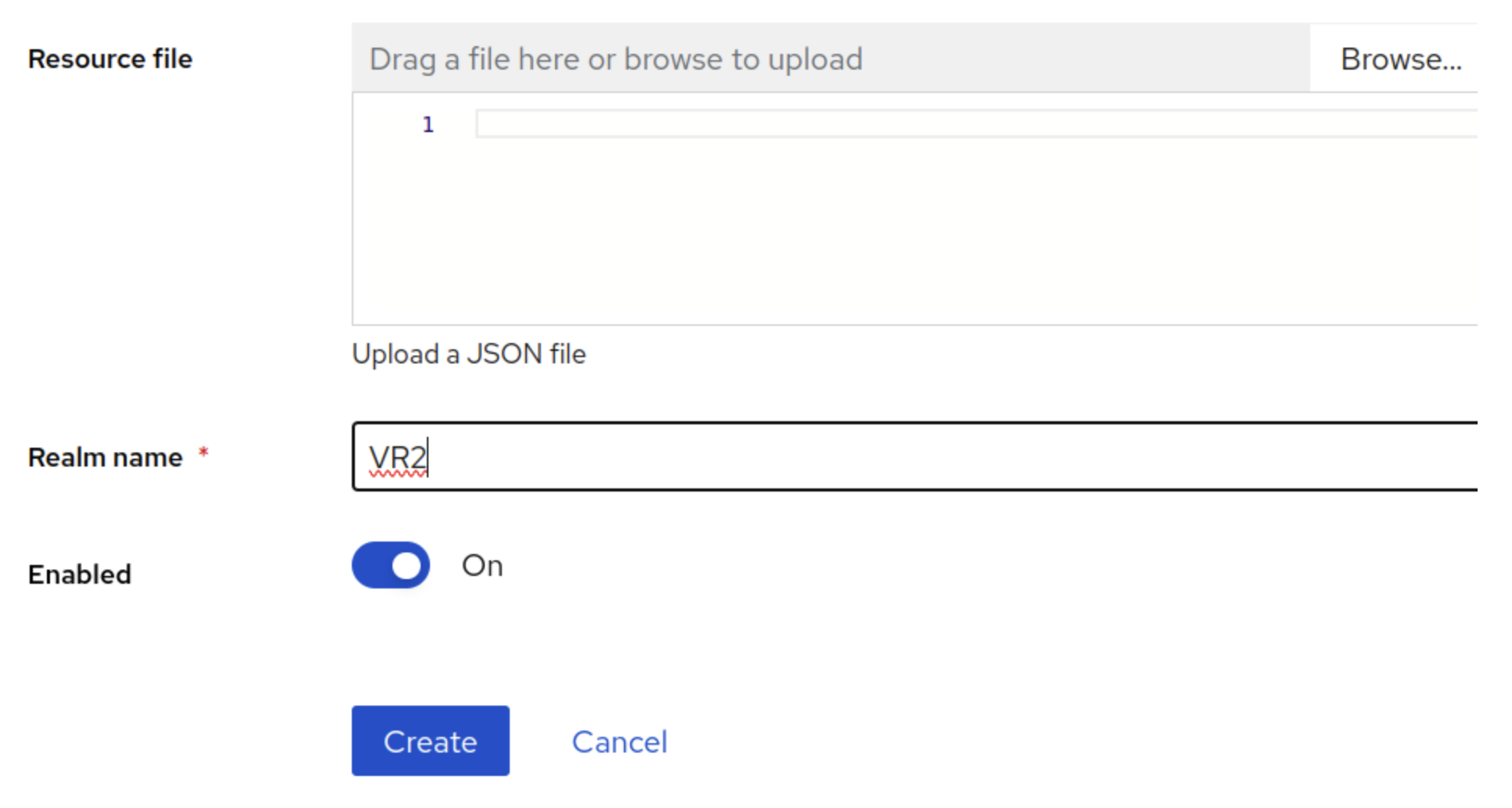
Enter the Realm name and click on the Create button
-
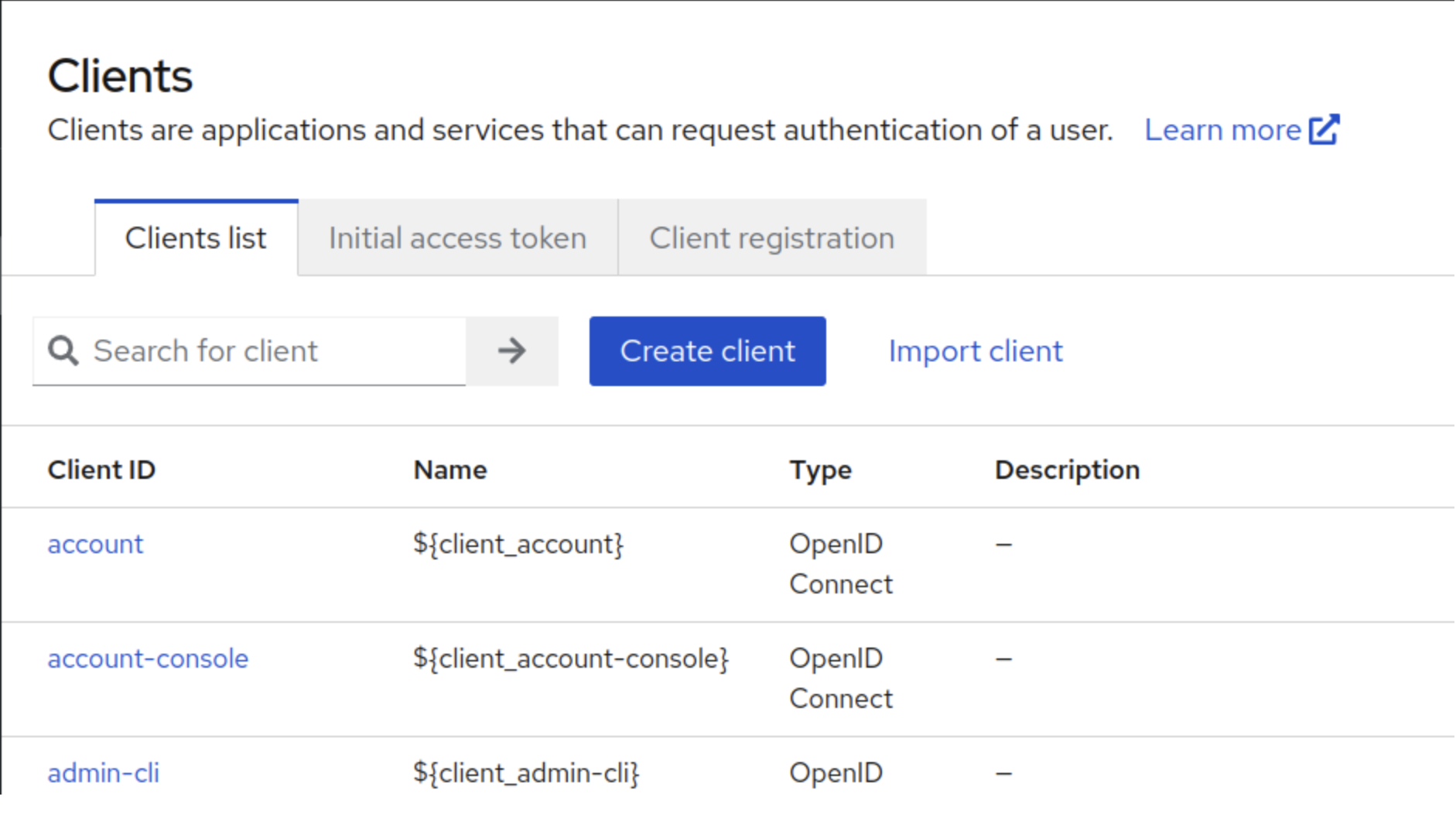
Once the Realm is created, click on clients under the created realm, and then click the create client button
-
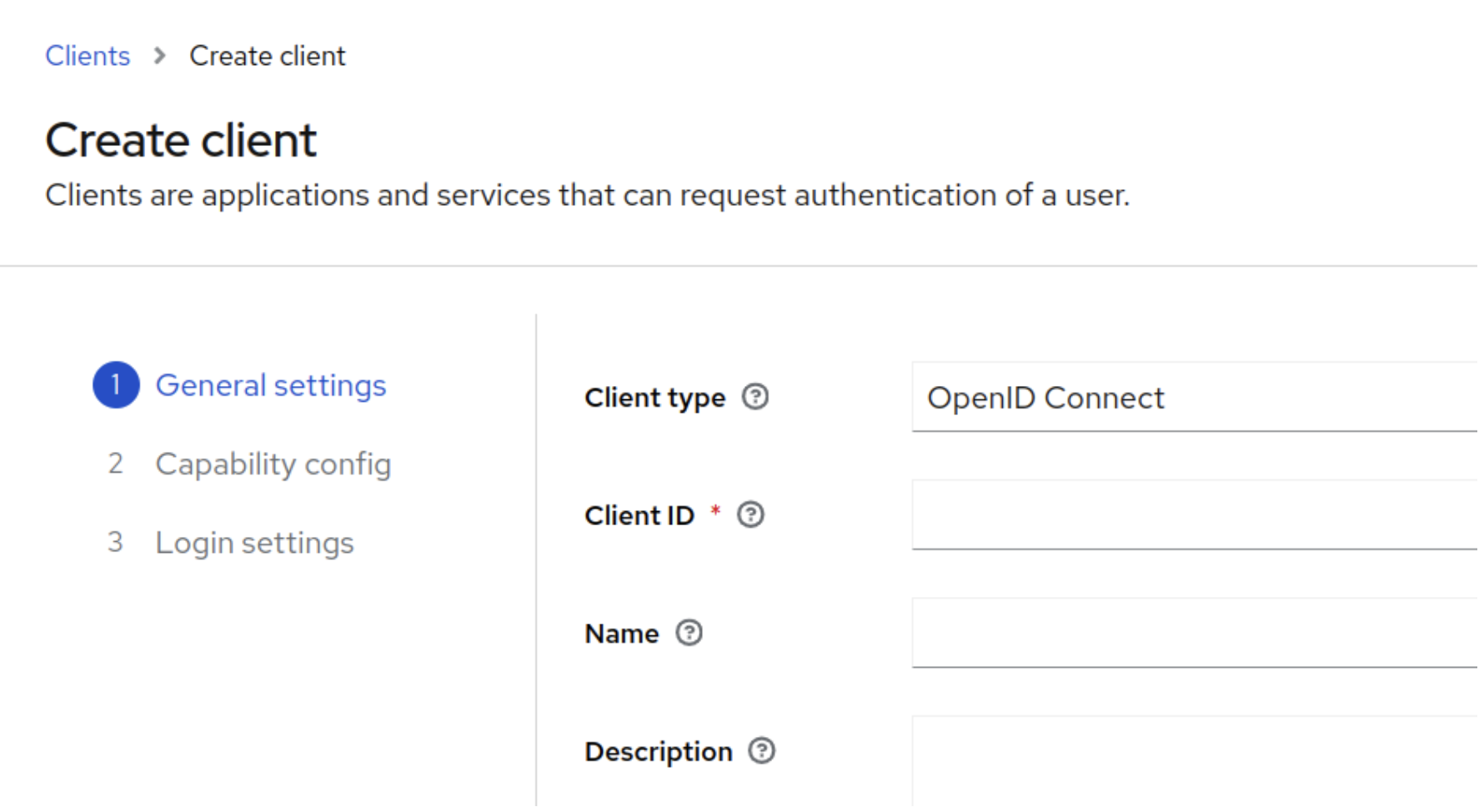
Enter Client ID vrs and click on Next.
-
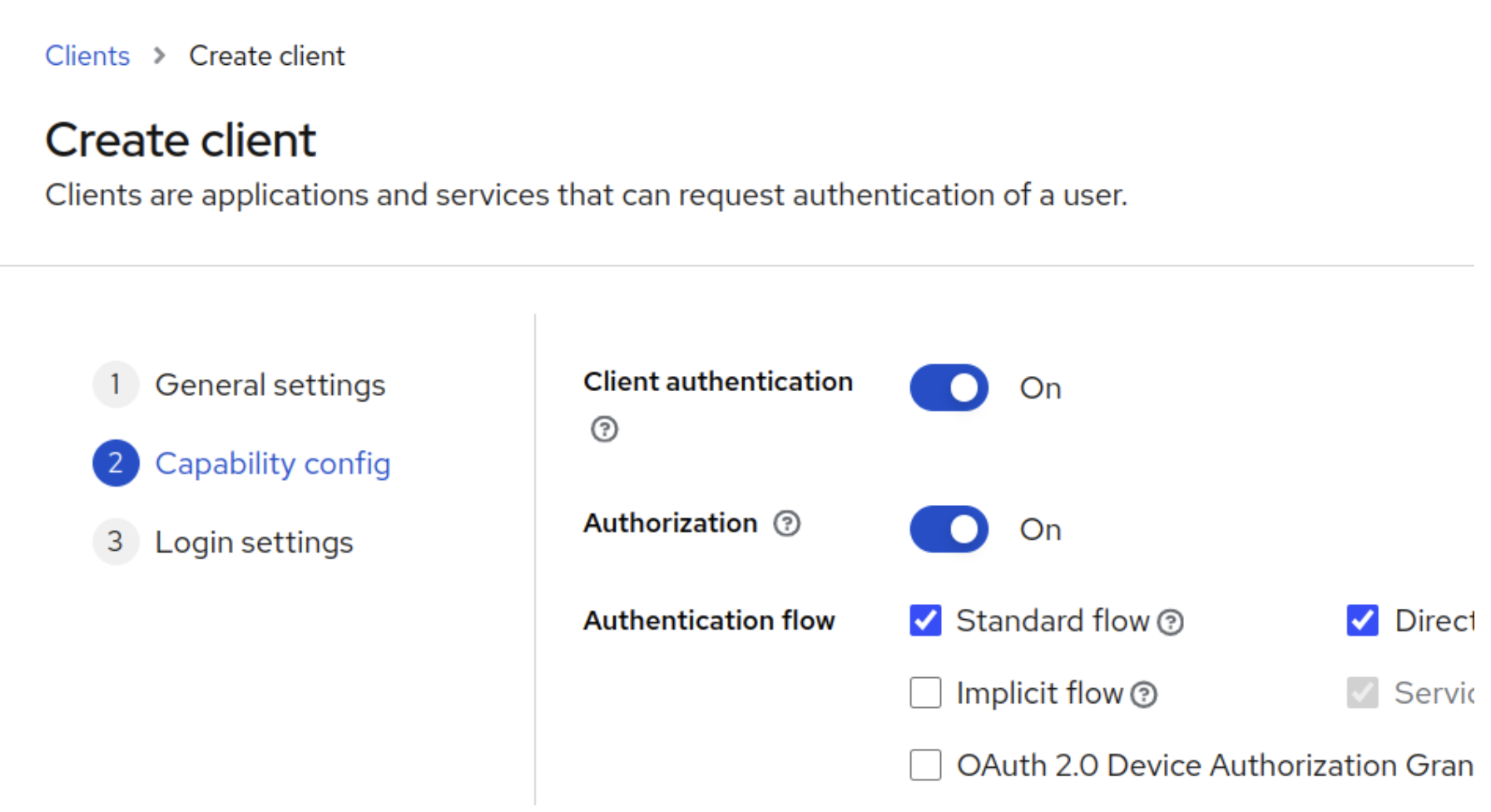
Toggle the Client authentication and Authorization to ON, click Next, and click Save
-
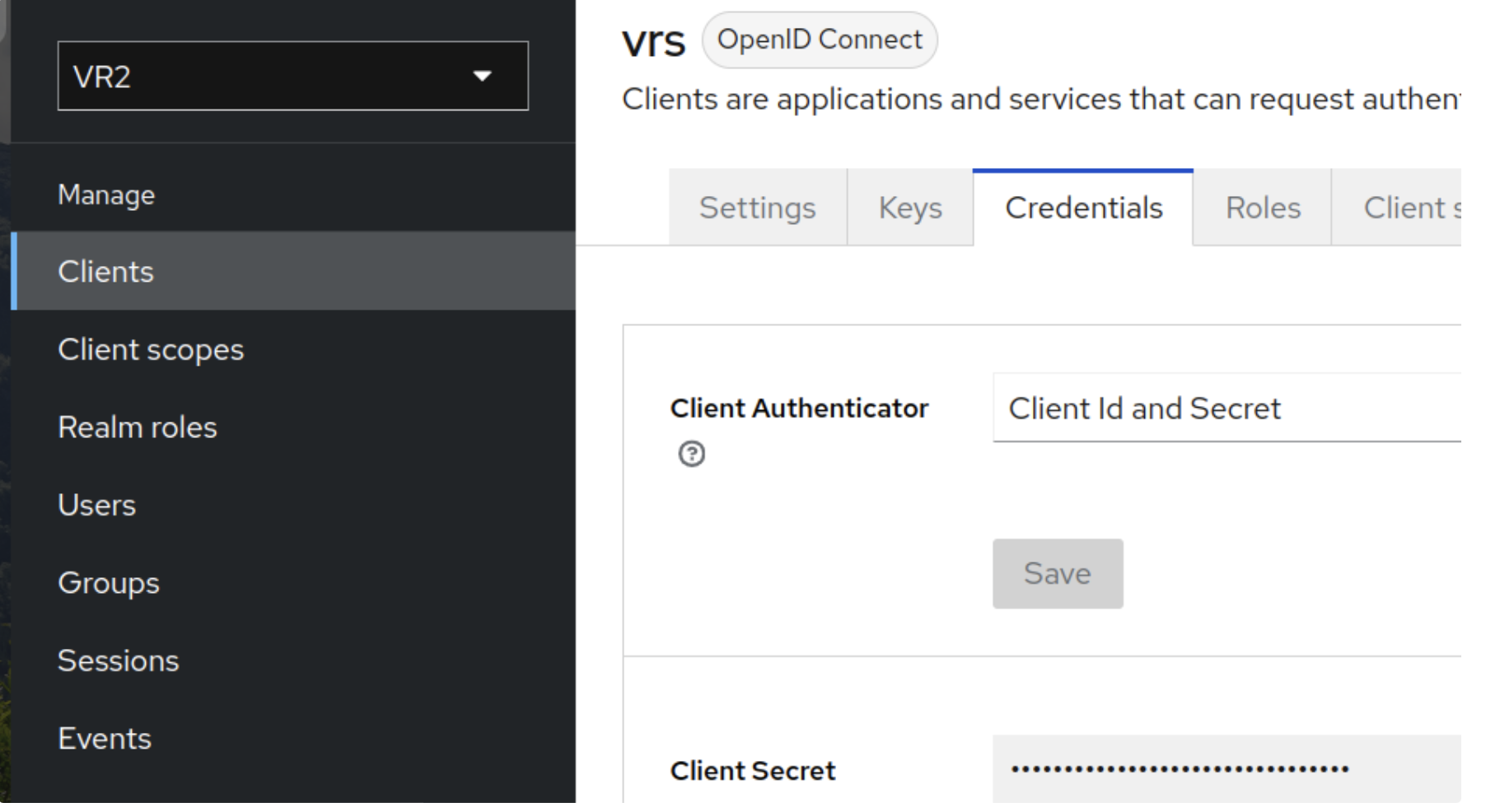
Once the client is saved, go to the Credentials tab and copy the client secret. The Client ID (vrs) and Secret will be used in environment variables (KEYCLOAK_CLIENT_ID and KEYCLOAK_CLIENT_SECRET)
-
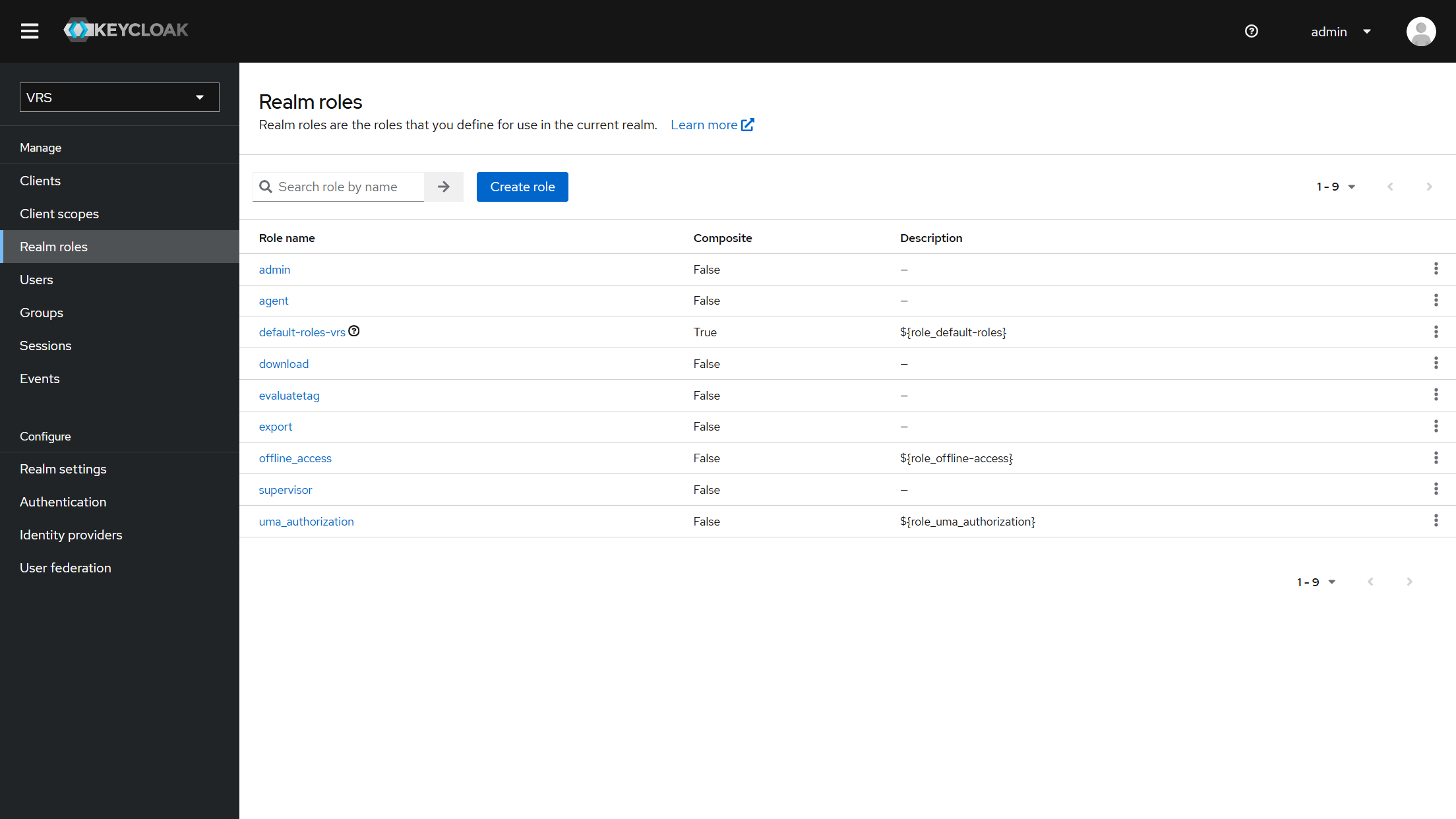
Click on Realm Roles in the left panel and create the desired roles: admin, agent, supervisor, download, evaluatetag, and export. From 14.11.0,
viewtagis not required (all users can view tags).
Role quick guide
-
admin— base role; all recordings and admin features; can open Operations Dashboard. -
agent— base role; own recordings only; cannot open Operations Dashboard. -
supervisor— base role; Media Recordings and Operations Dashboard for agents in the same/Departments/<name>groups (from 14.12.0, OD matches Media Recordings scoping). -
download,export,evaluatetag— add-on roles for download, CSV export, and tag assign/unassign. Assign on top of a base role as needed. Details: VRS Authorization & Permissions.
-
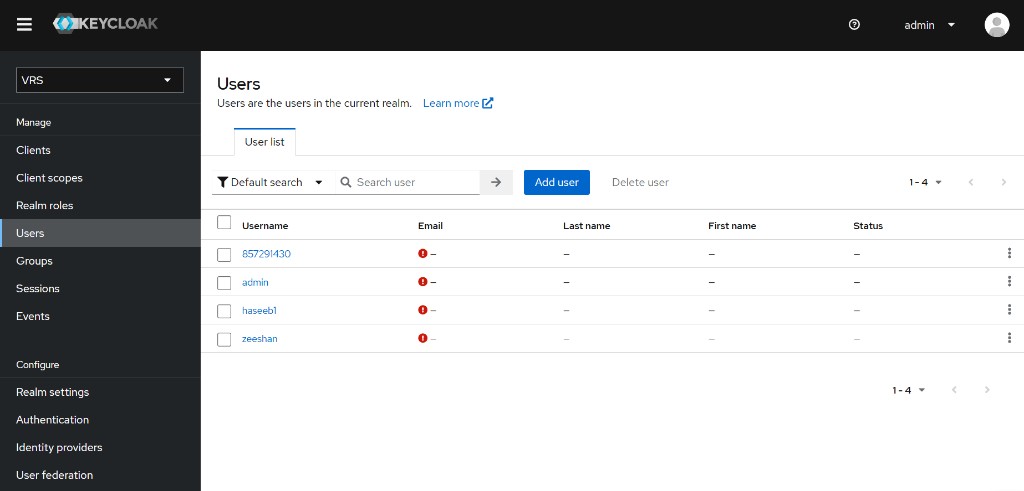
Go to Users and create user by entering Username and click Create.
-
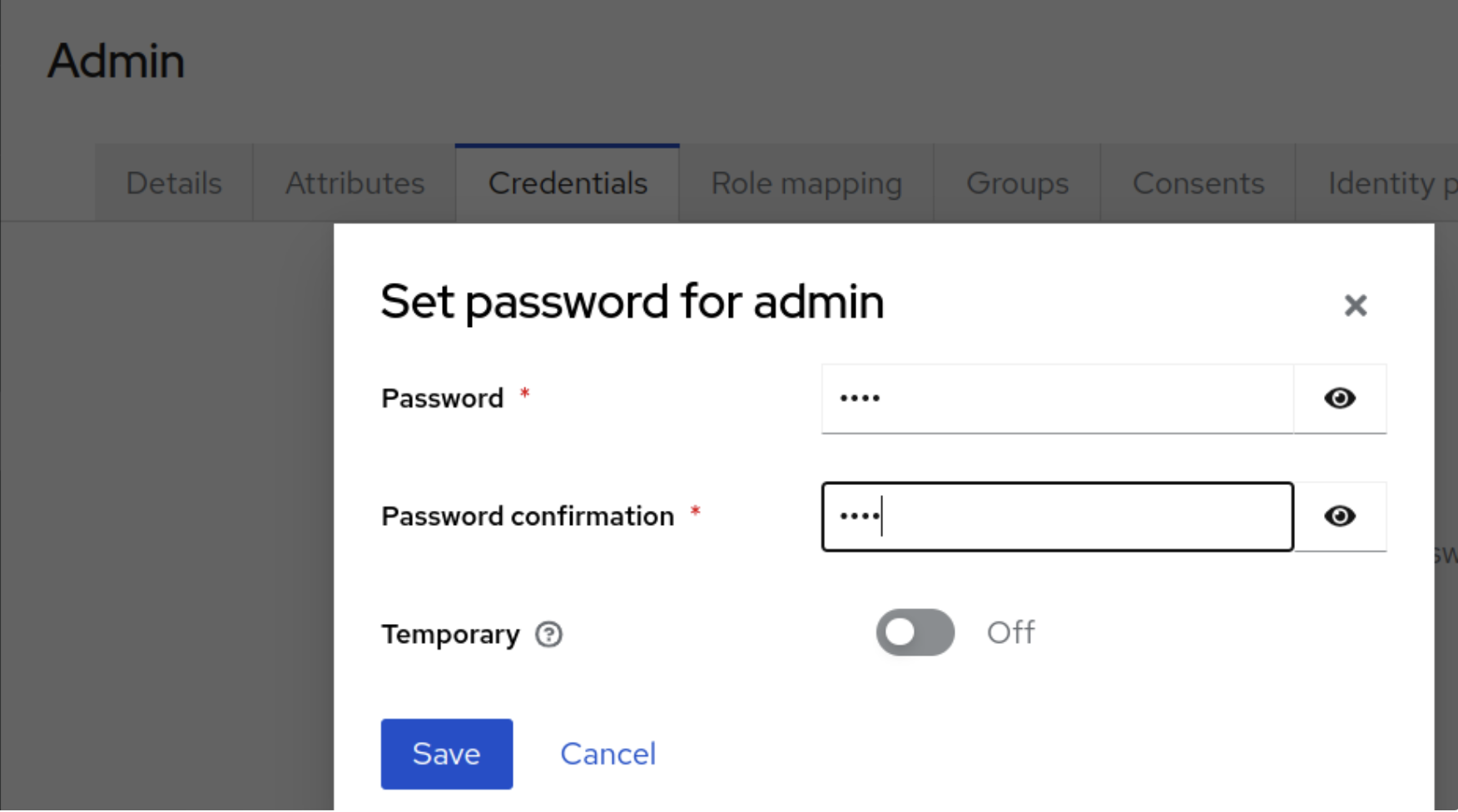
Go to the Credentials tab of the created user and set a password, toggle the Temporary button to OFF, and click Save.
-
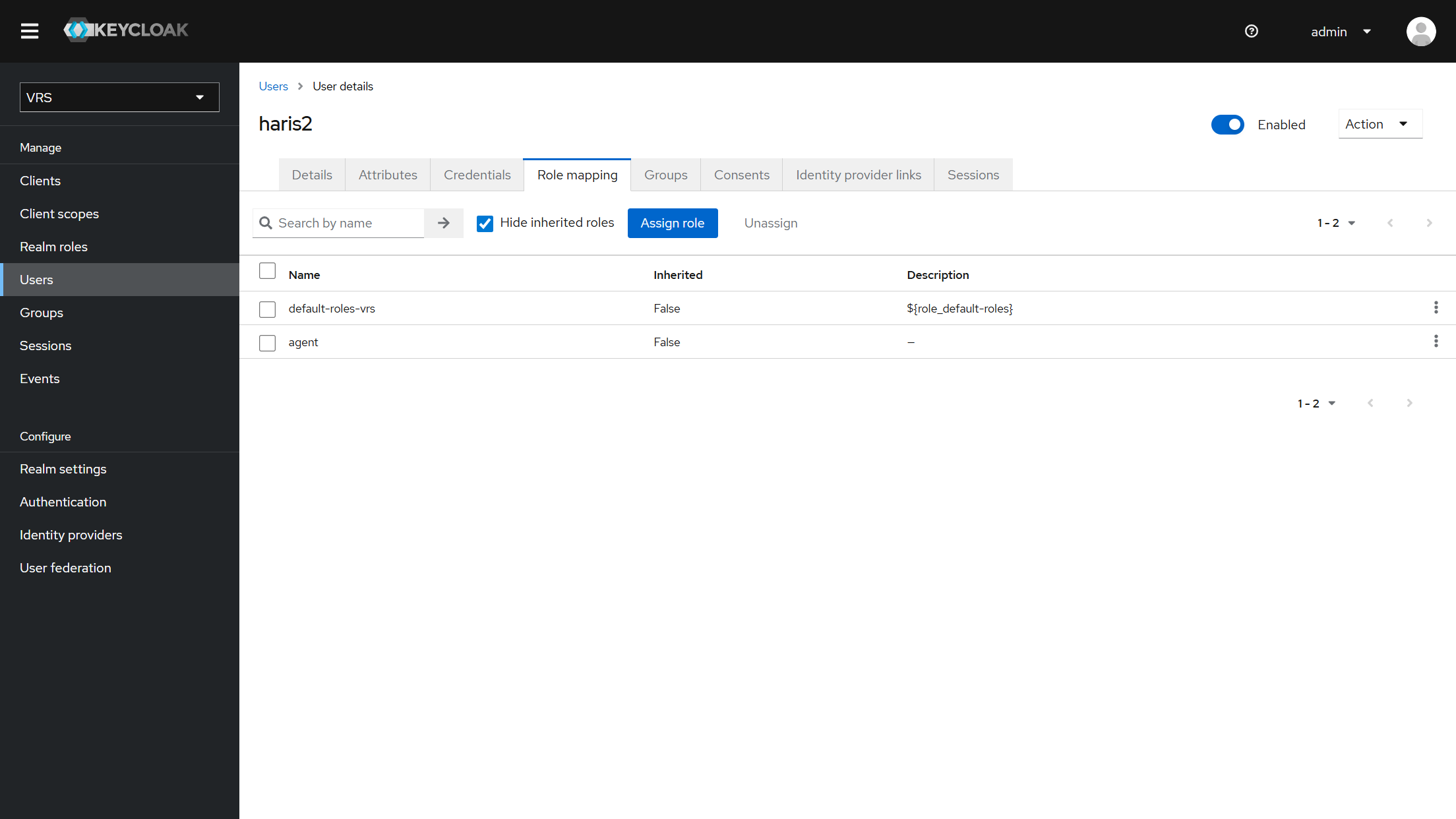
Open the created user, go to the Role mapping tab, click on Assign Role, select the desired roles (for example admin, agent, supervisor, download, evaluatetag, and/or export), and click on Assign.
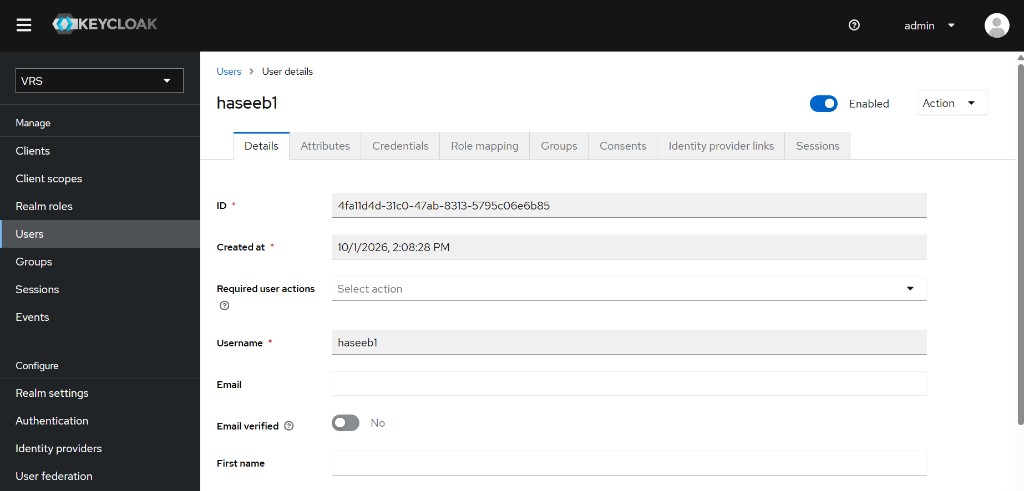
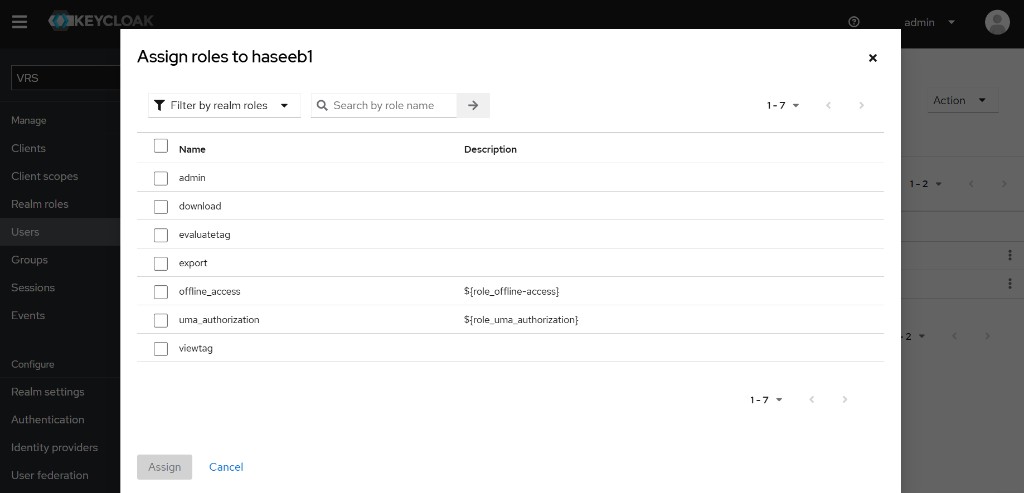
While role mapping, the default roles should be kept assigned to the user for the purpose of authentication and authorization.
Example — agent user: assign the realm role agent (keep default-roles-vrs). Add-on roles such as download are optional.
-
For Admin user only,
-
Assign the admin role other than the default roles assigned previously.
-
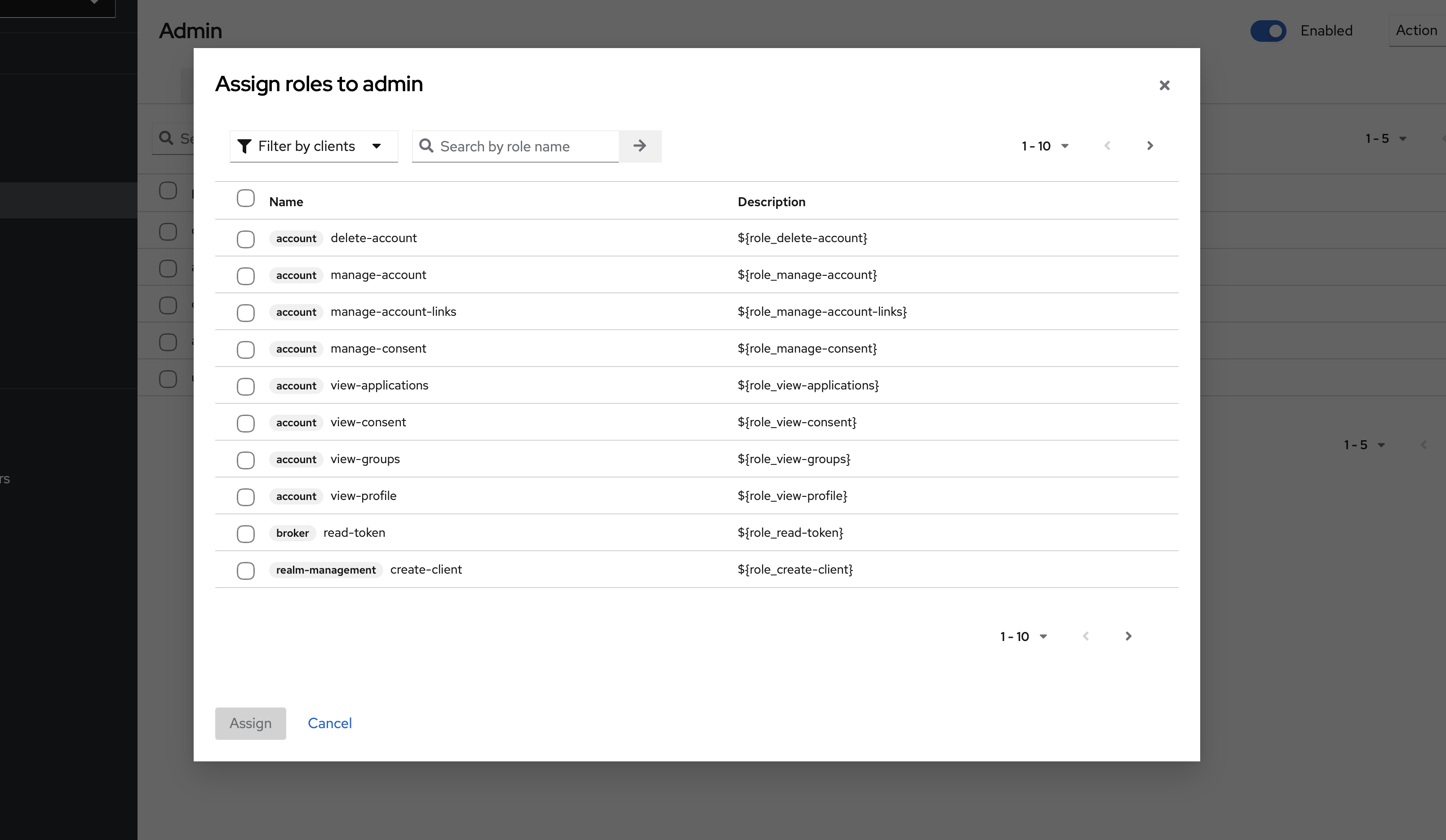
Now, click on the Assign Role button again, and then select the Filter by clients option in the dropdown.
-
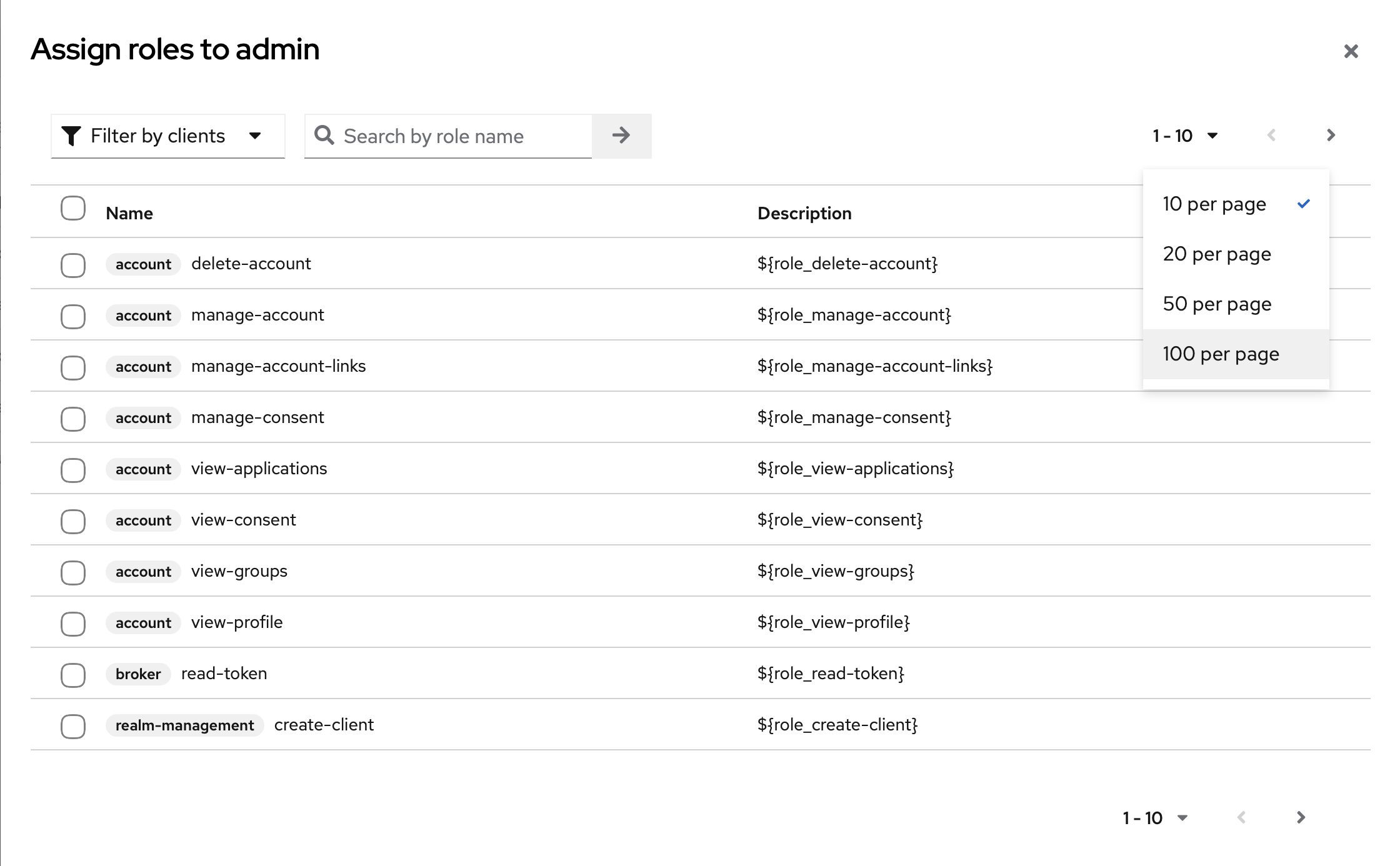
Open the items per page drop-down and select 50 items per page.
-
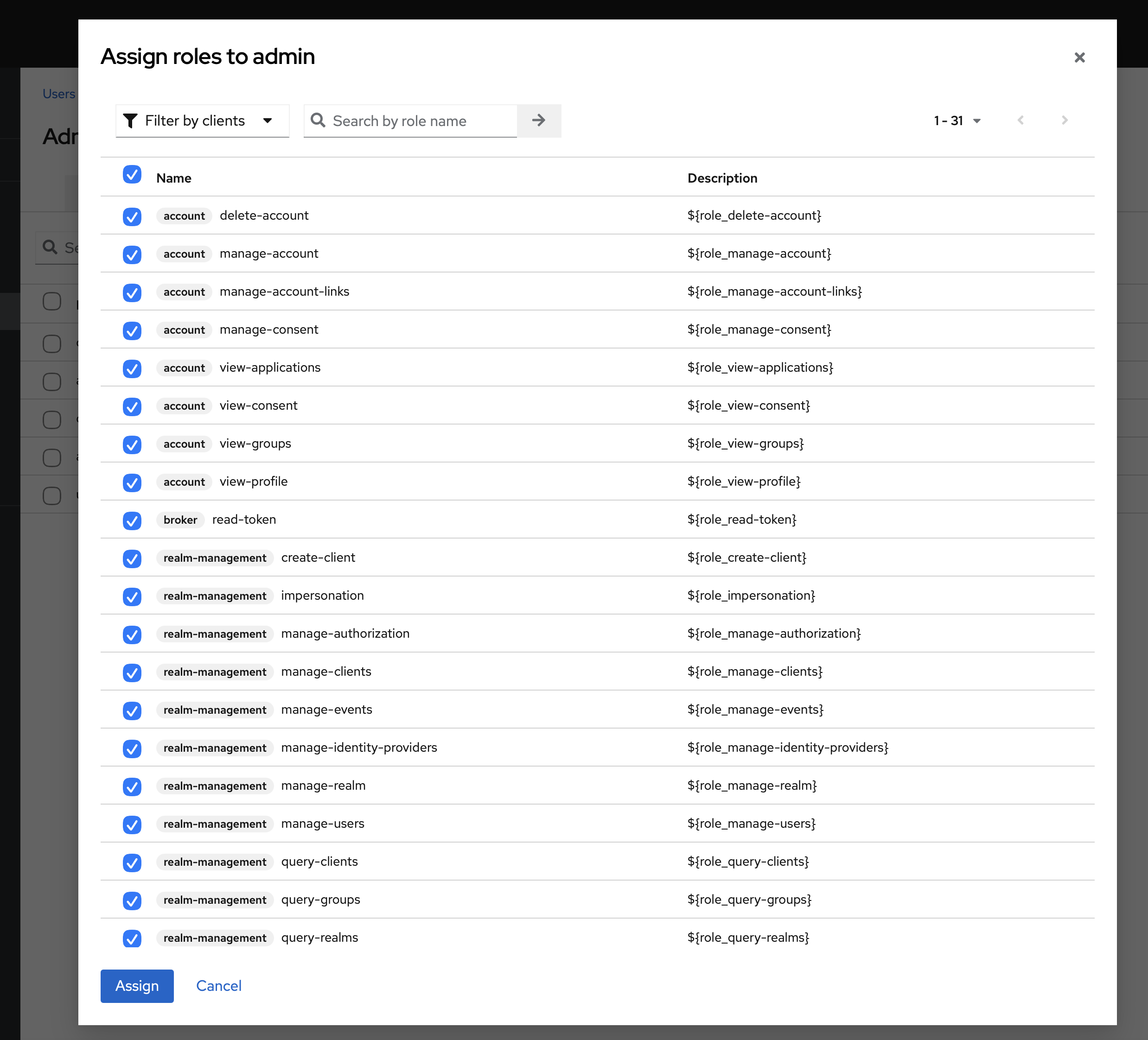
Now type realm in the search box and press Enter or click the Next button.
-
Upon searching, all the realm-management roles will appear; assign all the realm roles to the Admin user.
-
When finished, the admin user's Role mapping tab should show the realm role
admin(plus any add-ons such asdownload/export/evaluatetag) and therealm-managementclient roles.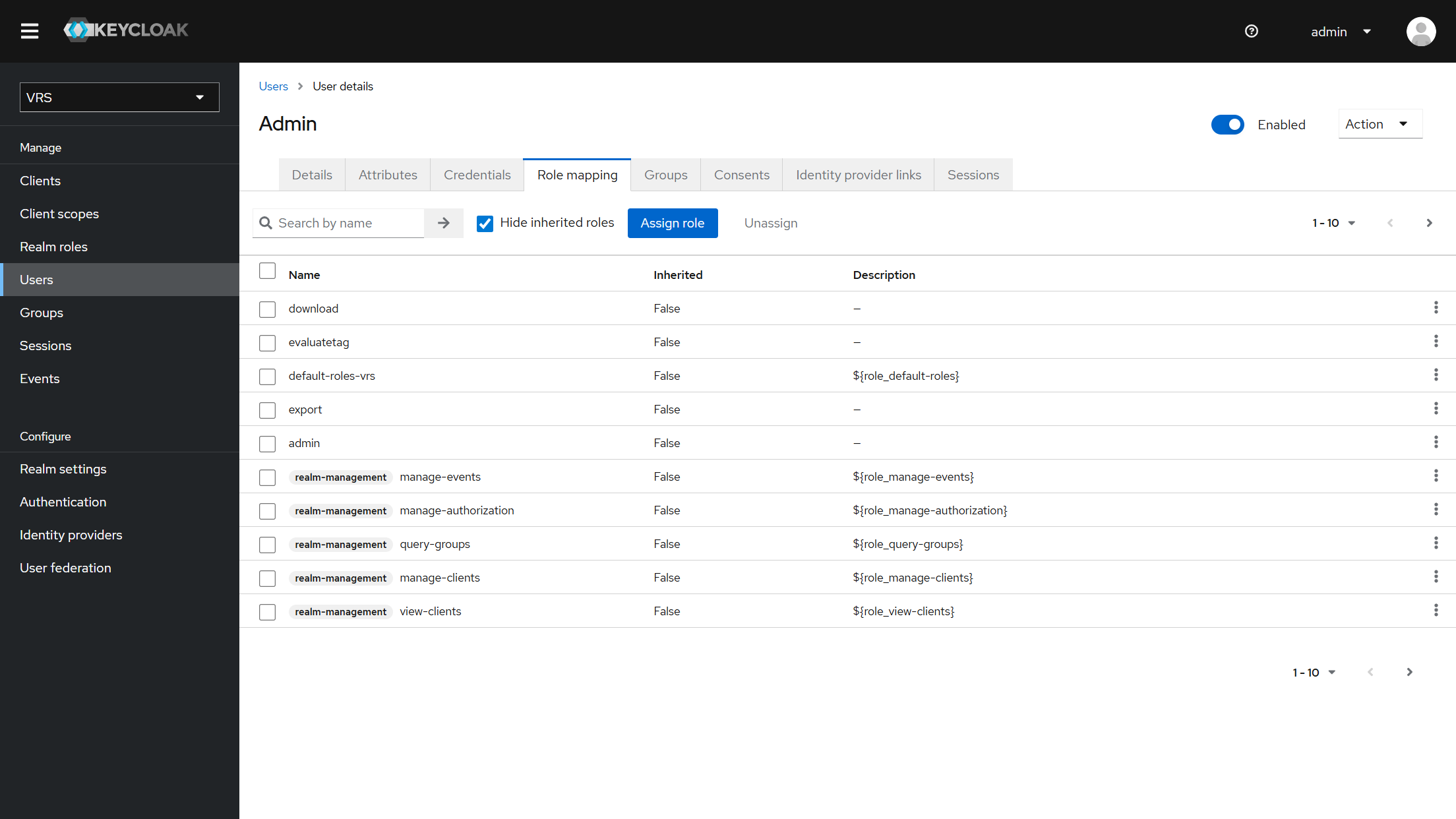
-
Creation of Keycloak Agent Group for VRS Finesse Gadget
For deployments using the VRS Finesse gadget, the following steps are required as well:
-
Open the target realm, i.e.,
VRS. -
Navigate to the Groups section in Keycloak.
-
Click the
Create groupbutton. -
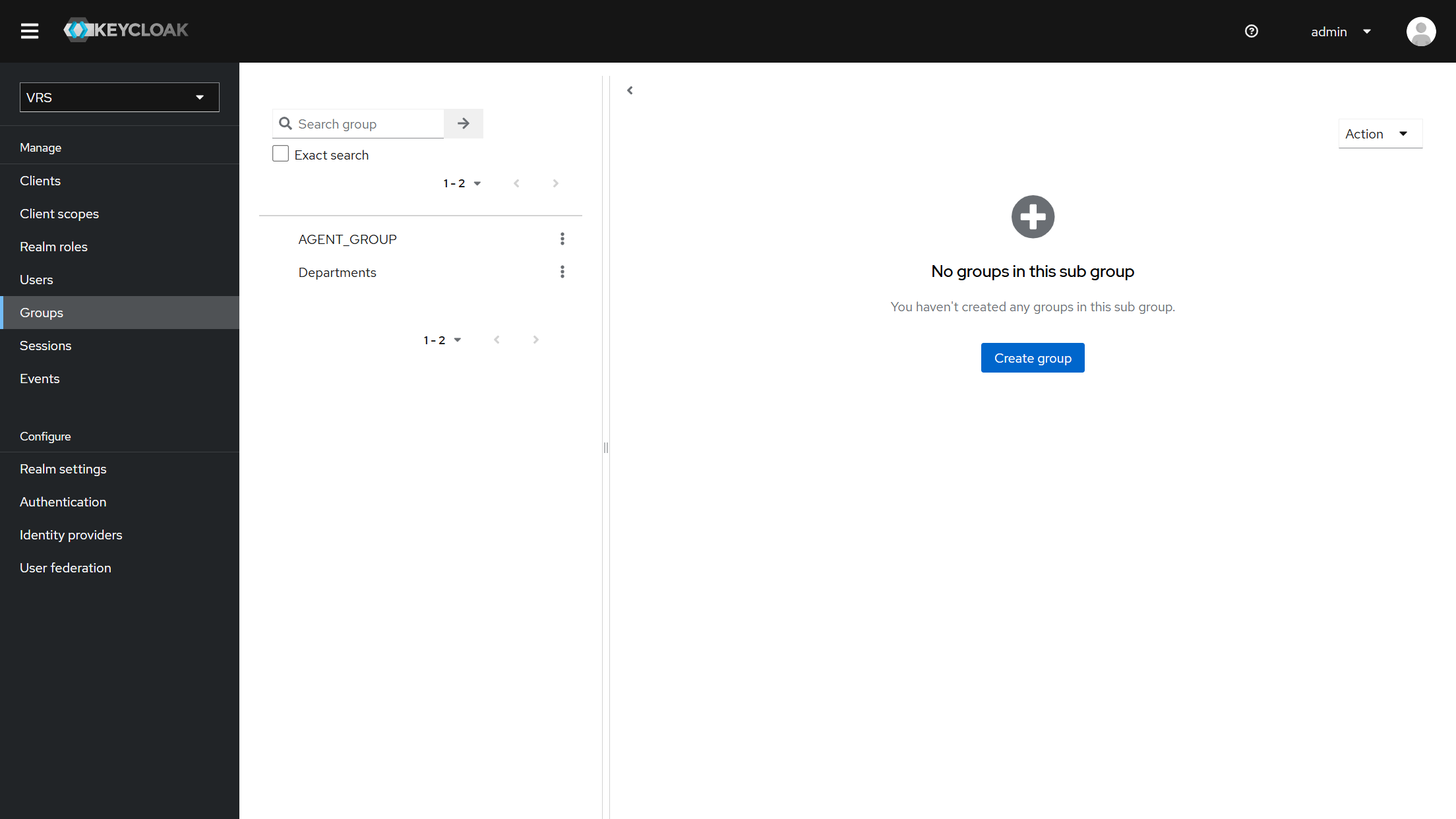
Create a group named
AGENT_GROUP.
-
Open
AGENT_GROUPand navigate to theRole mappingtab. -
Assign the realm role
agentto this group. -
If the
agentrole does not exist, first create it underRealm roles, then return toAGENT_GROUPand assign it.
-
The group name should be exactly
AGENT_GROUP. -
New users added to this group will inherit the
agentrole through Keycloak group-to-role mapping.
Supervisor role and department groups
For supervisors (Media Recordings department scoping and Operations Dashboard access), use the same realm role supervisor. Create it under Realm roles if it does not exist (step 9). No separate dashboard role is required.
Screenshots below match the walkthrough in VRS User Guide section 2.1 Supervisor departments.
-
Open the VRS realm → Groups → create a parent group named
Departments.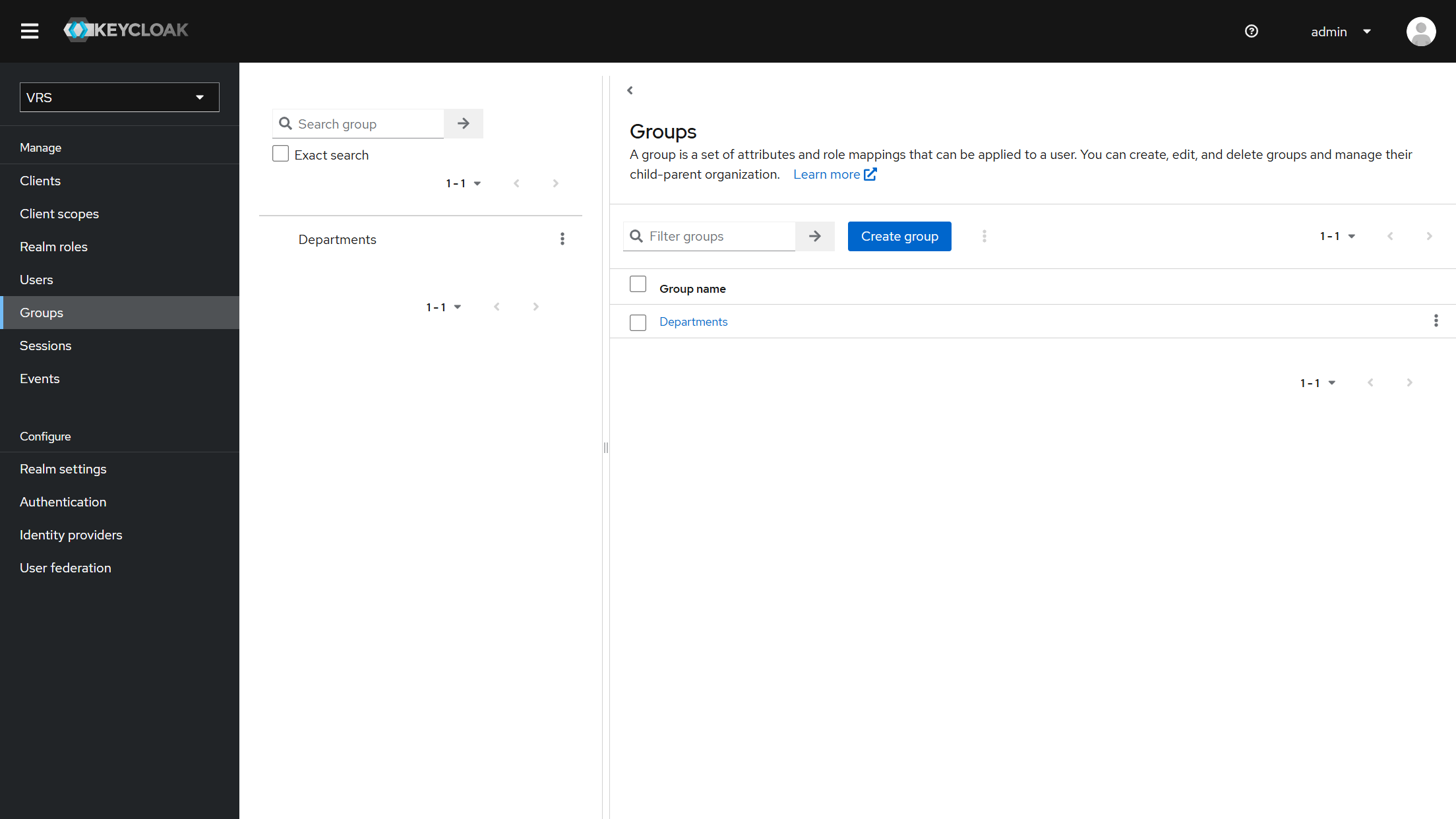
-
Under
Departments, create a child group for each team (for examplesale) so the path is/Departments/sale.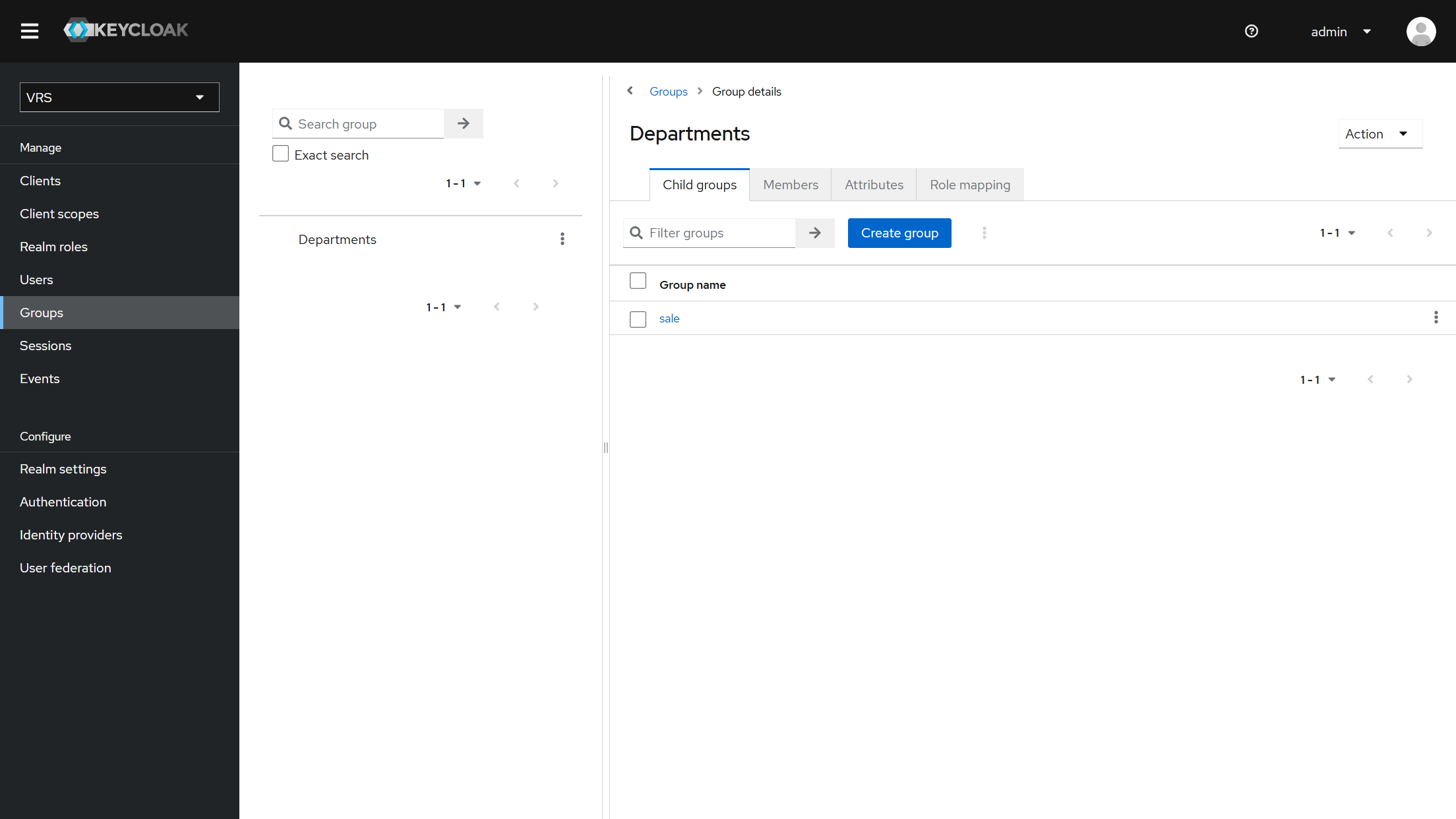
-
On the child group → Members, add agent users and the supervisor user to the same child group. Agent usernames in Keycloak must match the Cisco
agentIdvalues used by VRS.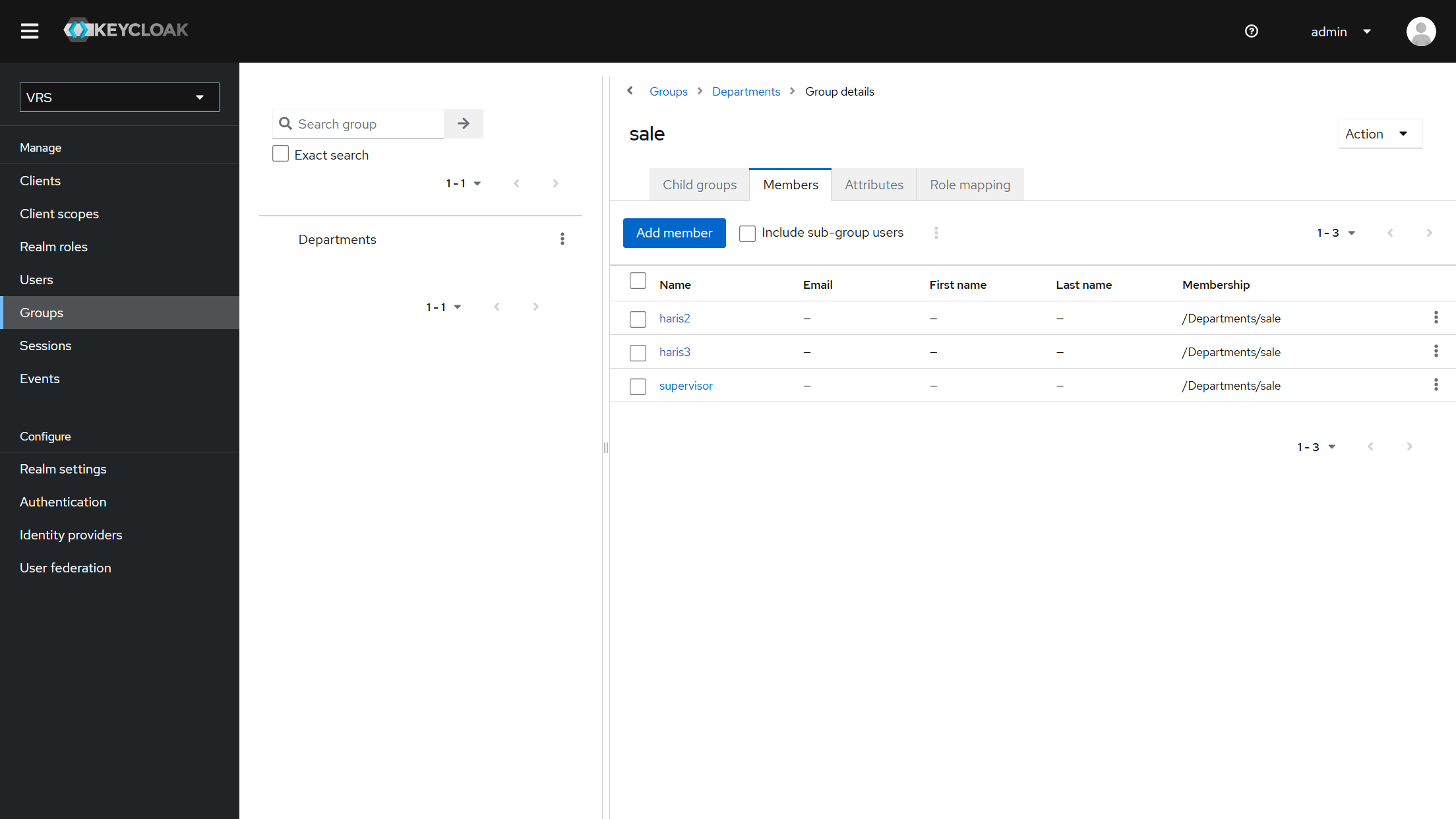
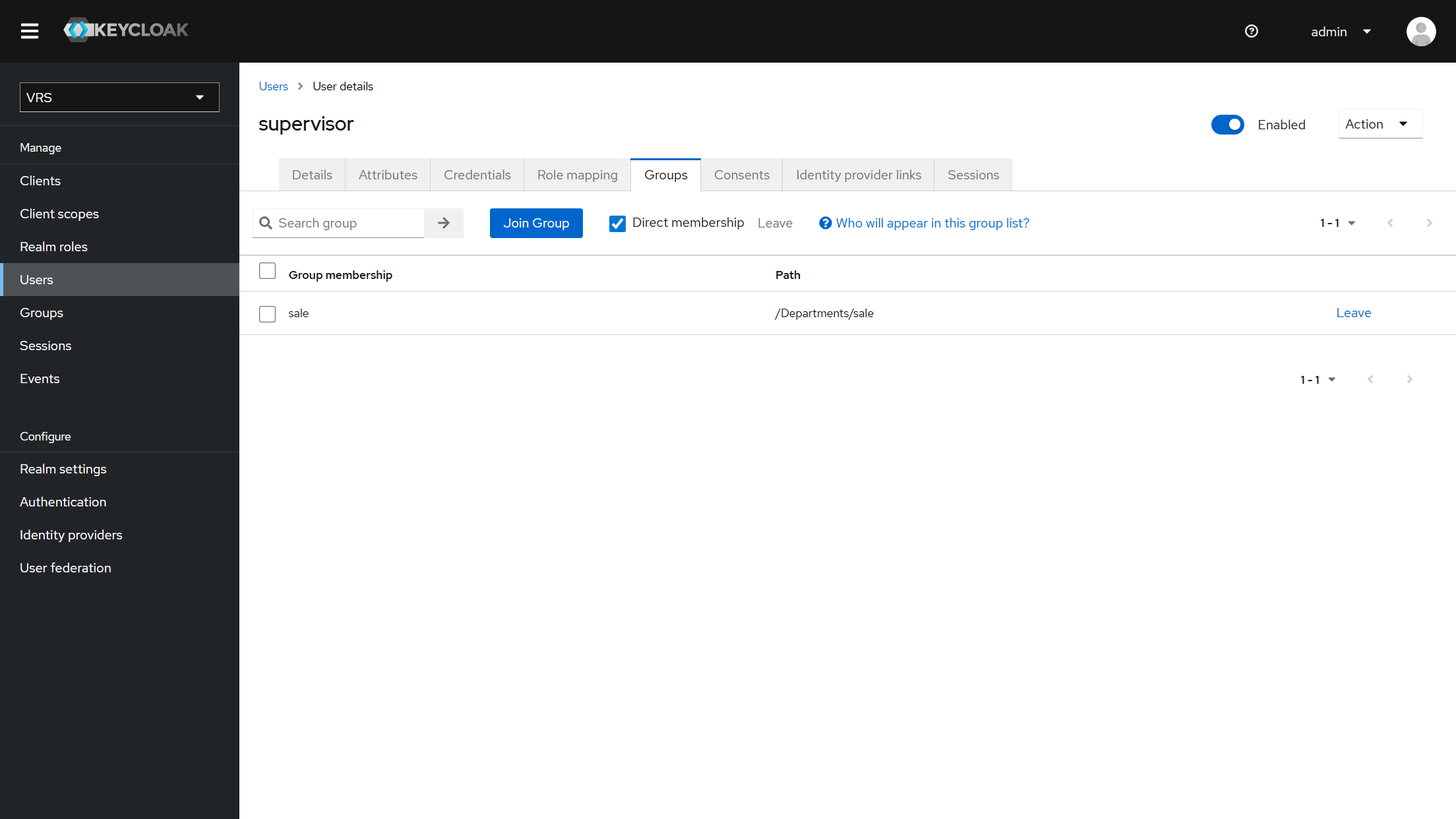
-
On the
vrsclient → Client scopes → dedicated scope → Mappers, open the groups (Group Membership) mapper and set Full group path to On so the token shows/Departments/sale, not onlysale.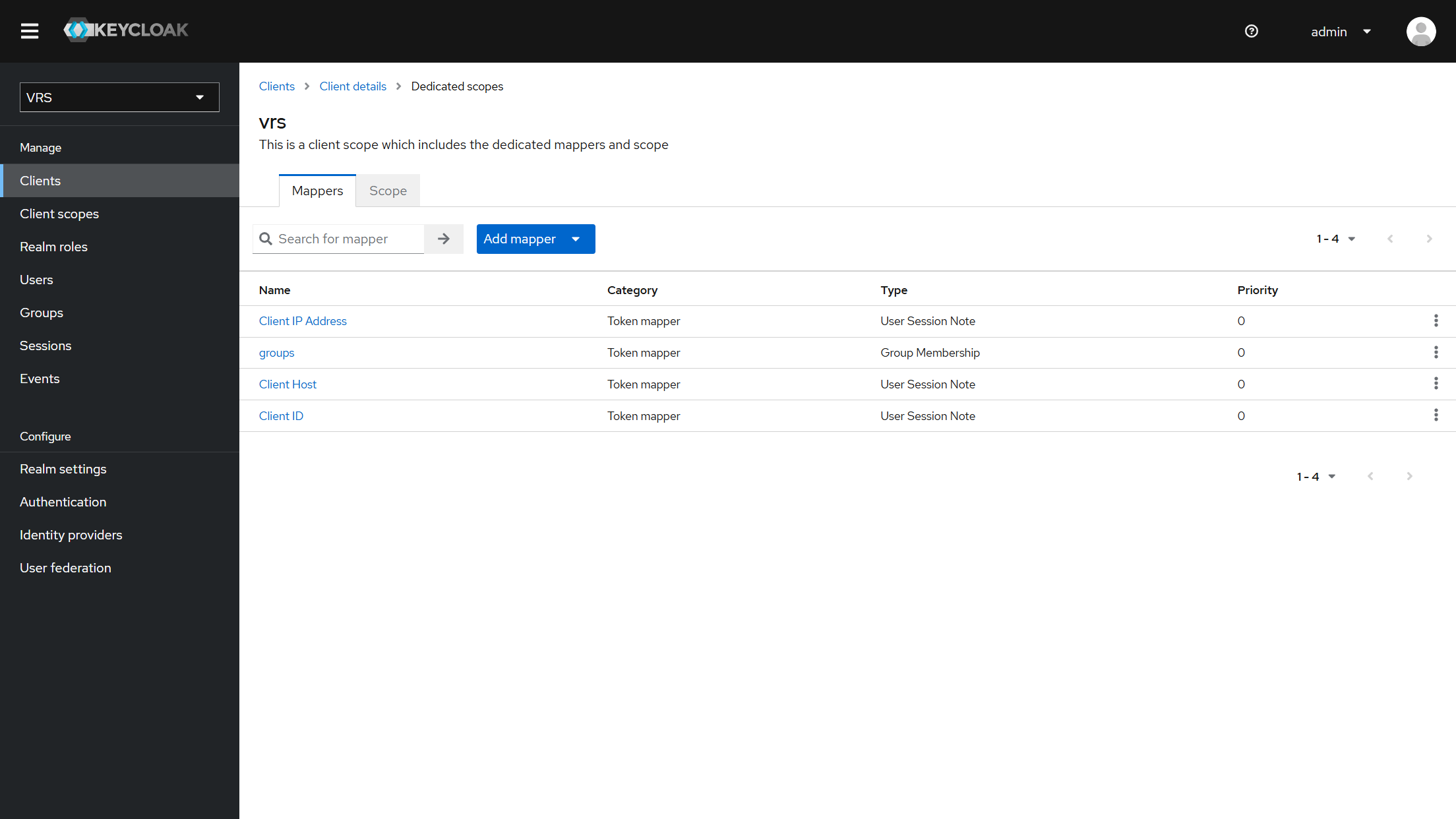
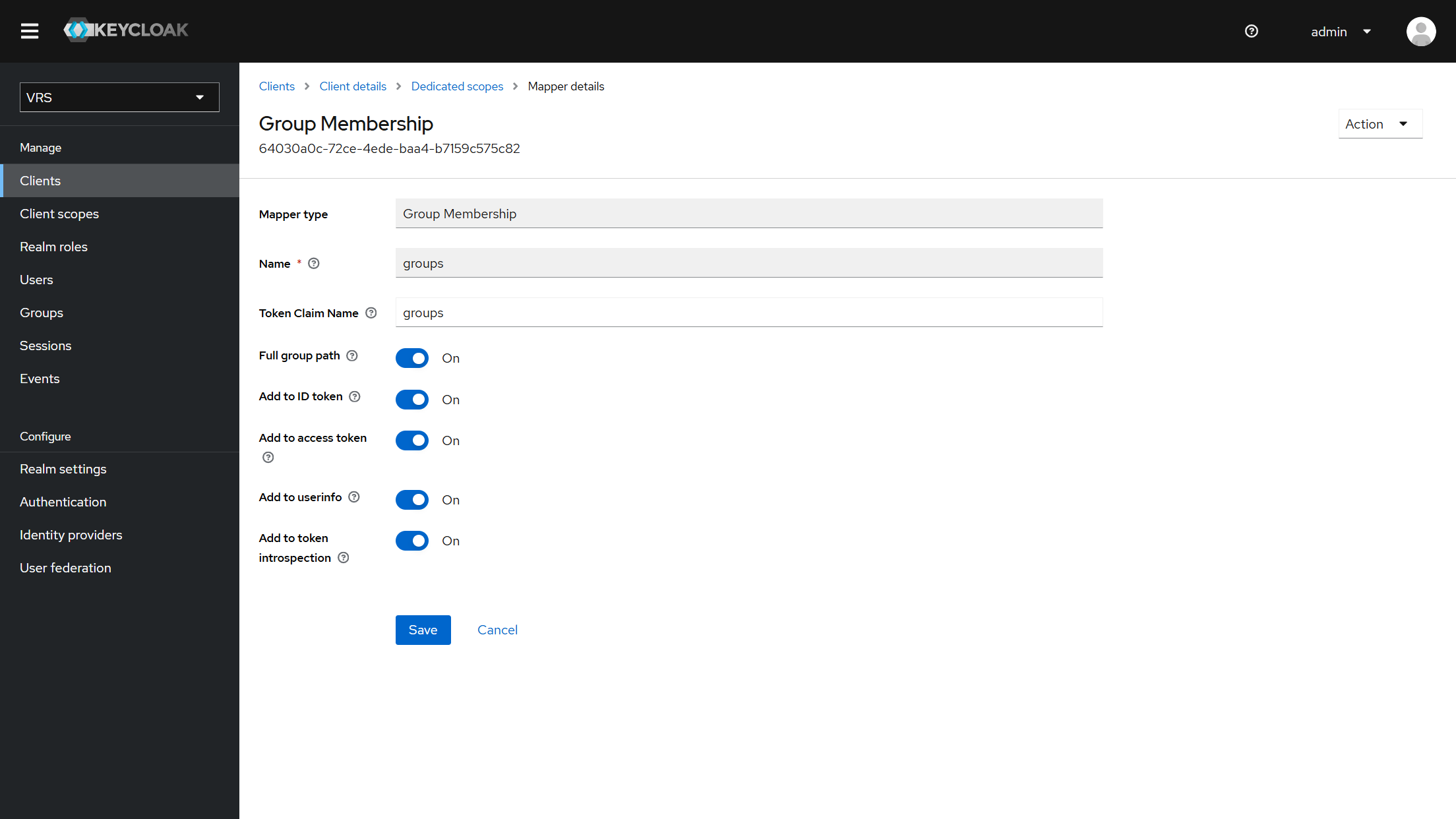
-
Assign the realm role
supervisorto the supervisor user (keep default roles).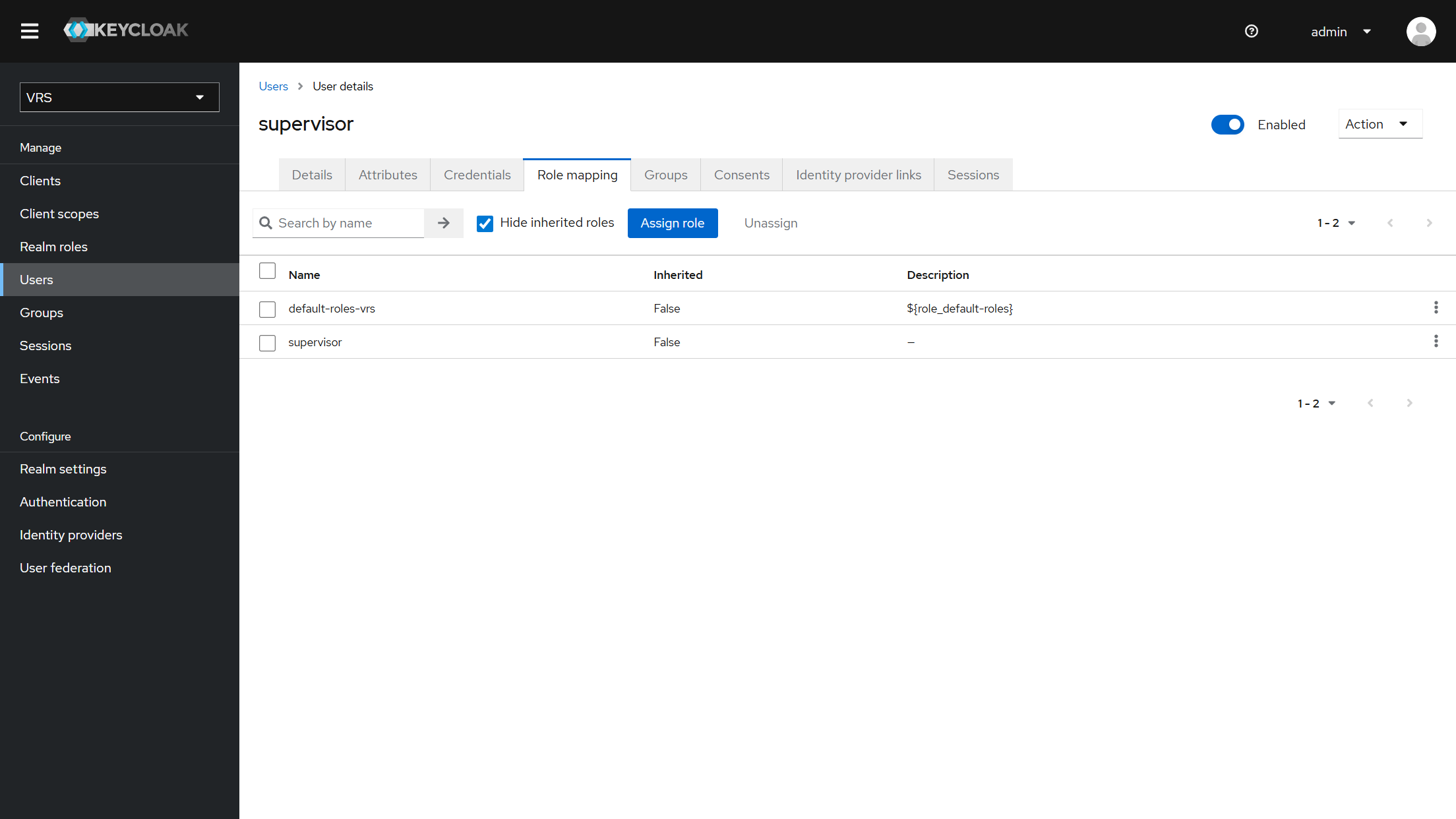
-
Keep the Keycloak service account permission
view-users(and typicallyquery-users/query-groups) on thevrsclient → Service accounts roles. It is required for supervisor department scoping on Media Recordings and the Operations Dashboard. If revoked, supervisor resolution fails safe (empty allowed list).
From VRS 14.12.0: Department groups apply to both Media Recordings and the Operations Dashboard. A supervisor sees OD metrics only for agents in their shared /Departments/<name> group(s). Admins still see the full tenant. See VRS Authorization & Permissions and Operations Dashboard.