
Lock a VRS Keycloak user after too many wrong passwords, show a clear message in the VRS UI, and unlock the user in Keycloak when needed.
Applies to Cisco and EFCX deployments: same VRS login behavior and the same Keycloak Brute Force Detection settings. Configure BFD on the Keycloak realm your environment uses for VRS login.
Applies to realm users who log in through VRS with Keycloak (admin / supervisor / agent). Lock duration and failure count are controlled in Keycloak, not by a VRS environment variable.
Cisco vs EFCX: Brute Force Detection settings and unlock rules are the same (clear Temporarily locked and set Enabled On). The Admin UI differs: realm name (VRS vs Expertflow), whether the Users list shows a Temporarily locked badge while locked, and where the Enabled control sits on user Details. Screenshots below are labeled Cisco or EFCX.
What users see in VRS
Same snackbars on Cisco and EFCX:
|
Case |
Snackbar text |
|---|---|
|
Wrong password (account not locked yet) |
|
|
Account locked by Brute Force Detection |
|
|
Successful login |
|
The UI does not show remaining attempts or a countdown. After the Keycloak wait time (or after an admin unlock), the user can try again.
Prerequisites
-
VRS apis and front-end are deployed and reachable.
-
You can open Keycloak Admin for the realm used by your deployment:
-
Cisco: typically realm VRS
-
EFCX: typically realm Expertflow (confirm on your site if renamed)
-
-
The VRS confidential client service account can call Keycloak Admin APIs for users and attack detection. Assign at least realm-management roles
view-usersandquery-users(see Service account roles below). Without those roles, locked users may still see only the invalid-password message.
Service account roles (required for locked snackbar)
VRS must call Keycloak Admin as the confidential client service account. Without the right roles, the lock check returns 403, APIs fail open, and the UI only ever shows Invalid username and/or password even when Keycloak shows the user locked.
|
Deployment |
Typical client |
Service account roles (realm-management) |
|---|---|---|
|
Cisco |
VRS confidential client (per env) |
|
|
EFCX |
|
|
EFCX path: Clients → cim → Service accounts roles → Assign role → Filter by realm-management → assign view-users and query-users.
If Brute Force Detection locks the user but the service account is missing those roles, Admin APIs return 403 and VRS always returns the invalid-password snackbar. Assign the roles, then retest.
1. Open realm settings
-
Log in to the Keycloak Admin console for your environment.
-
Select the correct realm:
-
Cisco: VRS
-
EFCX: Expertflow (or the realm your VRS login uses)
-
-
In the left menu under Configure, open Realm settings.
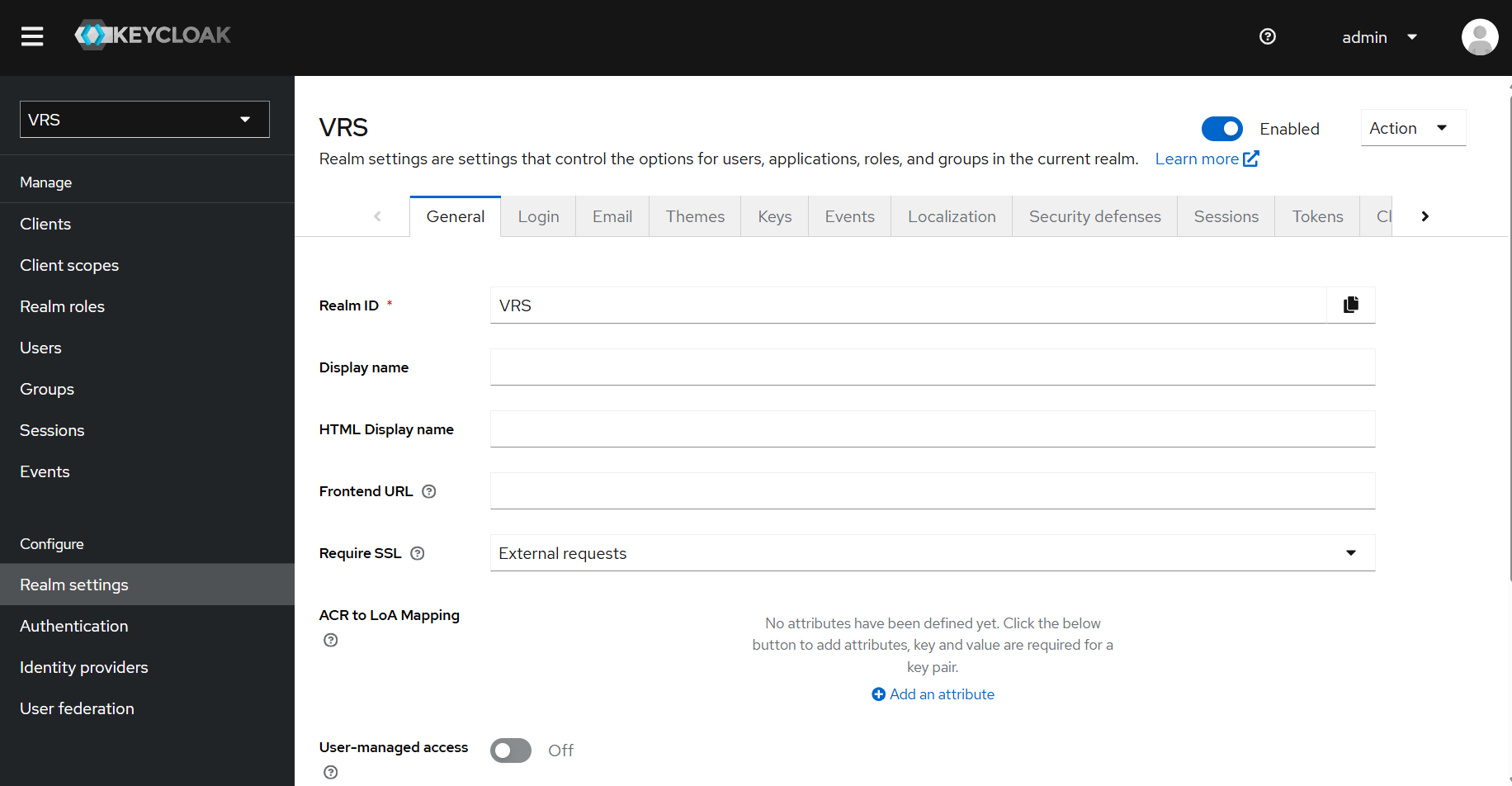
You land on the General tab for the realm (Cisco example — VRS). Next open Security defenses. On EFCX, use the same path in realm Expertflow:
2. Enable Brute Force Detection
Same settings for Cisco and EFCX.
-
Open the Security defenses tab.
-
Open the Brute force detection sub-tab.
-
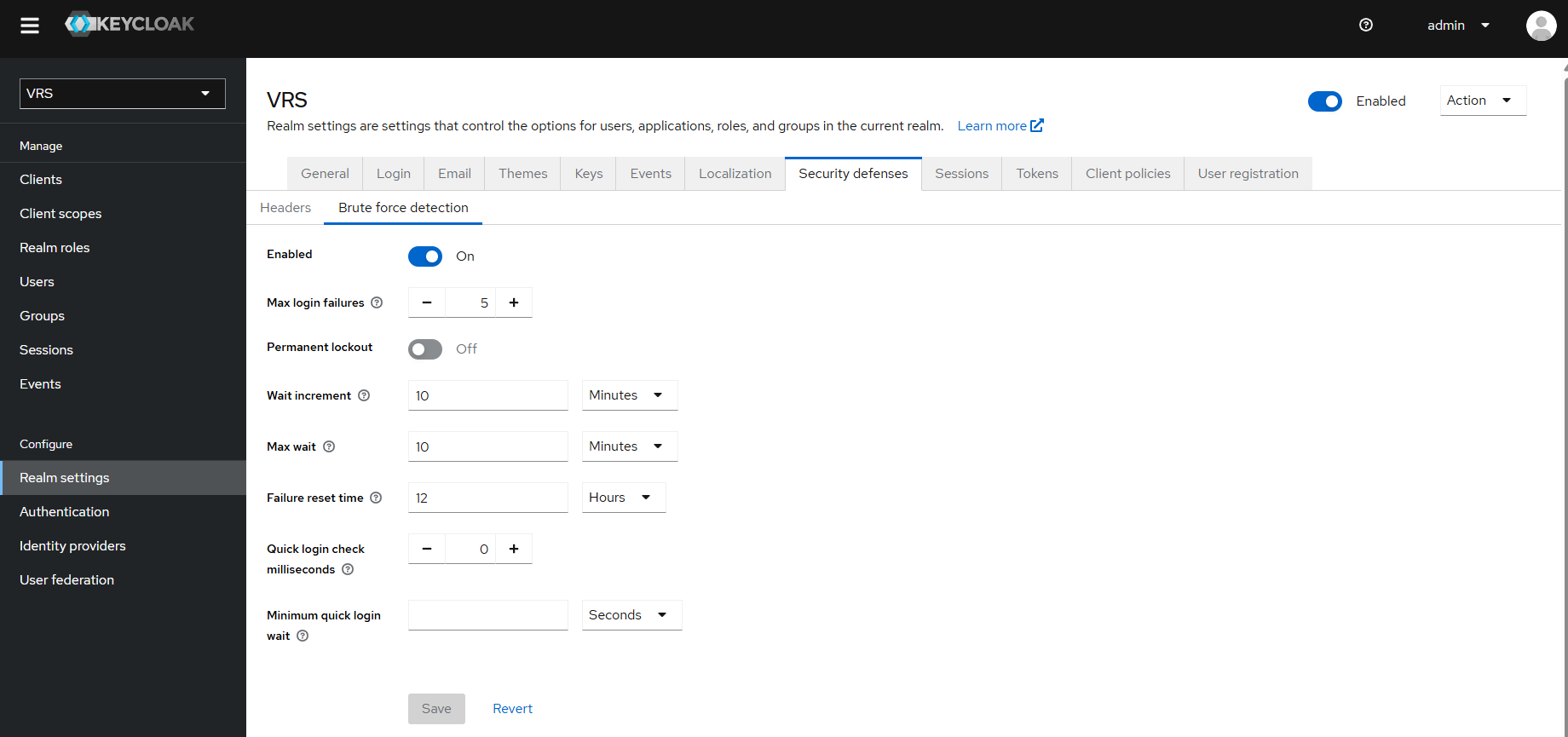
Configure the settings as shown below, then Save.
|
Setting |
Value |
Notes |
|---|---|---|
|
Enabled |
On |
Turns on lockout. Must be On for any of the other settings to apply. |
|
Max login failures |
5 |
Number of wrong passwords before a temporary lock. |
|
Permanent lockout |
Off |
Keep Off so the lock can clear after Max wait (temporary lock, not a permanent BFD lockout policy). |
|
Wait increment |
10 Minutes |
Initial lock wait duration. |
|
Max wait |
10 Minutes |
Cap on lock wait. Set equal to Wait increment for a simple fixed wait. |
|
Failure reset time |
12 Hours |
How long failure history is remembered. |
|
Quick login check milliseconds |
0 |
Use 0 to avoid odd early locks. |
|
Minimum quick login wait |
empty |
Leave empty (or 0) when Quick login check is 0. |
Configured Brute force detection (Cisco example):
Important: Lock duration and failure count are controlled only in Keycloak. Changing these values changes lock behavior for all realm users. There is no separate VRS config.env lock timer.
3. What a temporary lock looks like
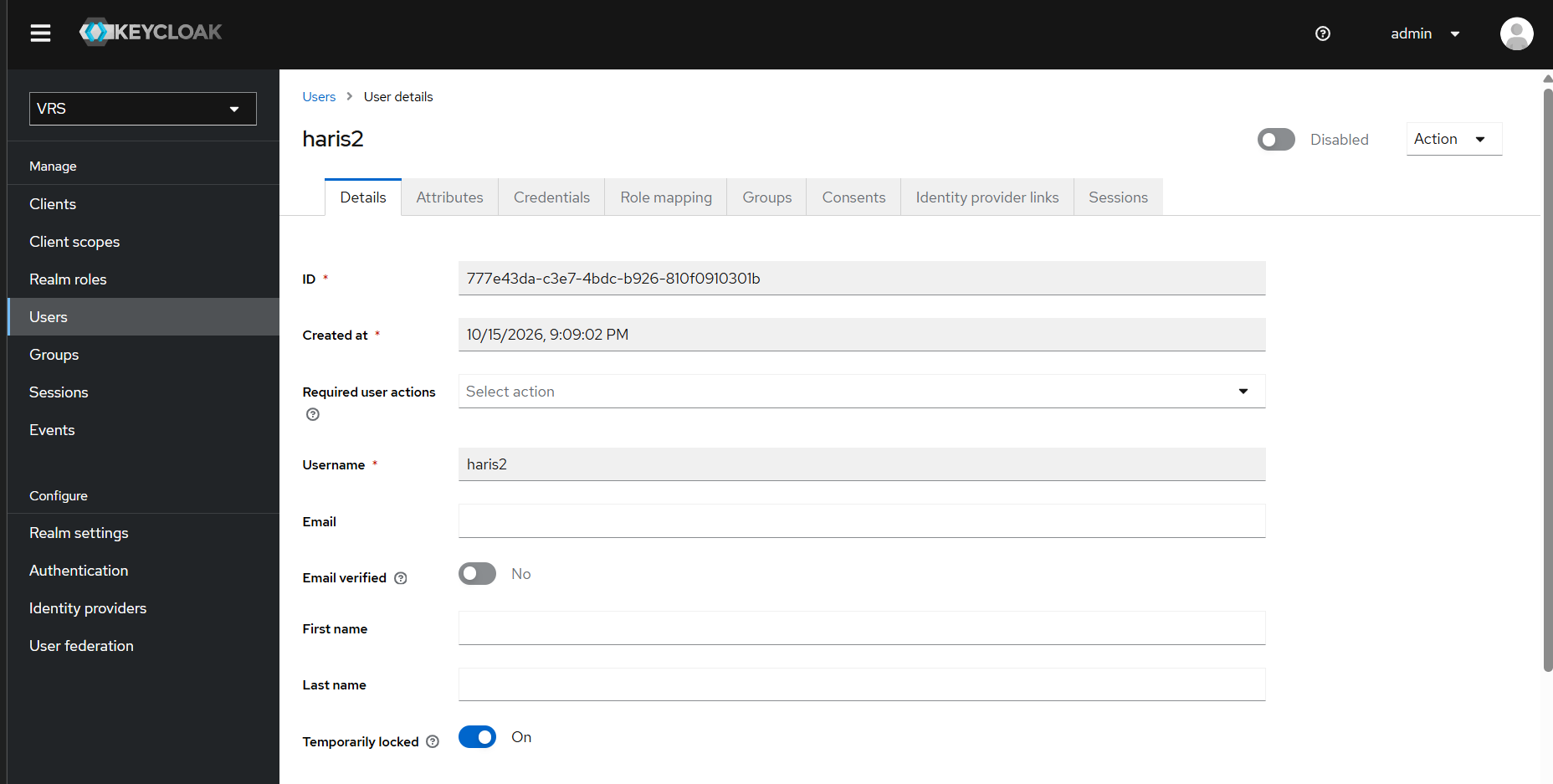
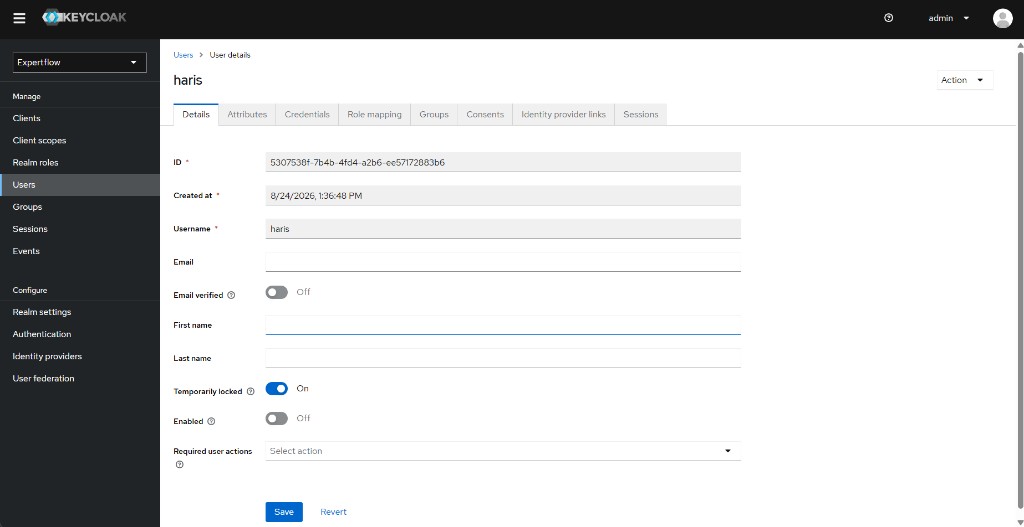
After the user exceeds Max login failures, Keycloak locks the account. You typically need to clear both Temporarily locked and Disabled / Enabled before login works again. How that appears in the Admin UI differs slightly by deployment.
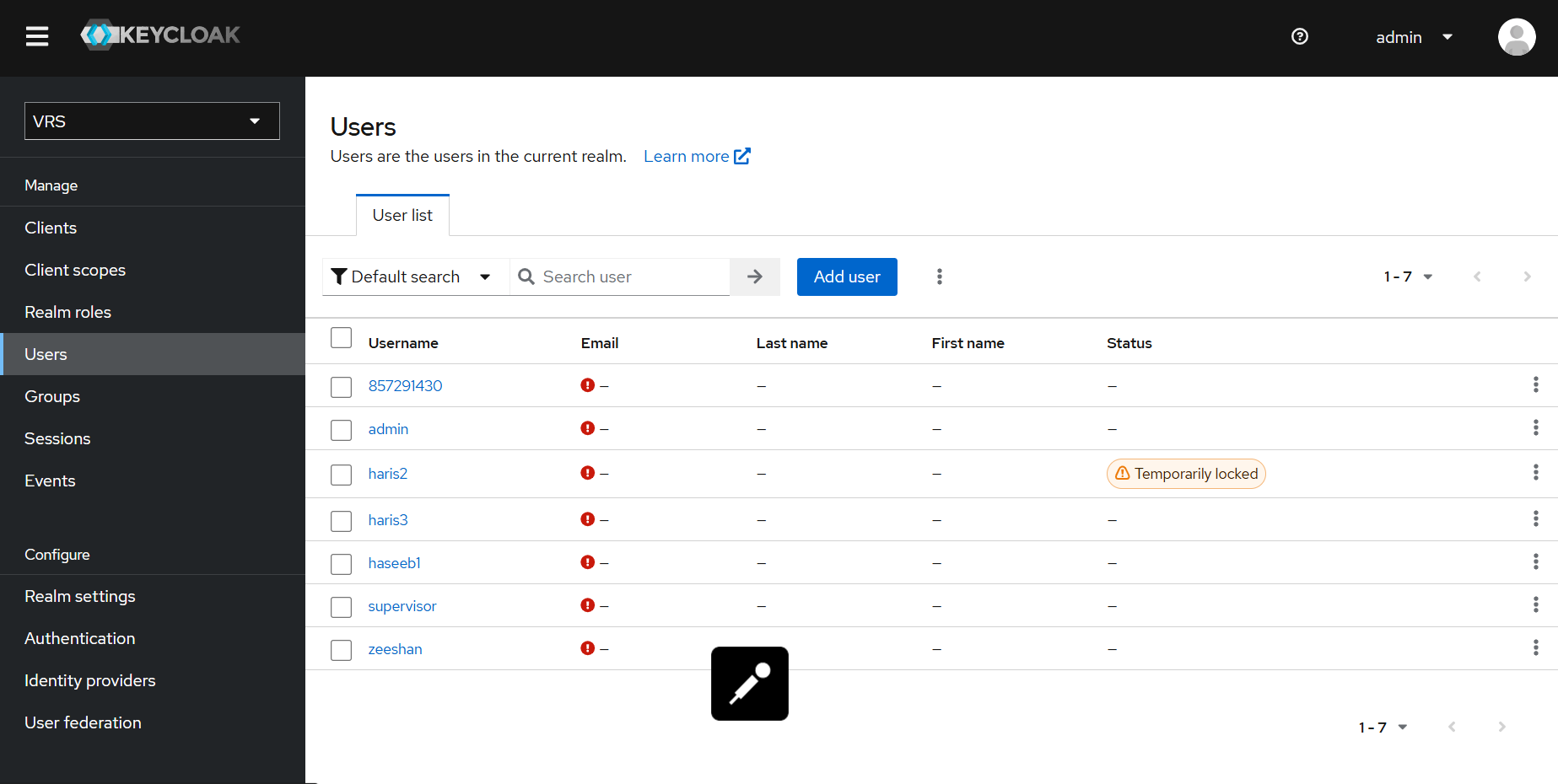
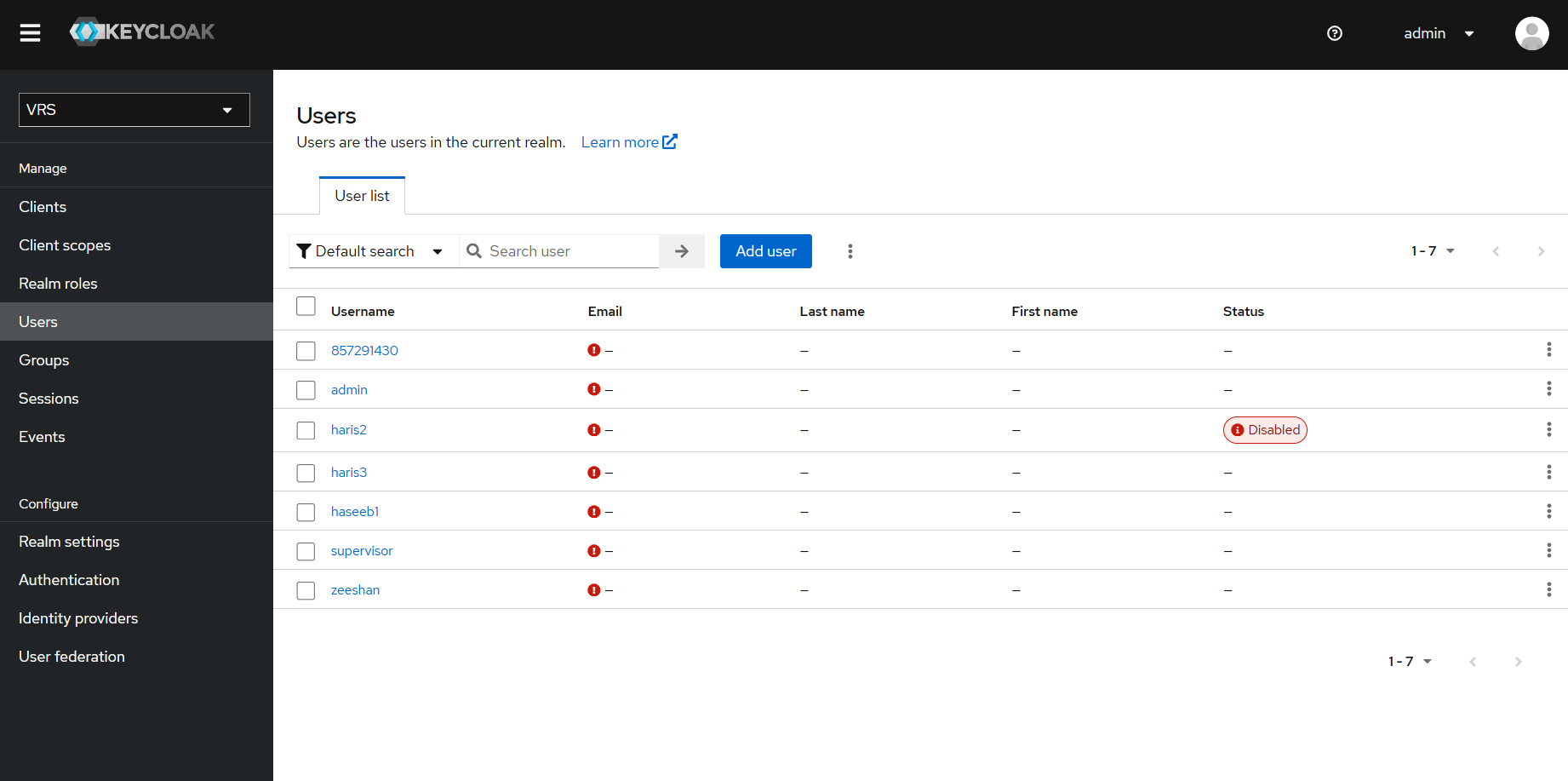
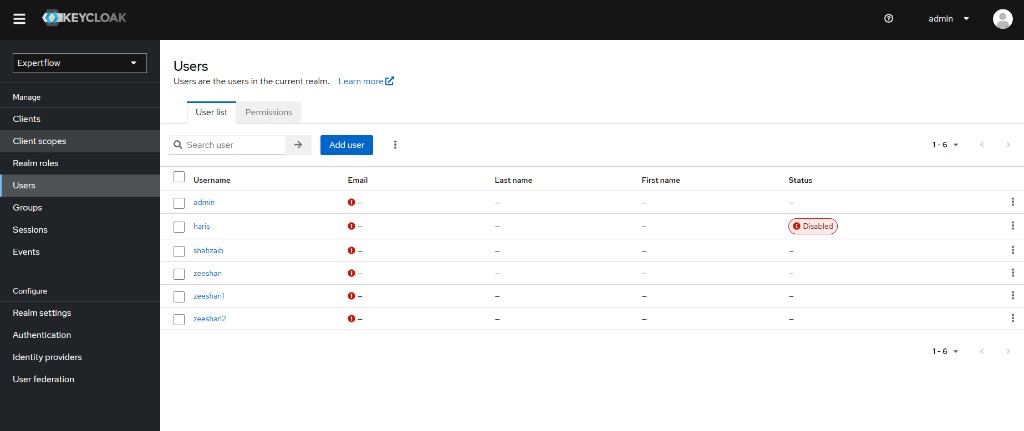
Users list — Status badge
|
Deployment |
While BFD-locked (before you change anything) |
After you turn Temporarily locked Off only (Enabled still Off) |
|---|---|---|
|
Cisco |
Status shows Temporarily locked |
Status shows Disabled |
|
EFCX |
Status shows nothing (no Temporarily locked badge and no Disabled badge yet) |
Status shows Disabled — same as Cisco |
Cisco — Users list with Temporarily locked (while still locked):
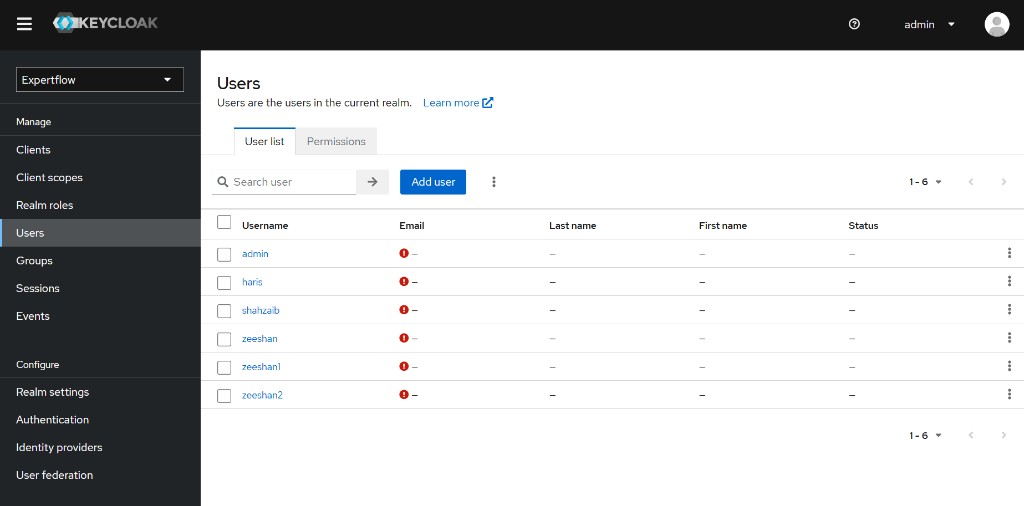
EFCX — Users list while BFD-locked (no Status badge — open Details to confirm):
User Details — Temporarily locked and Enabled
Open the user (Details). Confirm both of these (wording/placement can differ):
-
Temporarily locked is On (same on Cisco and EFCX).
-
Account is not Enabled:
-
Cisco: top-right account control shows Disabled (account not Enabled)
-
EFCX: on the Details form, Enabled is Off (no top-right Enabled/Disabled control like Cisco)
-
Cisco — Details after lock (Temporarily locked On; top-right shows Disabled — not Enabled):
EFCX — Details after lock (Enabled is an in-form toggle):
4. Admin unlock (temporary lock)
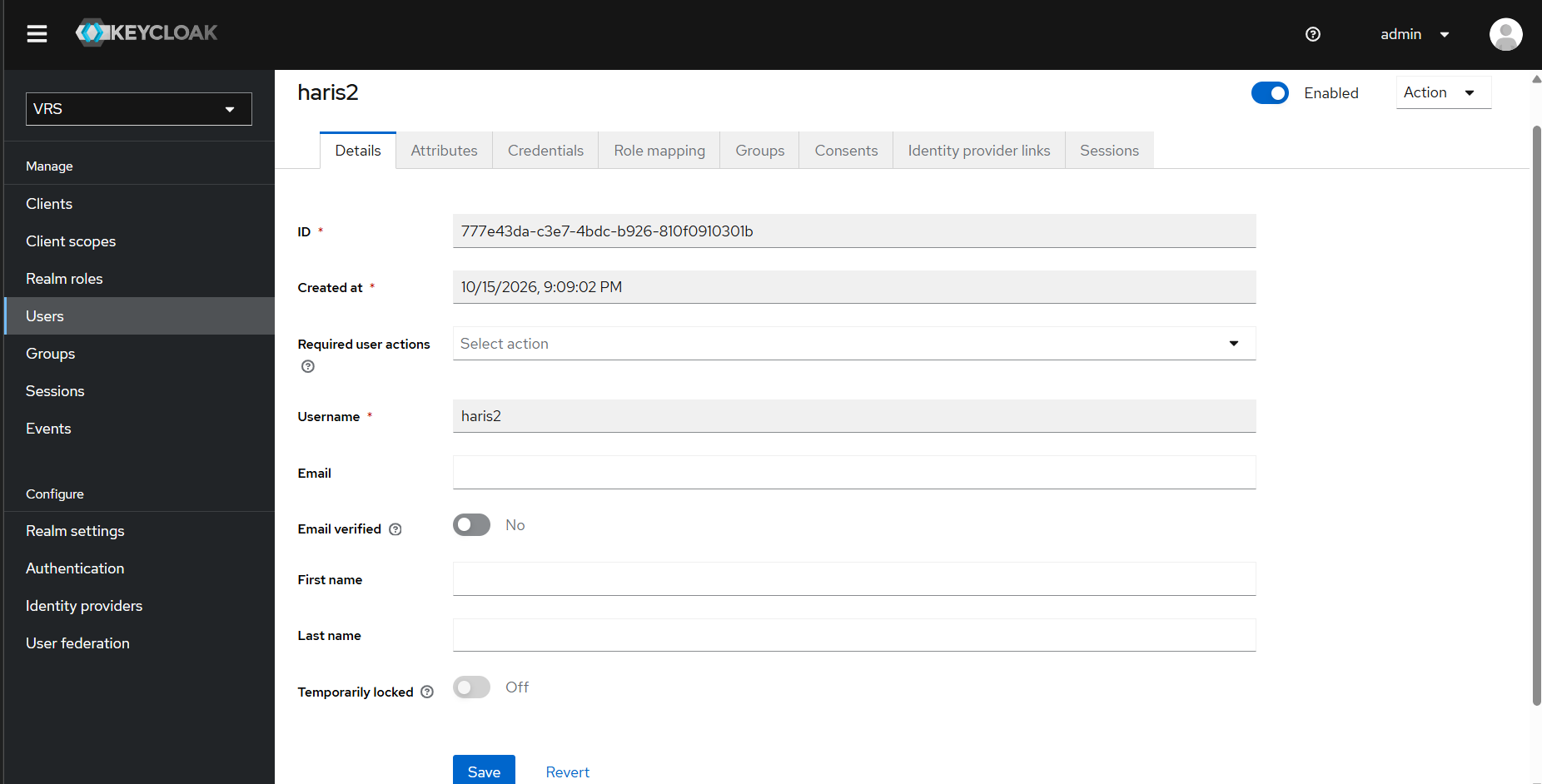
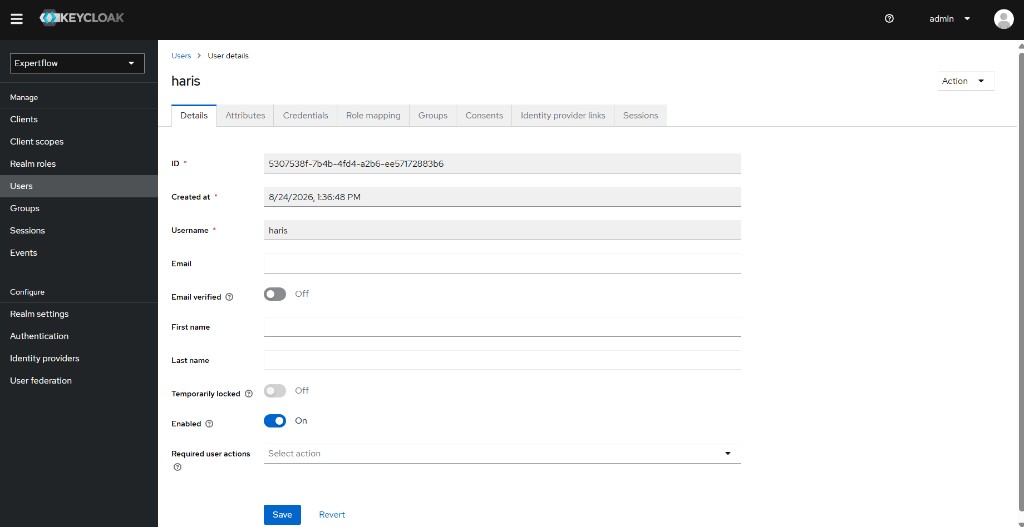
To unlock immediately without waiting for Max wait, clear both controls on Cisco and EFCX:
-
Open Users → select the user.
-
On Details, set Temporarily locked to Off.
-
Set the account to Enabled:
-
Cisco: set the top-right control to Enabled (On).
-
EFCX: turn the Details form Enabled toggle On.
-
-
Click Save.
After a full unlock, Temporarily locked is Off and Enabled is On:
Cisco:
EFCX:
The user can log in again with the correct password (subject to any other Keycloak rules).
5. If you only clear Temporarily locked
When the account is locked, Keycloak uses two controls. You must fix both for login to work again (Cisco and EFCX).
|
Control |
Where you see it |
After a lock |
What you must do |
|---|---|---|---|
|
Temporarily locked |
Cisco: Users list badge while locked; Details → Temporarily locked
|
On |
Set to Off and Save, or wait for Max wait. |
|
Disabled / Enabled |
Cisco: top-right Enabled/Disabled toggle; Users list shows Disabled after temp lock is cleared
|
Enabled Off (account Disabled) |
Set Enabled to On and Save. |
If you only turn Temporarily locked Off and leave the account Disabled, the user still cannot log in. On both Cisco and EFCX, the Users list then shows Disabled. Always finish unlock with Enabled On.
Cisco — Users list after clearing only Temporarily locked:
EFCX — same outcome (Disabled appears only after temp lock is cleared):
6. Verify
-
Valid login →
Login Successful. -
Wrong password under the max →
Invalid username and/or password. -
Fail until Max login failures (for example, 5) →
Account is locked. Try again later.. In Keycloak: Cisco shows Temporarily locked on the Users list; EFCX shows no list badge — open Details and confirm Temporarily locked On. -
Wait Max wait or admin unlock (Temporarily locked Off and Enabled On) → correct password works again.
7. Troubleshooting
|
Symptom |
Likely cause |
|---|---|
|
Always “invalid password” even when Details shows Temporarily locked On |
Service account missing |
|
EFCX Users list looks normal while the user cannot log in |
Expected while BFD-locked — EFCX often shows no Status badge until you clear Temporarily locked; check Details |
|
Users list shows Disabled after you turned Temporarily locked Off |
Expected on Cisco and EFCX — account is still Disabled; set Enabled On and Save |
|
Locks too early |
Quick login check not 0; Wait values too small |
|
User stuck after wait / after clearing temp lock |
Temporarily locked was cleared but the account is still Disabled — set Enabled On (Cisco: top-right; EFCX: Details toggle) and Save |
|
UI shows raw |
Login error handling is not mapping Keycloak lock responses to the snackbar message |