
Enforce a strong Keycloak password policy on the realm used for VRS login (minimum length, complexity, and password history).
Screenshots below are from Keycloak Admin (realm VRS, Keycloak 23).
Related: Account lockout after failed logins is covered separately in Login account lockout (Keycloak Brute Force Detection). Do not confuse password policy with Brute Force Detection.
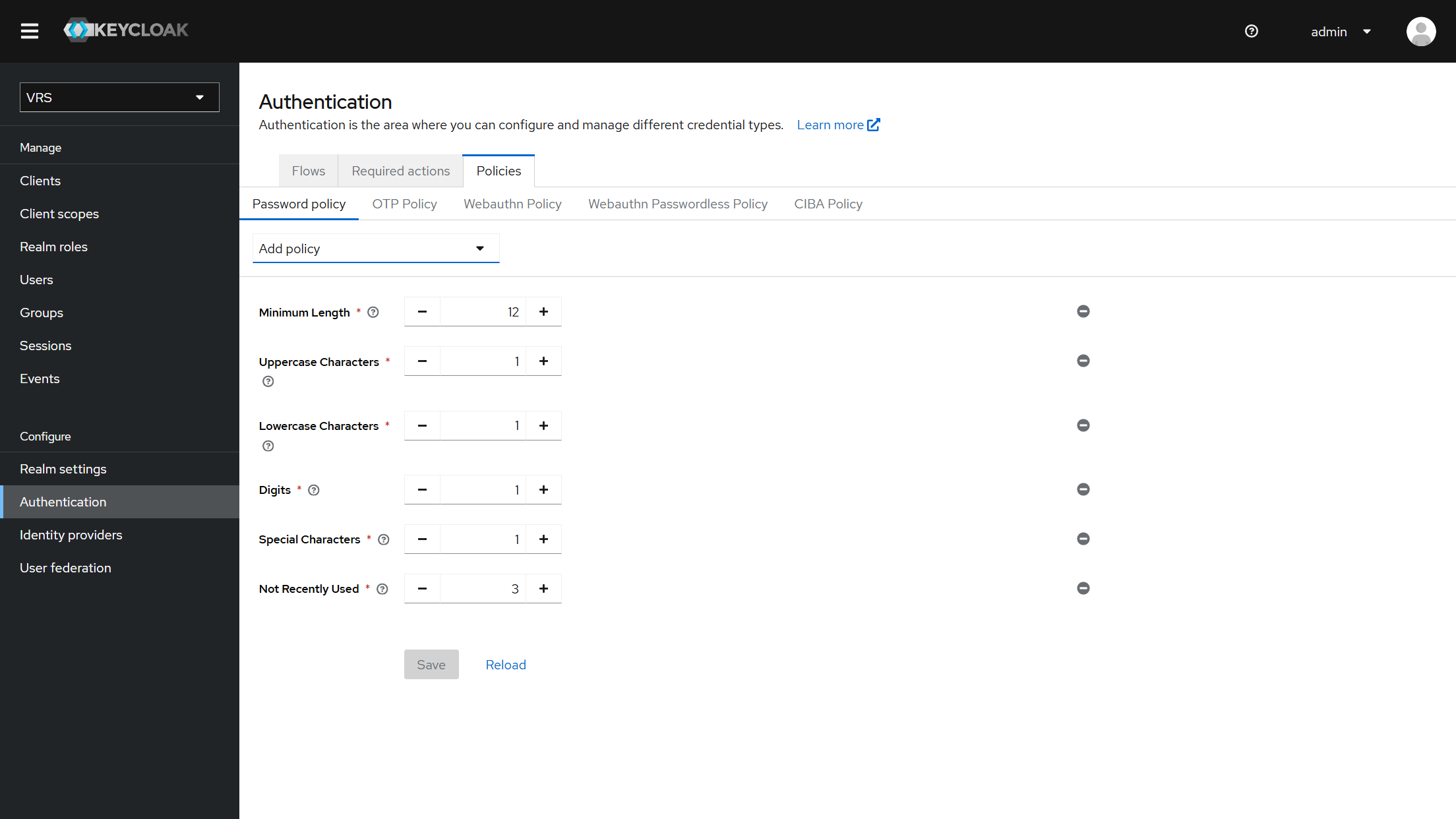
Recommended Policies
|
Policy |
Value |
Purpose |
|---|---|---|
|
Minimum length |
12 |
Reject short passwords |
|
Uppercase characters |
1 |
Require at least one uppercase letter |
|
Lowercase characters |
1 |
Require at least one lowercase letter |
|
Digits |
1 |
Require at least one digit |
|
Special characters |
1 |
Require at least one special character |
|
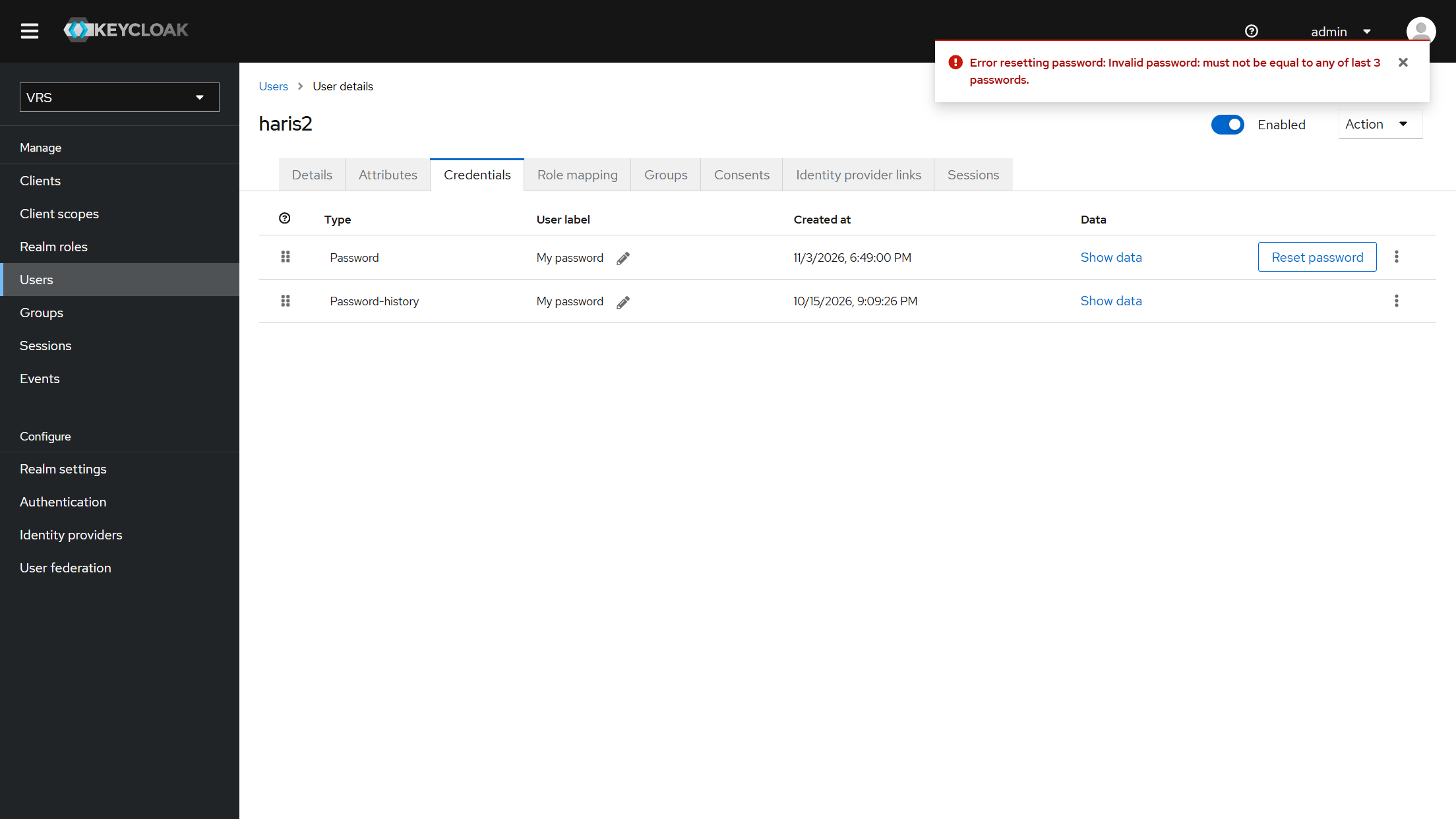
Not recently used |
3 |
Block reuse of the last 3 passwords |
1. Open Password Policy
-
Log in to the Keycloak Admin console.
-
Select the realm used for VRS login (for example VRS).
-
Left menu → Authentication → Policies → Password policy.
2. Add the Policies
-
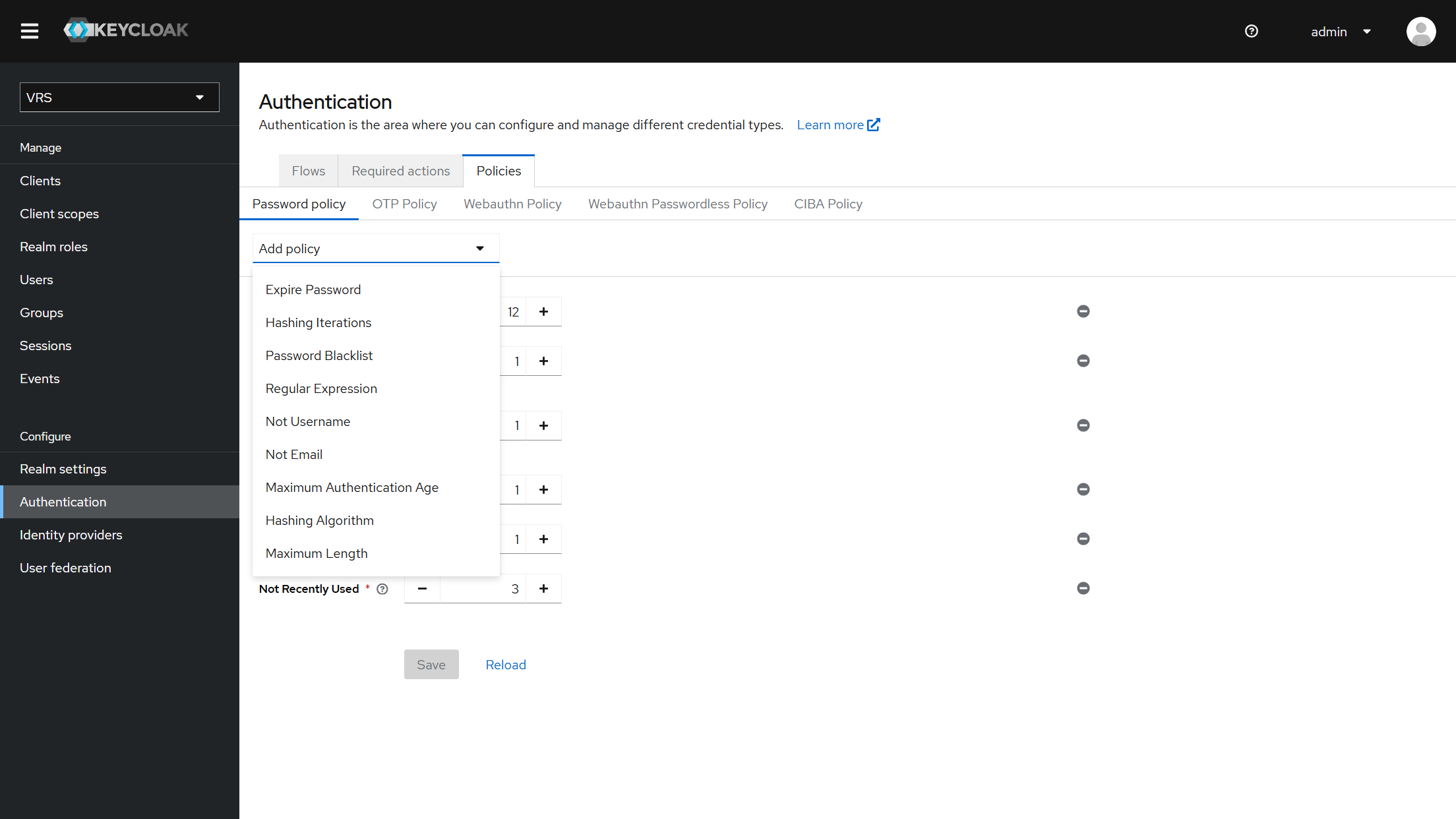
Click Add policy and add each policy from the table above.
-
Set the values as shown, then click Save.
Add policy menu (remaining policies after the recommended ones are already added):
Configured password policy (example):
3. Verify
-
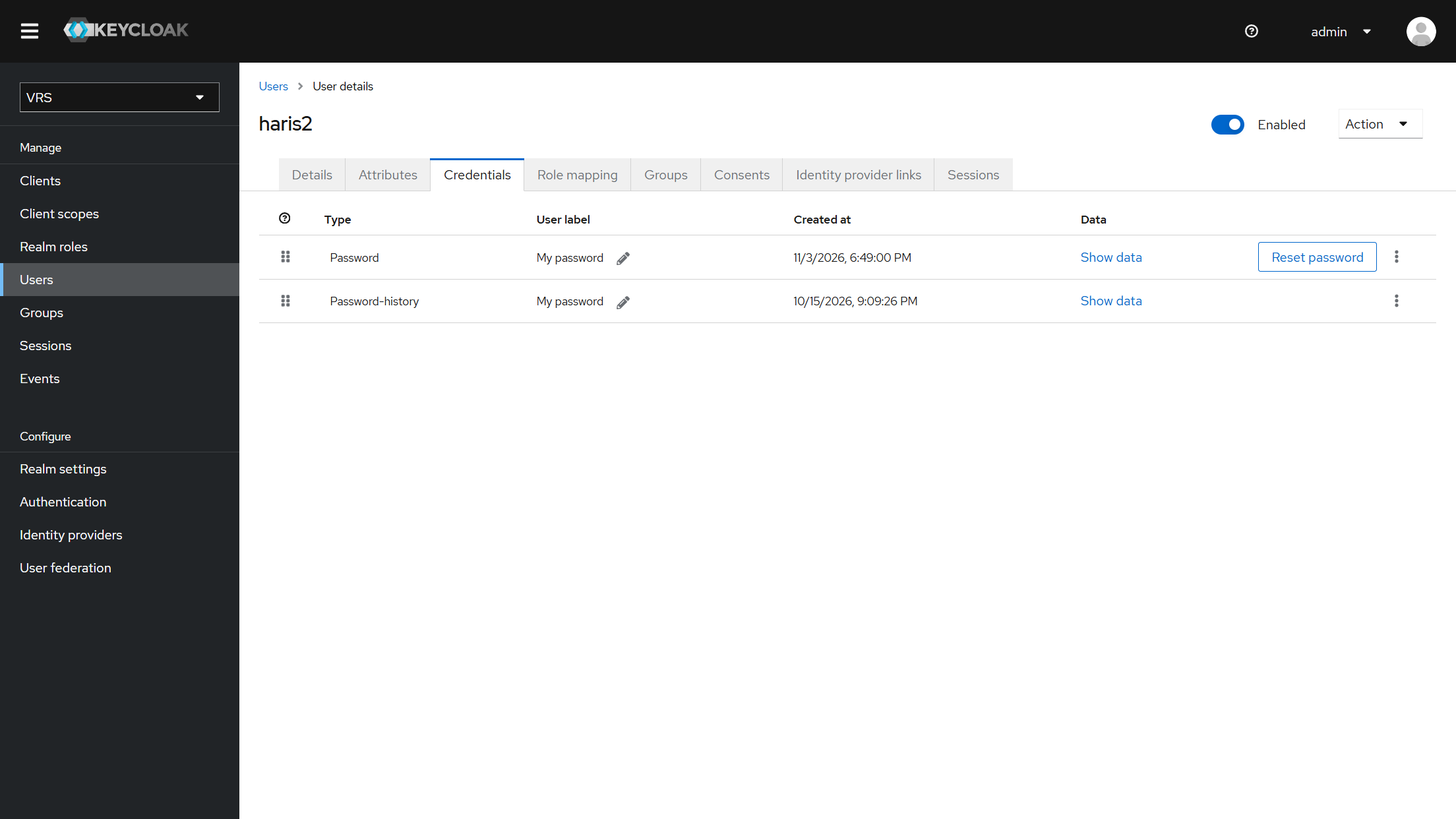
Open Users → select a test user → Credentials.
-
Click Reset password.
-
Set Temporary to Off for the check (optional).
-
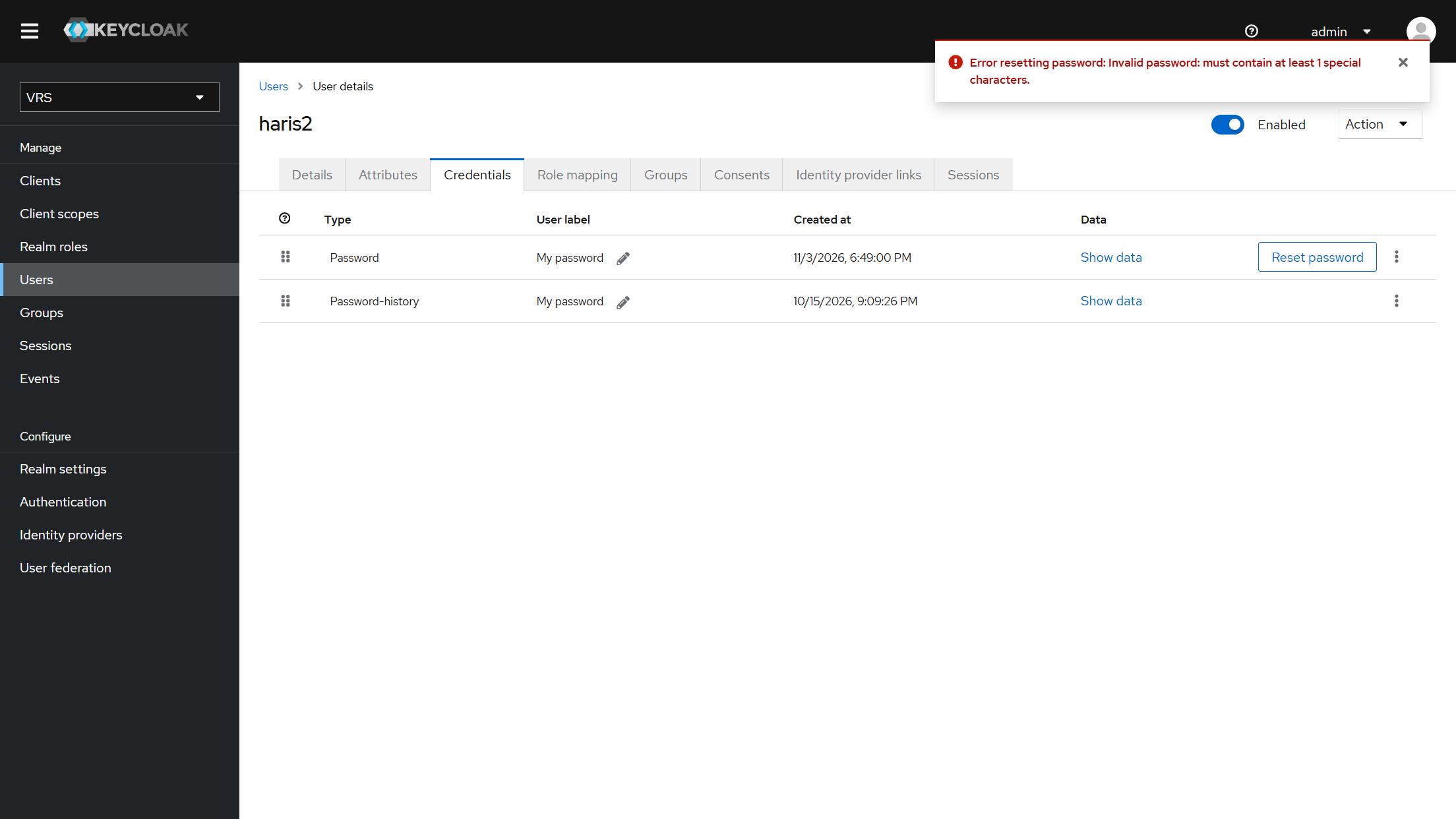
Try a weak password (for example
12345) → Keycloak must reject it. -
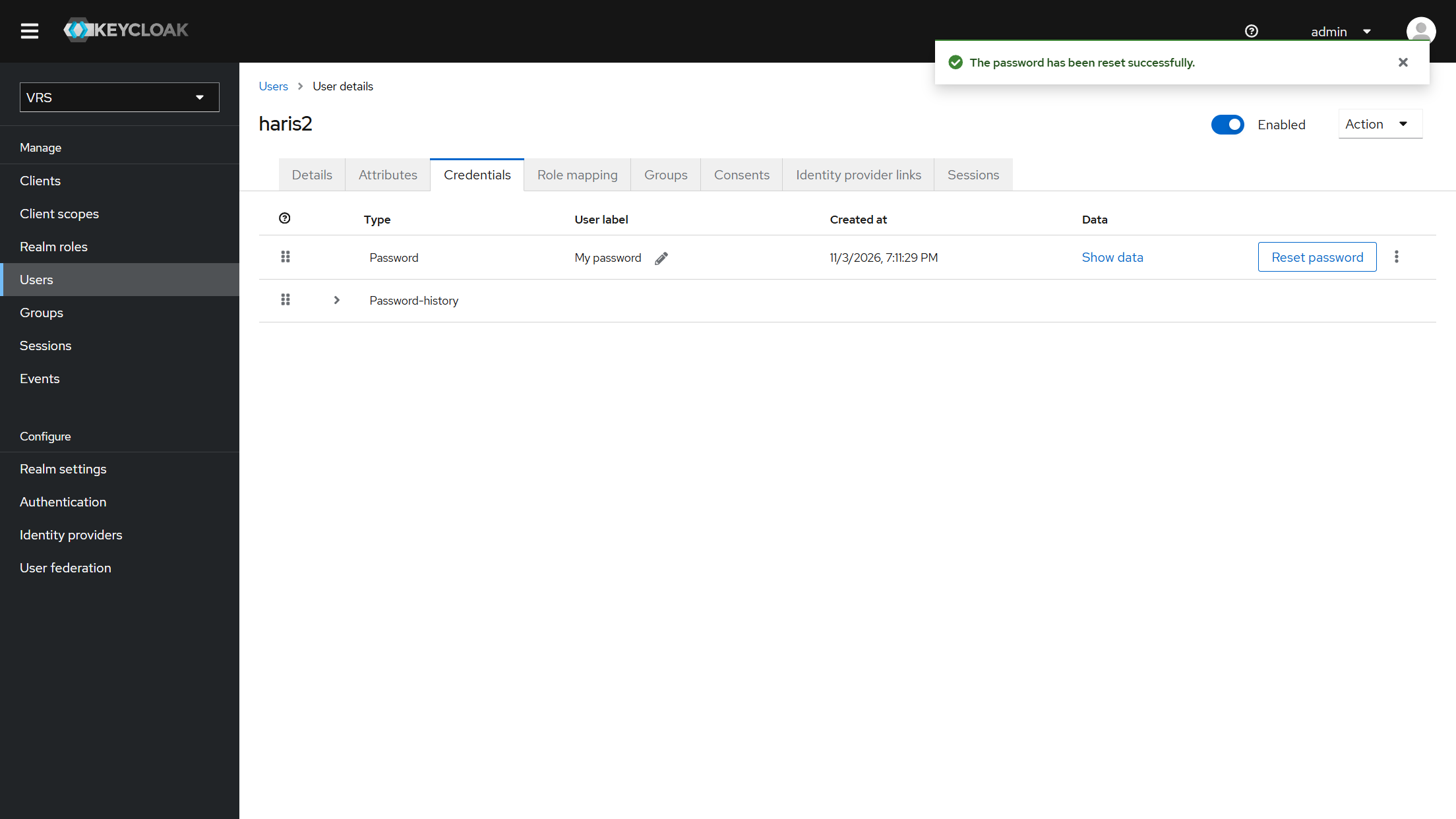
Try a strong password that meets all rules and is not in recent history → Keycloak must accept it.
Credentials tab:
Weak password rejected:
Password history rejection (reuse of a recent password):
Strong password accepted:
Notes
-
Existing users keep their current passwords until the next password change or admin reset. The policy is enforced when a password is set or changed.
-
Apply the same six policies on every realm that authenticates VRS users for your deployment.