
Configure Keycloak SSO Session Idle and SSO Session Max on the realm used for VRS login so idle or long-lived sessions expire and users must sign in again.
The values are not fixed. Choose timeouts that match your organization or customer security policy. The numbers below are examples.
Related: Password complexity is covered in Password policy (Keycloak). Account lockout after failed logins is covered in Login account lockout (Keycloak Brute Force Detection).
What These Settings Do
|
Setting |
Meaning |
Example value |
|---|---|---|
|
SSO Session Idle |
End the SSO session after this much inactivity |
15 Minutes (common range: 10–15) |
|
SSO Session Max |
Hard cap on session lifetime even if the user stays active |
8 Hours |
You can use different values (shorter for stricter environments, longer for standard users). Align with your security team. Leave Remember Me / Client / Offline fields alone unless your deployment uses them.
1. Open Sessions Settings
-
Log in to the Keycloak Admin console.
-
Select the realm used for VRS login (for example VRS).
-
Left menu → Realm settings → Sessions tab.
2. Set SSO Session Idle and Max
-
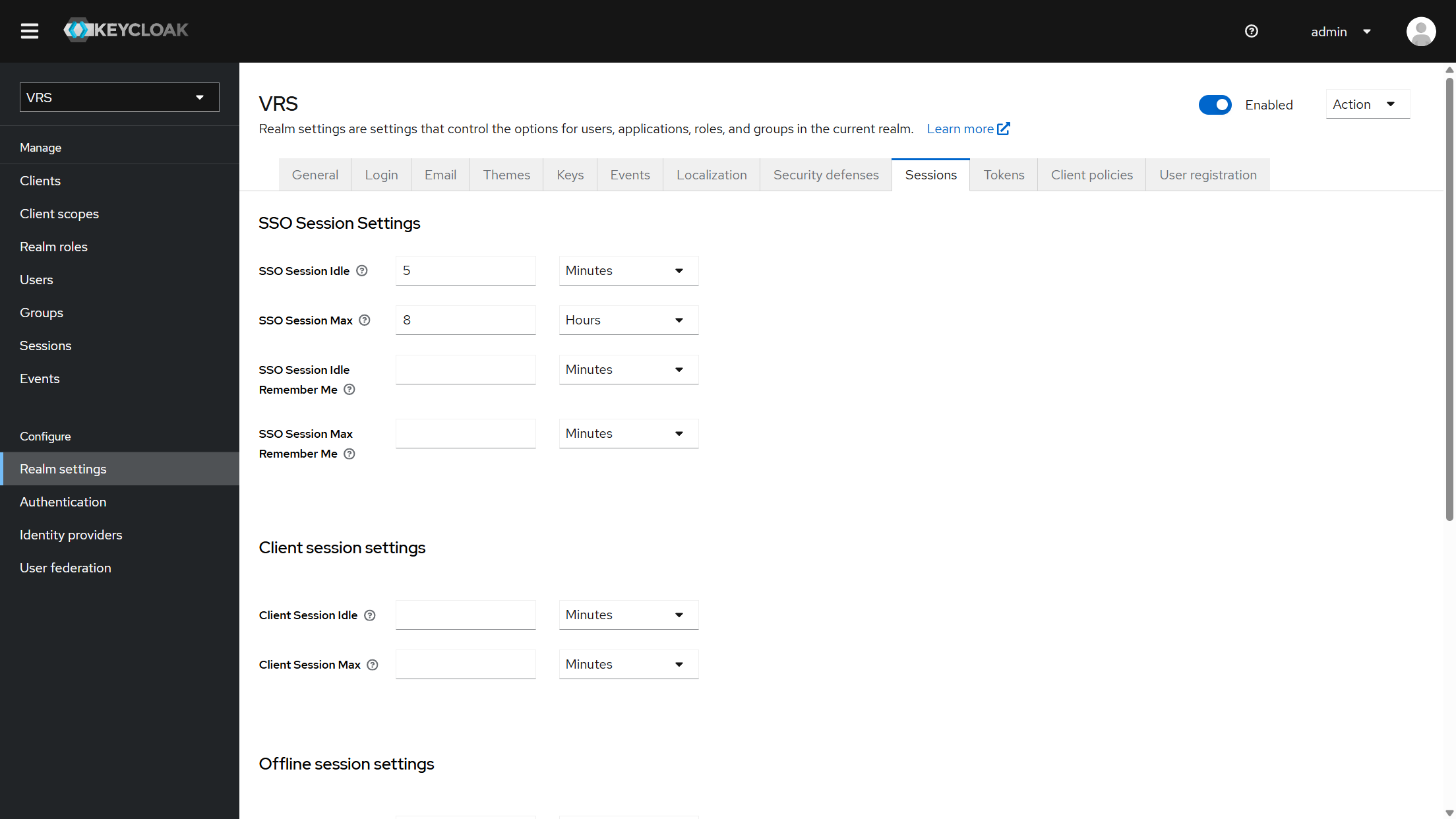
Under SSO Session Settings, set SSO Session Idle (example: 15 Minutes).
-
Set SSO Session Max (example: 8 Hours).
-
Click Save.
Example Sessions tab (lab values may differ from the examples above):
3. Verify
For a quick test you can temporarily set a short Idle (for example 1–2 Minutes), confirm VRS forces re-login after idle, then set your final Idle / Max values and Save again.
-
Log into VRS with a test user.
-
Leave the session idle longer than SSO Session Idle, then use the app again → you should be prompted to sign in.
-
Optional: keep the session active and wait until SSO Session Max → you should still be signed out.
Notes
-
Configure these settings on each realm that authenticates VRS users for your deployment.
-
VRS relies on Keycloak tokens/session; when the SSO session expires, refresh fails and the user must log in again.