
Introduction
The VRS users can view the call records in a table format with the available details for both CX and Cisco profiles. By default, upon login, the system tries to fetch the current day records if any of them exist.
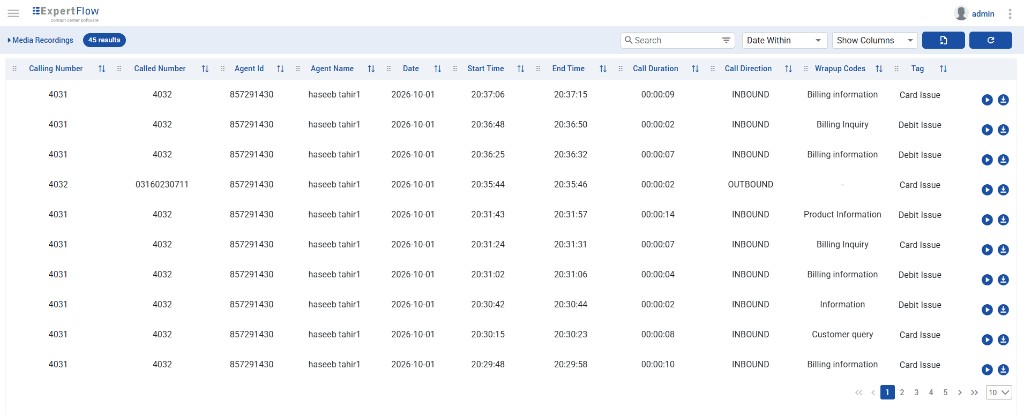
The user has multiple options available on the interface to search, filter, play, download, refresh, and export recordings for each record in the interface. Call metadata such as wrap-up codes, tags, call direction, and duration is shown in the table where available.
Play Call Recording
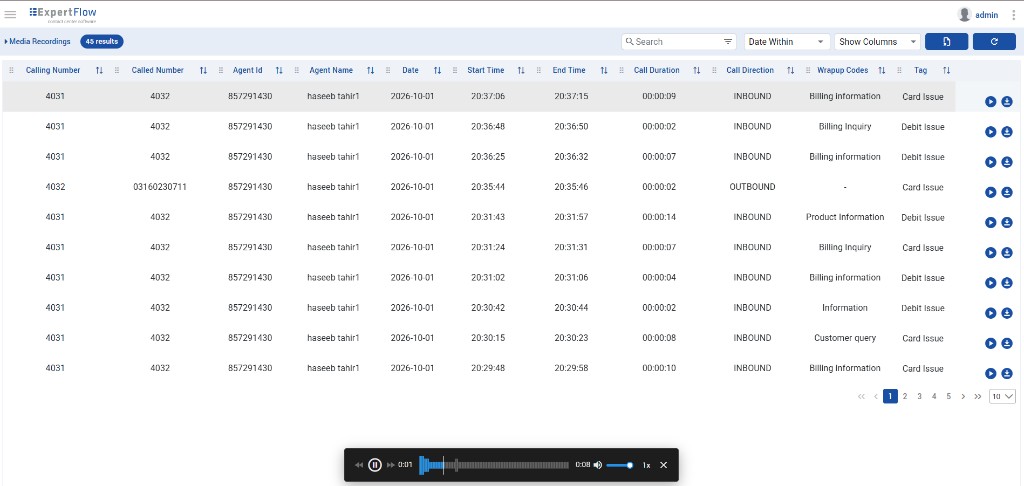
The user can play the recording for each call record by clicking the play button on the interface. A floating media player opens at the bottom of the screen with playback controls.
-
Play, pause, rewind, and fast-forward the audio.
-
Seek by moving the progress slider forward or backward.
-
Adjust volume, mute or unmute, and change the playback speed.
-
Close the player using the close (X) control when finished.
Download Recording File
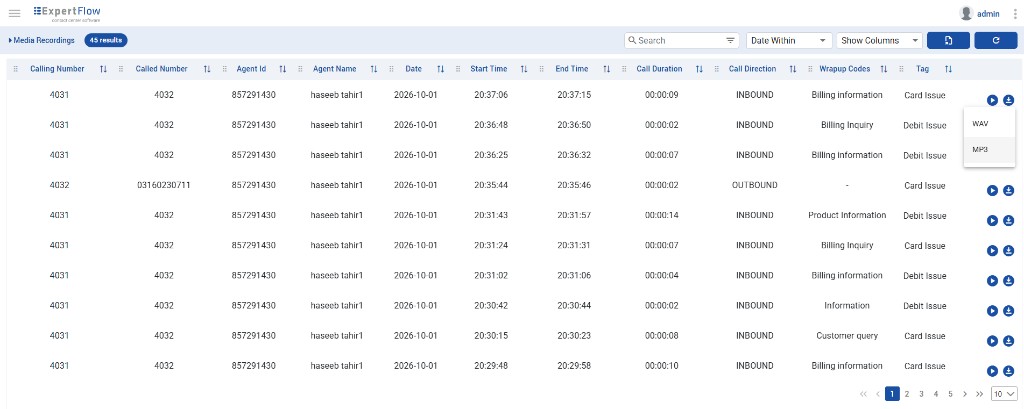
The user can download the recording file for each call record by clicking the download button on the interface. After clicking download, the user can choose the file format:
-
WAV — download the recording in WAV format.
-
MP3 — download the recording in MP3 format. MP3 files are smaller and play on most devices, which makes recordings easier to share and store.
Downloading requires the Keycloak download role. Without this role, the Download button is hidden. Users can still play recordings. Download capability is also gated by ENABLE_AGENT_DOWNLOAD in config.env (see VRS Authorization & Permissions).
Manual Record Updates
The user can pull the latest records by clicking the refresh button available on the interface. The records can be updated in the following ways:
-
By default, only the current day's records are fetched and updated.
-
If any advanced filter is active and applied, and then the user tries to refresh the records, the data is pulled to the active filters.
Limitations
If a user applies any of the time-frame filters from the 'Date Within' drop-down and tries to update the records via the refresh button, the default filters are applied.
Server-Side Pagination
On UCCE, Media Recordings loads results page by page from the server. By default, 10 records are shown per page. Users can change the page size to 25 or 50, and use the page controls to move between pages.
The results badge shows the total number of filtered recordings.
Export Data Records
The user can export and download the data records in CSV format by clicking the export button available on the interface. Upon clicking the export button:
-
If there are no records available, the button is disabled.
-
If any data is available, all filtered results matching the current search are exported in the CSV file — not only the records on the current page.
Exporting requires the Keycloak export role, separate from download. Without this role, the Export button is hidden. Having only download does not allow export. See VRS Authorization & Permissions.
Limitations
The exporting option is only supported in CSV format.
Searching & Filtering Records
The user can either search or filter data records on the VRS by using the advanced filters or time frame searching options available in the system. The details can be checked here.
Arrange the Recordings Table
Users can rearrange and show or hide columns on the Media Recordings table.
Reorder columns
Drag a column header left or right to change the column order. The layout is remembered for that user after logout. When the user logs in again, columns appear in the same order.
Show or hide columns
To update which columns are visible:
-
Navigate to the Show Columns dropdown.
-
Upon clicking the dropdown, the user sees the list of columns and can choose which hideable columns to display or keep hidden.
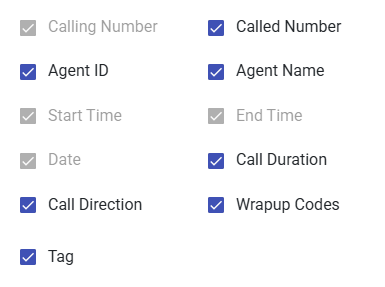
Some columns must stay visible and cannot be hidden. Other columns can be shown or hidden from the list.
If the user hides all hideable columns and later shows them again, those columns return in their default positions (for example, Wrapup Codes and Tag after Call Direction), not in the order the user turned them back on.
Limitations
Clicking a column header to sort recordings by that column is not available in this release. Column headers may show sort-style icons, but sorting does not change the order of records.
Dark Theme
Users can switch the VRS interface between light and dark theme.
-
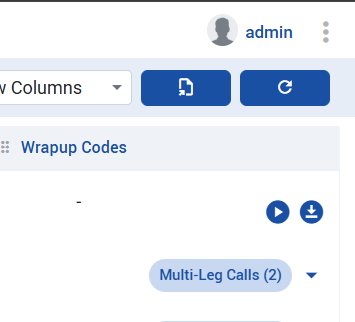
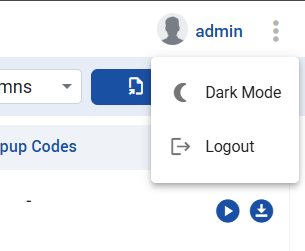
In the top-right corner of the header, next to the username, select the three-dot (⋮) menu.
-
Select Dark Mode from the menu.
The interface switches to dark theme:
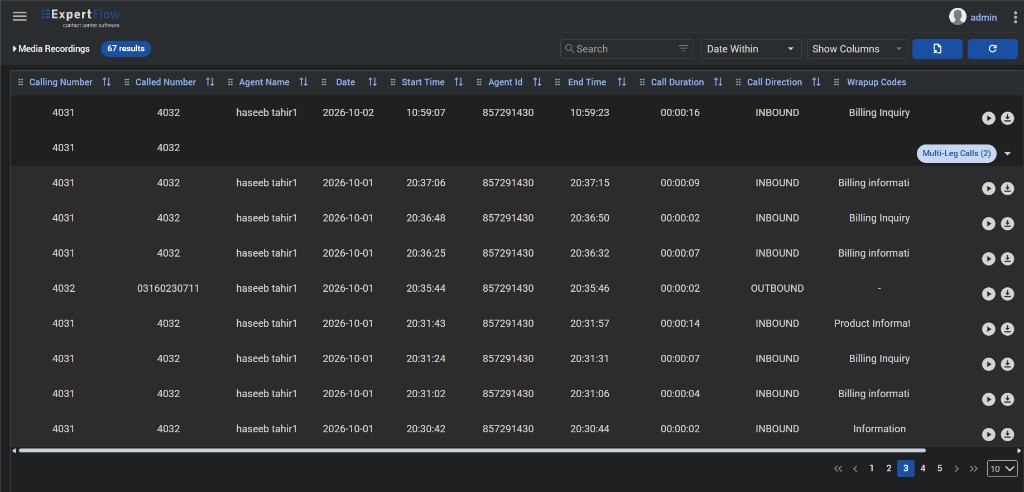
The selected theme is remembered after logout. When the user logs in again, the same theme is applied.
Related Articles