
Tags let you label calls so recordings can be grouped and found later, for example, for quality review or compliance. Administrators create and maintain the list of tags in Tag Management, and authorized users assign a tag to a call from Media Recordings. Each call can have one tag; on a call with several legs, the tag applies to all of them. Tagging is available for Cisco deployments.
Tag Management is available from VRS14.10.0
-
One tag can be assigned per call (including multi-leg calls sharing the same correlation/call ID).
-
Media Recordings shows a Tag column and supports Tag filtering.
Who can open Tag Management
Only users with the admin role can open Tag Management and perform create, edit, and delete (CRUD) on tags. viewtag and evaluatetag are not used for Tag Management CRUD — those roles apply only on Media Recordings (view / filter / assign).
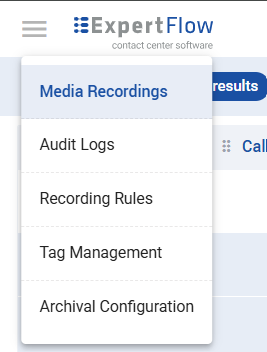
Open the hamburger menu and select Tag Management:
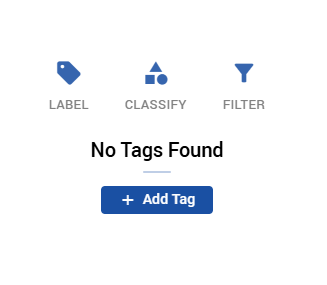
When no tags exist yet, the page shows an empty state with a + Add Tag action:
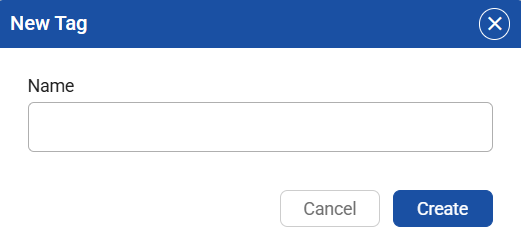
Select + Add Tag to open the New Tag dialog. Enter a name and choose Create:
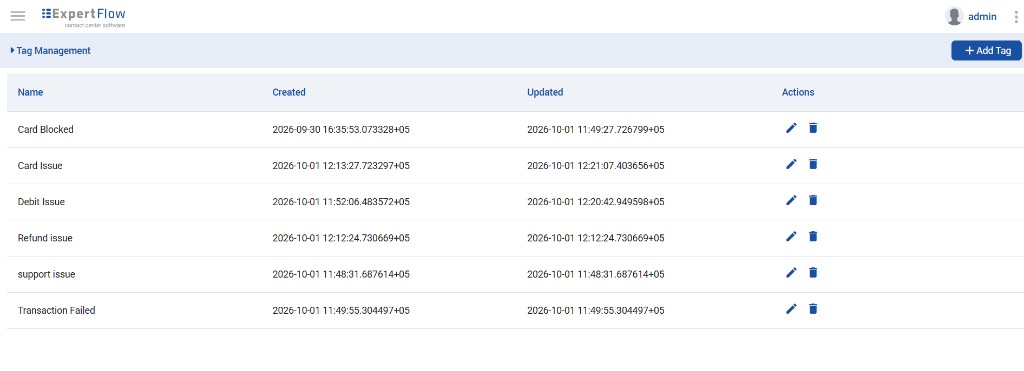
Existing tags appear in a table with Name, Created, and Updated timestamps. Use the edit (pencil) and delete (trash) actions to update or remove a tag:
Assign a tag to a recording
A user with the evaluatetag role (admin or agent) can assign a tag from Media Recordings:
-
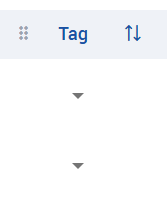
In the Tag column of the recording, click the dropdown icon.
-
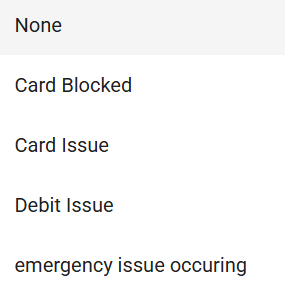
Select the tag to assign.
-
To unassign / clear a tag, select None.
Tag column dropdown:
Select a tag (or None to unassign):
The Tag dropdown is shown only for users with evaluatetag. Users with only viewtag can see tag information and use the Tag filter, but the assign dropdown is hidden.
Delete a tag that is in use
Only an admin can delete tags. When an admin deletes a tag, that tag disappears from the Tag column of recordings where it was assigned.
Roles in Keycloak (who gets what)
Tag Management CRUD needs the admin role only. Viewing / filtering / assigning tags on Media Recordings uses Keycloak add-on roles viewtag and evaluatetag (create under Realm roles, assign on Role mapping; keep default roles for authentication). Full steps: Setup Keycloak for VRS.
|
Role |
Who can get it |
What happens |
|---|---|---|
|
|
Administrators |
Opens Tag Management and creates, edits, or deletes tags (CRUD only). Not linked to |
|
|
Admin or agent (add-on role) |
On Media Recordings only: sees Tag column / tag information and can use the Tag filter. Cannot assign. Tag dropdown is hidden. Does not control Tag Management CRUD. |
|
|
Admin or agent (add-on role) |
On Media Recordings only: Tag dropdown is visible. Can assign, change, or unassign with None. Does not control Tag Management CRUD. |
|
Neither |
Any user without those roles |
No usable Tag filter and no assign controls. |
When an admin deletes a tag that was in use, it disappears from the Tag column on those recordings.
Role setup follows Setup Keycloak for VRS.