
The Archival Service in VRS is responsible for managing long-term storage of recording files that accumulate over time and consume significant disk space. It supports two operational modes and, from VRS 14.12.0, archive destinations of SFTP or S3-compatible cloud storage (verified with Wasabi).
-
Archive Only
-
Copy & Archive
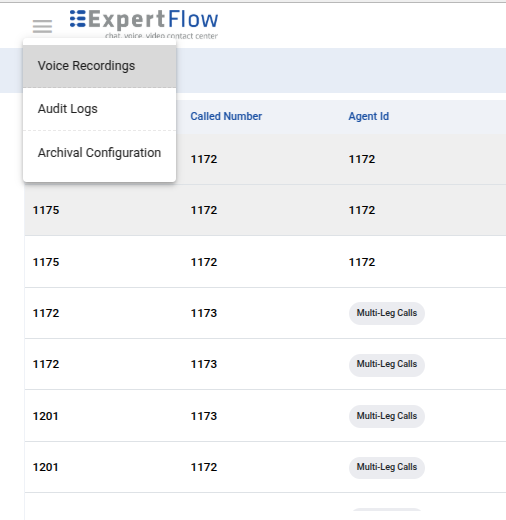
Archive destination (SFTP or S3) — from 14.12.0
Previously, VRS archival supported SFTP only. From 14.12.0, operators choose the active archive destination in Archival Configuration (Storage: SFTP or S3 / MinIO). Both connection profiles can be saved. New recordings archive only to the selected destination. Playback and download continue from whichever store each recording was archived to.
Common steps (both storage types)
-
Open Archival Configuration.
-
Turn Enable Archival Service on.
-
Select Storage (SFTP or S3 / MinIO).
-
Enter the connection details for that storage type (see below).
-
Choose archival mode (Archive Only or Copy and Archive) and related options (for example archive days or copy time).
-
Click Save.
-
Restart (or recreate) the archival-process service so it loads the new settings.
After the next archival run, eligible recordings are uploaded to the configured destination. From the Voice Recordings UI, users can play those archived recordings and download them in WAV and MP3 format.
Archiving to SFTP
|
Field |
Description |
|---|---|
|
SFTP Server IP Address |
Hostname or IP of the SFTP server |
|
Folder Path |
Remote directory where recordings will be stored |
|
Username |
SFTP username |
|
Password |
SFTP password |
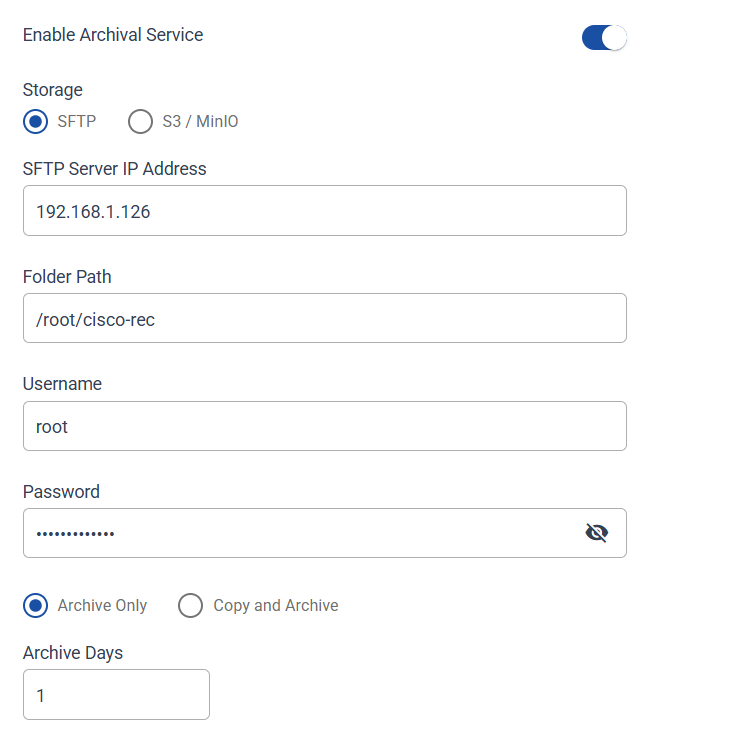
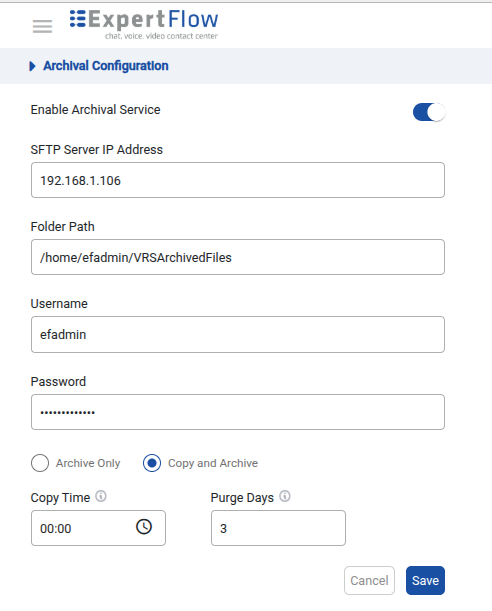
Select Storage = SFTP, complete the fields above, save, and restart the archival service. New archives are written under the configured Folder Path.
Archiving to S3-compatible cloud (S3 / MinIO / Wasabi)
|
Field |
Description |
|---|---|
|
Endpoint |
Cloud/S3 API endpoint (for example an AWS S3 regional endpoint, MinIO |
|
Bucket / Prefix |
Destination bucket, or bucket plus optional prefix/path |
|
Access Key |
Access key (or equivalent) for the provider |
|
Secret Key |
Secret key for the provider |
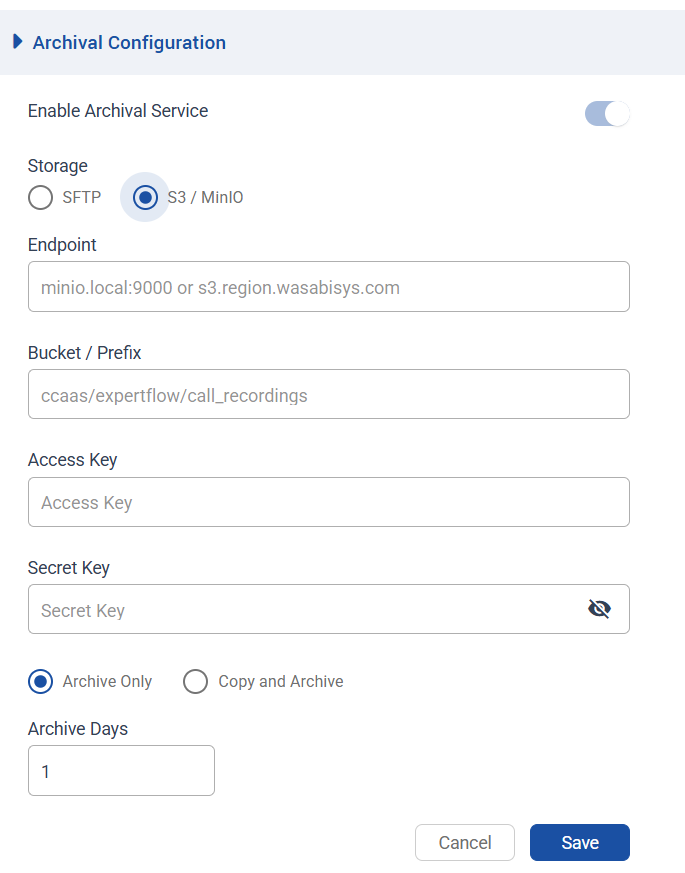
Select Storage = S3 / MinIO, complete the fields above, save, and restart the archival service. New archives are written to the configured Bucket / Prefix. The same option is used for Amazon S3, MinIO, Wasabi, and other S3-compatible providers; only the endpoint and credentials change.
Dual configuration and playback
SFTP and S3 connection details are stored independently. Changing Storage selects where new recordings are archived; it does not remove the other connection profile.
-
Recordings archived to S3 play and download from the cloud.
-
Recordings archived earlier to SFTP still play and download from the SFTP server.
-
The active Storage setting does not need to be switched back to play or download from the other store.
Each archived recording is associated with the storage used at archive time.
Archive Only
Archive Only moves recording files from the Recorder to the configured archive destination (SFTP or S3) once they exceed the configured retention period (X days).
-
A retention period can be configured in the Archive Days config. A retention period of 3 days means recordings are retained on the Recorder for 72 hours.
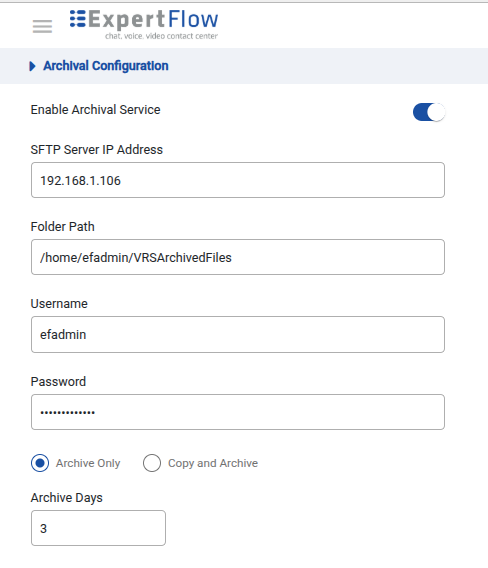
-
Any recordings older than the configured retention period are automatically archived to the selected destination.
-
Archived recordings are highlighted with a grey background on the interface.
-
Users can continue to search, access, and play archived recordings directly from the interface.
Example
If archival is configured with a retention period of 1 day and the archival container starts running on 4 June at 5:00 PM, then the 24-hour retention period completes on 5 June at 5:00 PM. At that time, the system archives all recordings created before 4 June at 5:00 PM, as those recordings are older than the configured retention period of 24 hours.
Copy and Archive
Copy and archive first copies the recordings from the Recorder to the remote archival destination and then removes them from the Recorder after the configured purge period has elapsed. The following two configurations are available in this mode:
-
Copy Time
-
Purge Days
How It Works
-
At the configured copy time, the system copies all eligible recordings from the Recorder to the remote archival destination.
-
On subsequent runs, only recordings created since the previous copy operation are transferred, preventing duplicate copies.
-
Once the configured purge period is reached, recordings that have already been successfully copied are removed from the Recorder.
Example
The copy time is set to 6:00 pm on 01 June, and purge days are set to 1 day.
-
The copy job executes for the first time.
-
All recordings available on the Recorder up to 01 June 06:00 PM are copied to the archival destination.
-
The original recordings remain available on the Recorder.
02 June – 06:00 PM
-
The copy job executes again.
-
Recordings created between 01 June 06:00 PM and 02 June 06:00 PM are copied to the archival destination.
-
Recordings that were copied during the previous run (on 01 June 06:00 PM) have now reached the configured purge period of 1 day (24 hours).
-
These recordings are therefore removed from the Recorder while remaining available on the archival destination.
03 June – 06:00 PM
-
The copy job copies recordings created between 02 June 06:00 PM and 03 June 06:00 PM.
-
Recordings copied on 02 June 06:00 PM are now 24 hours old and are purged from the Recorder.
This cycle continues daily, ensuring that recordings are first copied to the archival destination and then automatically removed from the Recorder after the configured retention period.
Stream Deletion
Streams are created once the files are recorded on the server. These streams are incomplete chunks of complete recording files, which are temporarily stored at a place to be mixed to become one meaningful conversation. Once these streams are mixed and stored in the session directory, there is no further use for them, and they occupy space. Hence, it is important to get rid of these files. Stream deletion plays its part in the removal of unnecessary stream files that have no further purpose to serve. These stream deletion services can also be set manually. We can set the number of days before all the files will be deleted.
Limitations:
-
Archival service configuration from the VRS interface is only supported for Cisco deployments.
-
For EFCX, dual archival schema is applied manually on Media Server
fusionpbx(not via the Cisco skeleton scripts onvrs). See Archival Process Configuration for EFCX and the EFCX-gated SQL step in the Installation Guide. -
Calls cannot be manually deleted.
-
Archived recordings cannot be moved back onto the Recorder as live files; they remain available for play and download from their archive store (SFTP or S3).
-
Manual archiving of calls is not supported.
-
Only one archival mode can be active at a time; both cannot run simultaneously.
-
Always ensure that the housekeeping retention period is shorter than the Archival Interval. (If the archival service retention period is set shorter than the housekeeping job interval, conflicts may occur between the archival service and Rsync.)