
Purpose
This document explains how to encrypt all existing un-encrypted call recordings for VRS (Voice Recording Solution), using a Python-based AES encryption script. This step is necessary to ensure compatibility with the latest version of VRS, which expects all recordings to be encrypted. the Below step can be followed to do all the configuration
1. Python Version
-
Python 3.6 or above
Check version:
python3 --version
You should see something like this:
Python 3.8.10
If you see an error like:
command not found: python3
or if the version is lower than 3.6, proceed with the steps below.
Install or Upgrade Python
sudo apt-get update sudo apt-get install python3 python3-pip -y
After installing, recheck the version:
python3 --version
You should see something like this:
Python 3.8.10
Verify pip3 is Installed
Run:
pip3 --version
If not found, install it:
sudo apt-get install python3-pip -y
2.Python Dependencies
Install required Python libraries:
pip3 install cryptography
If pip3 is not installed:
sudo apt-get update sudo apt-get install python3-pip
3. Directory Structure
Here are the directories structure to keep in mind
|
Item |
Path |
|---|---|
|
Encryption Script |
|
|
Bash Script |
|
|
Cisco Recordings |
|
|
Log File |
|
4. Python Library for SQL Server.
pip install pyodbc
or
pip3 install pyodbc
5.Install prerequisites for ODBC:
sudo apt-get update
sudo apt-get install -y unixodbc unixodbc-dev
6.Install curl
sudo apt-get update
sudo apt-get install -y curl
6.Install Microsoft ODBC Driver for SQL Server (Ubuntu/Debian)
# Import the Microsoft repo key
curl https://packages.microsoft.com/keys/microsoft.asc | sudo apt-key add -

# Add the Microsoft SQL Server repository
curl https://packages.microsoft.com/config/ubuntu/20.04/prod.list | sudo tee /etc/apt/sources.list.d/mssql-release.list

# Update package lists
sudo apt-get update

# Install ODBC driver 18
sudo ACCEPT_EULA=Y apt-get install -y msodbcsql18
Verify Driver Installation
odbcinst -q -d
Expected result
[ODBC Driver 18 for SQL Server]
5.Python Encryption Script
If deploying on Recorder server Navigate to the following directory and create a folder/directory.
cd /usr/local/freeswitch/scripts/
If deploying on Archival server Navigate to following directory and create a folder/directory.
cd /root/encryption
Create a file with the name encrypt_calls.py
nano encrypt_calls.py
Now paste the following Python script
import sys
import os
import logging
import pyodbc
from cryptography.hazmat.primitives.ciphers import Cipher, algorithms, modes
from cryptography.hazmat.backends import default_backend
from cryptography.hazmat.primitives import padding

# --- Logging Setup ---
LOG_FILE = "/var/log/encrypt.log"
logging.basicConfig(
    filename=LOG_FILE,
    level=logging.INFO,
    format="%(asctime)s - %(levelname)s - %(message)s"
)

# --- Constants ---
IV = b'1234567890123456'  # 16 bytes for AES
KEY_HEX = '42066107bda481f0266fd709627faf98b422e29a29b01495daa3ef3640ee6fe6'
DB_CONNECTION_STRING = (
    'DRIVER={ODBC Driver 18 for SQL Server};'#or check the version of Driver and put it
    'SERVER=192.168.1.126,1433;'
    'DATABASE=vrs3;'
    'UID=sa;'
    'PWD=Expertflow;'
    'Encrypt=no;'
    'TrustServerCertificate=yes;'
)

# --- Encryption Function ---
def encrypt_file(file_path: str, key: bytes) -> bool:
    """Encrypts the given file with AES-CFB and prepends the IV."""
    try:
        backend = default_backend()
        cipher = Cipher(algorithms.AES(key), modes.CFB(IV), backend=backend)
        encryptor = cipher.encryptor()

        # Read file contents
        with open(file_path, 'rb') as f:
            data = f.read()

        # Apply PKCS7 padding
        padder = padding.PKCS7(algorithms.AES.block_size).padder()
        padded_data = padder.update(data) + padder.finalize()

        # Encrypt and write back
        encrypted_data = encryptor.update(padded_data) + encryptor.finalize()
        with open(file_path, 'wb') as f:
            f.write(IV + encrypted_data)

        logging.info(f"Successfully encrypted: {file_path}")
        return True

    except Exception as e:
        logging.error(f"Error encrypting {file_path}: {e}")
        return False

# --- Database Update Function ---
def update_encryption_status(file_path: str):
    """Checks DB encryption flag, encrypts file if needed, updates DB."""
    try:
        with pyodbc.connect(DB_CONNECTION_STRING) as conn:
            cursor = conn.cursor()
            file_name = os.path.basename(file_path)

            # Check encryption status
            cursor.execute("""
                SELECT is_encrypted FROM Mixed_Sessions
                WHERE filename LIKE ?
            """, f"%{file_name}%")
            row = cursor.fetchone()

            if row is None:
                logging.warning(f"No DB entry found for: {file_name}")
                return

            if row[0] == 1:
                logging.info(f"File already encrypted in DB: {file_name}")
                return

            # Proceed with encryption
            key = bytes.fromhex(KEY_HEX)
            if encrypt_file(file_path, key):
                cursor.execute("""
                    UPDATE Mixed_Sessions
                    SET is_encrypted = 1
                    WHERE filename LIKE ?
                """, f"%{file_name}%")
                conn.commit()
                logging.info(f"Database updated for: {file_name}")
            else:
                logging.error(f"Failed to encrypt file: {file_name}")

    #except Exception as e:
     #   logging.error(f"DB error for {file_path}: {e}")
    except pyodbc.Error as e:
         for err in e.args:
           logging.error(f"DB error detail: {err}")
    except Exception as e:
         logging.error(f"Unexpected error: {e}")

# --- Main Execution ---
if __name__ == "__main__":
    if len(sys.argv) != 2:
        print("Usage: python3 encrypt_calls.py <file_path>")
        sys.exit(1)

    file_path_arg = sys.argv[1]
    logging.info(f"Starting encryption process for: {file_path_arg}")
    update_encryption_status(file_path_arg)
Update the database credentials in line 21 to 25
Now give the permission
chmod 777 encrypt_calls.py
Run the following command to install the dependencies
cat -A encrypt_calls.sh | head -5
apt update
apt-get install dos2unix
pip3 install pyodbc
apt-get install python3-pyodbc
5.Bash Script to Run Bulk Encryption
If deploying on Recorder server navigate to the following directory.
cd /usr/local/freeswitch/scripts/
If deploying on Archival server navigate to the following directory.
cd /root/encryption
Create a bash script file with the name encrypt_calls.sh
nano encrypt_calls.sh
For Recorder server, Now paste the following bash script.
❗Note: If you want to keep the backup of the files before running the script, Check the point 7 Backup Option (Highly Recommended)
#!/bin/bash

ENCRYPT_SCRIPT="/usr/local/freeswitch/scripts/encrypt_calls.py"
TARGET_DIR="/var/vrs/recordings/cucmRecording/sessions"
#BACKUP_DIR="/var/vrs/recordings/cucmRecording/backup"
#mkdir -p "$BACKUP_DIR"

for file in "$TARGET_DIR"/*.wav; do
    echo "Checking: $file"
    #cp "$file" "$BACKUP_DIR/"
    python3 "$ENCRYPT_SCRIPT" "$file"
done
For Archival Server, Make sure that values for the TARGET_DIR and BACKUP_DIR and ENCRYPT_SCRIPT are correct.
ENCRYPT_SCRIPT="/root/encryption/encrypt_calls.py"
TARGET_DIR="/root/VRSArchivedFiles"
BACKUP_DIR="/root/backup/VRSArchivedFiles"
-
ENCRYPT_SCRIPT – Specifies the path of the Python encryption utility used to encrypt archived call recordings.
-
TARGET_DIR – The directory where archived recording files are located and from where the utility processes them.
-
BACKUP_DIR – The directory used to store backup copies of the archived recordings to prevent data loss during processing.
❗Note: If an Archival Server is available, the encryption utility should be executed on the Archival Server first and only afterwards on the Recorder Server.
Make the script executable:
chmod +x encrypt_calls.sh
Run this command:
dos2unix encrypt_calls.sh
6.Running the Script
To start encryption:
./encrypt_calls.sh
If no errors You’ll see output like
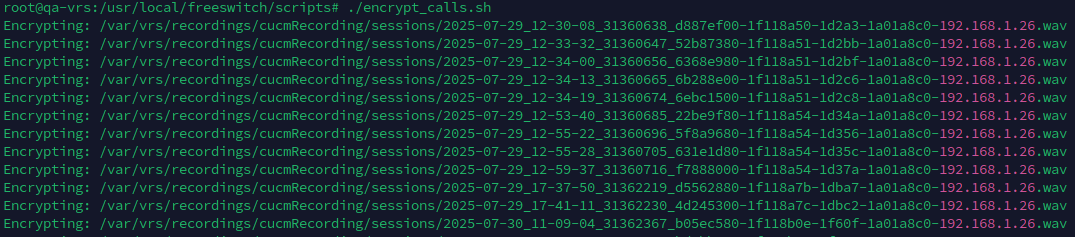
All encryption activities are logged into a file:
/var/log/encrypt.log
7.Backup Option (Highly Recommended)
Before running the encryption script, it is strongly recommended to create a backup of all .wav files. This ensures that if there are any issues (e.g., encrypted files not playing correctly in VRS), you can restore the original unencrypted files easily.
To enable automatic backup, uncomment the following lines in the encrypt_calls.sh script, line 6, 7 and 13:
# BACKUP_DIR="/var/vrs/recordings/cucmRecording/backup"
# mkdir -p "$BACKUP_DIR"
# cp "$file" "$BACKUP_DIR/"
These lines will:
-
Create a
backupdirectory (if it doesn't exist) -
Copy each
.wavfile to the backup folder before encrypting it
8.Restoring from Backup (If Needed)
If any issue occurs after encryption (e.g., recordings are not playable in VRS), you can restore the original un-encrypted files from the backup folder:
cp /var/vrs/recordings/cucmRecording/backup/*.wav /var/vrs/recordings/cucmRecording/sessions/
This will overwrite the encrypted files with the original versions, allowing you to re-test or re-encrypt after correcting the issue.
9.Cleanup (After Validation)
Once all files are encrypted successfully and confirmed playable via the VRS front-end, you can delete the backup folder to free up disk space from Recorder server:
rm -rf /var/vrs/recordings/cucmRecording/backup
rm /usr/local/freeswitch/scripts/encrypt_calls.py
rm /usr/local/freeswitch/scripts/encrypt_calls.sh
For Archival Server:
rm -rf /root/backup
rm /root/encryption/encrypt_calls.py
rm /root/encryption/freeswitch/scripts/encrypt_calls.sh