
Integration between Genesys embedded framework and Microsoft Dynamics On-premises CRM.
This embedded CTI Connector runs inside the Microsoft CRM Web UI and enables agent/call controls within MS CRM allowing agents to use the same CRM agent interface for all call handling and transfer. The Web CTI Connector has the following feature set:
Agent State Controls
The embedded CTI toolbar within Microsoft Dynamics On Premise allows agents to manage their states. The following state controls are supported:
|
State Controls |
Description |
Look and Feel |
|---|---|---|
|
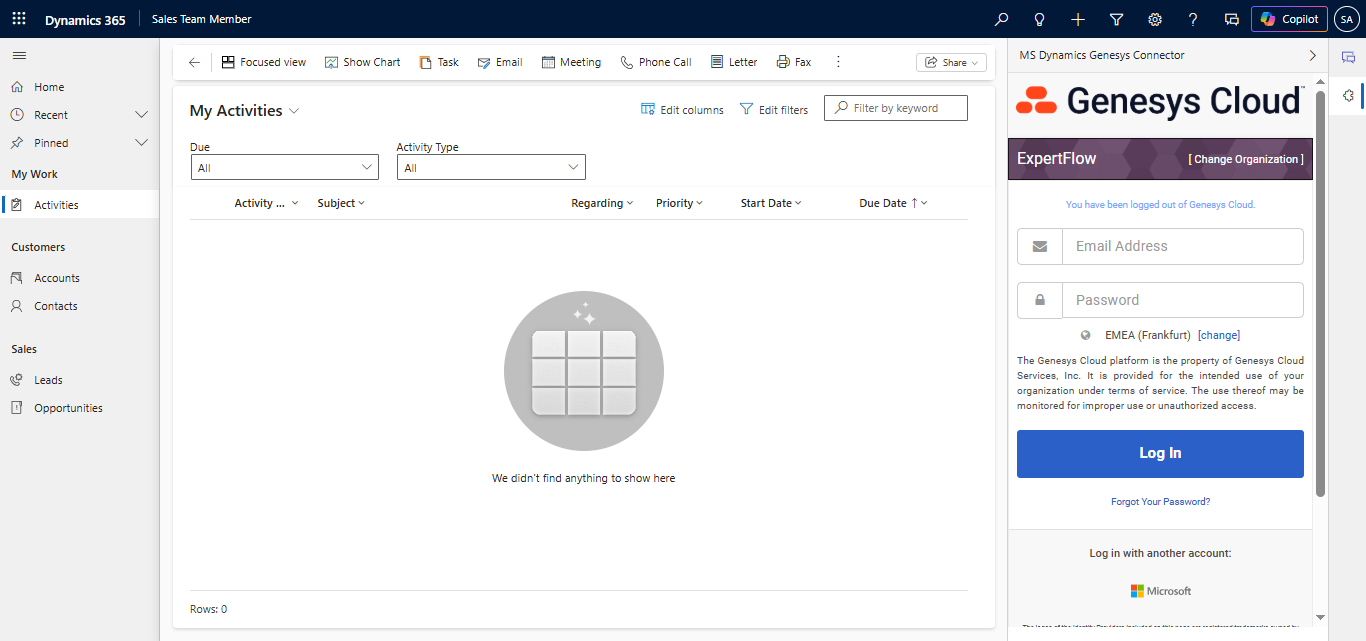
Login |
Agents first log on to MS CRM. Manual login to Genesys CTI by entering valid credentials. |
|
|
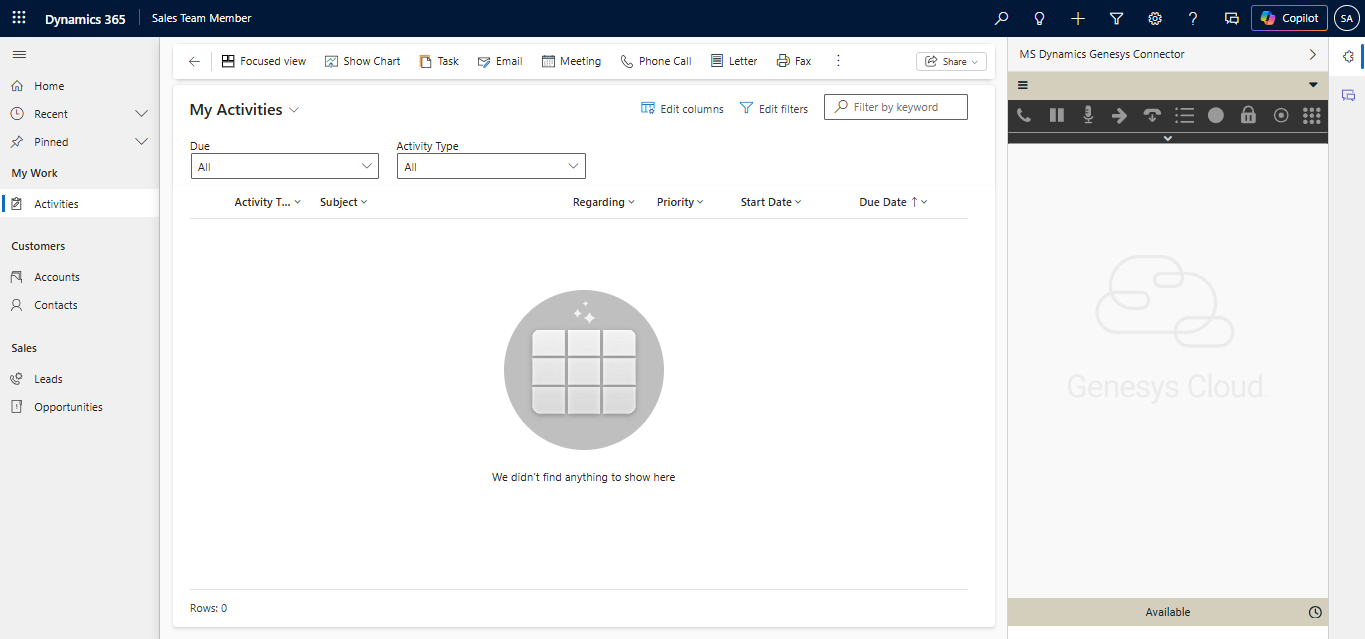
Post Login |
After entering the credentials, the agent can see the Dashboard. |
|
|
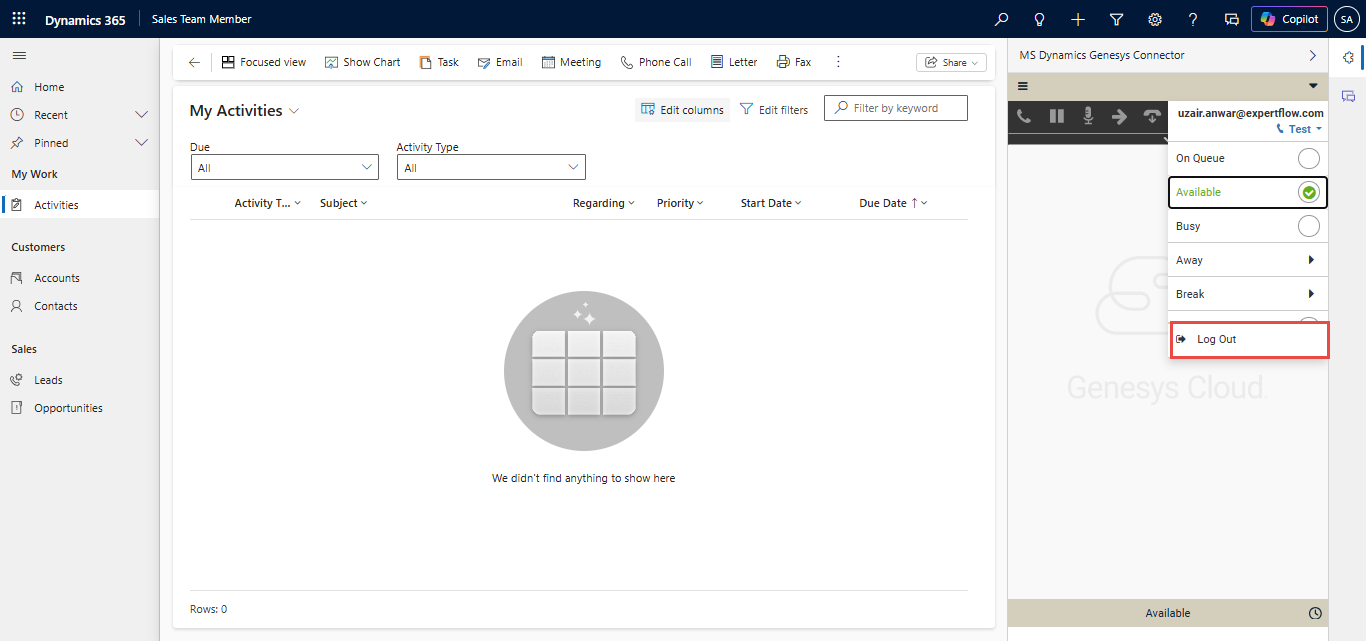
Logout |
The agent will need to explicitly log out from the CTI toolbar by providing the Logout Reason Code |
|
|
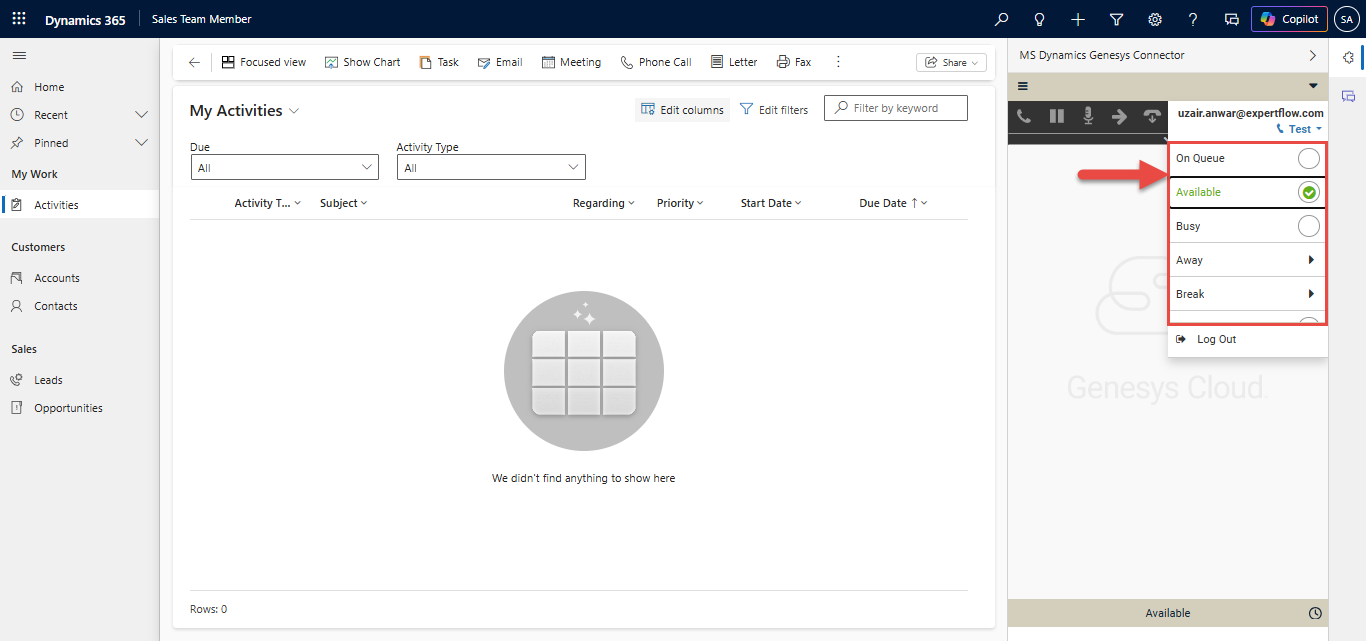
On-Queue / Away /Break |
The agent may change the availability status to “On-queue” to receive contact center calls or may change it to any of the “Away/Break” states for a break. |
|
It is mandatory to have reason codes pre-configured inside Genesys.
CTI Call Controls
Controls/buttons on the toolbar change based on the current state of the agent/call and the telephony event fired from the contact center. Using the communication toolbar, the agent can perform the following actions,
-
Accept an incoming call
-
Hold/Resume/End call
-
Consultative or blind call transfer
-
Conference call
-
Call wrap-up
Call wrap-up is only for inbound Calls.
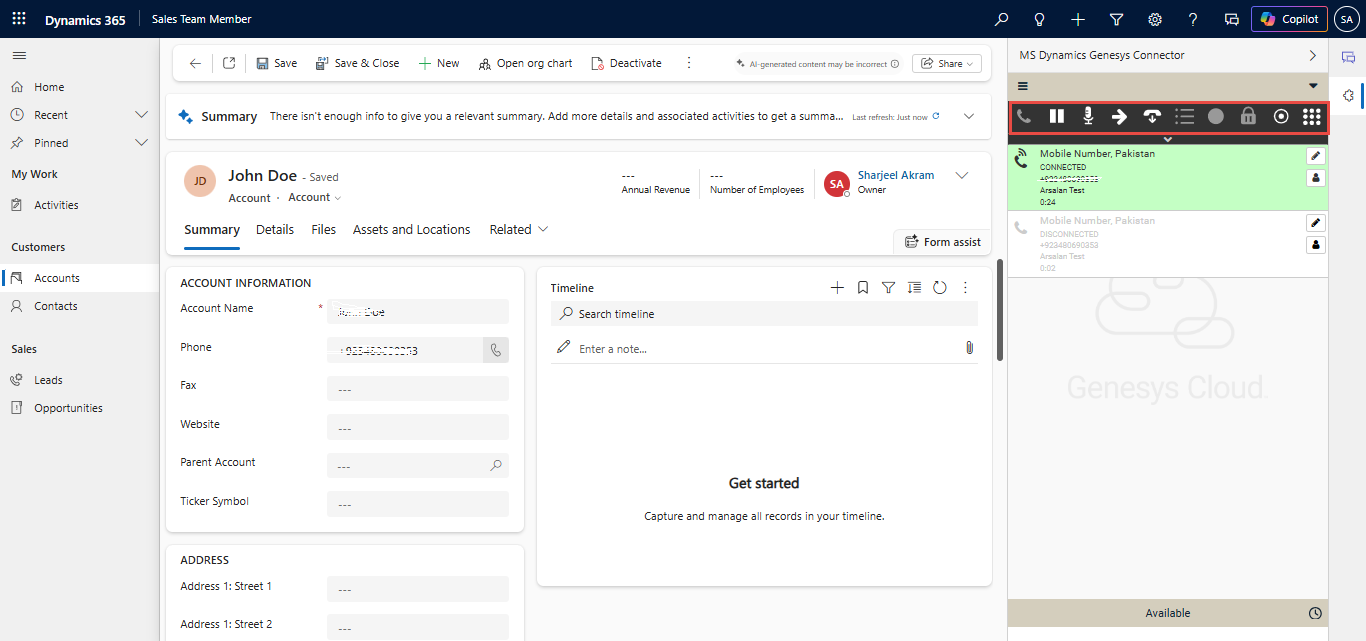
Caller Information Popup on Call Arrival (Screen Pop)
The caller information is displayed on the MS CRM Web Page as soon as the call arrives. If multiple contacts match the connector shows all those contacts for you to choose from.
Search in Leads, Accounts, and Contacts
An incoming call phone number is searched in Leads, Accounts, and Contacts. First, second, and third priorities can be set. For example, if the priority is Leads -> Accounts -> Contacts, It will first search into the ‘Leads’ entity, and the resulting record will pop up. If the customer record is not found in ‘Leads’ then it will search into the ‘Accounts’ entity and then finally into contacts, in case no record is found in the accounts.
For Online/On-Premise CRM’s in the Contacts/Lead entity, a search can be made on ‘Business Phone’ field, and in the Accounts entity, the search can be in the 'Phone field' only. These fields are not configurable.
No ANI Match
When a call arrives on the logged-in agent, an Anonymo
us Account/Contact/Lead will pop up. This contact/account/lead will be saved with the name 'Anonymous' with the caller's number, and a call activity will be recorded for that anonymous contact at the end of the call.
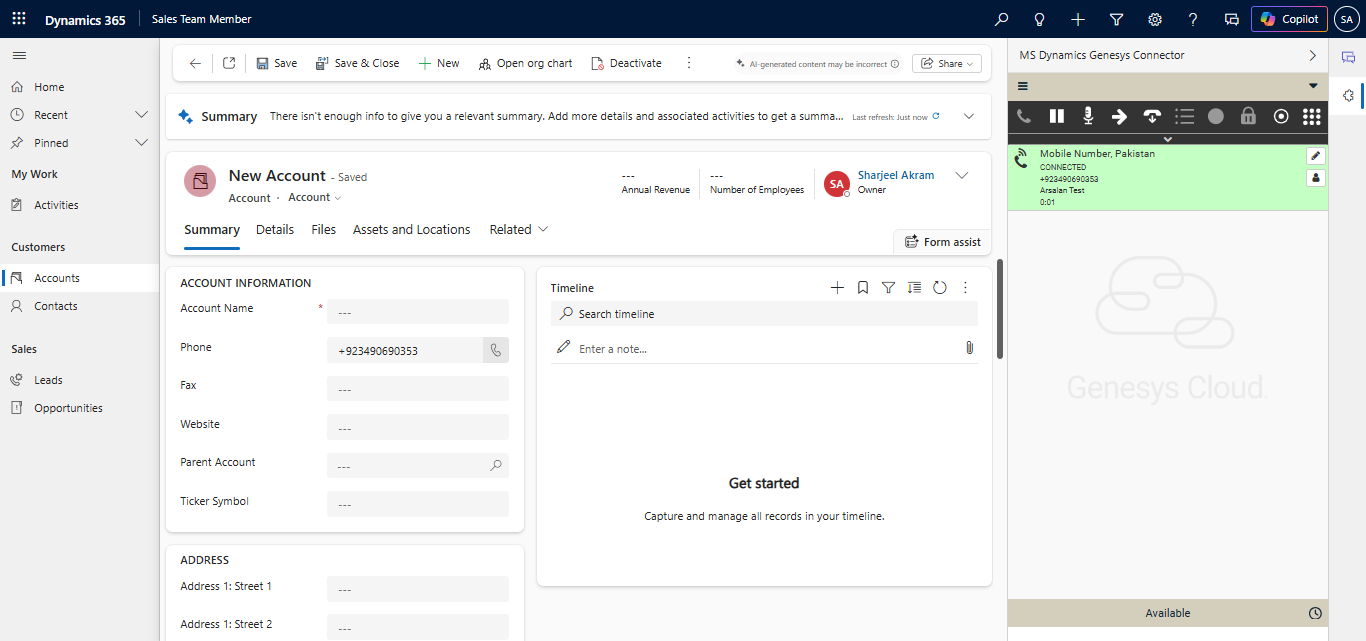
Single Match
An incoming call phone number is searched in contact/account/lead. For example, It searches into the ‘Contact’ entity, and the single record is available then the resulting record is popped up. The phone call activity is logged for the saved contact in this case.
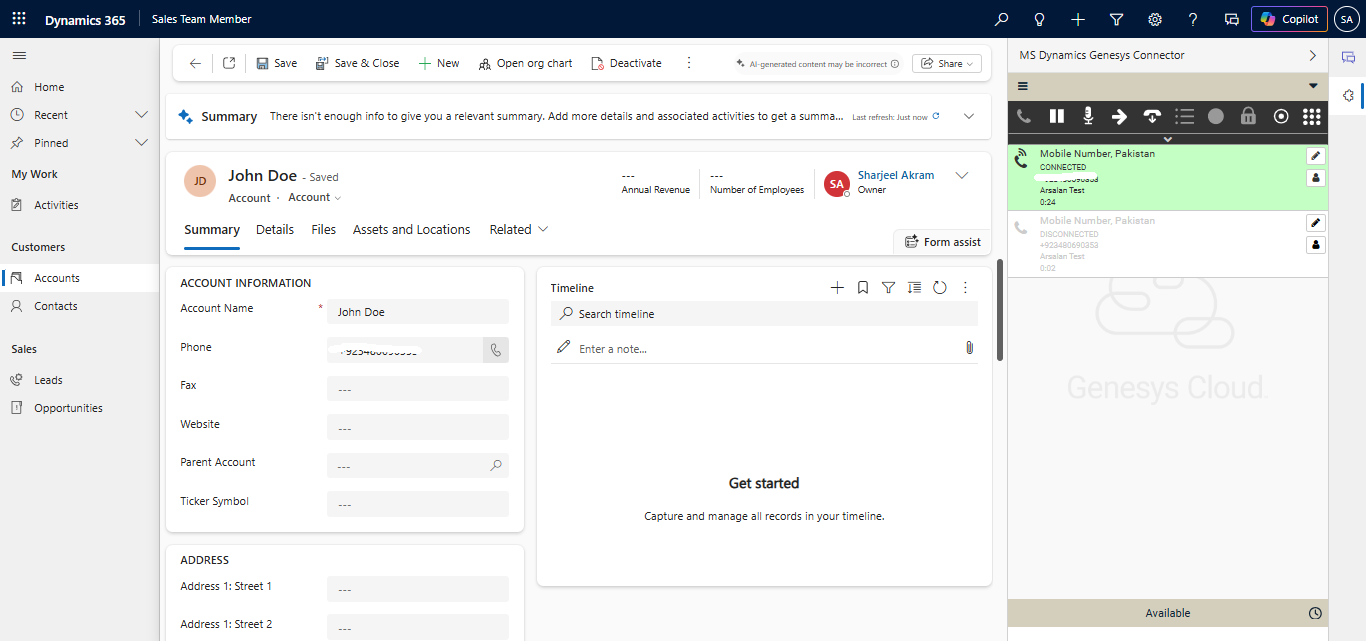
Multiple matches
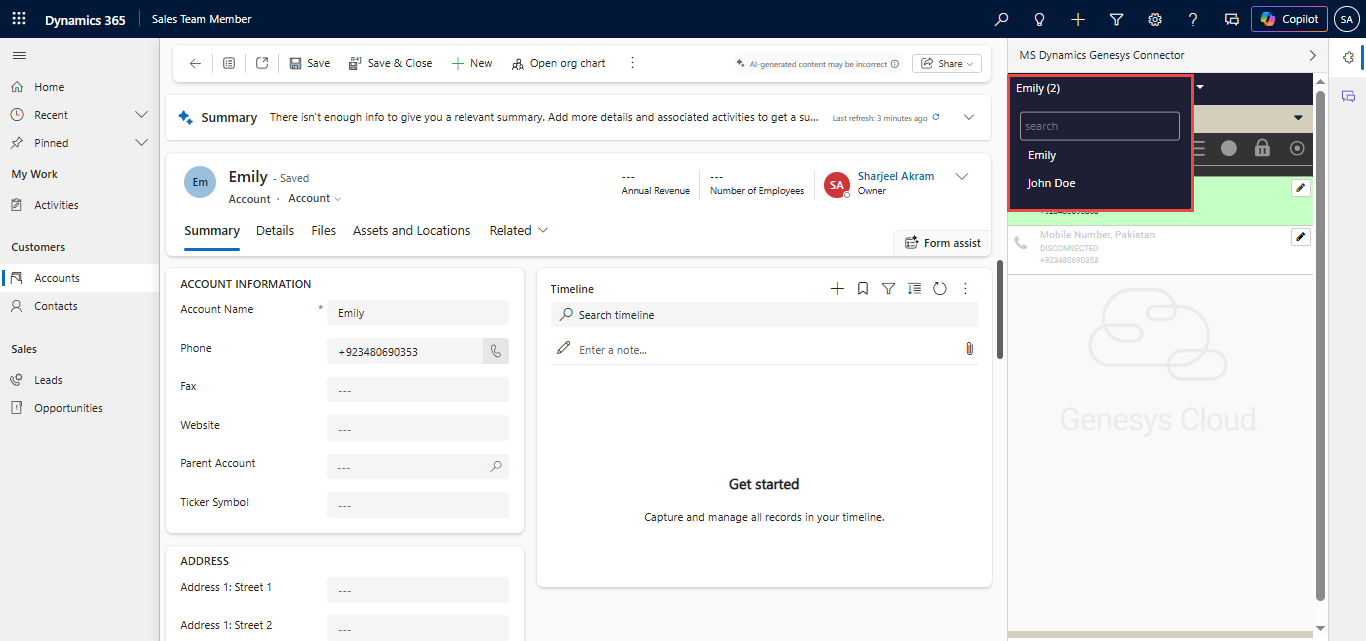
In the case of multiple matches, a list of all the matched records of the respective entity will be shown in the drop-down list in alphabetical order. The first record in the list will automatically pop up, however, the agent can also manually select the customer record from the drop-down list and that customer profile will pop up.
In the case of a Consult call with Agent B, the system will do the screen pop based on customer ANI and activity will also be created.
Phone Call Activity/ Call Wrap-up
A phone call activity is automatically created and linked to the matched caller account in Microsoft CRM. Any selected wrap-up code is applied in Genesys will also be stored in activity.
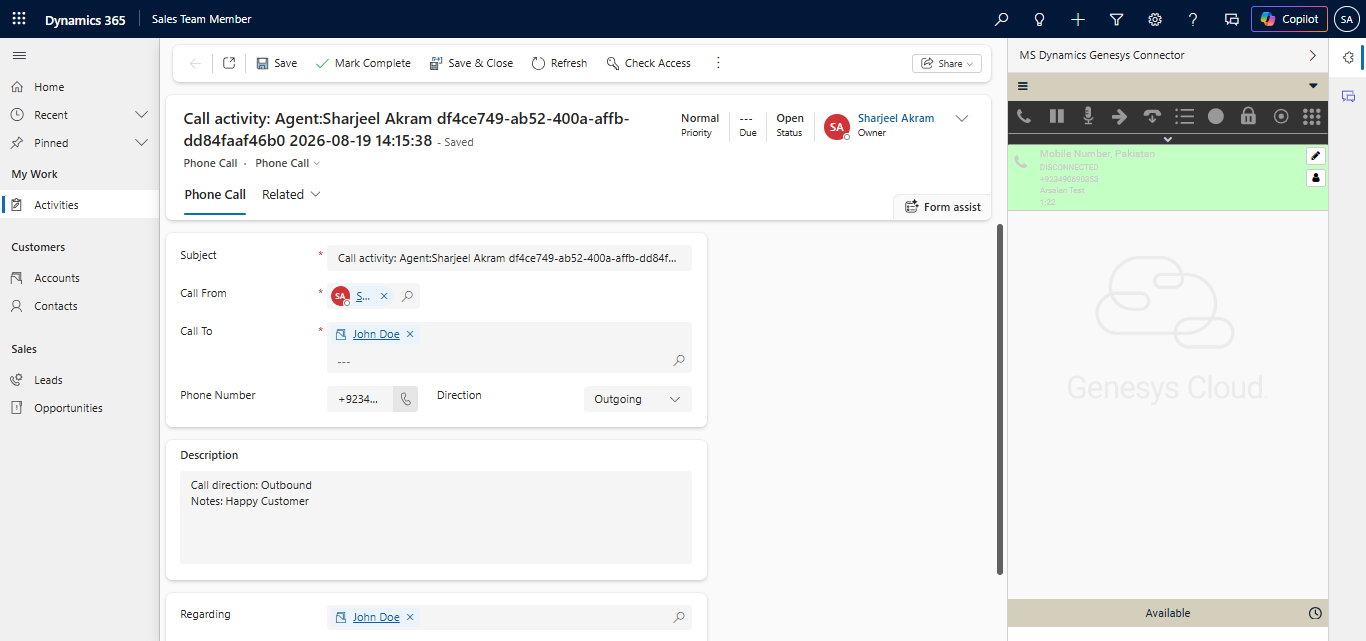
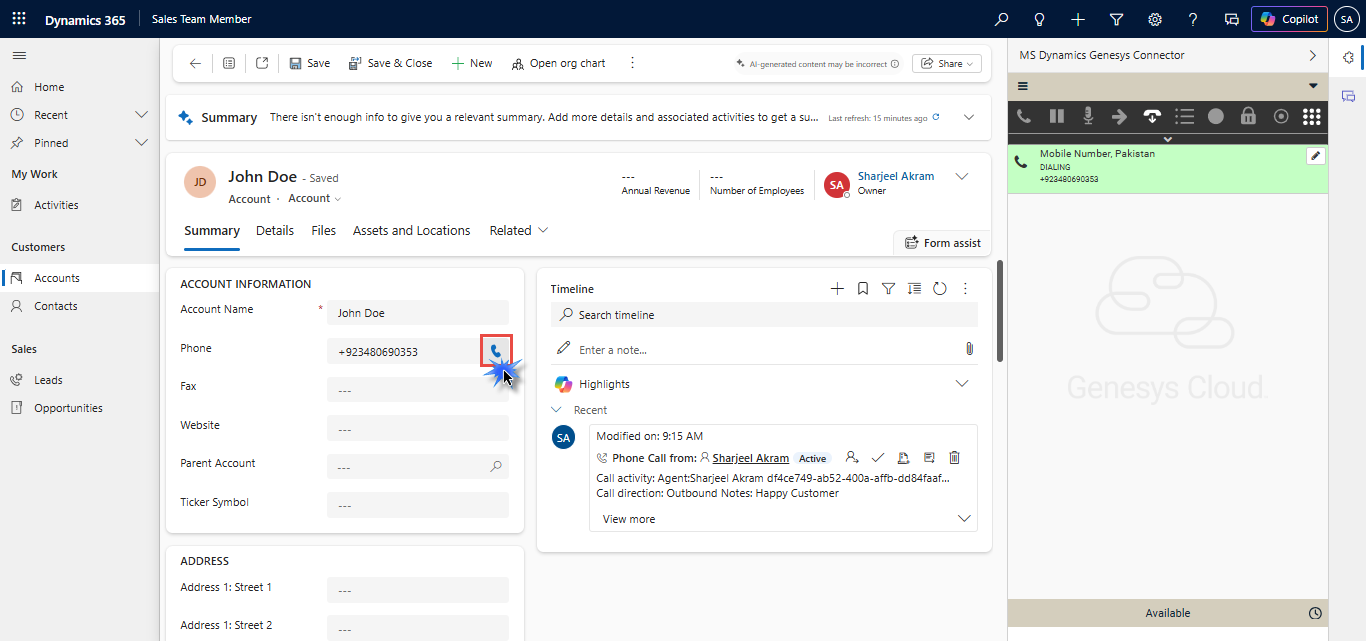
Click to Call
This feature allows the agent to select any number corresponding to a record (Account/Contact/Lead) and initiate an outbound call with that number.
Click To Call will not work for the Microsoft UCI Deployment currently.
Phone Masking
Phone Masking is a data protection feature integrated into the MS Dynamics Genesys Connector that ensures phone numbers displayed within Microsoft Dynamics 365 are partially masked to enhance privacy and security.
-
The masking logic retains only the first and last digits of the phone number, replacing all intermediate digits with asterisks.
-
For example, a number like
923001234567would appear as9*********7in the CRM interface. -
This feature ensures full phone numbers are still accessible internally during actions such as click-to-dial through the Genesys CTI connector, where the original number is securely retrieved at the time of dialing.