
Purpose
This deployment guide provides detailed instructions for installing, configuring, and using the Genesys Generic connector which can be used to integrate with multiple CRMs.
Intended Audience
This document is intended for customers who want to deploy a Genesys Generic Connector.
Prerequisites
-
You must have Genesys Generic Contact Center set up and configured.
Configuring the Genesys Cloud Contact Center
There are two types of deployments in Genesys:
-
Private Deployment
-
Public Deployment
Private Deployment
The administrators can add the integration and upload the framework.js file to the company’s Genesys Cloud organization. A maximum of five different implementations of the integration in a single Genesys Cloud organization are allowed. We may want to use different implementations with various third-party products.
Following are the steps required to configure the private deployment.
Prerequisites for running the integration in Genesys
-
An Internet browser (the latest version of Chrome, Firefox, or Microsoft Edge).
-
To use WebRTC phones with the client, turn off the pop-up blocker in your browser.
-
Per-user licenses for Genesys Cloud (Communicate or higher).
Configure OAuth Client
In order to configure you need to log in as an administrator. The following permission is required to configure the OAuth client
-
OAuth > Client > Add permission
Steps to configure OAuth client
-
Click Admin.
-
Under Integrations, click OAuth.
-
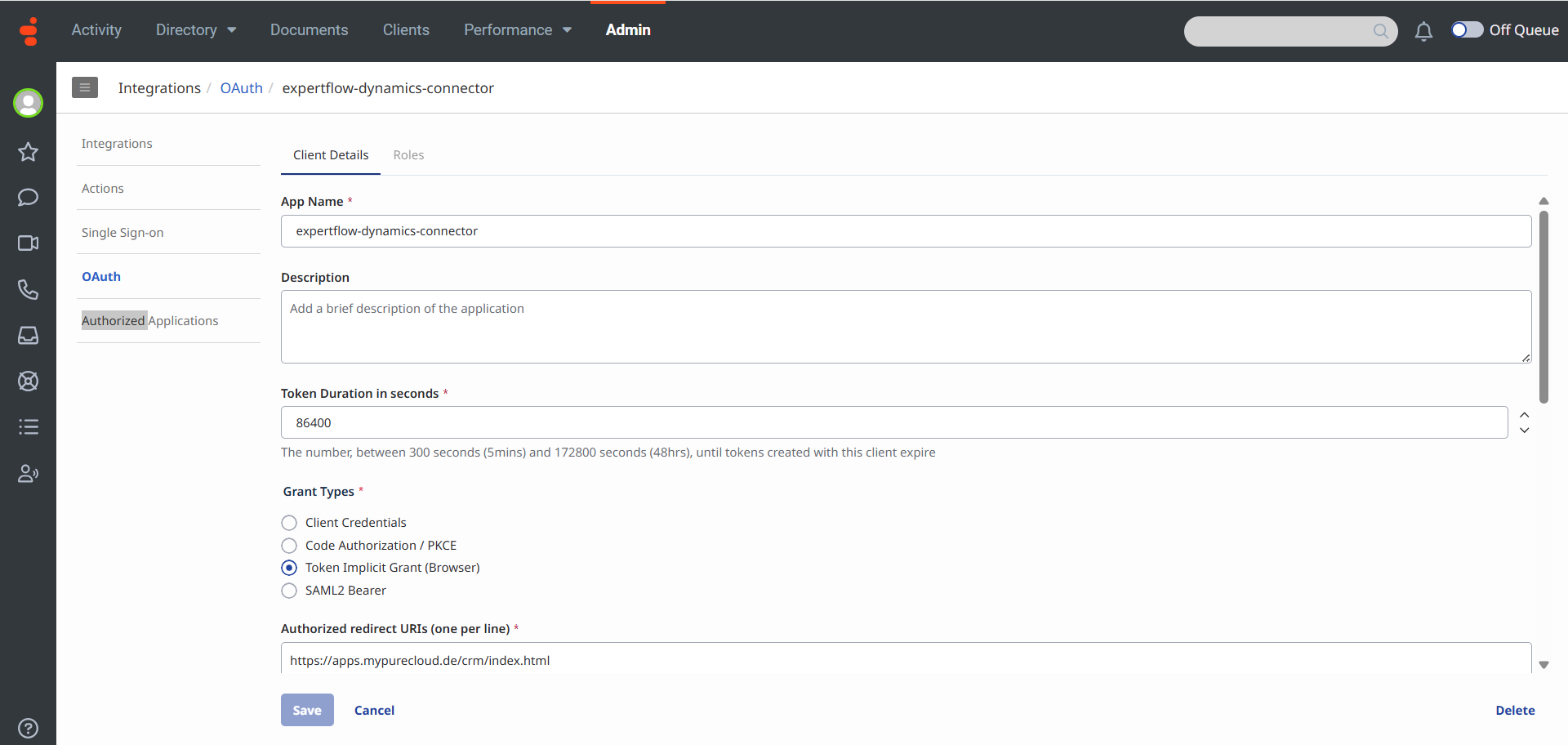
Click Add Client. The Client Details tab appears.
-
Set the App Name to expertflow-dynamics-connector or any meaningful name of the app.
-
Type a brief description of the app in the Description box. (Optional)
-
Set the duration of time until tokens created with this client expire.
Accept the default duration, or enter a value between 300 and 172800 seconds. This duration sets the lifetime of the token to a maximum of two days or less.
Tip: Genesys recommends setting the token duration to 18 hours (64800 seconds). This duration generally causes the token to expire outside an agent’s normal workday.
-
Under Grant Types, select Implicit Grant (Browser).
-
Under Authorized redirect URIs, add https://apps.mypurecloud.com/crm/index.html, Customize the URI according to the customer Genesys Cloud region.
-
Under Scope, add all required scopes.
An OAuth client added to your Genesys Cloud organization (optional for some private versions) with the required scopes.
-
Click Save.
-
A Client ID will be created that we use in the Framework.js file. Copy the Client ID and save it somewhere.
Agent Permissions Required
The permission names appear in different formats. It all depends on where we access the permissions in Genesys Cloud, The integration looks for permissions, not roles, assigned to a user in Genesys Cloud.
|
Permission |
Required or optional |
Feature |
Description |
|---|---|---|---|
|
ACD Screen Share > Session > View |
Optional |
Screen share |
Allows an agent to screen share ACD interactions |
|
Analytics > Conversation Aggregate > View |
Optional |
Evaluations |
Allows an agent to view released evaluations in the User Inbox. |
|
Analytics > Conversation Aggregate > View |
Optional |
Statistics |
Allows an agent to see conversation statistics in the Agent Performance window. |
|
Analytics > Queue Observation > View |
Optional |
Statistics |
Allows an agent to see statistics for a queue before contacting the queue or transferring an interaction to the queue. |
|
Analytics > User Aggregate > View |
Optional |
Statistics |
Allows an agent to see user statistics in the Agent Performance window. |
|
Cobrowse > Chat > Escalate |
Optional |
Co-browse |
Allows an agent to use co-browse for chat interactions. |
|
Cobrowse > Session > View |
Optional |
Co-browse |
Allows an agent to use co-browse for voice or chat interactions. |
|
Cobrowse > Voice > Escalate |
Optional |
Co-browse |
Allows an agent to use co-browse for voice interactions. |
|
Conversation > Call > Record |
Optional |
Call controls |
Causes the Record icon to be clickable in the call controls in an agent’s client. |
|
Conversation > Call Forwarding > Edit |
Optional |
Call forwarding |
Allows an agent to use and edit call forwarding. |
|
Conversation > Callback > Create |
Optional |
Callbacks |
Allows an agent to schedule callbacks. |
|
Conversation > Cobrowse > Add |
Optional |
Co-browse |
Allows an agent to use co-browse for web messaging. |
|
Conversation > Email > Create |
Optional |
Emails |
Allows an agent to send emails on behalf of queues. |
|
Conversation > Message > Create |
Optional |
SMS messages |
Allows an agent to send SMS messages on behalf of queues. |
|
Integration > Custom Embeddable Framework > Agent
|
Required |
— |
This causes the client to appear in a private deployment of a Genesys Cloud Embeddable Framework integration. |
|
Outbound > Contact > View |
Optional |
Screen pop |
Allows an agent to see screen pops for outbound dialing. |
|
Quality > Evaluation > Edit Agent Sign-off |
Optional |
Evaluations |
Allows an agent to view released evaluation notifications in the User Inbox. |
|
Quality > Evaluation > Edit or Quality > Evaluation > Edit Score |
Optional |
Evaluations |
Allows a quality evaluator to view assigned evaluation notifications in the User Inbox. |
|
Quality > Evaluation > View |
Optional |
Evaluations |
Allows an agent to view released evaluation notifications in the User Inbox. |
|
Routing > Agent > On Queue |
Optional |
Statuses |
Causes On Queue to appear as a status and a status timer to appear in an agent’s client. |
|
Routing > Queue > Join |
Optional |
Queues |
Allows an agent to see which queues the agent is a member of and to select which queues to receive interactions from in the client. |
|
Scripter > Published Script > View |
Optional |
Scripts |
Allows an agent to see a script. |
|
Voicemail > Voicemail > Receive |
Optional |
Voicemails |
Allows an agent to receive personal voicemail notifications in the User Inbox. |
|
Workforce Management > Agent Schedule > View |
Optional |
Scheduling |
Allows an agent to view schedules in the client. |
|
Workforce Management > Agent Shift Trade Request > Participate |
Optional |
Scheduling |
Allows an agent to view shift trade request notifications in the User Inbox. |
|
Workforce Management > Agent Time Off Request > Submit |
Optional |
Scheduling |
Allows an agent to access time off notifications in the client. |
|
Workforce Management > Shift Trade Request > Edit |
Optional |
Scheduling |
Allows an administrator to view shift trade notifications in the User Inbox. |
Private Genesys Cloud Embeddable Framework integration
Follow the steps to do the private deployment of the integration.
-
Add an integration.
-
In Genesys Cloud, click Admin.
-
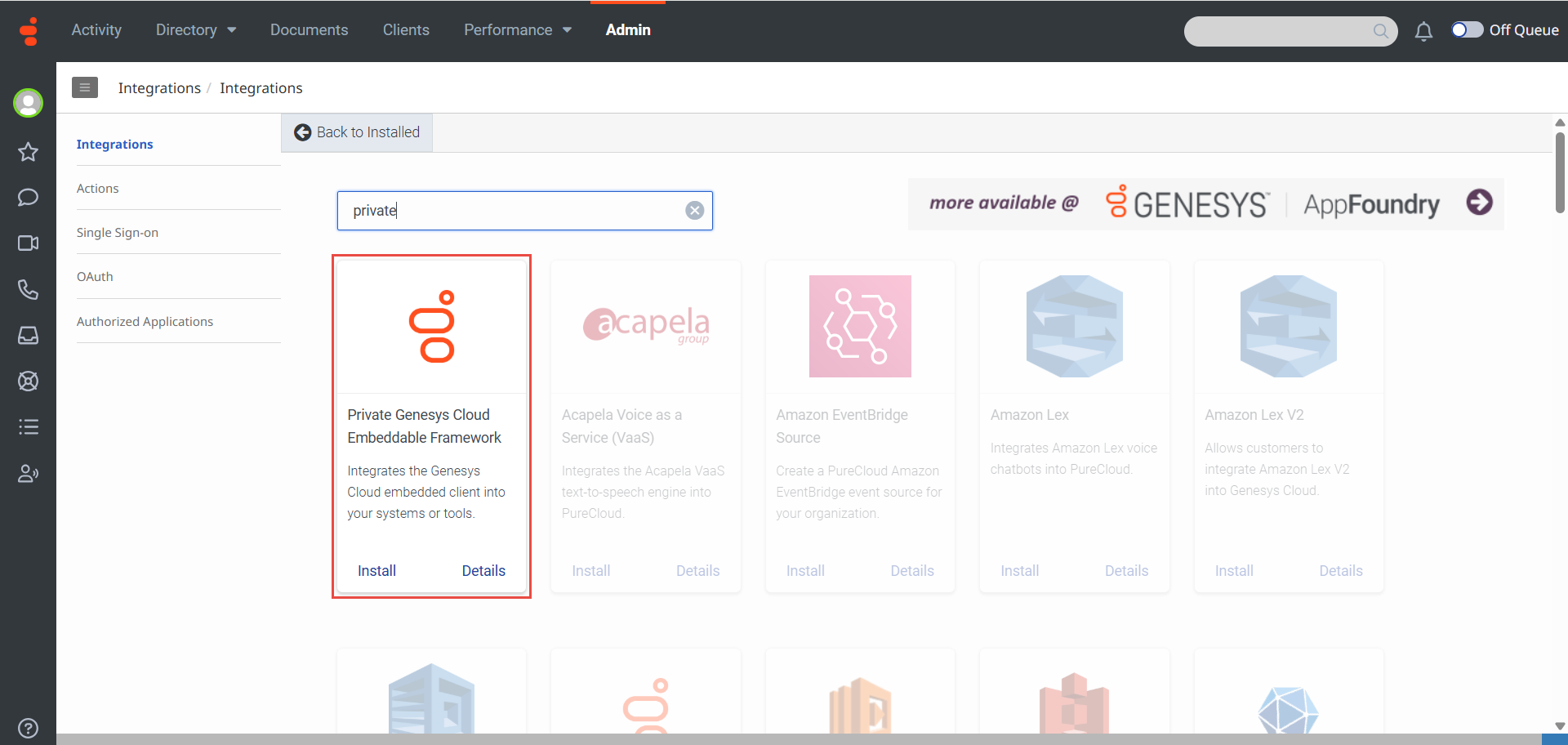
Under Integrations, click Integrations. A list of all integrations that we have installed appears.
-
-
At the upper right, click + Integrations.
-
Search for Private Genesys Cloud Embeddable Framework and click Install.
Configure the integration.
-
Download the framework.js file.
-
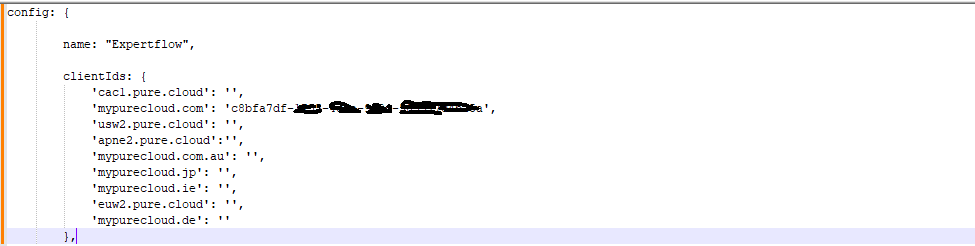
Open the framework.js file in some editor (e.g. Notepad++). Edit and update the App name & Client ID (Configured above in the document) in the file.
-
Click on the installed Private Genesys Cloud Framework.
-
Click the Configuration tab.
-
Click Browse and upload a framework.js file.
Due to caching, users must refresh their client to see the effect of the new file. Any changes to the integration may take several minutes to appear.
-
Click Save.
-
Activate the integration. Under the integration that we just added, click the Status toggle to change it from Inactive to Active.
-
If we click on the three dots in last column, the following options appear We can edit, Activate\Deactivate or delete the integration.

Adding the multiple Private Deployments.
The following steps need to be done to produce multiple private deployments.
-
Configure a separate OAuth Client for multiple deployments. (for creating the OAuth client described above)
-
Add a separate Private Genesys Cloud Embeddable Framework (for creating the Private Genesys Cloud Embeddable Framework described above)
Genesys Generic Connector Deployment
Before you begin, verify that on the server, you have:
-
Installed Kubernetes. If not, see Deployment Planning
-
Setup storage. If not yet, see Storage Solution - Getting Started
Pulling The Genesys Generic Connector from Git
The application code alongside the Kubernetes files are deployed on this repo Genesys Generic Connector.
-
Create a directory with name as genesys-generic-connector or according to your ease.
-
Navigate to newly created directory by
cd genesys-generic-connector. -
Pull the the code from the:
git clone --branch Tag-1.0.0 --depth 1 https://gitlab.expertflow.com/cti/genesys-generic-connector
If you’re testing for QA, please pull from the develop branch to include latest development changes. git clone -b develop https://gitlab.expertflow.com/cti/genesys-generic-connector
-
After that, if you want to get the latest changes to code, navigate into the created directory (with
cd <dir-name>), and rundevelop -
Run
cd kubernetesto change directories. This is where all the YAML files are stored.
Setting Up Environment
We use Kubernetes for our server deployment, on which the static files for the connector will be served, and where the Genesys Generic Connector will be running.
Namespace
Create a namespace “expertflow” if it doesn’t exist.
kubectl create namespace expertflow
Configure Ingress.yaml
Genesys Generic Connector should be accessible by a fully qualified domain name. Assign the FQDN.
Replace <FQDN> with your FQDN for Genesys Generic Connector (e.g. projectsdemo.expertflow.com) and run this command.
sed -i 's/devops[0-9]*.ef.com/<FQDN>/g' genesys-ingress.yaml
Create Self-Signed SSL/TLS Ingress Certificates (optional if already present)
Please modify the <FQDN> with your current FQDN before applying the following command.
-
Create IngressCerts directory (optional)
mkdir ingress-certs -
cd ingress-certs
-
set the Variable name to your FQDN (e.g.
projectsdemo.expertflow.com).
The${FQDN}variable in following commands will be replaced with the value you provided in this stepexport FQDN=<enter FQDN here> -
Now generate a secret with the following commands.
openssl req -x509 \ -newkey rsa:4096 \ -sha256 \ -days 3650 \ -nodes \ -keyout ${FQDN}.key \ -out ${FQDN}.crt \ -subj "/CN=${FQDN}" \ -addext "subjectAltName=DNS:www.${FQDN},DNS:${FQDN}" -
Create a Kubernetes secret in your required namespace. In our case it’s
expertflowkubectl -n expertflow create secret tls hs-ef-ingress-tls-secret --key ${FQDN}.key --cert ${FQDN}.crt
Configure genesys-deployment.yaml
-
Open the
genesys-deployment.yamlfile. -
Replace the image with the updated build tag.
-
Updated build tag is
gitimages.expertflow.com/cti/genesys-generic-connector/build:develop-d5320b522daa124c692bdef0b3a264b1bc920ef0
Applying Kubernetes YAMLs
-
Apply the service with
kubectl apply -f genesys-service.yaml -
Apply the image-pull secret with
kubectl apply -f genesys-imagePullSecret-expertflow.yaml -
Apply the Ingress with
kubectl apply -f genesys-ingress.yaml. (For RKE2-based Ingresses using Ingress-Nginx Controller) -
Apply the deployment with
kubectl apply -f genesys-deployment.yaml