
MS CRM Dynamics 365/On-Premise
October 10, 2017 (version 1.1)
To allow MS Dynamics CRM user work as a Cisco contact center agent, you need to add/configure the CRM Organization users with CTI login credentials as configured in the Cisco contact center. The configured CRM users will then automatically be able to login to the Cisco contact center when logged in to Unified Service Desk.
-
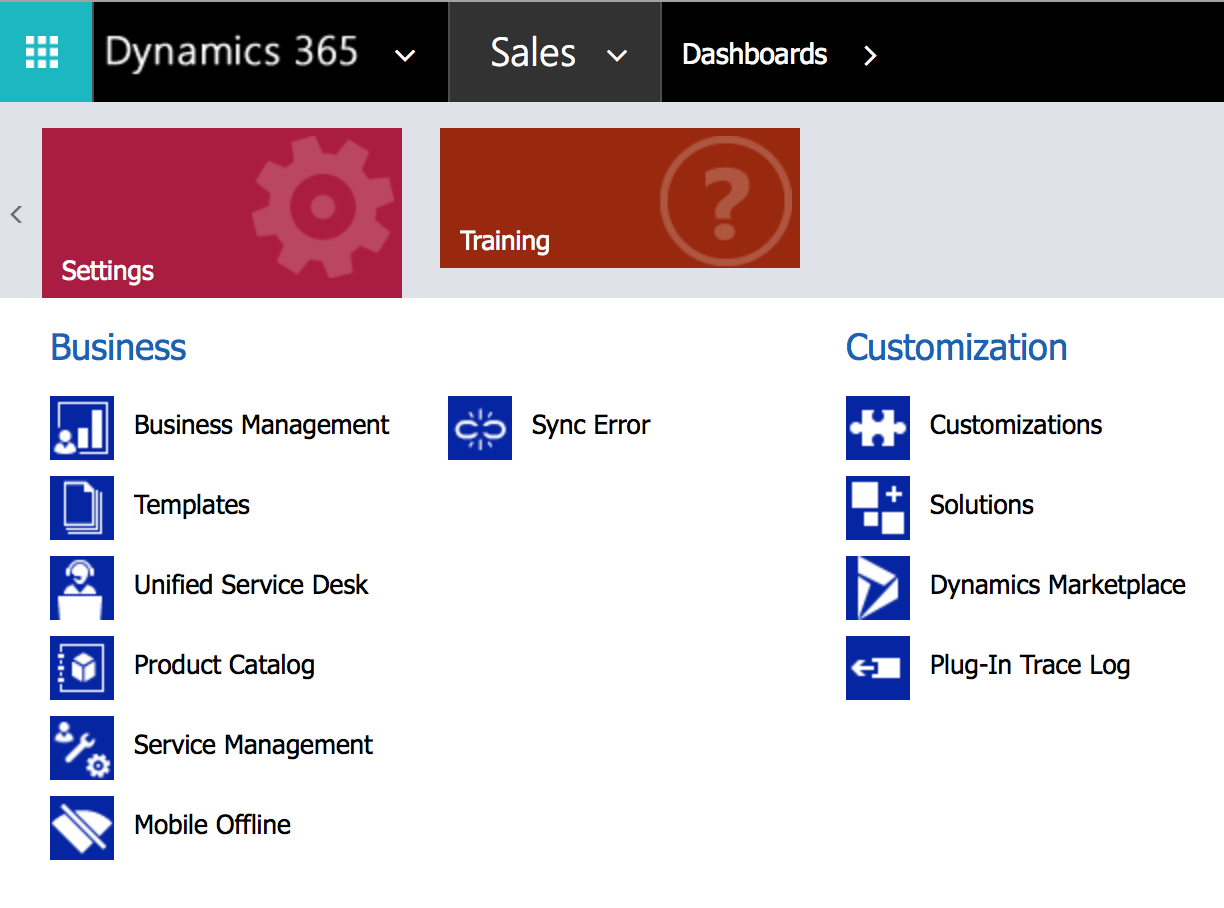
Login to CRM using admin credentials in the CRM Organization. This should be the same organization selected for “Organization CTI Configurations”. Open the organization Settings and select “Unified Service Desk”.
-
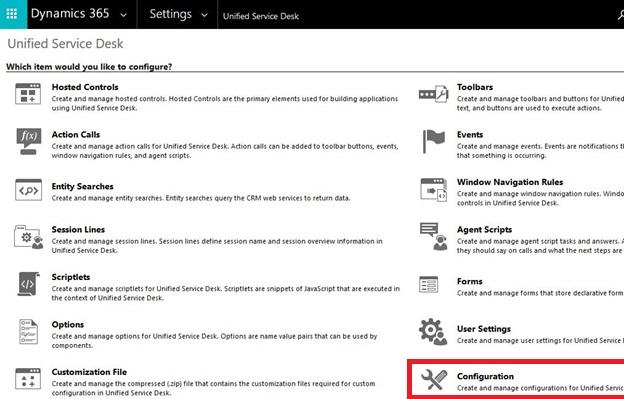
From the list below, click on ‘Configuration’
-
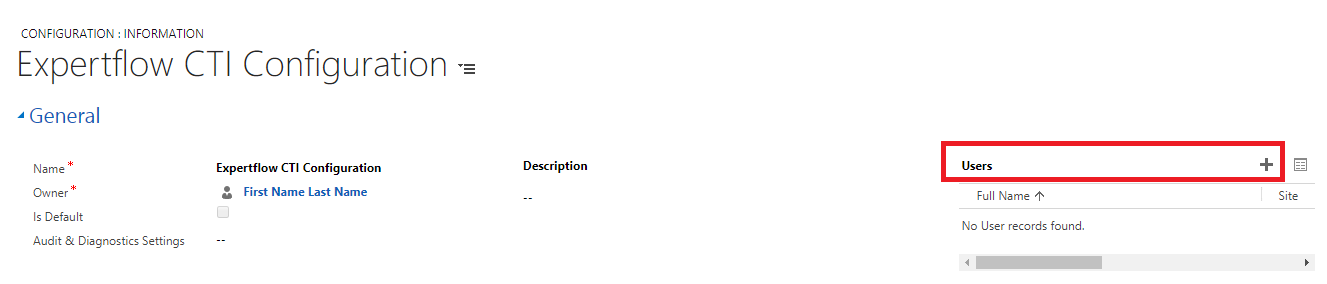
In the Active configurations, you will see the configuration named as Expertflow CTI Configuration. Expertflow CTI configuration is the Configuration deployed by the “Organization CTI Configurations installer” i-e Package Deployer.
-
Click Expertflow CTI Configuration >> users.Add the users to the configuration.
Assign Roles to users
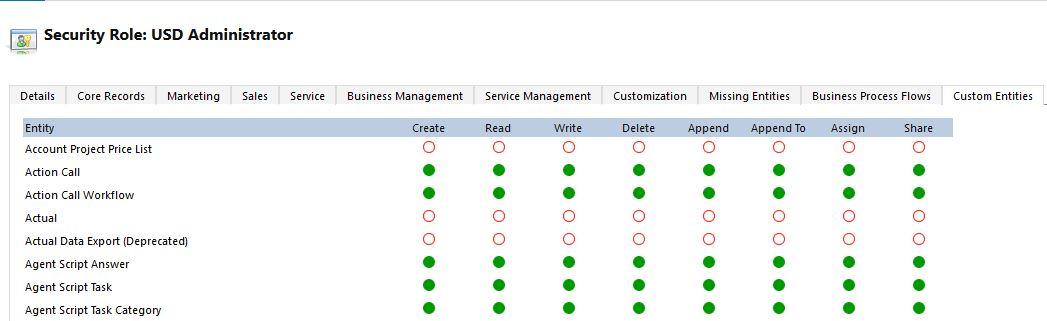
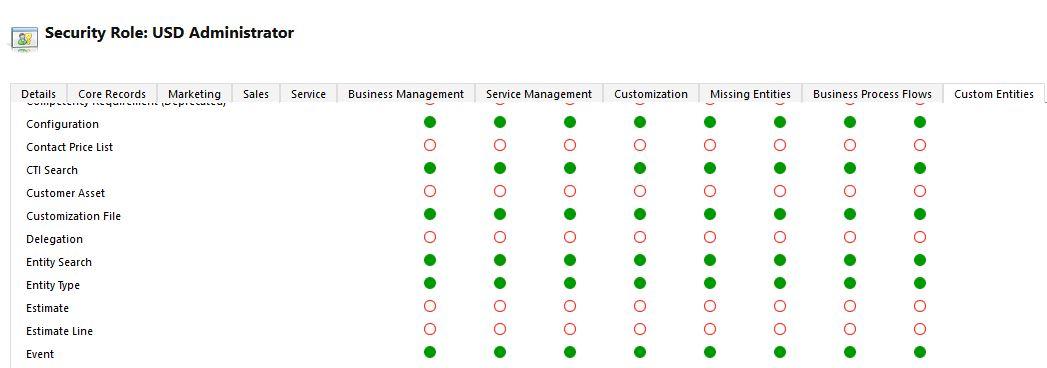
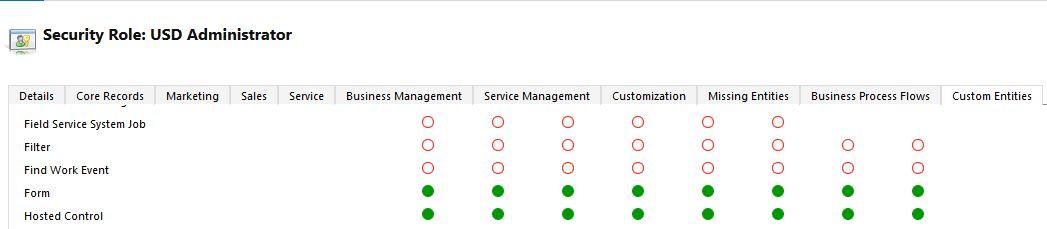
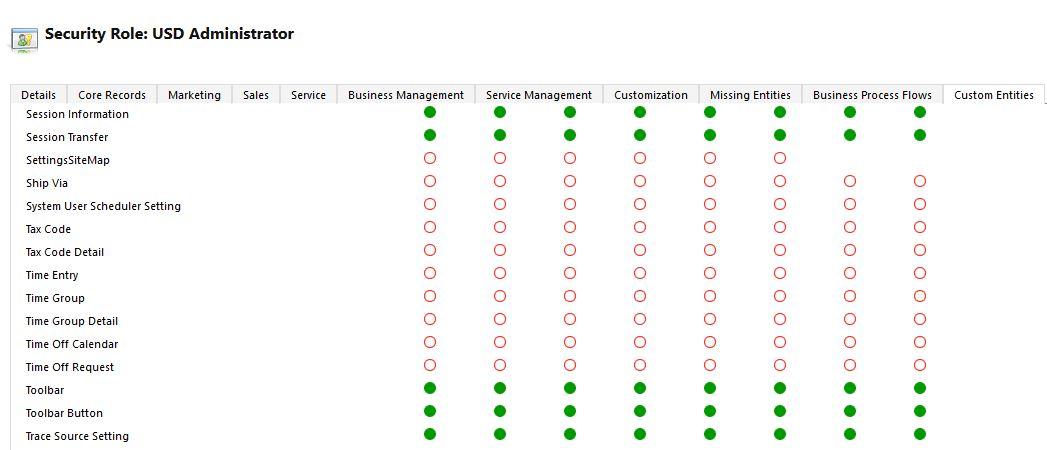
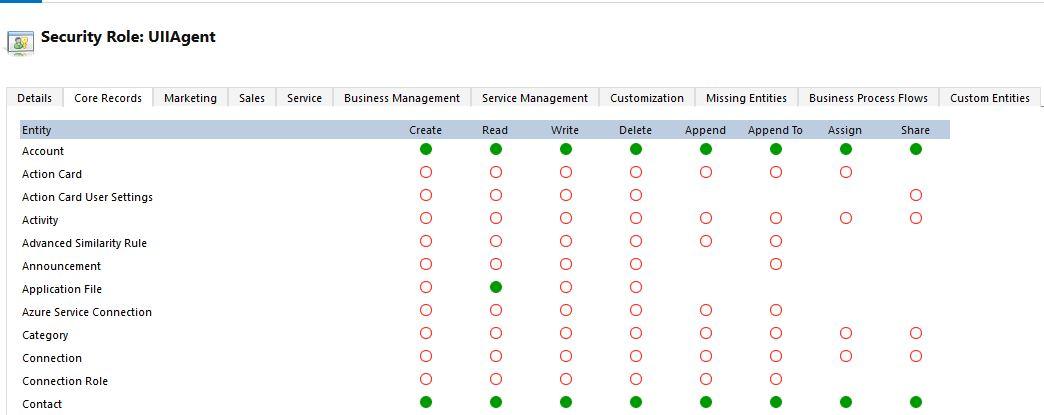
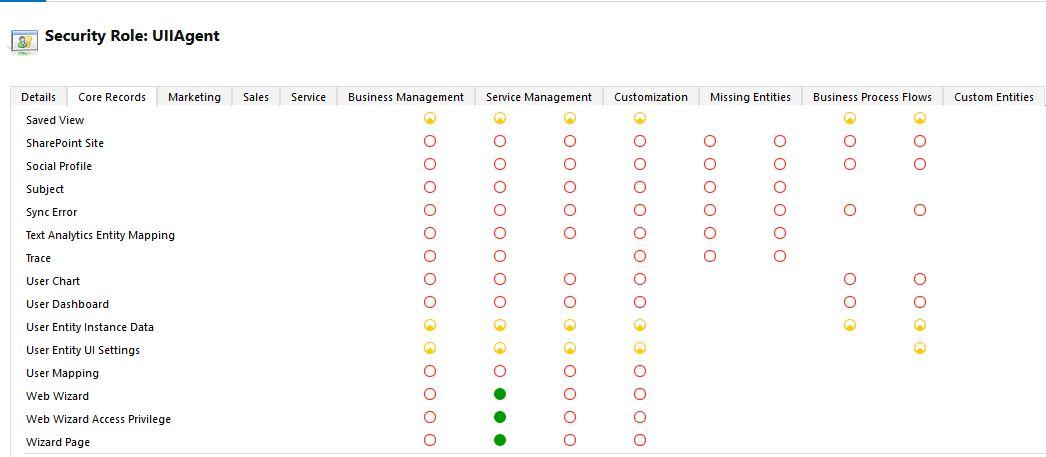
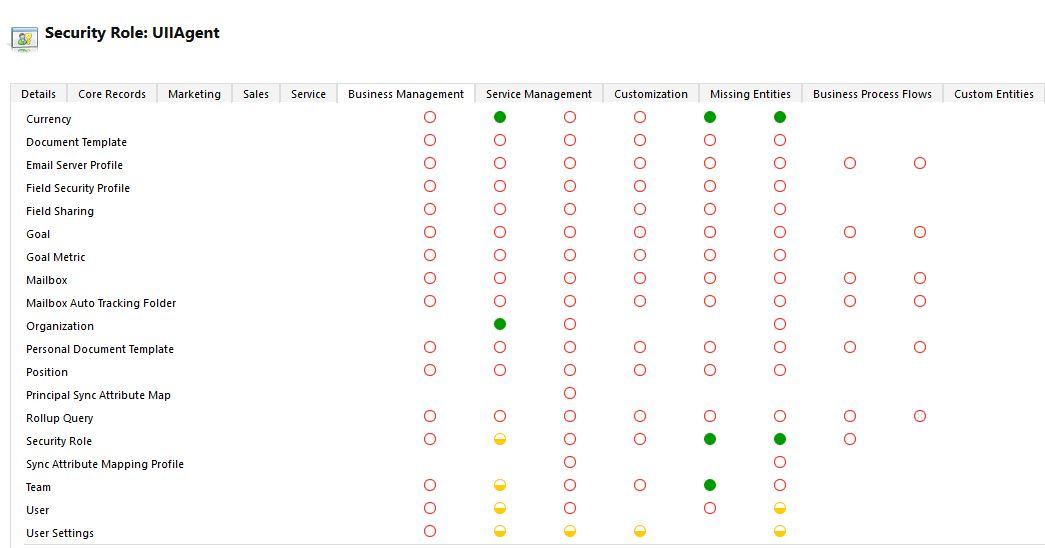
Select the following roles for CRM users selected for Expertflow CTI Configuration. These are mandatory USD roles for the CRM user to work as a Cisco CTI agent.
-
UII Administrator
-
UII Agent
-
USD Administrator
-
USD Agent
-
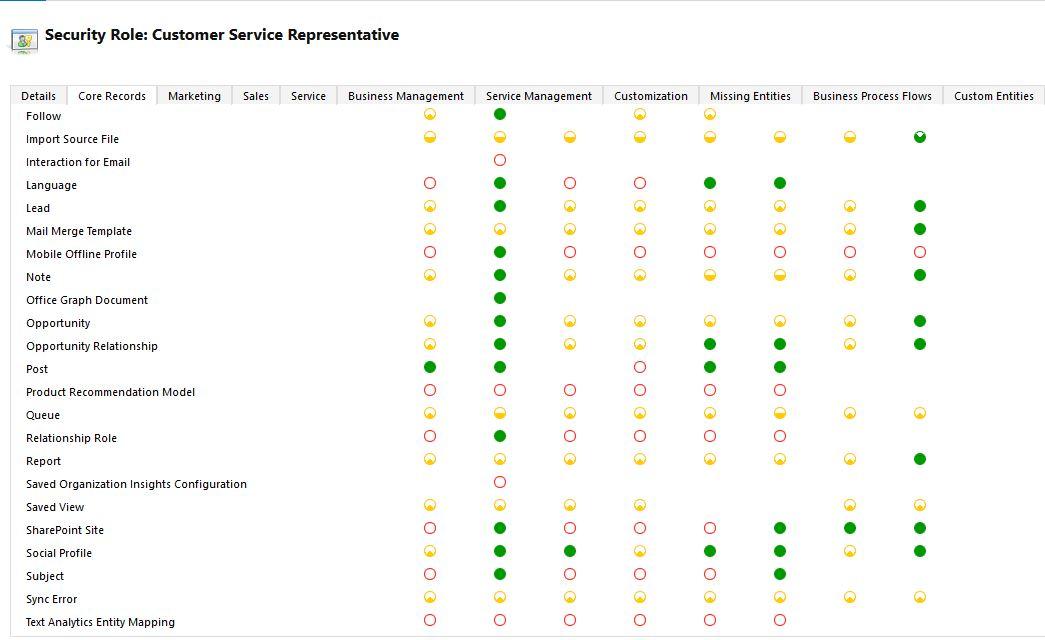
Customer Service Representative
Assign Additional Permissions to Roles
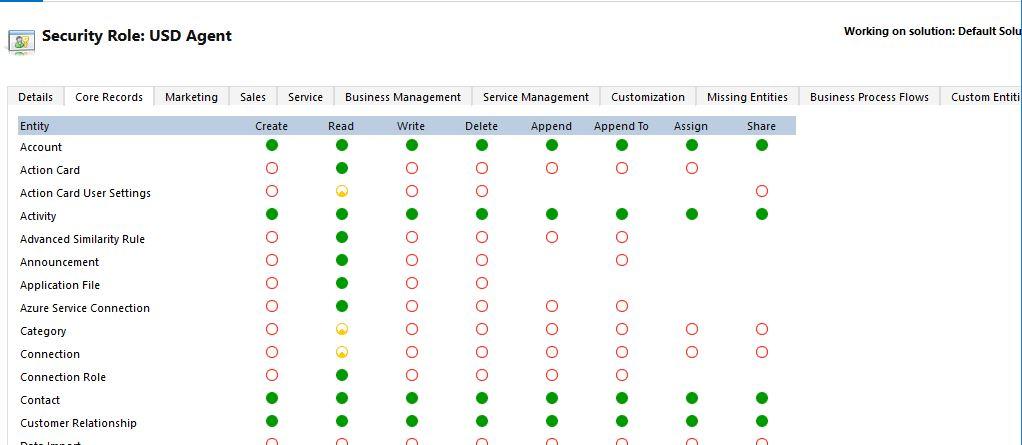
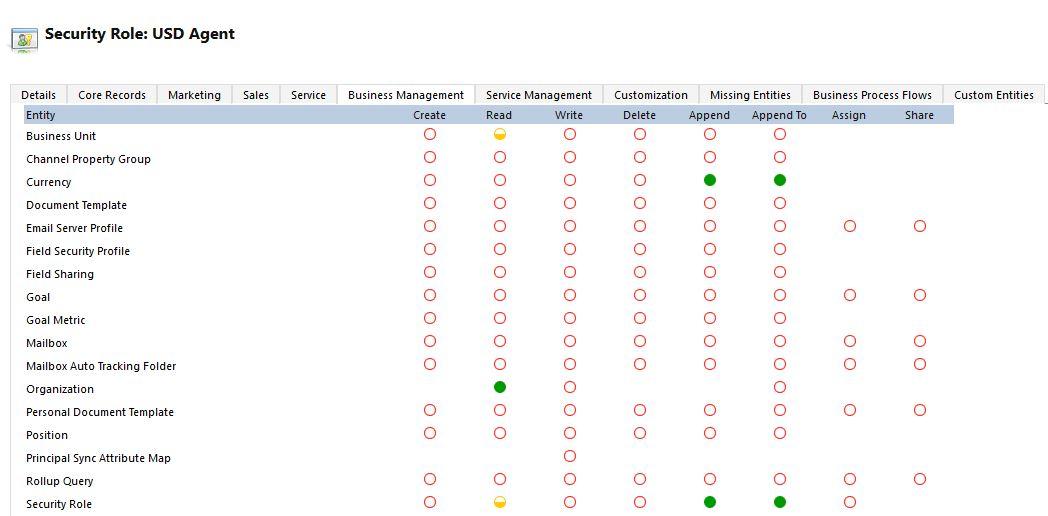
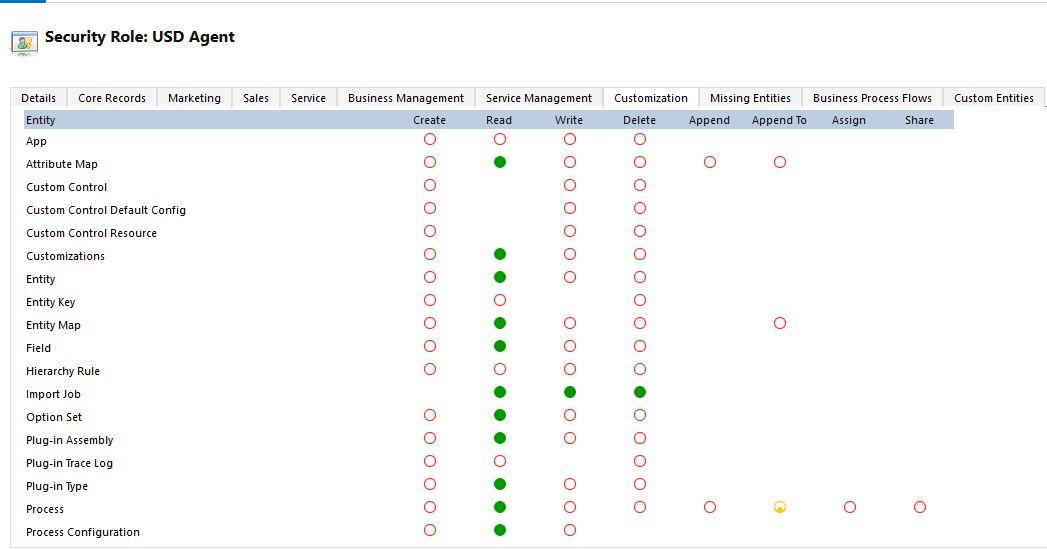
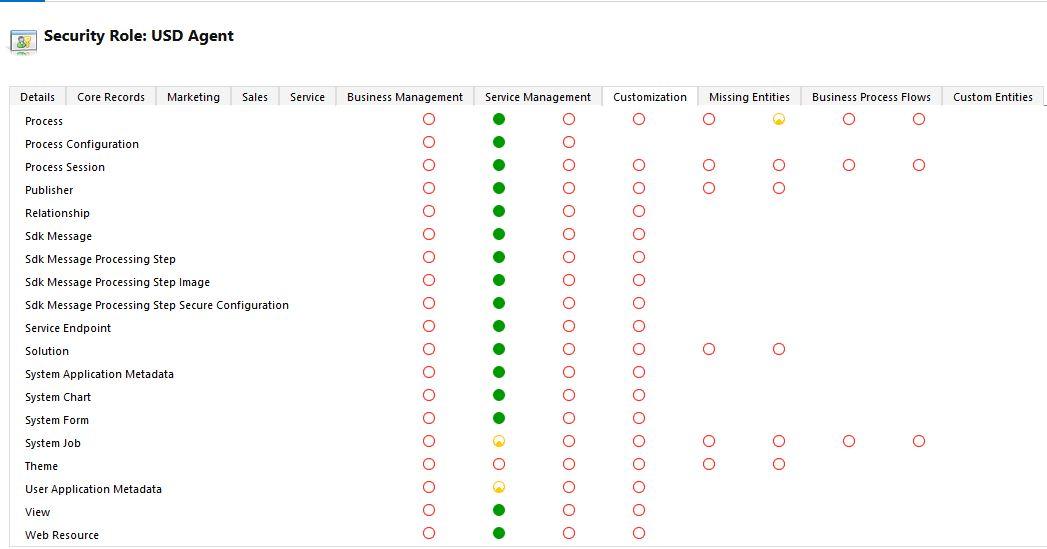
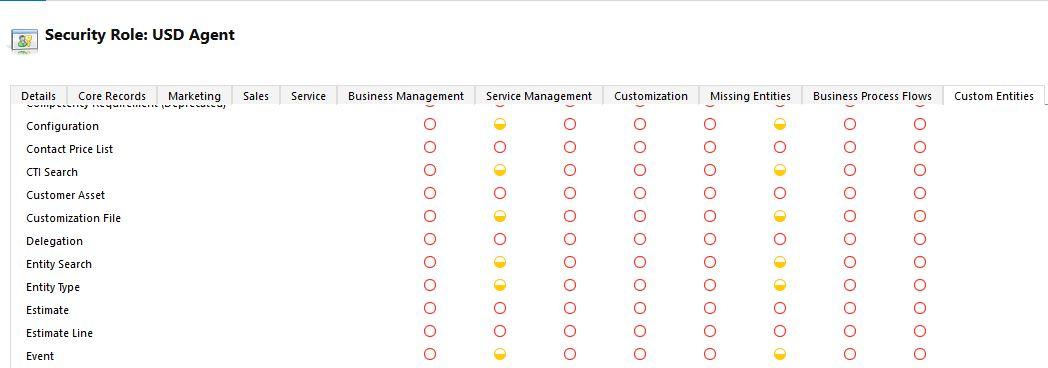
USD Agent
Core Records
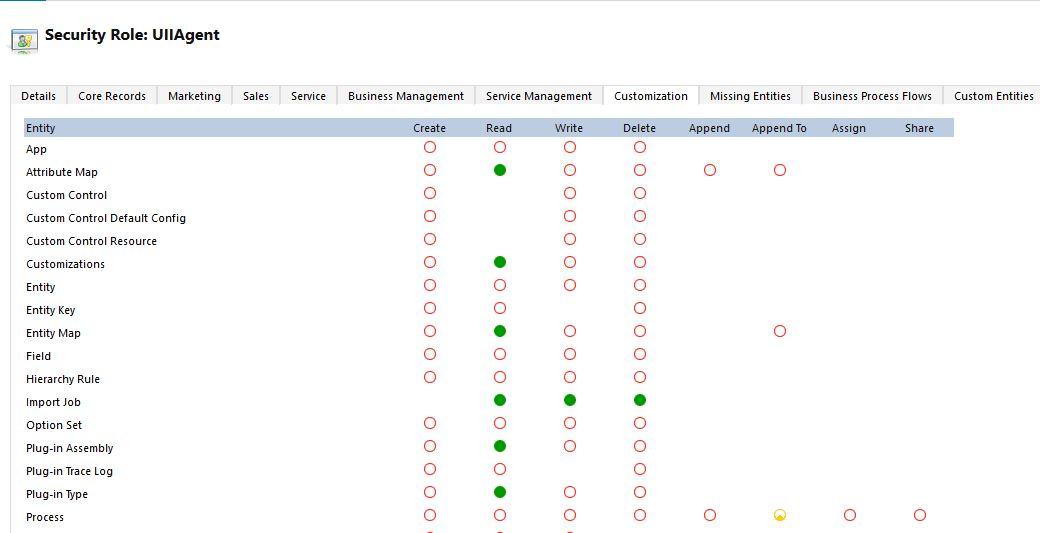
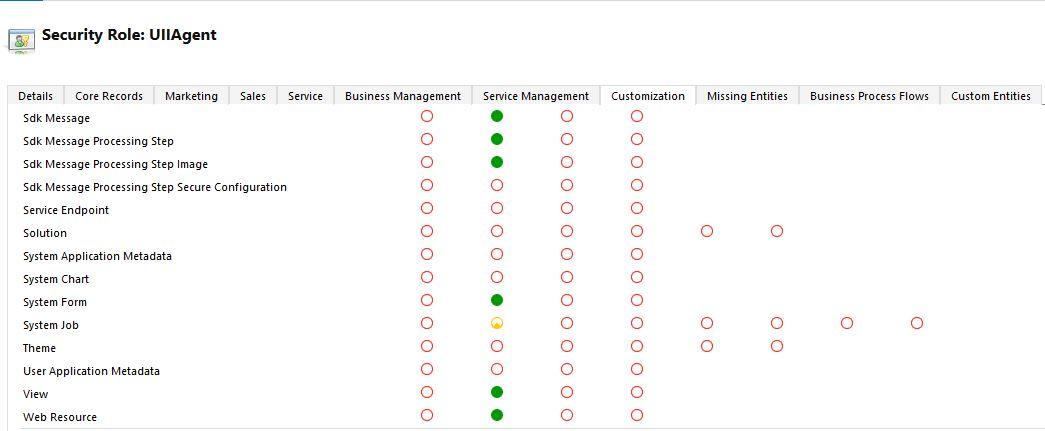
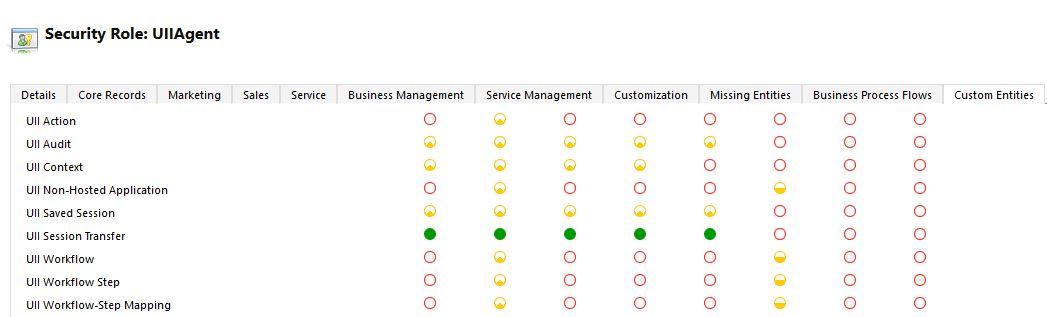
Give permissions to the selected role according to the following screenshots.
Business Management
Customization
Custom Entities


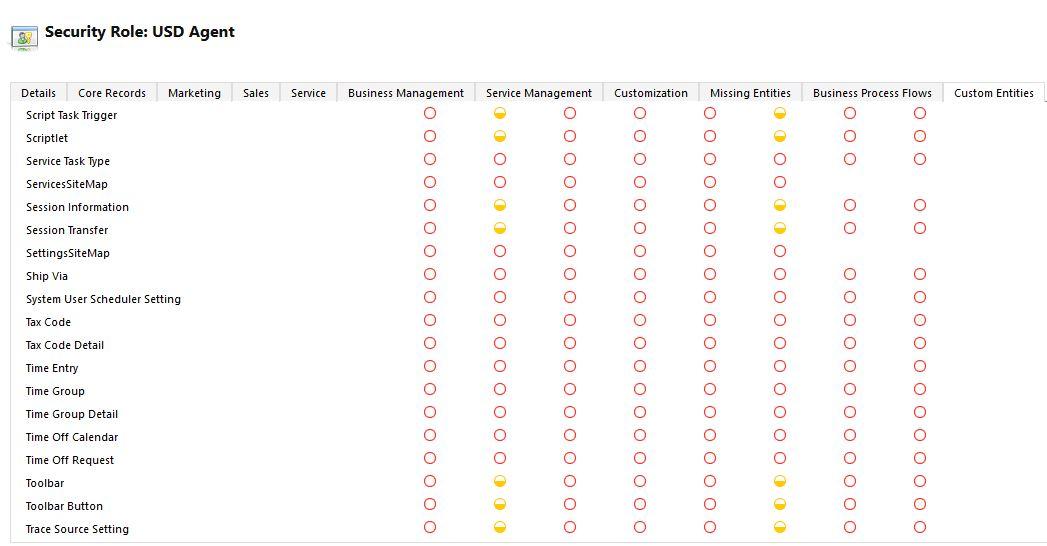
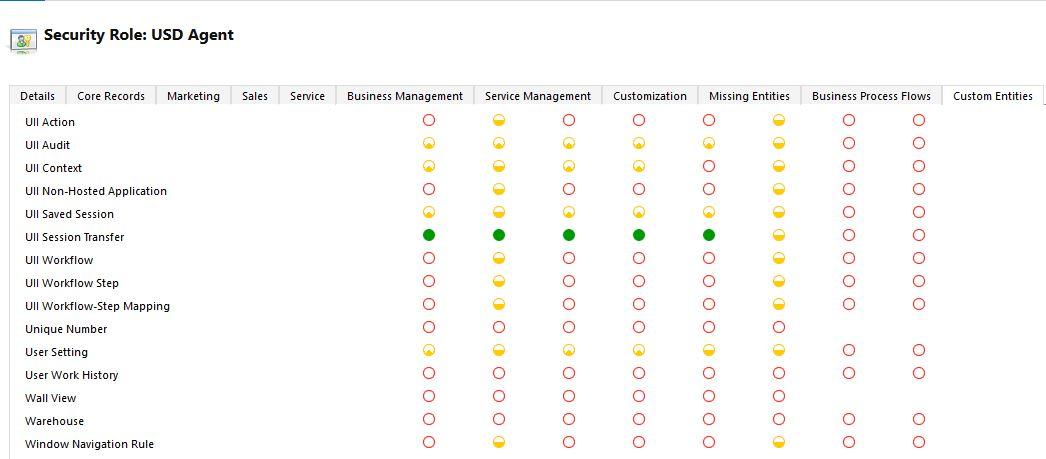
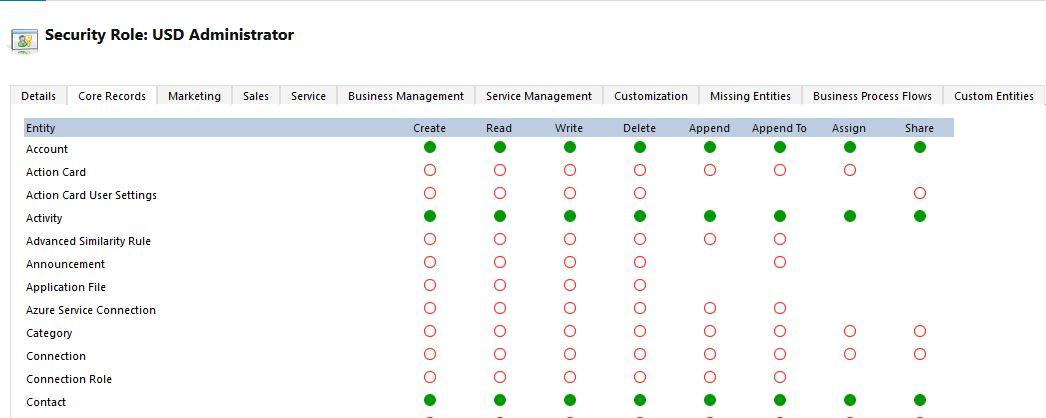
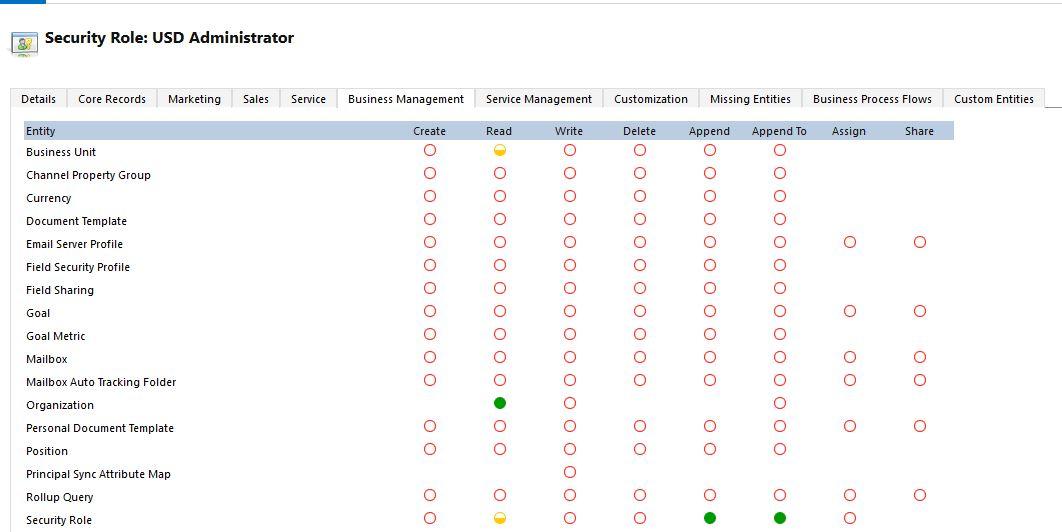
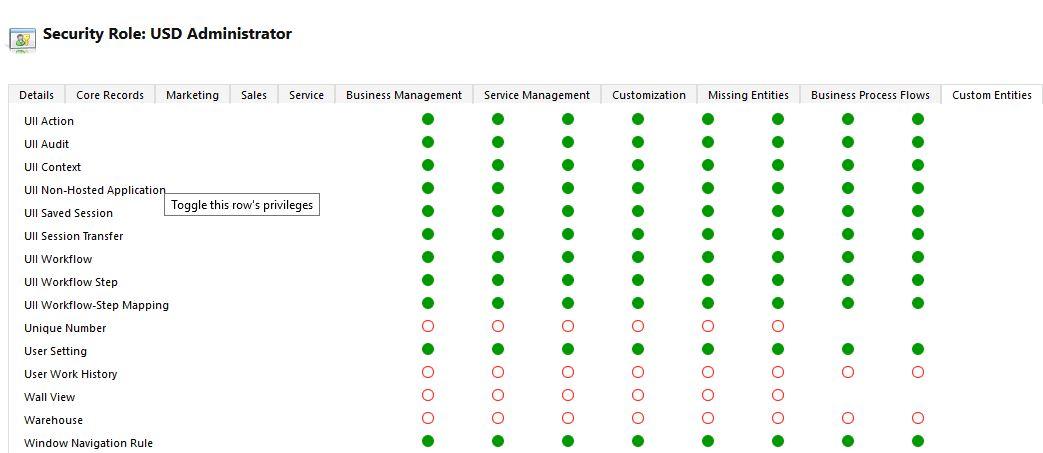
USD Administrator
Give permissions to the selected role according to the following screenshots.
Core Records
Business Management
Custom Entities
UII Agent
Core Records
Business Management
Customization
Custom Entities

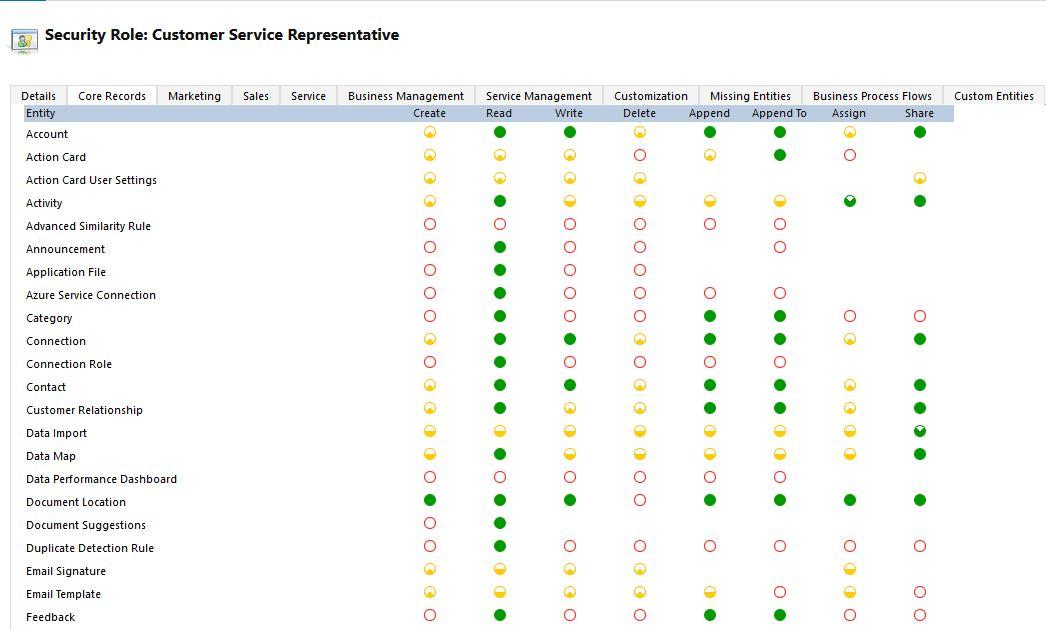
Customer Service Representative
Core Records
Voice Only configurations
Note: Skip this step if only chat solution is being deployed
SSO Configurations For Cisco Contact Center Agents
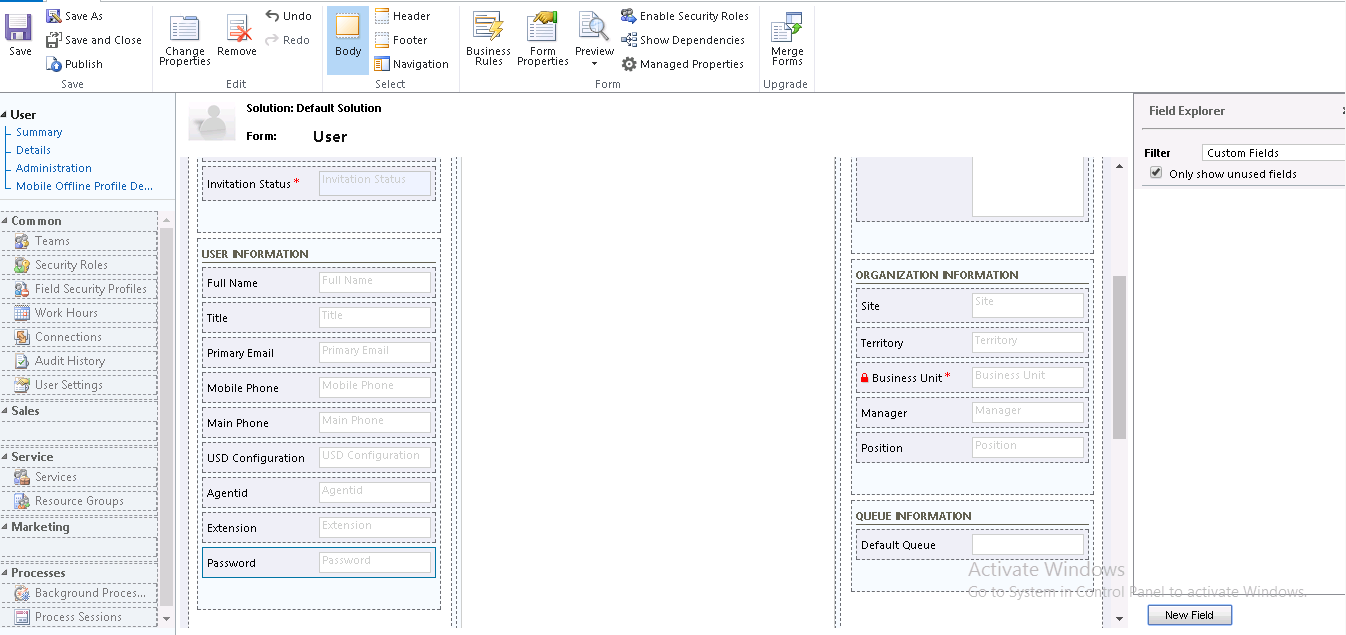
This Single Sign-on configuration would allow an MS Dynamics CRM user to automatically login to the Cisco contact center when logged into Microsoft Unified Service Desk.
You must be an Organization Administrator to make these changes.
-
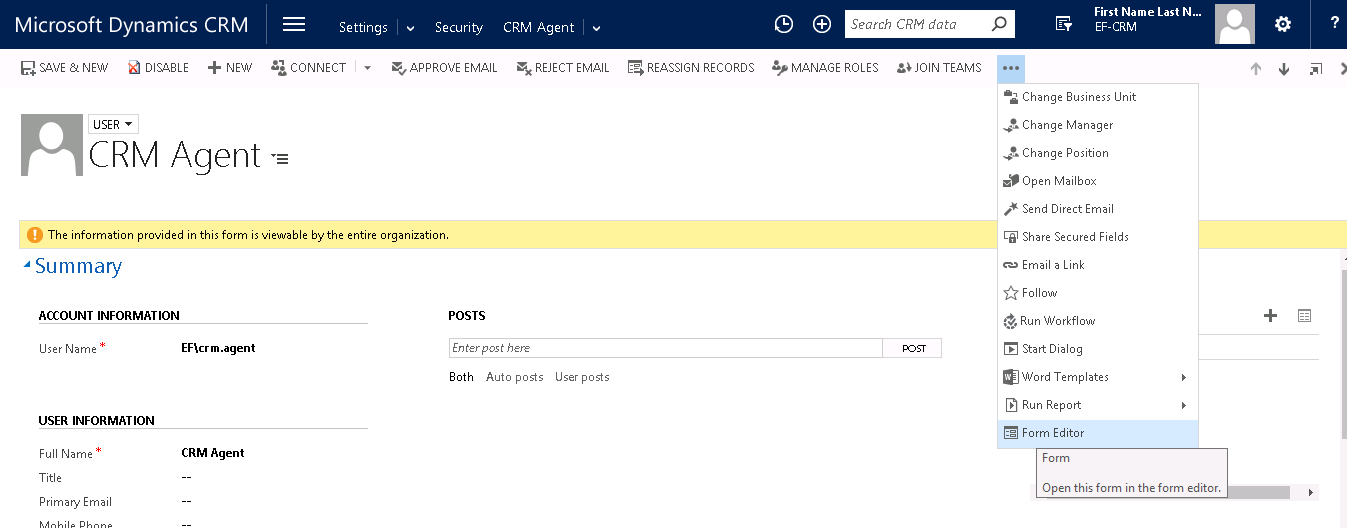
Open a CRM User and select “Form Editor”.
-
Select the Form Editor option and add three new fields. The three fields should have the following name for the SSO to work.
-
To allow SSO to work, specify values for the 3 fields added above for each CRM user (contact center agent).