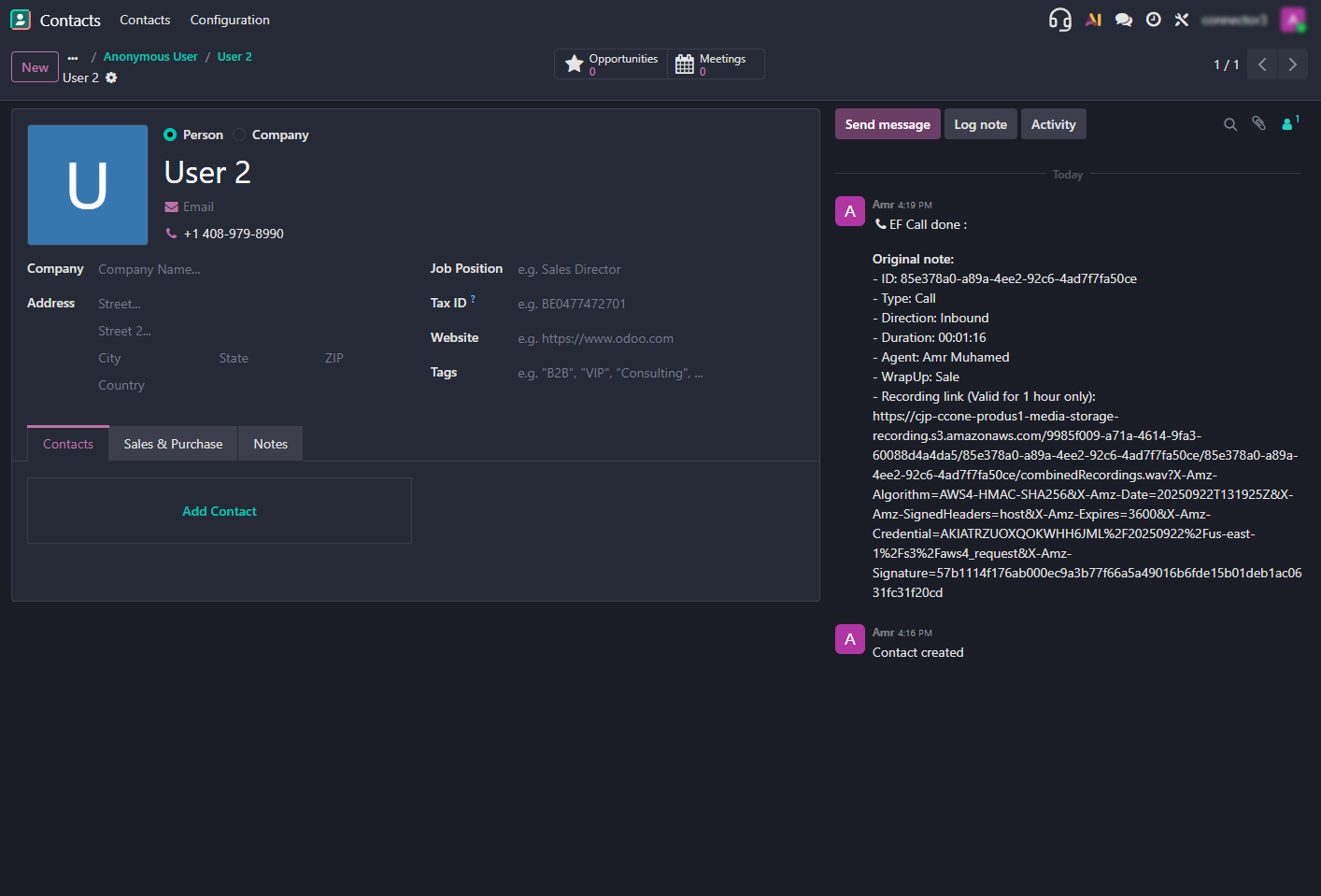
Agent Capabilities
The Odoo Connector for Webex Contact Center boosts agent productivity by enabling seamless communication within Odoo. Agents manage calls, chats, and emails directly from the CRM interface. Key capabilities include:
Login to the Agent Desk – Webex Contact Center Connector for Odoo
After installing the Webex Contact Center Connector for Odoo, access the agent interface.
Logging into Webex CC
-
Open Odoo and click the phone icon at the top right of the top bar.
Select Expertflow from the dashboard menu to configure and set the Webex region URL.
-
Click the ‘Sign in’ button inside the Webex CC embedded window.
-
Enter your Webex Contact Center agent credentials in the login screen.
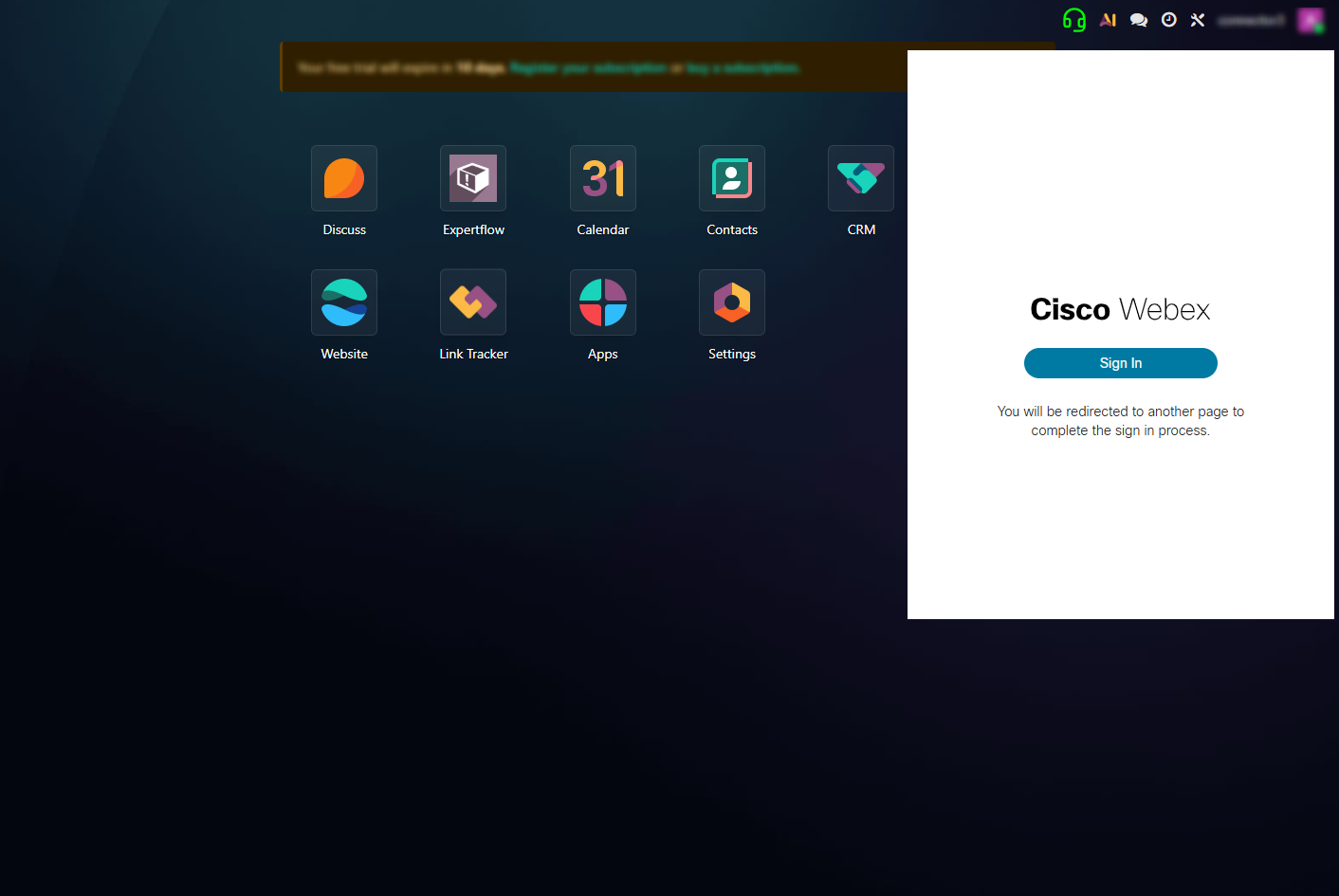
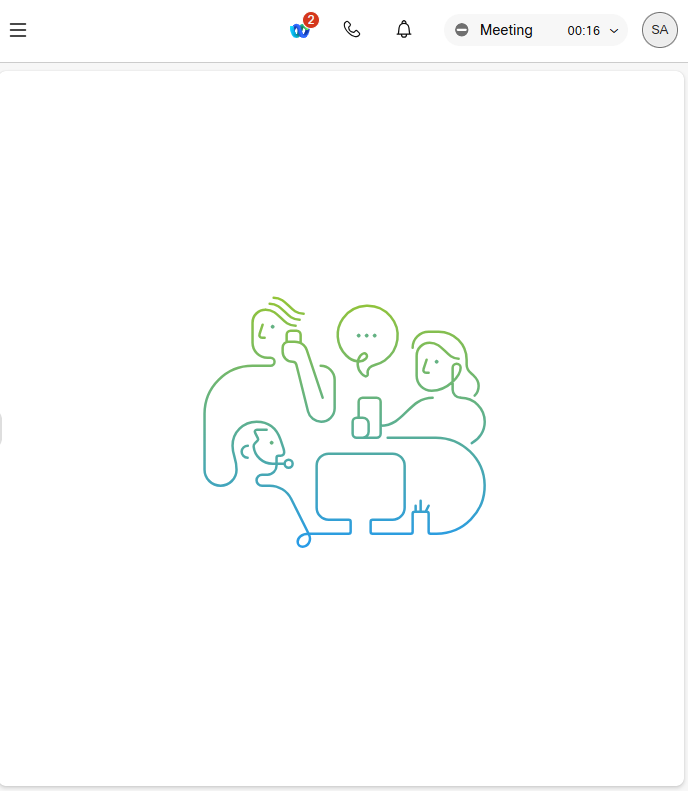
Post Login Interface
After logging in, agents access the Webex Contact Center dashboard within Odoo to manage the conversations including calls, chats, and emails.
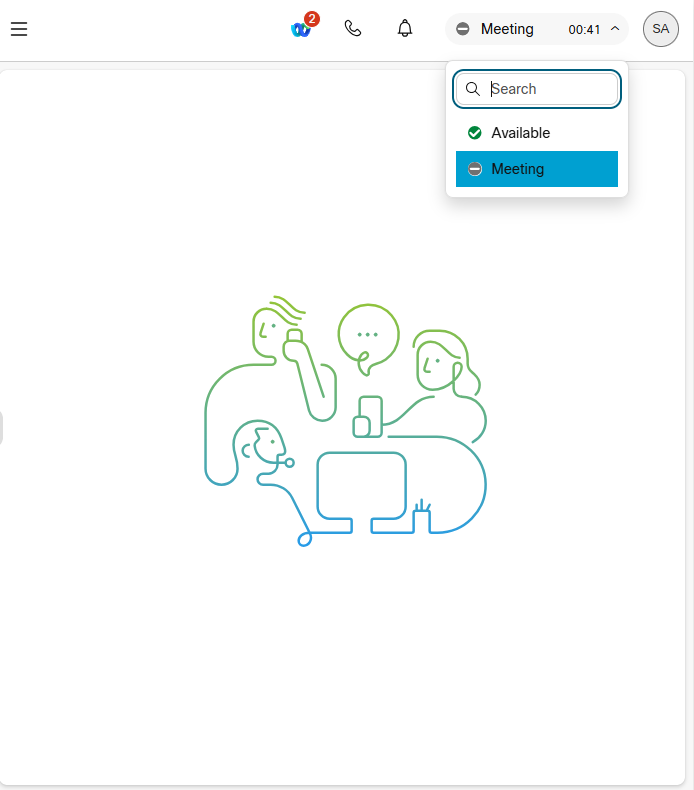
State Change
-
Agents update their availability status directly within the Webex Contact Center (Webex CC) desktop interface inside Odoo.
-
They switch between predefined states such as Available and Meeting.
-
Supervisors and the system monitor agent availability in real time to ensure proper call routing and workload distribution.
-
This functionality helps agents manage their time and prevents calls when they are unavailable.
Webex Supported Media Types
-
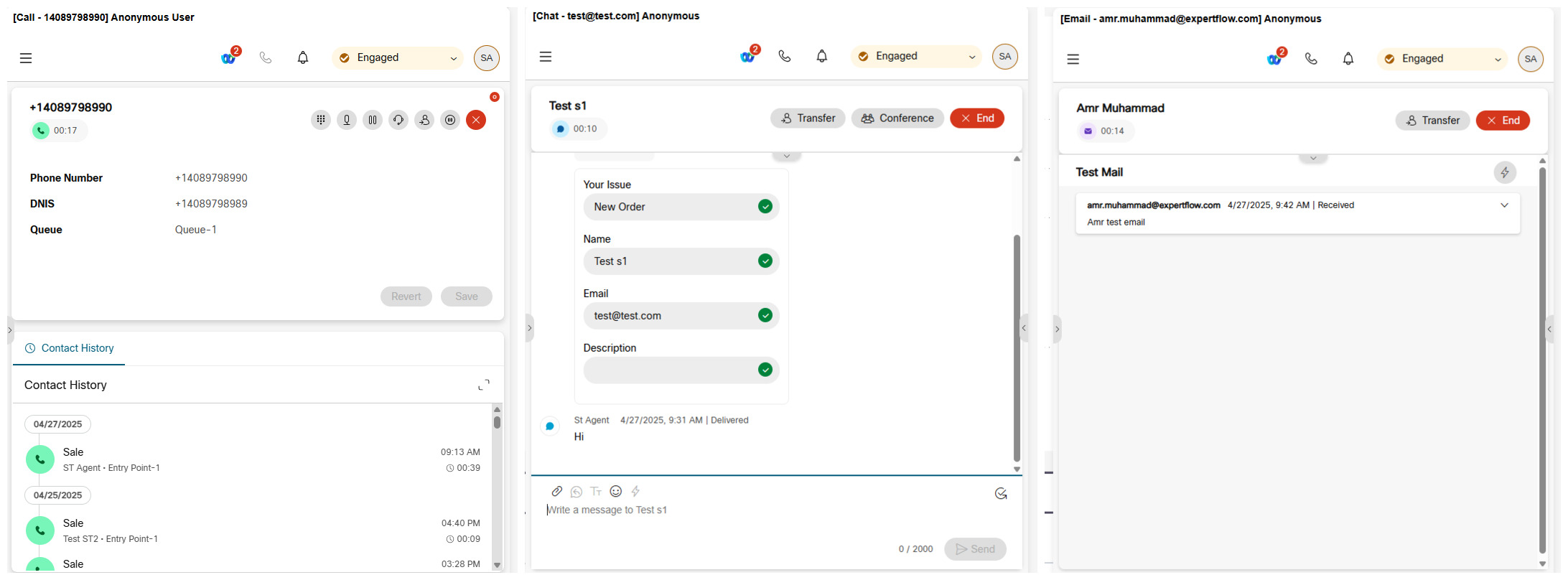
Webex supports multiple communication channels: Web Chat, Voice, and Email.
-
These media enable efficient, integrated customer and team interactions within a unified platform.
Click-to-Dial Integration
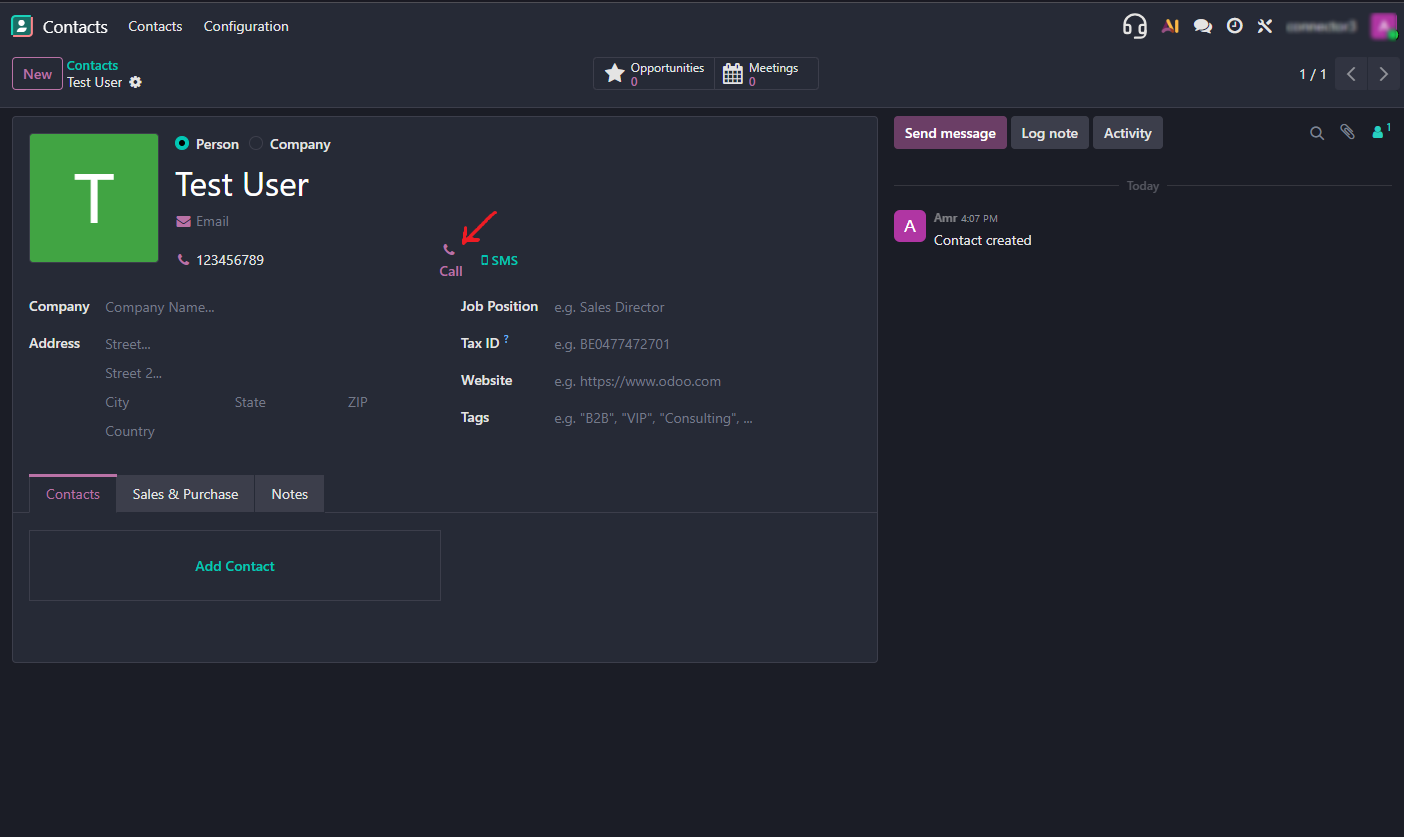
Clicking on any phone number within Odoo seamlessly initiates an outbound call via Webex Contact Center. Additionally, when a call is initiated, a screen pop appears within Odoo, displaying customer details.
This ensures that agents have all the necessary information at their fingertips before the conversation begins, enhancing efficiency and customer engagement. Each interaction is automatically logged in Odoo, linking it to the relevant leads, contacts, or accounts for easy tracking.
Single-Match Screen Pop
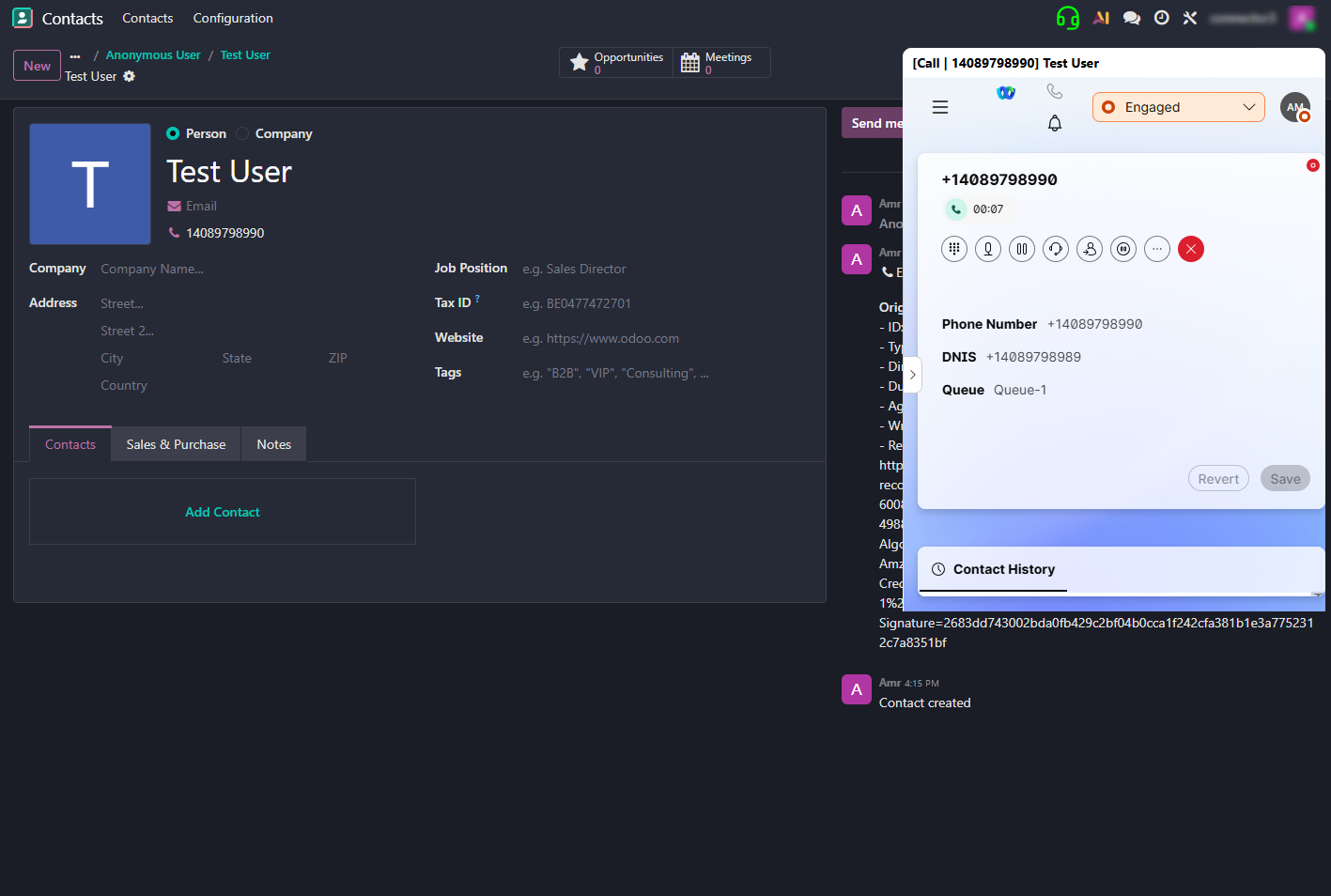
When a conversation arrives for a logged-in agent, the Webex Contact Center Connector for Odoo, automatically pops up the relevant CRM customer record based on the caller's number or their email, and information stored in Odoo.
A conversation can be a Chat, Email or a phone call.
By default entities supported for searching are Contact/Account/Lead (can set priority in the configurations)
No-Match Screen Pop
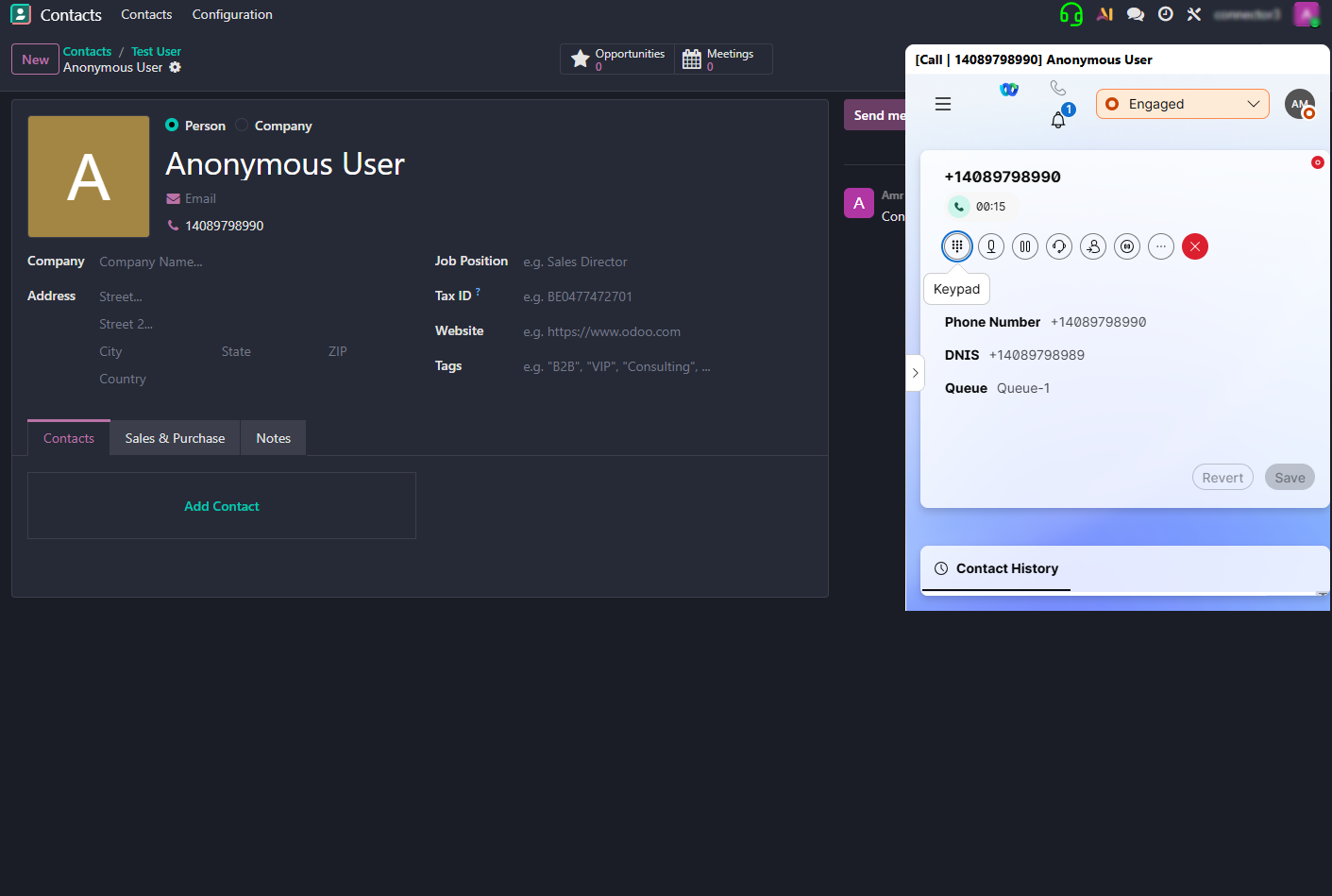
If no matching customer record is found in Odoo's entities, the New Contact page will automatically pop up with 'Anonymous' as the default name.
By default, no match entity is set to Contact, but it can also be configured to Account or Lead as needed.
Multiple-Match Screen Pop
If multiple records match the caller's number or email, the connector displays a list of matched records in a drop-down menu. The first record in the list is automatically selected and popped up, but agents can manually choose a different customer record from the drop-down. This enables quick and flexible access to the correct customer profile.
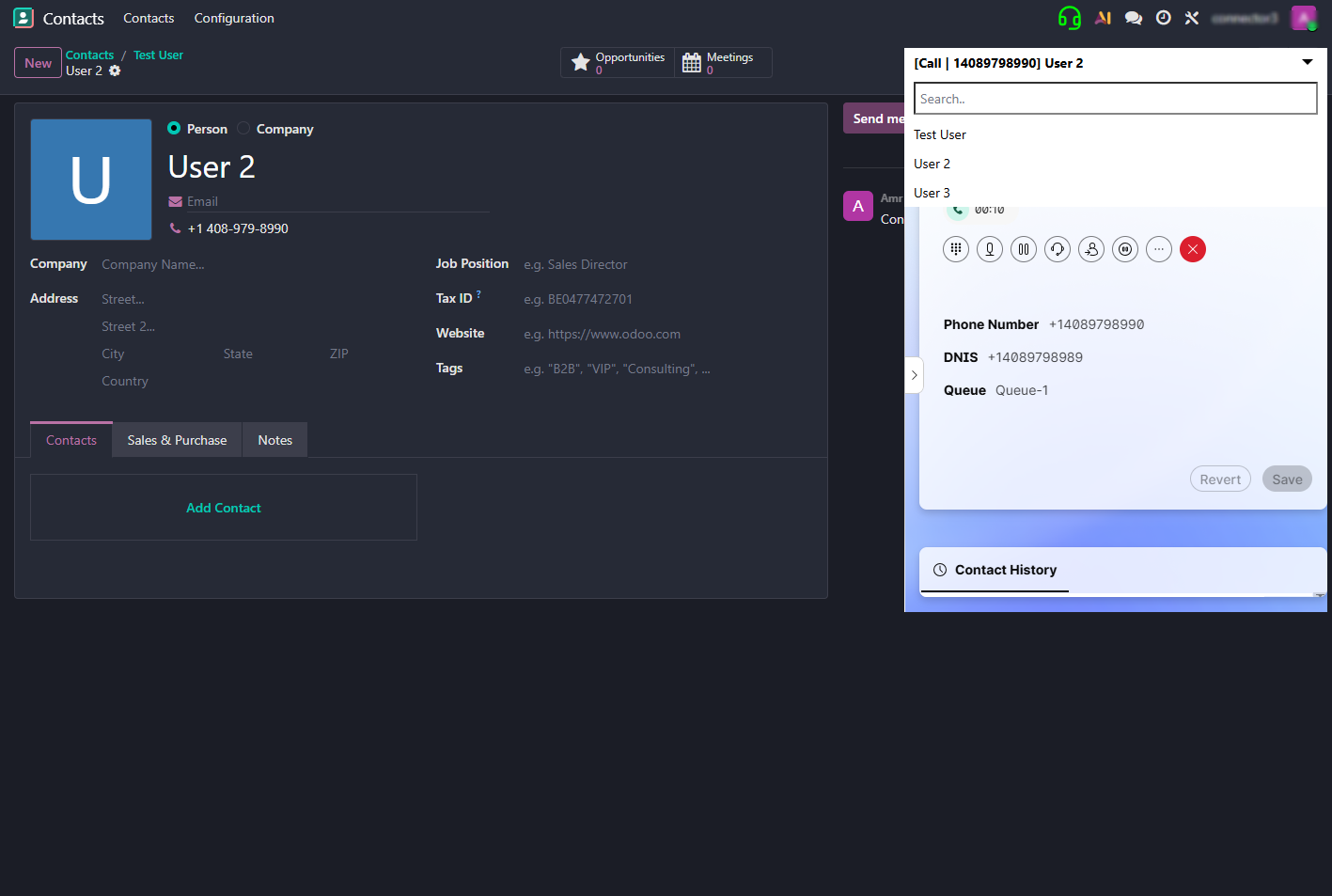
Handling of Multiple Conversations
If an agent is handling multiple interactions simultaneously, they can switch between them. As soon as the agent switches from one interaction to another, the customer details of the selected interaction will automatically pop up, ensuring quick access to relevant customer information.
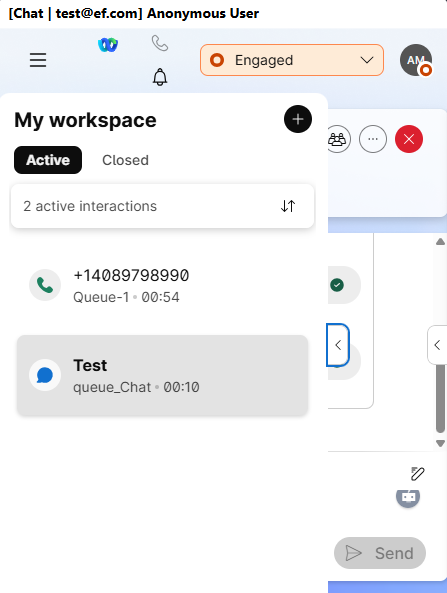
Handling of Transfer Conversation
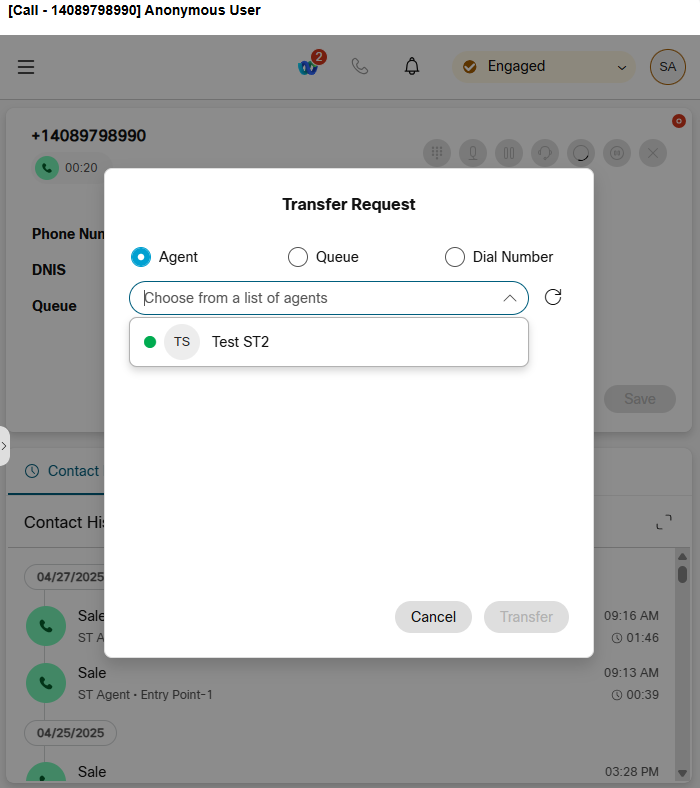
Agents can transfer a conversation to another agent or queue as needed. As soon as the transferred conversation is routed to the receiving agent, a screen pop will automatically display the customer’s details based on the search criteria.
Additionally, a separate activity will be logged for each agent involved in the interaction when they end the call session, ensuring accurate tracking of the conversation.
Handling of Consult Conversation
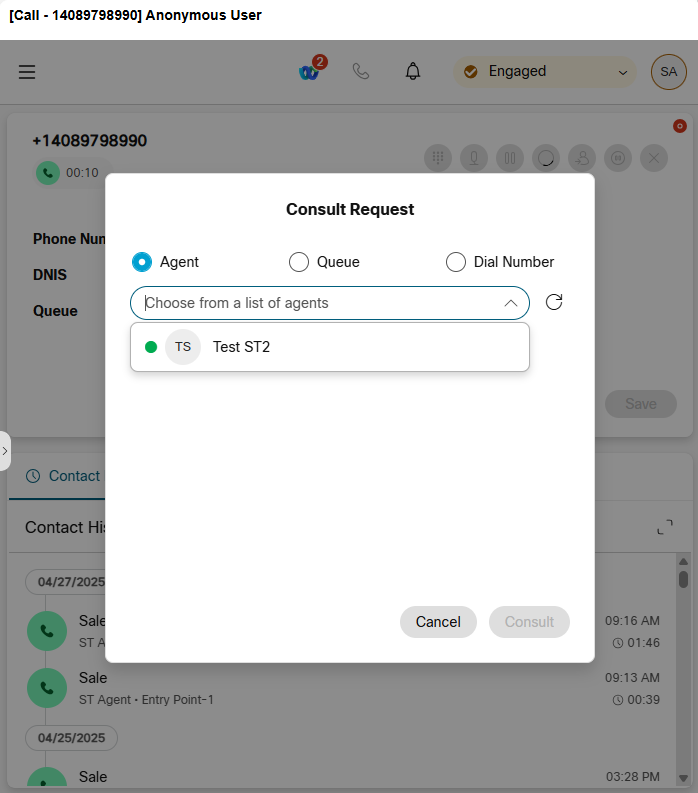
Agents can initiate a consult call to another agent while remaining on the line with the customer. During the consultation, the primary agent can discuss the issue before deciding to either retrieve the call or transfer it completely.
A screen pop will automatically display the customer details for the consulted agent based on the search criteria. No activity will be logged for the consult call on Agent B.
Handling of Conference Conversation
Agents can initiate a conference (for Web call, voice only) by adding another agent to an ongoing customer conversation. This allows multiple agents to collaborate and assist the customer simultaneously.
As soon as the additional agent joins the conversation, a screen pop will automatically display the customer details based on the search criteria. Additionally, a separate activity will be logged for each participating agent when they leave or end the call session, ensuring accurate tracking and documentation of the conversation.
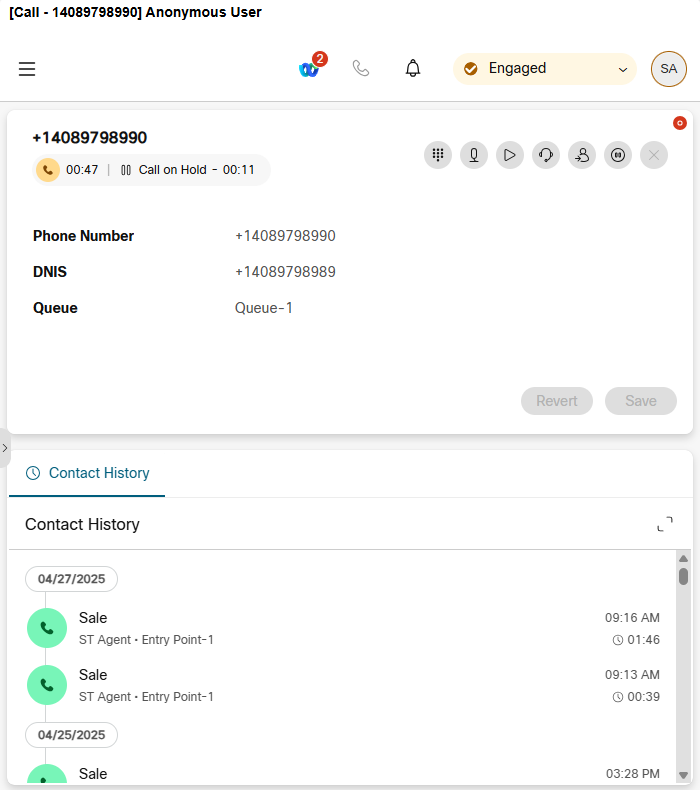
Interaction Logging and Activity Tracking
At the end of every conversation, an activity is automatically created in Odoo for all media types, except consulting calls. This activity includes key details such as:
-
Contact Name / Related To
-
ID
-
Created By
-
Time
-
Duration
-
Agent Name
-
Conversation Direction
-
Wrap-up States
All activities are logged under the Customer record in the Odoo CRM, ensuring that every customer interaction is properly recorded for future reference and follow-up.