
Following are the business feature we support in our Salesforce Connector.
Register
-
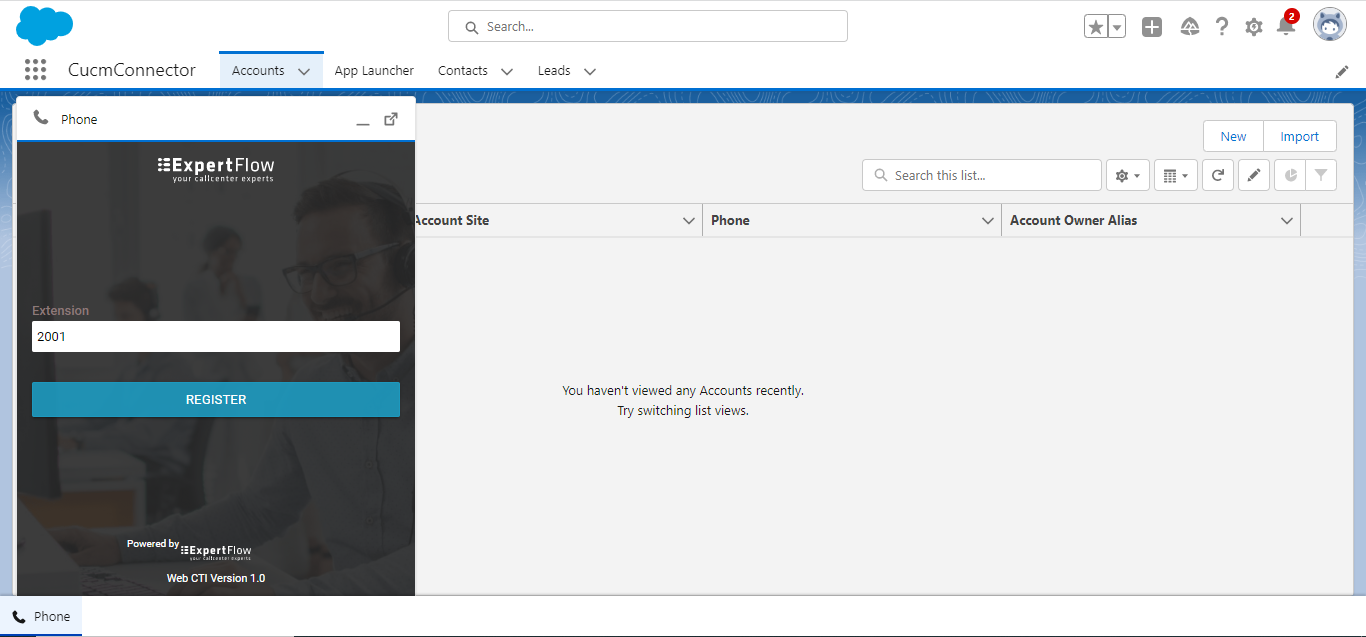
User can provide the extension on which he/she wants to register. The extension should be up and running else he won't be able to register himSelf in this connector.
-
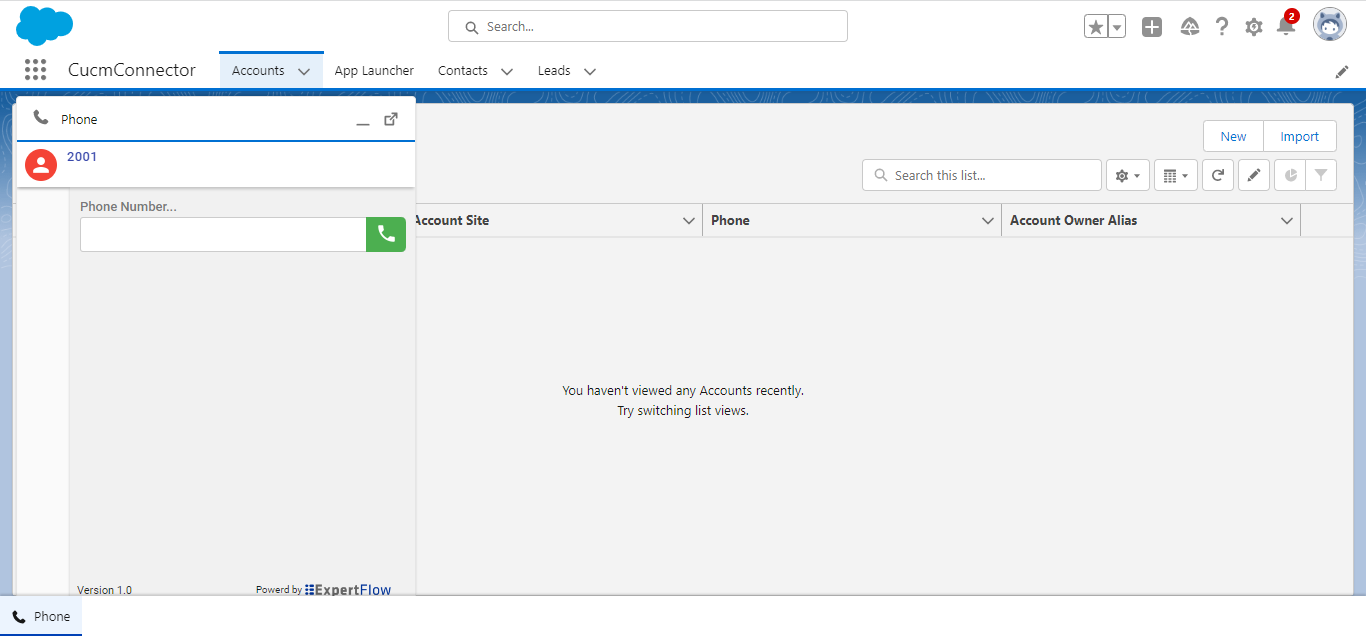
As soon as the user successfully registers inside the CUCM Connector, he will be able to see the following screen and he can perform all the call operations via this interface
Accept Call
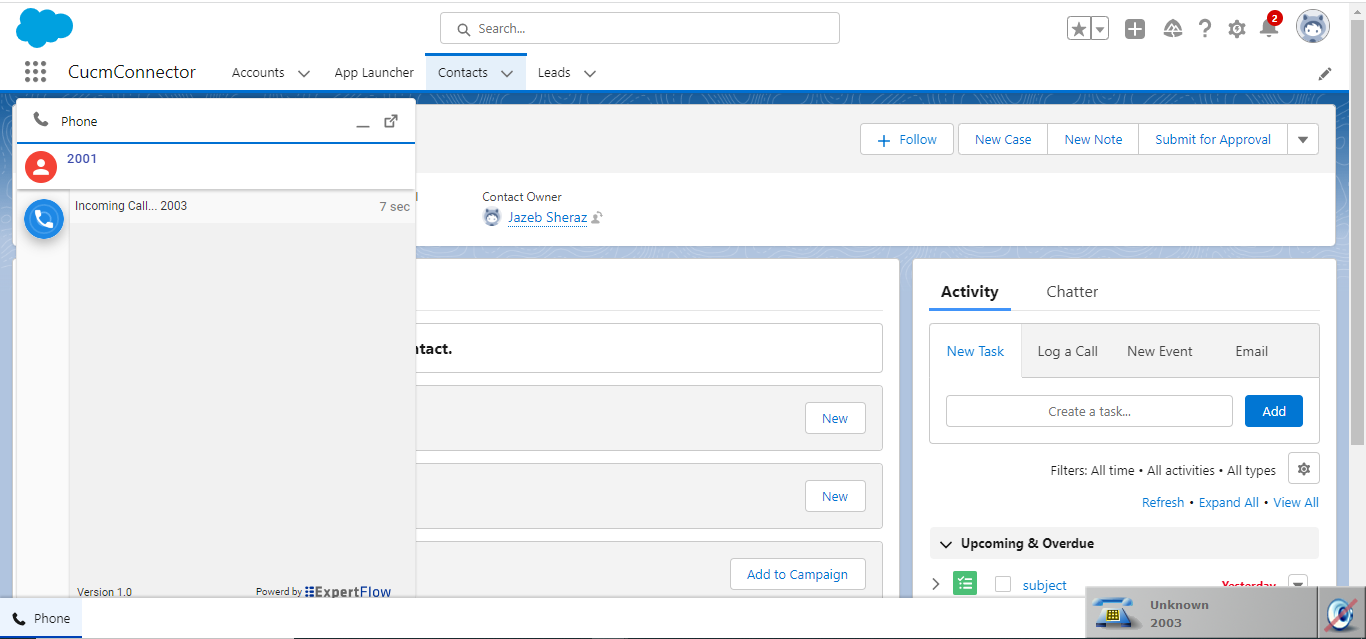
As soon as the call rings on the user extension, he can see the incoming call notification on the toolbar along with the calling number. Users can also see the accept call button to answer this call.
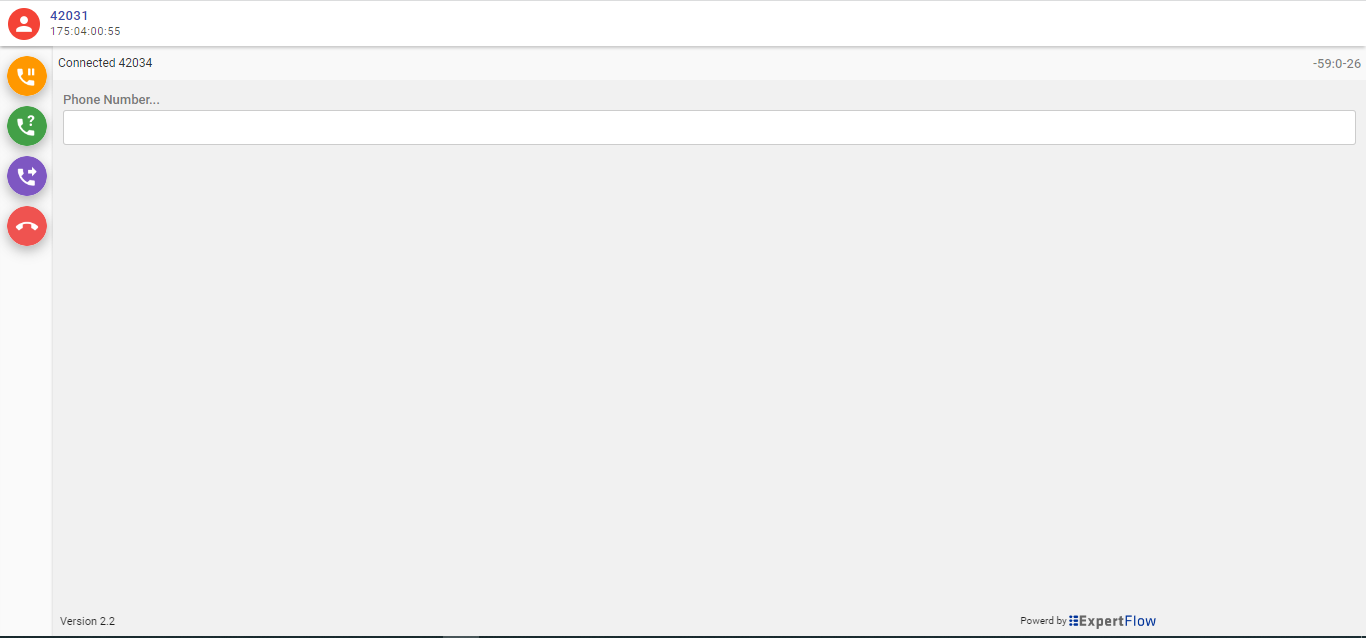
As soon as the call is answered, the buttons for call control will get active and the user can see the following screen
-
Hold / Unhold call
-
Consult Call
-
Conference Call
-
Transfer Call
-
End Call
Hold / Resume Call
On the active call, the user can make the call hold/resume at any point in time by clicking on the hold/resume button
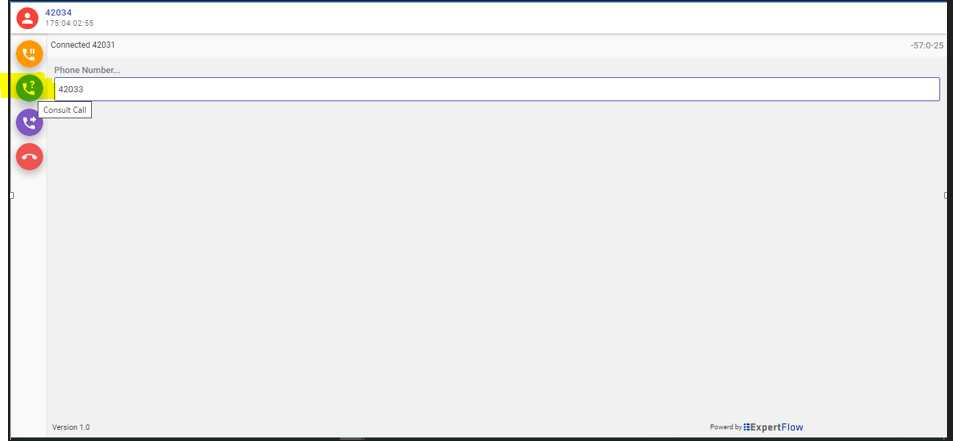
Consult Call
If the user is on an active call and wanted to consult with other agent extensions, he can simply do that by providing the extension and by clicking the consult button
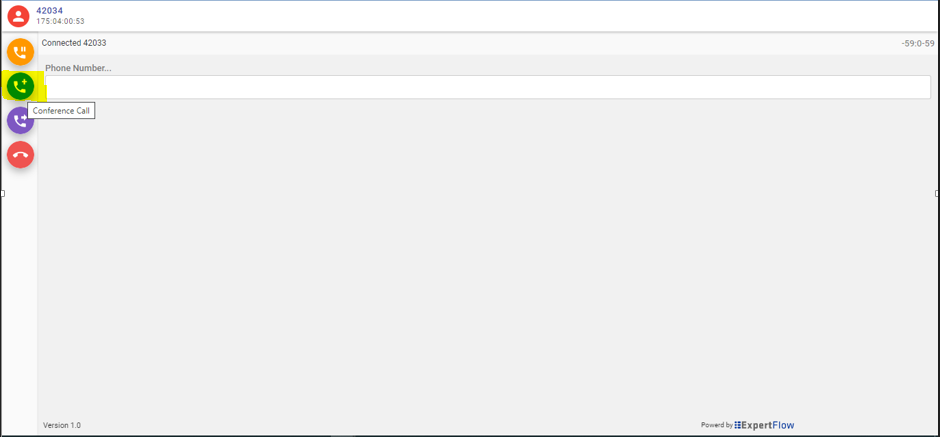
Conference Call
After the consult call, if the user wants to add the consulted participant to the customer, he can simply do that by clicking on the conference button.
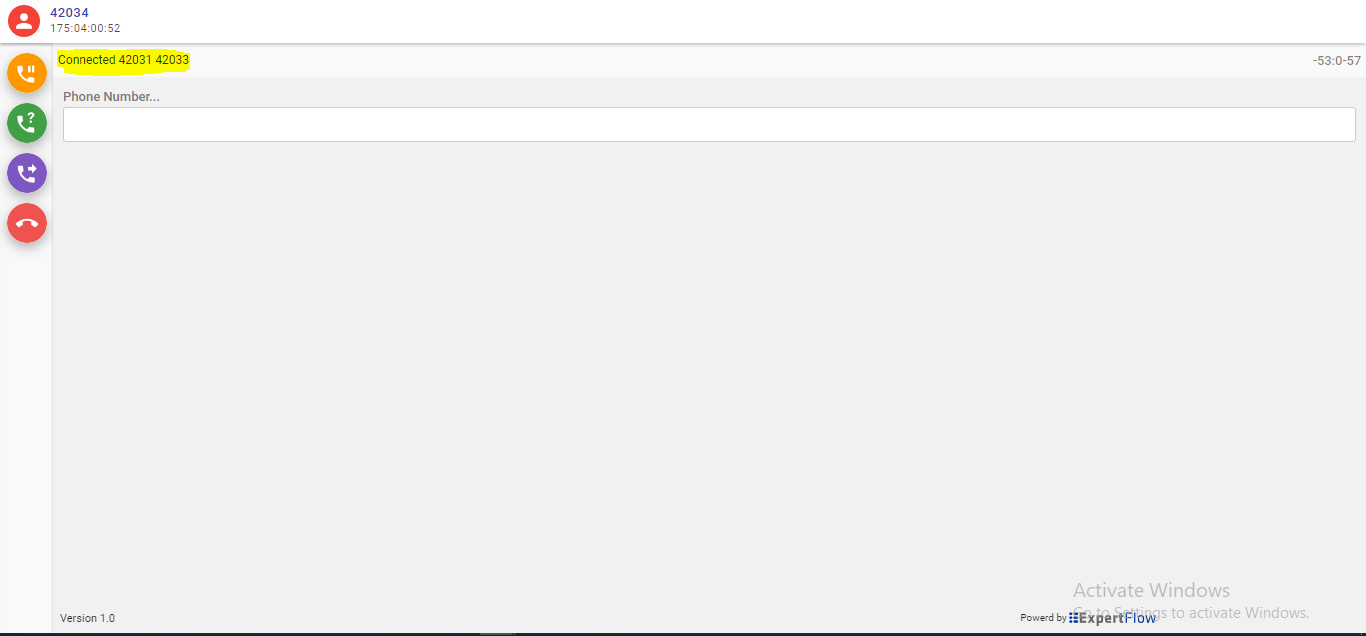
Once the call is conferenced the agent can see all the participants available in the active call.
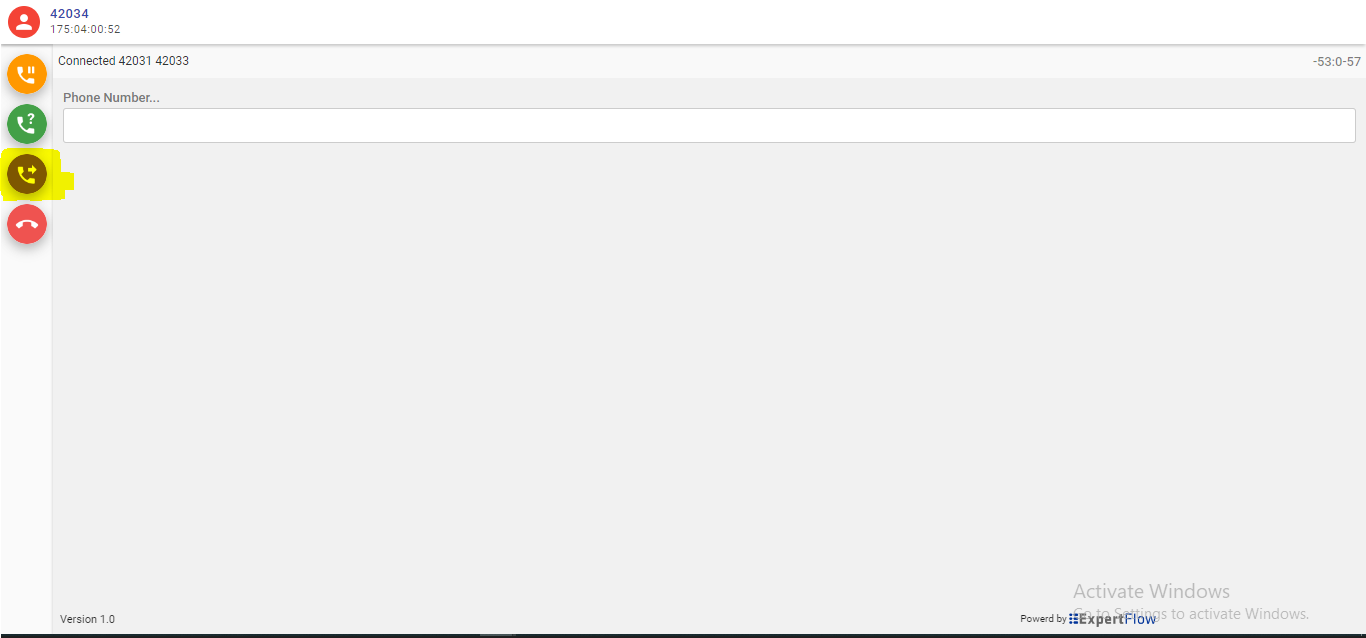
Direct Transfer Call
The user can directly transfer the call to another extension by providing the extension and clicking on the Transfer button.
Call End
At any point of user can end the call by clicking the Call end button.
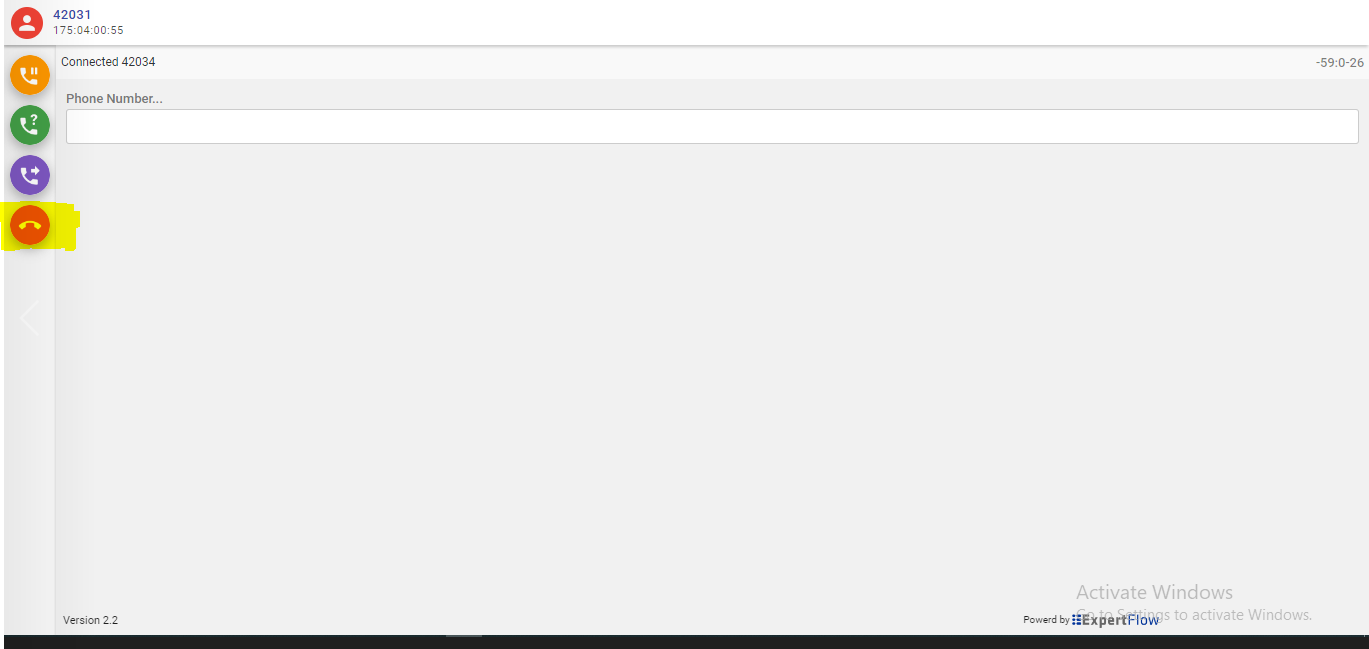
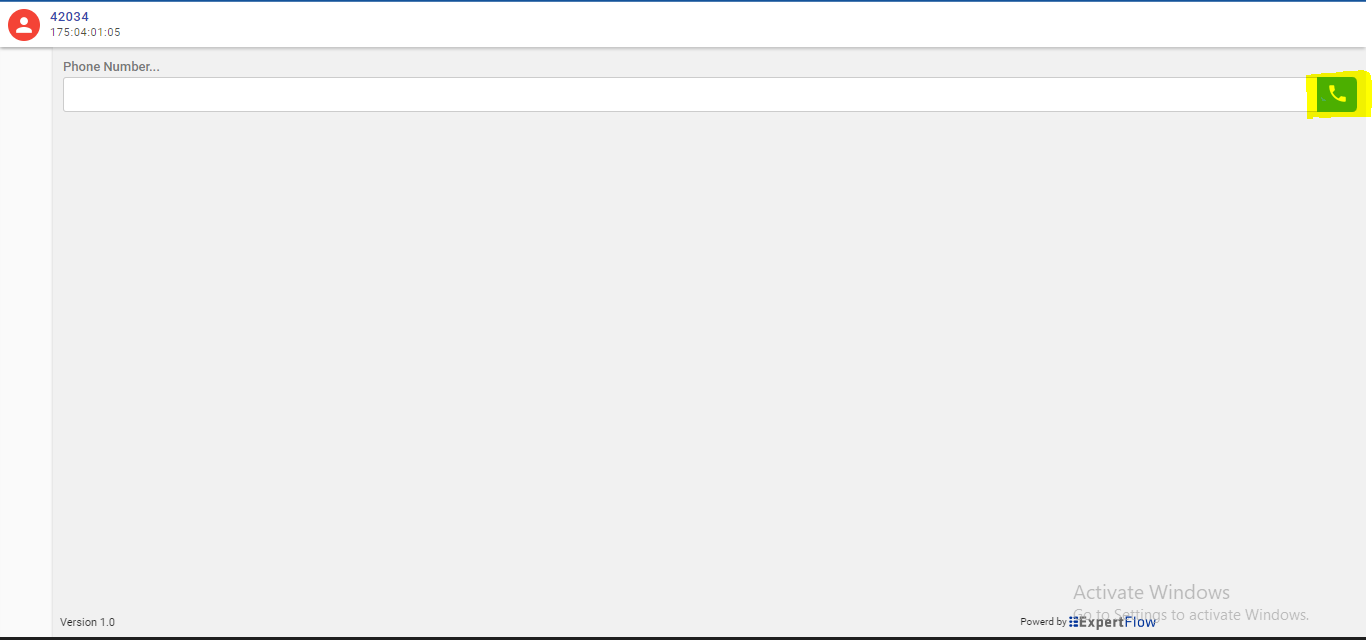
Outbound Call
Users can initiate the outbound by providing the caller number
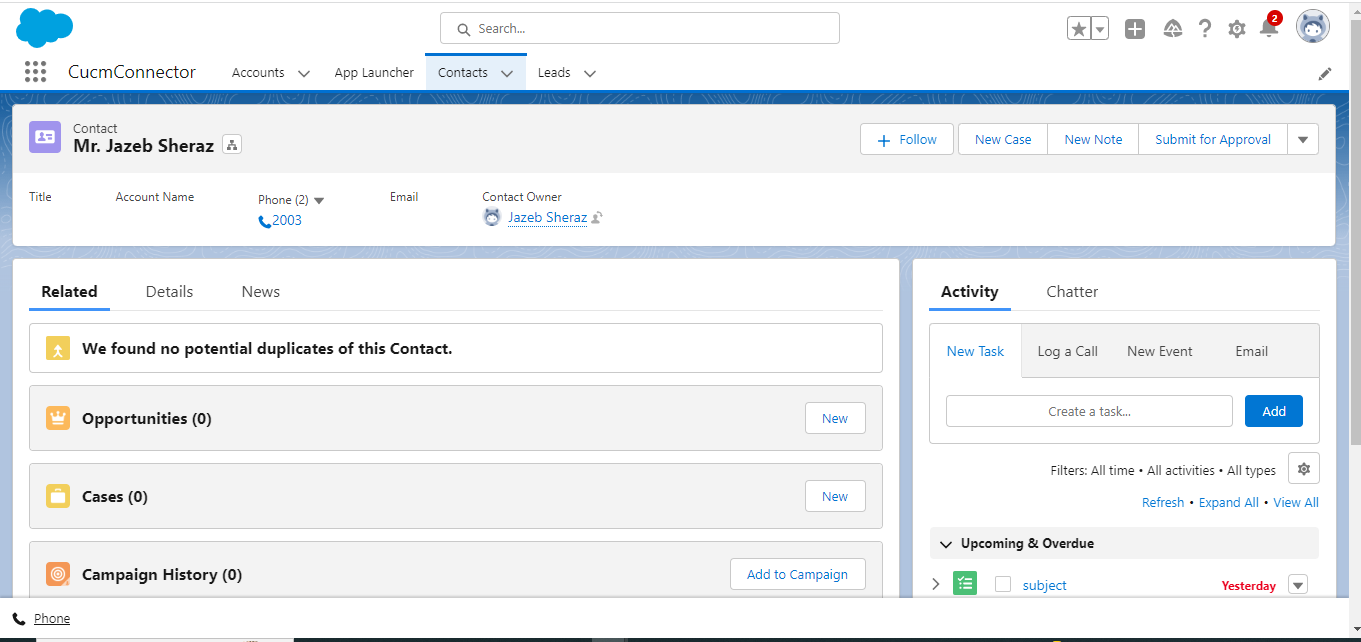
Caller Information Popup on Call Arrival (ScreenPop)
The caller information is displayed on the Salesforce Web Page as soon as the call arrives. If multiple contacts match the connector shows all those contacts for you to choose from.
-
If one record is matched, then that record will automatically pop up.
-
If there is more than one matching record a contacts window will be displayed listing all matching records. If you want to open a particular record from the list, simply, select that record and it will be popped up in the background window.
-
If there is no match a Contact will be saved with the name set to ‘Anonymous’ and the number set to the caller number. (By default for the No-Match case we create the Contact, however, this is a configurable option and the user can change it as per his requirement)
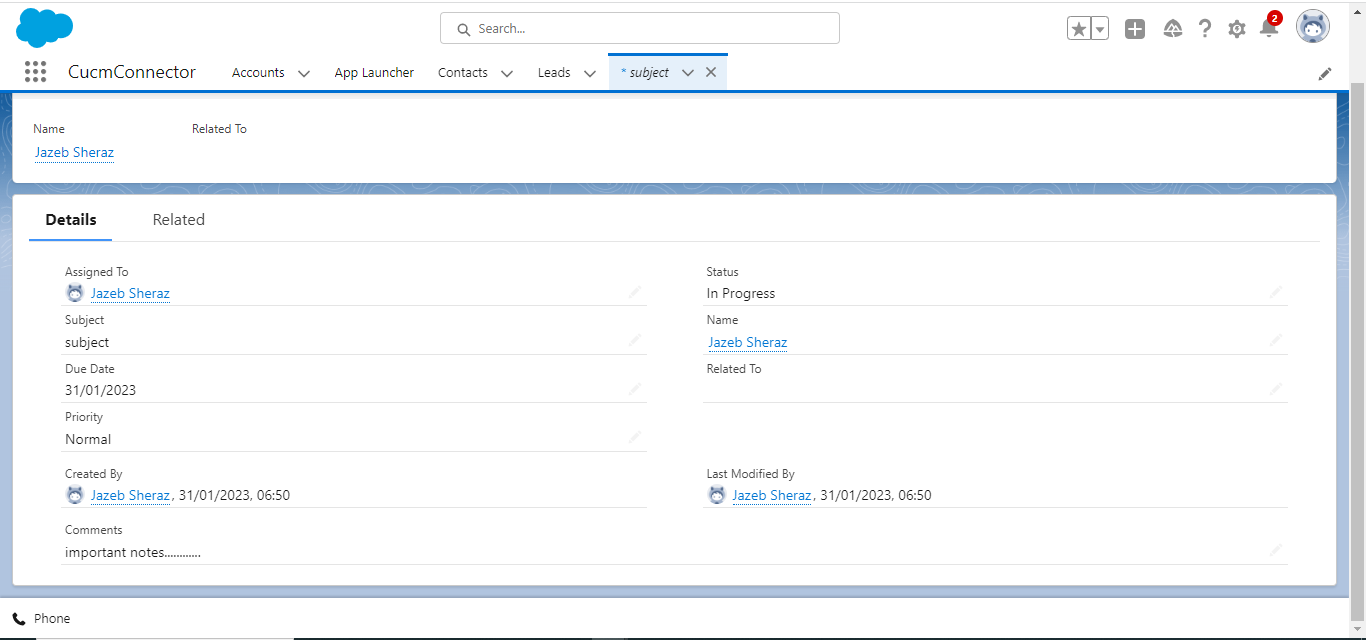
Phone Call Activity
A phone call activity is automatically created and linked to the matched caller account in Salesforce Any call notes that you write while handling the call are also saved along with the phone call activity
Click to Call
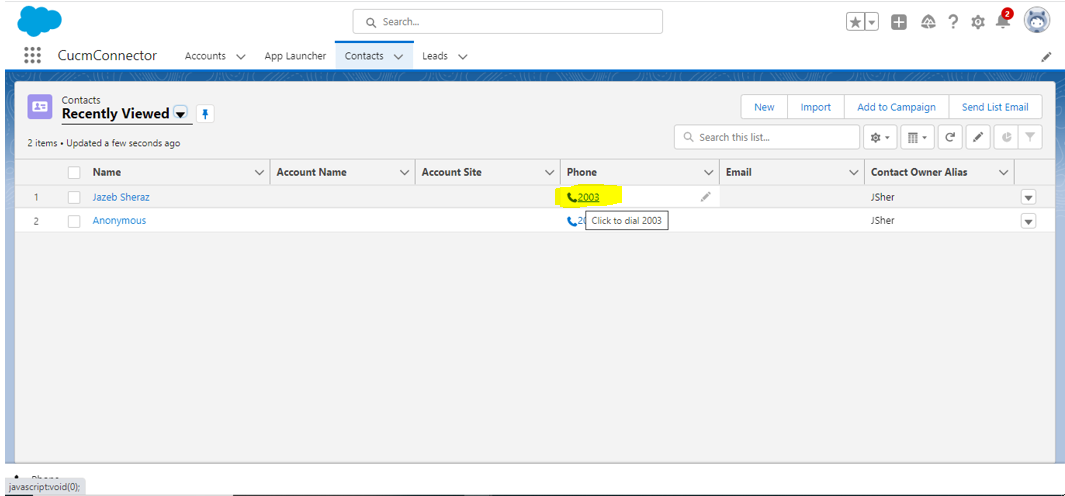
Click to dial feature allows the user to select any number corresponding to a record (Account/Contact/Lead) and an outbound call will be initiated to that number.
CUCM Cluster Support
Our JTAPI Connector does support the CUCM Cluster. We can connect with 3 nodes and if one node goes down we automatically connect with the other nodes and for the user, the system remains intact.