
This lets agents proactively initiate Voice, SMS, Email, and WhatsApp engagements from a single view in AgentDesk; no more switching between separate UIs per channel.
It reads a customer's available contact points and surfaces one-click channel actions, pre-filling the right context so agents can reach out without copying information between systems. Before starting a conversation, agents can also open the customer's full profile and history with a single click.
This guide covers prerequisites, how to start an outbound engagement from both the Outbound Option and the Customer List, and common troubleshooting steps.
Key benefits
-
Reduced Average Handling Time (AHT): One-click outbound initiation removes the need to switch between outbound options provided earlier and navigates the user to the same outbound drawer whenever a conversation needs to be initiated (regardless of the channel).
-
See the context: Optionally see the customer history or load the full profile view by clicking on the customer name, before starting a conversation.
Who can use it?
Any agent or supervisor with access and permission to start an outbound conversation can use this option.
|
Access level |
What you can do |
|---|---|
|
Standard |
Search or select a customer and initiate Voice, SMS, or WhatsApp engagements from the Outbound Option or the older Customer List. |
If a channel action is missing or greyed out, ask your administrator to confirm the channel is enabled for your organization and assigned to your team. If the channel icon appears but you don't see the sender you expect, ask your administrator to confirm your queue has been granted entitlement to that sender.
Prerequisites & configuration
Before agents can use the Outbound Option, an administrator needs to have the following in place:
-
Team-based channel visibility: When defining a channel, administrators can optionally link it to one or more teams. A channel linked to specific teams is visible only to agents who belong to those teams. A channel that is not linked to any team remains visible to all agents.
-
Channels enabled: Voice (CX_VOICE), SMS, and/or WhatsApp must be configured and assigned to the agent's team for the corresponding actions to appear.
To send a conversation via WhatsApp, you must have WhatsApp template messages purchased from WhatsApp or have a conversation opened with the customer within the past 24 hours.
WhatsApp limitation: WhatsApp template messages are not currently supported. Agents can send WhatsApp text messages only when the customer has opened an active session within the last 24 hours. If the customer session is inactive or outside the 24-hour window, message delivery will fail. In this case, the agent will not receive sent or delivered notifications, and no explicit error message will be shown to the customer.
How it works
Click the Outbound icon in AgentDesk on the top bar to slide the Outbound Option drawer from the right side of your workspace. It sits alongside your active conversation and won't interrupt any ongoing work.
Agents can start a Voice, SMS, Email, or WhatsApp engagement from two places in AgentDesk:
-
The Outbound Option panel — search for or dial a customer directly.
-
The existing Customer List — click a channel icon on any customer record you're already viewing.
In both places, the same channel actions and behavior apply.
For outbound interaction forms across Voice calls, WhatsApp, SMS, and Email, the From channel list now follows the same team-based visibility rules. Agents see channels linked to their team, plus channels that are not linked to any team. For example, a channel linked only to Team A is visible only to agents in Team A, while an unlinked channel is visible to all agents.
Starting an engagement from the Outbound Option
-
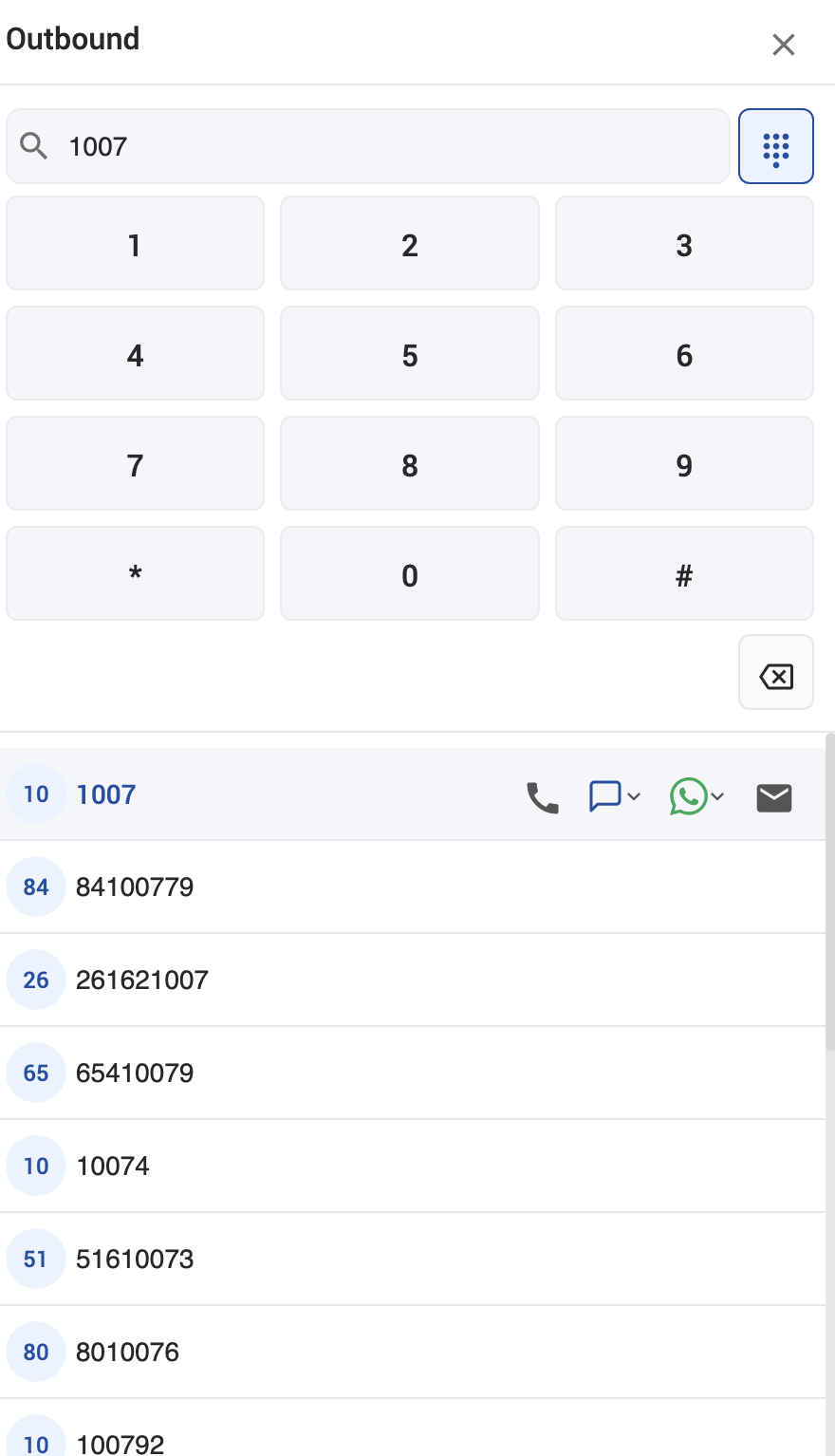
Search or dial: Use the search bar to look up a customer by name or phone number, or expand the built-in dial pad to enter a number that is not in the list. Suggestions and matched profiles appear as you type.
-
Choose a channel: Once a customer is found, click the icon for Voice, SMS, Email, or WhatsApp to start that engagement:
-
Note that the voice option is disabled while another call is active or is being routed.
-
Clicking the SMS opens the Message Composer, where you can type a message and use Send and Close to send and wrap up in one step.
-
Email [TODO — Nabeel/Nasir to confirm: what does clicking Email do — opens a compose window with From-address selection, similar to SMS? Needs its own description here.]
-
WhatsApp opens a WhatsApp chat session where you can send text and file attachments with captions.
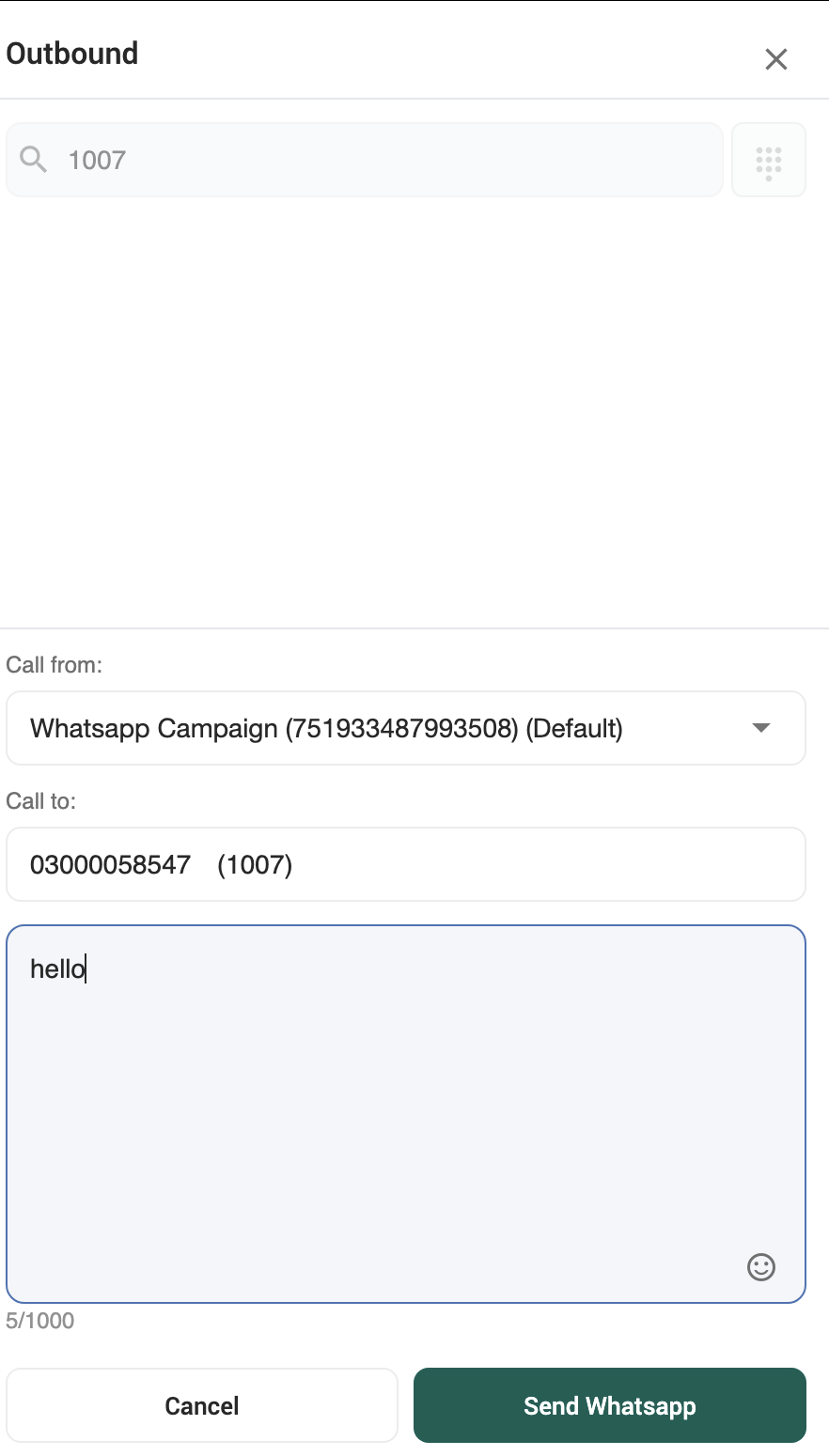
WhatsApp outbound engagement view, showing the customer profile and available channel actions.
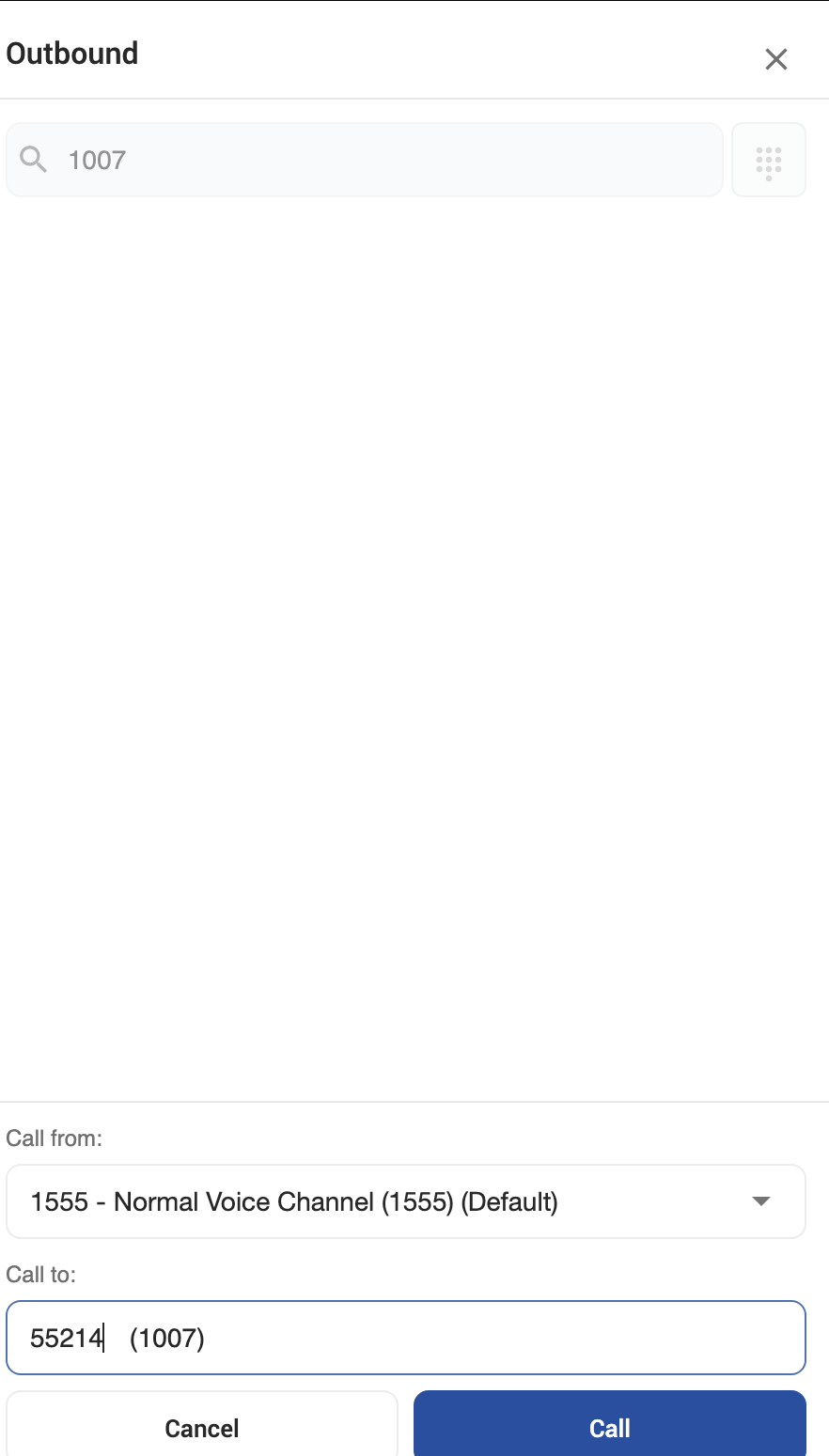
Voice outbound engagement view, showing the customer profile and call-ready channel action.
Agents can choose their preferred outbound channel from the available options in the form. All configured channels, such as Voice, Email, SMS, and WhatsApp, are displayed, and the channel marked as the default outbound channel is selected automatically.
-
Pick the right number: If a customer has only one number for a channel, clicking the icon acts immediately. If they have several, the icon shows a dropdown so you can pick which number to use.
-
Create a contact on the fly: If your search finds no match, matching direct-dial actions still appear alongside a Add New Contact option. Selecting it opens the Create Customer dialog, pre-filled with the number or name you searched for. Once saved, the new customer's channels appear immediately in the results.
Starting an engagement from the Customer List
From any customer record in the existing Customer List, the same Voice, SMS, Email, and WhatsApp icons are available directly on the row or card:
-
Click a channel icon to start that engagement immediately, or use the dropdown if the customer has multiple numbers for that channel — identical to the behavior in the Outbound Option.
Tips
-
Use the dropdown on a channel icon whenever a customer has more than one number; it prevents accidentally contacting the wrong one.
-
If you frequently dial numbers outside the list, the manual dial pad in the search bar is faster than creating a contact first.
-
The Outbound Option and Customer List stay in sync — a contact created from one appears immediately in the other.