Steps to Follow
-
Login to the Microsoft Dynamics 365 and go to the published apps then select the ‘ channel integrated framework’.
If CIF is not installed on your CRM then you can follow this guide to install on your CRM.
-
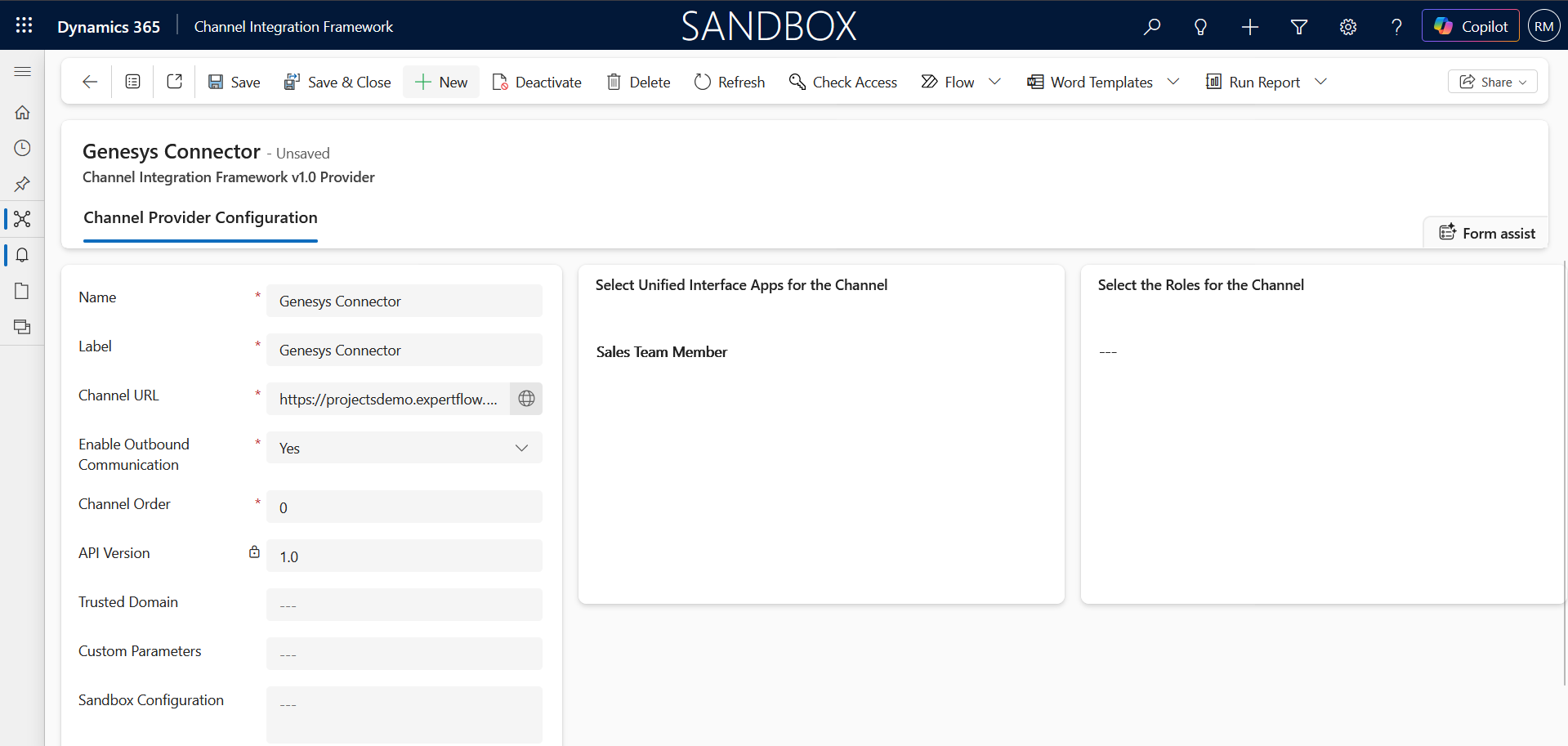
Click on the new button to create a new active channel provider and fill in the details as given in the screenshot below.
-
Name : Genesys Connector (Depends on your Choice)
-
Label: CTI
-
Channel Url : http://<Server-IP>/ms-cif1-connector/
-
Enabled outbound Communication: Yes
-
Channel Order : 0
-
API Version: 1.0
-
Select Unified Interface Apps for the Channel
-
Select the Unified app on where you want to embed the CTI.
-
Assign roles according to your requirements.
-
Click on Save Button.
-
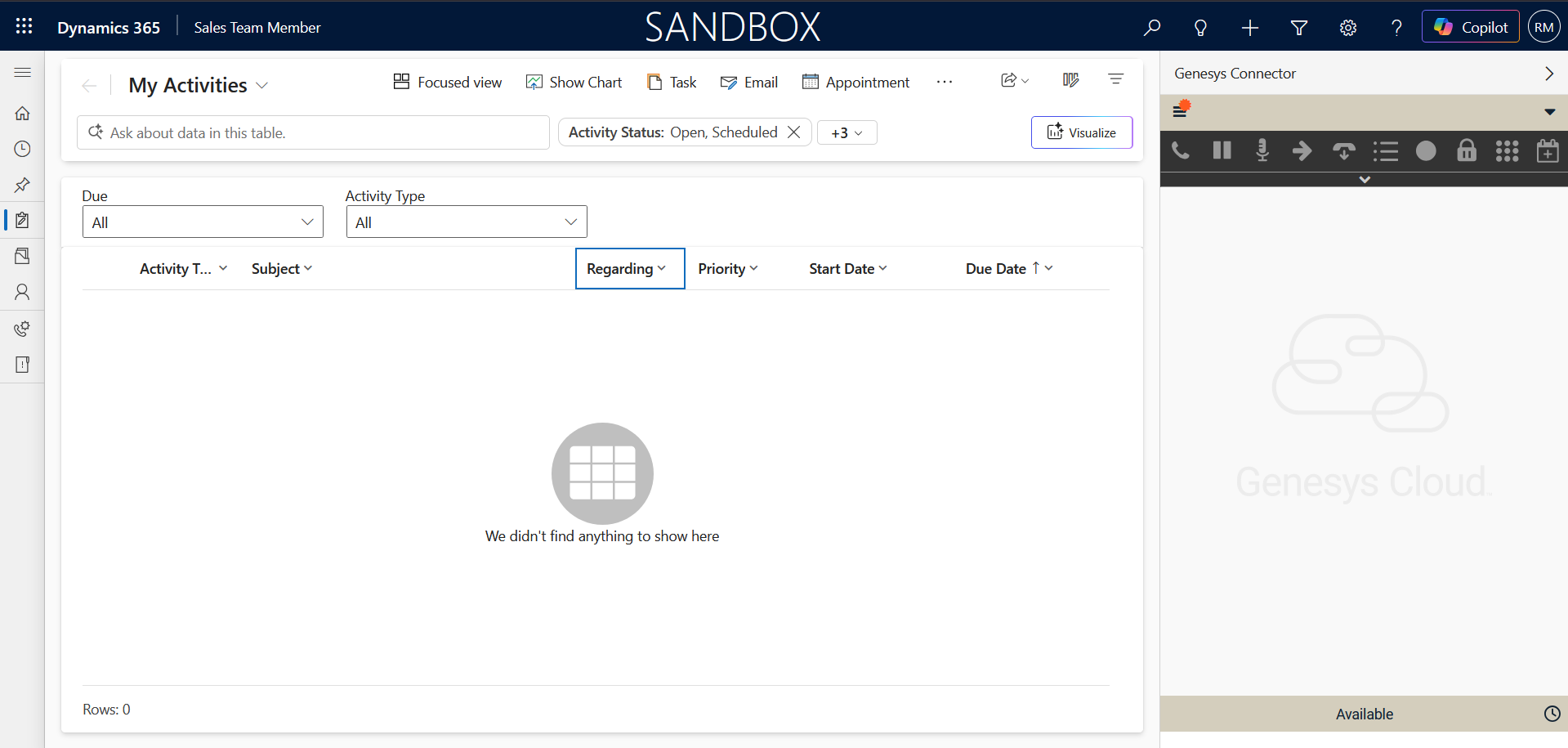
Go to the Unified app that you selected. For example for the Sales Team Member, it will look like the following screenshot.