
Here are the Configuration Step for the configuration of Encryption/Decryption in EFCX.
-
Configure the Call event to invoke the lua script.
-
SSH into the Media Server where your freeswitch is running.
-
Use command
-
ssh username@server-ip -
Enter user password and press ENTER.
-
Use command
-
su -
Enter root password and press ENTER.
-
Open /etc/freeswitch/autoload_configs/lua.conf.xml
-
Find the line near the end containing <!-- Subscribe to events -->
-
Insert the following under it:
-
<hook event="RECORD_STOP" subclass="" script="encrypt.lua"/> -
Save the file.
-
-
Run the command:
-
systemctl restart freeswitch
-
Create the Lua Script.
-
Navigate to the following directory using the cd command
cd /usr/share/freeswitch/scripts/ nano /usr/share/freeswitch/scripts/encrypt.lua -
and Paste the following script.
print(package.path)
print(package.cpath)
package.cpath = "/usr/lib/x86_64-linux-gnu/lua/5.2/?.so;" .. package.cpath
package.path = "/usr/share/lua/5.2/?.lua;" .. package.path
local json = require("cjson")


-- Event headers
local eventClass = event:getHeader("Event-Subclass")
local uuid = event:getHeader("variable_uuid")
local call_uuid = event:getHeader("variable_call_uuid")
local call_id = event:getHeader("variable_sip_h_X-Call-ID")
local time = event:getHeader("Event-Date-GMT")
local filename = event:getHeader("recording_filename")
freeswitch.consoleLog("notice", "RECORD_EVENT")
freeswitch.consoleLog("notice", "=============ENC==============")


freeswitch.consoleLog("INFO", "Event Class: " .. tostring(eventClass) .. "\n")
freeswitch.consoleLog("INFO", "UUID: " .. tostring(uuid) .. "\n")
freeswitch.consoleLog("INFO", "Call UUID: " .. tostring(call_uuid) .. "\n")
freeswitch.consoleLog("INFO", "Call ID: " .. tostring(call_id) .. "\n")
freeswitch.consoleLog("INFO", "Time: " .. tostring(time) .. "\n")
freeswitch.consoleLog("INFO", "Filename: " .. tostring(filename) .. "\n")


local record_path = event:getHeader("variable_record_path") or "/var/lib/freeswitch/recordings"
local recording_filename = event:getHeader("variable_encryption_recording_filename") or "default.wav"
local input_file_path = record_path .. "/" .. recording_filename
-- local encrypted_file_path = input_file_path

local command = string.format("python3 /usr/share/freeswitch/pythonScript/encrypt.py '%s'", input_file_path)

local result = os.execute(command)

if result == 0 then
    freeswitch.consoleLog("info", "File encrypted successfully: " .. encrypted_file_path .. "\n")
else
    freeswitch.consoleLog("err", "Failed to encrypt file\n")
end
Make sure the lua is installed on the server, here are the commands to check if the lua is installed or not, if not then install it.
First, check which version of Lua is installed:
lua -v
If lua is not found, try:
lua5.2 -v
if lua is not installed then run the following commands
sudo apt update
sudo apt install lua5.3 -y
After that make sure that the lua is properly installed
run the following commands
lua -v
If lua is not found, try:
lua5.2 -v
-
Create the Python Encryption script:
-
Navigate to the following directory and create a new folder/directory and give the proper permission
-
cd /usr/share/freeswitch/ mkdir pythonScript chmod 777 pythonScript/ -
create a file with the name encrypt.py inside the pyhtonScript directory using the following command
nano encrypt.py -
Now paste the following Python script
from cryptography.hazmat.primitives.ciphers import Cipher, algorithms, modes
from cryptography.hazmat.backends import default_backend
from cryptography.hazmat.primitives import hashes, padding
import sys
import logging
import os


log_file = "/var/log/encrypt.log"
logging.basicConfig(filename=log_file, level=logging.INFO, format="%(asctime)s - %(levelname)s - %(message)s")

def encrypt_file(mixedRecordingPathName, key):
    try:
        iv = b'1234567890123456'
        backend = default_backend()
        cipher = Cipher(algorithms.AES(key), modes.CFB(iv), backend=backend)
        encryptor = cipher.encryptor()

        with open(mixedRecordingPathName, 'rb') as f:
            data = f.read()

        padder = padding.PKCS7(algorithms.AES.block_size).padder()
        padded_data = padder.update(data) + padder.finalize()

        encrypted_data = encryptor.update(padded_data) + encryptor.finalize()

        with open(mixedRecordingPathName, 'wb') as f:
            f.write(iv + encrypted_data)

        logging.info(f"Successfully encrypted: {mixedRecordingPathName}")
        return mixedRecordingPathName
    except Exception as e:
        logging.error(f"Error encrypting {mixedRecordingPathName}: {str(e)}")
        return None

if __name__ == "__main__":
    key = bytes.fromhex('42066107bda481f0266fd709627faf98b422e29a29b01495daa3ef3640ee6fe6')
    mixedRecordingPathName = sys.argv[1]

    logging.info(f"Starting encryption for: {mixedRecordingPathName}")
    encrypted_file = encrypt_file(mixedRecordingPathName, key)

    if encrypted_file:
        logging.info(f"Encryption completed: {encrypted_file}")
    else:
        logging.error(f"Encryption failed for: {mixedRecordingPathName}")
-
Install Python if its not installed already
to install the python run the following commandpython3 --version python --version
if python is not installed then run the following command
sudo apt update
sudo apt install python3 -y
Also make sure the Cryptography is installed on the server
sudo apt update
sudo apt install python3-cryptography
-
Setting the recording_filename variable in media server
-
login to the media server
-
go the the dialplan section and click on the Dialplan Manager
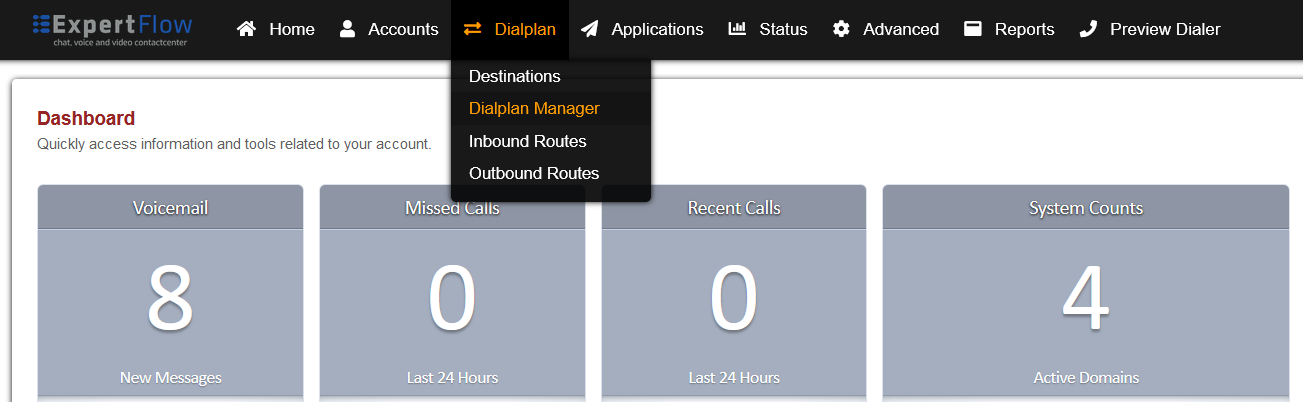
-
Find and open the user_record dialplan.
-
Add the following data to the last group:
-
|
Tag |
Type |
Data |
Group |
Order |
Enabled |
|---|---|---|---|---|---|
|
action |
export |
recording_filename=${recording_filename} |
9 |
275 |
true |

-
Log file Creation
In order to store the logs and error for the encryption, run the following commandssudo touch /var/log/encrypt.log sudo chmod 777 /var/log/encrypt.log