
Solutions Pre-requisite
Hardware Sizing
For a simplex (single server) deployment, minimum and recommended hardware requirements are as follows:
|
|
Minimum |
Recommended |
|---|---|---|
|
vCPU |
4 Cores |
8 Cores |
|
vRAM |
8 GB |
16 GB |
|
vDisk |
40 GB |
160 GB |
For a redundant deployment, two servers of the same specifications (as mentioned above) are needed.
Software Requirement
Following are the prerequisites for setting up a Generic Connector under different deployment profiles.
|
Hardware Sizing |
|
|---|---|
|
For up to 250 concurrent agents |
8 vCPU, 16 GB RAM, 150 GB HDD
|
|
Software Requirements |
|
|
|
|
Certificates for HTTPS |
|
|
|
|
System Access Requirements |
|
|
|
System Access Requirements
Following ports should remain open on the Firewall. The local security policy and any antivirus should also allow open communication on the following ports:
|
Type |
Source Host |
Source Port |
Destination Host |
Destination Port |
|---|---|---|---|---|
|
TCP |
<Client Application> |
any |
EF Connector |
61616/61614 |
|
TCP |
EF Connector (B) |
any |
EF Connector |
61616/61614 |
|
HTTP |
For status monitoring from any machine |
EF Connector |
8162 |
|
|
XMPP |
EF Connector |
any |
Cisco Finesse |
5222, 5223, 7071, 7443 |
|
HTTP/S |
EF Connector |
any |
Cisco Finesse |
80, 8080, 443, 8443 |
|
NTP |
EF Connector |
any |
NTP Server |
123 |
|
DNS |
EF Connector |
any |
DNS Server |
53 |
|
Spring Port |
EF Connector |
any |
EF Connector |
8112 |
-
<Client Application> is a machine running client application of EF Connector. For server-based applications like Siebel, it’s Siebel Communication Server. For desktop-based applications, it’s the machine address of the agent desktop running the desktop application.
-
In a redundant deployment, both EF Connector instances communicate with each other on the same TCP OpenWire port 61616. In the table above, it’s mentioned as EF Connector (B) ⇒ EF Connector.
-
These are defaults set in EF Connector, but you can always change the default configuration.
Time Synchronization Requirements
An important consideration is time synchronization between related components. Communication between EF Connector, client applications, and Cisco Finesse carry timestamps. If the system dates and times are not synchronized the system can produce unpredictable results. Therefore, please make every effort to adhere to the following time synchronization guidelines:
EF Connector, client applications, and Cisco Finesse should have their Time Zone and time configured properly according to the geographic region and synchronized. To configure the time zone, please see the instructions from the hardware or software manufacturer of NTP server. Client applications and EF Connector should be synchronized to the second. This synchronization should be maintained continuously and validated on a regular basis. For security reasons, Network Time Protocol (NTP) V 4.1+ is recommended.
Deployment Modes
Non-Redundant / Simplex Mode Deployment
In simplex deployment, the application is installed on a single server with no failover support of EF Connector. However, the same EF Connector can still communicate with primary and secondary Finesse servers.
Simplex mode is useful for lab tests and commercial deployments at a smaller scale. Figure below explains the simplex mode of Generic Connector.

High Availability (HA) / Duplex Deployment
Active-Passive (Primary / Secondary) Setup
To configure the Connector in Active-Passive mode, set the value of attribute “GRC_CONSUMER_PRIORITY” in Connector configuration. For the Primary Connector, set the value of this attribute to “127” (without quotes). For the Secondary Connector, set the value of this attribute to “100” (without quotes).

The active-Passive mode has the following configurations.
Configurations for Site-1
Primary-AMQ: broker-1, Secondary-AMQ: broker-2
Generic Connector Configuration should look like this, For a detailed description of the GC please consult properties
|
Property |
Value |
|
ACTIVEMQ_TIMEOUT |
10000 |
|
GRC_CONSUMER_PRIORITY |
127 |
|
RANDOMIZE |
false |
|
PRIORITY_BACKUP |
true |
|
ACTIVEMQ1 |
primary-url-of-amq:port |
|
ACTIVEMQ2 |
secondary-url-of-amq:port |
Configurations for Site-2
Primary-AMQ: broker-1, Secondary-AMQ: broker-2, For a detailed description of the GC please consult Connector Configuration Parameters (Environment Variables)
|
Property |
Value |
|
ACTIVEMQ_TIMEOUT |
10000 |
|
GRC_CONSUMER_PRIORITY |
100 |
|
RANDOMIZE |
false |
|
PRIORITY_BACKUP |
true |
|
ACTIVEMQ1 |
primary-url-of-amq:port |
|
ACTIVEMQ2 |
secondary-url-of-amq:port |
Failover Scenarios
The following table shows different failover scenarios and their impact on the Connector Clients.
|
No. |
Scenario |
Behavior |
|
1 |
AMQ-1 is down while GC-1 is active |
AMQ-2 will take over. GC-1 will automatically connect to AMQ-2 and all client requests will be processed by the same GC-1 instance because of its higher consumer priority. Request Flow: Client-App → AMQ-2 → GC-1 Response Flow: GC-1 → AMQ-2 → Client-App |
|
2 |
AMQ-2 and GC-1 are down while AMQ-1 and GC-2 are up |
AMQ-1 will take over and all client requests will be processed by GC-2 because it has the second-highest priority after GC-1. Request Flow: Client-App → AMQ-1 → GC-2 Response Flow: GC-2 → AMQ-1 → Client-App |
|
3 |
Both AMQ-1 and GC-1 are down |
AMQ-2 and GC-2 will start receiving requests. GC-2 will acquire all agent’s XMPP subscriptions and will start processing requests. Request Flow: Client-App → AMQ-2 → GC-2 Response Flow: GC-2 → AMQ-2 → Client-App |
|
4 |
GC-1 restores |
GC-1 will start receiving requests and will grab the XMPP connection of all the active agents because of its higher consumer priority. GC-2 will again be in stand-by mode. |
|
5 |
The link between Connector-1 and Connector-2 is down |
In this case, the AMQ network of brokers will not be functional and GCs won’t be able to communicate to sync agents either. So, both GCs will be functioning independently |
|
6 |
AMQ-1 restores while GC-1 is still down |
If AMQ-2 is active and the client application is connected to AMQ-2 then all requests will be processed by GC-2 even though GC-1 is active and connected to AMQ-1. Request Flow: Client-App → AMQ-2 → GC-2 Response Flow: GC-2 → AMQ-2 → Client-App |
|
7 |
GC-1 is down while both AMQs are active |
Requests will be processed by GC-2 going through the network of brokers. Request Flow: Client-App → AMQ-1 → AMQ-2 → GC-2 Response Flow: GC-2 → AMQ-2 → AMQ-1 → Client-App |
|
8 |
GC-2 is down while both AMQ are active |
In active-passive mode, it will have no effect on request and response flow. Because AMQ-2 doesn’t get any request from Client-App until AMQ-1 goes down. |
Failover is handled in a way if any component goes down, passive components take over in a seamless way.
Active-Active Setup
For an Active-Active deployment, the Failover URL is set to use the local AMQ as primary and remote AMQ as secondary.

For GC-1, the configuration would look like this, For a detailed description of the GC please consult Connector Configuration Parameters (Environment Variables)
|
Property |
Value |
|
ACTIVEMQ1 |
[AMQ-1]:61616 |
|
ACTIVEMQ2 |
[AMQ-2]:61616 |
|
GRC_CONSUMER_PRIORITY |
127 |
|
PRIORITY_BACKUP |
true |
|
Finesse_1 |
http://Finesse-1/finesse/api/ |
|
SERVER_ADDRESS_1 |
Finesse-1 |
|
Finesse_2 |
http://Finesse-2/finesse/api/ |
|
SERVER_ADDRESS_2 |
Finesse-2 |
For GC-2, the configuration would look like this, For a detailed description of the GC please consult Connector Configuration Parameters (Environment Variables)
|
Property |
Value |
|
ACTIVEMQ1 |
[AMQ-2]:61616 |
|
ACTIVEMQ2 |
[AMQ-1]:61616 |
|
GRC_CONSUMER_PRIORITY |
100 |
|
PRIORITY_BACKUP |
true |
|
Finesse_1 |
http://Finesse-2/finesse/api/ |
|
SERVER_ADDRESS_1 |
Finesse-2 |
|
Finesse_2 |
http://Finesse-1/finesse/api/ |
|
SERVER_ADDRESS_2 |
Finesse-1 |
Where [AMQ-1] should be replaced with the IP / machine-name of ActiveMQ-1 and [AMQ-2] should be replaced with the IP / machine-name of ActiveMQ-2. Finesse-1 is the IP/name of the Finesse-1 server and Finesse-2 is the IP/name of the Finesse-2 server.
Both Connectors will have its local AMQ as primary brokers and both Connector instances will be serving agents' requests in parallel. All client requests received by Connector-1 are handled by Connector-1 and all requests received by Connector-2 will be handled by Connector-2. In case of failure of any component at any Connector instance, the other Connector instance will take over and handle the request.
We have achieved it using ActiveMQ configurable properties specifically Consumer priority, Priority Backup, and building a Connector Sync mechanism in Generic Connector.
Failover Scenarios
|
No. |
Scenario |
Behavior |
|
1 |
AMQ-1 is down while GC-1 is active |
AMQ-2 will take over and all client requests will be processed by the same GC-1 instance because of its higher consumer priority. |
|
2 |
Both AMQ-1 and GC-1 are down |
AMQ-2 and GC-2 will start receiving requests. GC-2 will acquire all agent’s XMPP subscriptions and will start processing requests. |
|
3 |
GC-1 restores |
Connector-2 will continue to process requests until connectivity between the Client application and Connector-2 is lost or Connector-2 is down. |
|
4 |
The link between Connector-1 and Connector-2 is down |
Both connector instances serve requests independently. |
|
5 |
AMQ-1 restores while GC-1 is still down and AMQ-2 is also down |
The client will send a request to AMQ-1. AMQ-1 will send the request to GC-2 because GC-1 is down. Request Flow: Client-App-1 → AMQ-1 → GC-2 Response Flow: CGC-2 → AMQ-1 → Client-App-1 |
|
6 |
GC-1 is down while both AMQs are active |
The request flow will be the same as no. 5 |
|
7 |
GC-2 is down while both AMQs are active |
AMQ-2 requests will be redirected to AMQ-1 and GC-1 will handle all requests. Request Flow: Client-App-2 → AMQ-2 → AMQ-1 → GC-1 Response Flow: GC-1 → AMQ-1 → AMQ-2 → Client-App-2 |
Deployment Steps
-
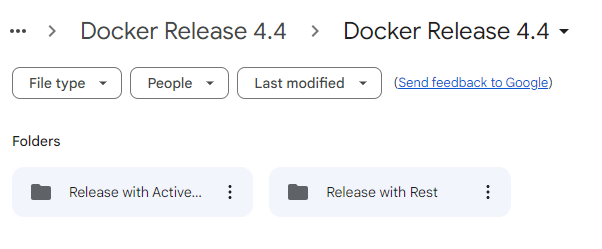
Download the docker-compose an env file from Google-Drive
-
Download the required deployment folder
-
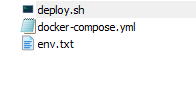
Create a folder on a Linux machine in any path of your inside root.
-
Place the files inside the created folder as follows:
-
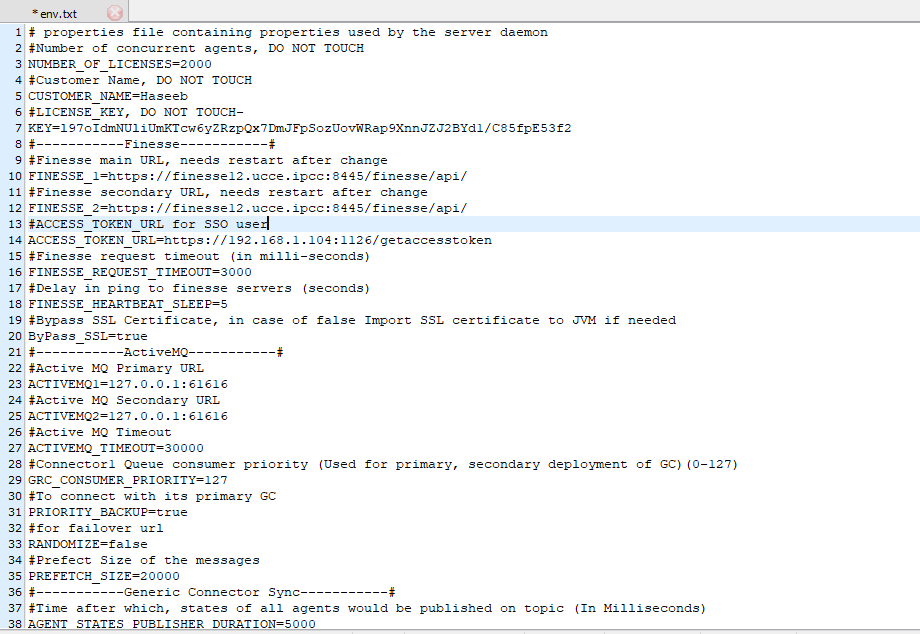
Open env.txt file with text editor
-
-
Make the desired changes and update the file
-
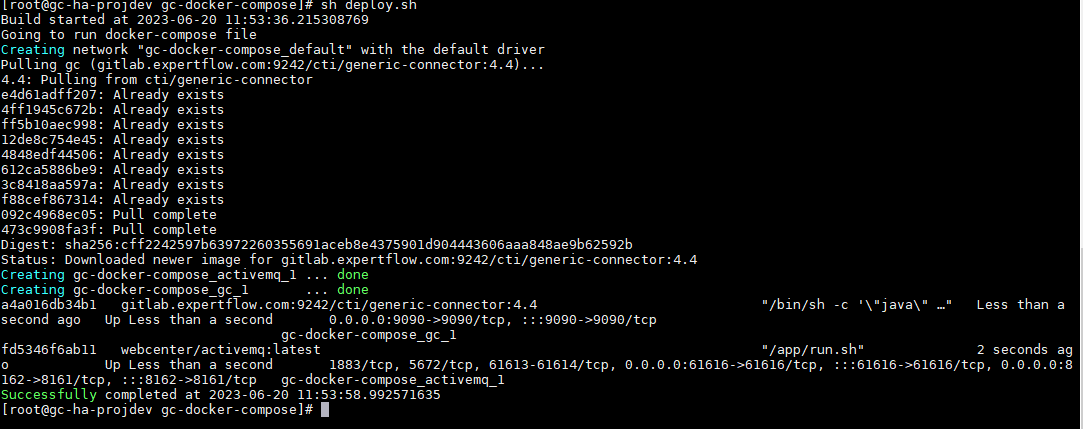
run the command chmod 755 ./deploy.sh
-
now run the ./deploy.sh file and you can see after completion your docker image is running
-
For Active MQ deployment
-
-
For Rest deployment
-
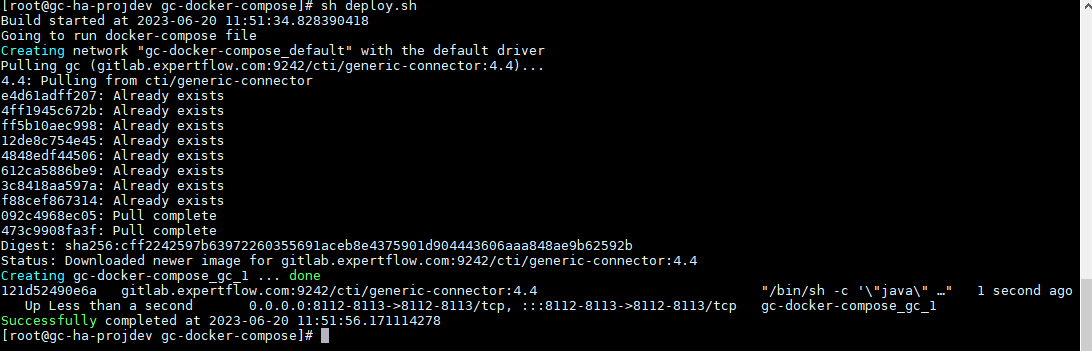
-
After that run the following commands to edit the ActiveMQ configuration
-
-
a. Go into the folder where the docker-compose file is placed
cd /root/gc-docker-compose
-
b. Get the ActiveMQ image id by following command
docker container ps -a
-
c. Enter the following set of commands to reach to the ActiveMQ configuration file (activemq.xml), and set the urls as in the following image
-
docker exec -it fd5346f6ab11 bash
cd conf
vim activemq.xml
-
Add the server IP where the GC and ActiveMQ are running
-
eg. server IP 192.168.2.162
-

Note: If you wanted to know about vim command, Here is the detail.
-
Connector Configuration Parameters (Environment Variables)
|
Parameter |
Default Value |
Description |
|
NUMBER_OF_LICENSES |
1000 |
|
|
CUSTOMER_NAME |
Haseeb |
|
|
KEY |
ASDFGHJKLZXCVBNM234RFGHUIOKJMNBFEWSDFGHNJMNBV |
License key. Must be obtained from EF Team |
|
Finesse_1 |
https://Finesse-X-DN/finesse/api/ |
Primary Finesse URL for Site A |
|
Finesse_2 |
https://Finesse-X-DN/finesse/api/ |
Primary Finesse URL for Site B |
|
ACCESS_TOKEN_URL |
https://192.168.1.104:1126/getaccesstoken |
|
|
FINESSE_REQUEST_TIMEOUT |
3000 |
Finesse requested a timeout (in mili-seconds) |
|
FINESSE_HEARTBEAT_SLEEP |
5 |
Delay in ping to finesse servers (seconds) |
|
ByPass_SSL |
ture |
Bypass SSL Certificate if finesse url is https and self signed certificate is used, in case of false Import SSL certificate to JVM if needed |
|
ACTIVEMQ1 |
localhost:61616 |
ActiveMQ Primary URL |
|
ACTIVEMQ1 |
localhost:61616 |
ActiveMQ Secondary URL |
|
ACTIVEMQ_TIMEOUT |
30000 |
ActiveMQ connection timeout (in milliseconds) |
|
GRC_CONSUMER_PRIORITY |
127 |
Connector1 Queue consumer priority (Used for primary, secondary deployment of GC)(0-127) |
|
PRIORITY_BACKUP |
true |
To connect with its primary GC |
|
RANDOMIZE |
false |
for failover url |
|
PREFETCH_SIZE |
20000 |
Prefect Size of the messages |
|
AGENT_STATES_PUBLISHER_DURATION |
5000 |
Time after which, states of all agents would be published on topic (In Milliseconds) |
|
GC_HEARTBEAT_TIMEOUT |
10000 |
GC heartbeat timeout |
|
AGENT_INACTIVITY_DURATION |
30 |
Agent inactivity time (in seconds) |
|
GC_HEARTBEAT_SLEEP |
10000 |
gc heartbeat thread sleep time |
|
AGENT_INACTIVITY_TIME_SWITCH |
false |
Agent inactivity switch |
|
DEFAULT_NOT_READY_REASON |
19 |
default reason code for not ready (Must be defined in finesse) |
|
DEFAULT_LOGOUT_REASON |
70 |
Default reason code for force logout |
|
AGENT_XMPP_SUBS_TIME |
10000 |
Agent XMPP Subscription Time |
|
USE_ENCRYPTED_PASSWORDS |
false |
Use encrypted password |
|
CHANGE_STATE_ON_WRAPUP |
true |
Automatically change the state when wrap-up occurs |
|
LOGLEVEL |
TRACE |
Log Level |
|
GC_HEARTBEAT_TIMEOUT |
10000 |
GC heartbeat timeout |
|
USE_ENCRYPTED_PASSWORDS |
true |
Use password encryption (3Des). (Must be same as in client.) |
|
CHANGE_STATE_ON_WRAPUP |
true |
Caller’s state change automatically on wrap-up |
|
MESSAGE_FORMAT |
JSON |
Message Format for communication. Expected formats DEFAULT, JSON, XML |
|
AGENT_LOGS_PATH |
/app/logs/agents/ |
Agent Logs Storage path |
|
AGENT_LOGS_LEVEL |
TRACE |
Agent Logs Level |
|
AGENT_LOGS_MAX_FILES |
10 |
Max No of Files per agent for logs |
|
AGENT_LOGS_FILE_SIZE |
10MB |
Max file size for agent logs |
|
XMPP_PING_INTERVAL |
3 |
Interval in seconds between XMPP server pings |
|
ADMIN_ID |
Administrator |
The username of the administrator account the would be used for phonebook and contact APIs |
|
ADMIN_PASSWORD |
Expertflow464 |
The password of the administrator account would be used for phonebook and contact APIs |
|
Supervisor_initiated_NotReadyReasonCode |
19 |
Reason code for supervisor state change to Not_Ready |
|
Supervisor_initiated_LogOutReasonCode |
20 |
Reason code for supervisor state change to Log_Out |
|
UCCX_SERVER_IP |
192.168.1.29 |
For queue stats in case of UCCX |
|
UCCX_SERVER_USERNAME |
Administrator |
|
|
UCCX_SERVER_PASSWORD |
Expertflow464 |
|
|
UCCX_DB_USERNAME |
uccxhruser |
|
|
UCCX_DB_PASSWORD |
12345 |
|
|
UCCX_DB_RETRY_ATTEMPTS |
2 |
|
|
UCCX_DB_TIMEOUT_CONNECTION |
1800 |
|
|
COMMUNICATION_FORMAT |
REST | JMS |
|
|
SPRING_PORT |
8112 |
|
|
REDIS_URL |
redis-master.ef-cti.svc |
|
|
REDIS_PORT |
6379 |
|
|
REDIS_PASSWORD |
Expertflow123 |
|
|
SQL_SERVER |
192.168.1.89 |
For Skill groups and supervisor list |
|
DATABASE |
uc12_awdb |
|
|
DATABASE_TABLE |
Skill_Group |
|
|
DATABASE_USER_NAME |
sa |
|
|
DATABASE_USER_PASSWORD |
Expertflow464 |
|
|
KEY_STORE_TYPE |
PKCS12 |
|
|
KEY_STORE |
D:\\EF_Project\\GC4.4\\Generic Connector\\certs\\store\\clientkeystore.p12 |
|
|
TRUST_STORE |
D:\\EF_Project\\GC4.4\\Generic Connector\\certs\\store\\client.truststore |
|
|
KEY_STORE_PASSWORD |
changeit |
|
|
TRUST_STORE_PASSWORD |
changeit |
|
|
PRIVATE_KEY_STRING |
key_value |
|
|
ISSUER |
ef-chat |
|
|
EXPIRY |
300 |
|
|
PEP_BASE_PATH |
http://192.168.50.31:8113 |
|
|
AOP_CALLBACK |
/ef-voice/fnb-cme/submit-gc-event/v1 |
|
|
AXL_URL |
https://192.168.1.26:8443/axl/ |
|
|
AXL_USER |
administrator |
|
|
AXL_PASSWORD |
Expertflow464 |
|
|
LD_LIBRARY_PATH |
/app |
|
MX Monitoring
GC now supports JMX monitoring. You can monitor the performance of GC via any of the monitoring tools such as JConsole and VisualVM. GC supports JMX Monitoring on port 9090.