
The selective recording mechanism in this system allows fine-grained control over when and what to record based on configurable rules. These rules are defined in the Recording Rules section of the admin panel or database and determine recording behavior based on various call attributes.
Key Features:
-
Number-Based Filtering
-
Rules can match calls using calling or called number patterns.
-
Supports exact numbers, wildcard patterns (e.g.,
0300*), or directional masks (e.g.,>12345for calls to a number, or12345>for calls from a number).
-
-
Day-Based Control
-
Each rule can be enabled for specific days of the week (e.g., Mon-Fri only).
-
If a rule doesn’t match the current day, it will not be applied, but special logic can reverse the action (see below).
-
-
Time-Based Scheduling
-
Rules are active only during specified time ranges (e.g., 09:00 to 17:00).
-
Outside the defined time window, the system can behave inversely based on the
rule_action.
-
-
Rule Action (Recording Logic)
-
Two primary actions:
-
"RECORD": Calls should be recorded. -
"DO NOT RECORD": Calls should NOT be recorded.
-
-
-
Smart Inversion Handling:
-
If a rule is invalid due to day/time mismatch:
-
"RECORD"becomesDO NOT RECORD(i.e., do not record outside allowed time/day) -
"DO NOT RECORD"becomesRECORD(i.e., record if it's outside restricted hours).
-
-
-
Priority-Based Rule Resolution
-
If multiple rules match, the one with the high priority (top in the list) is applied.
-
Ensures consistent and predictable behavior even in complex setups.
-
-
Screen Capture Toggle
-
Each rule can also define whether screen capture is enabled during the call.
-
Controlled independently of audio recording.
-
Workflow:
When a call starts, the system:
-
Checks for rules matching the caller/callee numbers.
-
Filters rules by the current day and time.
-
Applies the rule with the highest priority.
-
Returns a decision:
-
recordAudio = true/false -
captureScreen = true/false
-
Below is the list of some sample recording rules:
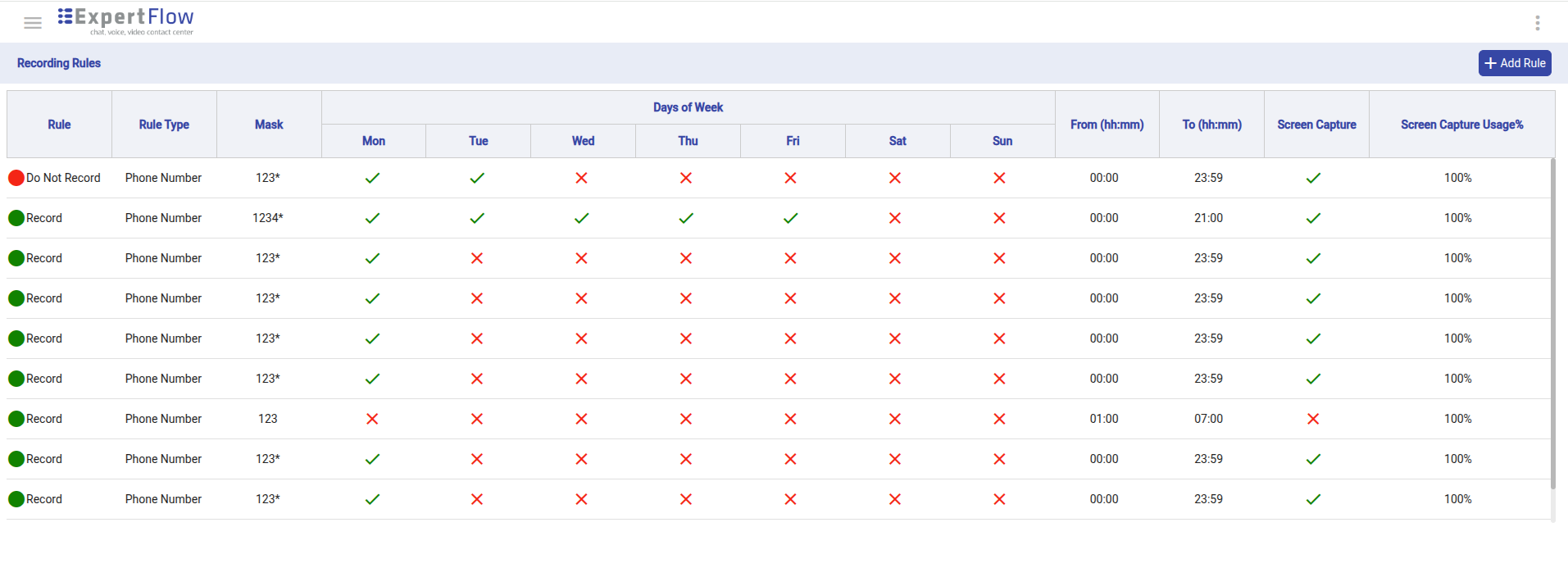
Create New Rules:
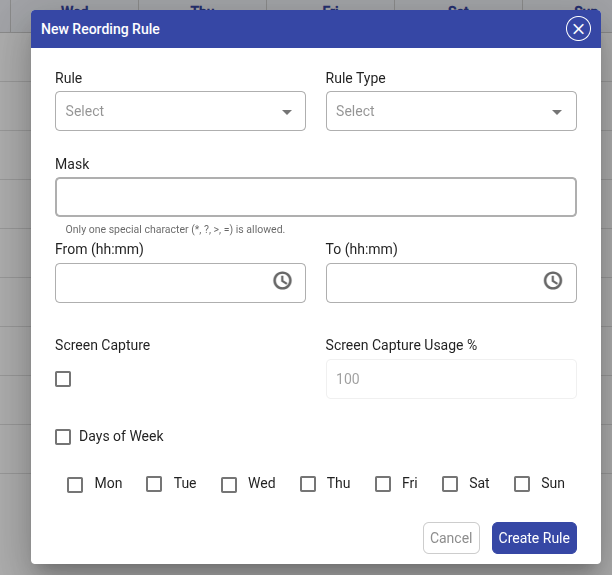
The user can create a new recording rule as follows:
-
While on the Recording Rules page, navigate to the Add Rule button.
-
Upon clicking the button, the user will see a form with the required fields to create a new rule.
-
Once the form fields have been filled, click on the Create Button to add and apply the new rule.
Limitations
-
The selective recording is not supported for the EFCX deployment profile.
-
Rule-based permissions for viewing, downloading, and deleting recordings are not yet supported in selective recording.
-
Selective recording is only supported for voice recordings.