
Introduction
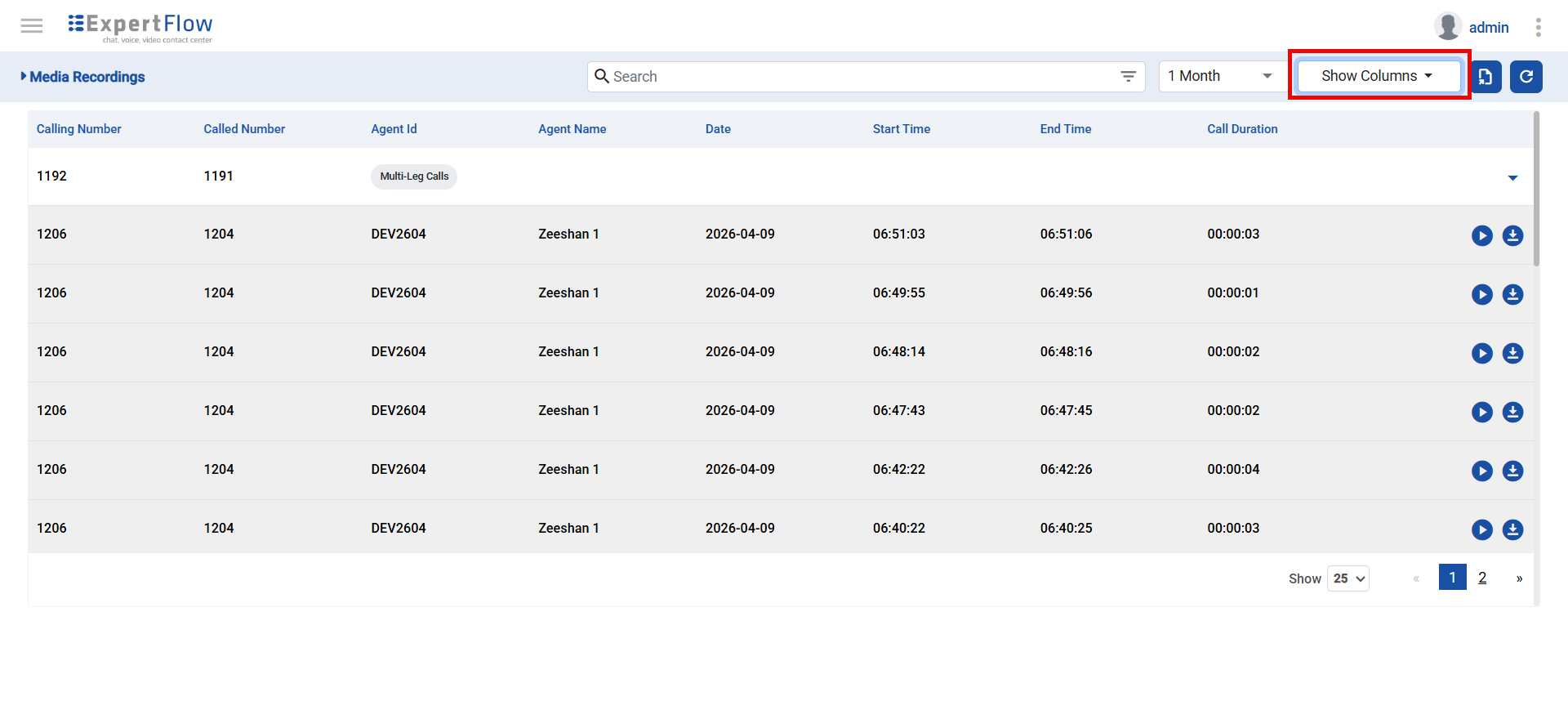
The VRS users can view the call records in a table format with the available details for both CX and Cisco profiles. By default, upon login, the system tries to fetch the current day records if any of them exist.
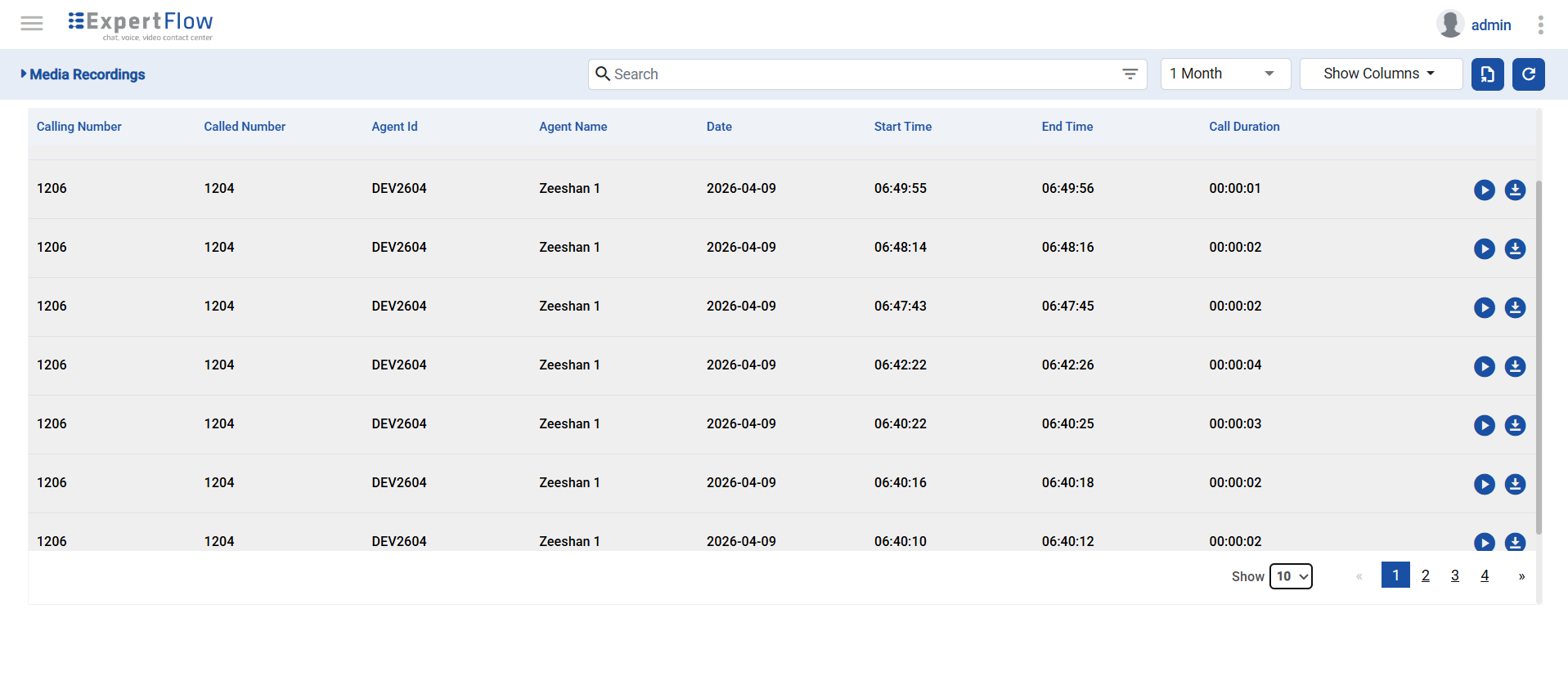
The user has multiple options available on the interface to search, filter, play, download, etc., for the recordings for each record in the interface.
Play Call Recording
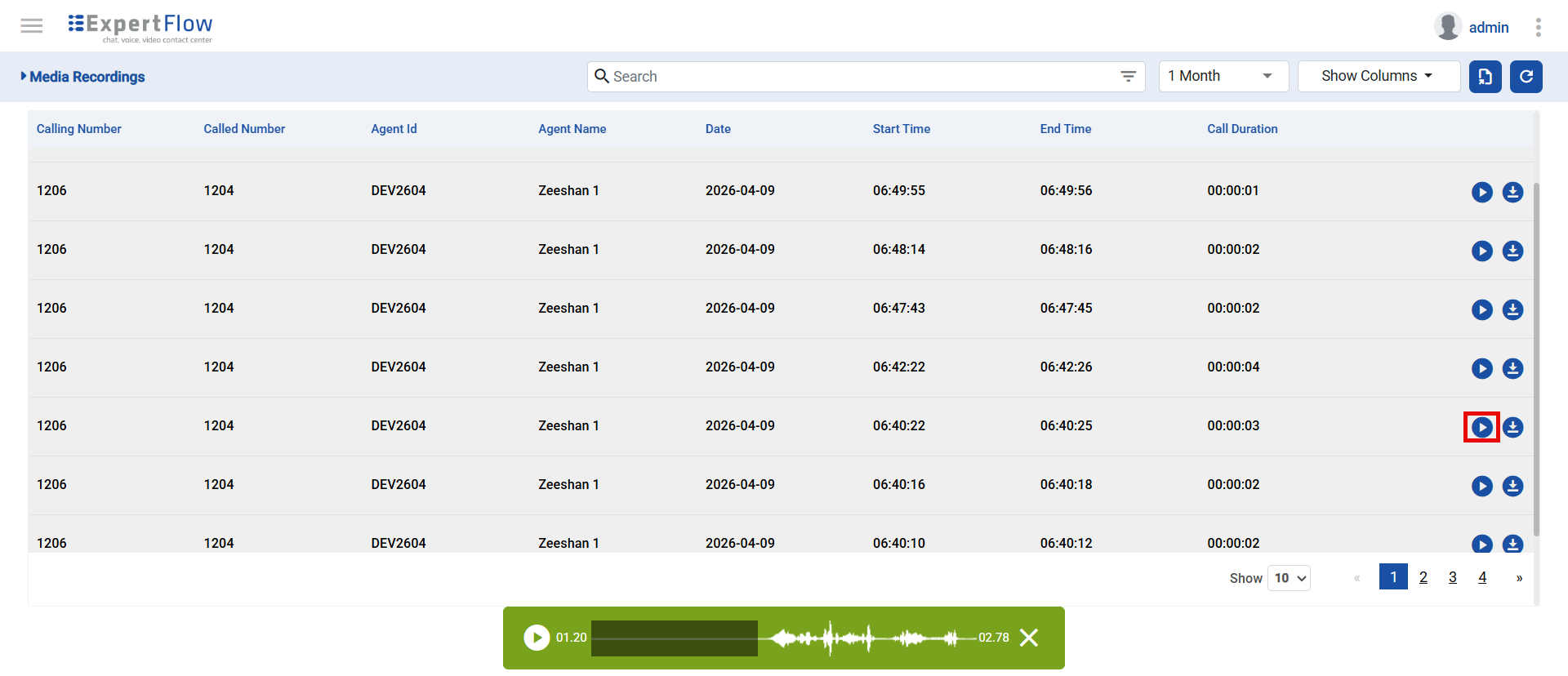
The user can play the recording for each call record by clicking on the play button on the interface. Audio forward and rewind are possible when the audio is selected and played. This can be done by moving the slider forward or backward.
Download Recording File
The user can download the recording files for each call record by clicking on the download button 
Manual Record Updates
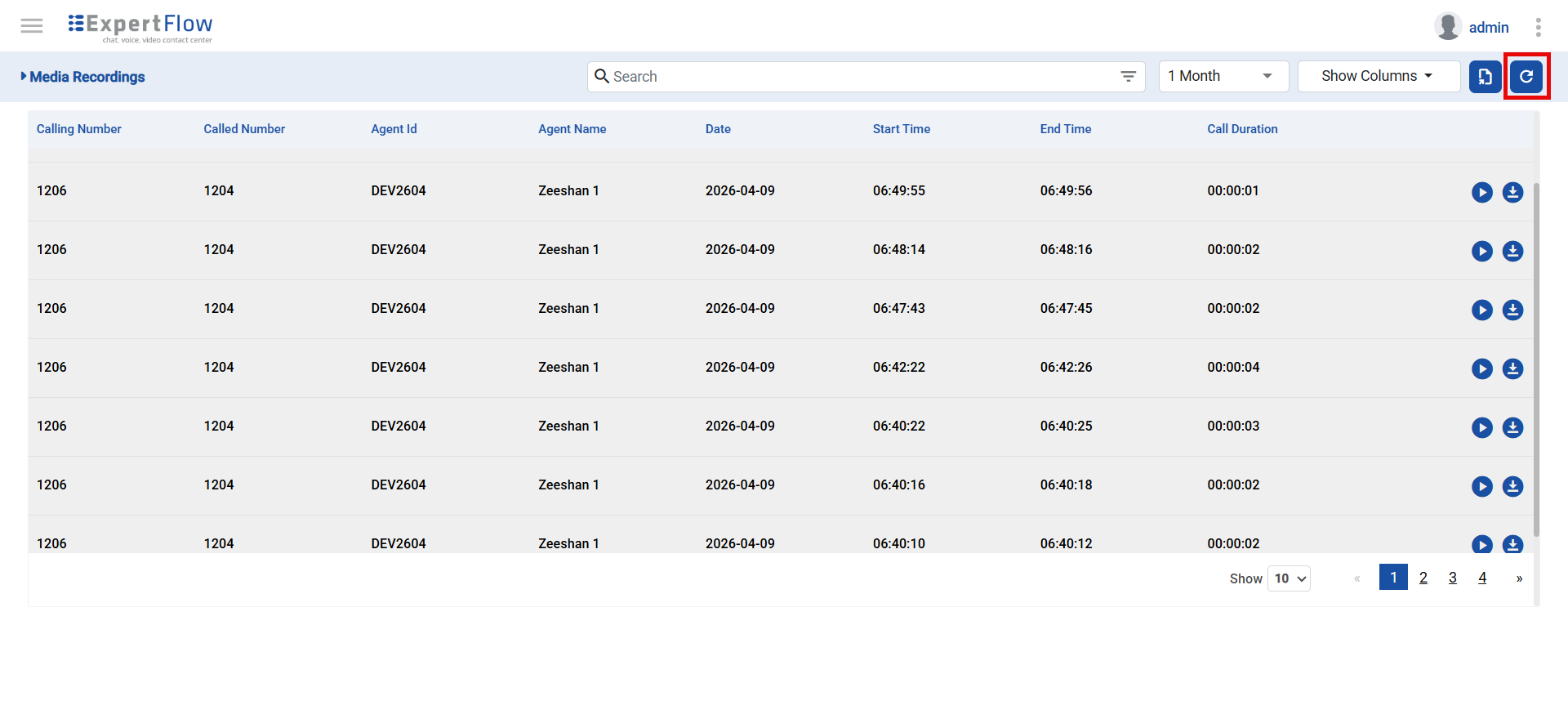
The user can pull the latest records by clicking the refresh button available on the interface. The records can be updated in the following ways:
-
By default, only the current day's records are fetched and updated.
-
If any advanced filter is active and applied, and then the user tries to refresh the records, the data is pulled to the active filters.
Limitations
If a user applies any of the time-frame filters from the 'Date Within' drop-down and tries to update the records via the refresh button, the default filters are applied.
Export Data Records
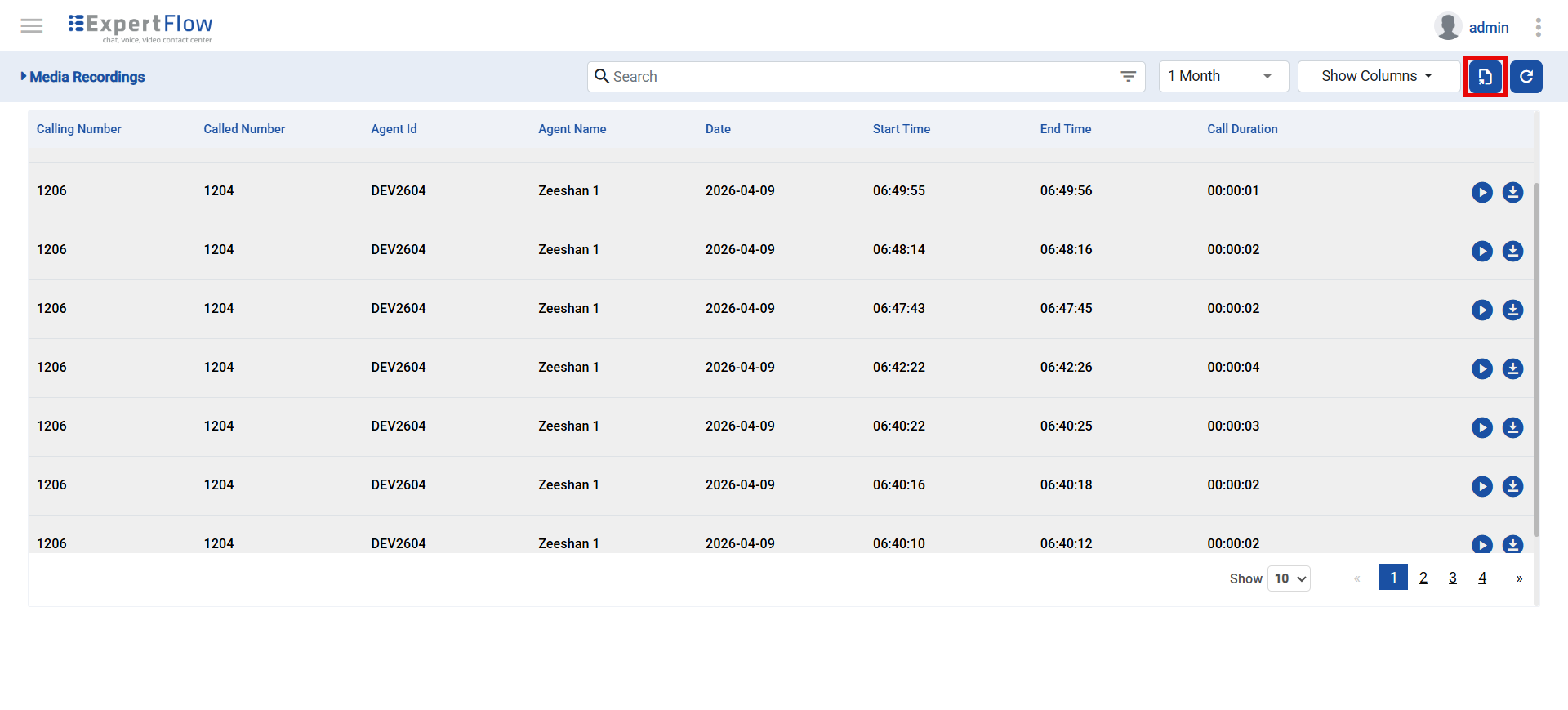
The user can export and download the data records in CSV format by clicking the export button available on the interface. Upon clicking the export button:
-
If there are no records available, the button is disabled.
-
If any data is available, all the record data that is fetched and available in the data table is exported in the CSV file.
Limitations
The exporting option is only supported in CSV format.
Searching & Filtering Records
The user can either search or filter data records on the VRS by using the advanced filters or time frame searching options available in the system. The details can be checked here.
Configure Table Columns
The user can either show or display specific columns on the VRS interface. To update the columns,
-
Navigate to the Show Columns dropdown.
-
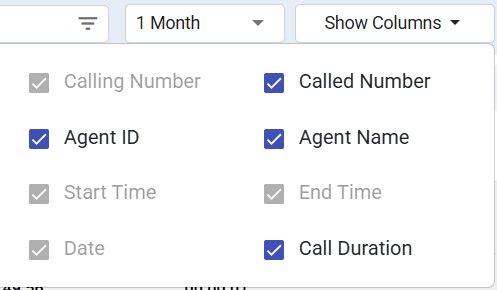
Upon clicking the dropdown,
-
The user will see the list of columns.
-
Some columns must be shown on the interface and cannot be hidden.
-
For the available columns, the user can choose which columns should be displayed or kept hidden on the interface.
-
Related Articles