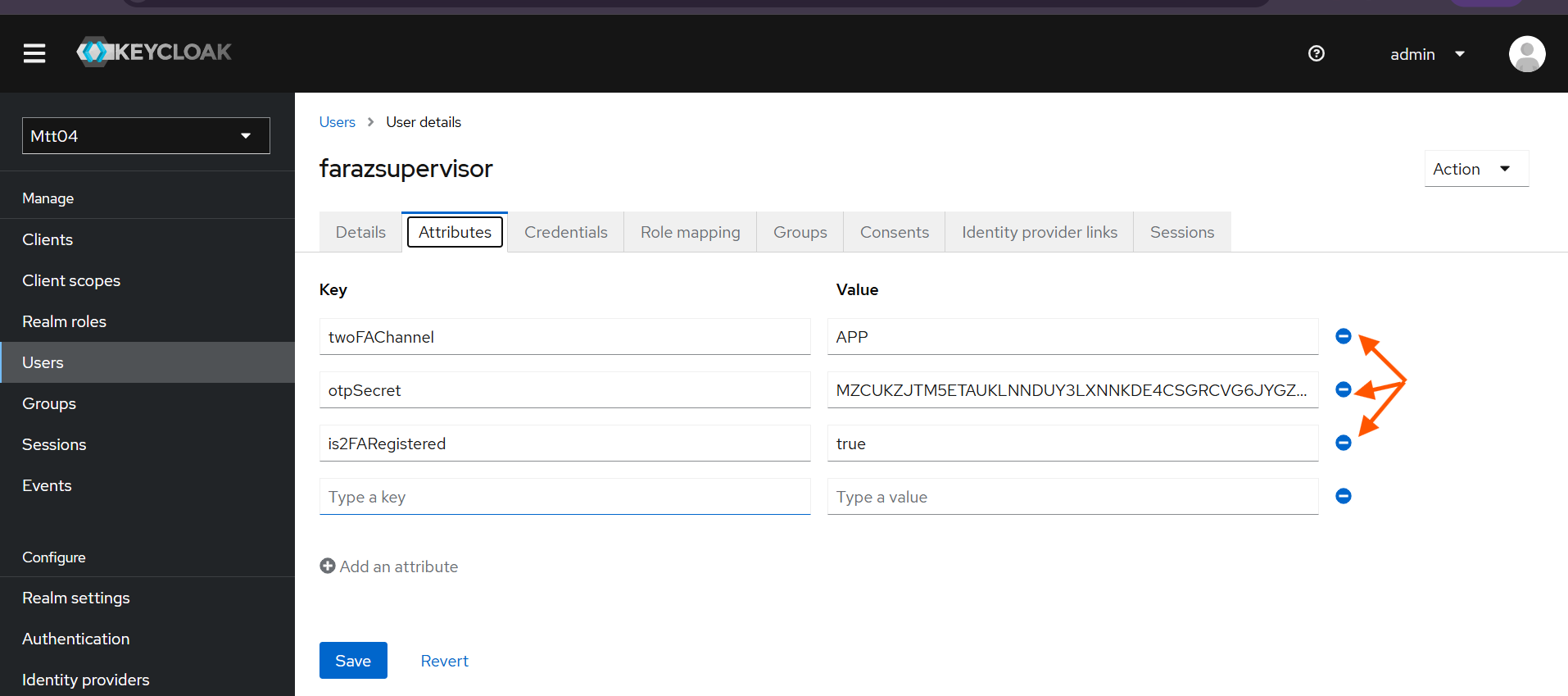
All details and scenarios outlined in this document apply specifically to standalone users. Standalone users are those whose credentials, details, or information are exclusively stored in Keycloak. Their information is not synchronized from any external source, such as Cisco. For Cisco users, two-factor authentication will not be managed by Keycloak or our connector, it will be solely handled by Cisco.
Do not enable two-factor authentication for the customers who are using CISCO Finesse, as it will not be manged by Keycloak.
Purpose
This guide aims to assist in configuring the necessary settings to ensure smooth functionality of two-factor authentication, using Keycloak, with EF applications.
Prerequisites
For SMS Channel:
-
Before configuring two-factor authentication, you must have a Twilio account.
For RSA SecurID Channel:
-
All users must be registered for 2FA with RSA SecurID. The customer themselves will handle the 2FA/OTP registration process, while the Keycloak will only manage the OTP validation mechanism.
For Email Channel:
-
Visit this guide to set up the email connector – IMAP-SMTP based Email Configuration Guide
-
There must be at least one email channel configured that will be used for sending the OTP.

Two-Factor Authentication Channels
There are 4 two-factor authentication channels, supported in EFCX, which will be available to the end user for authenticating himself with two-factor authentication. These channels are:
-
Authenticator (Mobile) Apps - Google Authenticator & Microsoft Authenticator
-
SMS
-
RSA Authenticator (SecurID)
-
Email
For Authenticator App, the user will simply scan a QR code displayed on the screen, and Keycloak will bind the user profile to that code for generation and validation of OTP in future. A new OTP will be displayed to the user after every 30 seconds and it will invalidate the previous/old OTP. This functionality is internally managed in Authenticator App, alleviating the need for configuration in the Keycloak Connector or elsewhere. Therefore, for the Authenticator Apps scenario/channel, no additional settings need to be configured.
For SMS, the Keycloak Connector uses Twilio’s Verify Service. This service generates OTPs, allows us to send them to valid phone numbers and also verifies them by keeping track of which OTP is sent to which phone number. To ensure seamless flow of two-factor authentication using SMS, you need to set up Twilio’s Verify Service, fetch the important/required information from there and update the tenant setting by providing relevant information for SMS. See SMS Configuration in (5.2) Two Factor Authentication - Installation and Configuration Guide | Enable Two Factor Authentication
For RSA SecurID, the Keycloak Connector manages the OTP validation mechanism. The user must already be registered for 2FA with RSA SecurID. The user will need to enter a 14-character passcode (PIN + Token). The Connector will fetch this passcode and validate it against the RSA Server. To ensure seamless communication between the Keycloak Connector and the RSA Server, a few configurational values must be updated in tenant setting by providing relevant information for RSA. See RSA Configuration in (5.2) Two Factor Authentication - Installation and Configuration Guide | Enable Two Factor Authentication
For Email, the Keycloak Connector uses EFCX's native OTP Manager Service. This service generates OTPs, delivers them to the user's registered email address via a pre-configured email connector in Unified Admin, and verifies them by tracking which OTP was issued per authentication session. The user must have a valid, reachable email address registered against their profile. On first login, the user is prompted to enter and confirm their email address, which is then stored for all future logins. To ensure seamless flow of two-factor authentication using Email, you need to configure an email channel in Unified Admin and provide the required values in the Tenant Settings configuration.
Limitations & Important Notes for RSA SecurID Channel:
-
Unlike other methods, Keycloak will not manage the 2FA registration for SecurID. Only OTP validation will be handled by Keycloak.
-
2FA registration on SecurID will be handled by the customer.
-
All users (including admins) created in Keycloak must be registered for 2FA with SecurID beforehand.
-
All users must have the same username in both Keycloak and SecurID.
Limitation for All Four Channels:
-
There is no option to exclude any user from 2FA for all applications in tenant. If 2FA is enabled on the solution, it must be used by all users.
Information Required from Twilio
Following is the information required from Twilio to enable two-factor authentication seamlessly via SMS:
-
Twilio Account SID
-
Twilio Auth Token
-
Twilio Verify Service SID
Setting Up Twilio’s Verify Service
Here is the step-by-step guide to set up Twilio’s Verify Service using Twilio’s console and extract required information:
-
After login, you will see the following screen. Some content or its positioning might be different based on Twilio’s version, but every important option will be visible to you.
If you don’t see this screen, click on your account under ‘Console’ in the top left corner, for example, ‘My first Twilio account’ in the picture above.
-
From the ‘Account Info’ section, copy both ‘Account SID’ and ‘Auth Token’, as these are first and foremost requirements. Save this information to some safe location/folder on your machine.
-
Next, click on ‘Verify’ below ‘Phone Numbers’ in the navigation menu on the left side.
-
Click on ‘Services’ in the submenu.
-
Click on the ‘Create new’ button for creating a new service. You may not see any list of services if you are creating a service for the first time.
-
Fill in the required information, check ‘Authorize the use of friendly name’ and enable SMS channel. Add notes (description of service) if you want to and click ‘Continue’.
-
A new form/box will be displayed. Don’t make any changes and click ‘Continue’.
-
After your service is created, you will see following screen:
-
Copy ‘Service SID’, visible under Friendly name, and save it along with Account SID and Auth Token.
-
No changes are required on this page but if you make any, make sure to click ‘Save’ button.
-
You’re done from Twilio’s end.
Information Required from RSA Server
Following is the information required from RSA Server to enable two-factor authentication via RSA (SecurID) Authenticator App:
-
RSA Server URL
This will be the URL of the RSA Server that the Keycloak Connector will communicate with to validate OTPs. For example, https://<rsa-server-domain-name>:<port>/. Don’t forget to add slash / at the end of the URL.
-
RSA Client Key
This will be the access key required to communicate with RSA Server. RSA also refers to this as Access Key. For example, en7ujo7001g32e3ues48sguo69fetkmdd85hsele82d6641d496zitr56n1b9e6l.
-
RSA Client ID
This will be the name or ID of the authentication agent responsible for validating the OTPs. For example, authenticator.
All this information can be fetched from RSA Authentication Manager.
Information Required for Email Channel
The following information is required to enable two-factor authentication via Email:
-
OTP Manager URL – The internal service URL of the EFCX OTP Manager. This must be set inside the
keyCloakobject in the tenant settings. Example:http://ef-cx-otp-manager-svc:3000/ -
Channel Service Identifier – The email address configured as the sender channel in Unified Admin. This is the identifier used when setting up the email channel, and it will be used by the OTP service to deliver OTPs to users. Example:
noreply@yourorganisation.com -
OTP Expiry – Duration in seconds for which a generated OTP remains valid. Example:
60 -
Max OTP Attempts – Maximum number of times a user can attempt to validate an OTP before it is invalidated. Example:
5
Enable Two-Factor Authentication
2FA is enabled and configured via the Tenant Settings API. The twoFAConfigs object must be part of the tenantSettings payload — either at the time of tenant creation or later via the Update Tenant API.
The Otp_Manager_Url field (required for Email channel) must be placed inside the keyCloak object within tenantSettings.
The channelType field inside twoFAConfigs determines which 2FA channel is active. The supported values are:
Authenticator Apps
No external service configuration is required. Only the twoFAConfigs block is needed.
Update Tenant API payload:
{
    "tenantSettings": {
        "twoFAConfigs": {
            "is2FAEnabled": true,
            "channelType": "app"
        }
    }
}
SMS
The Twilio credentials collected from the Twilio setup must be added inside the keyCloak object, along with the twoFAConfigs block.
Update Tenant API payload:
{
    "tenantSettings": {
        "keyCloak": {
            "TWILIO_SID": "<your-twilio-account-sid>",
            "TWILIO_VERIFY_SID": "<your-twilio-verify-service-sid>",
            "TWILIO_AUTH_TOKEN": "<your-twilio-auth-token>"
        },
        "twoFAConfigs": {
            "is2FAEnabled": true,
            "channelType": "SMS"
        }
    }
}
RSA SecurID
The RSA Server credentials collected from RSA Authentication Manager must be added inside the keyCloak object, along with the twoFAConfigs block.
Update Tenant API payload:
{
    "tenantSettings": {
        "keyCloak": {
            "RSA_Server_URL": "<rsa-server-url>",
            "RSA_Client_Key": "<rsa-client-key>",
            "RSA_Client_ID": "<rsa-client-id>"
        },
        "twoFAConfigs": {
            "is2FAEnabled": true,
            "channelType": "RSA"
        }
    }
}
Email
The OTP Manager URL must be added inside the keyCloak object. The channelServiceIdentifier must match the email address configured as the sender channel in Unified Admin.
Update Tenant API payload:
{
    "tenantSettings": {
        "keyCloak": {
            "Otp_Manager_Url": "http://ef-cx-otp-manager-svc:3000/"
        },
        "twoFAConfigs": {
            "is2FAEnabled": true,
            "channelType": "EMAIL",
            "channelServiceIdentifier": "<configured-sender-email-in-unified-admin>",
            "otpExpiry": 60,
            "otpMaxAttempts": 5
        }
    }
}
Full Tenant Creation Payload Example
The following is an example of a complete payload for creating a new tenant with 2FA enabled via the Email channel:
{
    "tenantName": "expertflow",
    "tenantId": "expertflow",
    "tenantCode": "13135",
    "tenantSettings": {
        "keyCloak": {
            "credentials": {
                "secret": "ef61df80-061c-4c29-b9ac-387e6bf67052"
            },
            "realm": "expertflow",
            "auth-server-url": "http://keycloak.ef-external.svc/auth/",
            "ef-server-url": "http://ef-cx-unified-admin-svc:3000/",
            "Otp_Manager_Url": "http://ef-cx-otp-manager-svc:3000/",
            "ssl-required": "external",
            "resource": "cim",
            "verify-token-audience": false,
            "use-resource-role-mappings": true,
            "confidential-port": 0,
            "CLIENT_ID": "cim",
            "CLIENT_DB_ID": "ef61df80-061c-4c29-b9ac-387e6bf67052",
            "GRANT_TYPE": "password",
            "GRANT_TYPE_PAT": "client_credentials",
            "USERNAME_ADMIN": "admin",
            "PASSWORD_ADMIN": "admin",
            "SCOPE_NAME": "Any default scope",
            "bearer-only": true,
            "MASTER_USERNAME": "admin",
            "MASTER_PASSWORD": "admin",
            "policy-enforcer": {}
        },
        "twoFAConfigs": {
            "is2FAEnabled": true,
            "channelType": "EMAIL",
            "channelServiceIdentifier": "<configured-sender-email-in-unified-admin>",
            "otpExpiry": 60,
            "otpMaxAttempts": 3
        }
    },
    "status": "inActive",
    "createdBy": "admin",
    "updatedBy": "admin"
}
The values fetched from Twilio or RSA will go against respective fields in the above mentioned variables.
Disable Two-Factor Authentication
To disable 2FA for a tenant, update the twoFAConfigs object via the Update Tenant API and set is2FAEnabled to false.
Update Tenant API payload:
{
    "tenantSettings": {
        "twoFAConfigs": {
            "is2FAEnabled": false
        }
    }
}
The change takes effect immediately for all subsequent login attempts by users of that tenant. No redeployment is required.
Switching the Two-Factor Authentication Mode
2FA mode can be switched to any allowed mode on any tenant at any time. But doing so requires the removal of 2FA attributes of all twoFA-registered users from keycloak