
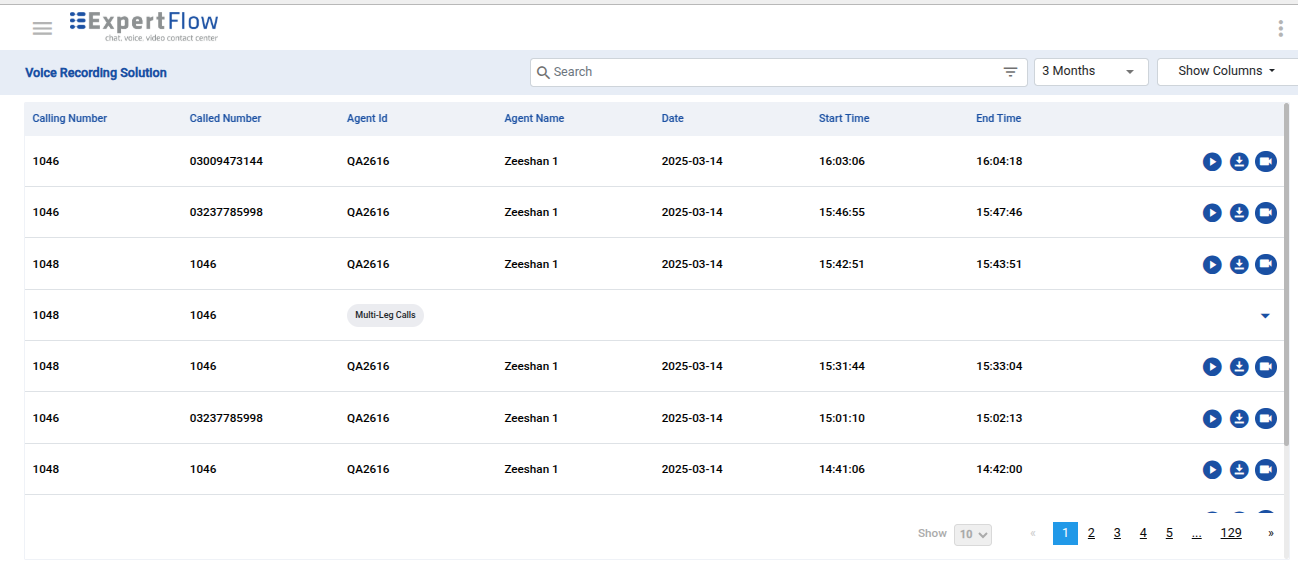
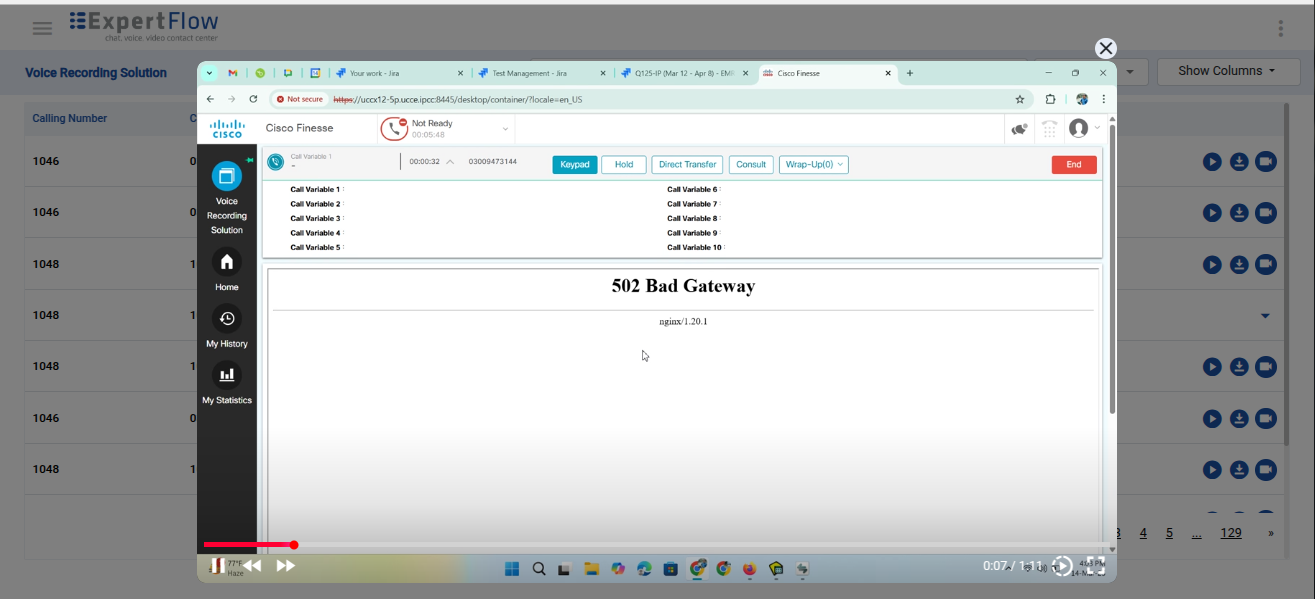
The Screen Recording feature captures agents’ on-screen activities during customer interactions, providing a comprehensive view of engagements. A Screen Recorder utility installed on the agent’s computer automatically starts recording when a call is accepted in Cisco Finesse and stops when the call ends.
Recordings are securely transferred via SFTP to the VRS Server, where they are linked with call activity logs. Users can access both audio and video recordings within the VRS UI through an intuitive media player, ensuring seamless playback and review.
Limitations:
-
Screen Recorder is only compatible with Windows OS; other operating systems are not supported.
-
Screen Recording video streaming is not supported on the Firefox Browser.
-
The screen capture percentage is hard-coded at 100% and cannot be adjusted.
-
The screen recording feature is only compatible with Cisco and is not supported with EFCX.
-
The recorder is not designed to capture dynamic content, such as ongoing videos or moving objects. As a result, it may not properly record video playback from platforms like YouTube.
-
To optimize performance and manage storage, the recorder captures the screen at a lower FPS, which prevents Full HD (FHD) recording quality.
-
The recorder requires approximately 6 to 7 minutes to initialize after the computer is powered on following a shutdown.
-
Only supported for single-leg calls, including normal inbound and outbound calls.
-
Direct/Consult Transfer, Consult, and Consult Conference calls are not supported.
-
For the recorder to function properly, only one user account should be signed in on Windows at a time. Other user accounts must be signed out. Switching between user accounts will prevent the recorder from working. For example, if an admin user is signed in, a non-admin user will not be able to use the screen recording feature until the admin user signs out.