
Send SMS surveys to customers automatically after their call ends. The survey asks questions one by one, and intelligently decides whether to continue or stop based on each customer's response.
What It Does
After a customer conversation ends, eligible customers (mobile numbers only) receive an SMS survey. Unlike single-question surveys, this feature:
-
Asks multiple questions in sequence - One question at a time via SMS
-
Adapts based on responses - Different answers lead to different next steps
-
Ends early when appropriate - Survey can stop at any point based on customer response
-
Sends custom messages - Thank you or apology messages based on scores
Admins can create and customize survey forms through the Unified Admin panel to match their specific business requirements.
How It Works
The survey flow is dynamic and adapts to customer responses:
-
Conversation Ends → System checks if the caller is eligible (mobile number, specific service, not on DNC list)
-
Opt-in SMS Sent → Customer receives "Reply 1 for Yes, 2 for No, 3 to Stop."
-
Customer Responds → Based on response:
-
Yes → Sends first survey question
-
No → Survey ends immediately
-
Stop → Customer marked as Do Not Contact, survey ends
-
-
Dynamic Branching → Each answer determines what happens next:
-
High score → Send thank you message, survey ends
-
Low score → Ask follow-up questions to understand why
-
Specific answer → Skip to a different question or end the survey
-
-
Survey Ends → Either when all relevant questions are answered OR when customer response indicates no more questions needed
-
Data Stored → All responses saved and available for reporting
Example Scenarios
Example 1: Early Exit on Positive Response
Question 1: "Were you satisfied with the agent's service? Reply 1 for Yes, 2 for No"
-
Customer replies "1" → Survey sends "Thank you!" and ends
-
Customer replies "2" → Survey continues with Question 2
Question 2: "What could we improve? Reply 1 for Speed, 2 for Knowledge, 3 for Attitude"
-
Customer replies → Survey sends "Thank you for your feedback" and ends
Example 2: Score-Based Branching
Question 1: "Rate your experience 0-10"
-
Customer replies 9 or 10 → Survey sends "Thank you!" and ends (no need to ask more)
-
Customer replies 7-8 → Survey sends "Thank you for your feedback" and ends
-
Customer replies 0-6 → Survey continues with follow-up questions
Question 2: "What was the main issue? Reply 1 for Long wait time, 2 for Agent unhelpful, 3 for Problem not solved."
-
Customer replies → Survey sends "We're sorry. A manager will review this" and ends
Example 3: Conditional Question Paths
Question 1: "Was your issue resolved? Reply 1 for Yes, 2 for No"
-
Customer replies "1" (Yes) → Skip to satisfaction question
-
Customer replies "2" (No) → Ask why it wasn't resolved
This flexibility lets you create short surveys for happy customers and detailed surveys for unhappy ones.
Current Limitations
Important restrictions in this version:
-
Only works with Cisco UCCX 15 - Does not work with Expertflow CX Voice
-
Blocks normal messaging - During the survey window (24 hours by default), any SMS the customer sends is treated as a survey response. They cannot send regular messages until the survey ends or times out.
-
Mobile numbers only - Landline callers are not eligible
-
No mid-survey exit - Customer cannot pause and resume the survey
Setup Steps
Step 1: Create the Survey Form
Build the form that contains your survey questions.
Go to Unified Admin → Forms and create a new survey form. For detailed instructions on form creation, see Creating Forms.
Add your questions:
-
Opt-in question (Yes/No/Stop - multiple choice)
-
NPS question (0-10 scale)
-
CSAT question (1-5 or 1-3 scale - multiple choice)
-
Any follow-up questions you need
Why this matters: Each question becomes a potential step in the SMS conversation. The customer may not see all questions; it depends on how they answer.
Step 2: Build the Survey Flow in Campaign Flow Builder
Navigate to your campaign and click View Flow Builder to start designing your survey journey.
Use these nodes to create your adaptive survey:
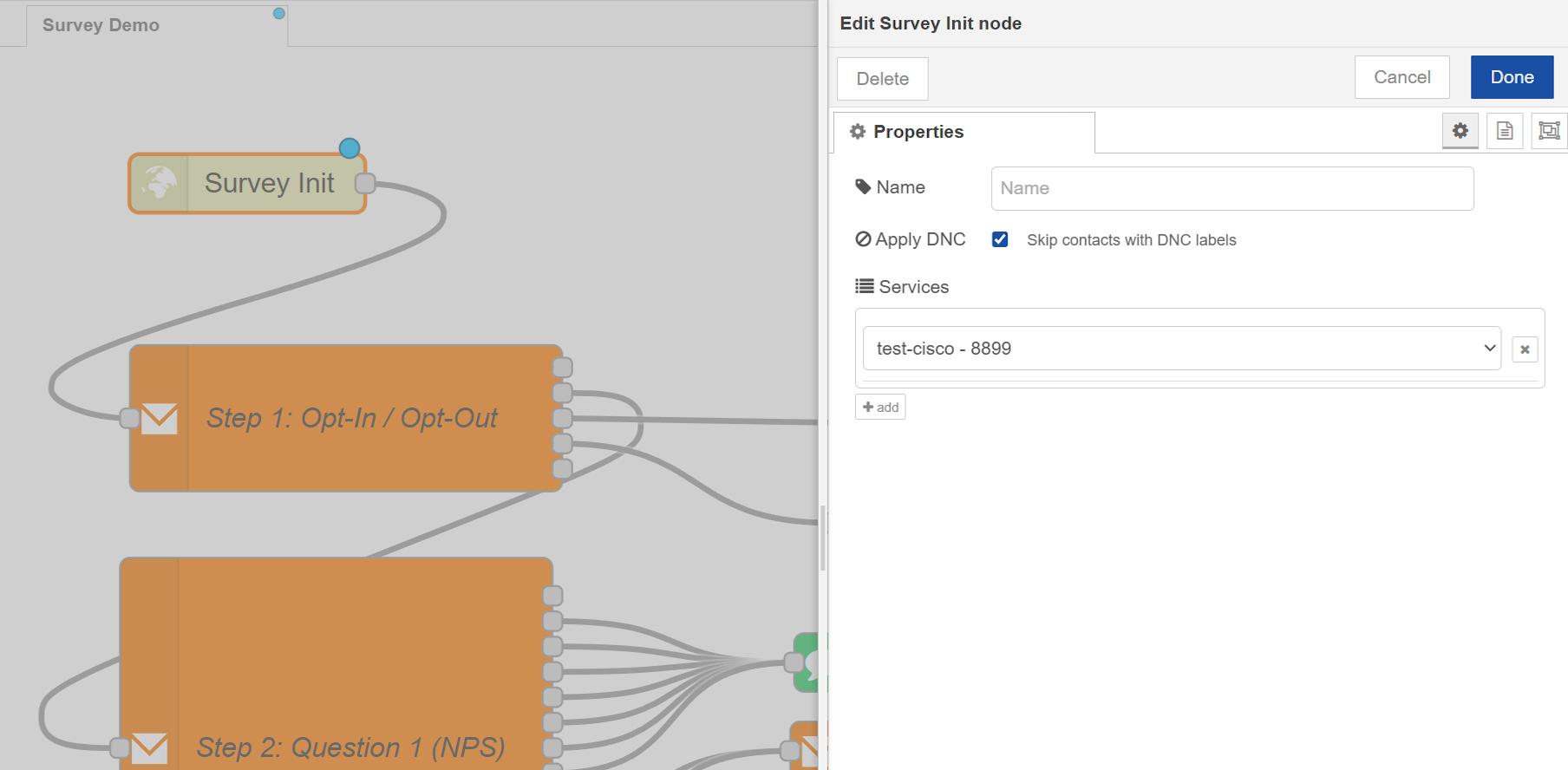
Survey Init (Starting Point)
This node triggers the survey when a conversation ends.
Configuration:
-
Apply DNC: Check this to skip customers marked Do Not Contact
-
Select Service: Choose which UCCX service triggers this survey (e.g., "Customer Support Queue")
What it does: When a conversation on the selected service ends, this node automatically starts the SMS flow for that customer.
Note: Currently, only Cisco UCCX 15 services are supported. This feature does not work with Expertflow CX Voice.
Form Message (Send Questions)
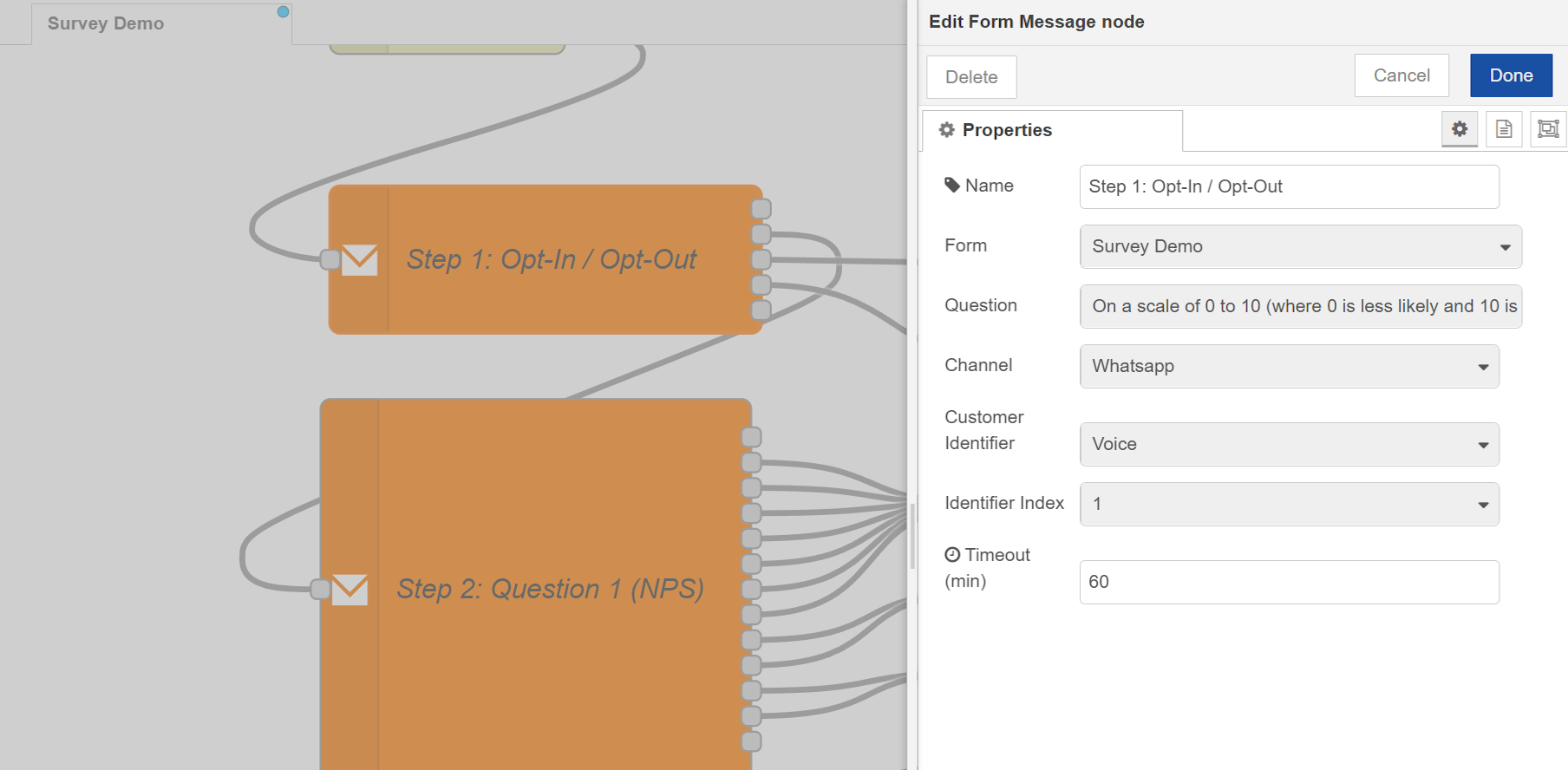
This is the core node for building multi-question flows. Each Form Message node sends one question and creates multiple output paths based on possible answers.
Configuration:
-
Node Name: Give it a clear name (e.g., "Ask Agent Satisfaction")
-
Select Form: Choose the form you created in Step 1
-
Select Question: Pick which question from that form to send
-
Channel: SMS or WhatsApp
-
Customer Identifier: Select which field contains the customer's mobile number
-
Timeout: Minutes to wait for response (if customer doesn't reply, survey ends)
Outputs (branching):
The node creates multiple output branches based on the question type. You can connect each output to different next steps, allowing you to build conditional survey paths based on customer responses.
Key concept: You connect each output to either:
-
Another Form Message node (continue survey with next question)
-
Plain Message node (send thank you/apology and then End Survey)
-
End Survey node (stop immediately)
Example:
-
Customer replies "Yes" → Connect to Plain Message "Thank you!" → End Survey
-
Customer replies "No" → Connect to Form Message "Why were you dissatisfied?"
Plain Message (Send Thank You / Apology)
Sends a simple text message without expecting a response. Use this before ending the survey.
Common uses:
-
"Thank you for your feedback!" (after any response)
-
"We're sorry to hear that. We'll improve." (after low score)
-
"Great! We're glad you're satisfied." (after high score)
For configuration details, see Plain Message Node.
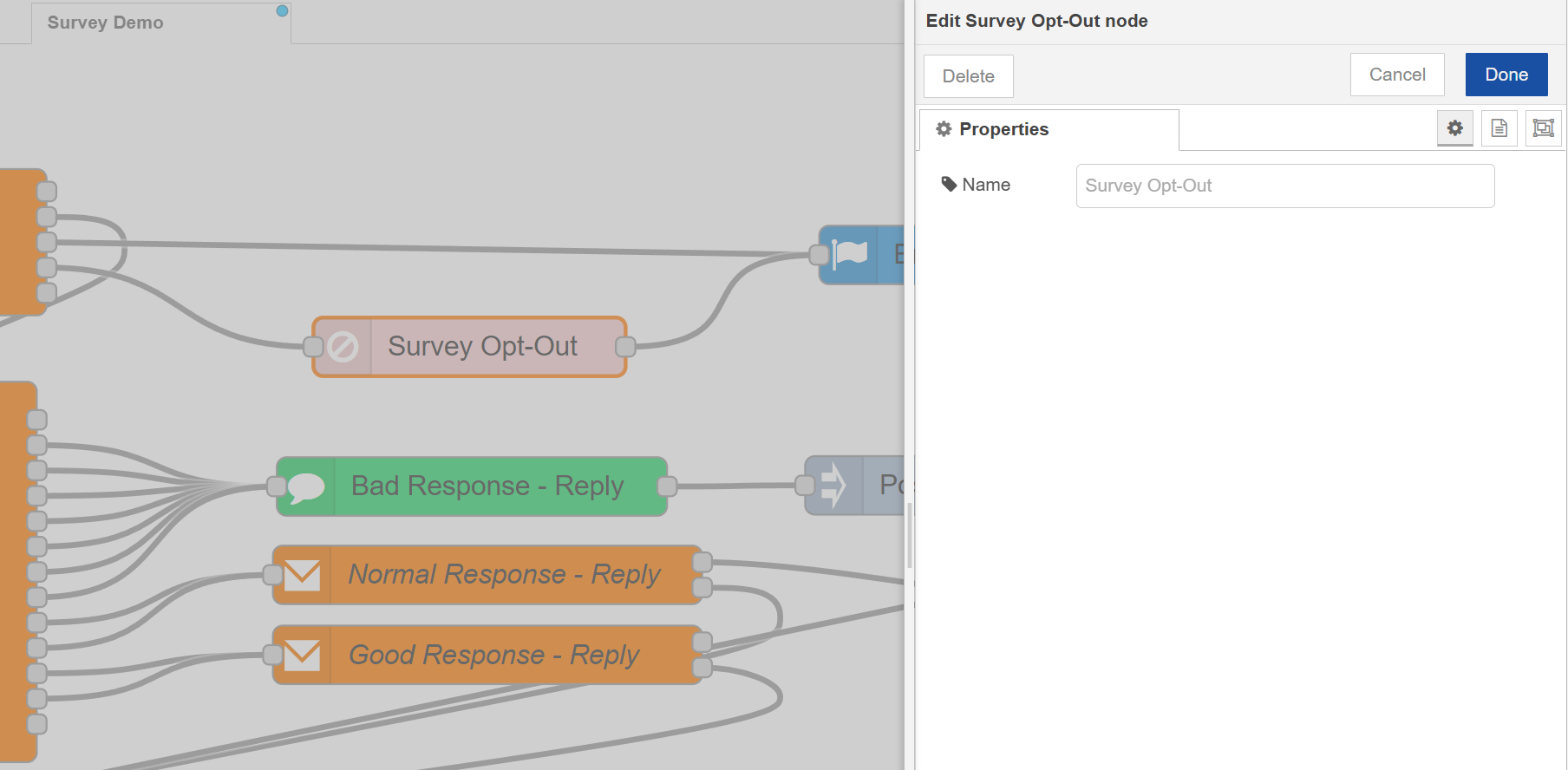
Survey Opt-Out (Handle "Stop" Requests)
Marks the customer as Do Not Contact for future surveys.
When to use: Connect this to the "Stop" or "3" output from your opt-in question.
What it does: Permanently excludes this customer from SMS/WhatsApp surveys.
Next step: Always connect this to the End Survey node.
End Survey (Close the Flow)
Terminates the survey flow. This is where all survey paths eventually end up.
When to use:
-
After the final thank you message
-
After the customer opts out
-
When no more questions are needed based on the customer's response
-
After delivery failures
What it does: Stops the survey timer and prevents any more messages from being sent.
Post-Attempt Decision (Check Message Delivery)
Checks if a message was delivered successfully.
Use for: After sending a Plain Message, check if it was delivered. If delivery failed, end the survey gracefully.
For configuration details, see Post-Attempt Decision Node.
Trigger Workflows Based on Survey Results
You can trigger Conversation Studio workflows to automate follow-up actions based on survey responses. This is useful for creating tickets, sending alerts, or scheduling callbacks.
Common Use Cases
For Low Scores (NPS 0-6, CSAT 1-2):
-
Create support tickets in your CRM (Salesforce, Zendesk, ServiceNow)
-
Send alert emails to supervisors or account managers
-
Schedule a manager callback within 24 hours
-
Escalate to the retention team for high-value customers
-
Trigger quality management review process
For High Scores (NPS 9-10, CSAT 4-5):
-
Send a thank-you email with loyalty program details
-
Update customer profile with "promoter" tag
For Mid-Range Scores (NPS 7-8, CSAT 3):
-
Schedule a follow-up survey in 30 days
-
Send educational content or product tips
-
Log for trend analysis
Insert a Conversation Studio workflow node before the End Survey node and configure it to perform your desired action (API calls, emails, notifications, etc.).
Note: Setting up workflows requires integration with your specific systems. Work with your technical team to configure the workflows and API connections.
Survey Reporting and Analytics
The survey solution includes comprehensive reporting capabilities:
Real-Time Dashboards
Access live survey metrics and performance indicators through built-in real-time dashboards. Monitor survey completion rates, score distributions, and customer feedback as it happens.
Historical Reporting
View historical survey data and trends over time using the standard reporting module. Analyze patterns, track improvements, and measure the impact of changes.
Custom BI Integration
For advanced or custom reporting requirements, survey data is available in the reporting database. Your technical team can connect any enterprise-grade Business Intelligence tool to the reporting database, such as:
-
Microsoft Power BI
-
Tableau
-
Qlik Sense
Work with your technical team to configure database connections and extract the data needed for your custom reports and dashboards.
Configuration Reference
Default Settings:
-
Survey timeout: 24 hours (configurable in Form Message node)
-
Contact method: Survey is sent to the customer's first phone number if multiple numbers exist in their profile
Supported Channels:
-
SMS
-
WhatsApp
Supported Services:
-
Cisco UCCX 15 inbound queues only