
This guide explains how to set up a multi-question, multi-step survey flow using Unified Admin and Campaign Studio Flow Builder, and how to trigger that survey automatically after voice and non-voice conversations.
Related guide: For the feature overview and full node-by-node flow walkthrough, see Automated Multi-Reply Post-Conversation Survey (SMS & WhatsApp).
Use this setup when you want customers to receive a structured post-conversation survey with multiple-choice questions, branching steps, and automated triggering based on conversation completion.
Overview
The configuration has three main parts:
-
Create the survey form in Unified Admin.
-
Create a non-voice campaign and build the survey flow in Campaign Studio Flow Builder.
-
Configure survey triggering for voice and non-voice channels.
For Cisco voice calls, the survey can be triggered automatically when the Cisco connector has the survey flag enabled. For other conversation types such as web chat and WhatsApp, an additional Conversation Studio flow is required to trigger the survey after the conversation ends.
Prerequisites
-
Access to Unified Admin
-
Permissions to create forms and campaigns
-
Access to Campaign Studio Flow Builder
-
Access to Conversation Studio for non-voice channel automation
-
Cisco connector configuration access for voice survey triggering
The survey flow design in Campaign Studio should follow the structure shown in the attached reference figure, and the non-voice trigger flow in Conversation Studio should follow the flow shown in attached image.
Step 1: Create the Survey Form in Unified Admin
The survey begins with a form definition. This form contains the questions and answer choices that will be presented during the survey flow.
-
Open Unified Admin.
-
Navigate to the forms configuration area.
-
Create a new form for the survey.
-
Add the required survey questions.
-
For each question, configure it as a multiple-choice question.
-
Add the answer options for each question.
-
Save and publish the form if publishing is required in your environment.
Form design recommendations
-
Keep answer options clear and distinct.
-
Use a consistent scoring or rating pattern where possible.
-
Arrange questions in the same order they should appear in the survey flow.
-
Confirm the form is available for use by the campaign before moving to flow design.
A well-structured form makes the downstream Campaign Studio flow much easier to configure and validate.
Step 2: Create the Survey Campaign
Once the form is ready, create the campaign that will host the survey flow.
-
In Unified Admin, go to the Campaign tab.
-
Create a new campaign.
-
Select Non Voice as the campaign type.
-
Save the campaign.
-
Open the newly created campaign.
-
Click Flow Builder to launch Campaign Studio Flow Builder.
The survey flow described in this guide is built inside a non-voice campaign, even if the survey may be triggered after voice or digital conversations.
Step 3: Design the Survey Flow in Campaign Studio Flow Builder
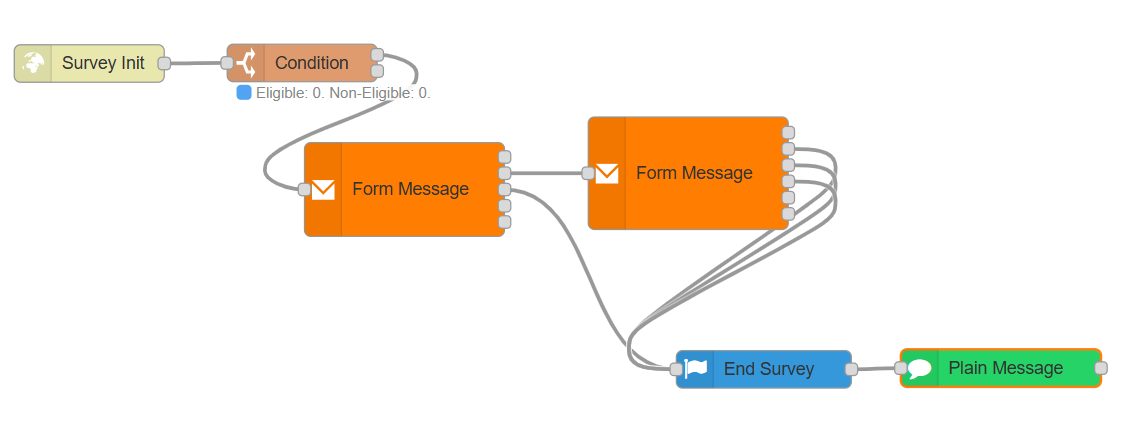
In Campaign Studio Flow Builder, create the survey journey according to the flow shown in the attached figure. The exact node names can vary by implementation, but the core design pattern remains the same: initialize the survey, present each question step-by-step, capture responses, and complete the survey.[Sample: Sample Survey Flow (non voice).json ]
Typical survey flow structure
-
Start or entry node
-
Survey initialization step
-
Question 1 prompt with multiple-choice options
-
Response capture step
-
Question 2 prompt with multiple-choice options
-
Response capture step
-
Additional question and response steps as needed
-
Survey completion or thank-you step
-
End node
What to configure in the flow
-
Associate the flow with the survey form created earlier.
-
Map each survey question to the correct form field.
-
Ensure each answer option is handled correctly.
-
Connect each step in the intended sequence.
-
Add completion handling so the survey ends cleanly after the final question.
The flow should mirror the attached design so that each question is presented in the required order and the responses are collected across multiple steps.
Validation checklist before deployment
-
All question nodes are connected
-
Each question references the correct form element
-
Multiple-choice options match the form configuration
-
No dead ends or disconnected branches exist
-
The completion path is defined
The survey flow can be configured to be delivered via whatsapp, and SMS outbound channels only. Sending Survey via Email or any other non-voice channel is not supported.
Step 4: Deploy the Campaign Flow
After the survey flow is designed and validated, deploy it so it is available for execution.
-
Review the flow configuration.
-
Save the flow.
-
Run any available validation checks.
-
Deploy or publish the campaign flow.
Deployment is required before any trigger can launch the survey flow.
How Voice Survey Triggering Works
For Cisco voice calls, survey triggering is automatic when the Cisco connector is configured appropriately.
If the TRIGGER_SURVEY flag is set to true in the Cisco connector, Cisco voice calls automatically trigger the survey flow.
Voice trigger behavior
-
The conversation completes on the voice channel.
-
The Cisco connector checks whether survey triggering is enabled.
-
If TRIGGER_SURVEY = true, the survey is initiated automatically.
No separate Conversation Studio end-of-conversation trigger flow is needed for Cisco voice calls when the connector-level survey flag is enabled.
How to Trigger Surveys for Web, WhatsApp, and Other Non-Voice Channels
For non-voice conversation types such as web chat, WhatsApp, and similar channels, the survey does not trigger automatically from the Cisco connector. To enable post-conversation surveys for these channels, add a dedicated flow in Conversation Studio.
Required approach
Create a Conversation Studio flow based on the design shown in the attached image.

This flow [Conversation Studio Flow to trigger survey on conversation End.json sample] should use the Conversation Ended event as the trigger, and that event should invoke the Survey Init step.
Non-voice trigger sequence
-
A customer interaction takes place on a non-voice channel such as web or WhatsApp.
-
The conversation ends.
-
The Conversation Ended event fires in Conversation Studio.
-
The event triggers the survey initiation flow.
-
The deployed Campaign Studio survey flow starts.
This event-driven model is the recommended way to trigger surveys after digital conversations that do not use the Cisco voice connector survey flag.
End-to-End Flow Summary
|
Stage |
Platform |
Purpose |
|---|---|---|
|
Create survey form |
Unified Admin |
Define multi-question multiple-choice survey content |
|
Create campaign |
Unified Admin |
Create a non-voice campaign container for the survey |
|
Build survey flow |
Campaign Studio Flow Builder |
Design the multi-step question sequence |
|
Deploy flow |
Campaign Studio |
Make the survey executable |
|
Trigger for voice |
Cisco connector |
Auto-start survey when TRIGGER_SURVEY is true |
|
Trigger for web or WhatsApp |
Conversation Studio |
Start survey on Conversation Ended event via Survey Init |
Best Practices
-
Keep the number of questions manageable to improve completion rates.
-
Use simple multiple-choice answers for better customer response consistency.
-
Test the flow with sample conversations before production deployment.
-
Verify the form-to-flow mapping whenever questions are added or modified.
-
Confirm that trigger logic works separately for voice and non-voice channels.
Troubleshooting Tips
-
If the survey does not launch for voice calls, verify that the Cisco connector has TRIGGER_SURVEY set to true.
-
If the survey does not launch for web or WhatsApp, verify that the Conversation Studio flow is deployed and that the Conversation Ended event is connected to Survey Init.
-
If questions do not appear correctly, confirm the survey form contains the expected multiple-choice fields and options.
-
If the flow stops midway, inspect the Campaign Studio flow for missing connections or incorrect node configuration.