
To set the AI provider for AI features, go to:-
-
Unified-admin → AI Configurations.
-
Update the following fields
|
Field |
Description |
|---|---|
|
AI Provider |
Select the AI provider to use for the feature module (e.g., OpenAI, Azure OpenAI, or a custom/self-hosted provider). Each feature module can be linked to a different provider. |
|
API Key |
The secret authentication key issued by your AI provider. This is used to authorize all API requests made by the system. Keep this confidential and never share it publicly. |
|
Base URL |
The API endpoint URL of the AI provider or model server. For cloud providers (e.g., OpenAI), this is their published base URL. For self-hosted or on-premise models, this is the address of your model server (e.g., |
|
Additional Attributes |
Can create optional key-value pairs if required by the system. |
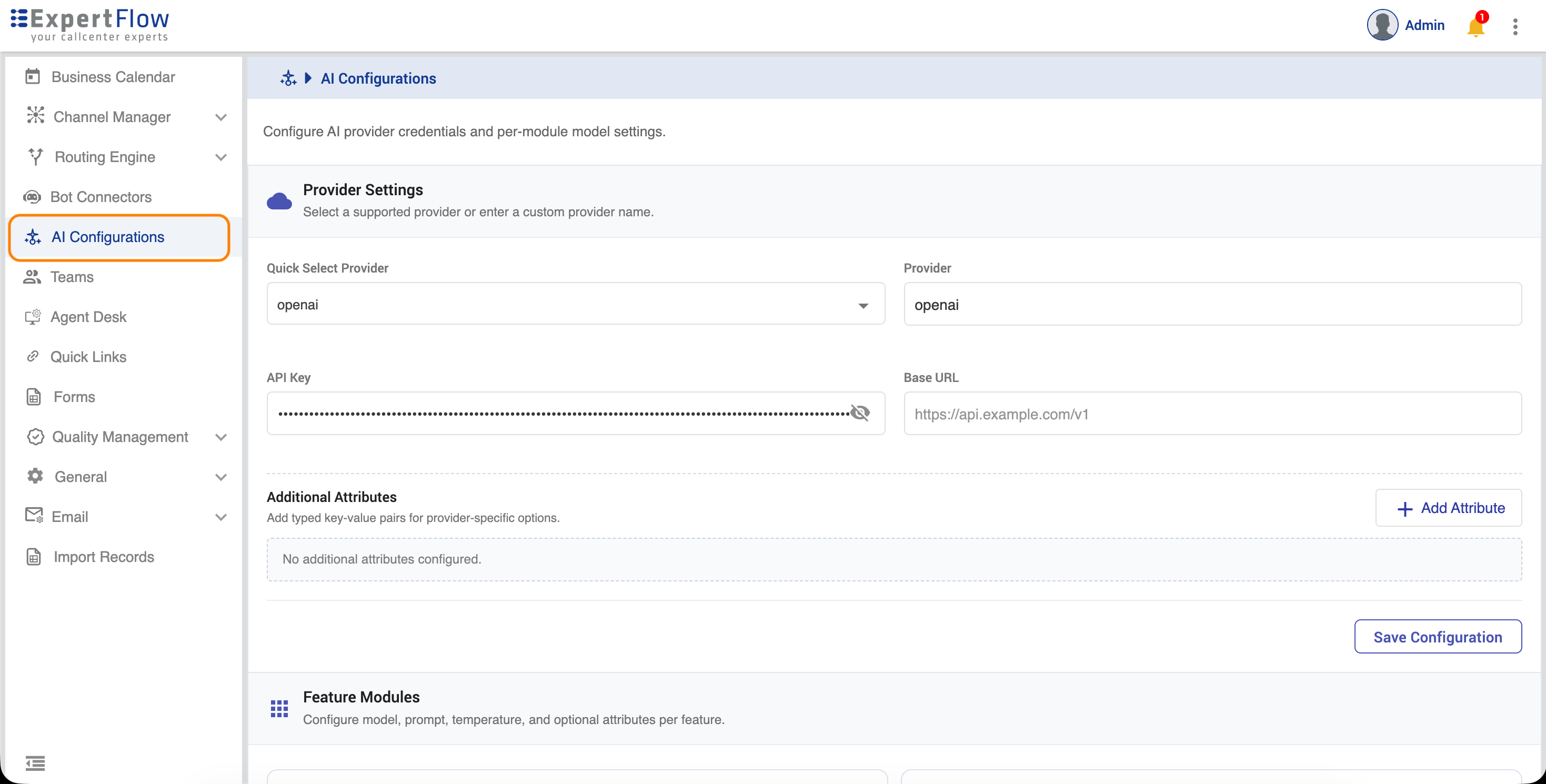
Once the provider information is given,
-
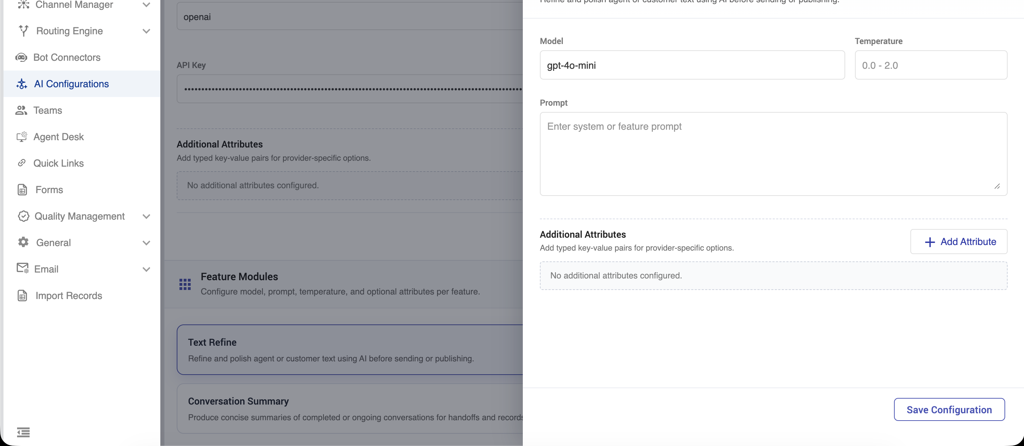
Click on Feature Module and configure Conversation Sentiments
-
Update the following fields.
|
Field |
Description |
|---|---|
|
Model |
Select the AI model to use for this feature from the models available under the configured provider (e.g., |
|
Temperature |
Controls the randomness and creativity of the AI's output. Accepts a value between 0.0 and 1.0. Lower values (e.g., |
|
Prompt |
Additional guidelines for the model per feature |
|
Additional Guidelines |
Can create optional key-value pairs if required by the system. |
To enable Conversation-Sentiment on a conversation, you need to:
-
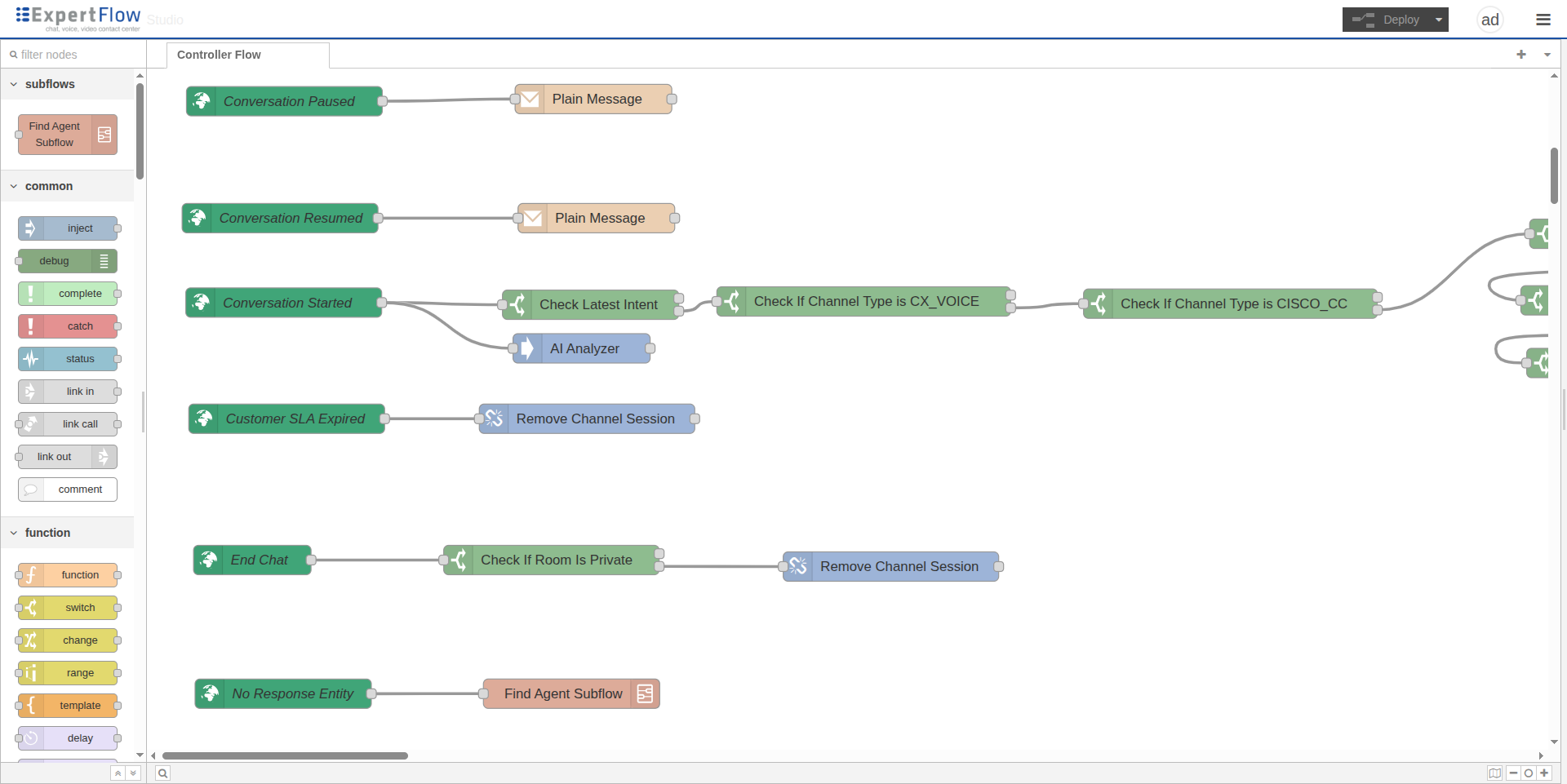
Subscribe to the AI Analyzer for a specific conversation using the AI-Analyzer node on the
Conversation Startedevent. -
Then, drag the node from the left palette and drop it into the flow.
To generate the Sentiment at any stage during the conversation, you need to define these nodes in your flow. In the sample below, the Sentiment Assistant node is used to analyze the conversation and generate the sentiment, and then the HTTP node is used to retrieve that generated sentiment. Finally, a Function node prepares the data structure to update the sentiment, and then an Update Conversation Data node updates the sentiment for the conversation.
Both sentiment and summary are generated here but can be generated separately according to your business workflow.
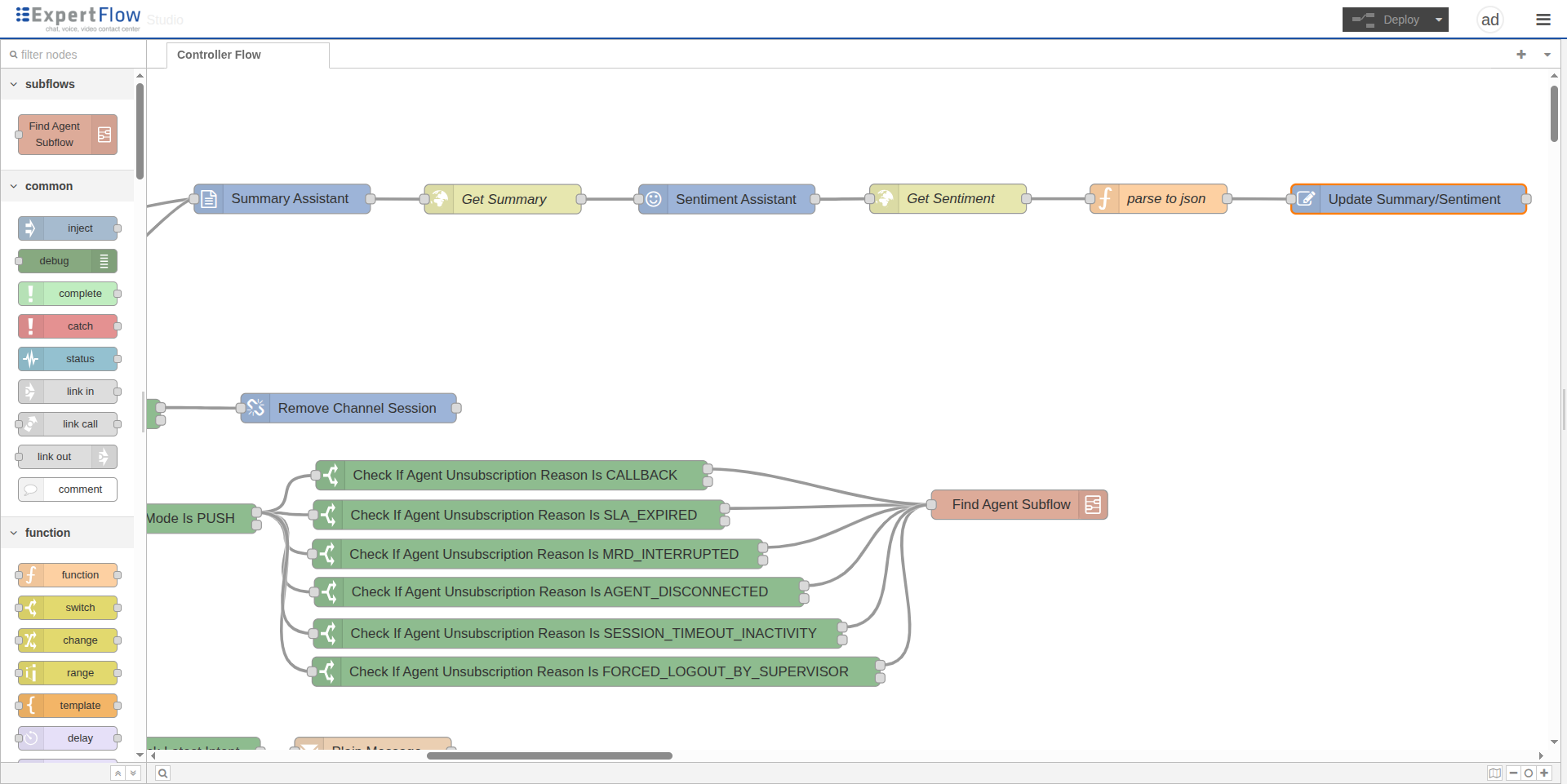
Below is a sample Conversation Studio flow that you can import into your studio and reuse in your custom flows. It can be applied at any stage of a conversation, such as agent handoff, transfer, closure, or any other stage based on your desired workflow.
Conversation_Sentiment_Summary_Sample.json
Use this flow file for reference only, as your own flow may differ from this sample studio configuration