
A. Steps to configure color thresholds for SLA panel.
-
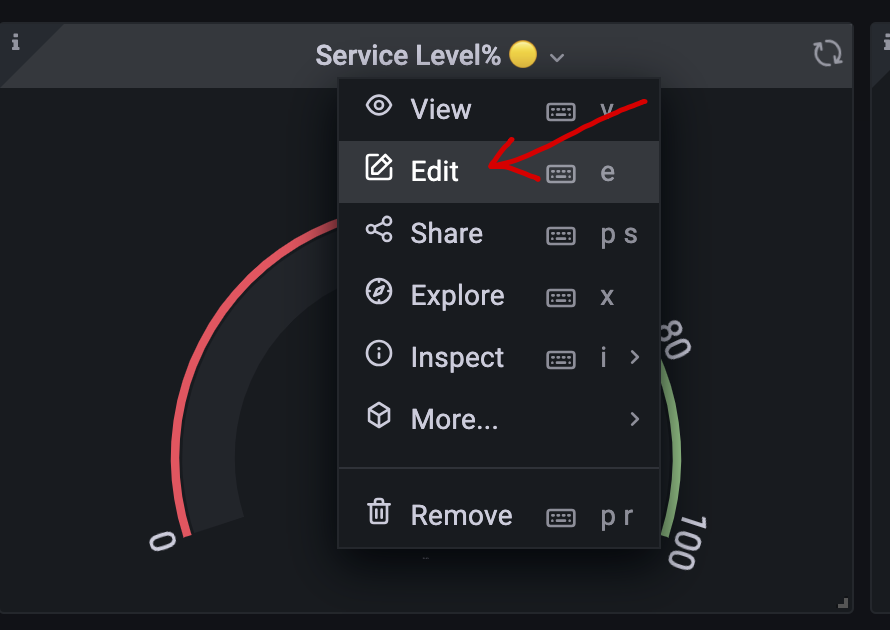
While placing your mouse cursor on the SLA panel, click on the small dropdown icon to view the settings for this panel.

-
Click on Edit.
-
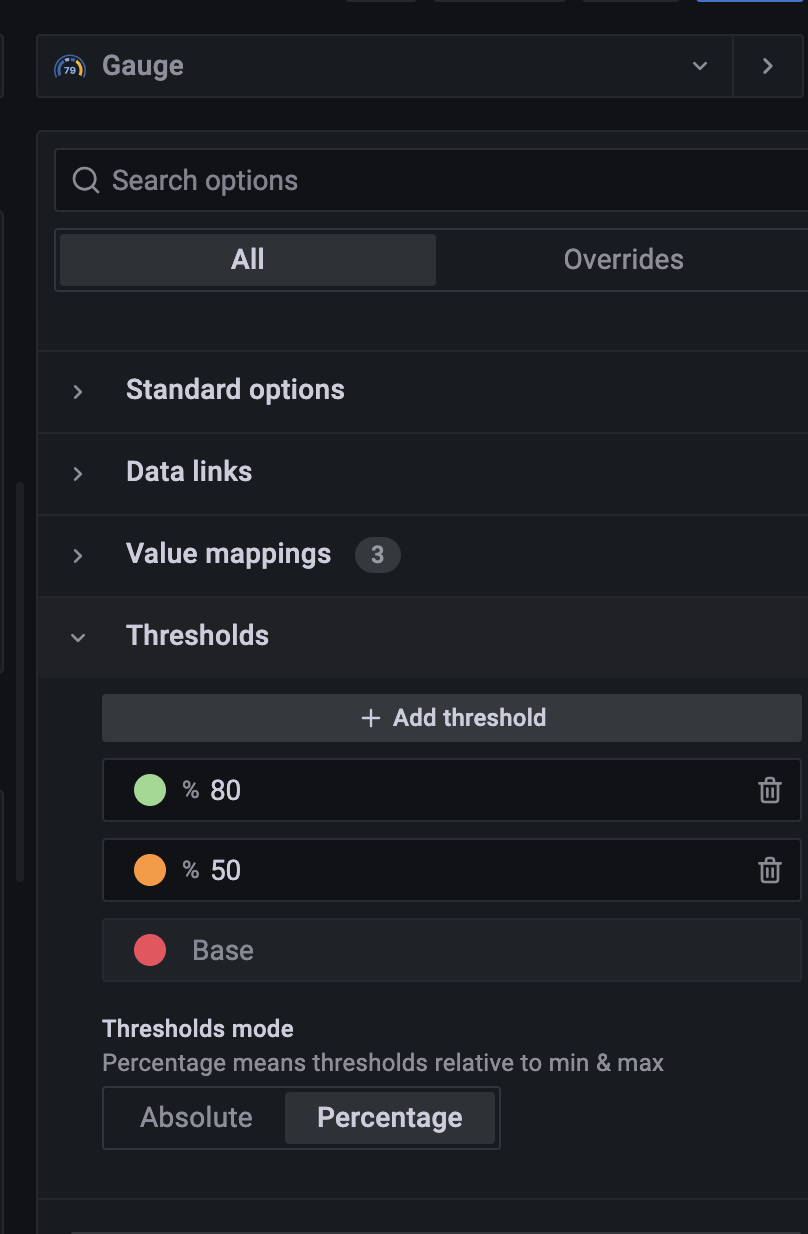
On the right-hand side panel, scroll to where we have the Thresholds options.
-
You can now adjust the color thresholds based on the %values. so in the example above:
0%-49% - red
50%-79% - orange
80%-100% - green -
You can adjust/add more threshold values based on your needs.
-
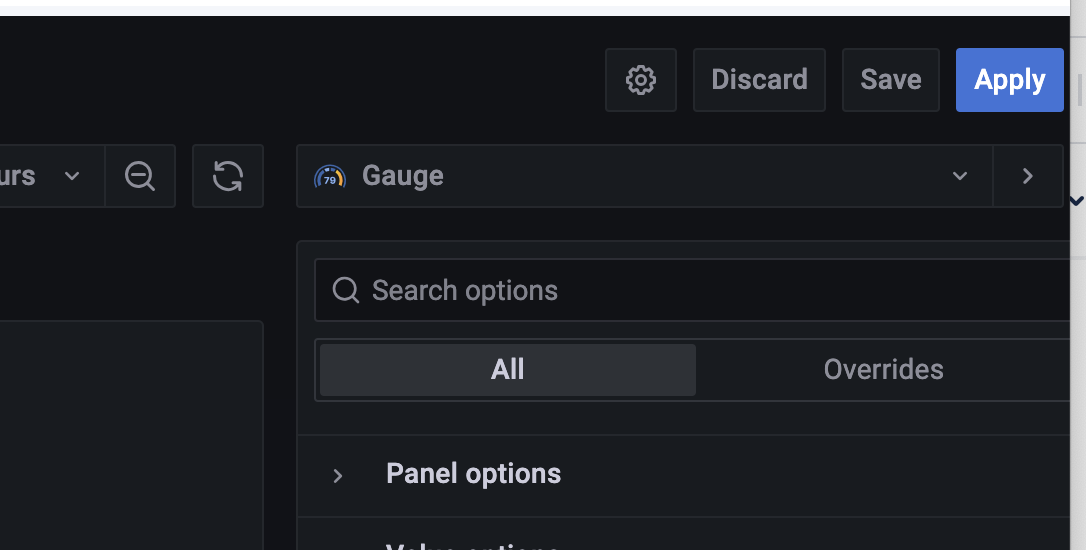
To save these changes, click on the Apply button on the topmost right
B. Steps to configure color thresholds on AHT and AWT panels
-
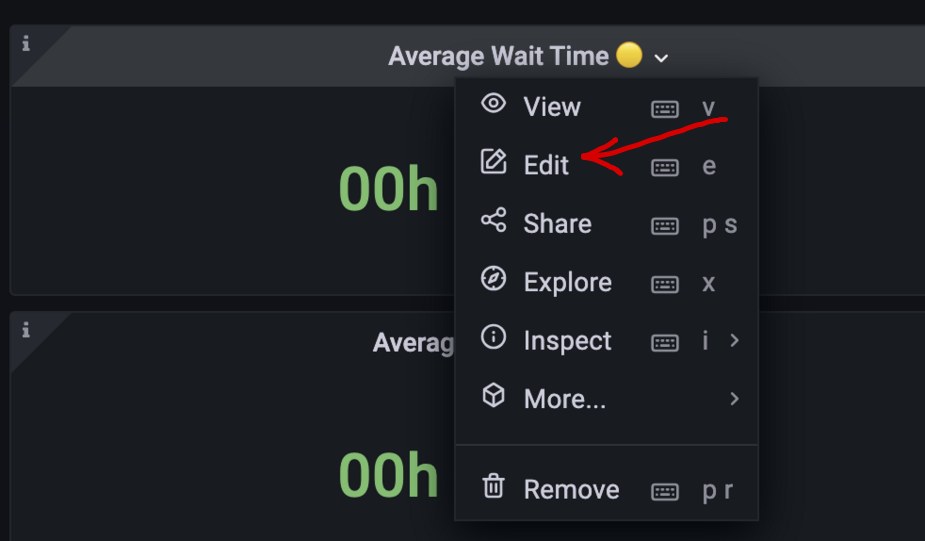
While placing your mouse cursor on the AWT/AHT panel, click on the small dropdown icon to view the settings for this panel.

-
Click on Edit.
-
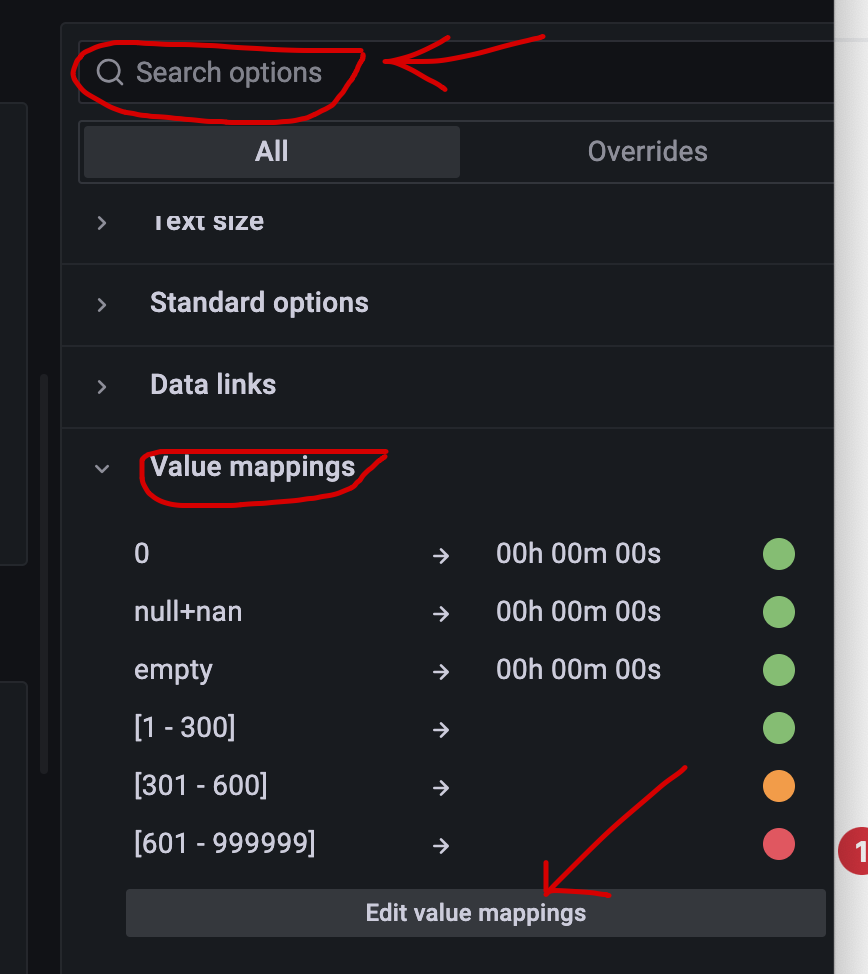
On the right-hand side panel, you can either use the search bar and type Value mappings options or either scroll downto where we have the Value mappings options.
-
click on Edit value mappings.
-
You can click on delete/modify/add new mapping to add more mappings based on your needs.
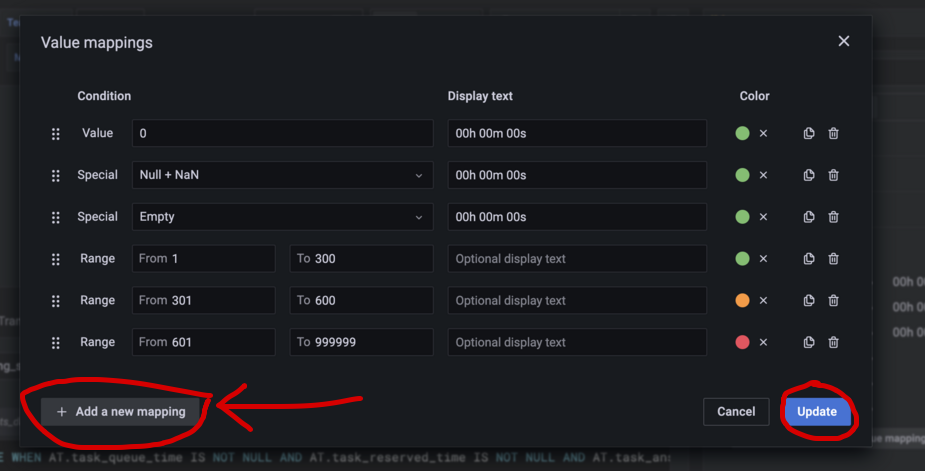
For the screenshot above range of:
- 1s-300s - green
- 301s-600s - orange
- 601s-x - red
- value == 0 , then panel will display 00h 00m 00s
- value is (Null/Nan) , then panel will display 00h 00m 00s
- value is Empty, then panell will display 00h 00m 00s
You can add/modify/remove mappings based on your needs.
-
Click on Update to save the mapping changes.
-
To save these changes, click on the Apply button on the topmost right.
-