
-
On the CX deployment machine, get the finesse gadget file by navigating to:
cd kubernetes/post-deployment/3rdPartyResources/Finesse-gadget -
Edit the AgentGadget.js file and replace the value of agentGadgetURL with your CX FQDN.
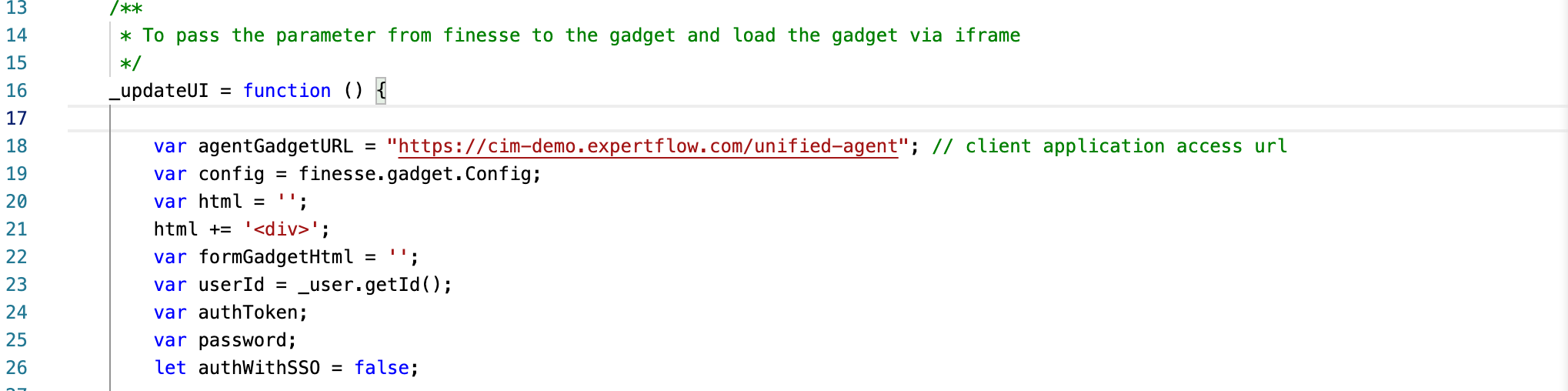
-
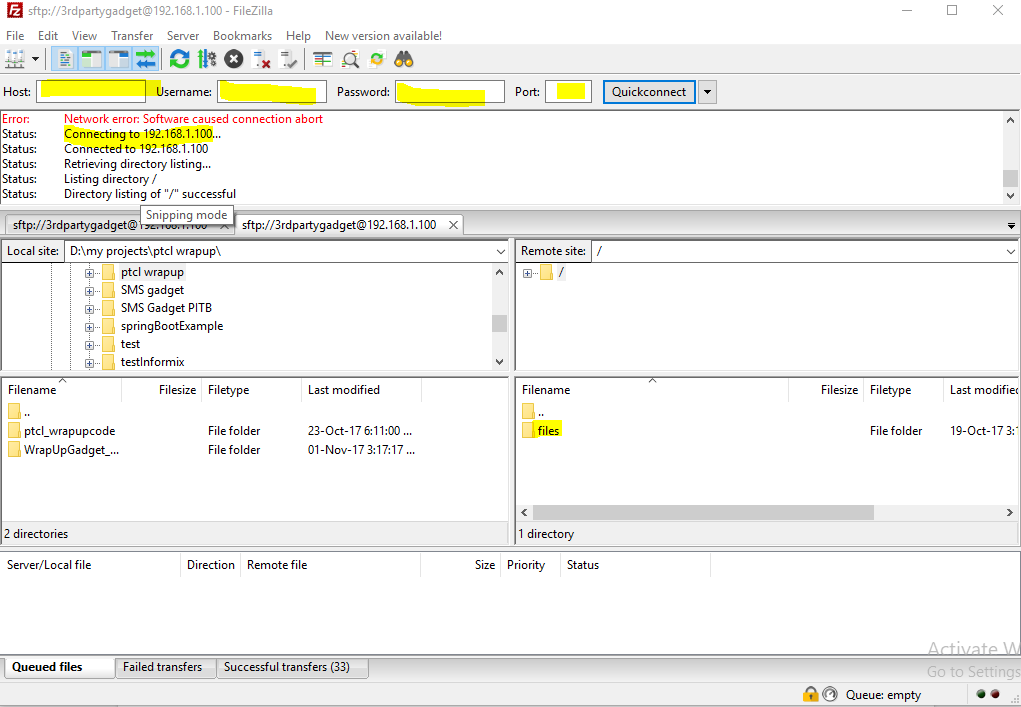
Open any FTP client and connect with the Finesse FTP Server. Add Finesse IP in the host, the user credentials(to be provided by the System/IT admin).
-
After successful connectivity with the Finesse FTP Server, you will see the folder “files” highlighted above.
-
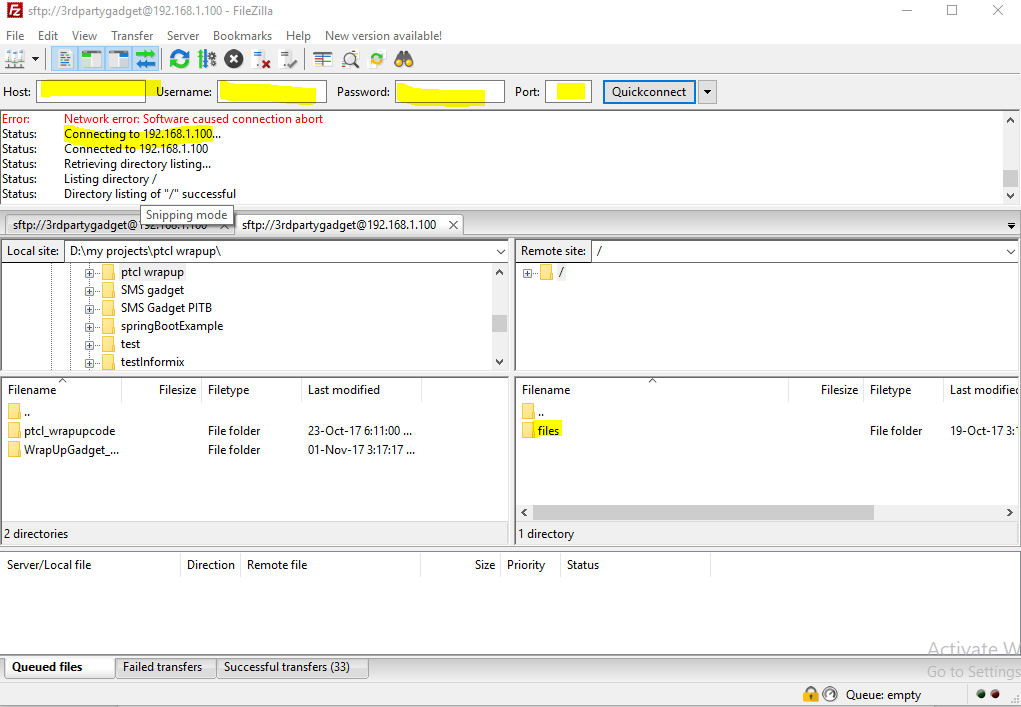
Create a new folder under the file with the name “AgentGadget”.
-
Transfer all files from <cx-install-dir>/3rdPartyResources/Finesse-gadget to Cisco Finesse /3rdpartygadget/files/AgentGadget directory using an FTP client.
-
Open finesse
cfadmin, and navigate to the desktop layout. Add “<gadget>/3rdpartygadget/files/AgentGadget/AgentGadget.xml</gadget>”. -
Save the settings.
-
Then update the CTI config variables added in the unified-agent/Agent desk environment variables according to the environment available by following this doc.
-
Now log in. The agent gadget will appear.