
-
Login to the cxSIPproxy control panel by visiting http://host-ip/cp (replace host-ip with the actual IP of your VM) and use the following credentials( username: efuser, password: efuser)
-
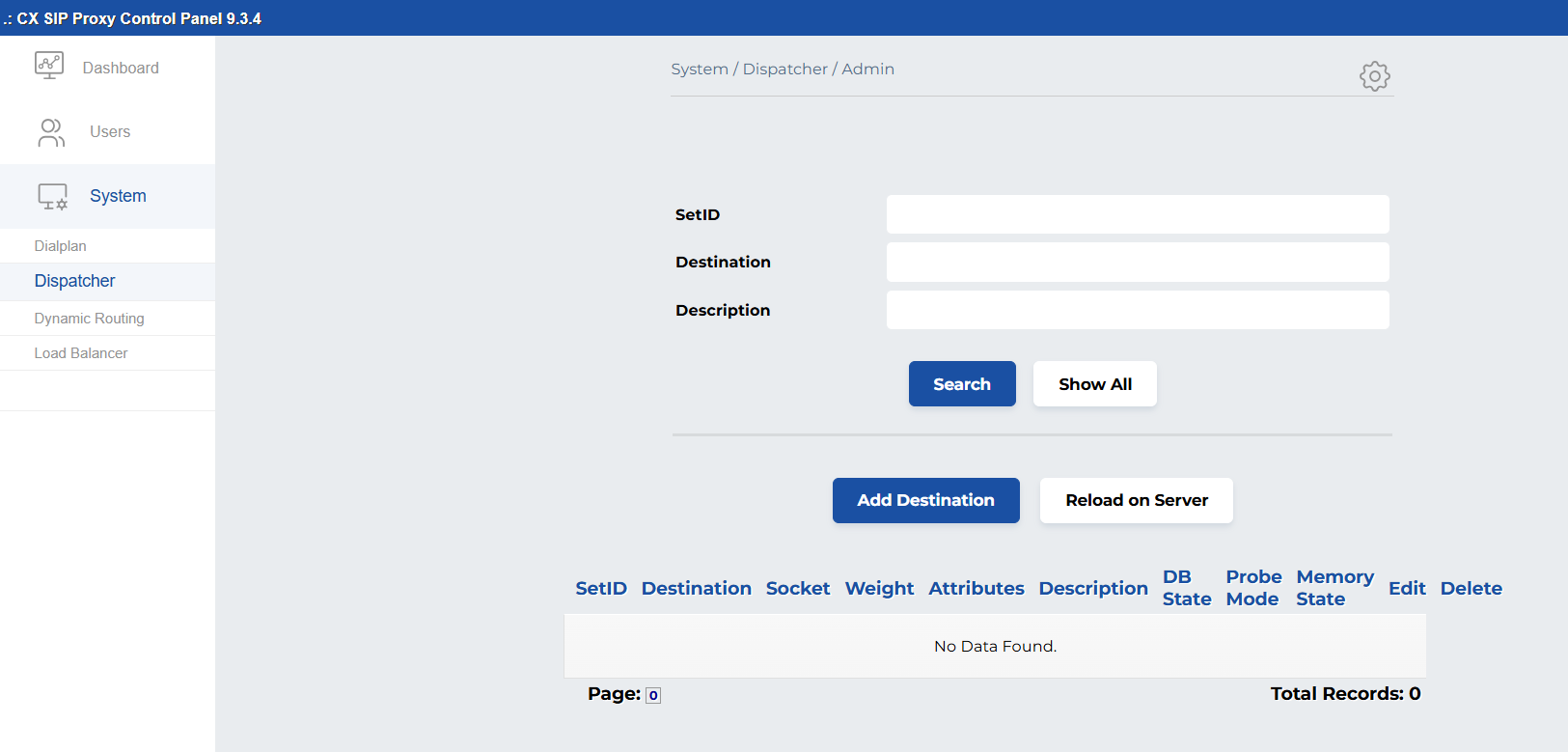
To add a Dispatcher go to System > Dispatcher
-
To add a destination click on Add Destination.
We need to organize destinations into specific sets based on their type. Each destination type will be organized into a distinct set. For example, All CVP destinations will belong to Set ID 1. Similarly, other destinations like Cube, VVB, CUCM, and Dialer will have their own respective sets like:
-
Set 1: CVP destinations
-
Set 2: Cube destinations
-
Set 3: VVB destinations
-
Set 4: CUCM
-
Set 5: Dialer.
The grouping ensures that when a call is routed to a specific set (e.g., Set ID 1 for CVP), the dispatcher will select the destination within that set according to its weight.
-
Now add the required information as specified below.
|
Parameter |
Explanation |
|---|---|
|
Set ID |
The numerical ID of the dispatcher set/group for the new destination. |
|
SIP URI |
SIP URI pointing to the destination. To define the destination, use the following SIP URI format:
Example:
|
|
Socket |
The cxSIPproxy network listener (as |
|
State |
The intial state of the destination.
Always keep the state active. |
|
Probing |
Probing determines the health status of each destination to ensure calls are not routed to unavailable destinations. There are two probing options to decide either the destination should be probed(for availability) or not.
|
|
Weight |
The weight of a destination is currently used in the hashing algorithms and it increases the probability of the destination being chosen(if we have two destinations with weights 1 respectively 4 then the second one is 4 times more likely to be selected than the other). The sum of all weights does not need to add up to a specific number. |
|
Attributes |
String of custom Attributes, to be passed to the cxSIPproxy script. Leave this column empty. |
|
Description |
The description is in DB and is not used by cxSIPproxy. Provide clear and concise descriptions for each destination. For example, if the destination is a CVP, include "CVP" in its description for easy identification. |
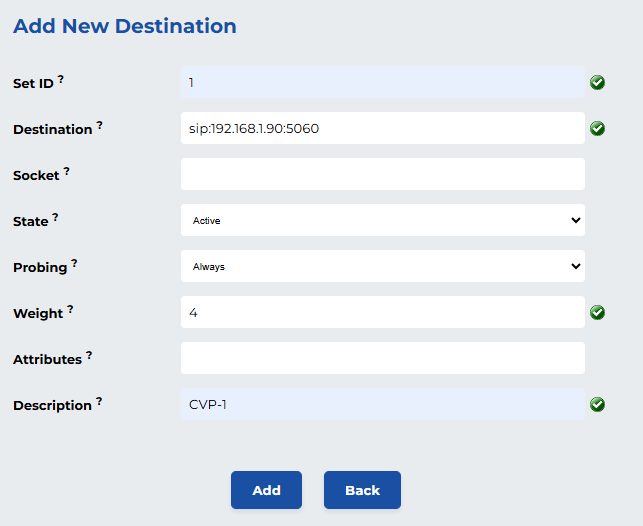
After adding the data it should look like this
-
Now click on Add to save it and it should look like this.
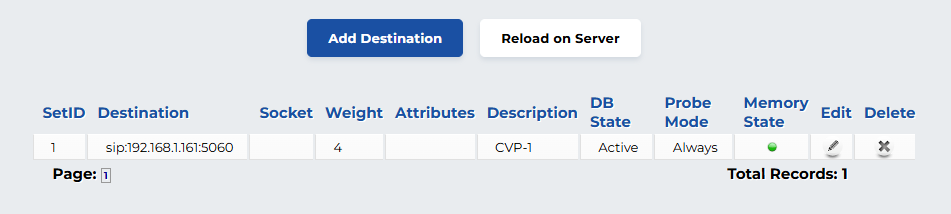
If the memory state indicator is not shown as green, click on the red Memory state indicator, and then click OK to make it active. If it’s still not green, confirm that the destination is up and accessible.
The dispatcher destination has been added. To add destinations for other sets, repeat these steps for those sets.
-
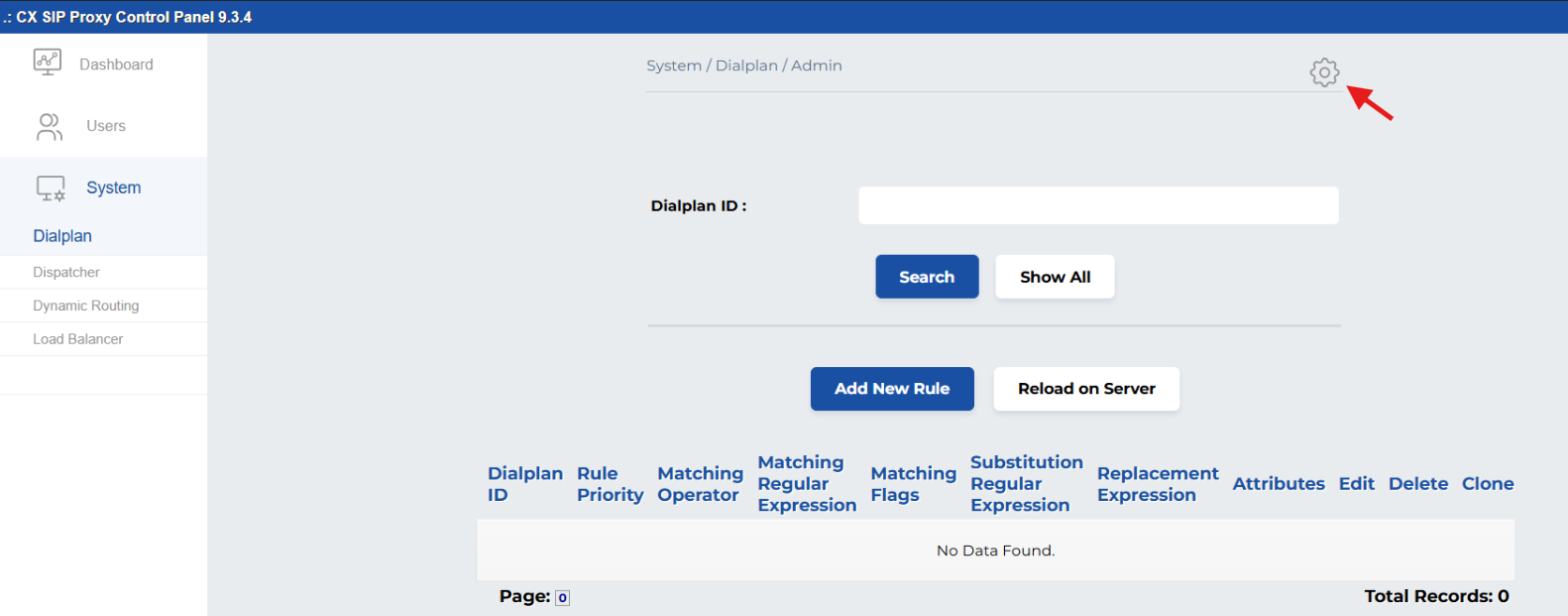
Now go to System> Dialplan and click on the gear icon
-
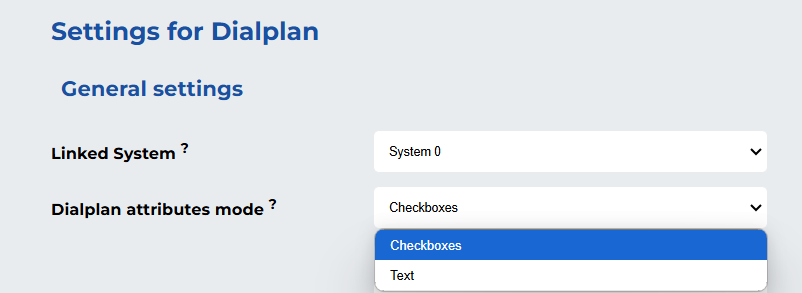
In General settings from the Dialplan attributes modes drop-down select
Checkboxes
-
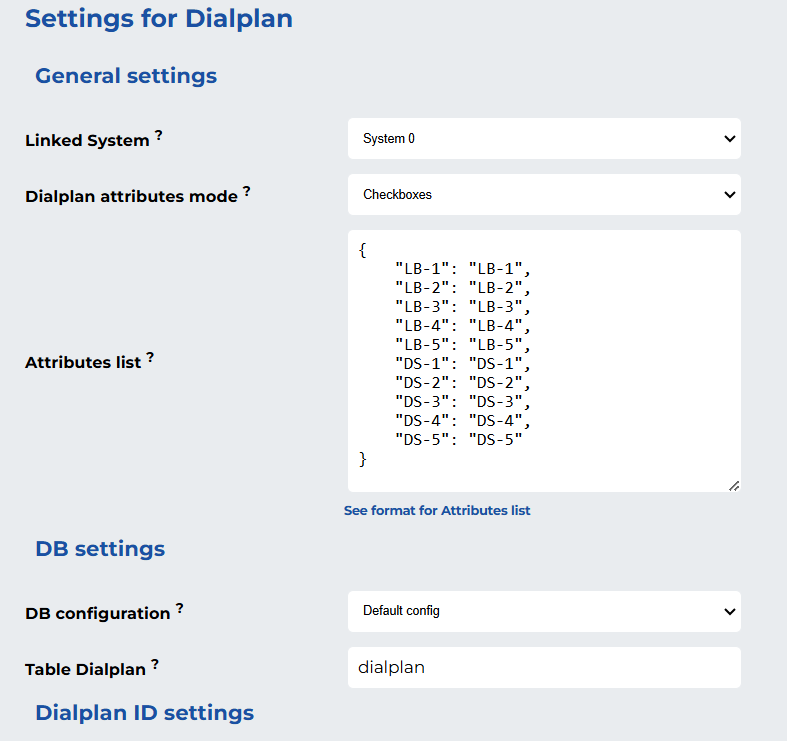
Now replace the following attributes into the Attributes list data. The code below will add attributes for five groups of load balancers and five sets/groups of dispatchers. You can add more attributes in a similar manner.
{
    "LB-1": "LB-1",
    "LB-2": "LB-2",
    "LB-3": "LB-3",
    "LB-4": "LB-4",
    "LB-5": "LB-5",
    "DS-1": "DS-1",
    "DS-2": "DS-2",
    "DS-3": "DS-3",
    "DS-4": "DS-4",
    "DS-5": "DS-5"
}
It will look like this. Click on Save to save these settings.
-
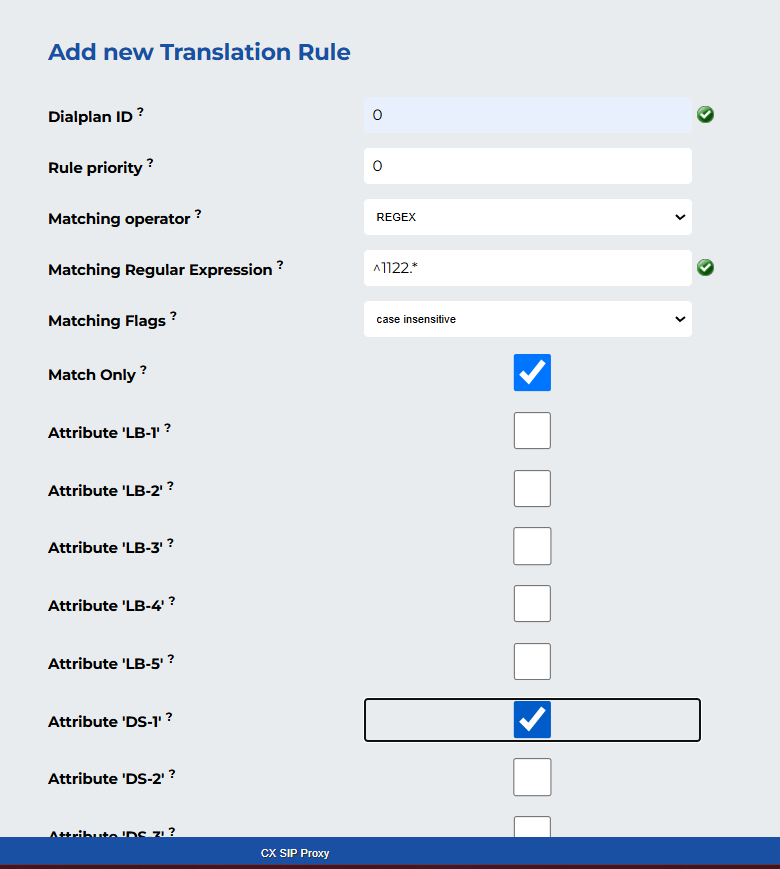
To add a new rule, click on Add New Rule in the System > Dialplan section and enter the required information as specified below.
|
Parameter |
Explanation |
|---|---|
|
Dialplan ID |
This is the unique ID that is used in the cxSIPproxy script. Always keep it equal to 1. |
|
Rule priority |
Assign a priority value or level to the rule. Use lower values for higher priority, set it to 0 for the highest priority. |
|
Matching operator |
What method will be used to match the string/username of the “To” header of the SIP message?
Select one of these options accordingly. |
|
Matching Regular Expression |
For this rule, the exact regex or string used to be matched against the string/username of the incoming message. For regex, you can use this link to confirm the regex. For prefix-based routing, a common regex used in SIP proxies is ^<prefix>.*, where, for example, a regex of ^4433.* will capture all traffic that starts with "4433," such as 434466779788@domainA, 4433322344@domainB, and so on. |
|
Matching Flags |
The case of the characters can be ignored by selecting case insensitive, or the matching can be kept case sensitive by choosing the case sensitive option. |
|
Match Only |
Check this option if you want to route SIP traffic to the next destination without substituting the prefix or username. |
|
Substitution Regular Expression |
If the Match Only option is not checked, enter the exact value used in the Matching Regular Expression here. This means that the username/prefix part of the “To” header in the SIP message will be updated by the Replacement Expression (the value provided below). |
|
Replacement Expression |
Provide the value that will replace the username of the “To” header of the SIP message. |
|
Please choose only one attribute from the list below. Attributes beginning with "DS" will route the call to specific set of dispatcher. For example, select "DS-1" to route the call to Set 1 of the dispatcher, or "DS-2" for Set 2. After adding this information, the final result should resemble the image provided below. |
|
Click on Add to save it.
Prefix-based routing can be implemented for CVPs, CUCM, or any other sets of destinations this way.