
Grant Conversation List Access to the Evaluator Role in Keycloak
By default, an Evaluator can only open the Reviews List screen in Unified Admin. This guide shows how to give Evaluators access to the Conversation List by adding the evaluator role to the Conversation List authorization policy in Keycloak.
This is a standalone configuration guide. It does not change the default Quality Management IAM setup. Follow it only when Evaluators must also use Conversation List.
Prerequisites
-
You have Keycloak admin access.
-
The Quality Management authorization configuration is already imported on the
cimclient. See IAM Configuration For QM. -
The user already has the
evaluatorrealm role. If the user does not have this role yet, assign it first from Users → Role Mapping.
What this changes
Keycloak Authorization Services use this hierarchy:
-
Resource and scope:
quality-managementwith scopeconversation-list-manage. -
Permission: links that resource/scope to one or more policies (for example,
conversation-list - quality-management - conversation-list-manage - permission). -
Policy: defines which roles are allowed (for example,
quality-manager). This guide addsevaluatorto that policy.
After you finish, users with the evaluator role can open Conversation List in Unified Admin.
Step 1: Access Keycloak
-
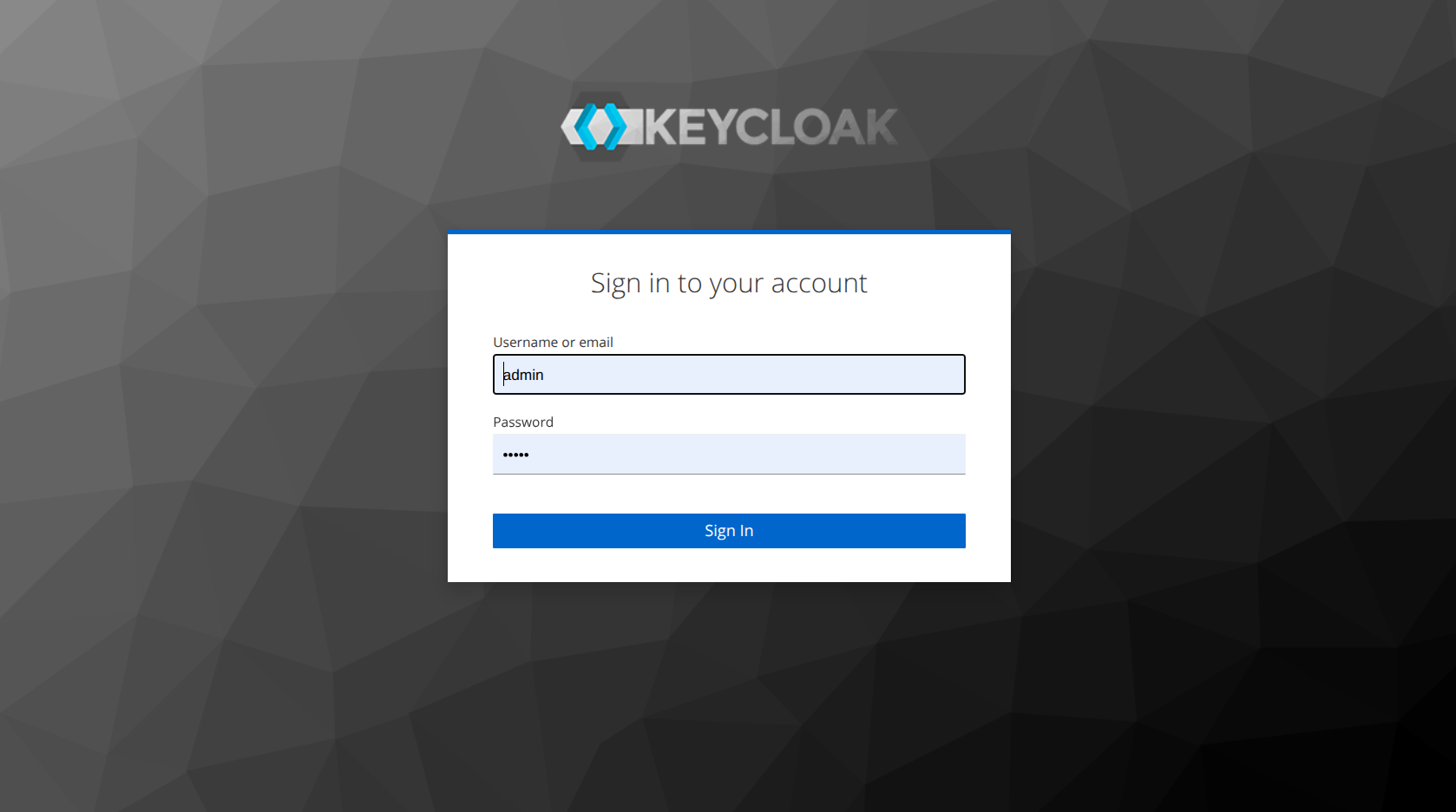
Open the Keycloak Administration Console in your browser: https://<FQDN>/auth.
-
Click Administration Console.
-
Log in with an admin account. The default username and password are
admin/adminunless your environment uses different credentials.
Step 2: Select the correct realm
Keycloak opens the Master realm by default. Conversation List policies live in the tenant realm.
-
Click the realm dropdown in the top-left corner.
-
Select the tenant realm. In most Expertflow deployments this is Expertflow.
Step 3: Open the cim client
-
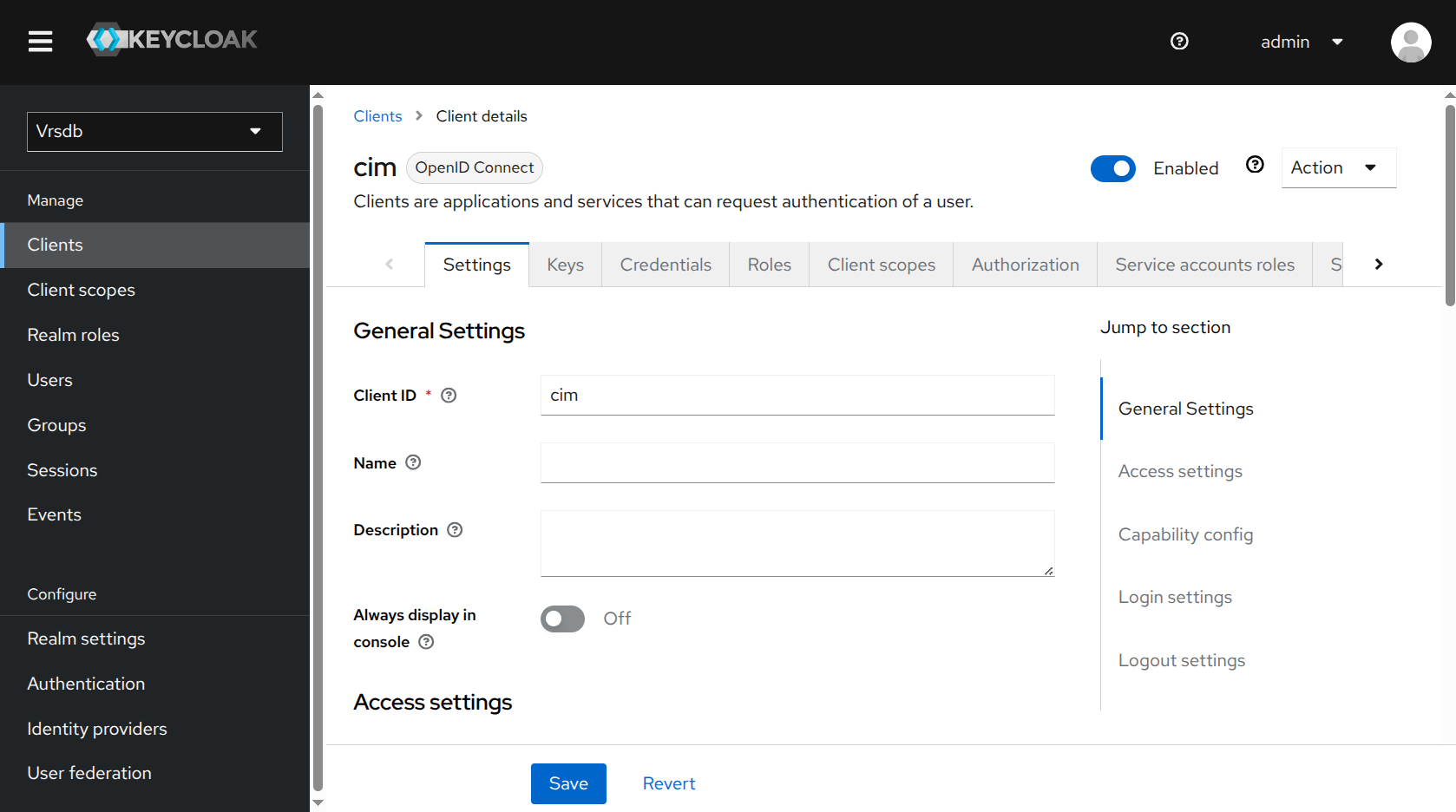
In the left sidebar, click Clients.
-
From the client list, click cim.
Step 4: Add the evaluator role to the Conversation List policy
-
Stay on the
cimclient and open Authorization → Policies. -
Open policy named
conversation-list - quality-management - conversation-list-manage - policy.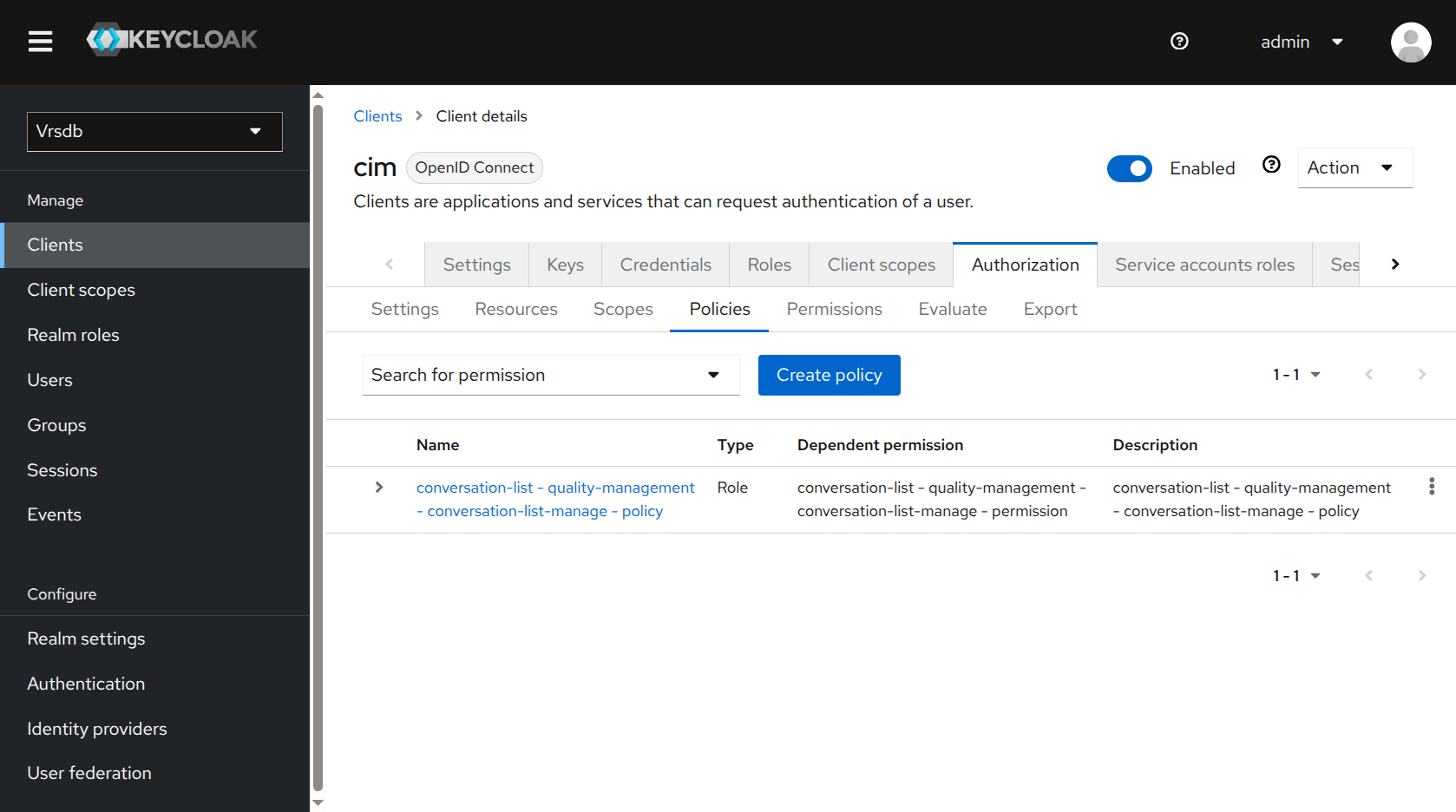
-
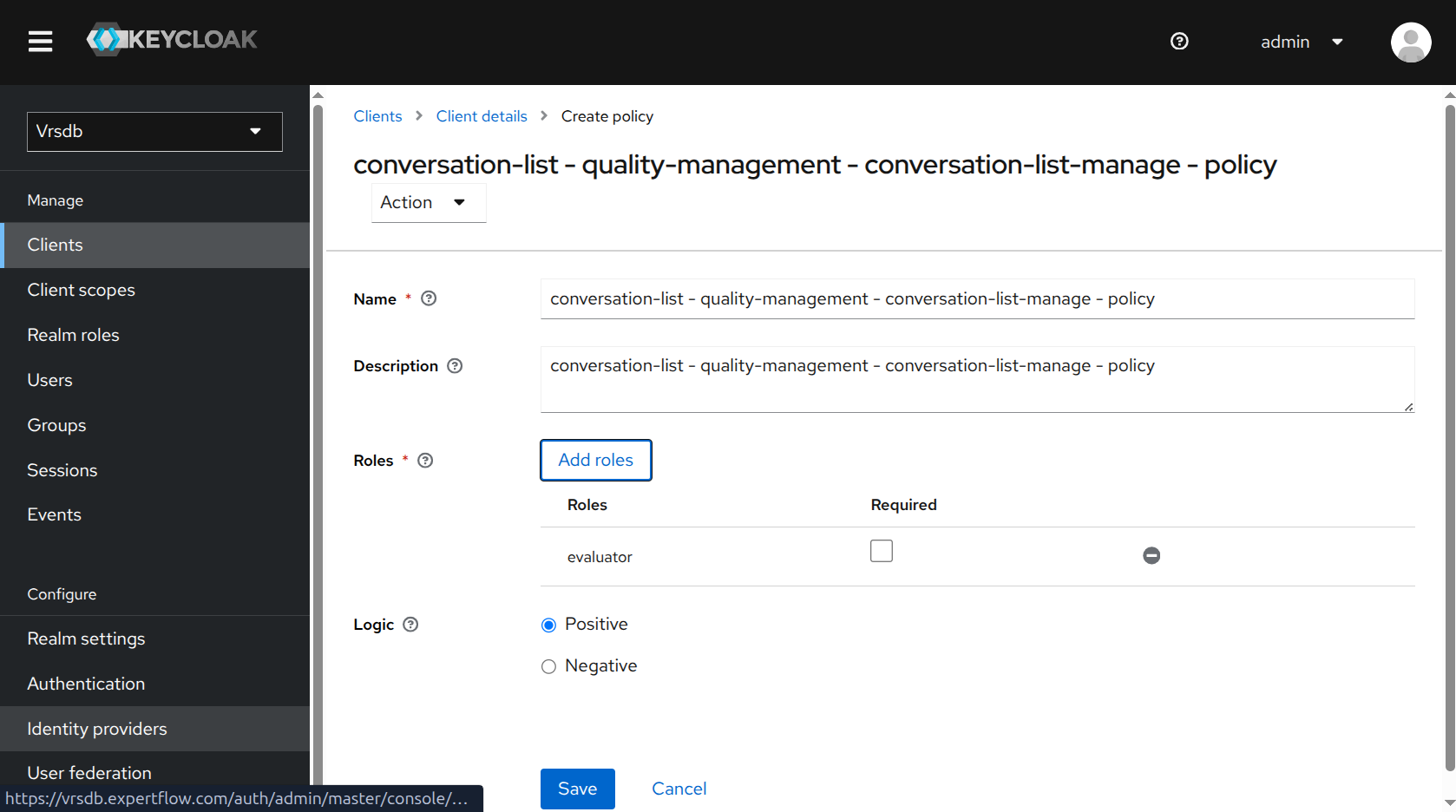
Click Add roles.
-
Select the
evaluatorrealm role. -
Confirm Logic is set to Positive.
-
Click Assign.
-
Click Save.
Step 5: Verify access
-
Log out of Unified Admin if you are already signed in as that evaluator.
-
Log in with the evaluator user.
-
Confirm Conversation List is visible under Quality Management.
-
Open Conversation List and confirm the page loads.
If Conversation List still does not appear, the user may need to sign out and sign in again so Keycloak issues a new token with the updated permissions.
Troubleshooting
-
Evaluator still cannot see Conversation List: Confirm the user has the
evaluatorrealm role, then sign out and sign in again. -
Wrong realm: Confirm you are in the Expertflow/tenant realm, not Master.