
This article helps you understand how the Customer Widget behaves when your browser’s microphone and camera permissions change. Whether you are about to start a call or are already in one, these guidelines will help you ensure your audio and video work correctly
These behaviors apply to Customer Widget version 5.1 and above
These enhancements eliminate silent failures, inconsistent UI states, and unintended session disruptions.
1. When Permissions Change During a Call
If you accidentally turn off your microphone or camera permissions while you are already talking to an agent, the call will stay connected, but your media will be affected.
If You Revoke Microphone Access During a Call
-
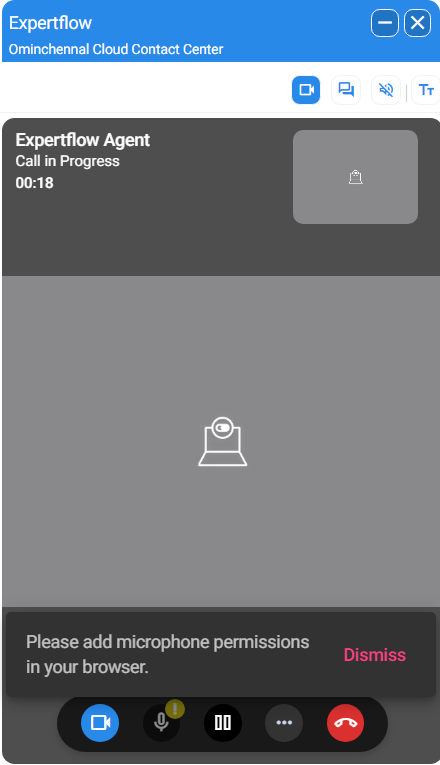
What happens: Your audio stops immediately. The agent and other participants will no longer hear you.
-
What you will see: The Customer Widget will display a "Microphone Blocked" icon and a message explaining that access has been lost.
-
What you should do: 1 Click the Lock Icon (🔒) in your browser’s address bar. 2 Toggle the Microphone setting to Allow. 3 Return to the widget your audio will automatically reconnect without you having to restart the call.
If You Revoke Camera Access During a Video Call
-
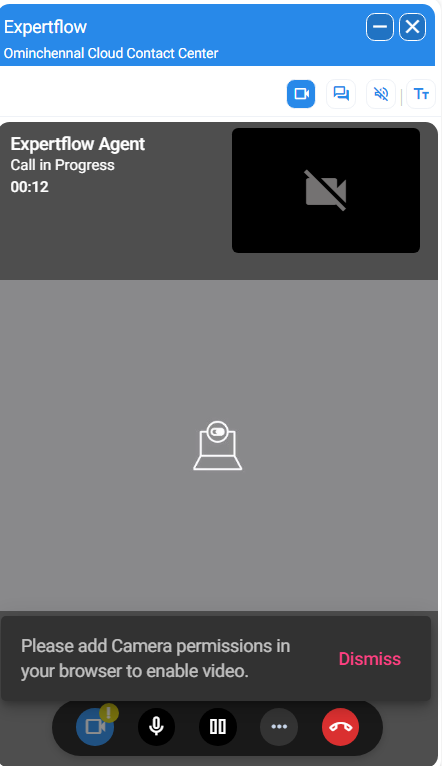
What happens: Your video feed stops immediately. The agent will see a "Video Off" indicator or a placeholder image instead of your live feed. Your audio will continue to work.
-
What you will see: A prompt in the widget will ask you to re-grant camera permission.
-
What you should do: 1 Click the Lock Icon (🔒) or the Camera Icon in your browser's address bar. 2 Change the permission to Allow. 3 Your video will resume once the browser settings are updated.
2. If Permissions Are Blocked Before a Call
To prevent "silent failures" where you think the agent can hear you but they can't, the widget now checks your permissions before the call starts.
If Microphone Access is Blocked
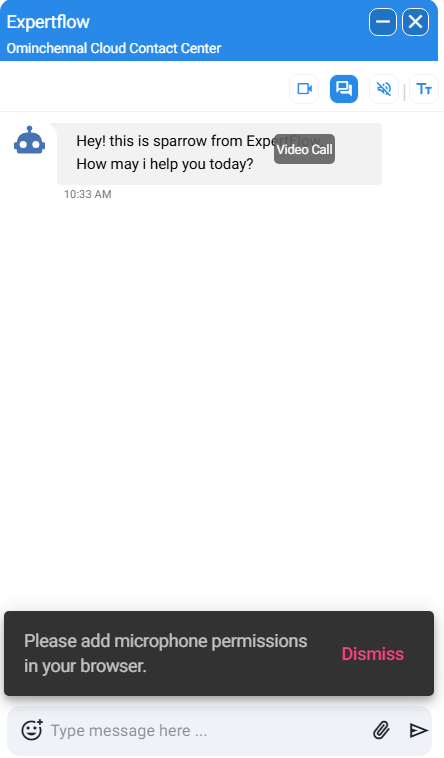
You cannot start a call if the microphone is blocked by your browser.
-
What you will see: An error message stating that please add microphone permissions in your broswer.
-
What you should do: Follow the on-screen instructions to enable your microphone in your browser settings (usually via the address bar) and then click the call button again.
If Camera Access is Blocked (Video Calls)
If you try to start a video call but the camera is blocked:
-
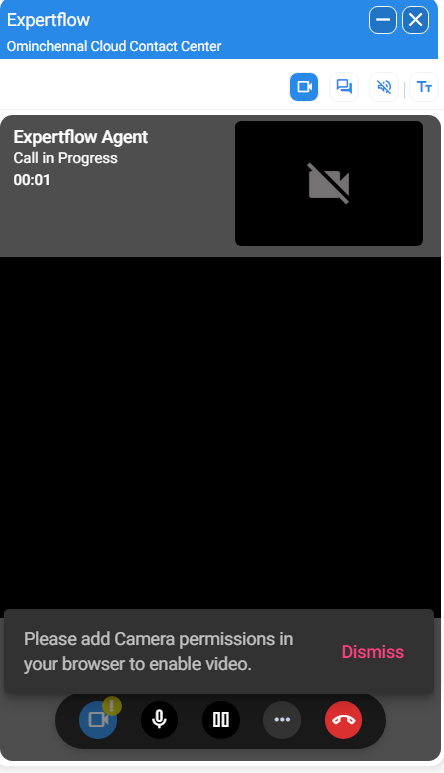
What happens: The widget will notify you that the camera is unavailable.
-
What you will see: A validation message giving you the option to either enable the camera or proceed with an audio-only call.