
Use this guide when a role needs an extra Quality Management capability in Unified Admin for a role. Some capabilities are already included with a role. For example, quality-manager can open Configuration in view-only mode, while admin can also modify those settings. The permissions below add manage or extra access on top of that.
This is a standalone configuration guide. It does not change the default Quality Management IAM setup. Follow it only when a role must do something it cannot do today.
Prerequisites
-
You have Keycloak admin access.
-
Quality Management solution is deployed and working.
Permissions and usage
These permissions use the resource quality-management on the cim client. Keycloak Authorization Services use this hierarchy:
-
Resource and scope:
quality-management. Each row below is one permission on that resource. -
Permission: links that resource and scope to one or more policies.
-
Policy: defines which roles are allowed. The Default role column lists the roles already on that policy. Add the realm role that should also receive the permission, and leave the default roles in place.
|
Permission |
What the user can do |
Default role |
Policy |
|---|---|---|---|
|
Edit Configuration |
Change a setting on Quality Management → Configuration and save it. Viewing Configuration is already included with |
|
|
|
Load earlier interactions |
Shows Load More at the top of Conversation Review when the conversation is opened from Reviews List while evaluating. The user can load earlier customer interactions. Without this permission, Load More is hidden. The button stays hidden when the conversation is opened from Conversation List. |
None |
|
|
Open Conversation List |
Shows Conversation List under Quality Management. |
|
|
|
Discard a review |
Shows Discard Review on a Pending or In Progress review while evaluating from Reviews. Without this permission, Discard Review is hidden. |
|
|
|
Assign a review |
Shows Assign when the conversation is opened from Conversation List. The user can assign that review to an evaluator. Without this permission, Assign is hidden. |
|
|
|
Reevaluate a review |
Shows Reevaluate on a completed review opened from Reviews. The user can start a new evaluation of that review. Without this permission, Reevaluate is hidden. |
|
|
How to add a role to a policy
Find the permission in the table, then add a realm role to the policy named in that row. Repeat these steps once for each permission you are granting.
Step 1: Access Keycloak
-
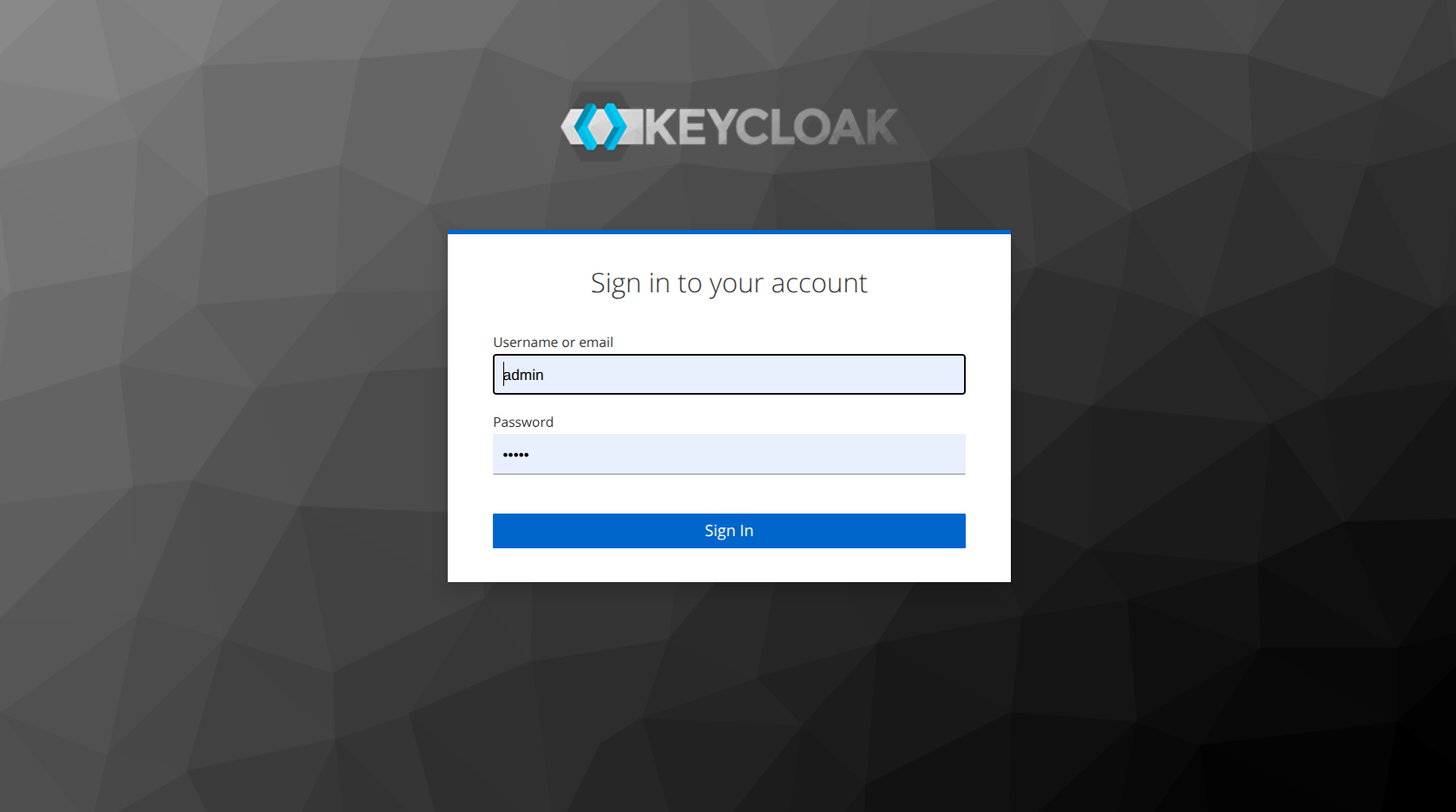
Open the Keycloak Administration Console in your browser:
https://<FQDN>/auth. -
Click Administration Console.
-
Log in with an admin account.
Step 2: Select the correct realm
Keycloak opens the Master realm by default. These policies live in the tenant realm.
-
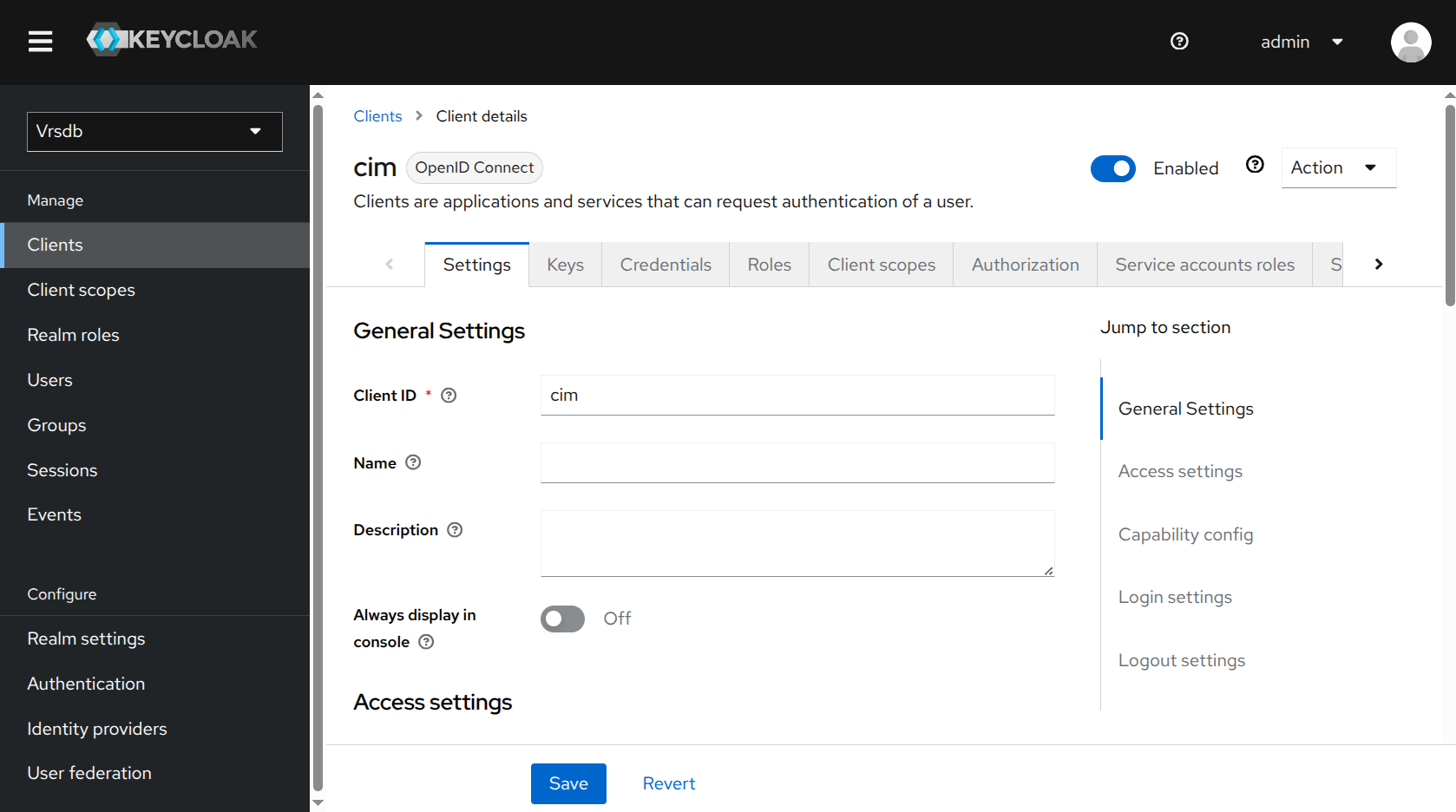
Click the realm dropdown in the top-left corner.
-
Select the tenant realm.
Step 3: Open the cim client
-
In the left sidebar, click Clients.
-
From the client list, click cim.
Step 4: Add the role to the policy
-
Stay on the
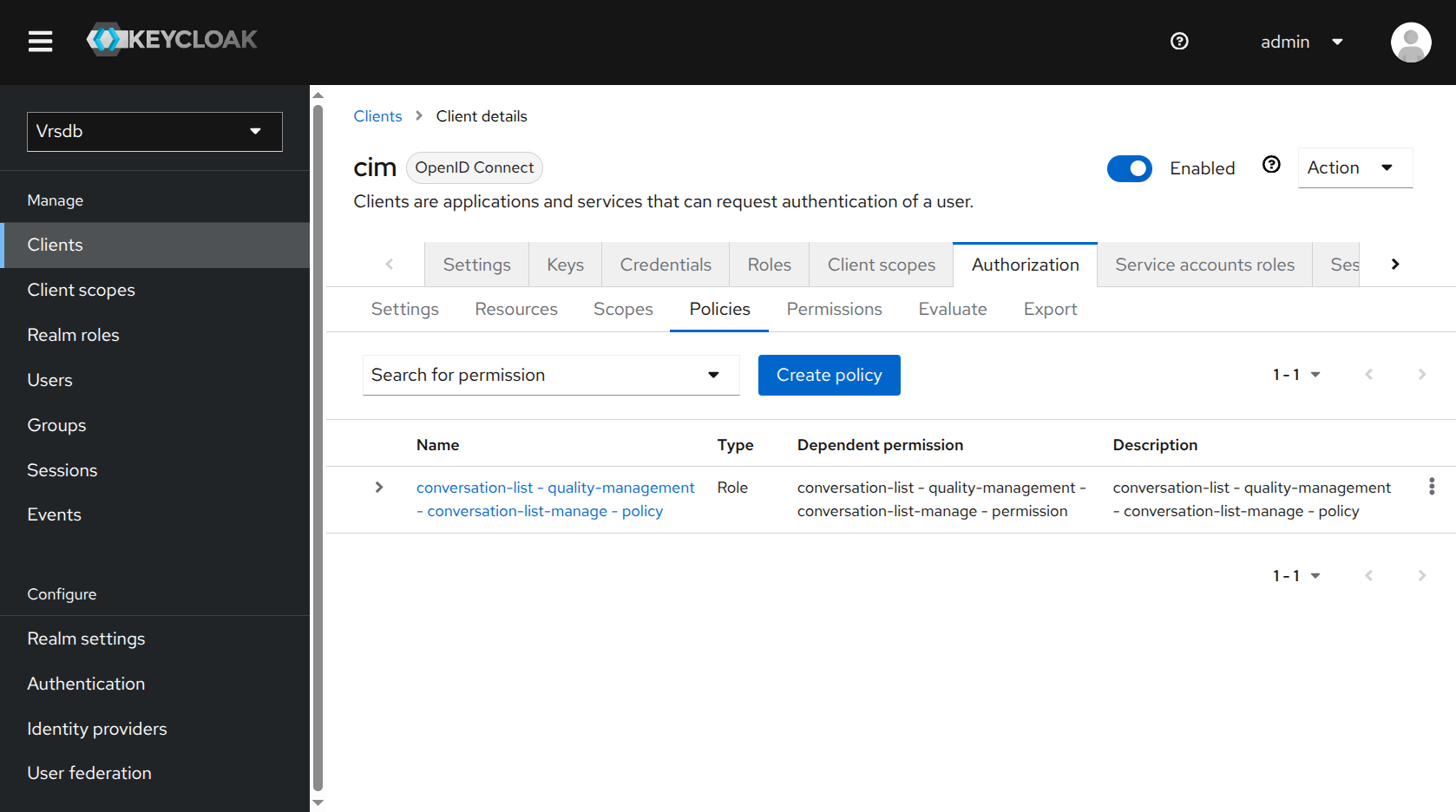
cimclient and open Authorization → Policies. -
Open the policy named in the table for the permission you are granting. The screenshot shows the Conversation List policy as an example.
-
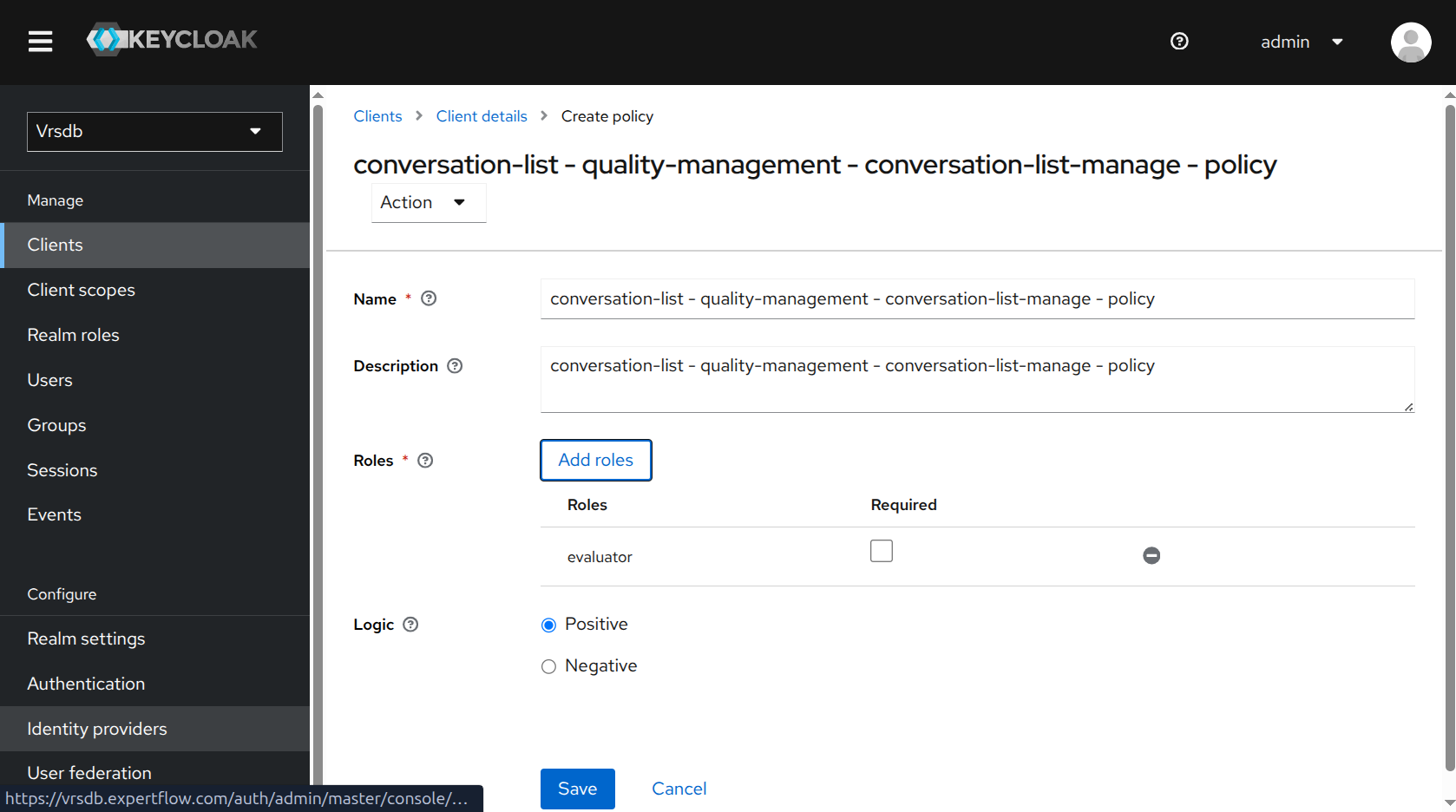
Click Add roles.
-
Select the realm role that should receive this permission.
-
Confirm Logic is set to Positive.
-
Click Assign.
-
Click Save. The screenshot shows a role added on the Conversation List policy as an example. Leave any roles already on the policy.
Troubleshooting
-
The user still cannot use the permission: Confirm the user has the realm role you added. Confirm that role is assigned on the policy named in the table. Then sign out of Unified Admin and sign in again.
Sometimes Keycloak continues using previous settings and permissions. If that happens, delete the Keycloak pod after adding the role to the policy and check again.
-
A role that already had access no longer has it: Confirm that role is still on the policy. Leave the roles that were already there when you add another role.
-
Wrong realm: Confirm you are in the tenant realm, not Master.