
This feature is available starting from the CX 4.10.5 and CX 5.1.0 releases.
Enables quality evaluators, supervisors, and compliance officers to review synchronized audio and screen recordings of agent-customer interactions. This provides complete context for quality assessments, coaching, and compliance verification, bridging the gap between voice-only call monitoring and complete interaction visibility.
Key Capabilities
-
Synchronized playback: View screen recordings alongside voice recordings with a unified, time-aligned timeline.
-
Hold period handling: Screen recording continues during hold periods; audio shows silence gaps for clear timeline alignment
-
Multi-monitor support: Both agent screens are recorded side-by-side in a single video file.
-
Evaluator access: Screen recordings are available to Quality Managers (via Conversation List) and Evaluators (via Reviews).
Limitations
Screen recording is currently available for simple inbound and outbound calls only (the first leg of the call). The following scenarios are not yet supported:
-
Consult calls
-
Consult transfer calls
-
Direct transfer calls
-
Conference calls
-
Screen recordings for subsequent legs (after transfers)
Prerequisites
Before screen recordings appear in QM, ensure the following are configured:
-
VRS: Screen recording is enabled and operational.
-
QM Connector: Configured correctly to push screen recordings to CX.
-
Agent workstation: Screen recording permissions are configured correctly. Follow this Deployment Guide for configurations.
How to View Screen Recordings
|
Quality Manager |
Evaluator |
|---|---|
|
Log in: Log in to Unified Admin at |
Log in to Unified Admin at |
|
Navigation – In the side navigation, go to Quality Management → Conversation List. A list of conversations appears. 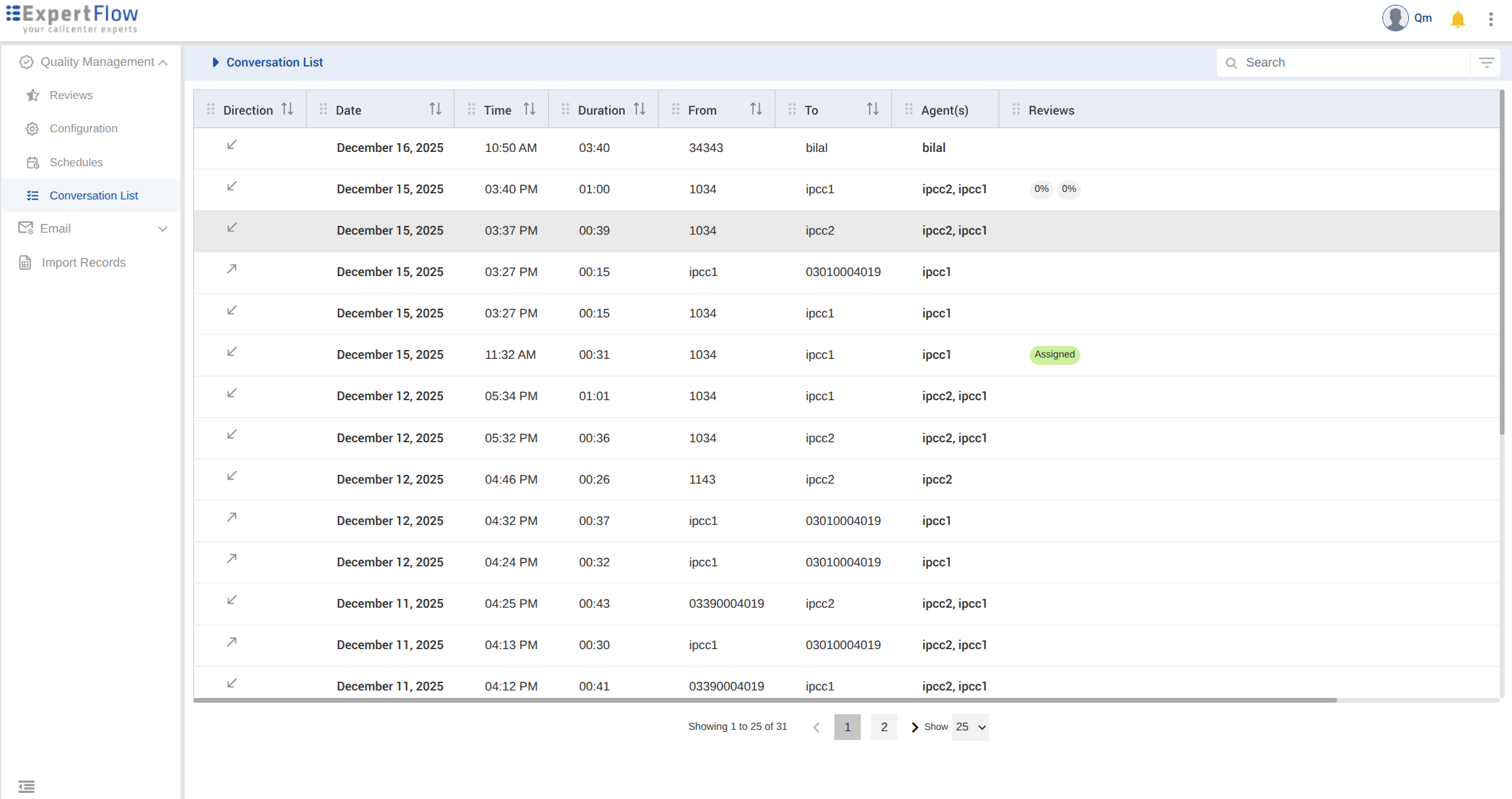
|
In the side navigation, go to Quality Management → Reviews. Your assigned reviews appear. 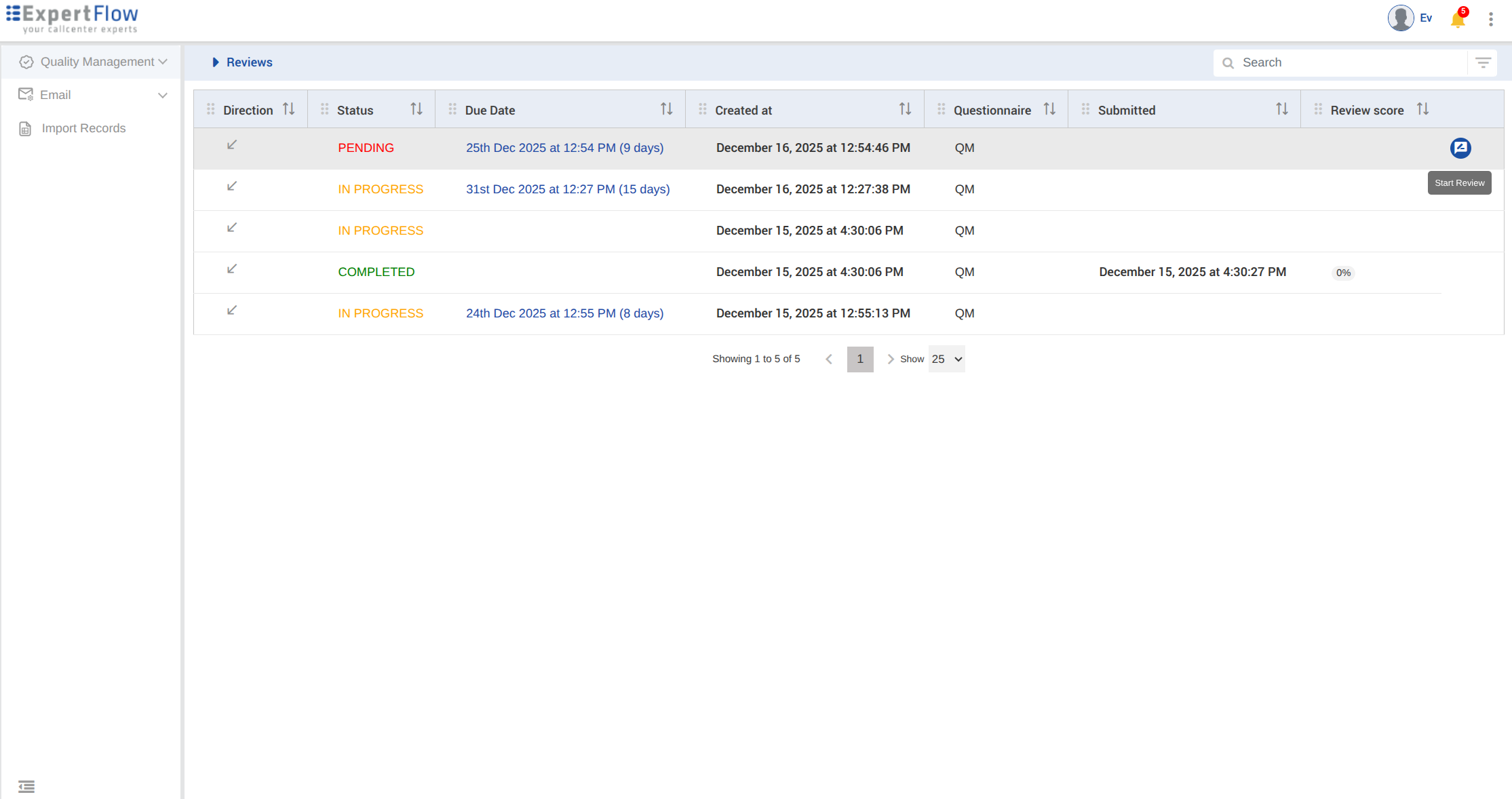
|
|
Open Conversation: Click on a conversation. If there is more than one leg, expand the conversation to view all legs. For Cisco-handled calls, you see the media icons for each leg. 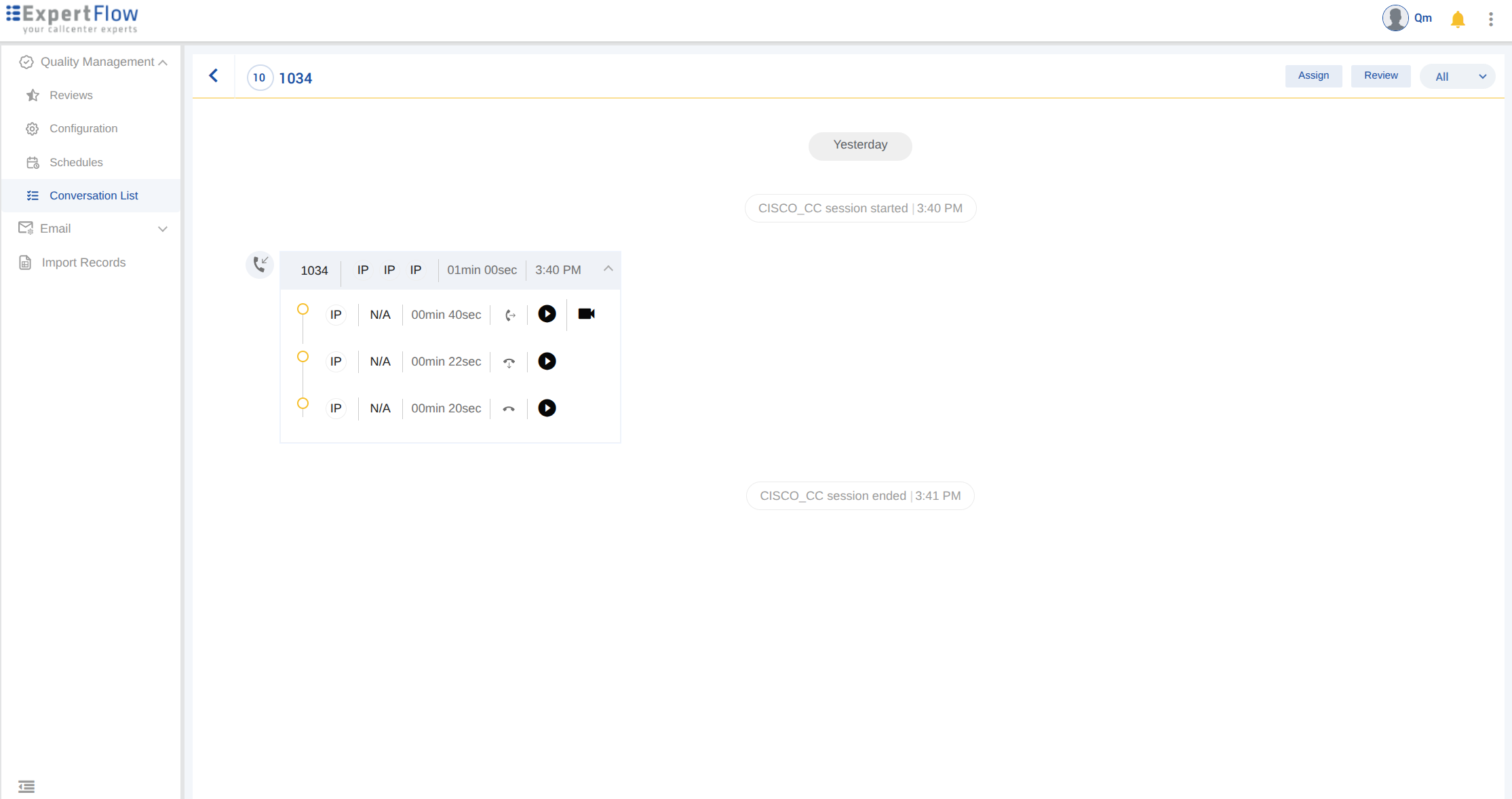
|
Open Reviews: Hover over a review that is not yet completed and click Start. If the conversation has multiple legs, expand the conversation to view all legs and corresponding media icons. |
|
Play media: Click the Video icon to play the screen + audio recording, or click the Audio icon to play audio only. 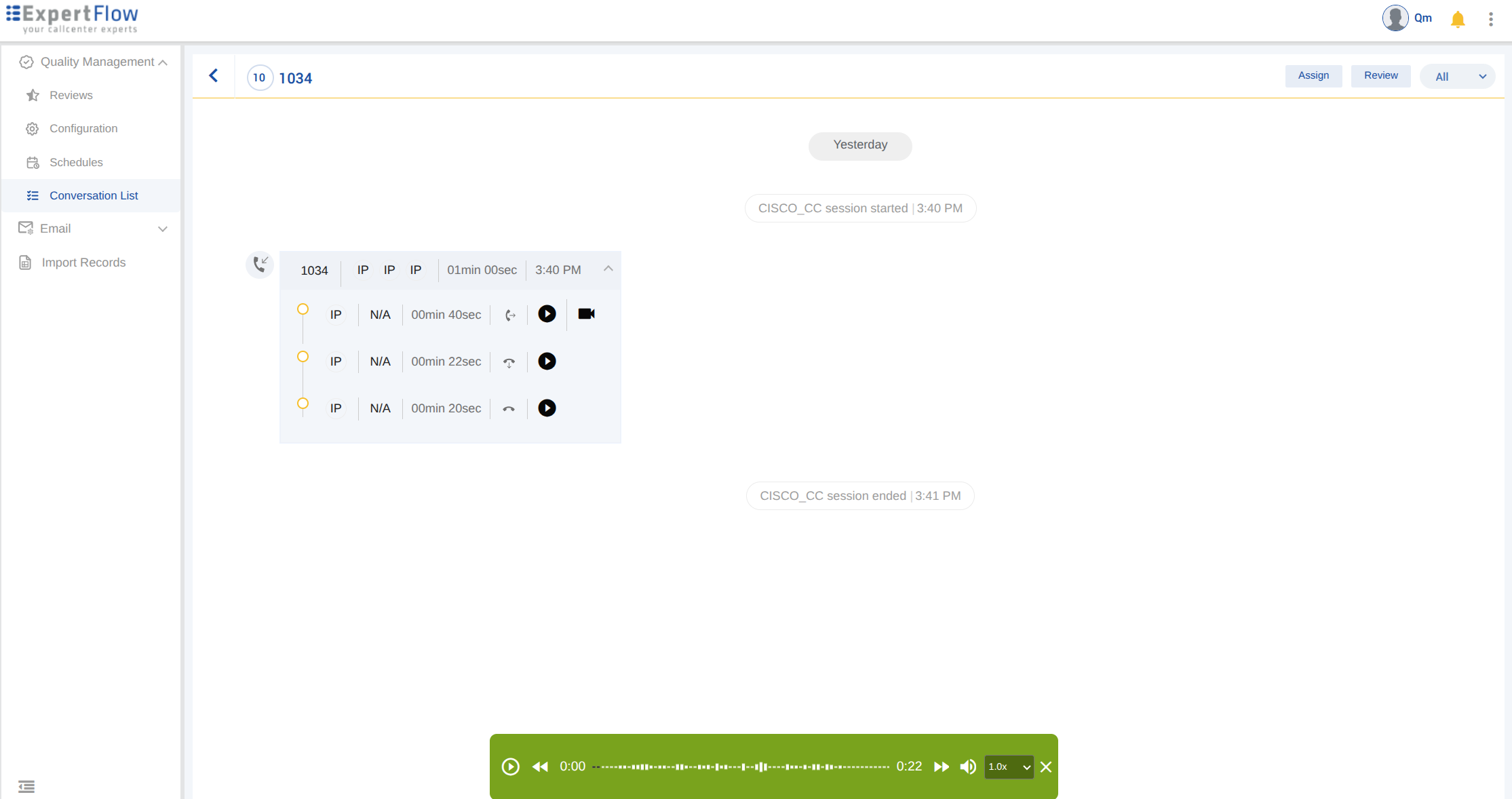
|
Play media: Click the Video icon to play the screen + audio recording, or click the Audio icon to play audio only. 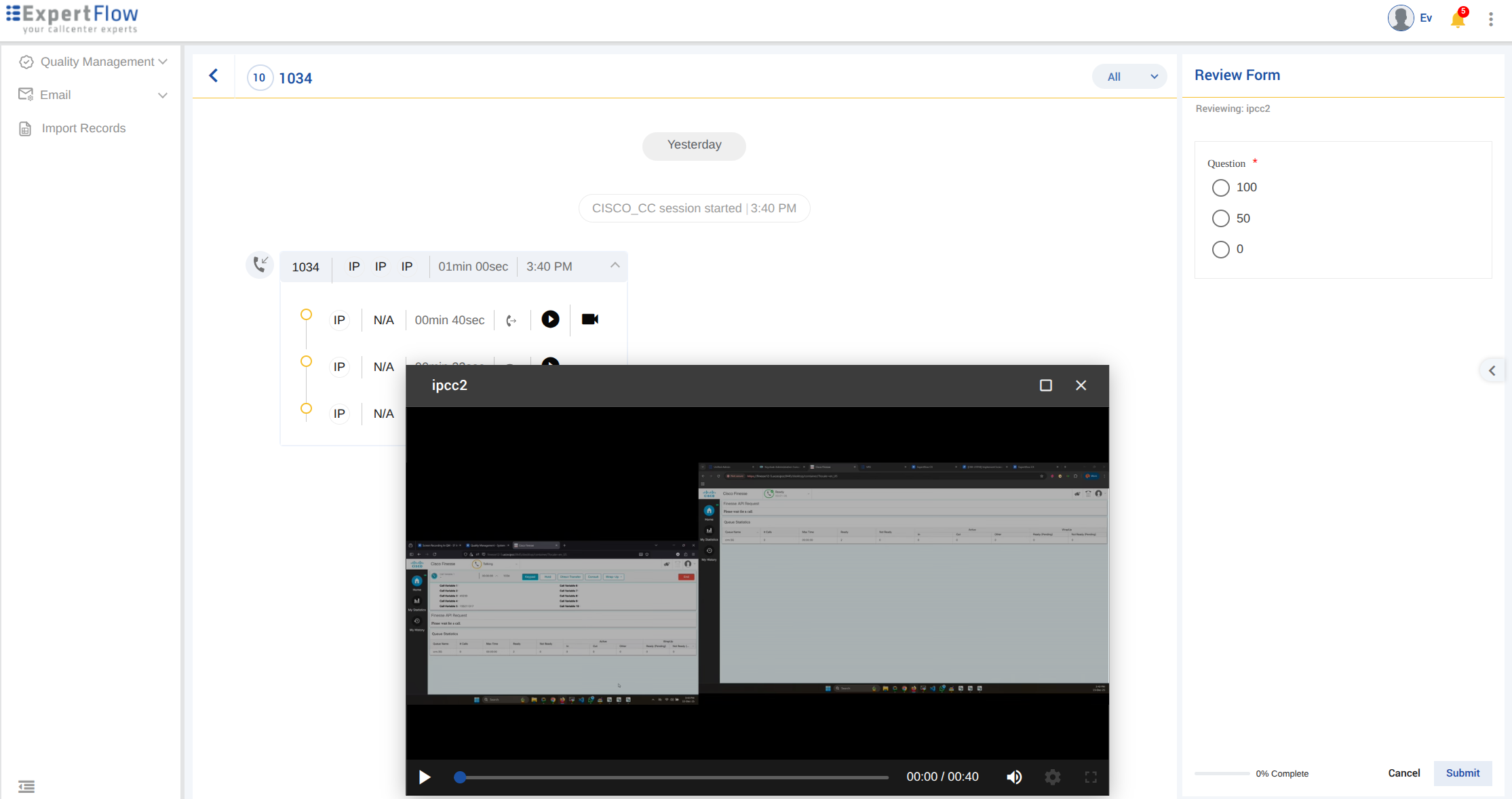
|
Troubleshooting
|
Issue |
Possible Cause |
Resolution |
|---|---|---|
|
Video icon not appearing |
Call type not supported (transfer, consult, conference) |
Screen recording is only available for simple inbound/outbound first-leg calls |
|
Video icon not appearing |
Screen recording not enabled |
Contact your administrator to verify that VRS screen recording is enabled |
|
The recording won't play |
Browser compatibility issue |
Use the latest version of Chrome, Firefox, or Edge |
|
Audio/video out of sync |
Known limitation |
Minor drift may occur on very long calls; this will be improved in future releases |
Related Documentation
-
System Limitations - Quality Management System Limitations