
Grant Load History Access in Keycloak
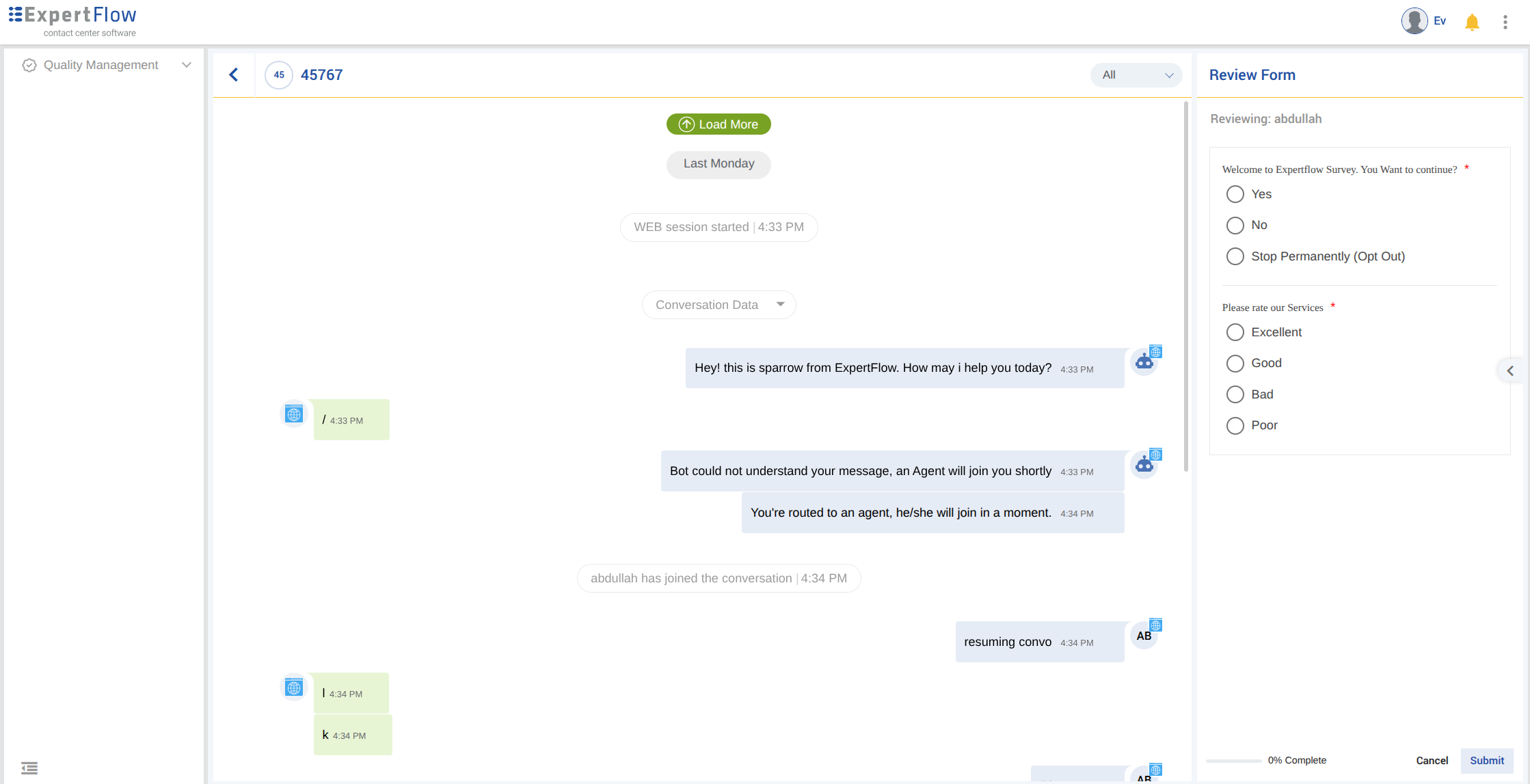
A user sees the Load More button on Conversation Review when their role is allowed by the Load History policy. This applies to any role you add, including quality-manager and evaluator.
With this permission, the user can load earlier customer interactions while evaluating a conversation. Without it, the Load More button is hidden.
This is a standalone configuration guide. It does not change the default Quality Management IAM setup. Follow it when a role must see previous interactions from Conversation Review.
Where Load More appears. The button is on Conversation Review when the conversation is opened from Reviews List while evaluating.
Step 1: Access Keycloak
-
Open the Keycloak Administration Console in your browser: https://<FQDN>/auth.
-
Click Administration Console.
-
Log in with an admin account. The default username and password are
admin/adminunless your environment uses different credentials.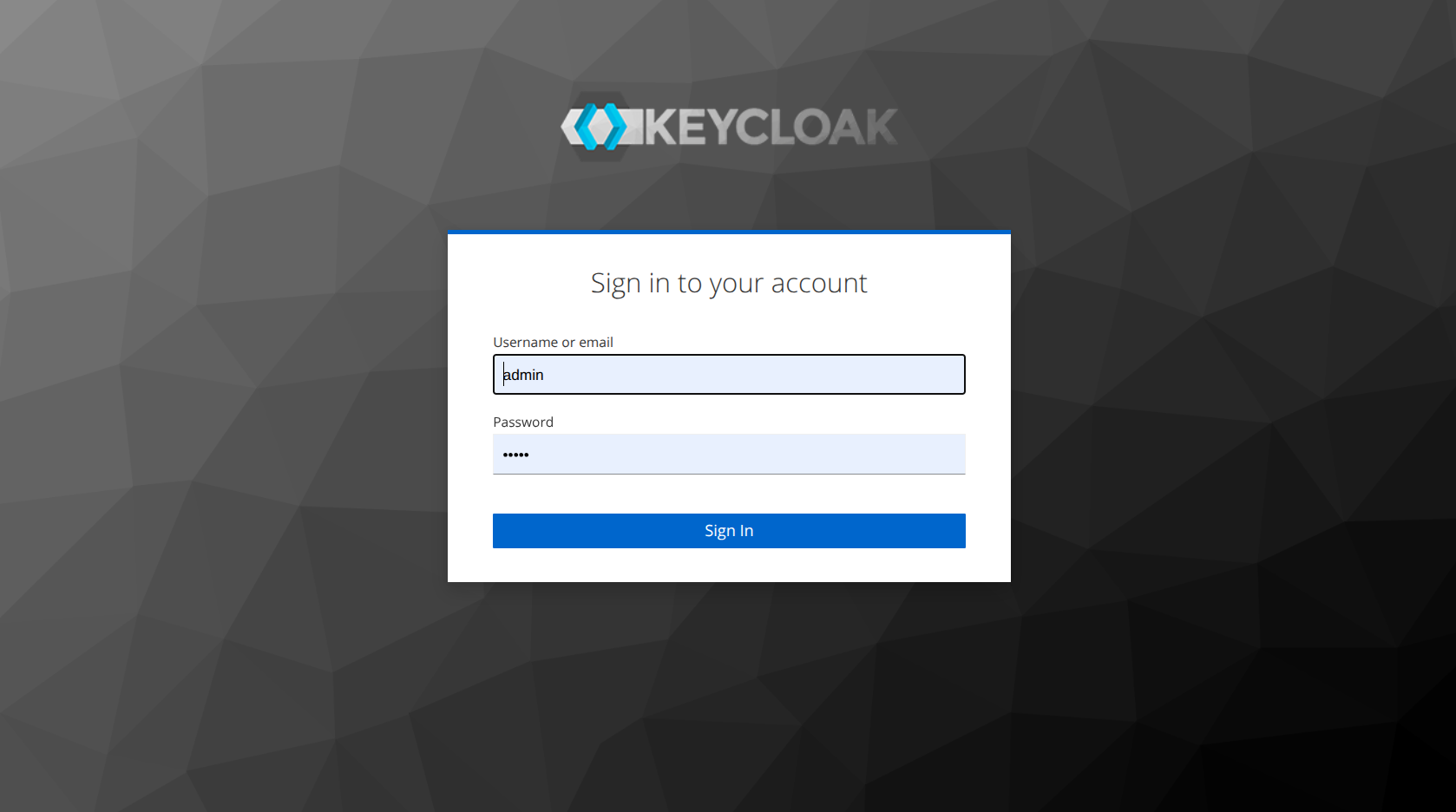
Step 2: Select the correct realm
Keycloak opens the Master realm by default. Load History policies live in the tenant realm.
-
Click the realm dropdown in the top-left corner.
-
Select the tenant realm. In most Expertflow deployments this is Expertflow.
Step 3: Open the cim client
-
In the left sidebar, click Clients.
-
From the client list, click
cim.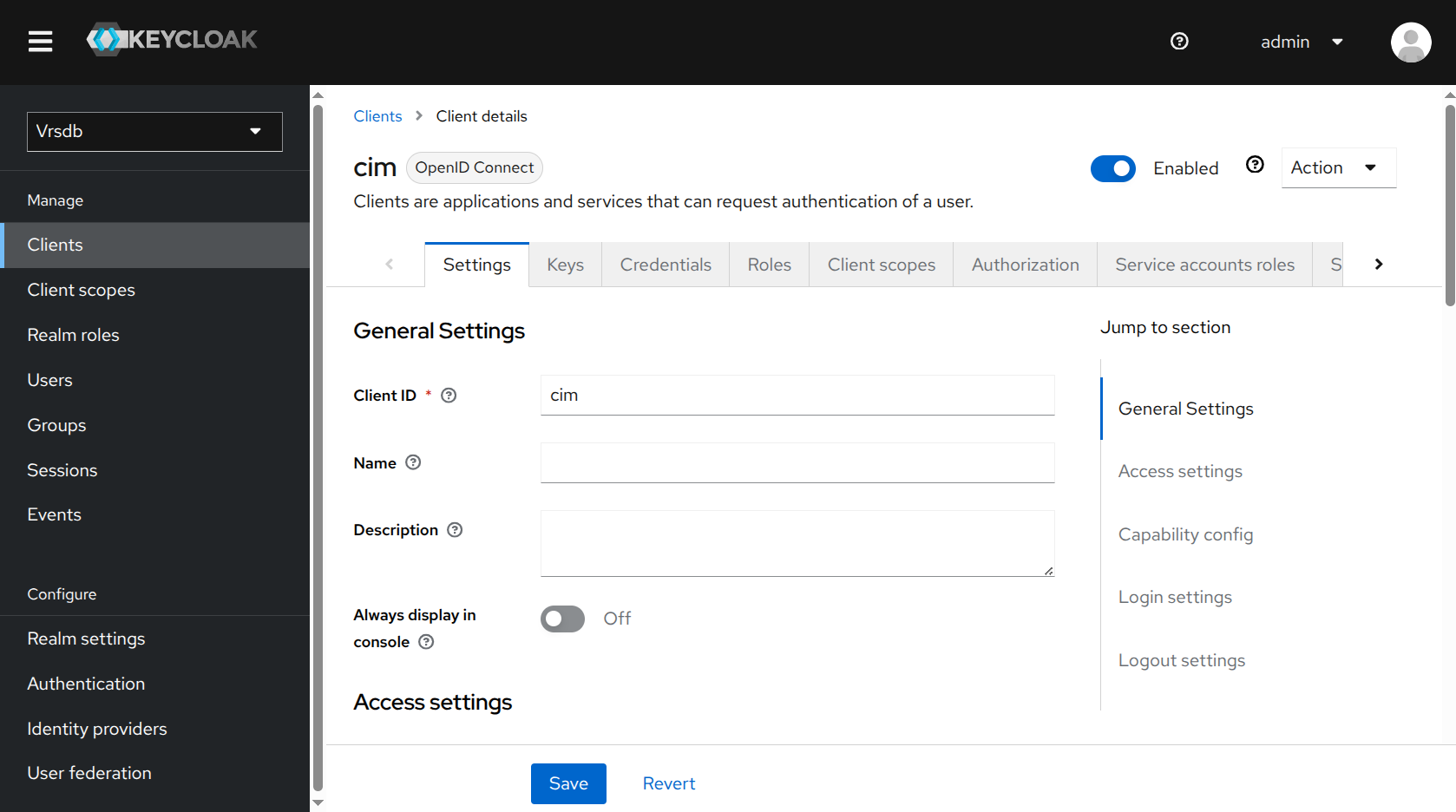
Step 4: Add the role to the Load History policy
-
Stay on the
cimclient and open Authorization → Policies. -
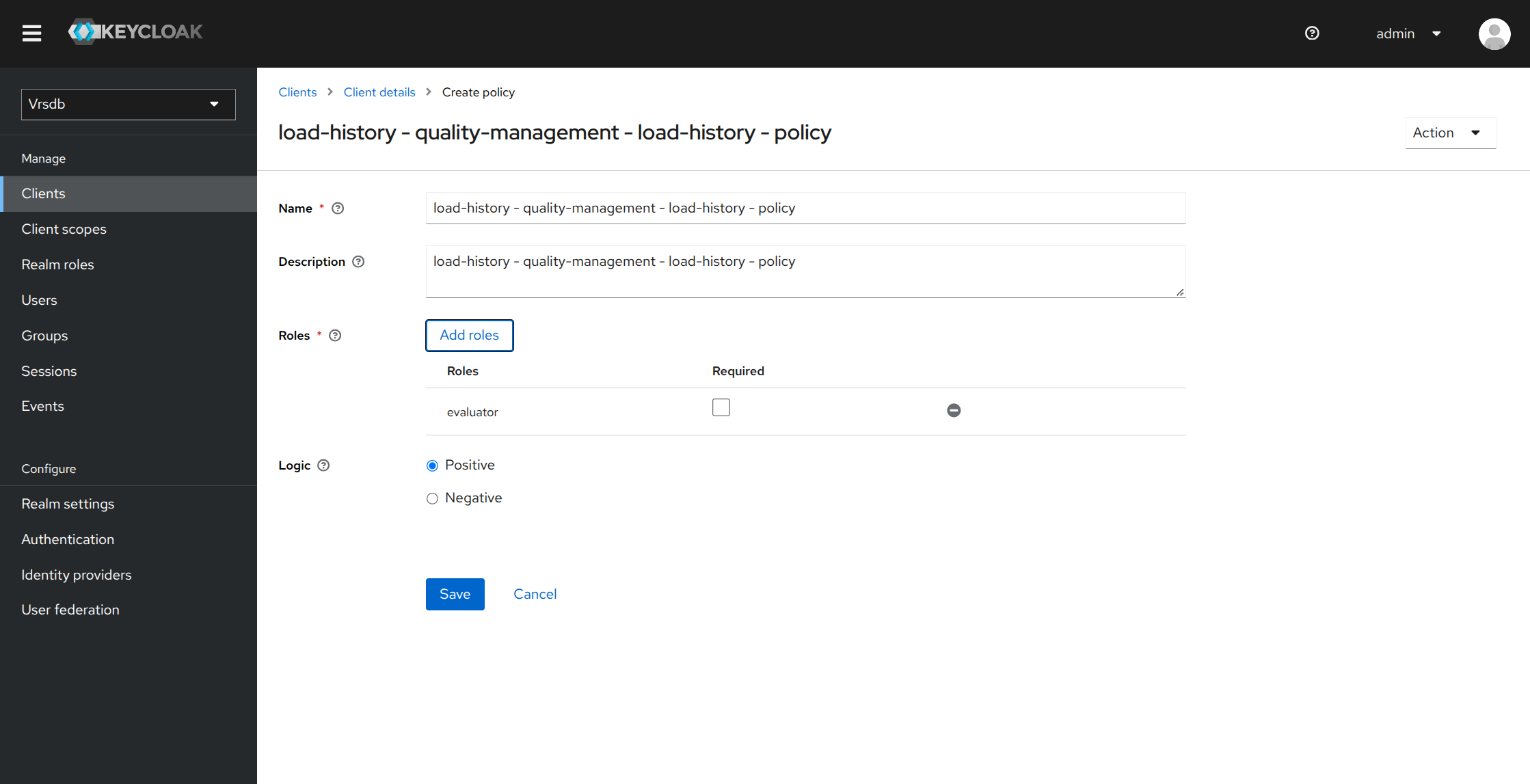
Open the policy named
load-history - quality-management - load-history - policy. -
Click Add roles.
-
Select the realm role that should see Load More, such as
quality-managerorevaluator. -
Confirm Logic is set to Positive.
-
Click Assign.
-
Click Save.
Step 5: Verify access
-
Log out of Unified Admin if you are already signed in as that user.
-
Log in with a user who has the role you added.
-
Open Quality Management → Reviews List.
-
Open a review so Conversation Review loads.
-
Confirm Load More is visible at the top of the conversation.
-
Select Load More and confirm earlier interactions appear above the current conversation.
If Load More still does not appear, the user may need to sign out and sign in again so Keycloak issues a new token with the updated permissions.
Troubleshooting
-
User still cannot see Load More: Confirm the user has the role you added, confirm that role is assigned on
load-history - quality-management - load-history - policy, then sign out and sign in again. -
Wrong realm: Confirm you are in the Expertflow/tenant realm, not Master.