
Grant QM Configurations Manage Access in Keycloak
By default, the admin role can open and edit the Configuration screen under Quality Management in Unified Admin. A user with the quality-manager role can already open that screen in view-only mode.
View access is already included with quality-manager. This guide adds manage access on top of that view, by adding the quality-manager role to the Configurations authorization policy in Keycloak.
This is a standalone configuration guide. It does not change the default Quality Management IAM setup. Follow it only when quality-manager must change Configuration settings, not only view them.
What this changes
Keycloak Authorization Services use this hierarchy:
-
Resource and scope:
quality-managementwith scopeconfigurations-manage. -
Permission: links that resource/scope to one or more policies (for example,
configurations - quality-management - configurations-manage - permission). -
Policy: defines which roles are allowed. By default,
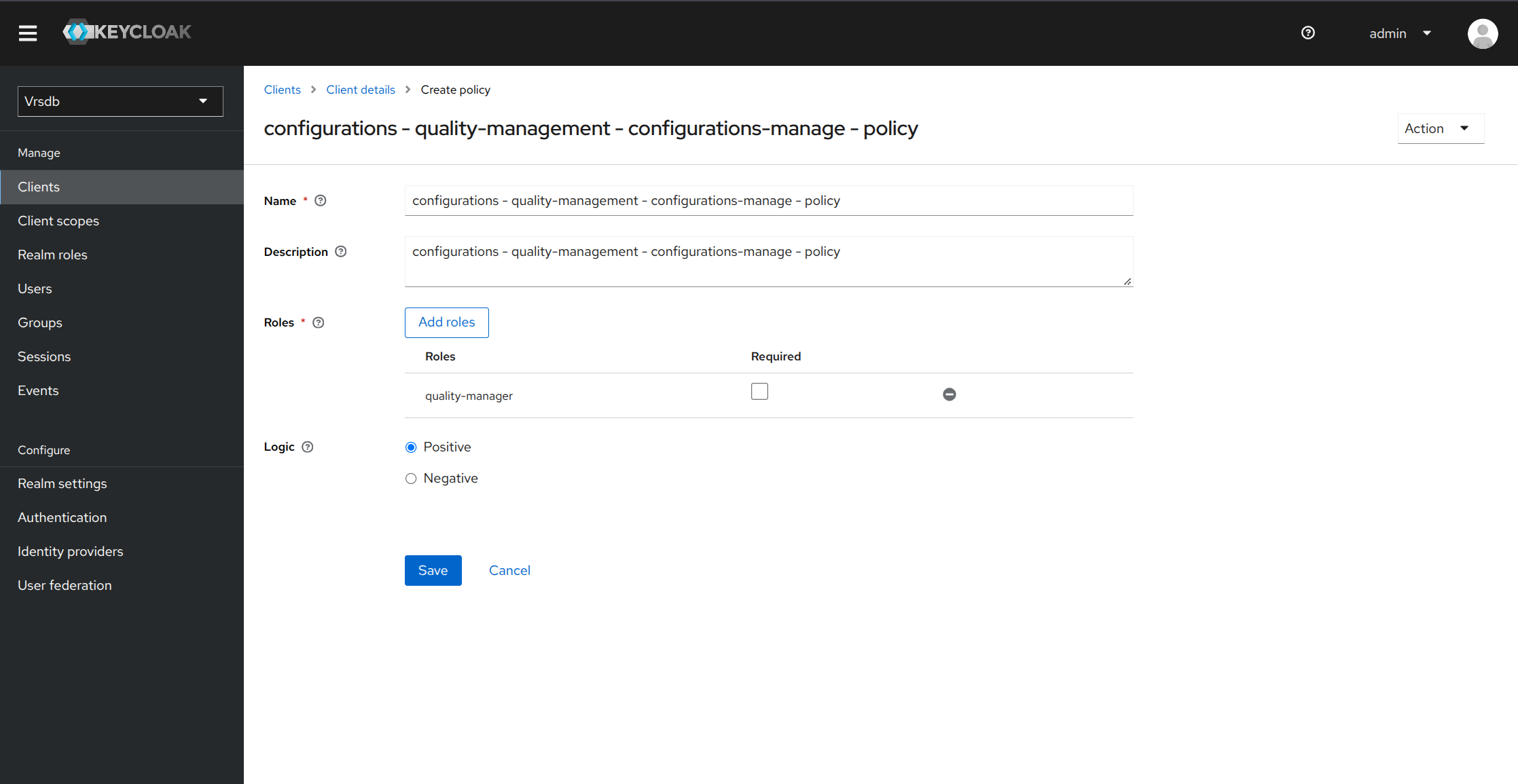
configurations - quality-management - configurations-manage - policyincludes theadminrole. This guide addsquality-managerso that role can manage configuration.
After you finish, users with the quality-manager role can edit Configuration under Quality Management in Unified Admin. Leave the admin role on the policy.
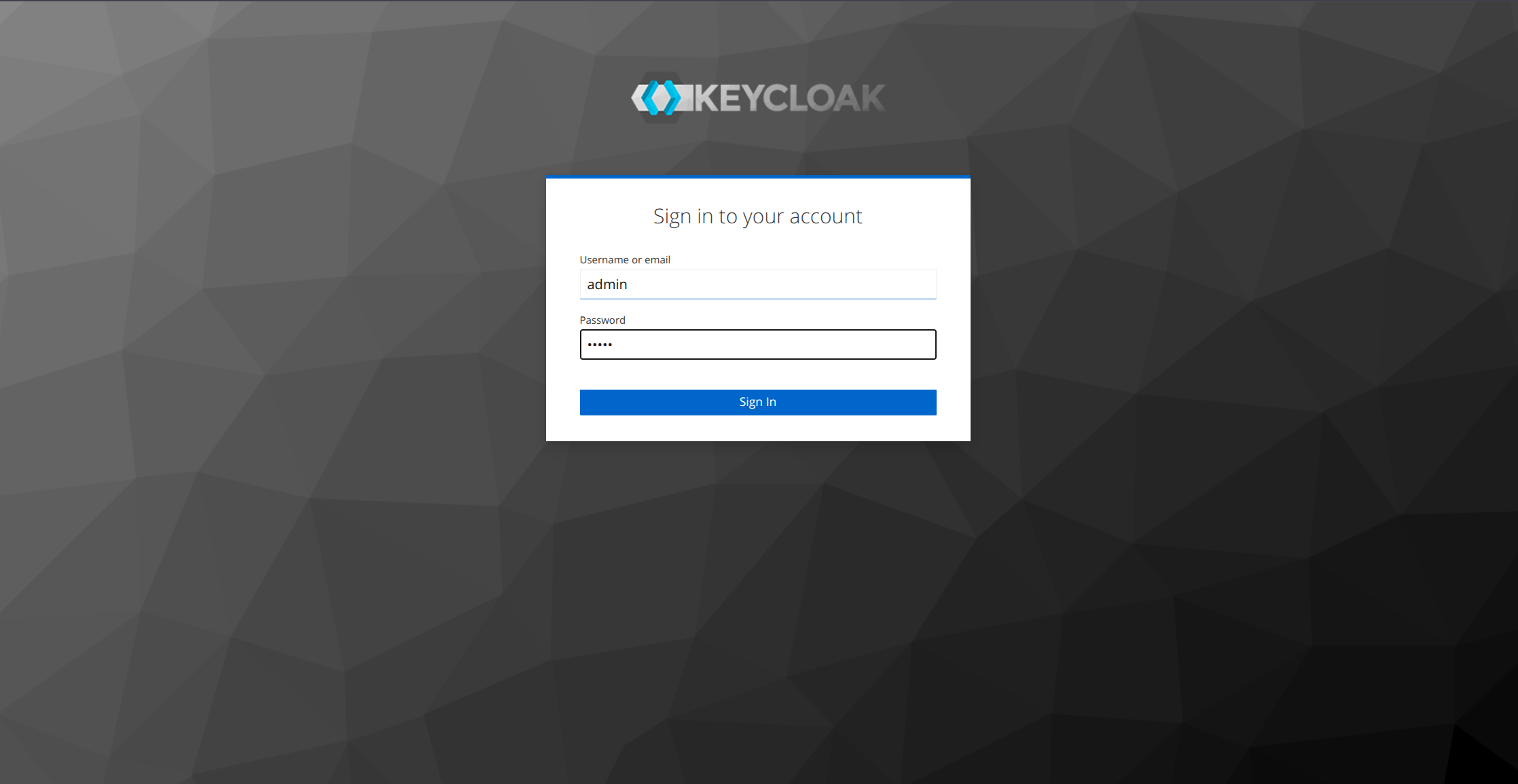
Step 1: Access Keycloak
-
Open the Keycloak Administration Console in your browser: https://<FQDN>/auth.
-
Click Administration Console.
-
Log in with an admin account. The default username and password are
admin/adminunless your environment uses different credentials.
Step 2: Select the correct realm
Keycloak opens the Master realm by default. Configuration policies live in the tenant realm.
-
Click the realm dropdown in the top-left corner.
-
Select the tenant realm. In most Expertflow deployments this is Expertflow.
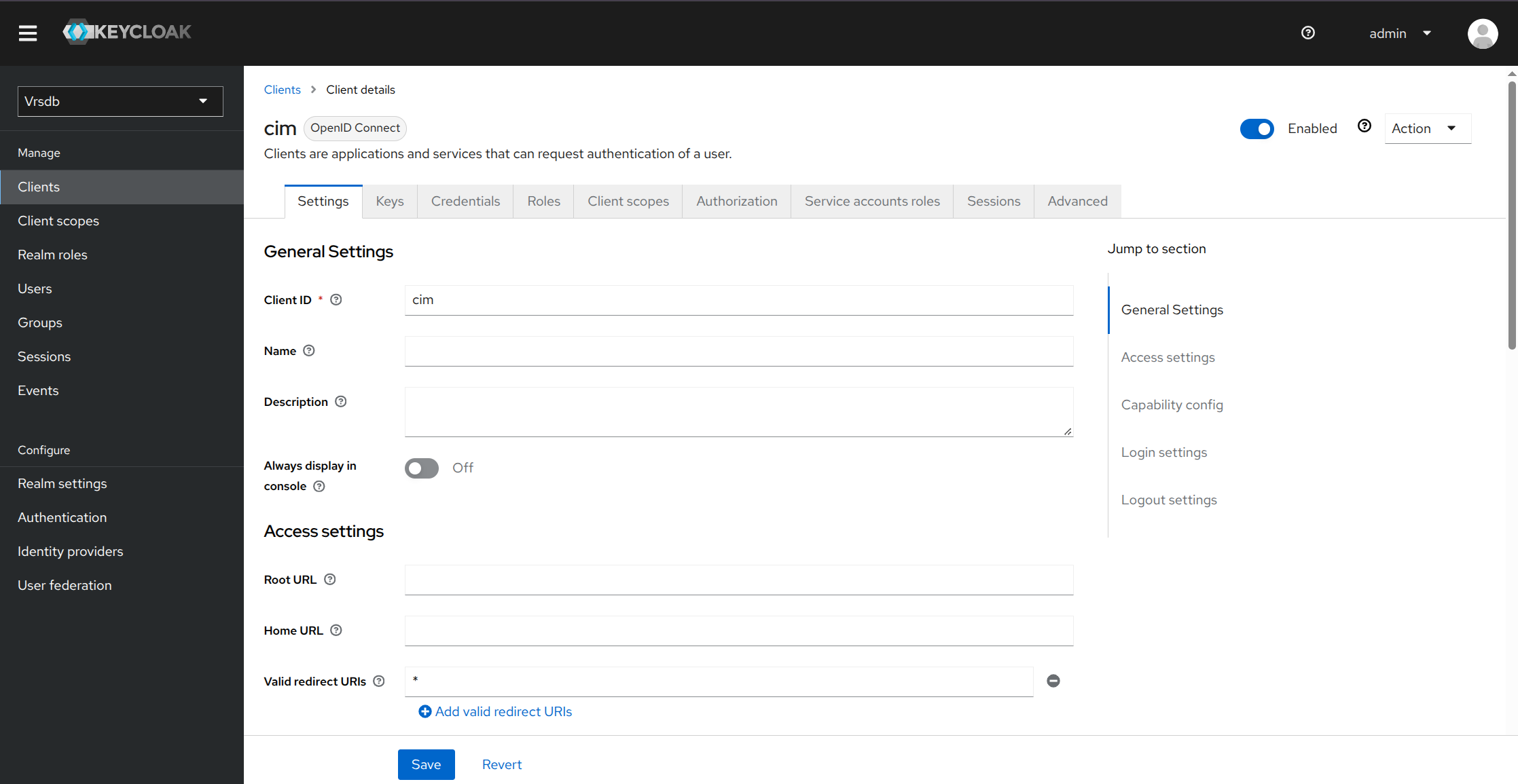
Step 3: Open the cim client
-
In the left sidebar, click Clients.
-
From the client list, click cim.
Step 4: Add the role to the Configurations policy
-
Stay on the
cimclient and open Authorization → Policies. -
Open the policy named
configurations - quality-management - configurations-manage - policy. -
Click Add roles.
-
Select the
quality-managerrealm role. -
Confirm Logic is set to Positive.
-
Click Assign.
-
Click Save.
Step 5: Verify access
-
Log out of Unified Admin if you are already signed in as that user.
-
Log in with a user who has the
quality-managerrole. -
Open Quality Management → Configuration.
-
Change a setting and save it. Confirm the change is stored.
If Configuration is still view-only, the user may need to sign out and sign in again so Keycloak issues a new token with the updated permissions.
Troubleshooting
-
Quality Manager can open Configuration but cannot save changes: Confirm
quality-manageris assigned onconfigurations - quality-management - configurations-manage - policy, then sign out and sign in again. Viewing Configuration is already available toquality-manager. This policy adds manage access on top of that view. -
Wrong realm: Confirm you are in the Expertflow/tenant realm, not Master.
-
Admin lost access: Confirm the
adminrole is still on the policy.