
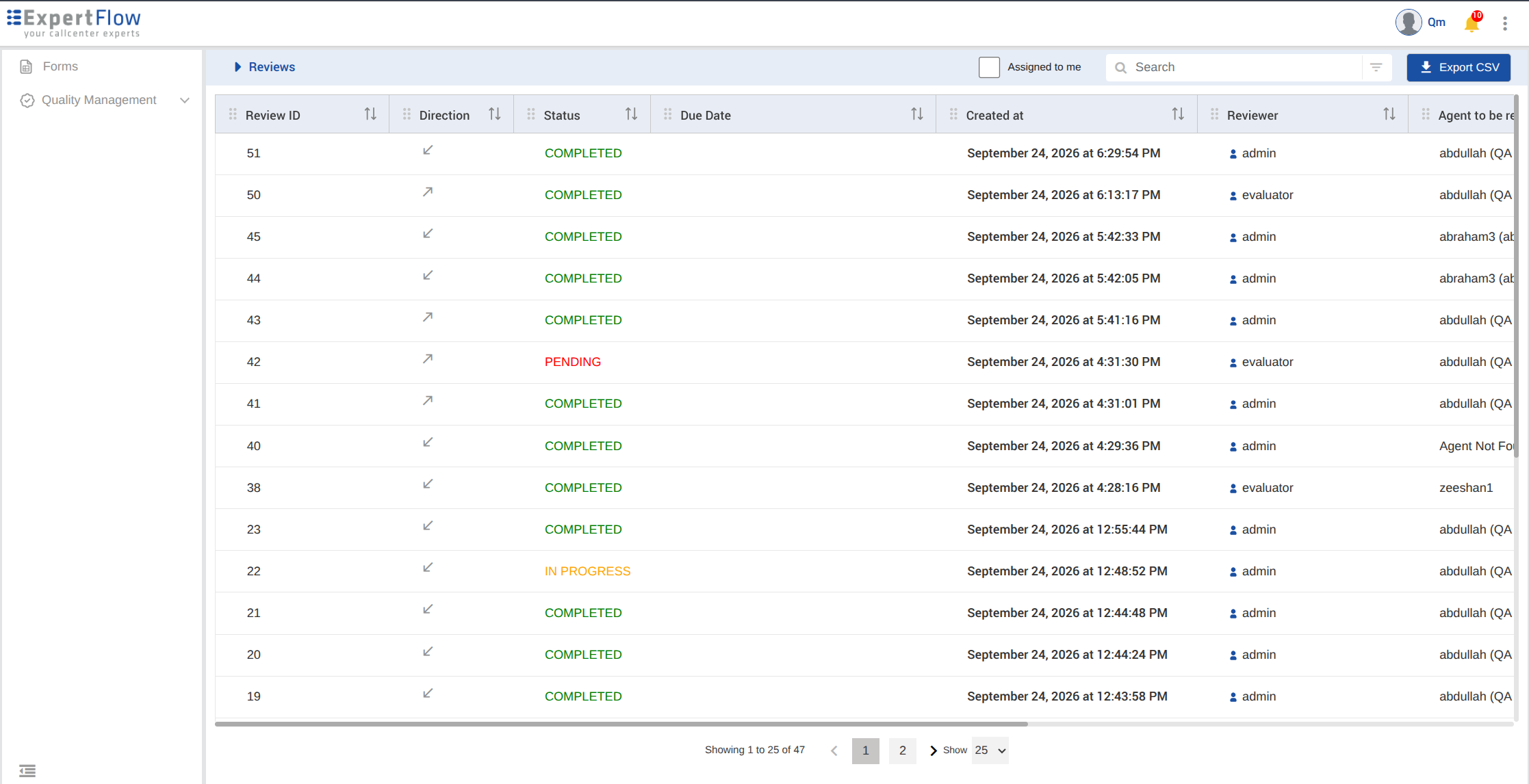
The Review Screen is a centralized workspace for viewing, accessing, and managing evaluations. It supports both Quality Managers and Evaluators with role-based access to relevant evaluator and allows users to filter, track, and initiate evaluations directly from one place.
1. Role-Based Interface
-
Quality Managers
Can view all reviews across teams with full metadata including review id, review status, assigned evaluator, evaluation form, created date, due date, agent under review, and score. Managers can filter mentioned in Filtering and access section below in this guide and use the “Assigned to Me” view for personalized task management.
-
Evaluators
Have access only to the evaluations assigned to them. Their view displays the filters mentioned in Filtering and access section below.
2. Key Columns in the Review Screen
Depending on the user role, the following information is displayed:
-
Review ID: A sequentially numbered ID for a review that alone can be used for searching for a particular review.
-
Status: Indicates whether the review is Pending, In Progress, or Completed
-
Due Date: Deadline for completing the evaluation
-
Created At: Timestamp of review creation
-
Evaluation Form: Name of the form used for assessment
-
Reviewer: Assigned evaluator (visible to managers)
-
Agent: Shows the username and first/last name of the agent.
-
Submitted: Shows the date/time stamp of the evaluation when it was completed/submitted.
-
Score: Final evaluation score after submission
3. Filtering and Access
Users can apply filters to organize or locate specific reviews based on:
-
Conversation Date & Time: Start and end date and time of a conversation to be filtered
-
Reviewed Date & Time: Date/time when a review was submitted
-
Questionnaire: Filter by the form name used for reviewing a conversation
-
Agents: Filter by agent’s username, first or last name who handled or was a part of the conversation.
-
Direction: Direction of the conversation (Inbound/Outbound)
-
Status (Pending, In-Progress, Complete)
-
Score: Score obtained by the review
-
Reviewers (available for Quality Manager only): Filter by reviewers
-
Channels: Filter by channels involved
-
Conversation Duration: Filter by the maximum duration of a conversation through which a conversation can be filtered
-
Wrap-ups: Filter conversations by wrap-ups
-
Teams: Filter conversations by teams
-
Customer Identifier: Filter conversations by the customer channel identities
-
Review ID.: Filter a review by the review ID
-
This supports quicker access to pending work and simplifies navigation in high-volume QA environments.
Start Evaluation starts the evaluation and opens Conversation View, where users can review the interaction and complete the linked questionnaire. Open Review opens the same view with the review form disabled. The evaluation can then be started by clicking the Start Evaluation button at the top of Conversation View.
4. Exporting Reviews
Users can download the reviews on this screen as a CSV file.
Click Export CSV at the top of the Review Screen, next to the search and filters.
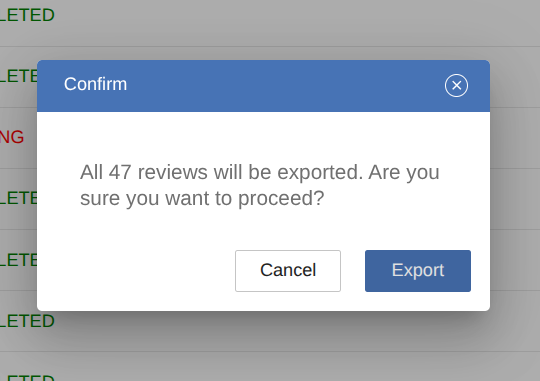
A confirmation dialog opens before the file is downloaded:
-
If no filter is applied, the dialog confirms that all reviews will be exported.
-
If a filter is applied, the dialog confirms that only the reviews matching the current filter will be exported.
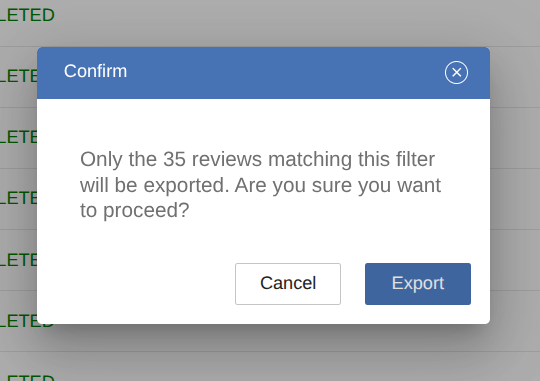
Select Export to download the CSV, or Cancel to close the dialog. The file uses the columns currently shown on the screen based on the user role logged in.