
An agent can challenge the score of a completed review from Agent Desk. A quality manager then decides the challenge in Unified Admin: they either Dismiss it, so the score stays, or Reevaluate the review, so it gets a new score. An agent can challenge a review once, and the outcome is final.
The agent works only in Agent Desk. The quality manager works only in Unified Admin.
1. Turn agent challenges on
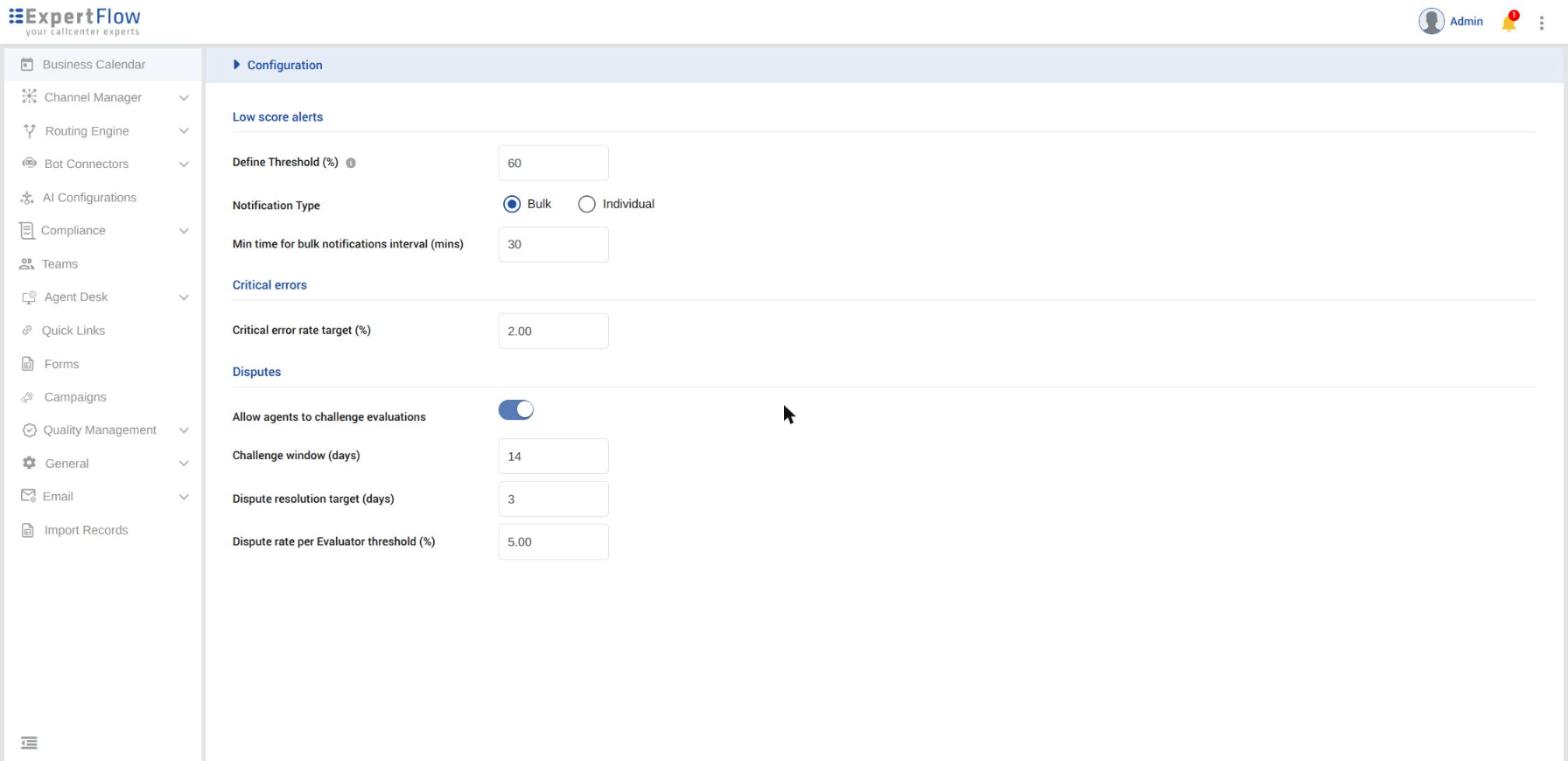
In Quality Management Configurations, the Disputes section controls challenges for the tenant.
-
Allow agents to challenge evaluations is On by default. While it is Off, agents cannot challenge, and the fields below are hidden. Their saved values are kept.
-
Challenge window (days) is how long an agent has to challenge a score, counted from when the score was submitted. The default is 14. It accepts whole days from 1 to 45. Other values show Enter whole days from 1 to 45.
-
Dispute resolution target (days) is how long a quality manager should take to settle a dispute. The default is 3. It accepts whole days from 1 to 60.
-
Dispute rate per Evaluator threshold (%) is the dispute rate above which an evaluator is flagged. The default is 5.00. It accepts 0 to 100, with up to two decimal places.
All three fields are required while challenges are On. Save appears once something is changed. A success message says Configuration updated successfully.
A changed challenge window applies straight away to every score that has not been challenged yet.
2. What the agent sees when a review is submitted
When a review of the agent's conversation is submitted, the agent gets a notification in the Agent Desk bell and briefly as a toast, for example New Evaluation Result, Low Score Alert or Critical Failure Alert.
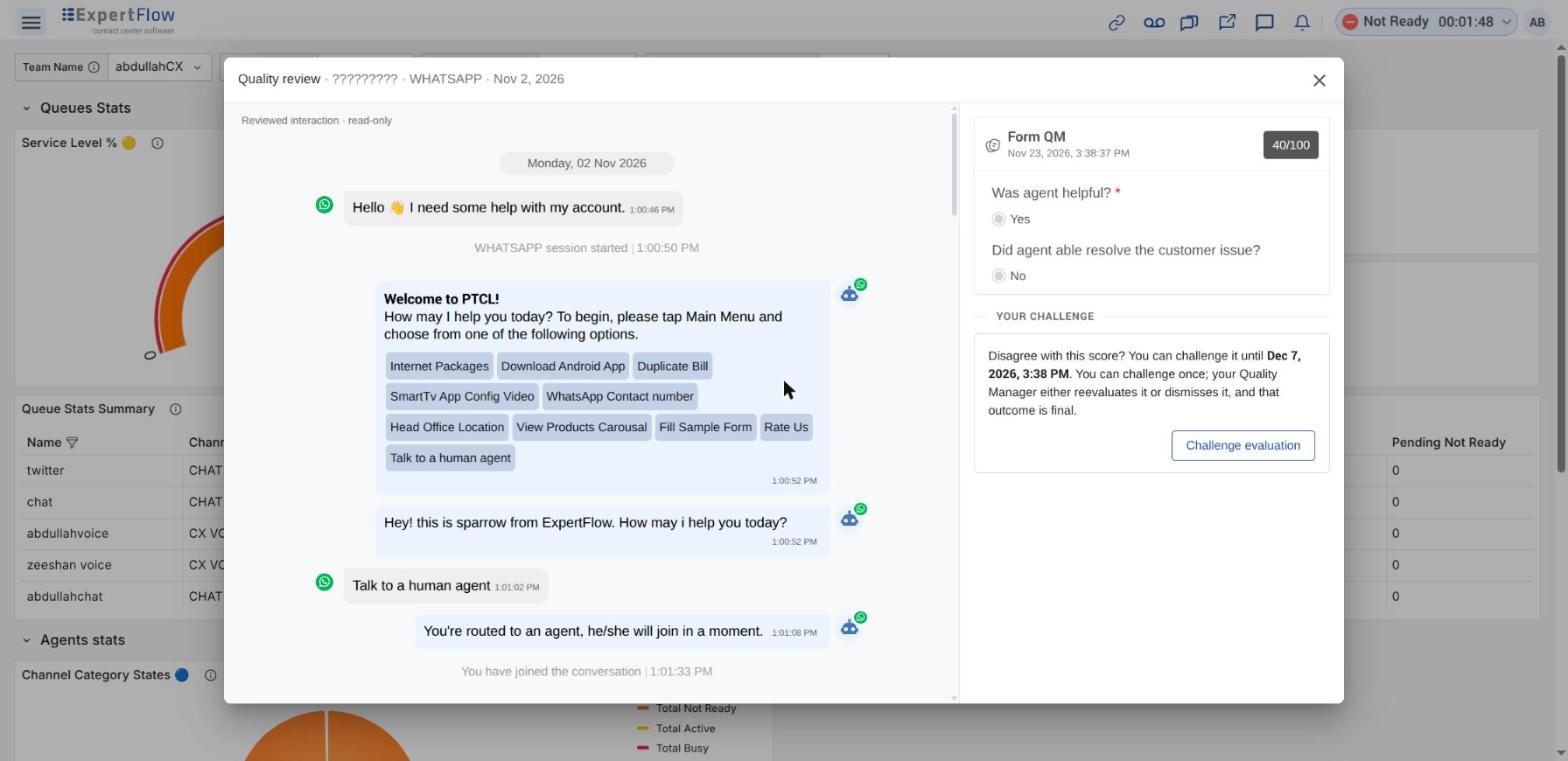
View score in the bell, or a click on the toast, opens the Quality review screen:
-
On the left, the reviewed conversation, read-only.
-
On the right, the review's latest score card: the form, the submitted date and the score. It shows the first 3 questions with their answers, and View more shows the rest. A failed Critical question shows the evaluator's comment.
-
Under the score card, the Your challenge section.
3. The agent raises a challenge
While the challenge window is open, Your challenge reads: Disagree with this score? You can challenge it until {date}. You can challenge once; your Quality Manager either reevaluates it or dismisses it, and that outcome is final.
-
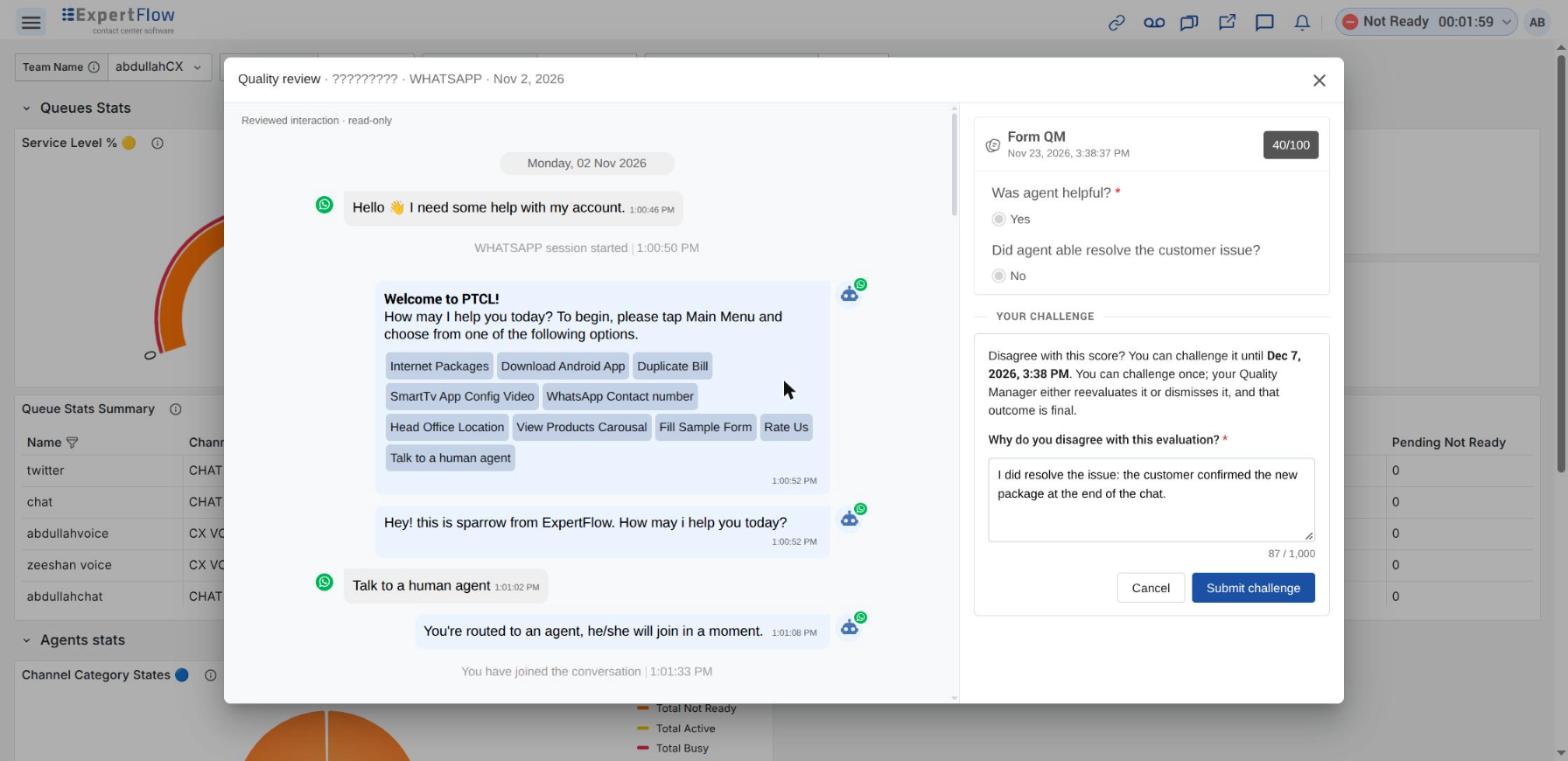
Click Challenge evaluation.
-
Fill in Why do you disagree with this evaluation? It is required and can be up to 1,000 characters. The placeholder is Point to the question and what happened in the conversation.
-
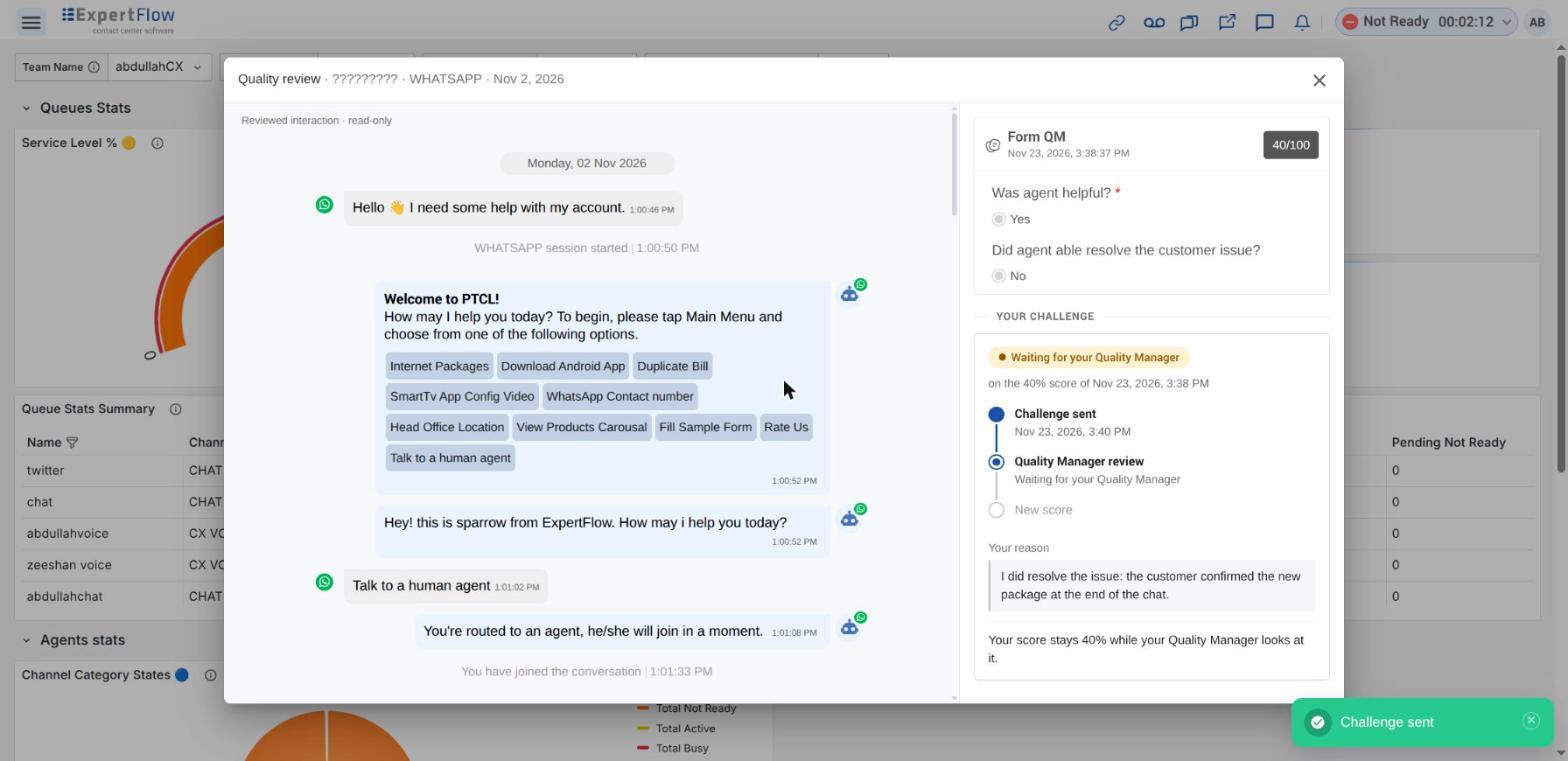
Click Submit challenge. A success message says Challenge sent.
The section then shows Waiting for your Quality Manager, the score that was challenged (on the {score} score of {date}), the agent's reason, and Your score stays {score} while your Quality Manager looks at it.
After the window has passed, the section shows only Challenge window closed on {date}.
4. The quality manager sees the dispute
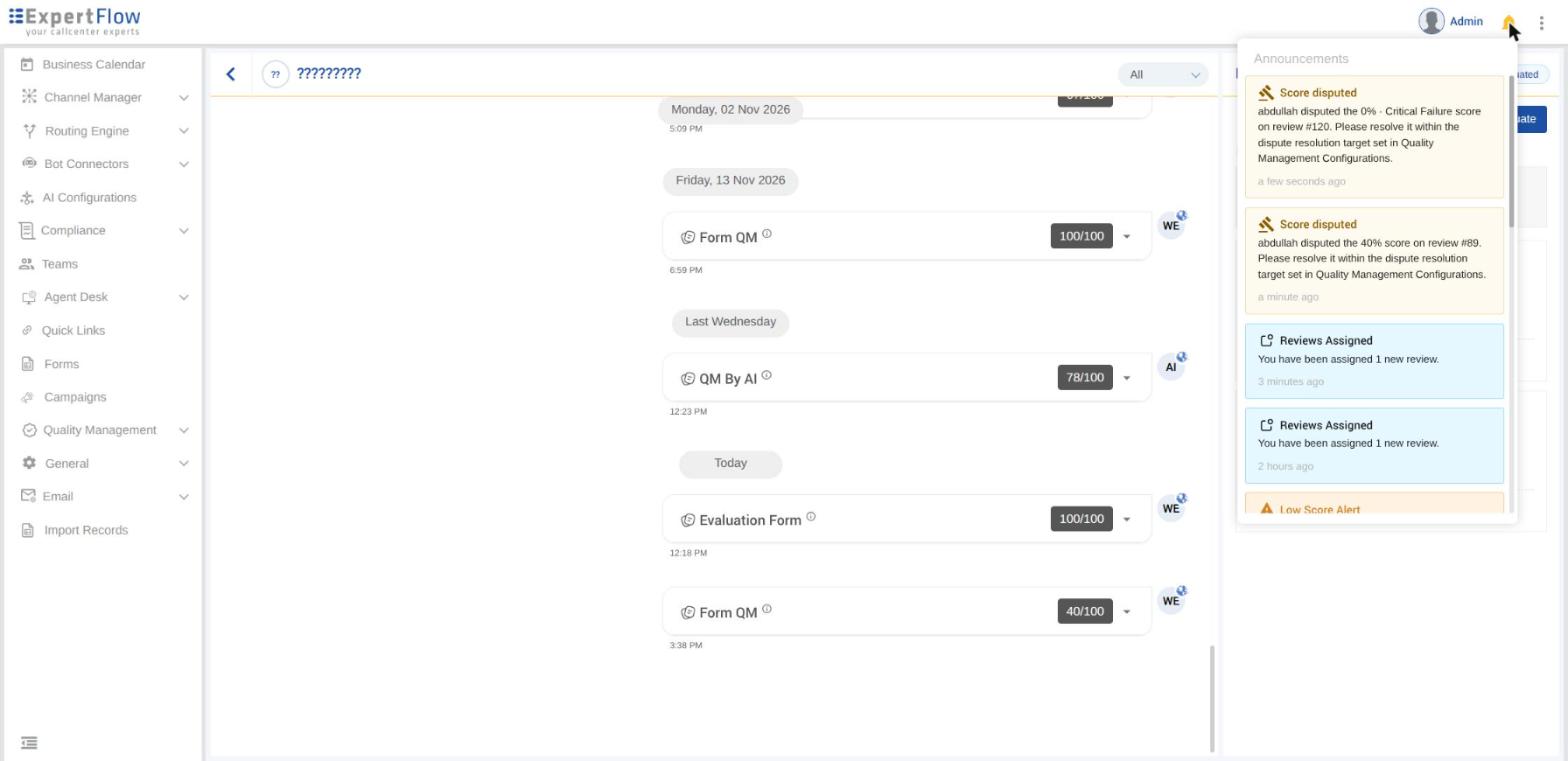
Every user with the Quality Manager role gets Score disputed in the Unified Admin bell: {agent} disputed the {score} score on review #{n}. Please resolve it within the dispute resolution target set in Quality Management Configurations. Clicking it opens the review.
On the Reviews list the review shows COMPLETED with a Disputed reason. The Status filter has Disputed under Completed.
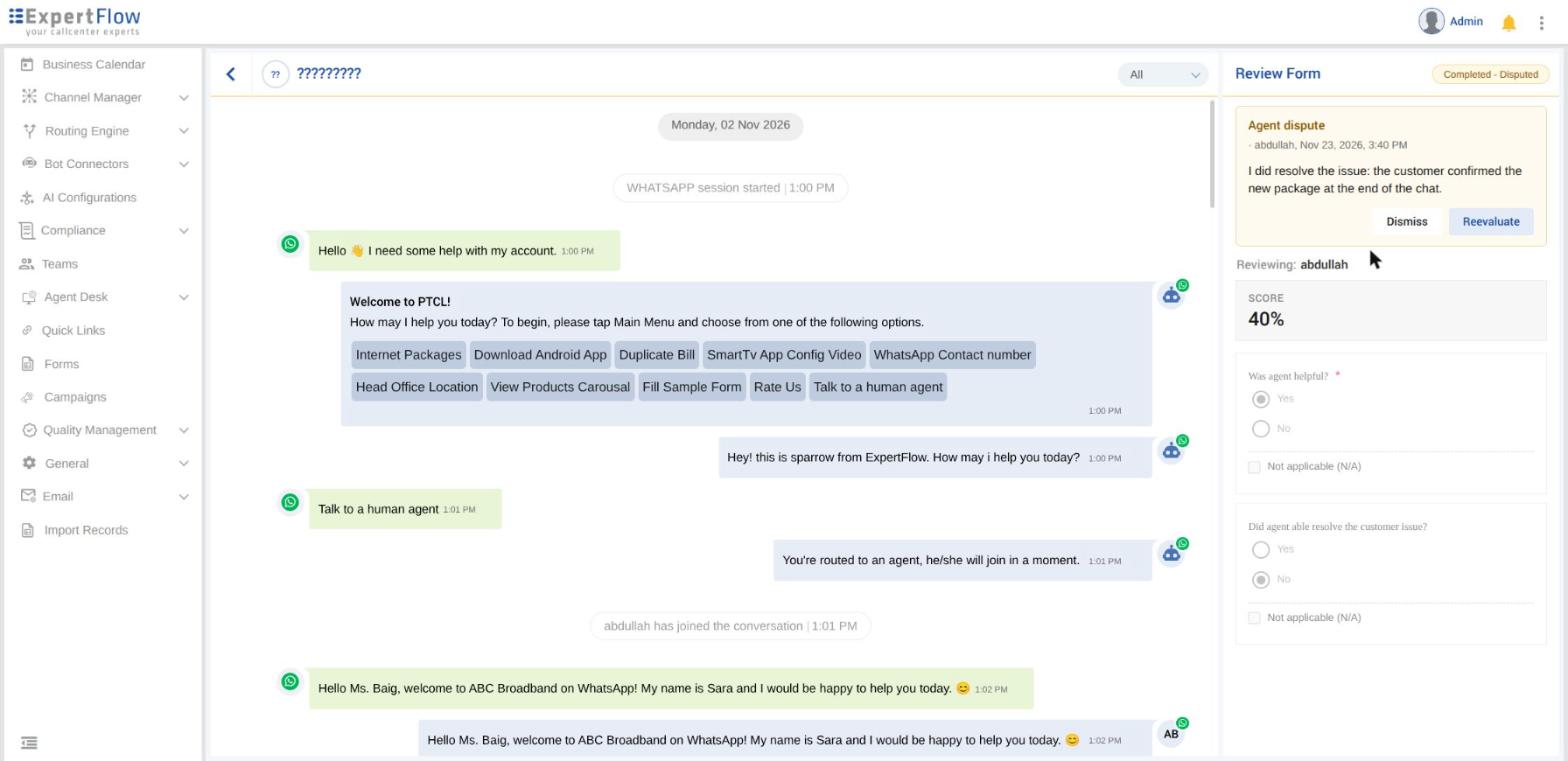
Open the review. An Agent dispute banner at the top of the Review Form shows the agent's name, when the challenge was sent, and the agent's reason. It offers Dismiss and Reevaluate in place of the usual Reevaluate button.
Disputes are decided only by the Quality Manager role. Other users, including evaluators, see the review as Completed - Disputed without the banner, and cannot reevaluate it until the dispute is decided.
5. Dismiss the dispute
Dismiss keeps the score and status as they are.
-
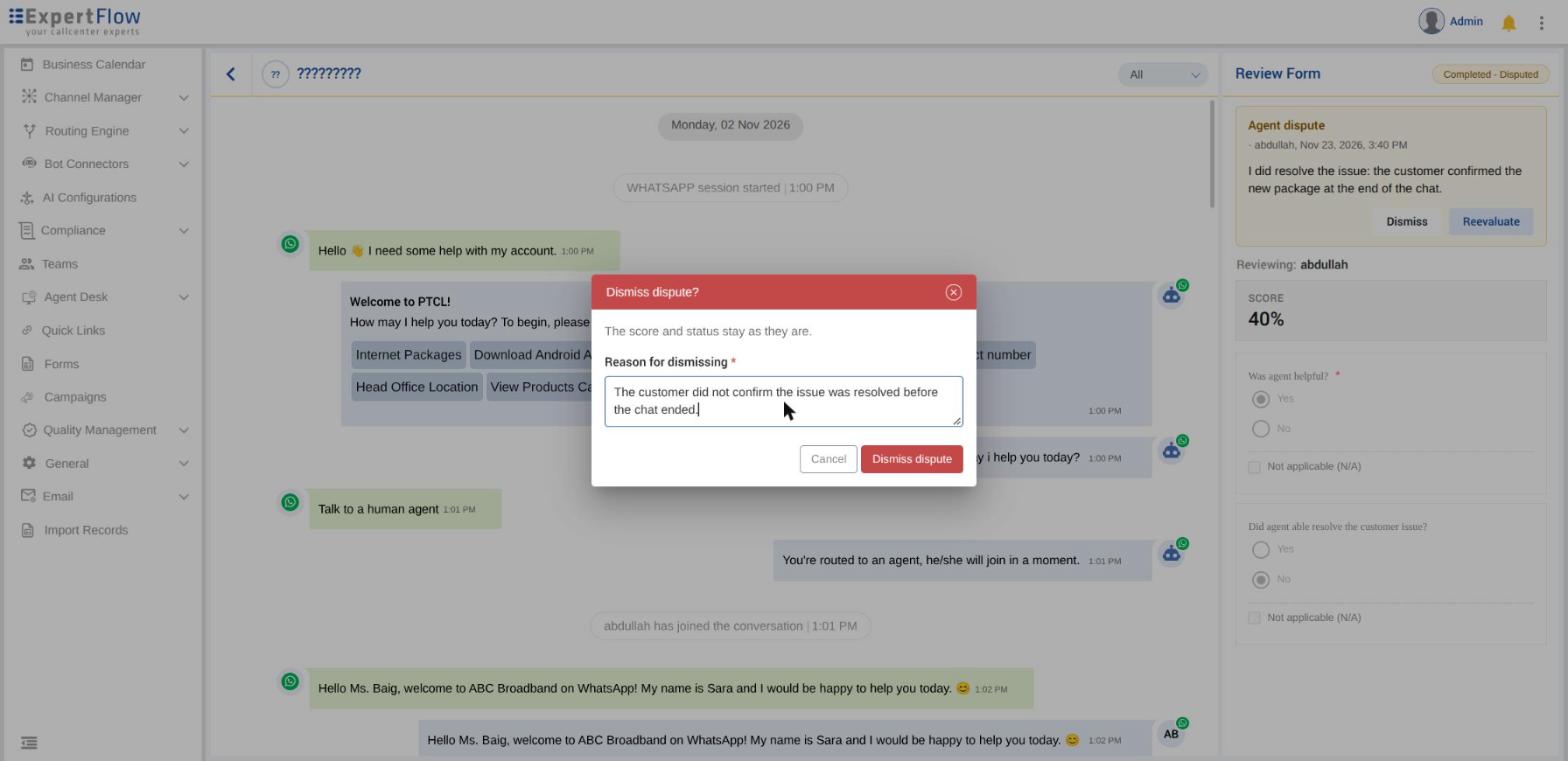
Click Dismiss in the banner. Dismiss dispute? opens and says The score and status stay as they are.
-
Fill in Reason for dismissing. It is required and is shown to the agent. Leaving it blank shows Enter a reason to dismiss this dispute.
-
Click Dismiss dispute. A success message says Dispute dismissed.
The review goes back to the reason it had before the dispute.
6. Reevaluate from the dispute
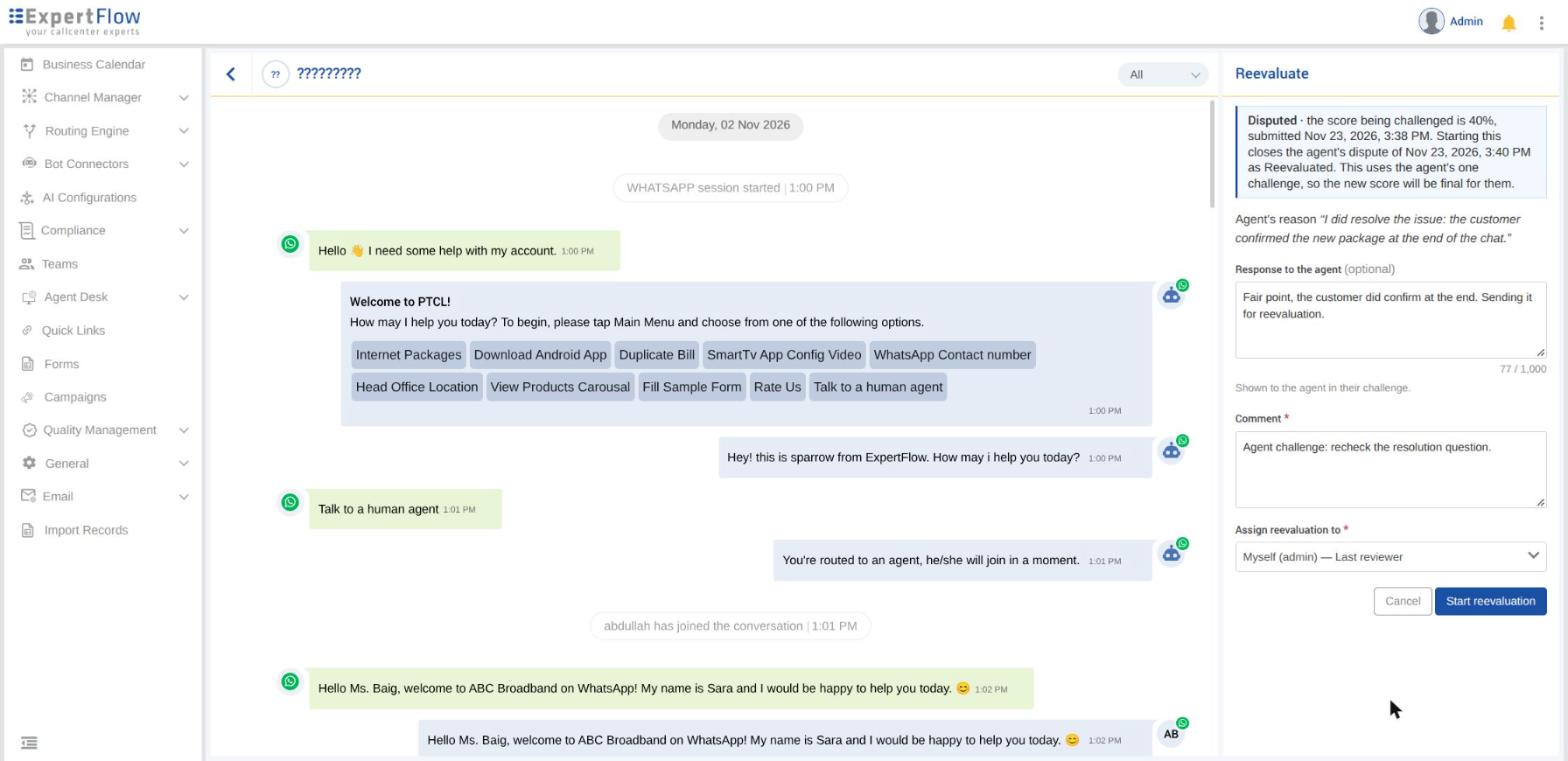
Click Reevaluate in the banner. This needs the Reevaluate a review permission as well. The Reevaluate panel opens with:
-
A note: Disputed · the score being challenged, when it was submitted, and that starting this closes the agent's dispute as Reevaluated and uses the agent's one challenge.
-
Agent's reason, read-only.
-
Response to the agent (optional), up to 1,000 characters, shown to the agent in their challenge.
-
The usual Comment and, with the Assign a review permission, Assign reevaluation to, Due date and Reminder.
Click Start reevaluation, or Assign evaluation when someone else is chosen. The dispute is closed as Reevaluated and the banner no longer shows. The reevaluation then runs like any other. See Reevaluate a Review in Quality Management.
If another quality manager has already decided the dispute, the attempt is refused with a message naming who dismissed it or started the reevaluation.
7. What the agent sees after the decision
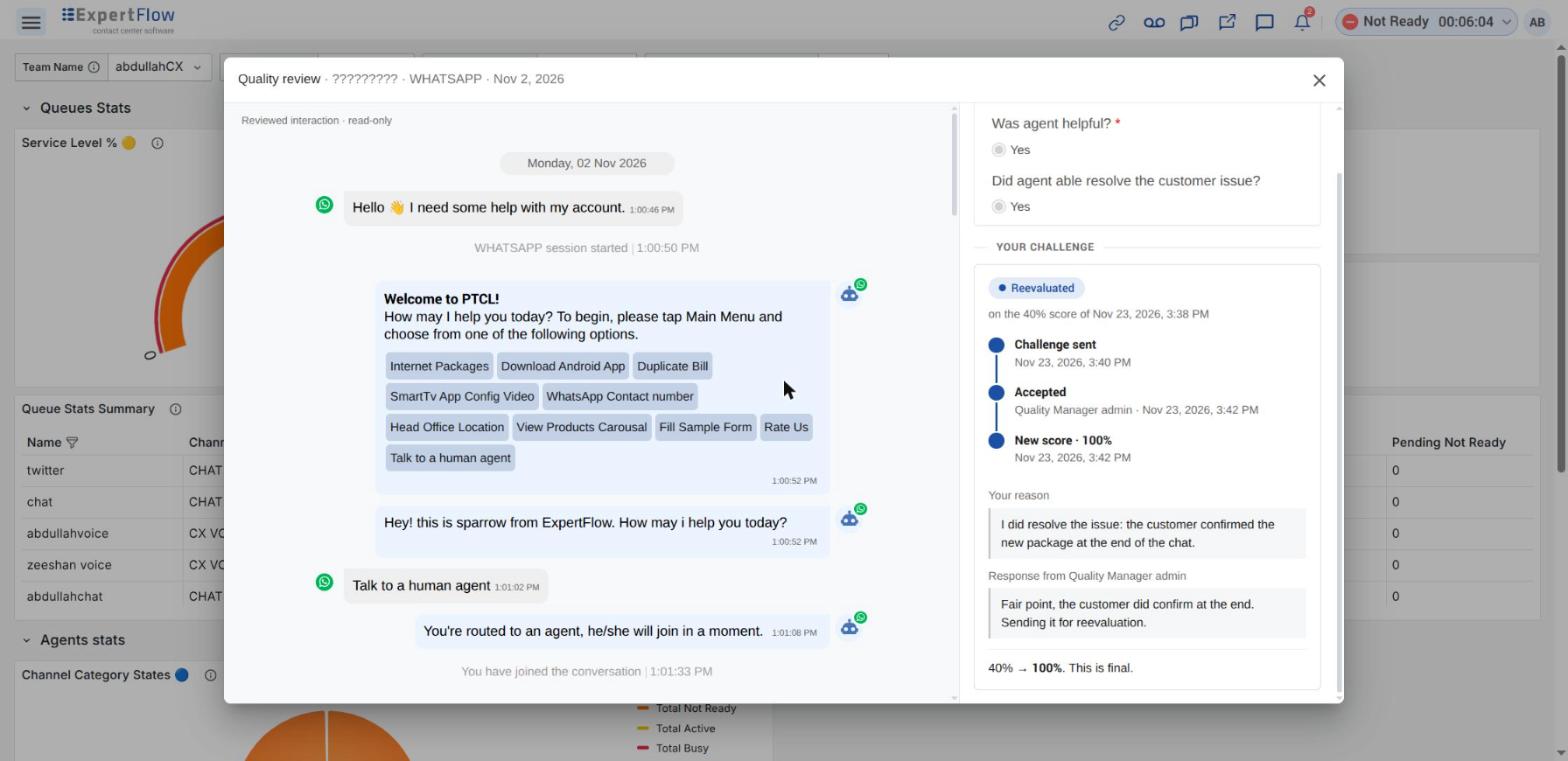
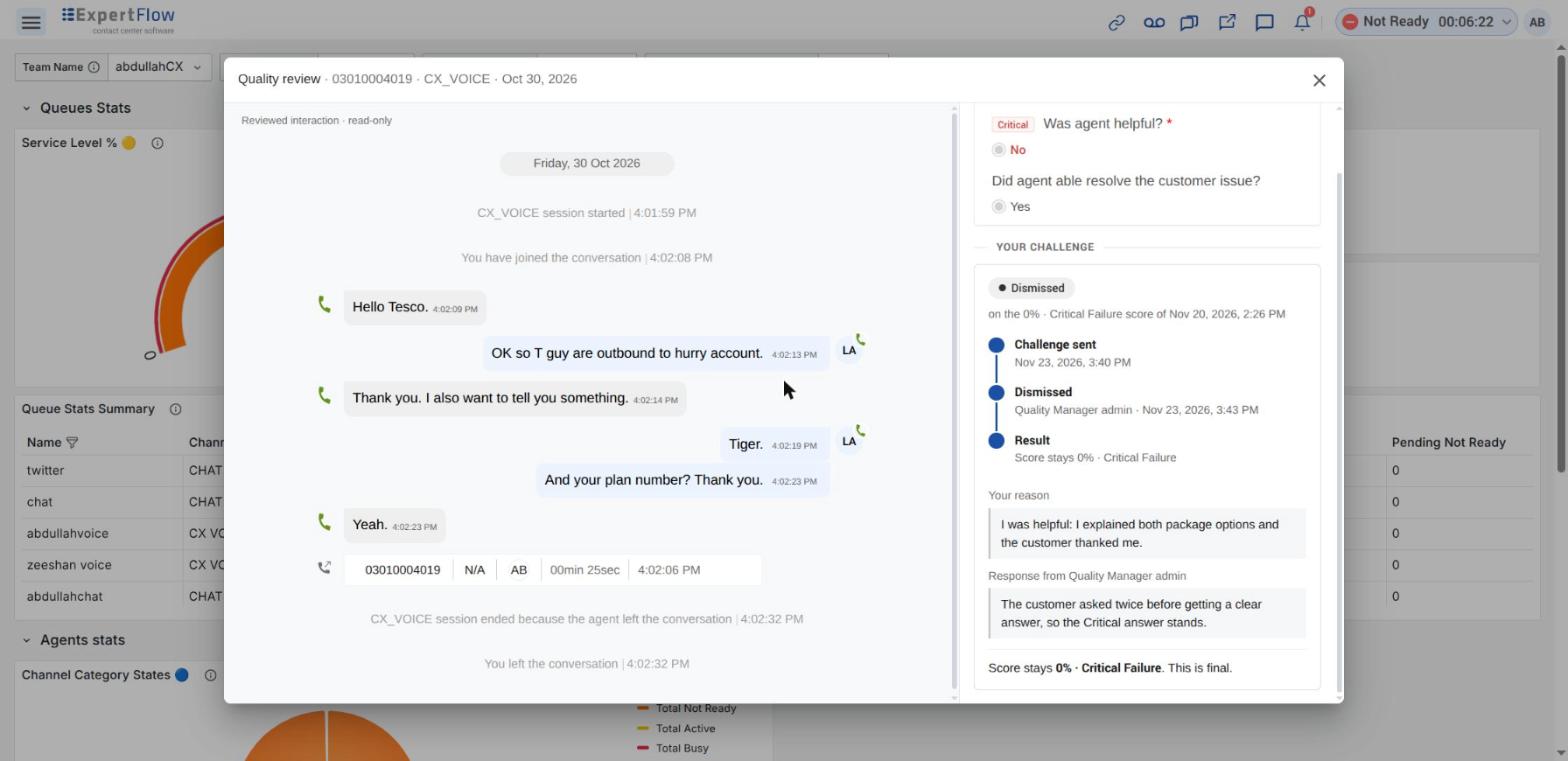
The Your challenge section follows the challenge through three steps: Challenge sent, the quality manager's decision, and the result.
|
Outcome |
Status |
Result line |
|---|---|---|
|
Waiting for a decision |
Waiting for your Quality Manager |
Your score stays {score} while your Quality Manager looks at it. |
|
Reevaluation started |
Accepted · being reevaluated |
{score} stays until the new score is in. |
|
Reevaluation submitted |
Reevaluated |
{old score} → {new score}. This is final. |
|
Dismissed |
Dismissed |
Score stays {score}. This is final. |
The quality manager's dismiss reason, or their optional response when reevaluating, shows under Response from Quality Manager {name}.
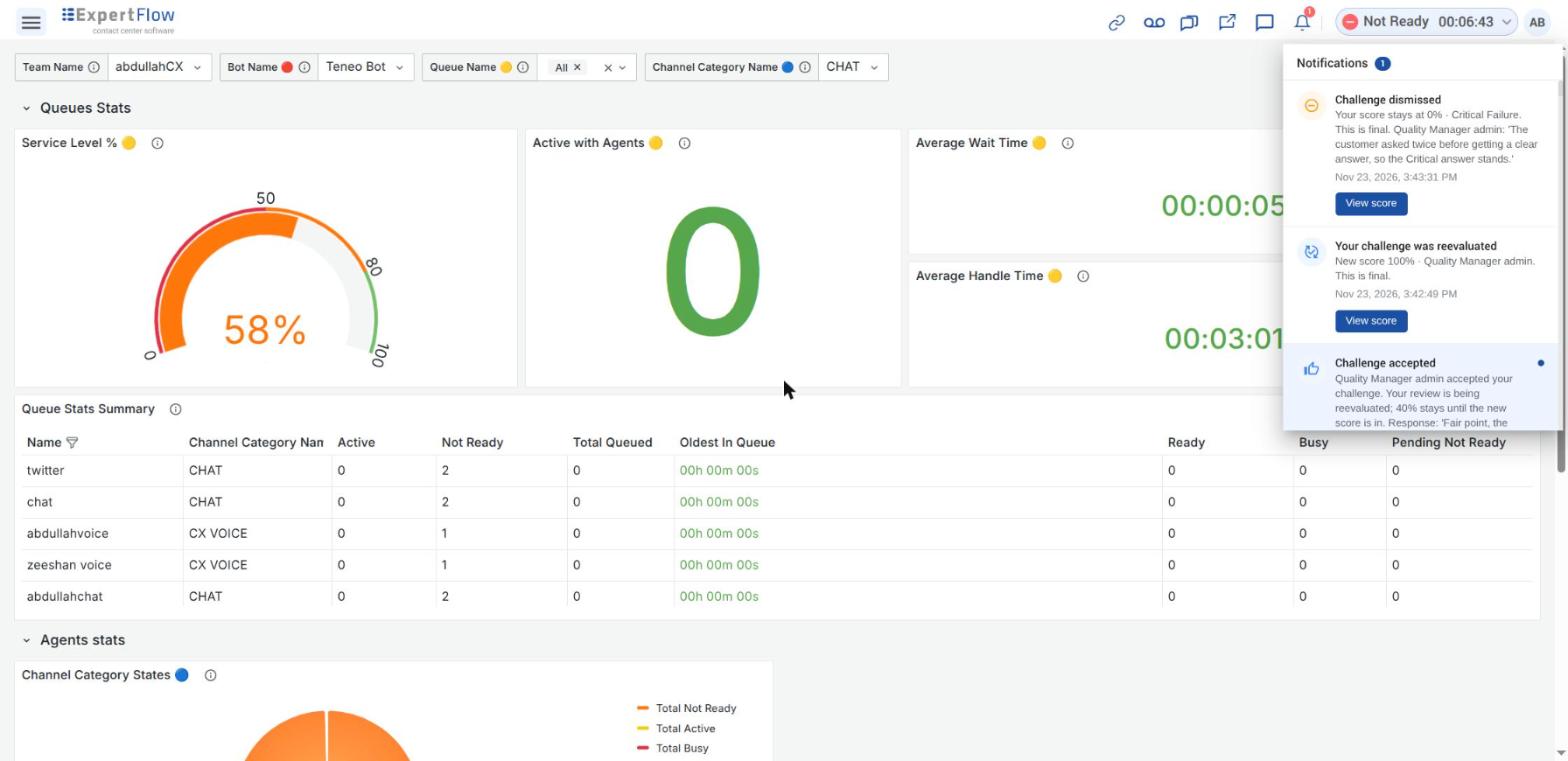
The agent gets these notifications in the Agent Desk bell and as a toast. Each one opens the review at Your challenge.
|
When |
Title |
Text |
|---|---|---|
|
The dispute is dismissed |
Challenge dismissed |
Your score stays at {score}. This is final. Quality Manager {name}: '{reason}' |
|
A reevaluation is started from it |
Challenge accepted |
Quality Manager {name} accepted your challenge. Your review is being reevaluated; {score} stays until the new score is in. The response follows, if one was given. |
|
That reevaluation is submitted |
Your challenge was reevaluated |
New score {score}. This is final. A quality manager who scored it is named. |
|
That reevaluation is discarded or marked as a technical failure |
Challenge closed |
Your challenge is closed for now because the review was discarded (or marked as a technical failure). You can challenge again once your review is reevaluated and scored. |
When the new score is a Critical Failure, Your challenge was reevaluated is shown in red with 0% · Critical Failure.
8. Special cases
-
The challenged review is discarded or marked as a technical failure. The challenge is closed and does not count. The section shows Closed · review discarded or Closed · technical failure. Once the review is scored again, the agent gets a new challenge window and can challenge the new score.
-
The review is reevaluated directly, not from a challenge. While it is in progress, the section reads This review is being reevaluated. You can challenge the new score once it's in. When the new score is submitted, the agent gets Quality review updated and a new challenge window starts.
-
The review is reevaluated after the challenge was used. The quality manager can still reevaluate it directly. The section keeps the earlier outcome and adds Your score has since been updated. No new challenge is allowed.
-
Challenges are turned Off. Agents see no Your challenge section on reviews they have not challenged. A challenge already raised still shows, and quality managers can still decide it.
-
The review is withdrawn. A discarded or technical-failure review shows This review was withdrawn to the agent, with no challenge section.
Notes
-
An agent can challenge a review once. Once the challenge is dismissed or reevaluated, that outcome is final.
-
Only the agent who was evaluated can challenge the review.
-
The score and status of the review do not change while a challenge is open.
-
Dismiss and Reevaluate are available only in the dispute banner of the opened review, not on the Reviews list or in the notification.
-
Supervisors are not notified about challenges.