
A quality manager can reevaluate a Completed review to score it again. The reevaluation happens on the same review. It does not create a new review, and the earlier submission is kept: every submission stays in the conversation as its own form card. Until the reevaluation is submitted, the review keeps its last score.
A completed review of any kind can be reevaluated: a normal score, Critical Failure, Discarded, Technical Failure, or one that was already Reevaluated.
1. Who can reevaluate
Reevaluate is shown only to a role that has the Reevaluate a review permission. By default that permission is on the Quality Manager role. An administrator can grant it to other roles.
To give the reevaluation to someone else, the role also needs the Assign a review permission. Without it, the reevaluation is always assigned to the user who starts it.
The person who carries out the reevaluation does not need the Reevaluate permission. An evaluator who is assigned a reevaluation starts, fills in and submits it like any other review assigned to them.
How to grant the permissions is in Granting Add-On Permissions for Quality Management Roles.
2. Start a reevaluation from the opened review
Reevaluate is not on the Reviews list or in notifications. Open the review first.
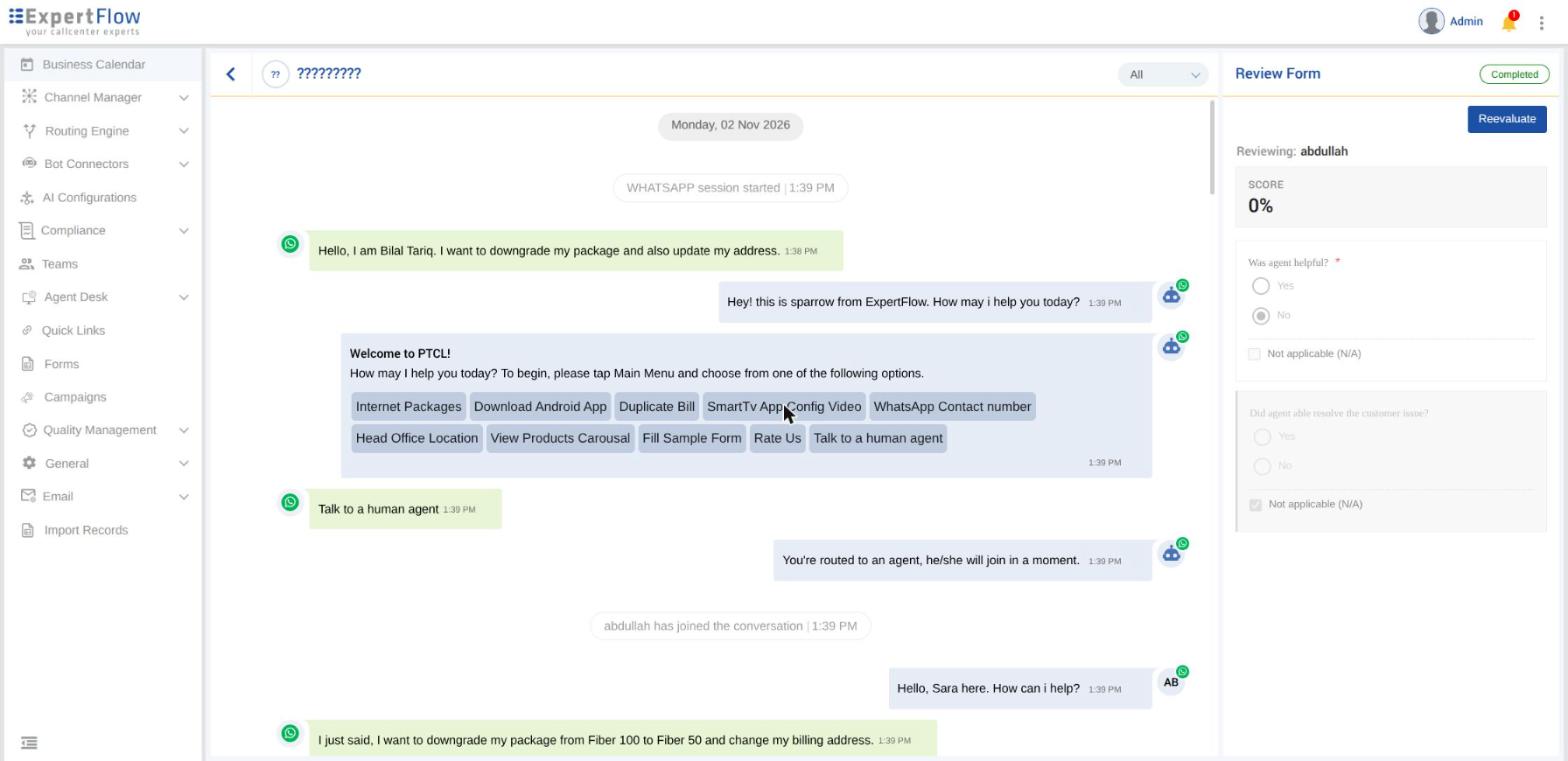
On a Completed review, Reevaluate is at the top of the Review Form. It is not shown on a Pending or In Progress review.
When the agent has disputed the review, the review shows Disputed and the usual Reevaluate button is replaced by the dispute banner. See Agent Disputes in Quality Management.
3. Fill in the Reevaluate panel
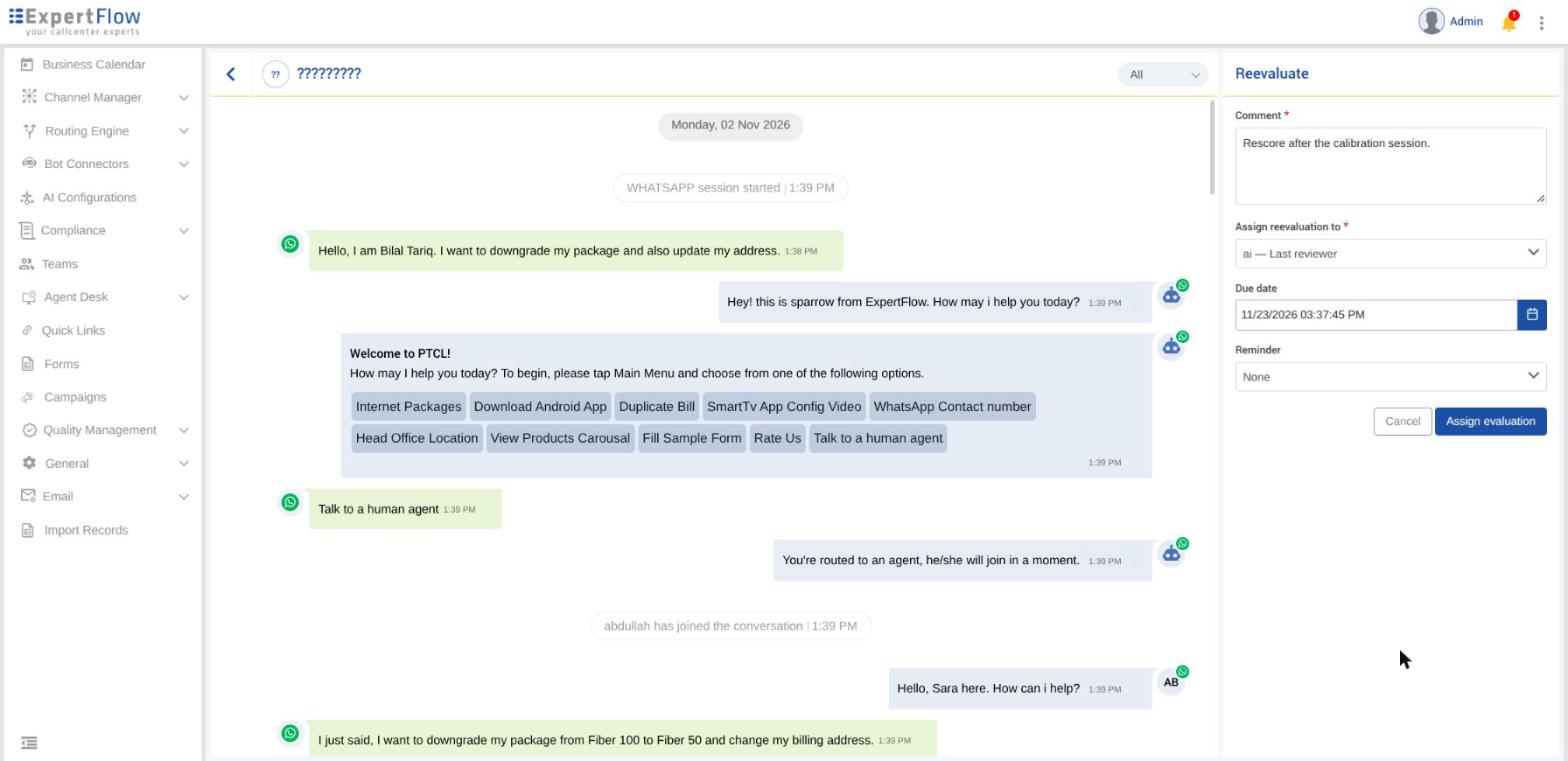
Reevaluate opens the Reevaluate panel in place of the Review Form, so the conversation stays visible.
A note at the top shows what is being replaced, depending on the review's reason:
|
Review was |
The note shows |
|---|---|
|
Critical Failure |
Critical Failure (0%) · submitted {date}. The reevaluation starts from the submitted answers. Changing the failed answer removes the failure. |
|
Discarded |
Discarded · by {name}, {date} and the discard reason. The reevaluation starts from a blank form. |
|
Technical Failure |
Technical Failure · {date} and its comment. The reevaluation starts from a blank form. |
|
Reevaluated |
Reevaluated. This replaces the {score} score submitted {date}. |
|
Completed with no reason |
No note |
Comment is required. The placeholder is Notes for this reevaluation. The comment can be up to 1000 characters.
With the Assign a review permission, Assign reevaluation to is also required. It lists Myself ({name}) and the evaluators. The person who scored the last submission is marked Last reviewer.
When someone other than yourself is chosen, two optional fields appear:
-
Due date: a date and time in the future.
-
Reminder: available once a due date is set, for example 1 day before deadline.
The confirm button reads Start reevaluation when the reevaluation is for yourself, and Assign evaluation when it is for someone else. It stays disabled until a comment is entered and, where shown, an assignee is chosen. Cancel closes the panel without changes.
4. What happens when it starts
-
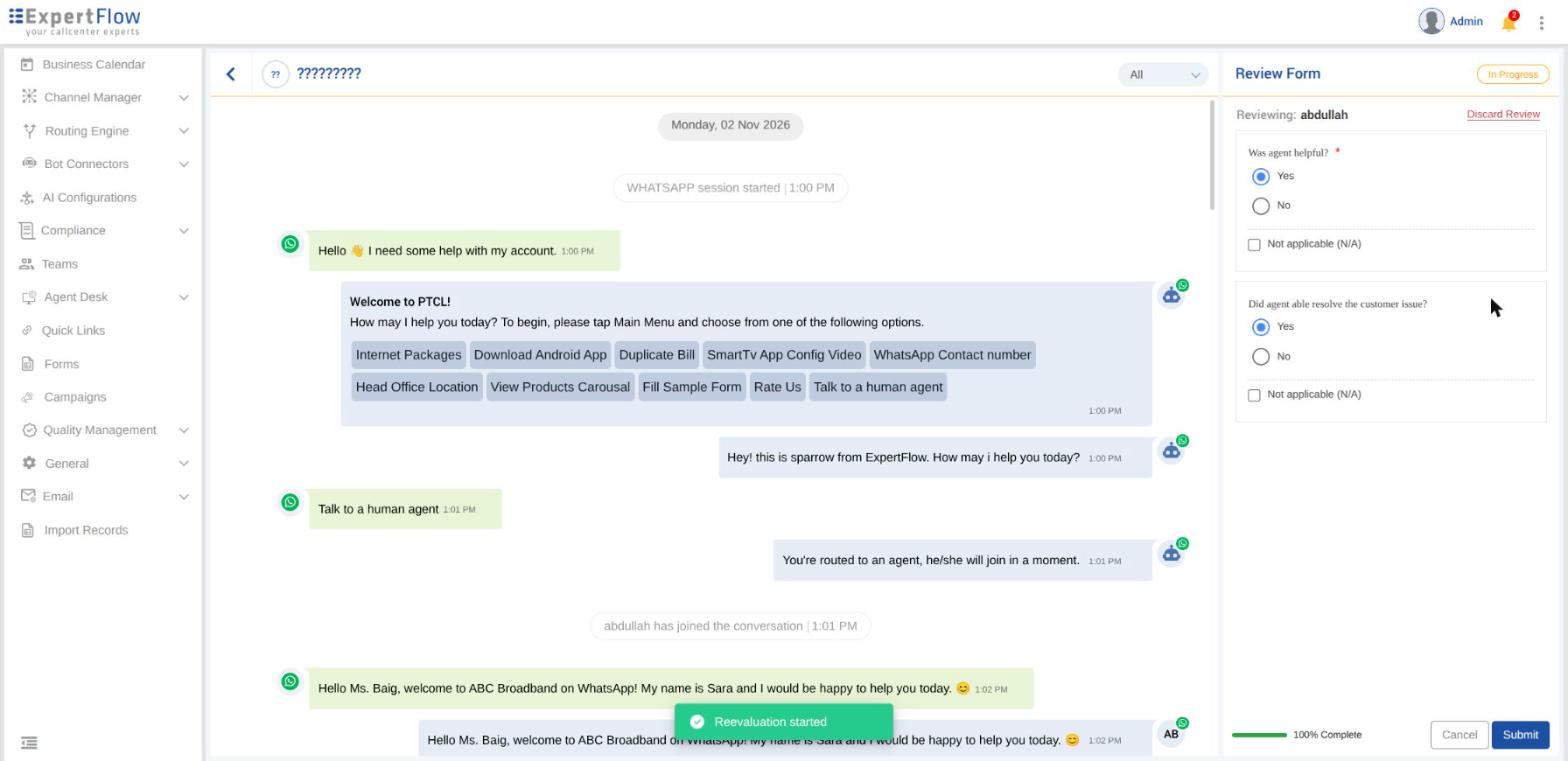
For yourself: a success message says Reevaluation started. The review becomes In Progress and the form opens for editing straight away.
-
For someone else: a success message says Reevaluation assigned. The review becomes Pending until the assignee starts it. The due date, if set, shows in the Due Date column, and reminders are sent as for any assigned review.
The assignee gets a Reviews Assigned notification in the Unified Admin bell.
Only one reevaluation can run at a time. If someone else has already started one, the attempt is refused with A reevaluation is already underway for this review.
5. Carry out the reevaluation
While the reevaluation is Pending or In Progress, the review shows no reason. On the Reviews list it looks like any other Pending or In Progress review. It keeps its last score until the reevaluation is submitted.
The form starts from the answers of the last submission, and any answer can be changed. The reevaluation uses the form version that submission was scored on.
After a Discarded or Technical Failure review there are no answers to carry over, so the form starts blank.
The assignee of a Pending reevaluation opens the review and clicks Start Review, then fills in the form and clicks Submit. The same Critical rules apply as on a first evaluation. See Critical Question in Quality Management.
A reevaluation can be discarded like any other Pending or In Progress review. See Discard a Review in Quality Management.
6. After the reevaluation is submitted
A success message says Review submitted successfully. The new score replaces the old one.
-
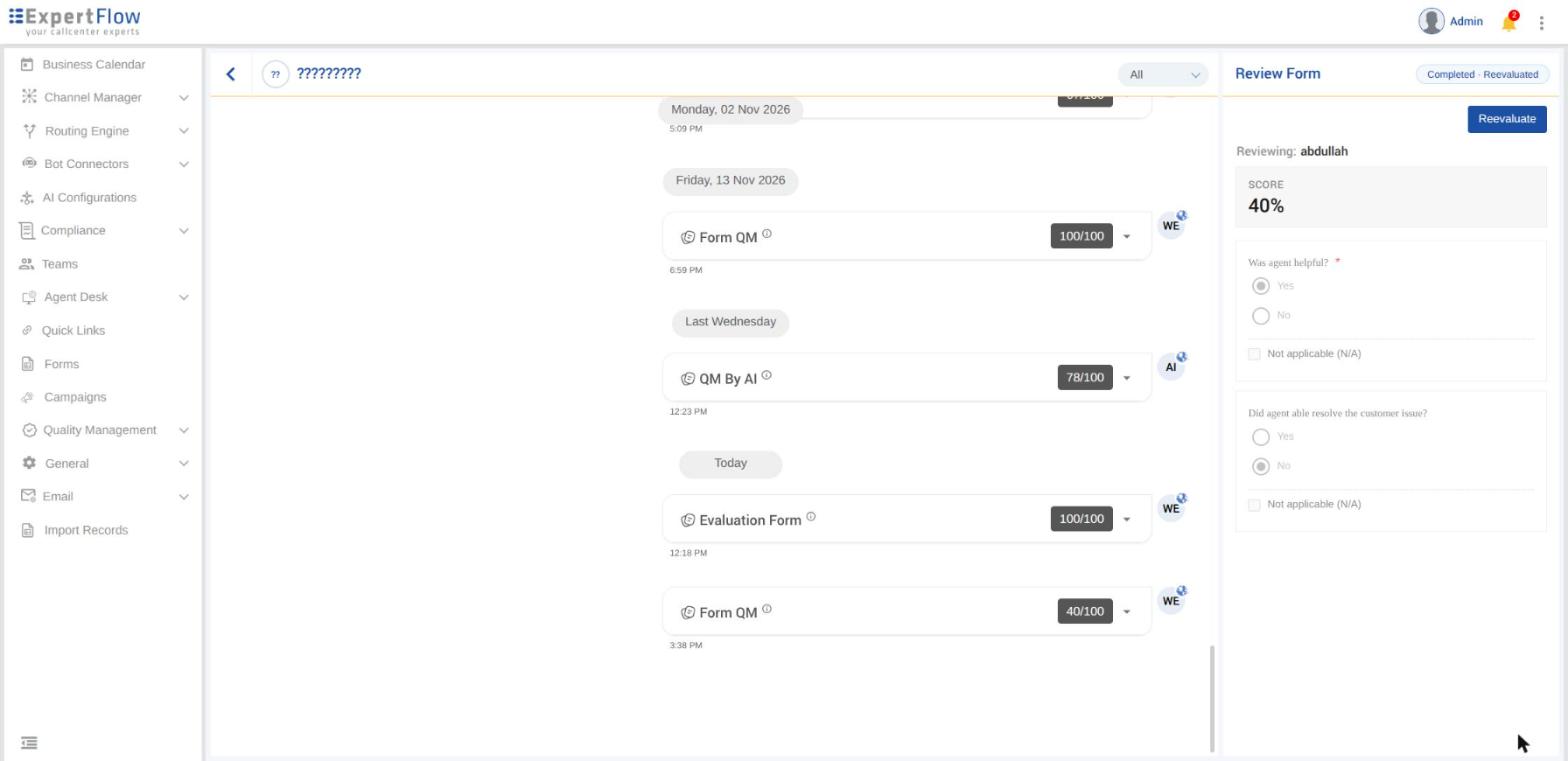
If no Critical question failed, the status is Completed with reason Reevaluated. The header shows Completed · Reevaluated.
-
If a Critical question failed, the reason is Critical Failure and the score is 0%.
Each submission appears in the conversation as its own form card, oldest first, with its score, date, evaluator and answers.
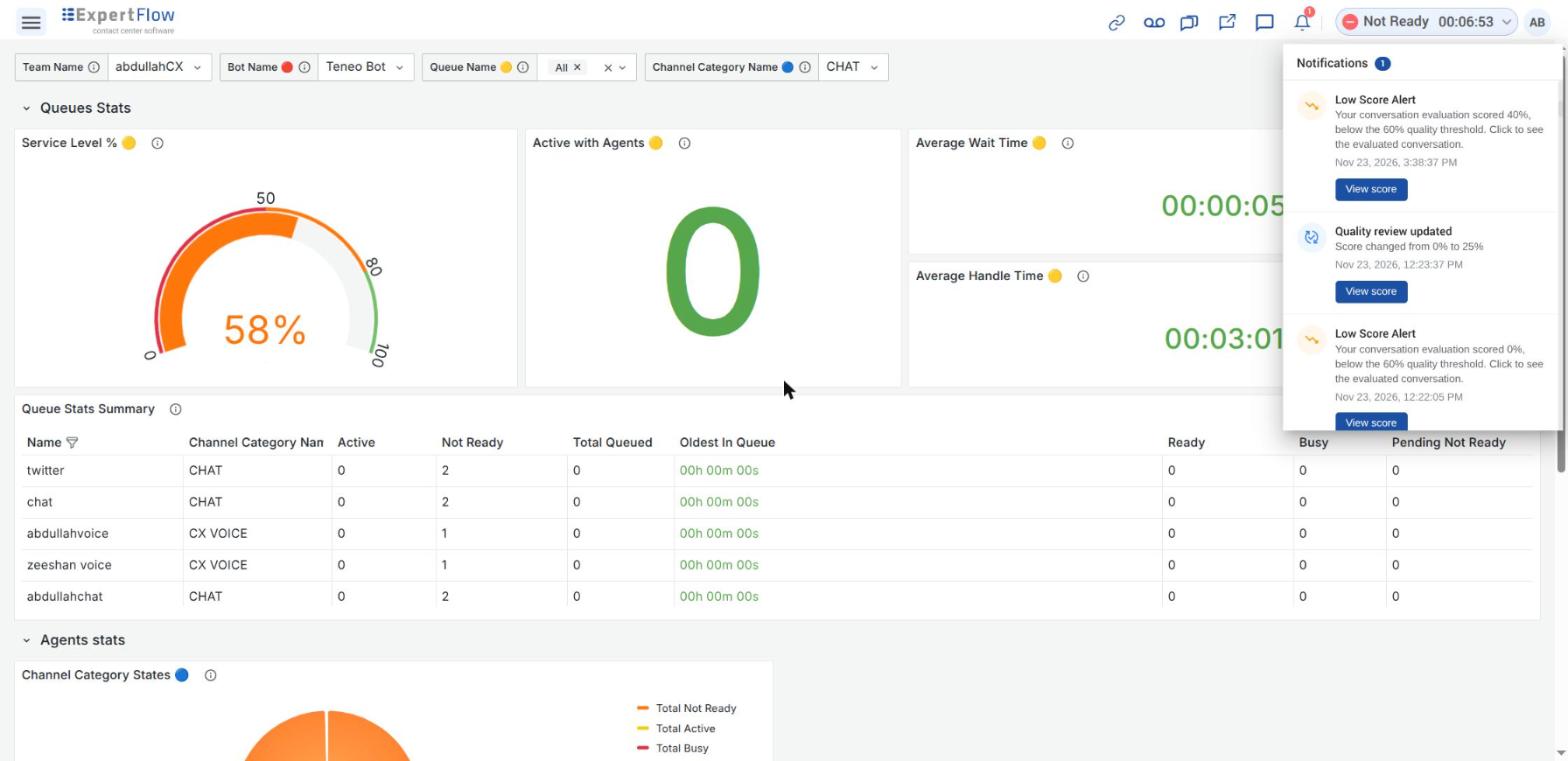
The agent gets Quality review updated in the Agent Desk bell, for example Score changed from 80% to 92%, or Score stays 80% when the score did not change. When the new score is a Critical Failure, the notification is shown in red with 0% · Critical Failure. While the reevaluation is in progress, the agent's review card shows Being reevaluated.
7. Find reevaluated reviews on the Reviews list
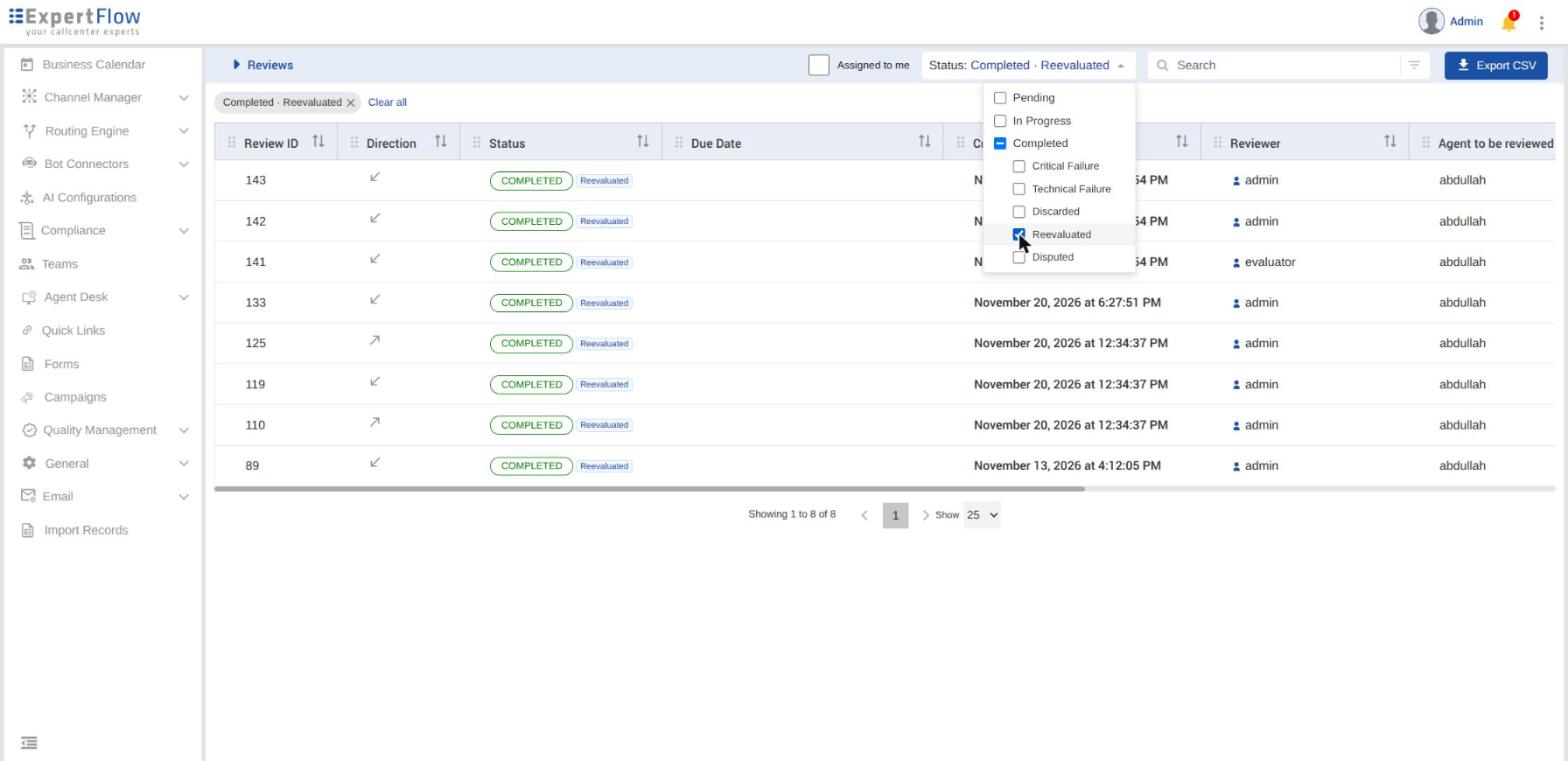
On the Reviews list a reevaluated review shows COMPLETED with a Reevaluated reason. A review shows one reason at a time.
The Status filter lists Pending, In Progress and Completed. Under Completed it nests the reasons Critical Failure, Technical Failure, Discarded, Reevaluated and Disputed. Ticking a reason ticks Completed too. Each choice shows as a chip above the list, for example Completed · Reevaluated, and Clear all removes them.
Notes
-
A reevaluation changes the same review. No new review is created, and no earlier submission is lost.
-
The last score stays on the review until the reevaluation is submitted.
-
A reevaluation can be started again on a review that was already reevaluated.
-
A reevaluation started from an agent's dispute closes the dispute. See Agent Disputes in Quality Management.