
Enables agents to pause and resume live call recording from Agent Desk during an active CX Voice call. Use this when sensitive information must not be captured in the recording (for example, a PIN or payment details). While paused, the recording continues but sensitive audio is masked (silence). When resumed, normal audio is written again into the same recording file.
This guide is intended for Expertflow agents. For system setup, see the Pause Resume Configuration Guide.
Recording Indication
-
Log in to Agent Desk.
-
Accept or place a CX Voice call.
-
After the call becomes active (answered and connected), Agent Desk shows the recording state for the call.
|
State |
Meaning |
|---|---|
|
Recording started |
Call recording is active. |
|
Recording paused |
Recording is masked; sensitive audio is not stored as speech. |
|
Recording disabled |
Recording is not enabled for this call / extension. |
Recording started indication:
Pause Call Recording
-
While on an active recorded call, hover on the recording indication.
-
The recording indicator icon will be changed to a pause recording option.
.png?cb=dde5cbc7d679f98cd763c0b92e293aee)
3. A confirmation tooltip appears asking whether you want to pause the recording.
4. Click Pause Recording on the confirmation tooltip to confirm.
.png?cb=322aa6dfd6c4551bf345e2580fbe5b75)
-
The recording state changes to paused.
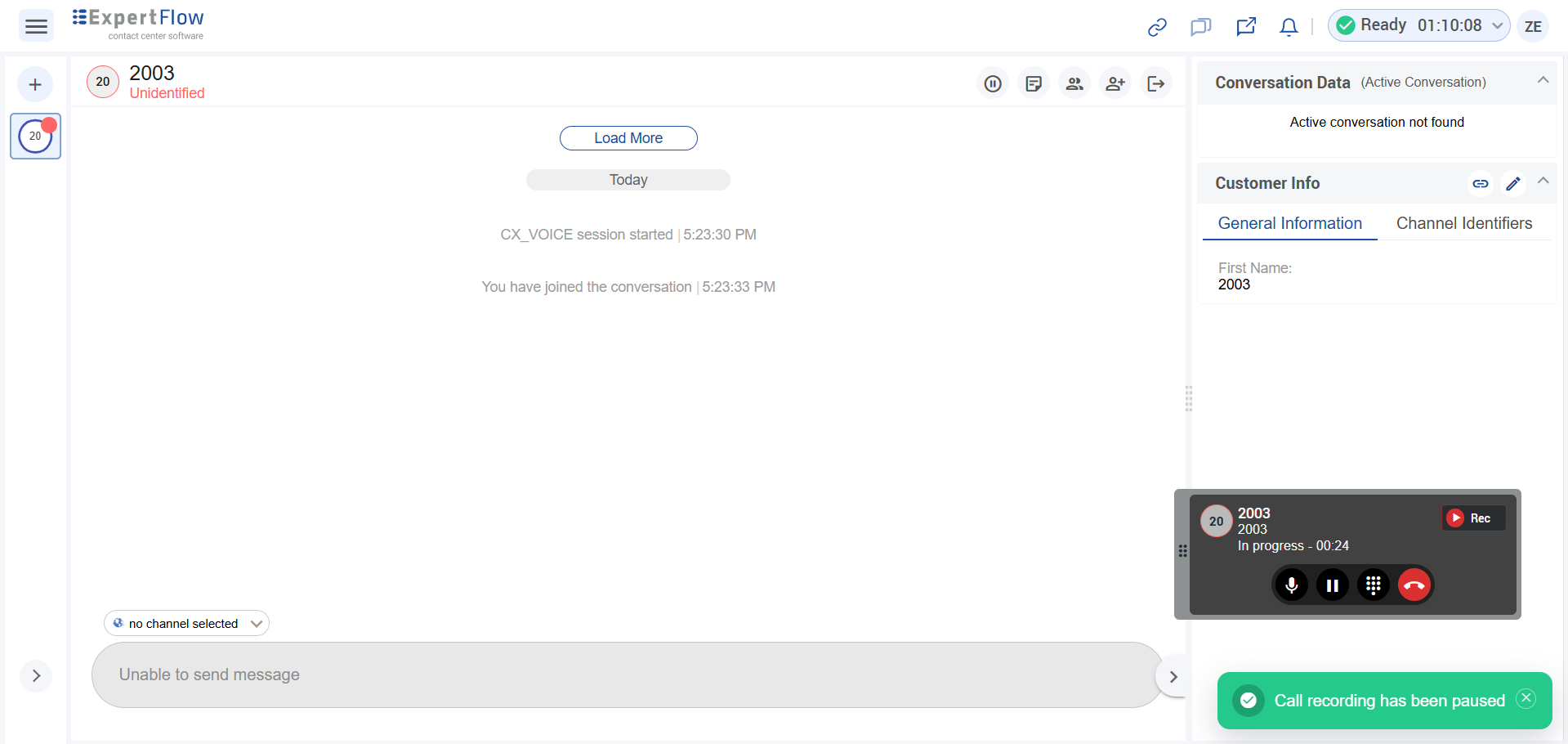
6. Collect or discuss the sensitive information while recording is paused.
Resume Call Recording
-
After the sensitive information has been handled, click Resume (or the equivalent play / resume control).
-
Continue the conversation; audio is written to the recording again.
.png?cb=9161de2fa244b936ce4393b4e3dd7c5f)
-
Pause / Resume applies to the live call recording for the current conversation.
-
Pausing does not end the call and does not stop the call for the customer.
-
After the call ends, paused segments appear as silence (masked audio) in the recording playback.
-
Pause/Resume requires the
call_recording_controlpermission (CX5.11.0). Agents without it still see the recording indicator but can not pause or resume. See Call Recording Control Permissions to an Existing Realm to grant this permission.
Recording must be enabled on the agent extension for Pause / Resume to work. If recording is disabled on the extension, Pause / Resume will not be available.