
Enables agents/advisors to review customer voicemails in AgentDesk when a private advisor is unavailable, on another call, in the Not Ready state, logged out, or after ring-no-answer (RONA). The customer leaves a recorded message; the agent/advisor is notified and can listen from the Voicemail Mailbox.
This guide is intended for Expertflow agents/advisors. For system setup, see the Voicemail Configuration Guide.
Access the Voicemail in AgentDesk
-
Log in to AgentDesk.
-
Open the Voicemail Mailbox from the AgentDesk navigation (voicemail entry point in the left or top menu, depending on your deployment).
-
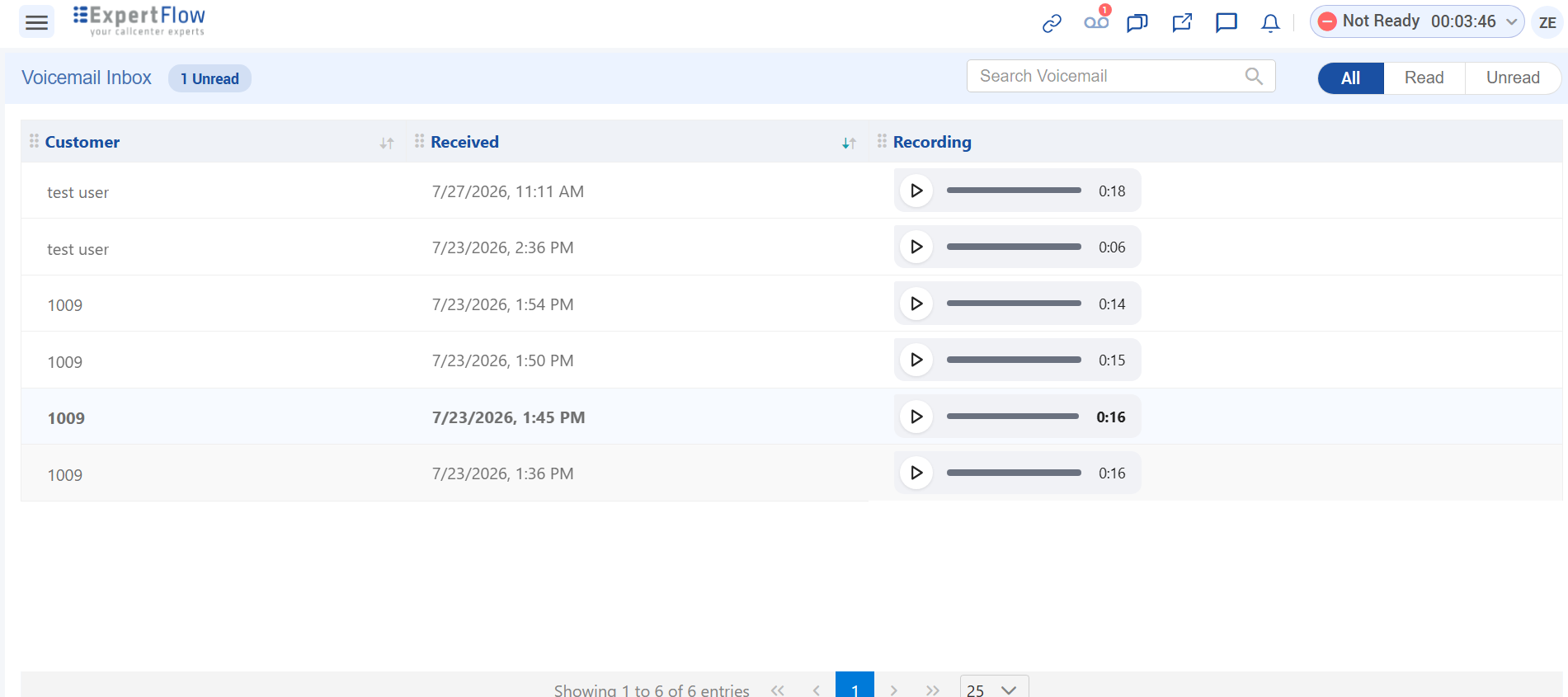
The mailbox opens as a list of voicemails assigned to you. By default, entries are sorted with the newest first.
Each row shows:
|
Column |
Description |
|---|---|
|
Customer |
Caller name and number. Name is shown when available; otherwise the raw caller number is displayed. |
|
Received |
Date and time the voicemail was received. |
|
Duration |
Length of the recording. |
|
Status |
Unread or Read. Unread rows are visually distinct (for example, bold text or a coloured indicator). |
You can filter the list (for example, All or Unread only) and search by caller number or name.
Understand Voicemail Notifications
When you have unread voicemails, AgentDesk shows a notification badge on the Voicemail Mailbox entry point with the count of unread messages in your personal mailbox.
-
The badge reflects unread messages assigned to you.
-
Voicemails received while you are logged out appear in the mailbox the next time you log in; read/unread state is preserved across sessions.
-
The badge does not update in real time. Open or refresh the Voicemail Mailbox to load the latest voicemails and see an updated unread count.
Open the Voicemail Mailbox to review new messages. The unread count decreases as you listen to voicemails (playback marks a voicemail as read).
Play Back a Voicemail
You can listen to a voicemail in two ways.
Inline playback from the mailbox
-
Open the Voicemail Mailbox.
-
On the voicemail row, use the Play / Pause control to listen directly in the list.
-
Only one voicemail can play at a time.
When you play a voicemail from the mailbox, it is automatically marked as Read.
Note: Inline playback may be disabled while you are on an active call. After the call ends, playback is available again.

Playback from customer interaction history
-
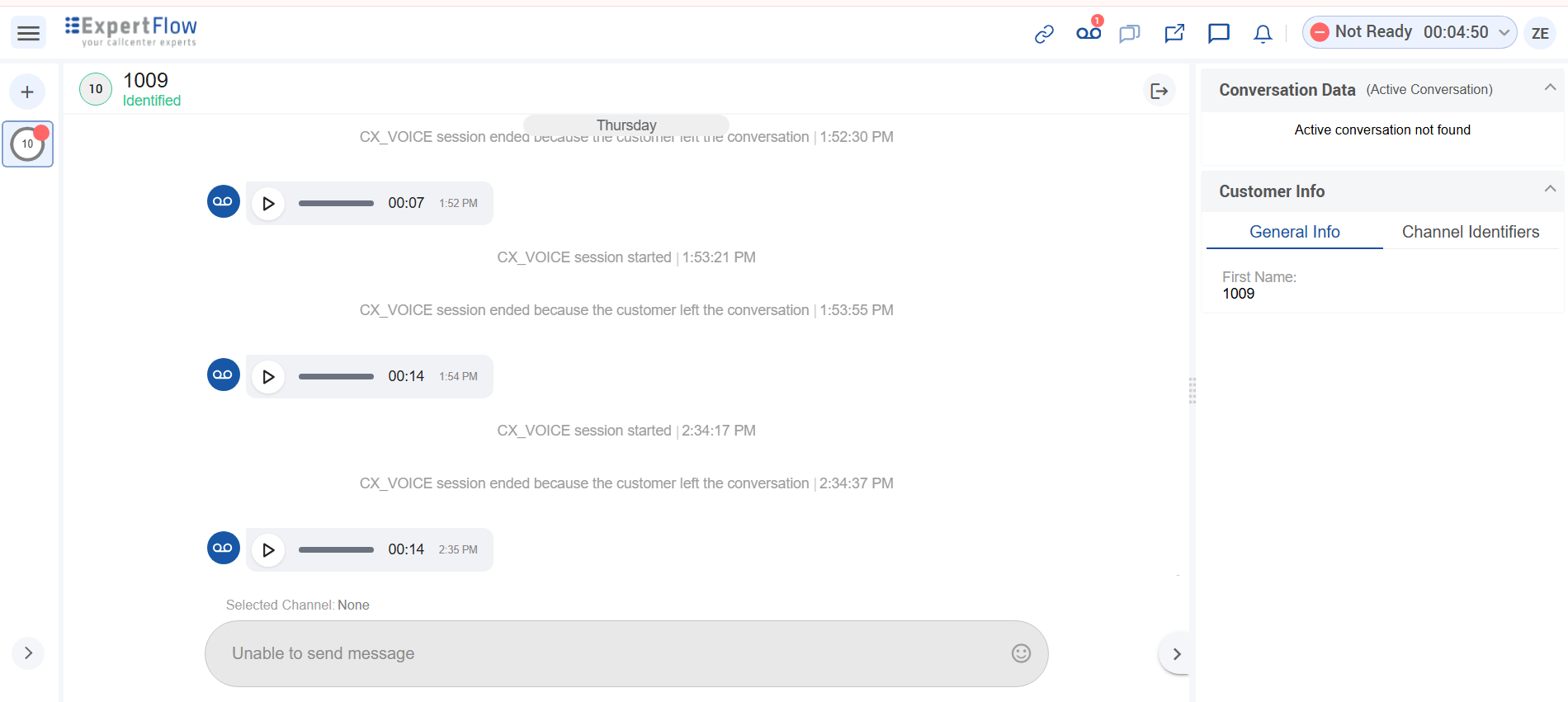
In the Voicemail Mailbox, click the voicemail row (outside the play control) to open the customer's interaction history.
-
The voicemail appears as a VOICEMAIL activity in the customer timeline.
-
Play the recording from that activity to review it alongside the customer's full interaction record.
Limitations
-
Let's say we have two Private Advisors, A and B, and a VIP Customer. That customer is mapped to Private Advisor A. If the customer enters the extension for Private Advisor B, the call routes to it if it is available; otherwise, voicemail is triggered.
-
During the active call, the agent can play the voicemail.
-
Let's assume Private Advisor A is assigned to VIP customer Zeeshan, and Private Advisor B is assigned to VIP customer Usama. When Private Advisor A logs in to the Agent Workspace, they are also able to view the voicemail interactions of Usama's customer. This is the current product behavior.
-
Provided that
isVoicemailEnabled=falseis configured in the Agent Desk Helm values, a user can still access the voicemail inbox by navigating to the/customers/voicemailendpoint appended to the application's FQDN. -
Assume voicemail is initially enabled in Agent Desk and several voicemail interactions are created. If voicemail is later disabled and the user navigates to the Interactions page, the previously created voicemail interactions are still visible.
-
Real-time notification is not implemented yet.