As an Agent, you can manage your schedule, requests, and daily activities in Workforce Management. This guide covers how to:
-
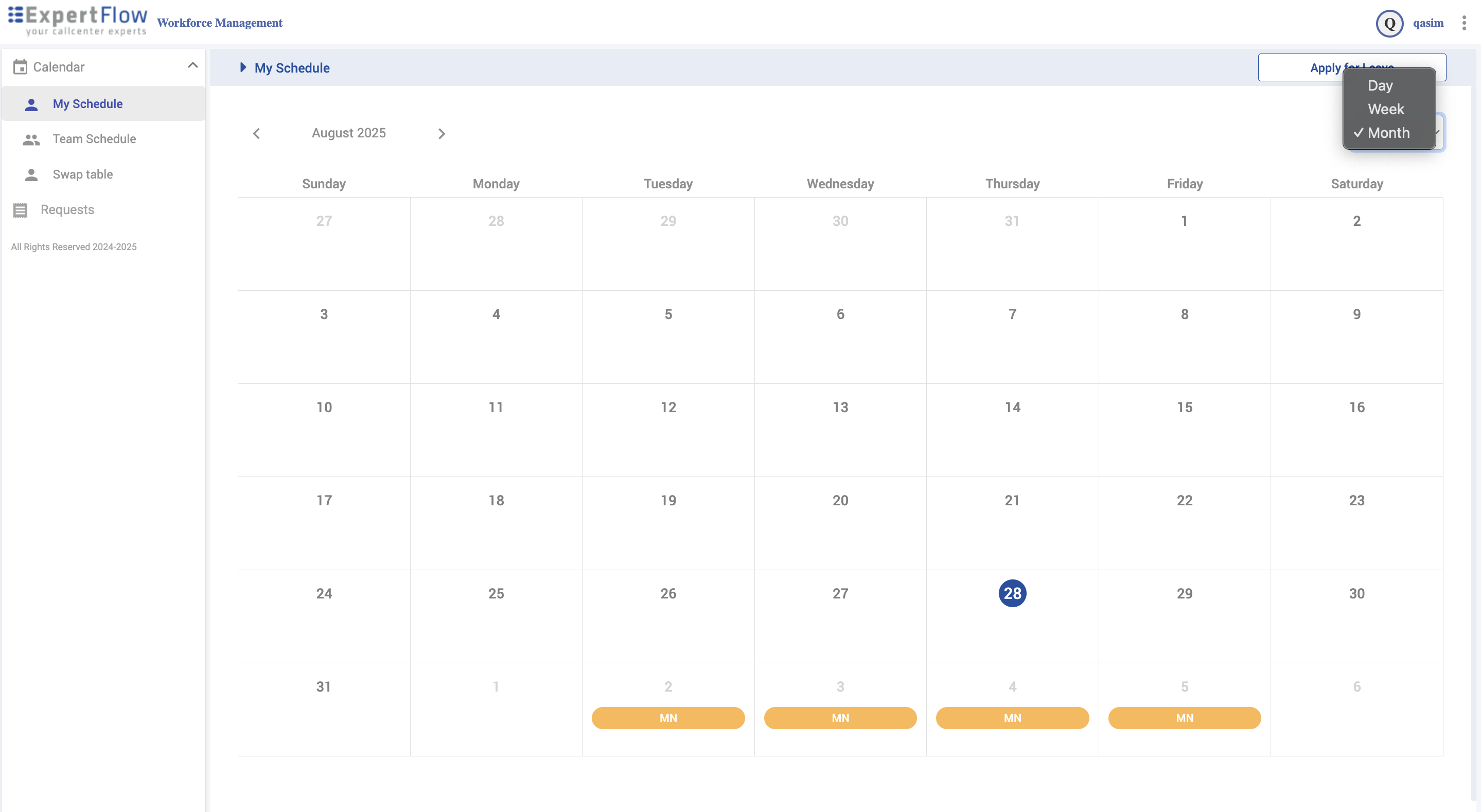
View your personal schedule in day, week, or month format to track assigned shifts, activities, and leave.
-
Apply for leave (full-day or partial-day) by selecting leave type, dates, and adding notes for supervisor approval.
-
Check team schedules to compare coverage and view colleagues’ assignments alongside your own.
-
Submit and track requests for leave, shift swaps, or trade posts, with real-time status updates.
-
Use the swap board to explore available shifts and participate in trades that comply with your skills and contracts.
My Schedule
Navigation
Calendar → My Schedule
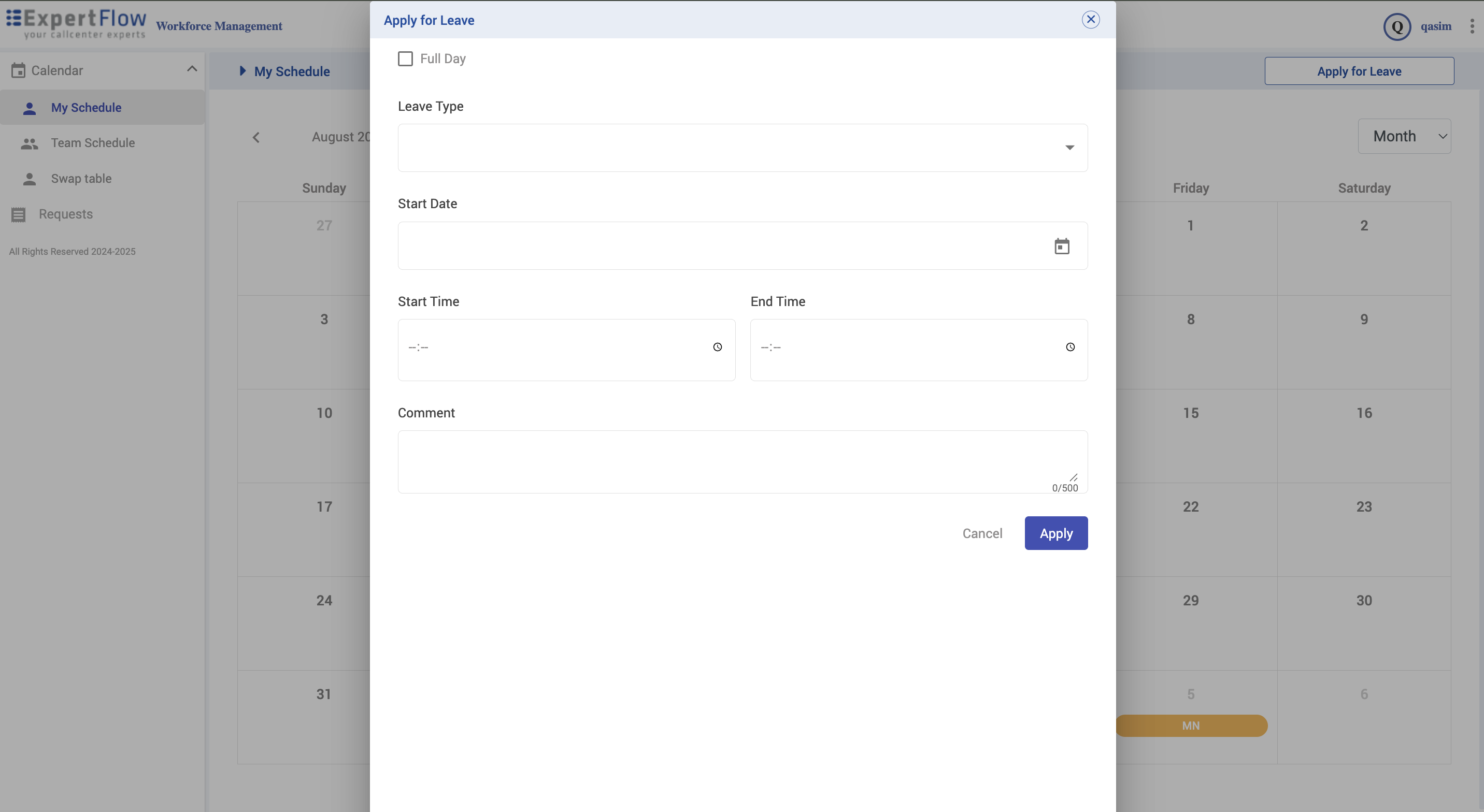
Apply for Leave
-
Click Apply for Leave (top-right).
-
Select Leave Type from the dropdown.
-
Choose Start Date / End Date.
-
(Optional) Enter Start & End Time for partial-day leave.
-
Add a Comment if required.
-
Click Apply.
Approved leave blocks will automatically prevent scheduling conflicts.
Team Schedule
Navigation
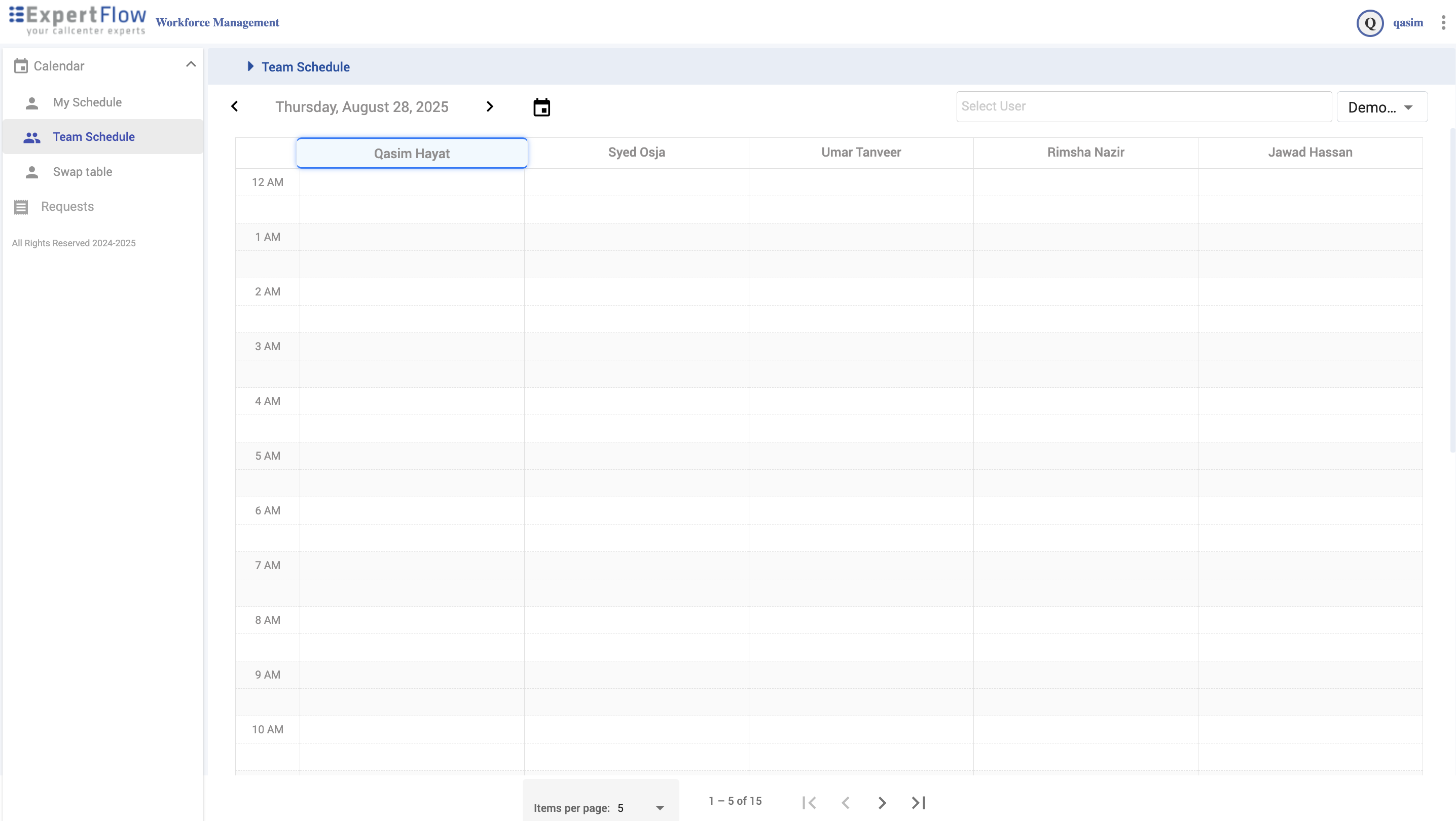
Calendar → Team Schedule
-
View your team’s schedule for the selected day.
Swap Table
Navigation
Calendar → Swap Table
-
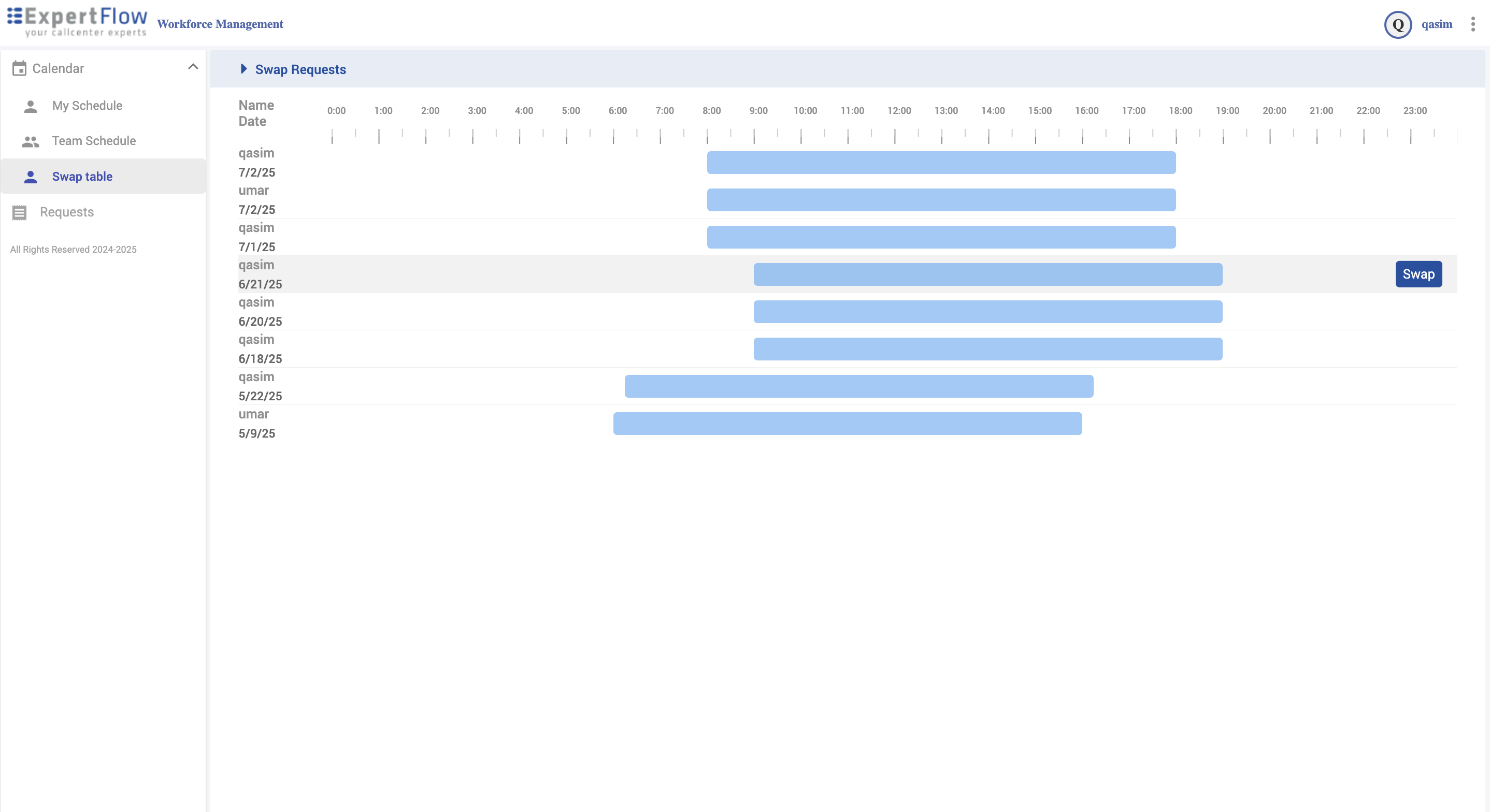
See all publicly posted swap requests in a timeline view.
-
Each row shows the requester’s name, date, and time span of the shift offered.
-
Use this board to identify available trades you may be eligible to take.
Requests
Navigation
Calendar → Requests
1. Leave Requests
-
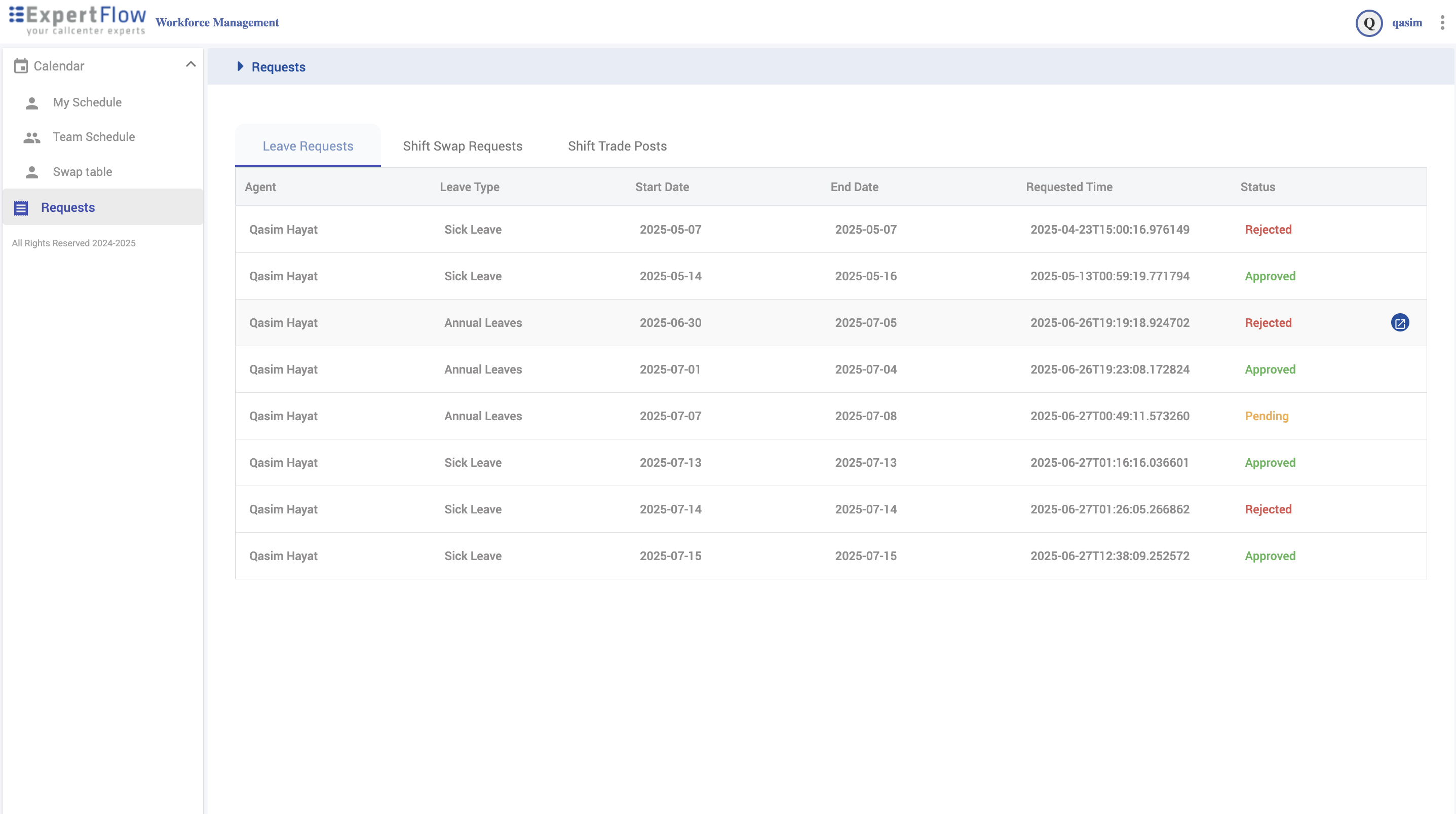
View the status of submitted leave (Approved, Rejected, Pending).
-
Track type, duration, and requested time.
2. Shift Swap Requests (Targeted)
-
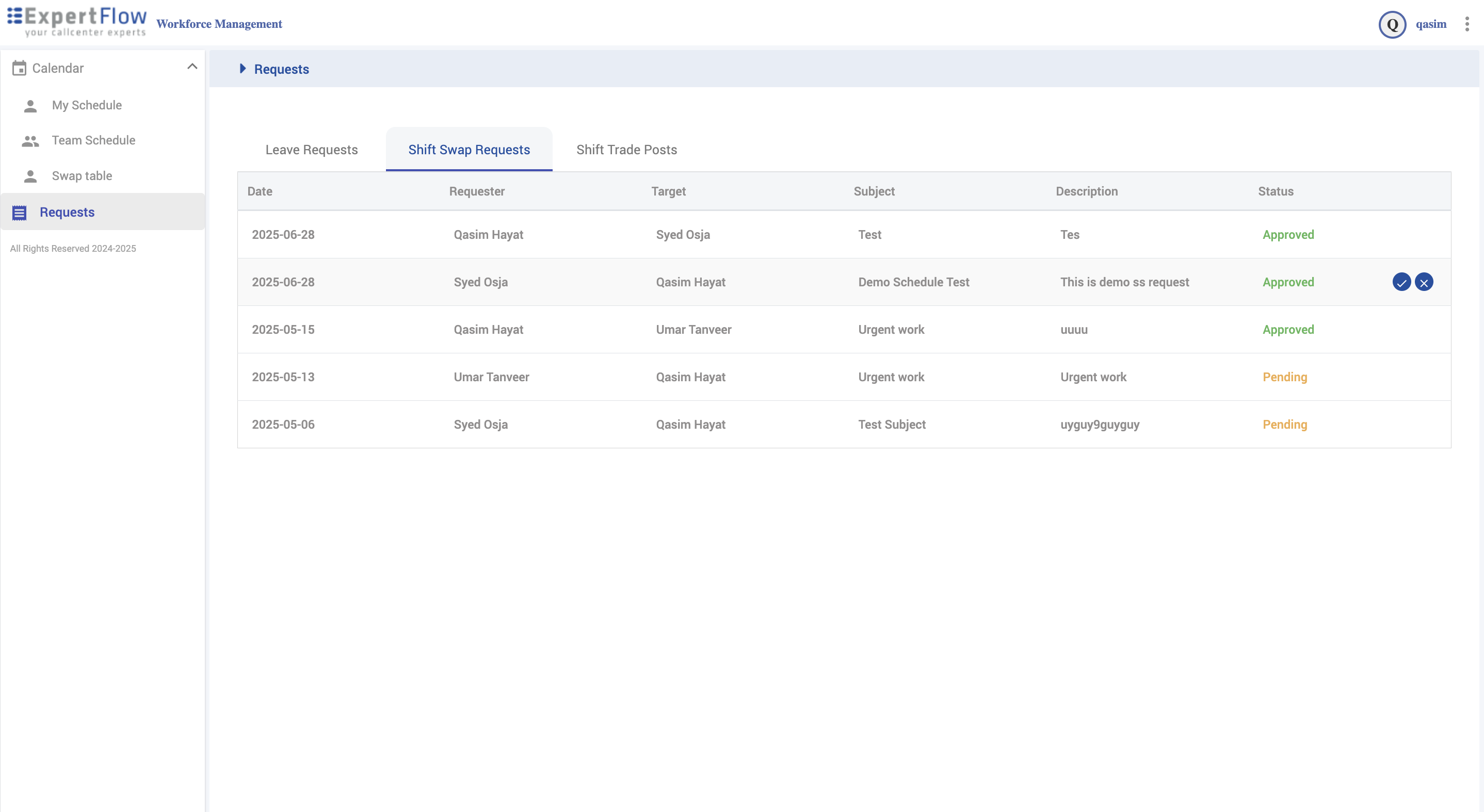
Review swaps where you are directly invited as the Target.
-
Check details like requester, subject, and notes.
-
Wait for system validation and supervisor approval.
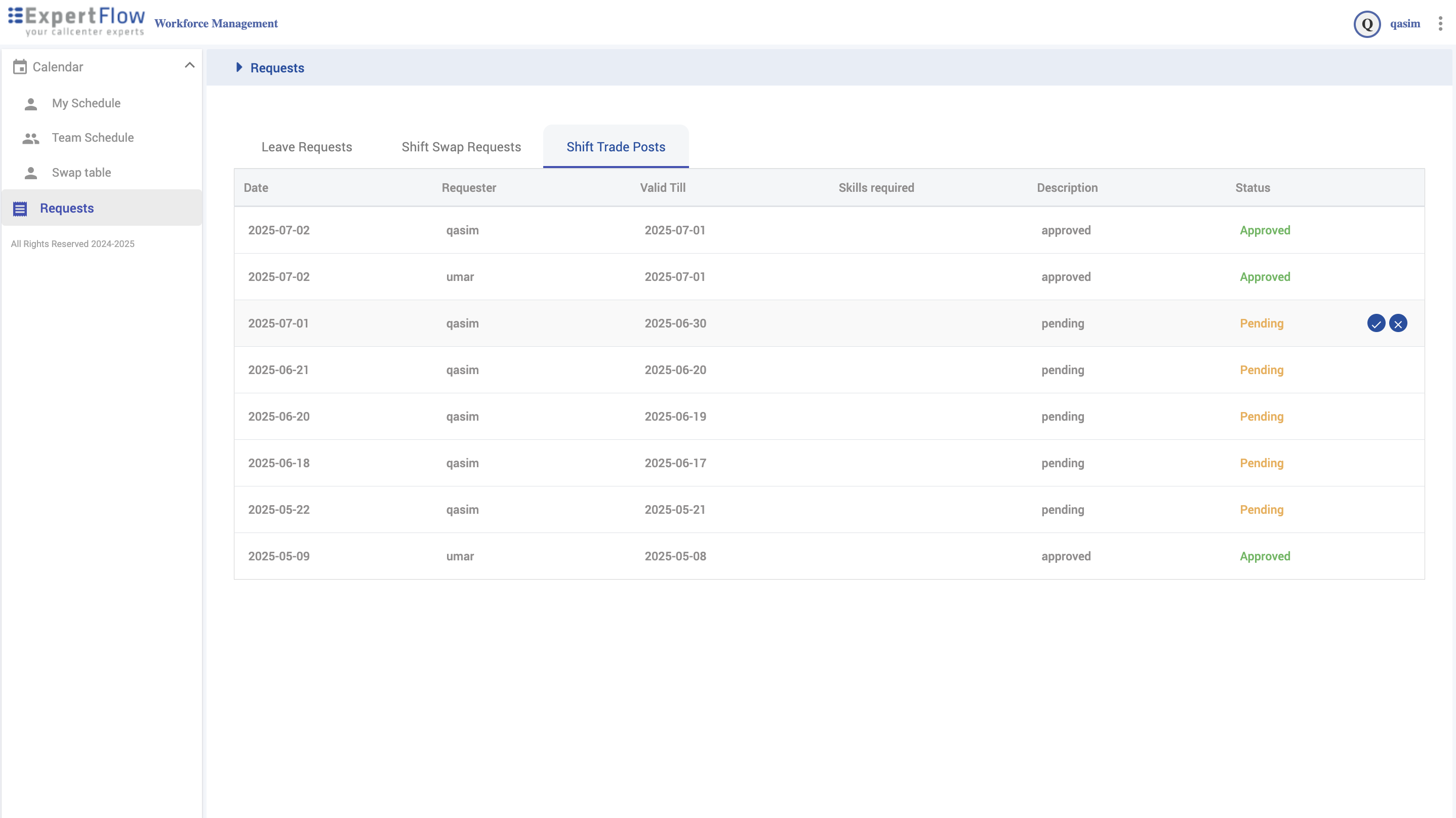
3. Shift Trade Posts (Open Market)
-
View all posted shifts open for trade.
-
Check validity dates and skills required.
-
Apply to take shifts if you meet skill/contract criteria.