
Agent Login Timer
Audience: Contact center agents and supervisors
Product: Agent Desk
See at a glance how long you've been logged in for the day, right in the top bar — no need to check with your supervisor or dig through reports.
What is this feature?
The Agent Login Timer shows how long you've been continuously logged in to Agent Desk. It starts the moment you log in and keeps counting up until you log out — it does not reset when you change your status (for example, switching between Ready, Not Ready, or Short Break). This makes it easy to tell your total logged-in time apart from the time you've spent in your current status, which is shown by a separate timer right next to it.
Who can use it?
The login timer is visible to every agent automatically — there's nothing to turn on or configure.
|
Access level |
What you can do |
|---|---|
|
View |
Every logged-in agent sees their own login timer in the top bar. |
|
Manage |
Not applicable — the timer is informational only and cannot be edited, paused, or reset by the agent. |
How to open the feature
-
Log in to Agent Desk with your username and password.
-
Look at the top bar, next to your current status (for example, Not Ready).
-
The login timer appears right after the status timer, labeled Logged in: hh:mm:ss, with a small clock icon.
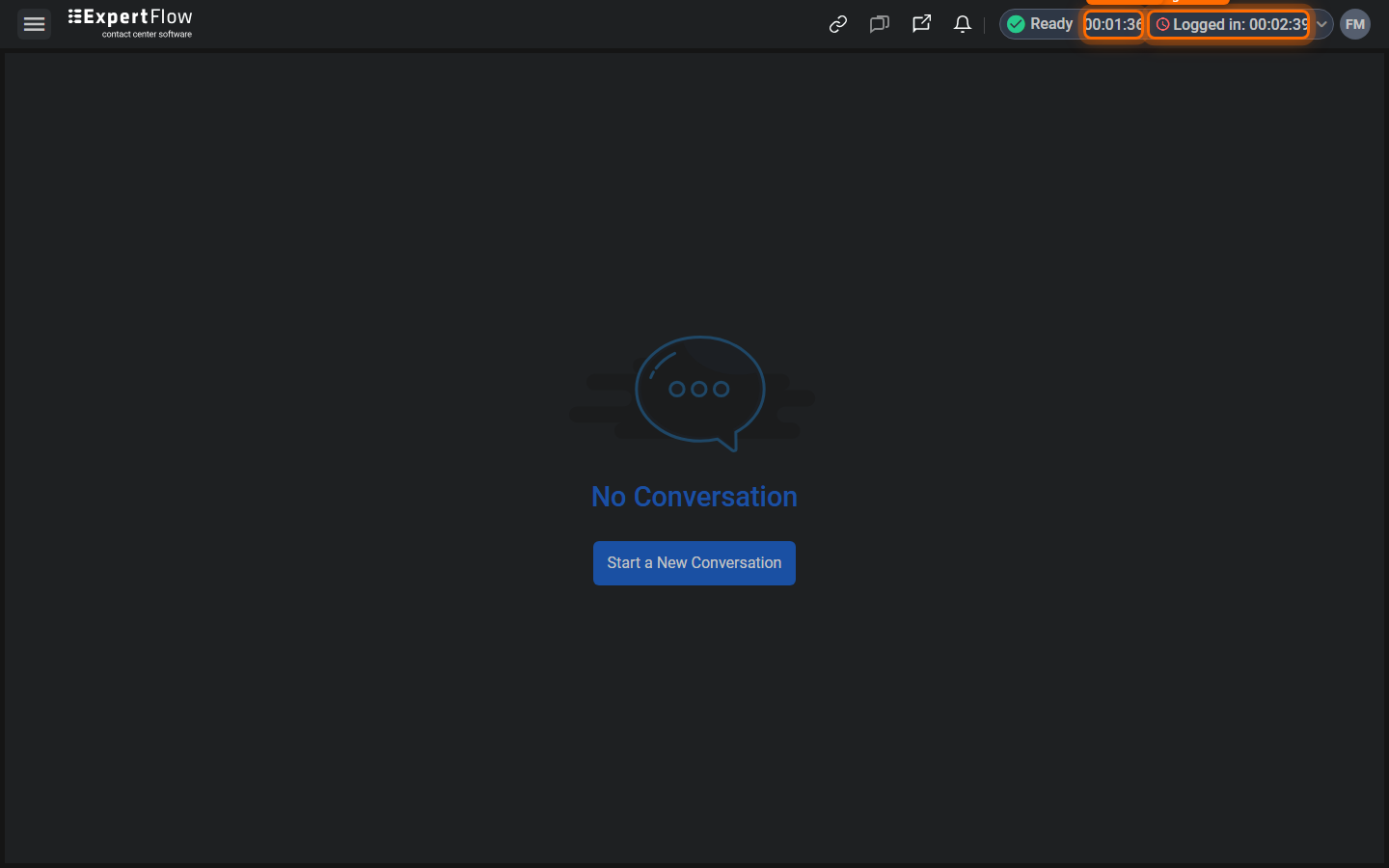
Figure 1 — The login timer (right) next to the status timer (left) in the top bar.
How it behaves
The login timer is designed to always reflect your true logged-in duration, even across status changes, page refreshes, and brief connection blips.
Status changes don't reset it
Every time you change your status (for example, from Not Ready to Ready), the status timer next to it restarts at zero — that's expected, since it tracks time in your current status. The login timer keeps counting from your original login time, uninterrupted.
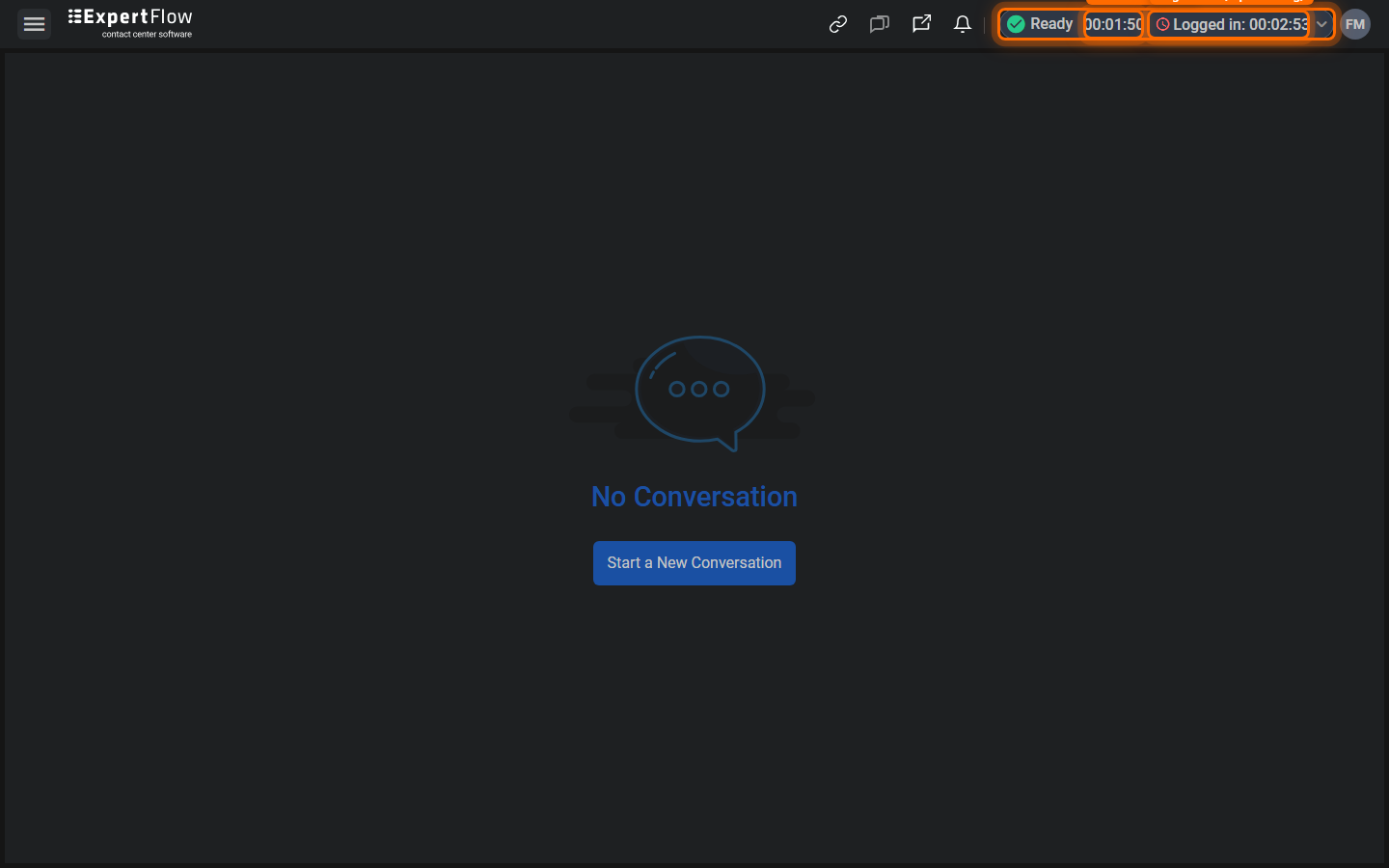
Figure 2 — After a status change, the status timer restarts, but the login timer is unaffected.
Refreshing the page
If you refresh the browser or reload Agent Desk, the login timer picks up exactly where it left off — it does not restart from zero.
If the timer shows --:--:--
Right after login, there's a brief moment before your login time is confirmed. During this moment the timer is hidden or shows a placeholder (--:--:--) instead of an incorrect value. It fills in automatically within a second or two.
Tips
-
The login timer reflects your entire logged-in session, so use it to track your total time on the clock for the day.
-
Use the status timer (immediately to its left) to see how long you've been in your current status instead.
-
The login timer clears automatically when you log out, and starts fresh the next time you log in.
Troubleshooting / FAQ
Why did my login timer reset when I only changed my status?
It shouldn't — only the status timer resets on a status change. If you see the login timer itself reset to zero, refresh the page; if it still resets, contact your administrator.
Why does the timer briefly show --:--:-- after I log in?
This is expected. It's a short placeholder shown while Agent Desk confirms your login time with the server, and it's replaced with the real elapsed time within a second or two.
Does the login timer count time spent on Break or Not Ready?
Yes. The login timer counts your entire logged-in session regardless of status — it only stops when you log out.
Last updated: 2026-07-31