
Overview
Campaign priority controls how outbound dial lines are shared when multiple CX_Voice campaigns run at the same time on one tenant.
All campaigns share one tenant-wide line pool (set by Max Concurrent Calls in tenant dialer settings). Priority decides each campaign’s fair share of that pool each Governor cycle.
Important: Priority applies only to CX_Voice campaigns. Non_CX_Voice campaigns are not part of this shared line pool.
Where to set campaign priority
Unified Admin (recommended)
-
Open Unified Admin → Campaigns
-
Create a new campaign or Edit an existing one
-
Set Campaign type to CX_Voice
-
The Priority field appears next to campaign type
-
Enter a value from 1 to 10
-
Save the campaign
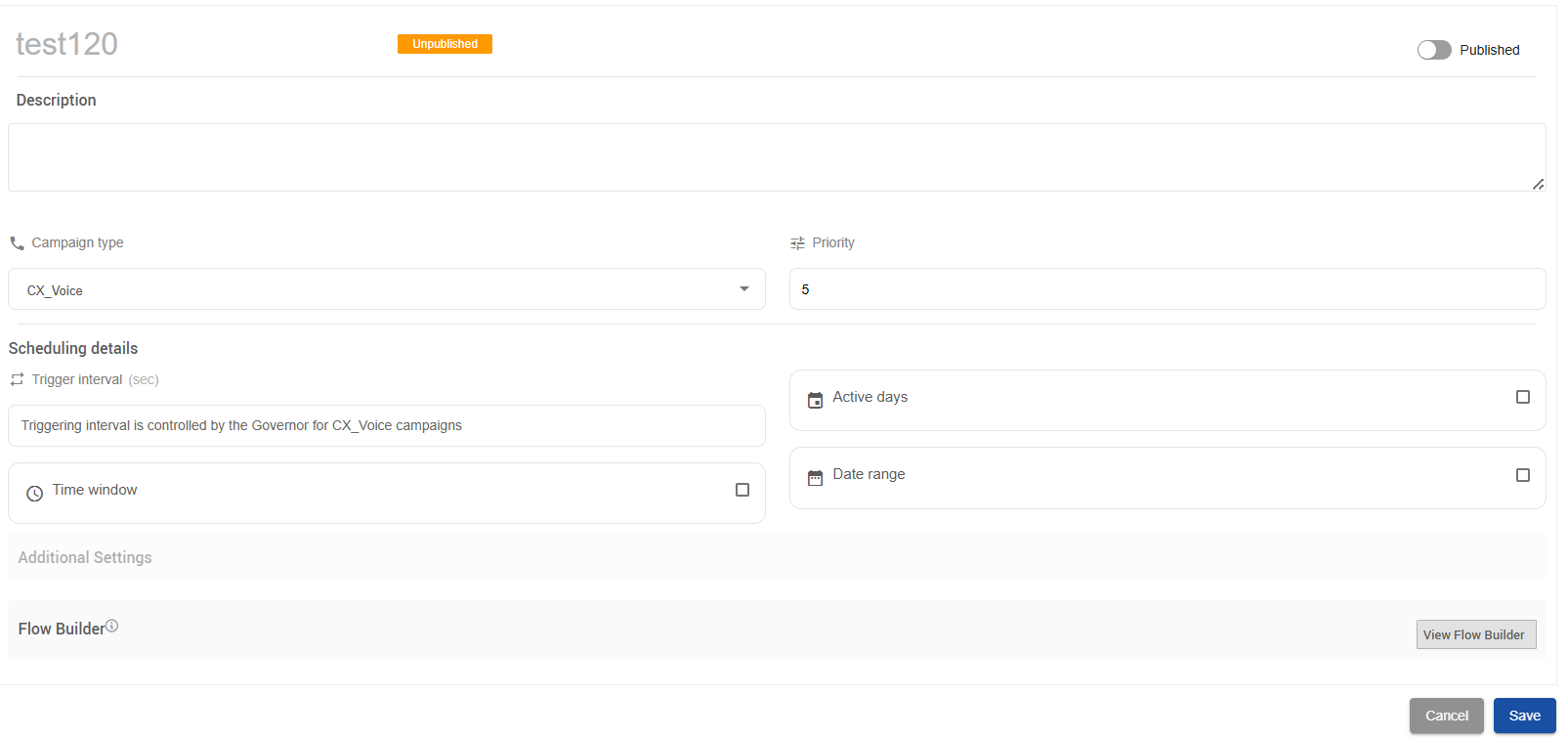
The Priority field is only visible for CX_Voice campaigns.
When it takes effect
Priority is used when the campaign is:
-
Published
-
Within its schedule (time window, active days, date range — if configured)
-
CX_Voice type
Changes to priority apply on the next Governor cycle (no redeploy needed).
Priority values
|
Setting |
Allowed range |
Meaning |
|---|---|---|
|
Priority |
1 – 10 |
Higher number = larger share of dial lines |
|
Default |
5 |
Shown when creating/editing if no value exists |
How to read the scale
|
Priority |
Typical use |
|---|---|
|
1 – 3 |
Low importance / background campaigns |
|
4 – 6 |
Normal campaigns |
|
7 – 10 |
High importance / urgent campaigns |
Priority is a weight, not a fixed number of lines. Actual lines depend on total pool size and how many campaigns are active.
What priority does not control
-
Non_CX_Voice campaigns — not in the shared line pool
-
Total lines available — set at tenant level (
maxConcurrentCalls) -
Exact dial count every cycle — also depends on pending contacts
-
Agent assignment — priority is on the campaign, not individual agents
How line sharing works (multiple campaigns)
Step 1 — Tenant line pool
Each tenant has a maximum number of concurrent outbound lines (e.g. 15 lines).
All active CX_Voice campaigns share this pool.
Step 2 — Which campaigns compete
Each Governor cycle includes campaigns that are:
-
Published
-
CX_Voice
-
Within schedule
-
Have pending contacts ready to dial
-
Have priority > 0
Step 3 — Leveraged Share calculation
The system splits the full line pool by priority weight.
Basic idea:
Campaign share ≈ (Campaign priority ÷ Sum of all active priorities) × Total lines
Example — 3 campaigns, 15 lines available
|
Campaign |
Priority |
Pending contacts |
Allocated lines |
|---|---|---|---|
|
Campaign A |
5 |
100 |
8 |
|
Campaign B |
3 |
100 |
4 |
|
Campaign C |
2 |
100 |
3 |
|
Total |
10 |
|
15 |
Higher priority gets more lines, but lower-priority campaigns still receive a share.
Step 4 — Pending contacts cap
A campaign never gets more lines than it has contacts ready to dial.
Example — Campaign A only has 2 contacts left
|
Campaign |
Priority |
Pending |
Allocated |
|---|---|---|---|
|
A |
5 |
2 |
2 (capped) |
|
B |
3 |
100 |
8 |
|
C |
2 |
100 |
5 |
A’s unused share is reallocated to other campaigns.
Step 5 — When lines are scarce
If many campaigns run with few lines, the system:
-
Gives each campaign a proportional whole-number share
-
Ensures no campaign gets zero if it has pending contacts and lines remain (zero-slot relief)
-
Gives leftover lines to highest priority first; ties go to campaigns with fewer pending contacts
Example — 4 campaigns, only 3 lines
|
Campaign |
Priority |
Lines received |
|---|---|---|
|
A (priority 4) |
4 |
1 |
|
B (priority 3) |
3 |
1 |
|
C (priority 2) |
2 |
1 |
|
D (priority 1) |
1 |
0 |
Even in scarcity, higher priority is favored — but not always guaranteed all lines.
Key behaviors to remember
1. Priority is a weight, not a queue
A priority 2 campaign can still dial while a priority 7 campaign is active. It just gets a smaller share.
2. More campaigns = smaller shares for everyone
Adding campaigns reduces each one’s slice unless the tenant line pool is increased.
3. No pending contacts = no allocation
If a campaign has 0 eligible contacts, it gets 0 lines that cycle regardless of priority.
4. Pool full = wait for lines to free
When all lines are in use, new grants wait until calls end and lines are freed.
5. Priority can be changed anytime
Edit the campaign in Unified Admin and update Priority. The new value applies on the next Governor cycle.
Practical setup examples
Two campaigns, equal importance
-
Campaign A: Priority 5
-
Campaign B: Priority 5
→ Roughly 50/50 split (subject to pending contacts and line availability)
One urgent, one normal
-
Urgent campaign: Priority 9
-
Normal campaign: Priority 3
→ Urgent gets ~75%, normal ~25% of the pool
One main campaign + low-priority overflow
-
Main: Priority 8
-
Overflow: Priority 2
→ Main gets most lines; overflow still gets some when capacity allows
Related settings
|
Setting |
Where |
Role |
|---|---|---|
|
Campaign Priority |
Unified Admin → Campaign (CX_Voice) |
Share of line pool |
|
Max Concurrent Calls |
Tenant / CX dialer config |
Total line pool size |
|
Campaign schedule |
Unified Admin → Campaign scheduling |
Must be in schedule to receive lines |
|
Publish status |
Unified Admin → Campaign |
Must be Published to participate |
Quick FAQ
Q: I set priority to 10 but the campaign only gets 1 line.
A: Likely causes: very few pending contacts, tenant pool is small, many other campaigns are active, or all lines are already in use.
Q: Does Non_CX_Voice use priority?
A: No. Priority and shared line allocation apply only to CX_Voice.
Q: Can I set priority to 0?
A: No. Valid range is 1–10. Priority 0 would exclude the campaign from allocation.
Q: When does a priority change apply?
A: On the next Governor cycle after saving the campaign.
Q: Is priority per campaign or per agent?
A: Per campaign. All agents/contacts under that campaign share its allocated line budget.
Summary
|
Item |
Detail |
|---|---|
|
Who uses it |
CX_Voice campaigns only |
|
Where to set |
Unified Admin → Create/Edit Campaign → Priority |
|
Valid values |
1 (lowest) to 10 (highest) |
|
What it controls |
Share of tenant dial lines among active campaigns |
|
Model |
Leveraged Share — proportional by priority, capped by pending contacts |
|
Pool limit |
Tenant max concurrent calls |