
|
Node |
Start |
|
Description |
This node |
Overview
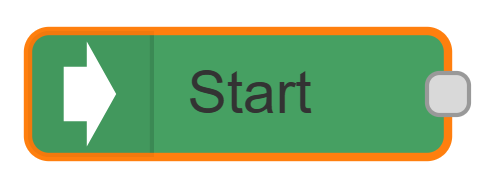
The Start node decides when a campaign flow is allowed to run. It doesn't receive any input from other nodes, it works on its own, checking the time at regular intervals. If the schedule you've set up allows it, and the campaign is published, it kicks off the rest of the flow. If either condition isn't met, it simply waits and checks again later.
|
Category |
Inputs |
Outputs |
Default Label |
|---|---|---|---|
|
Flow Control |
0 |
1 |
Your node's name, or "Start" if left blank |
Configuration Options
|
Setting |
Default |
What it does |
|---|---|---|
|
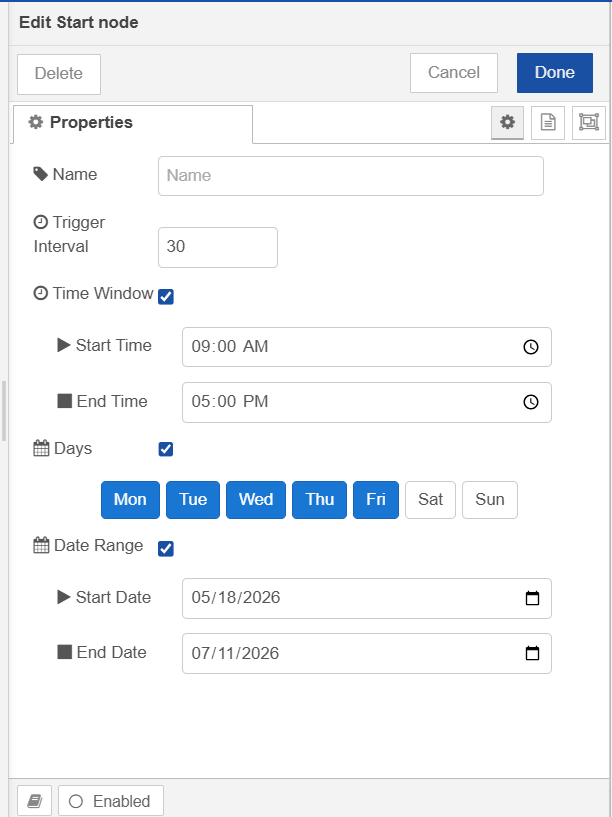
Name |
(blank) |
Optional label for the node. |
|
Trigger Interval |
30 seconds |
How often the node checks whether it's time to run. |
|
Time Window |
Off |
Restrict the flow to a daily time window, e.g. only between 9am and 5pm. |
|
Start Time / End Time |
09:00 / 17:00 |
The allowed window each day. Start Time must be earlier than End Time. |
|
Days |
Off |
Restrict the flow to specific days of the week. |
|
Selected Days |
None |
Which days (Mon–Sun) the flow is allowed to run on. |
|
Date Range |
Off |
Restrict the flow to a specific date range, e.g. for a limited-time campaign. |
|
Start Date / End Date |
(blank) |
The first and last calendar dates the flow is allowed to run on. |
You can turn on as many of these (Time Window, Days, Date Range) as you need, when more than one is enabled, all of them have to be satisfied for the flow to run.
Start Node Configuration Setup:
-
Turning on Time Window, Days, or Date Range reveals the related options; turning it off hides them again.
-
If Start Time isn't earlier than End Time, you'll see an error.
-
If your Start Date is after your End Date, or your End Date has already passed, you'll see a warning so you can fix it before deploying.
-
Select days by clicking the day buttons (Mon, Tue, Wed...) — selected days are highlighted.
When Does It Trigger?
Every time the Trigger Interval elapses, the node checks the current date and time against whichever of Time Window, Days, and Date Range you've enabled. If all of those checks pass, it then checks whether the campaign is published. Only if both the schedule and the publish status check out does it send a message to start the flow, otherwise it stays quiet and tries again on the next interval.
If your schedule settings are invalid when the flow is deployed (for example, an end date before the start date), the node won't start checking at all until the configuration is corrected and redeployed.
Output:
When the node fires, it sends a single message shaped like this:
{
  "payload": {},
  "id": "<auto-generated message id>",
  "outboundMetadata": {},
  "timezoneComplianceMetadata": {
    "checkCompliance": false,
    "useTimeWindow": true,
    "startTime": "09:00",
    "endTime": "17:00",
    "useDays": true,
    "days": ["monday", "tuesday", "wednesday", "thursday", "friday"],
    "useStartEndDate": false,
    "startDate": "",
    "endDate": "",
    "timezone": "Asia/Karachi"
  }
}
|
Field |
Notes |
|---|---|
|
|
Empty — intended to be filled in by downstream nodes. |
|
|
A freshly generated message ID. |
|
|
Empty placeholder, populated later in the flow. |
|
|
A snapshot of this node's schedule settings, plus the server's resolved timezone. |