
To create or upgrade the database on MySQL using the command line, follow these steps:
Note: Please run the following command on the system where MySQL is deployed or has access to MySQL.
-
Log in to MySQL:
Replace “root” with your MySQL username.
mysql -u root -p
-
Enter your MySQL password when prompted.

-
After successfully logging in to MySQL, you will see a welcome prompt.
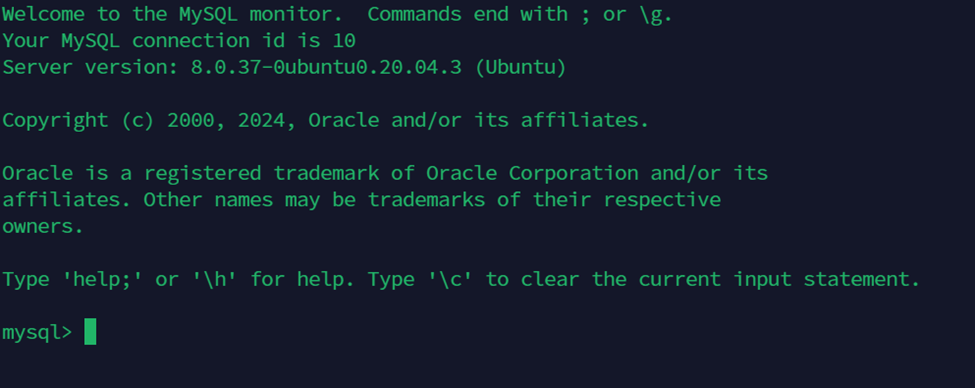
Proceed to step 6 if you prefer to upgrade the database to a newer version
-
To create a new database run the following command:
Please verify the correct file path of the SQL script based on your folder name or the location where you saved the MySQL script file (.sql).
source cim-solution/kubernetes/pre-deployment/reportingConnector/dbScripts/dbcreation/_historical_reports_db_creation_script_MySQL.sql;
Check the output and any error messages. The terminal will show the outcome of each SQL command in the script, along with any error or warning messages.
-
To exit from the MySQL command-line interface, type:
exit;
-
Select your existing database by typing:
use cim_etl_report;
-
To Upgrade your existing database to the newer version (e.g., 4.5 to 4.5.1), run the following command:
Please verify the correct file path of the SQL script based on your folder name or the location where you saved the MySQL script file (.sql).
source cim-solution/kubernetes/pre-deployment/reportingConnector/dbScripts/dbupdate/historical_reports_db_update_script_MYSQL.sql.sql;
-
To exit from the MySQL command-line interface, type:
exit;
To create or upgrade the database on MySQL using Workbench, follow these steps:
Login to MySQL using MySQL Workbench (Skip here if you have already created a connection).
-
Create a connection by clicking the + icon:
-
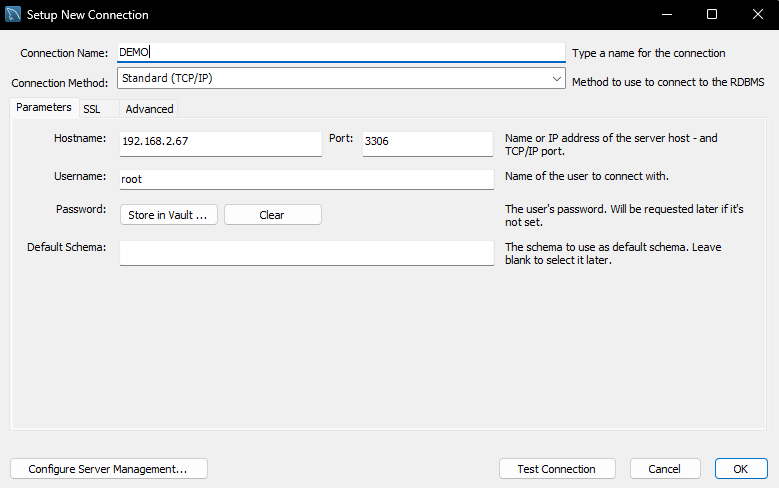
Enter your connection details.
-
After entering connection details test your connection and click OK.
Open MySQL connection and run queries
-
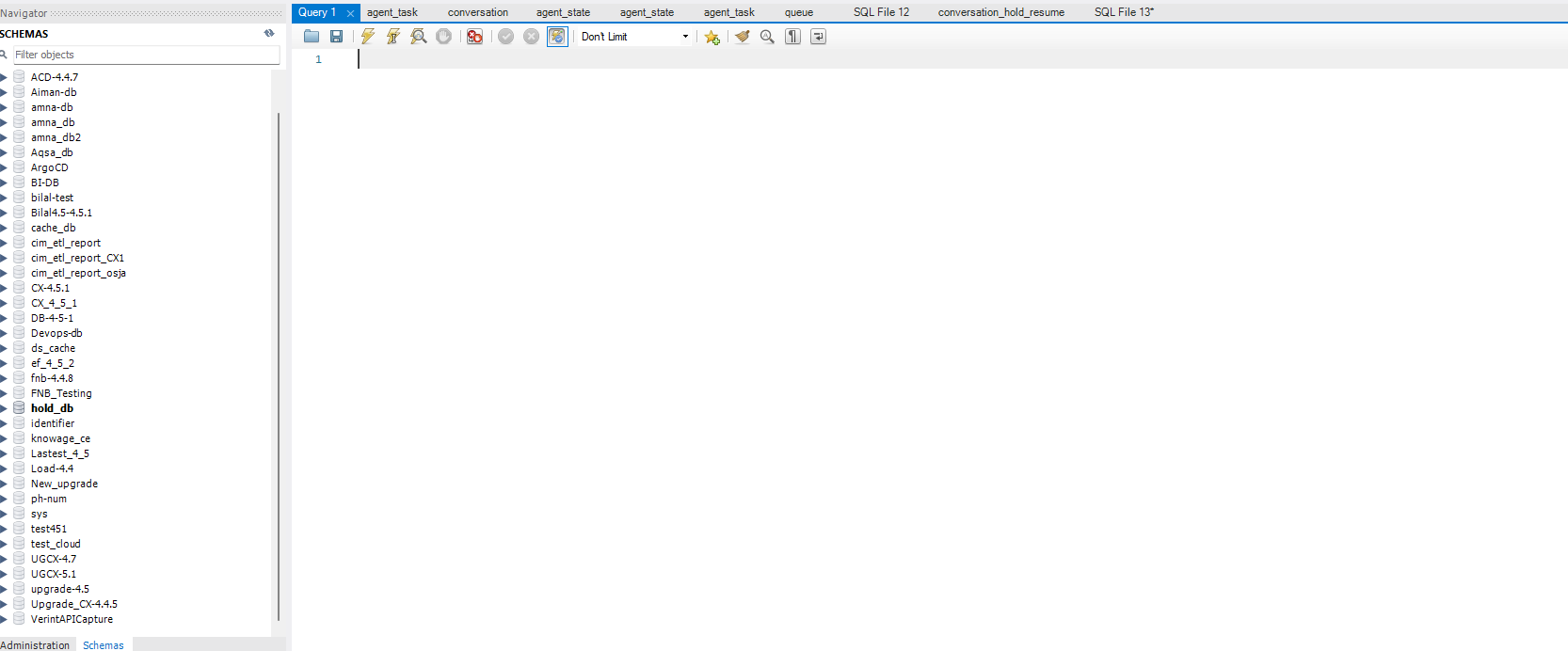
Open the build connection by clicking to navigate to the query tab alongside the databases created on MySQL:
-
Now, please proceed to the EFCX deployed machine and copy the script from there:
To create a new database copy the MySQL creation script from cim-solution/kubernetes/pre-deployment/reportingConnector/dbScripts/dbcreation/_historical_reports_db_creation_script_MySQL.sql
-
Paste that into the MySQL Workbench then execute by clicking the

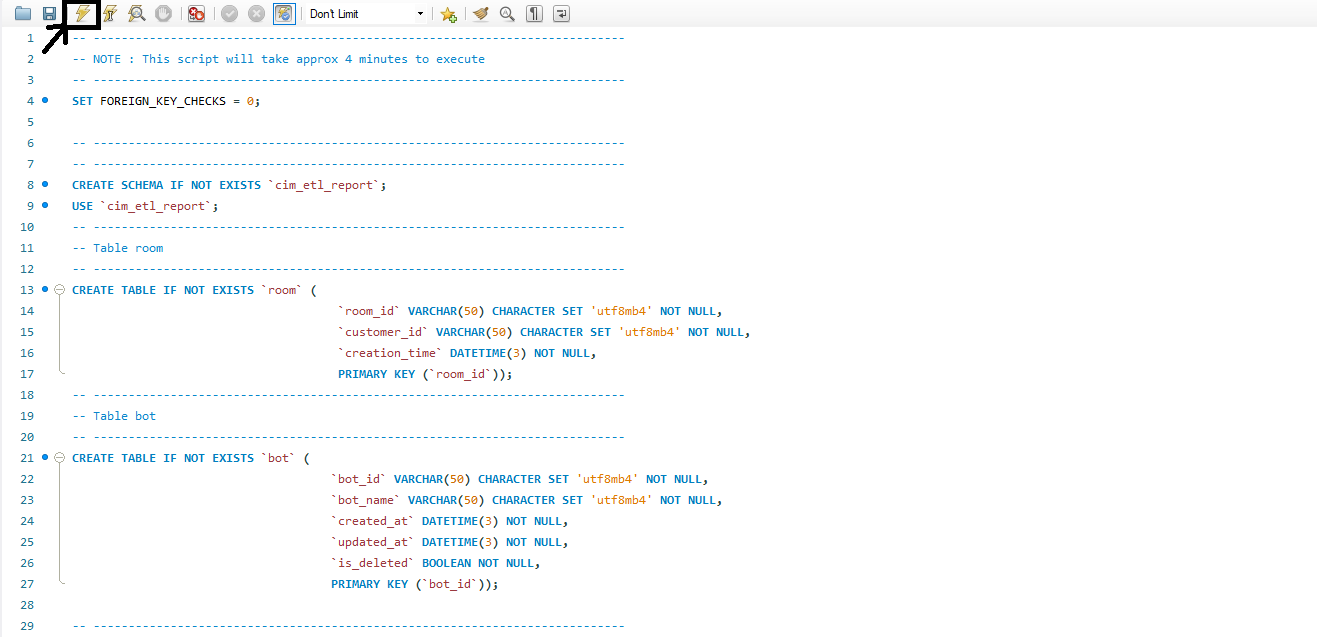
Check the output and any error messages. The output panel will show the outcome of each SQL command in the script, along with any error or warning messages.
-
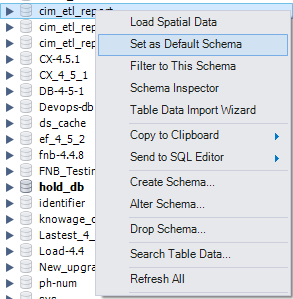
To upgrade first, select the database where you want to run the database script by right-clicking on the database name and “Set as Default Schema”:
-
To upgrade, please proceed to the EFCX deployed machine and copy the upgrade script from there:
To upgrade the database copy the MySQL update script on top of the current historical database from cim-solution/kubernetes/pre-deployment/reportingConnector/dbScripts/dbupdate/historical_reports_db_update_script_MYSQL.sql.sql
-
Paste that into the MySQL Workbench then execute by clicking the
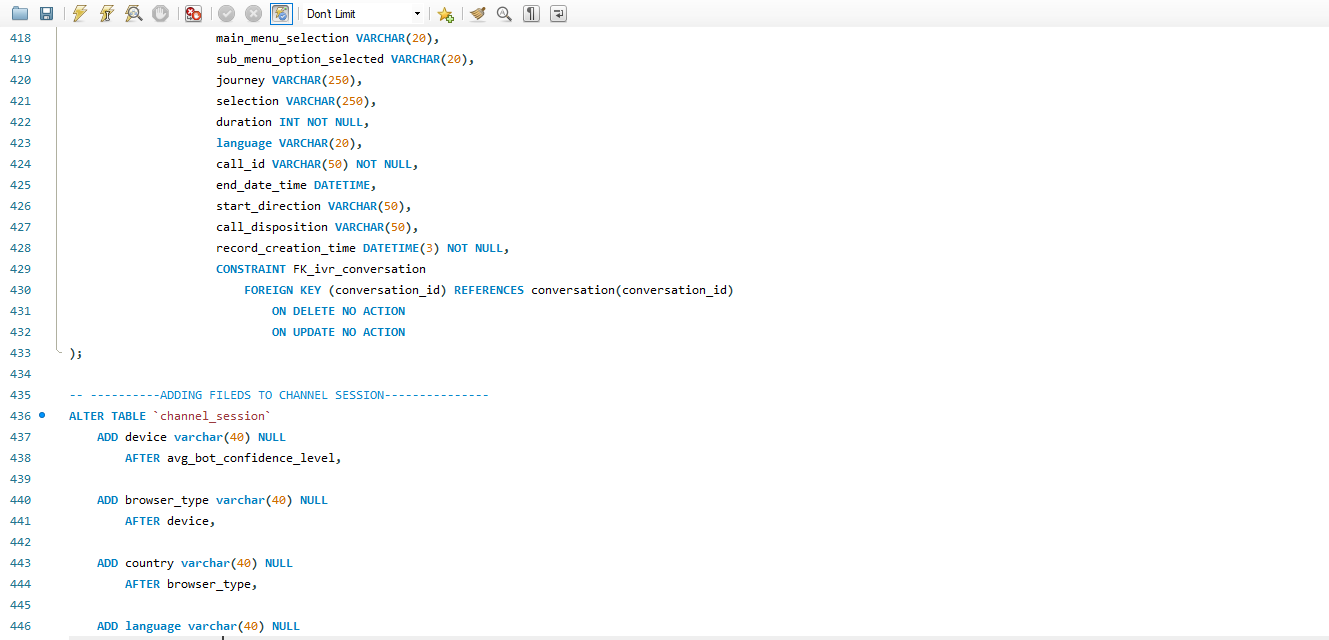
Check the output and any error messages. The output panel will show the outcome of each SQL command in the script, along with any error or warning messages.