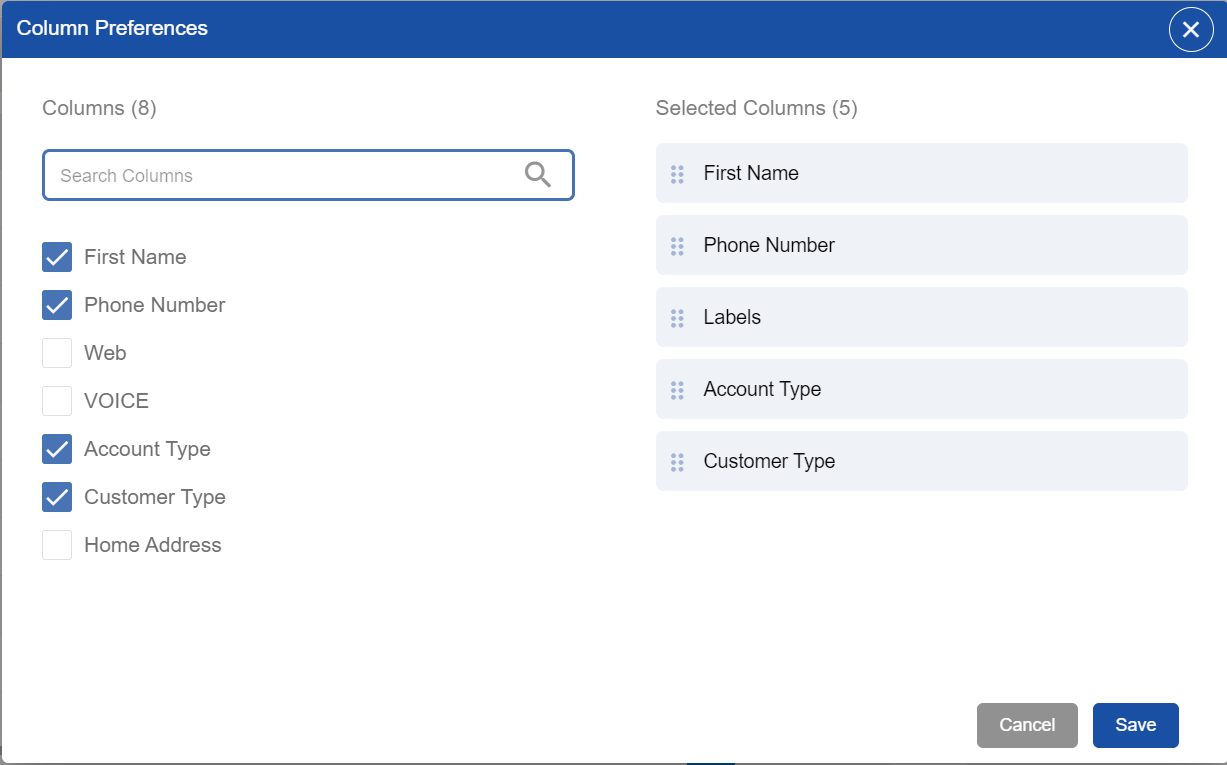
Enables agents to understand the Customer List view and allows agents to set the Column Preferences of their own choice.
Understanding List View
-
All customer fields correspond to the columns here
-
Channel Identifier fields are differentiated with channel icons
-
Drag and move columns to adjust the column's position
-
A filter icon in each column is given to filter the data column-wise
-
Upward and downward arrows in each column are there to sort the data in ascending or descending order
Column Preference
To set preferences, follow these steps:
-
From the menu bar, click the tab of Column Preference
-
The detail view will show the column titles. From here, choose which column want to select.
-
Select the desired column by checking the box.
-
Selected columns will be shown on the right-hand side.
-
Uncheck the boxes which don't want.
The search bar is given at the top under the column heading. From here, one can search whichever column she wants to search.