
A user can only be assigned one team at a time. For example: If user is assigned default team then we shouldn't assign it to any other team until he is removed from default team first.
agents_permission & senior_agents_permission groups are not part of teams. We can assign these groups to any user apart from its team group.
-
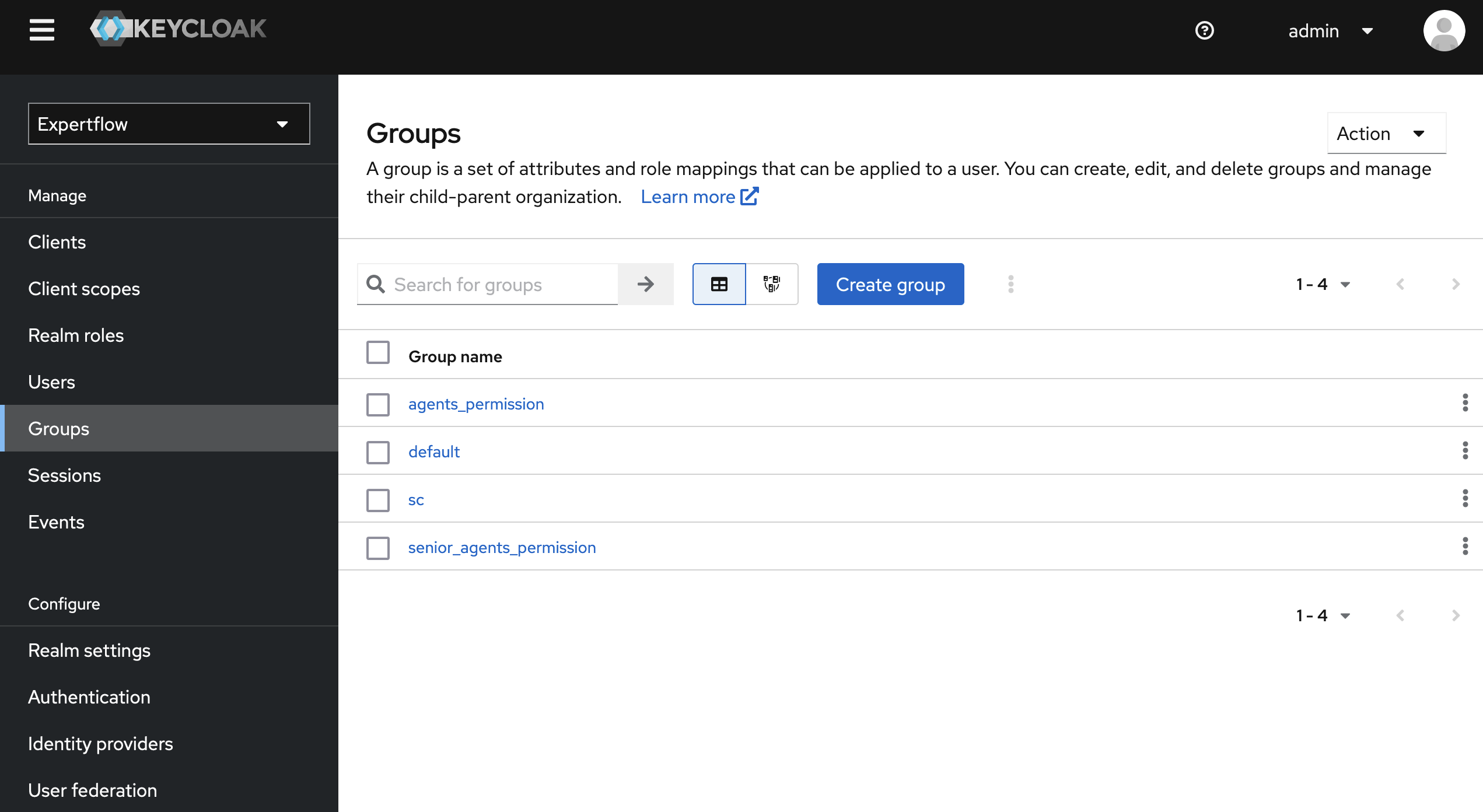
To create a team, click on the Groups tab in Manage section. We will now see a new section with heading User Groups containing all the groups of current Realm.
-
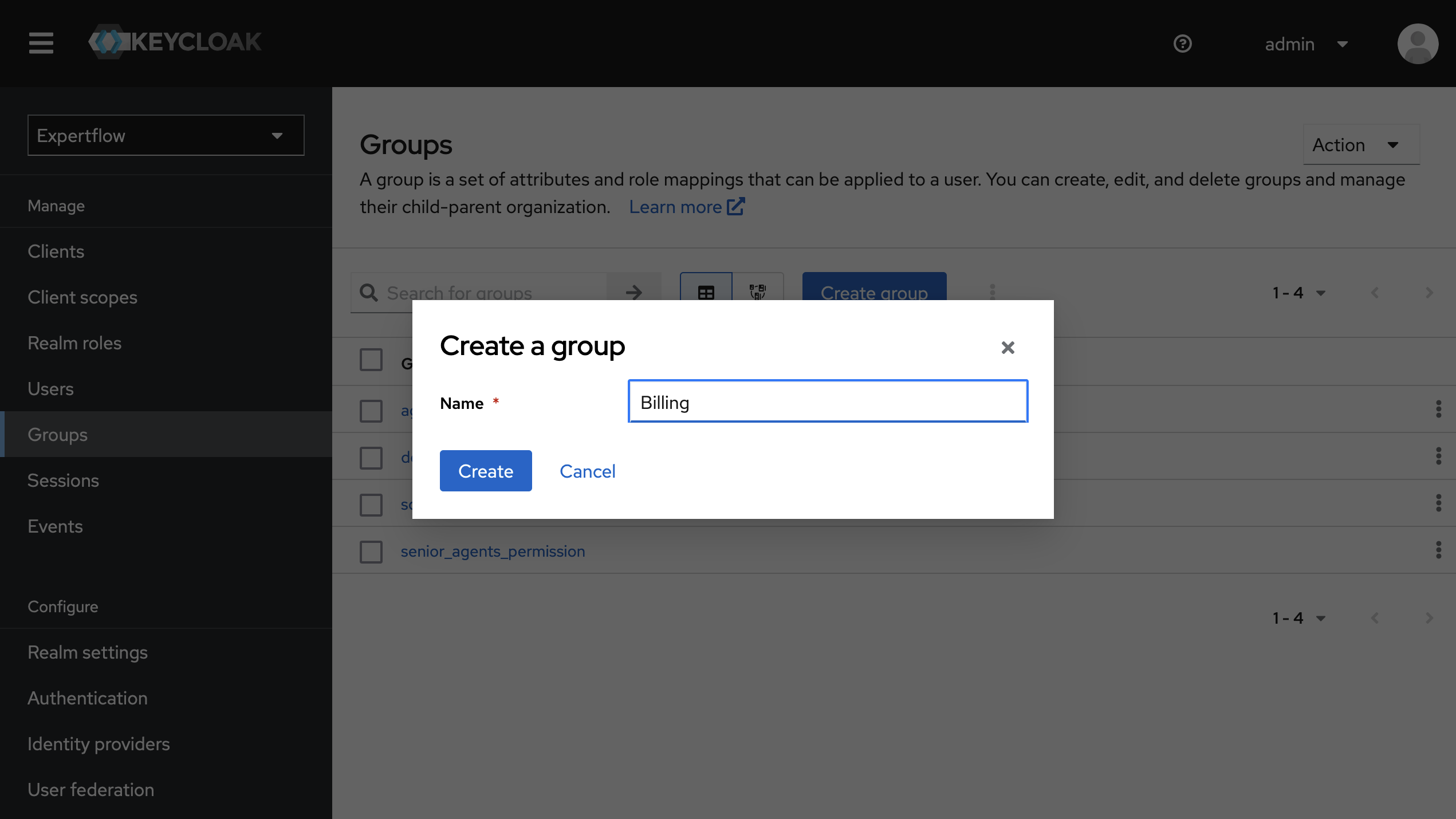
Click on Create Group button to create the team. Enter the team name and Click on Create button
-
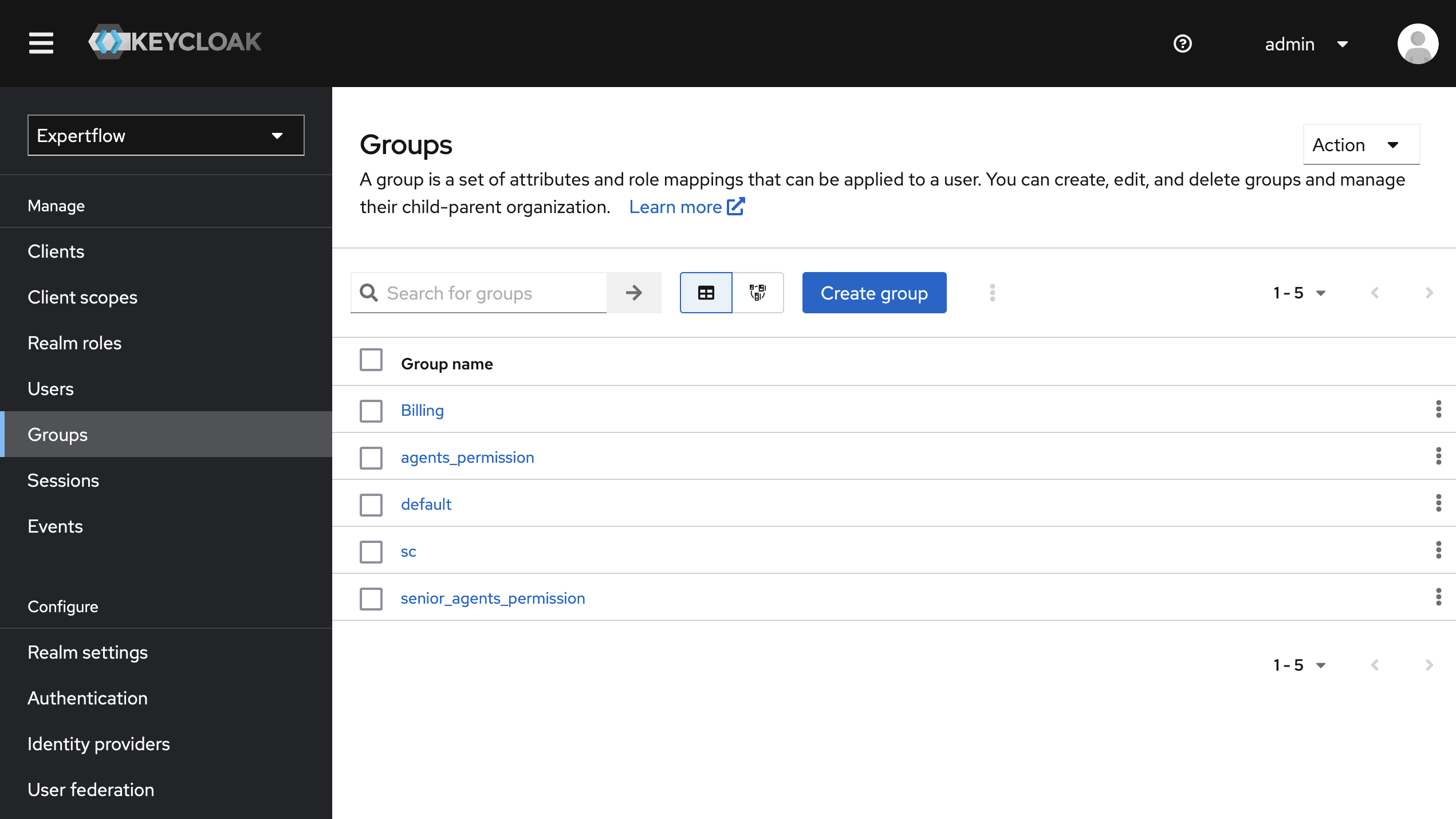
Once the team is created, you should be able to see your team in the interface.
-
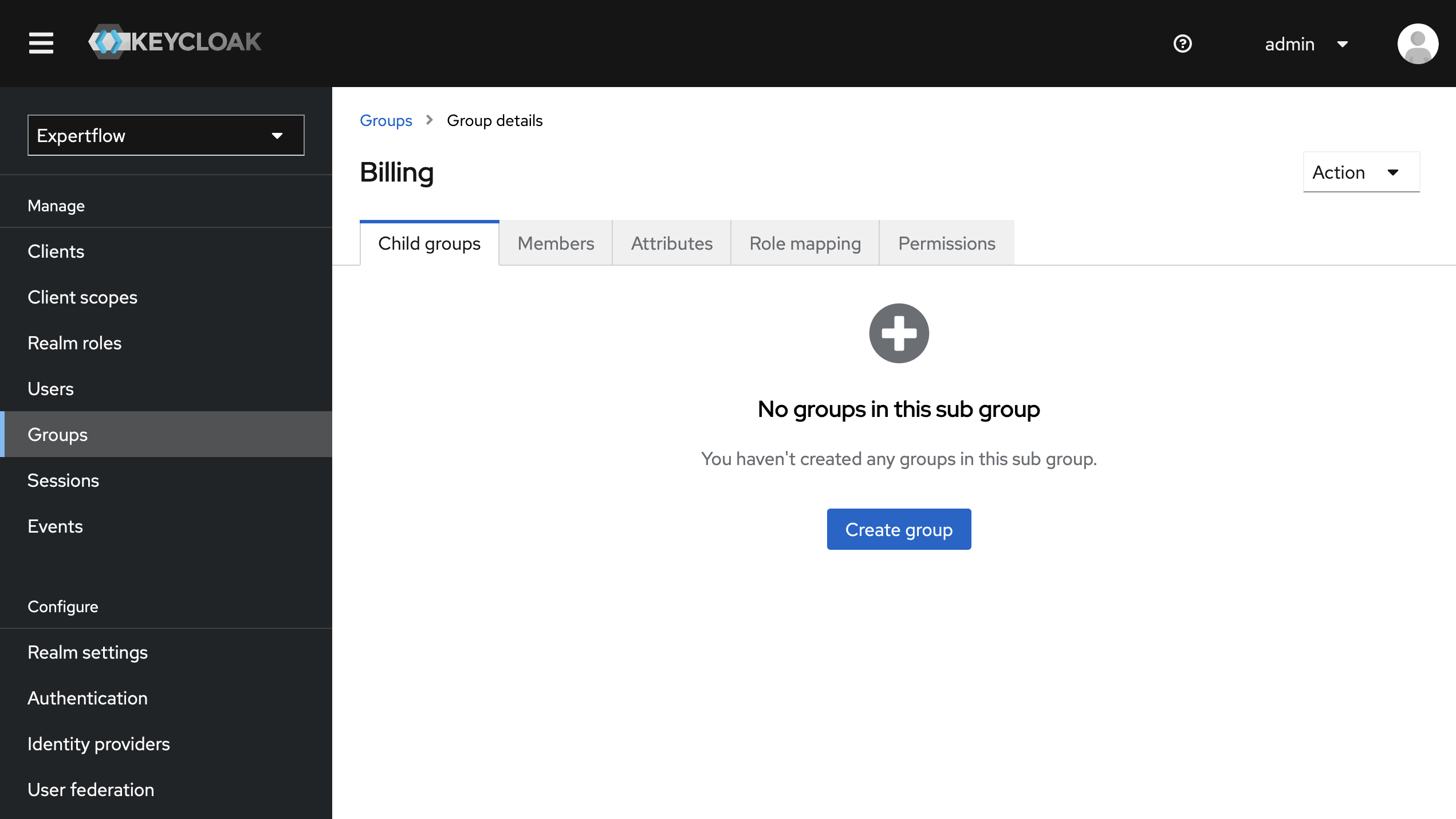
Click on team name. You will routed to the following page.
-
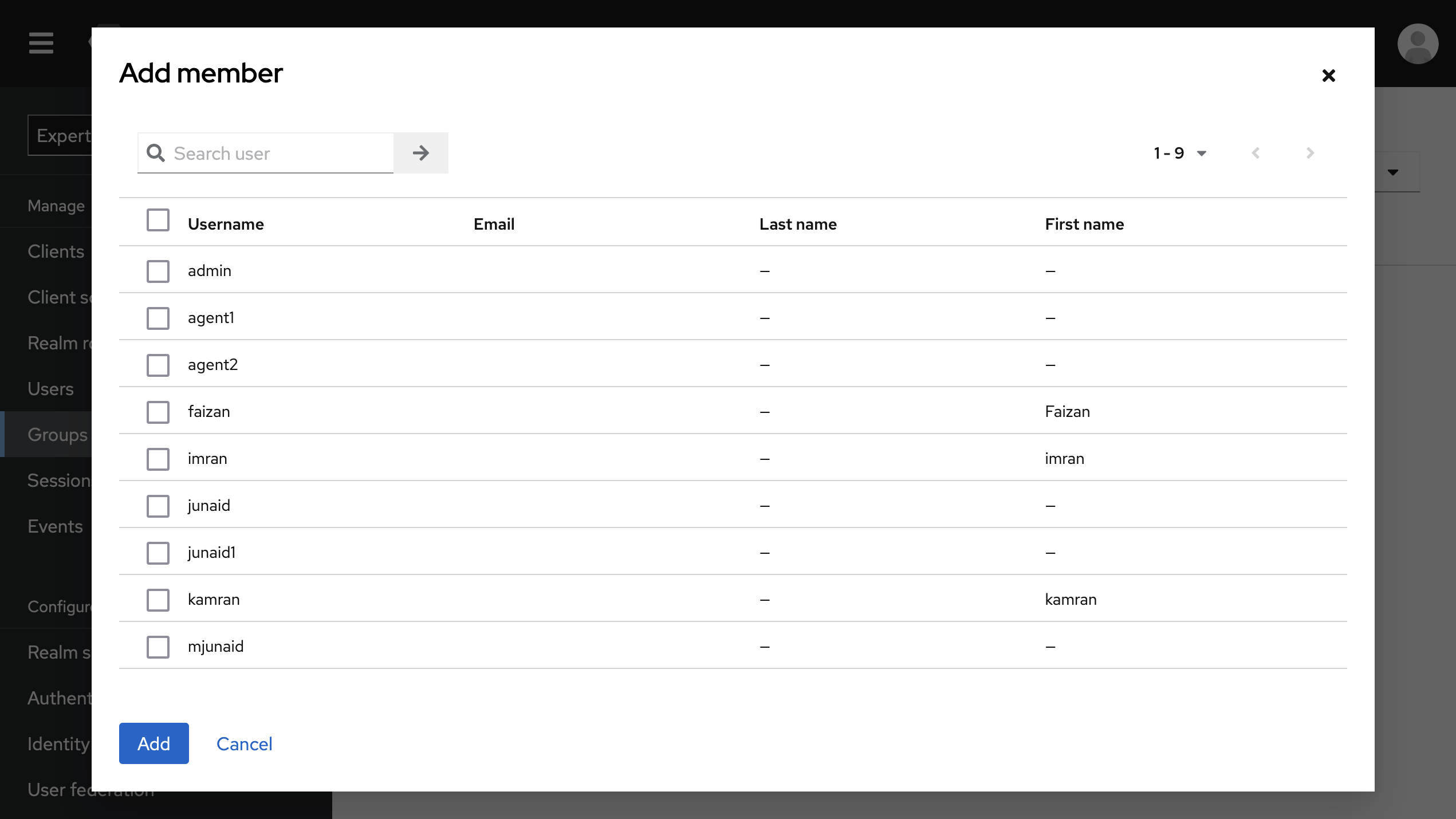
Go to Members tab and click on Add member button.
-
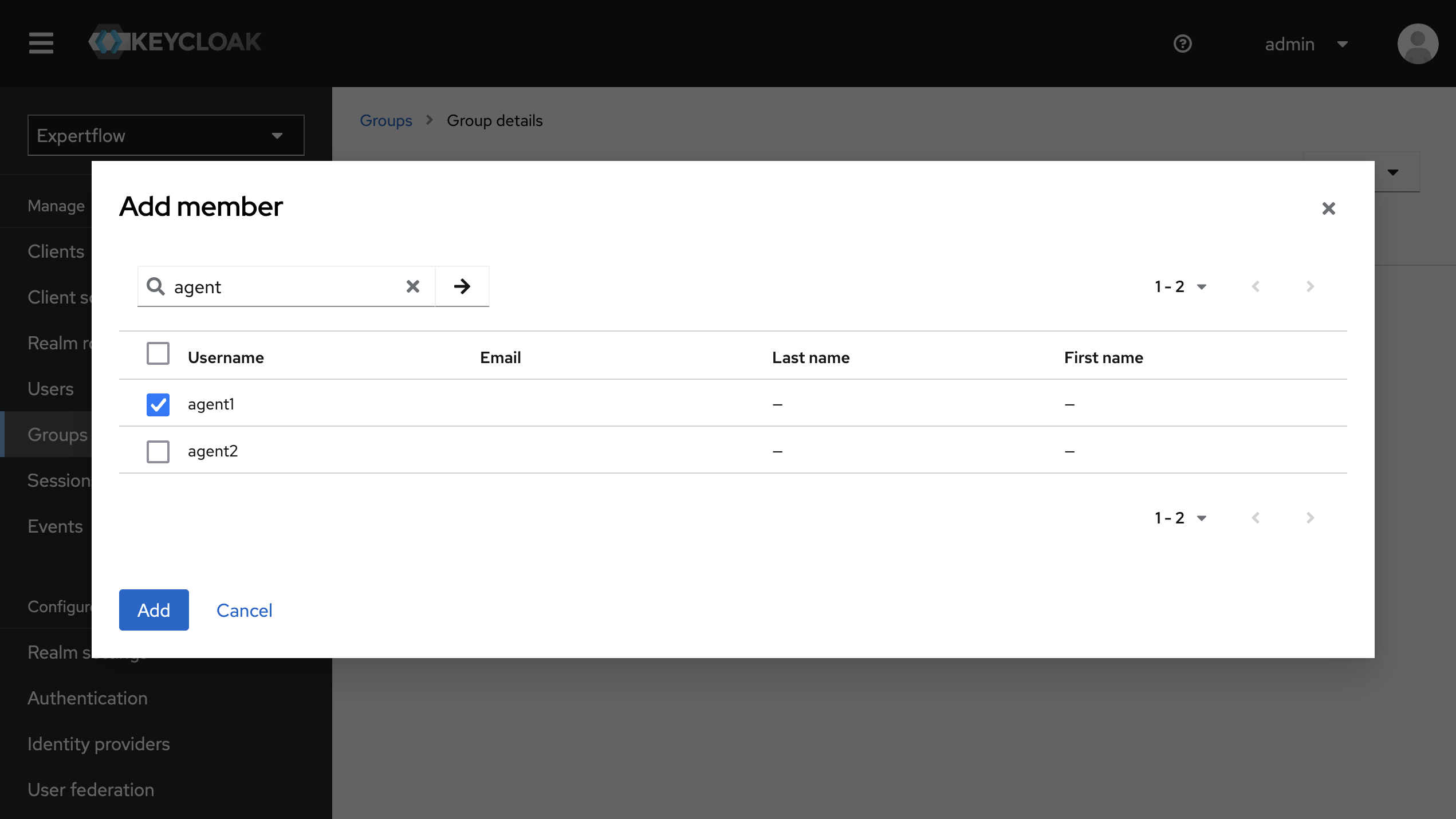
Search the user and select name and click on Add button.
-
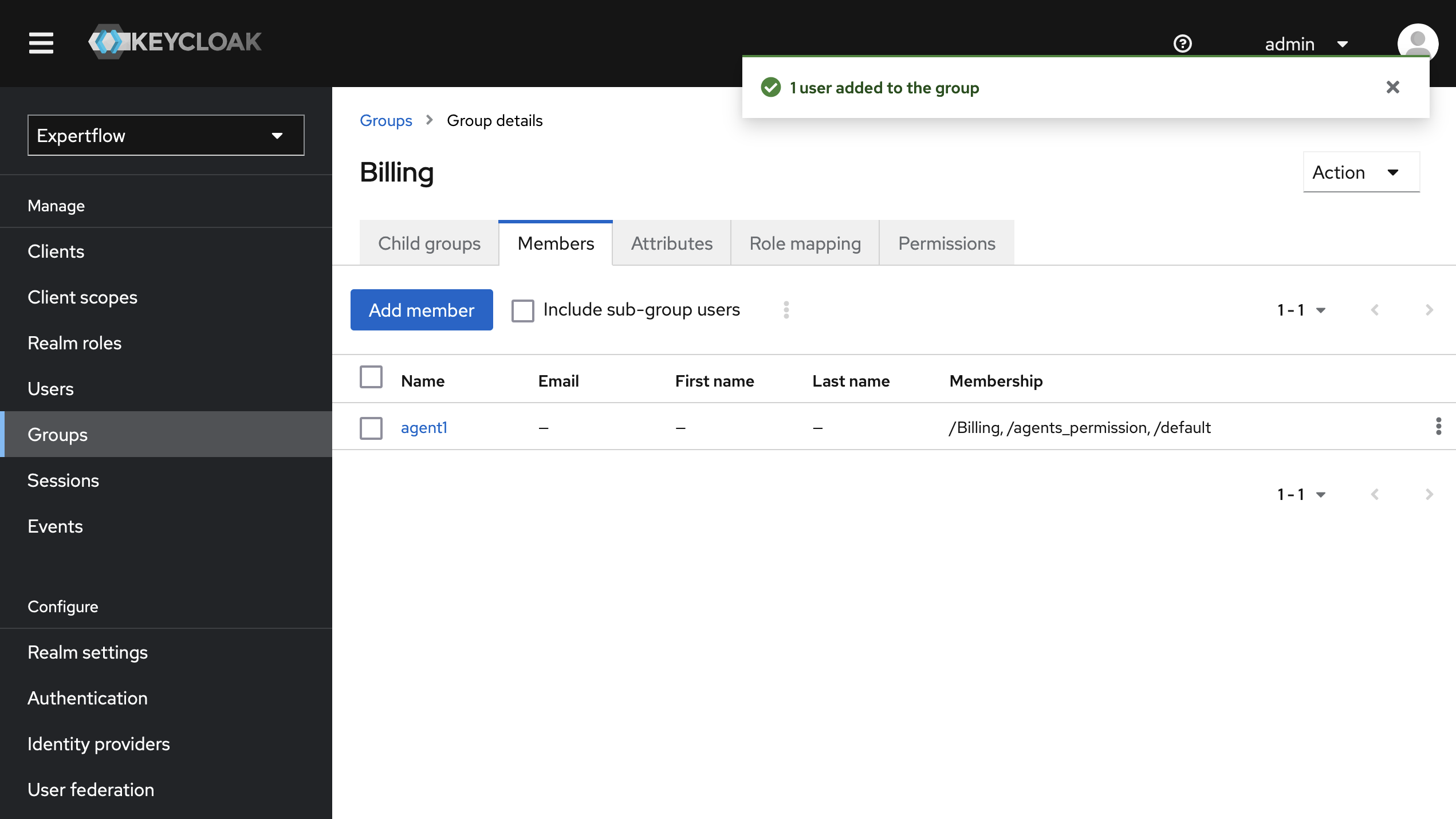
The select user should be shown under in Members tab
-
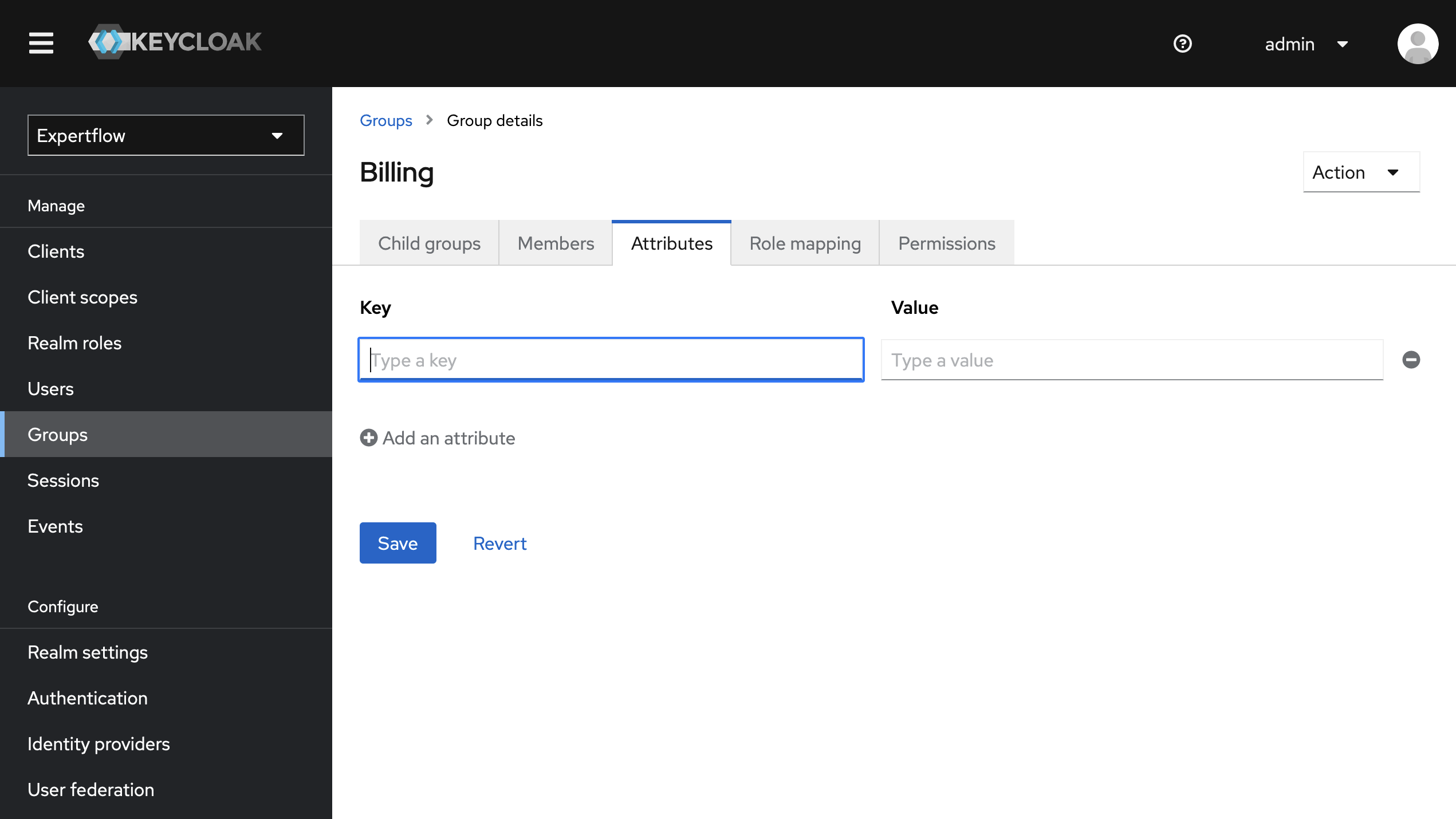
Every team must have a supervisor, to assign a supervisor to team. Click to the Attributes tab.
-
In key text box type "supervisor" and in value enter the Keycloak user name to whoever you want to make the supervisor a this team. If yon want to assign mutiple supervisor to this team, enter the commas separated usernames and click on Save button.
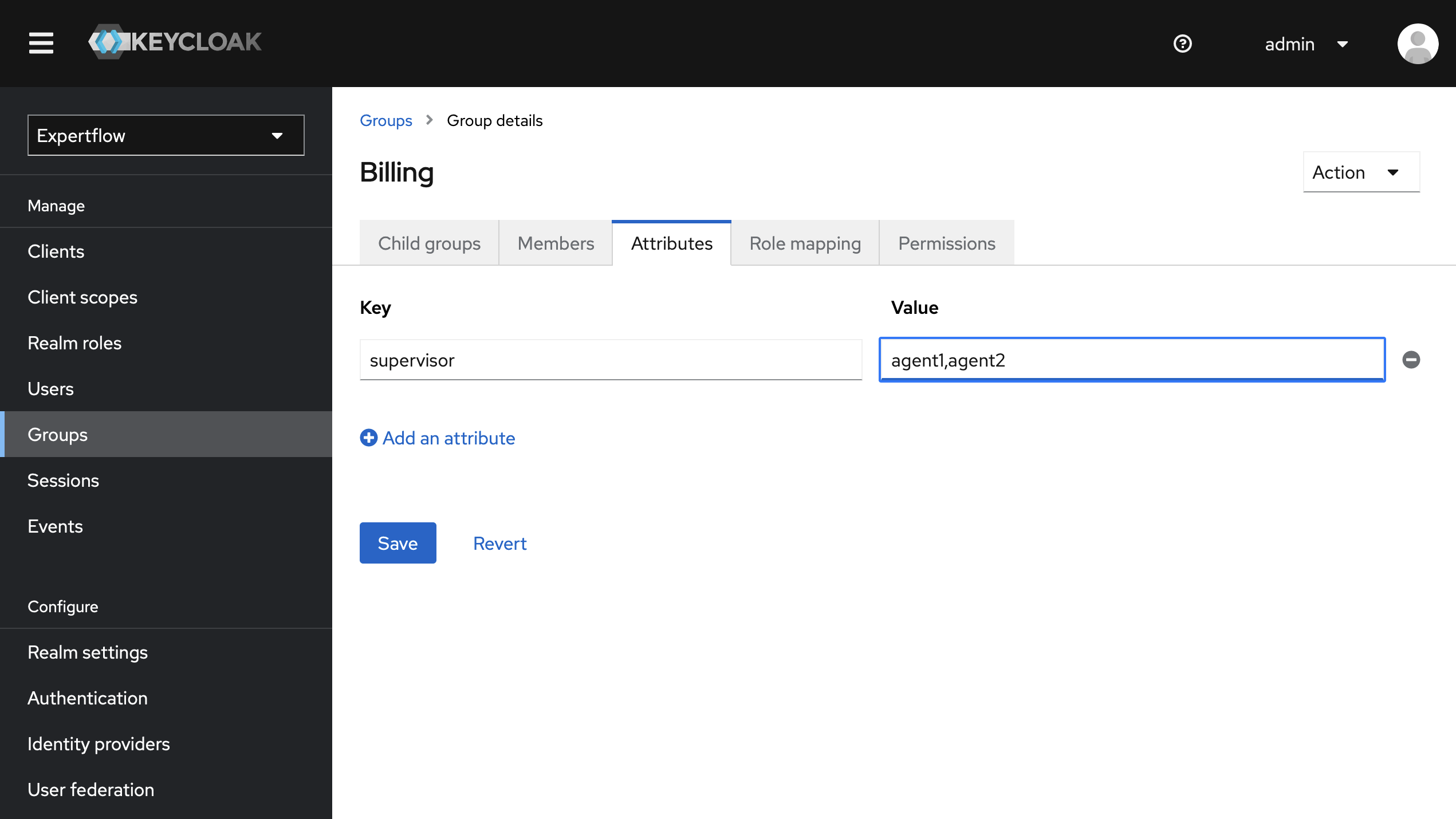
Make sure you enter the exact usernames in values without any spaces.